
Excel Challenges: Master VLOOKUP, Drop-Down Lists, Frozen Rows & More
Master excel challenges with step-by-step guides on VLOOKUP, drop-down lists, merging cells & frozen rows. 💡 Practice quizzes included.

Excel challenges come in all shapes and sizes, from wrestling with a stubborn VLOOKUP excel formula that returns #N/A errors to figuring out how to freeze a row so your headers stay visible while you scroll through thousands of records. Whether you are a complete beginner or a seasoned analyst, the spreadsheet software that powers offices worldwide has a way of presenting new puzzles every day. The good news is that every challenge has a clear, learnable solution, and working through these excel challenges one by one is the fastest path to genuine spreadsheet confidence.
Many users first encounter friction when they try to organize large datasets. Tasks like learning how to merge cells in excel, creating structured layouts, or setting up data validation rules can feel overwhelming without a roadmap. The reality is that each of these skills builds on a small set of core concepts — cell references, ranges, and function syntax — so once you understand the foundation, the advanced features become far more approachable than they first appear.
Understanding how to create a drop down list in excel is a game-changer for anyone who manages data entry forms or shared workbooks. Drop-down lists enforce consistency by restricting input to a predefined set of choices, which eliminates typos and keeps your data clean. The feature lives in the Data Validation dialog and takes less than two minutes to configure once you know where to look, yet it saves hours of error-correction downstream.
Knowing how to freeze a row in excel is equally transformative for productivity. When you are working with a table that has 500 rows of sales data, losing sight of your column headers every time you scroll down is a genuine obstacle. Excel's Freeze Panes feature, found under the View tab, pins any row or column in place so your reference labels are always visible, no matter how far you scroll. It sounds simple, but this single trick eliminates a category of frustration that plagues new users for months.
Formula mastery is where many users draw a firm line between themselves and power users. Functions like VLOOKUP, INDEX-MATCH, SUMIFS, and COUNTIFS feel intimidating at first because they require precise syntax and a clear mental model of how Excel looks up and aggregates data. But once you understand the logic — lookup value, table array, column index, match type — the formula practically writes itself. The investment in learning these functions pays off in minutes saved every single working day.
Beyond individual functions, Excel challenges often involve knowing which tool to reach for in a given situation. Should you use a PivotTable or a SUMIFS formula? Should you merge cells or use Center Across Selection? Should you freeze rows or split the window? These judgment calls separate competent users from expert ones, and they can only be developed through deliberate practice and exposure to real-world scenarios.
This guide walks through the most common Excel challenges US professionals face, providing clear explanations, practical tips, and pointers to practice quizzes that will sharpen your skills faster than any textbook. By the time you finish, you will have a concrete action plan for tackling every challenge on the list and the confidence to know that Excel's complexity is always conquerable with the right approach.
Excel Proficiency by the Numbers

The Most Common Excel Challenges You Will Face
VLOOKUP, HLOOKUP, INDEX-MATCH, and XLOOKUP are the backbone of data retrieval in Excel. Most users struggle with incorrect column indexes, approximate vs. exact match settings, and understanding why #N/A errors appear when data types don't align.
Creating controlled input forms using drop-down lists prevents data entry errors and enforces consistency across shared workbooks. Challenges include dynamic list ranges, dependent drop-downs, and applying validation to entire columns without slowing the file.
Merging cells, freezing rows and columns, adjusting row heights, and using Center Across Selection are common pain points. Understanding when to merge versus when to use formatting-only alternatives is critical to maintaining formula compatibility.
PivotTables let you summarize millions of rows in seconds, but drag-and-drop field placement, calculated fields, and refresh behavior trip up users regularly. Knowing when a PivotTable beats a SUMIFS formula is a key skill benchmark.
Errors like #REF!, #DIV/0!, #VALUE!, and #NAME? each have specific causes and fixes. Learning to use the Evaluate Formula tool and the IFERROR wrapper function turns error-debugging from a frustrating guessing game into a structured diagnostic process.
The VLOOKUP excel formula is arguably the single most searched Excel topic on the internet, and for good reason — it solves one of the most common real-world data problems: finding a value in one table and pulling related information from another. The basic syntax is =VLOOKUP(lookup_value, table_array, col_index_num, [range_lookup]). Each argument serves a specific purpose, and misunderstanding any one of them leads to errors that can take hours to debug if you don't know what to look for.
The lookup_value is the piece of data you are searching for — a product ID, employee name, or ZIP code, for example. The table_array is the range that contains both the search column and the result column. A critical rule here is that the search column must always be the leftmost column of your table_array; if it isn't, VLOOKUP simply cannot find it, and you will need to restructure your data or switch to INDEX-MATCH instead. This constraint is one of VLOOKUP's most notorious limitations.
The col_index_num tells Excel which column within the table_array to return. If your table has employee names in column A, department in column B, and salary in column C, and your table_array is A:C, then col_index_num 2 returns department and col_index_num 3 returns salary. A common mistake is hardcoding this number and then inserting a new column into the table, which silently shifts the index and returns the wrong data without any error message — a dangerous failure mode in financial models.
The range_lookup argument is a boolean that most users ignore until it burns them. Setting it to FALSE (or 0) forces an exact match, which is almost always what you want when looking up IDs, names, or codes. Setting it to TRUE (or 1) enables approximate match, which requires the first column to be sorted in ascending order and returns the closest value that is less than or equal to your lookup value. Using TRUE accidentally when you meant FALSE is a frequent source of incorrect results that look plausible but are factually wrong.
INDEX-MATCH is the professional alternative that overcomes VLOOKUP's leftmost-column restriction. The combination =INDEX(return_range, MATCH(lookup_value, search_range, 0)) achieves the same result but can look left as well as right, handles column insertions gracefully because you reference ranges rather than column numbers, and is generally faster on large datasets. Many Excel power users recommend learning INDEX-MATCH from the start and treating VLOOKUP as a legacy function.
Excel's newer XLOOKUP function, available in Microsoft 365, simplifies the syntax dramatically. =XLOOKUP(lookup_value, lookup_array, return_array) eliminates the table_array concept entirely, defaults to exact match, and can search from bottom to top, handle multiple results, and return custom messages when no match is found. If your organization uses Microsoft 365, XLOOKUP is worth learning as your primary lookup tool, with VLOOKUP as a fallback for compatibility with older Excel versions.
Debugging lookup errors starts with checking data types. A number formatted as text will never match a genuine number, and trailing spaces in cells are invisible but fatal to exact matches. Use the TRIM function to strip whitespace and the VALUE function to convert text-numbers before running your lookup. The F2 key lets you step into a formula and evaluate it piece by piece, which is invaluable when nested functions produce unexpected results across hundreds of rows.
How to Create a Drop Down List in Excel, Merge Cells & Freeze Rows
To create a drop-down list in Excel, select the cell or range where you want the list to appear, then go to the Data tab and click Data Validation. In the Allow dropdown within the dialog, choose List, then type your options separated by commas in the Source field, or reference a named range from another part of your workbook. Click OK and the cell now displays a small arrow that reveals your predefined choices when clicked, preventing any other input from being entered.
For dynamic drop-down lists that grow automatically when new items are added to your source list, convert your source data into an Excel Table using Ctrl+T before referencing it. Table ranges expand automatically when new rows are added, so your validation list updates without any manual intervention. This approach is especially valuable in shared workbooks where multiple users add items to a reference list over time. You can also create dependent drop-down lists where the options in one cell change based on what was selected in another cell, using INDIRECT and named ranges to link the two validation dialogs together.

Pros and Cons of Investing Time in Excel Skill-Building
- +Dramatically increases productivity — skilled Excel users complete data tasks 3-5x faster than beginners
- +High transferability across industries including finance, marketing, operations, healthcare, and education
- +Excel skills are verifiable through certifications like the Microsoft Office Specialist exam
- +Reduces dependency on IT or data teams for routine reporting and analysis tasks
- +Enables automation via macros and VBA for repetitive workflows that would otherwise consume hours daily
- +Strong salary premium — Excel-proficient roles in the US pay 10-20% more on average than comparable positions without the requirement
- −Steep learning curve for advanced features like Power Query, DAX, and VBA scripting
- −Excel files are not version-controlled by default, creating collaboration risks in multi-user environments
- −Large workbooks with many formulas can become slow and unstable, especially on older hardware
- −Merged cells and manual formatting can break sorting, filtering, and PivotTable functionality silently
- −Excel is not designed for true database management — row limits, relational integrity, and concurrency are all constraints
- −Knowledge becomes outdated as Microsoft adds new functions (XLOOKUP, LET, LAMBDA) that older training does not cover
Excel Skills Mastery Checklist: 10 Milestones to Hit
- ✓Write a working VLOOKUP formula with exact match (FALSE) and verify the result against the source data manually
- ✓Build a drop-down list using Data Validation referencing a named range that auto-expands with new entries
- ✓Freeze both the top row and the first column simultaneously using View > Freeze Panes on a large dataset
- ✓Merge cells for a report title using Merge and Center, then undo it and replicate the look with Center Across Selection
- ✓Create a PivotTable from a raw dataset and group numeric fields into custom ranges for summary reporting
- ✓Use IFERROR to wrap a VLOOKUP formula so it displays a custom message instead of #N/A when no match is found
- ✓Write a SUMIFS formula with at least two criteria ranges, then verify the output against a filtered SUM
- ✓Record a macro that applies consistent formatting to a report and assign it to a keyboard shortcut
- ✓Use Conditional Formatting to highlight cells above or below a threshold, then edit and delete the rule cleanly
- ✓Convert raw data to an Excel Table with Ctrl+T and practice filtering, sorting, and referencing structured table columns in formulas
Practice on Real Data, Not Toy Examples
The fastest way to move from beginner to competent Excel user is to apply each new skill — VLOOKUP, drop-down lists, frozen rows — to a real dataset that matters to you, such as a personal budget, a work report, or a sales log. Toy examples in tutorials demonstrate syntax, but real data forces you to handle messy inputs, missing values, and unexpected formats, which is where genuine learning happens. Set a goal of solving one genuine work problem with each new Excel feature you learn.
Advanced Excel challenges move beyond individual functions into the territory of connected systems, automation, and dynamic reporting. Power Query, available natively in Excel 2016 and later, is a data transformation engine that lets you import data from dozens of sources — CSV files, databases, web pages, SharePoint lists — and apply repeatable cleaning steps without writing a single formula. Once you learn to use Power Query, manual data preparation tasks that used to take an hour can be refreshed with a single click.
PivotTables paired with PivotCharts represent another tier of Excel power that many intermediate users never fully explore. A well-constructed PivotTable can summarize a million-row dataset into a meaningful executive dashboard in under five minutes. The key insight is that PivotTables are not just for counting and summing — they support running totals, percentage of total, rank, and custom calculated fields. Combined with slicers and timeline filters, you can build interactive reports that let non-technical stakeholders explore data themselves without touching a formula.
Conditional formatting is one of Excel's most visually impactful features and one of the most underused by intermediate users. Beyond simple highlight rules, you can build data bars, color scales, and icon sets that turn columns of numbers into instantly readable visual indicators. The real power comes from using custom formulas in conditional formatting rules, which lets you highlight entire rows based on a value in any column — for example, highlighting all rows where a project's status is "Overdue" in red, even though the status column is five columns to the right of the formatted range.
Excel's array formulas and newer dynamic array functions like FILTER, SORT, UNIQUE, and SEQUENCE represent the cutting edge of spreadsheet functionality. The FILTER function, for instance, returns a filtered subset of a range based on one or more criteria without any helper columns or VBA code. UNIQUE extracts a deduplicated list from a range. SEQUENCE generates a series of numbers automatically. These functions spill their results into adjacent cells automatically, which is a paradigm shift from the single-cell outputs of traditional Excel formulas.
Named ranges and Excel Tables are organizational features that significantly improve formula readability and reduce errors. Instead of writing =SUMIF(A2:A500, "North", C2:C500), you can write =SUMIF(Region, "North", Sales) using named ranges. Excel Tables take this further by automatically naming each column and expanding ranges when new rows are added, which means formulas that reference table columns never break when data grows. This structural discipline is especially important in workbooks shared across a team.
Keyboard shortcuts are the hidden multiplier for all other Excel skills. Power users navigate workbooks almost entirely without a mouse, using Ctrl+Arrow to jump to the edge of data ranges, Ctrl+Shift+Arrow to select them, F4 to lock cell references, Alt+= to AutoSum, and Ctrl+D or Ctrl+R to fill down or right. Learning twenty core shortcuts can easily save thirty minutes per day for a heavy Excel user, compounding to over a hundred hours saved per year. The investment in memorizing them pays back faster than almost any other productivity improvement.
Protecting workbooks and worksheets is an advanced challenge that is critical in professional environments. Excel lets you lock specific cells so only certain ranges are editable, protect sheet structure so tabs cannot be added or deleted, and password-protect the entire file for external sharing. Understanding the difference between cell-level protection and workbook-level protection, and knowing how to set them without locking yourself out of your own formulas, is a skill that separates hobbyist users from professionals who build tools for others to use.
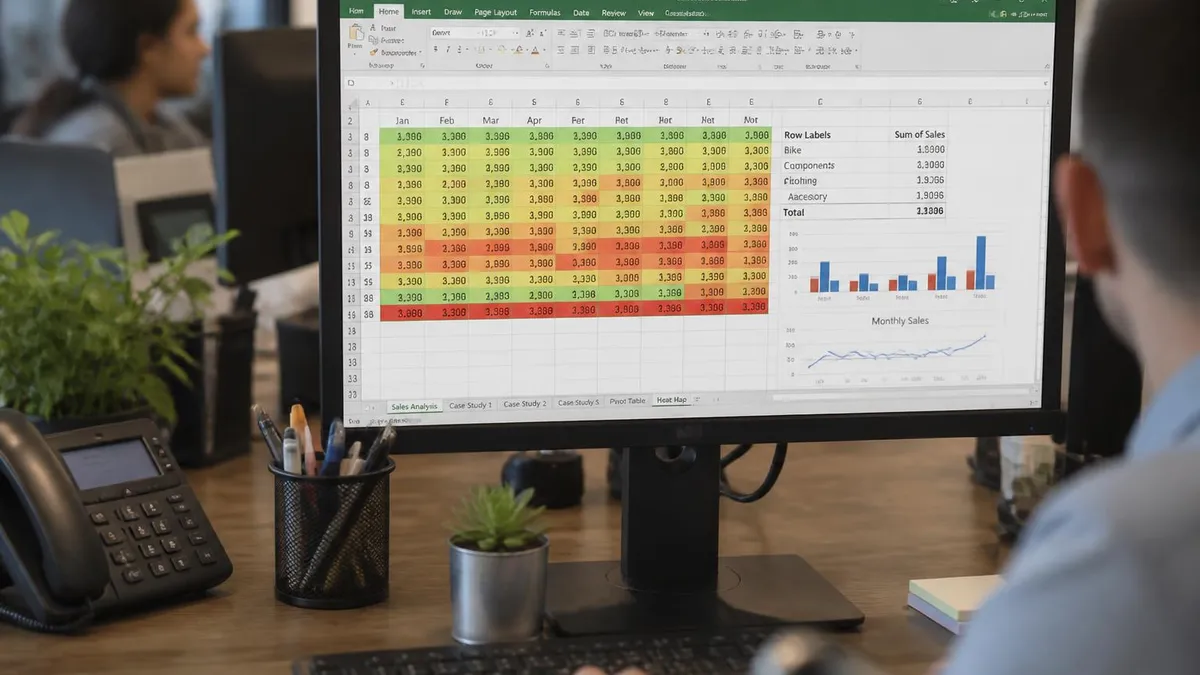
Storing numbers as text is the single most common cause of broken formulas in shared Excel files — use the Data tab's Text to Columns wizard or the VALUE function to convert them before building lookups or calculations. Additionally, never use merged cells in a data table that you plan to sort, filter, or reference in a PivotTable, as merged cells silently break all three features and can cause data loss that is difficult to trace back to its source.
Building a study strategy for Excel is as important as the learning itself. Many users try to learn Excel by watching tutorials passively, which creates an illusion of understanding without building the muscle memory needed to actually apply the skills under pressure. The most effective approach combines a structured curriculum, deliberate practice on real tasks, and regular testing to identify gaps. Setting a weekly goal — such as mastering one new function and completing a practice quiz — creates accountability and ensures forward momentum.
Start with the core four: SUM, IF, VLOOKUP, and COUNTIF. These four functions appear in the vast majority of real-world Excel challenges and form the conceptual building blocks for everything more advanced. Once you can write these from memory, without looking up the syntax, you are ready to tackle SUMIFS, INDEX-MATCH, and PivotTables with confidence. Trying to skip to advanced features before the basics are solid is the most common reason learners plateau and give up.
Practice quizzes are an underrated learning tool for Excel. Reading about how to freeze a row in Excel is useful, but answering a multiple-choice question that requires you to identify the correct menu path under time pressure is a different cognitive task that builds faster recall. Regular quiz practice also reveals exactly which concepts you are fuzzy on, which lets you focus your study time on high-impact gaps rather than re-reading material you already know well.
Working backward from a real deliverable is one of the most effective learning hacks for Excel. If your job requires a monthly sales report, reverse-engineer what formulas, formatting, and features that report requires, then learn those specific skills in depth. This context-driven approach keeps motivation high because you can see the immediate practical payoff of each new skill, and it ensures you build competence in the areas that matter most for your specific role and industry.
Joining the Excel community online accelerates learning dramatically. Reddit's r/excel subreddit, the Microsoft Tech Community forums, and YouTube channels dedicated to Excel tutorials provide answers to specific questions, exposure to creative solutions you would never discover on your own, and a sense of how experts approach unfamiliar problems. Seeing an expert's approach to a real-world challenge in a forum thread often teaches more than a structured course because it shows the reasoning process, not just the solution.
Mock exams and timed practice sessions are essential if your goal is to pass a certification like the Microsoft Office Specialist (MOS) Excel exam. The MOS exam is performance-based, meaning you complete tasks in a live Excel environment rather than answering abstract multiple-choice questions. Practicing under time pressure, with a fresh Excel file and no reference materials, builds the speed and accuracy that the exam demands. Many candidates who know Excel well still fail their first attempt because they have never practiced the specific task-completion format the exam uses.
Tracking your progress through a skills checklist keeps the learning journey from feeling formless. Write down every Excel feature you feel confident using and review the list weekly. Celebrating small wins — the first time you write a SUMIFS formula that works on the first try, or the day you stop reaching for the mouse when navigating large datasets — reinforces the habit of continuous improvement. Remember that Excel mastery is not a destination but a practice, and even expert users encounter new challenges regularly as the software continues to evolve with each new version of Microsoft 365.
When preparing for any Excel assessment or certification, the most practical tip is to focus on speed as well as accuracy. In a professional context, knowing that VLOOKUP exists is not enough — you need to be able to write a correct formula in under thirty seconds, interpret its output, debug an error in under a minute, and explain the logic to a colleague clearly. This level of fluency comes only from repetition, and the best way to build it is through timed practice sessions where you deliberately recreate common scenarios from memory.
Building a personal formula reference sheet is a time-tested strategy among Excel professionals. Keep a running document — or a dedicated Excel tab — that lists every function you have learned, its syntax, a brief description, and a working example. Refer to it when you forget a detail rather than searching the internet, and update it every time you learn something new. This habit reinforces learning through the act of documentation and gives you a tailored reference that reflects your actual work patterns rather than a generic tutorial curriculum.
Understanding Excel's order of operations prevents a class of formula errors that even experienced users encounter. Excel follows standard mathematical precedence: parentheses first, then exponentiation, then multiplication and division, then addition and subtraction. When multiple operators appear in a formula, incorrect assumptions about precedence lead to subtly wrong results. Always use parentheses to make your intended order explicit, even when it is not strictly necessary — the clarity benefit outweighs the minor extra typing.
Data visualization in Excel is an underappreciated skill that transforms raw numbers into compelling narratives. Learning to build clean, accurate charts — choosing the right chart type for your data, removing chartjunk, adding clear labels and a meaningful title — is as valuable as formula knowledge in many professional contexts. A well-designed Excel chart can communicate a trend or comparison to a non-technical audience in seconds, while a table of numbers requires them to do the analytical work themselves.
If your goal is to use Excel for financial modeling, understanding how to build dynamic models with scenario analysis, data tables, and Goal Seek is essential. Data tables in Excel's What-If Analysis tool let you calculate the output of a formula across a range of input values simultaneously, which is invaluable for sensitivity analysis. Goal Seek works in reverse, asking Excel to find the input value that produces a target output — a classic tool for breakeven analysis and loan payment calculations.
Regular maintenance habits keep Excel workbooks healthy over time. Remove unused named ranges that accumulate and clutter the Name Manager. Delete unnecessary sheets and hidden rows or columns that add file size without value. Audit formulas periodically using the Trace Precedents and Trace Dependents arrows in the Formulas tab to verify that your references still point to the right cells after the workbook has been updated. A well-maintained workbook is easier to share, faster to open, and far less likely to produce mysterious errors six months after it was built.
The final and most important piece of advice for conquering Excel challenges is this: embrace the error message. #N/A, #REF!, #VALUE!, and #DIV/0! are not failures — they are Excel communicating precisely what went wrong. Each error code has a specific meaning and a specific fix, and learning to read them fluently turns debugging from a frustrating mystery into a structured diagnostic process. Every expert Excel user has made every possible mistake at some point; what distinguishes them is that they learned from each error rather than getting discouraged by it.
Excel Questions and Answers

Excel to PDF: 5 Ways to Convert Your Spreadsheet

Excel COUNTA Function — Complete Guide (2026)

Excel Cheat Sheet: Formulas, Shortcuts & Quick Reference

How to Create Hyperlinks in Excel: The Complete 2026 Guide to Linking Cells, Sheets, Files, and URLs

How to Use SUMIFS in Excel: The Complete Guide to Multi-Criteria Summing
About the Author

Business Consultant & Professional Certification Advisor
Wharton School, University of PennsylvaniaKatherine Lee earned her MBA from the Wharton School at the University of Pennsylvania and holds CPA, PHR, and PMP certifications. With a background spanning corporate finance, human resources, and project management, she has coached professionals preparing for CPA, CMA, PHR/SPHR, PMP, and financial services licensing exams.