
Excel Skills Test for Job Interviews: Complete Preparation Guide 2026 September
Get ready for your Excel Skills certification. Practice questions with step-by-step answer explanations and instant scoring. 📚

Excel skills tests in job interviews typically last 20 to 60 minutes and evaluate your ability to work with formulas (SUM, VLOOKUP, IF, COUNTIF), create and format PivotTables, build charts, manage data with sorting and filtering, and use conditional formatting. Employers use these tests because self-reported Excel proficiency is unreliable — candidates who claim "advanced Excel skills" often cannot write a basic VLOOKUP. Structured preparation focusing on the 15 most-tested functions and hands-on practice with realistic datasets is the most effective approach.
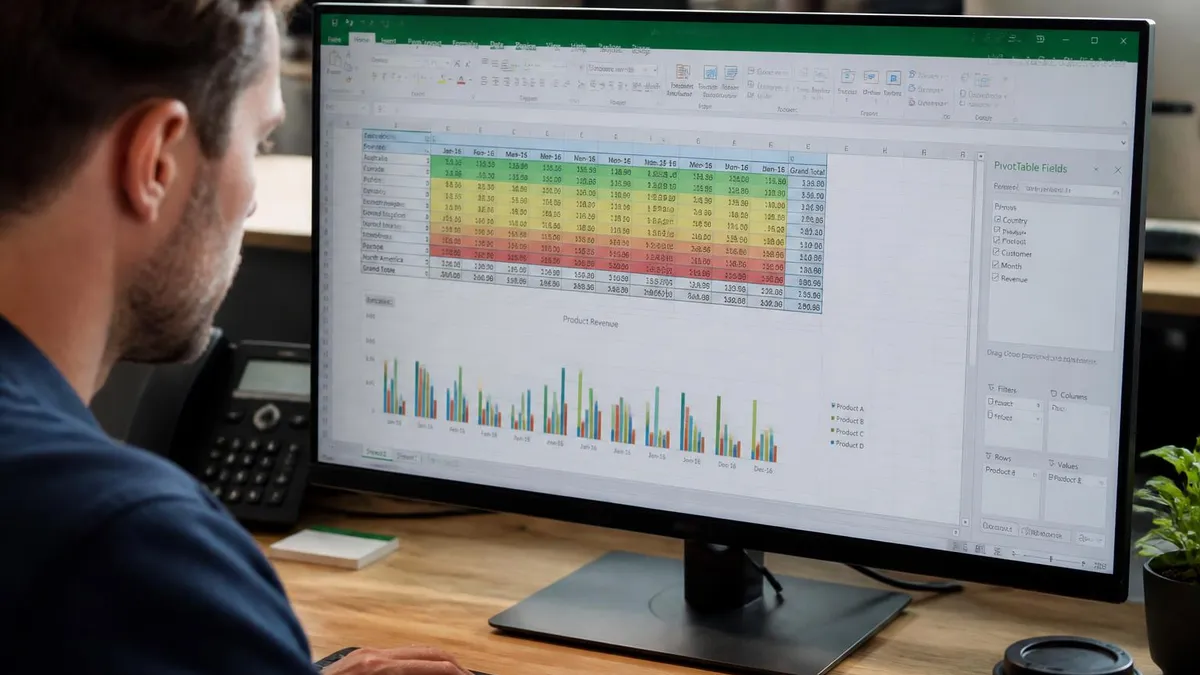
The Microsoft Excel exam uses a multiple-choice format with questions covering all major domains. Most versions allow 2-3 hours for completion.
Questions test both knowledge recall and application skills. A score of 70-75% is typically required to pass.
Types of Excel Tests Employers Use
Understanding the format of the Excel test you will face helps you prepare efficiently. Employers use several different testing approaches, and the type usually correlates with the seniority and technical requirements of the role.
Interactive/Performance-Based Tests
These are the most common format. You receive a spreadsheet with raw data and a list of tasks to complete within a time limit. Tasks might include creating formulas to calculate totals, building a PivotTable to summarize sales data, or formatting a report for printing. Companies like JP Morgan, Deloitte, Accenture, and Goldman Sachs use this format extensively.
Performance-based tests are scored on whether you achieve the correct result AND whether you used the expected method. For example, if a task asks you to use VLOOKUP to retrieve a value, manually typing the answer would receive zero credit even though the result is correct.
Multiple-Choice Knowledge Tests
These tests present questions about Excel functionality, formulas, and features. You select the correct answer from several options. While less common than performance tests for mid-level roles, they are frequently used for entry-level screening when testing hundreds of applicants.
Typical questions include identifying the correct syntax for a formula, predicting the output of a function, or selecting the best chart type for a given dataset.
Take-Home Data Challenges
Some employers, particularly in finance and consulting, send a dataset and ask you to analyze it and present findings. You typically have 24 to 72 hours to complete the challenge. These evaluate not just your Excel technical skills but also your analytical thinking, data interpretation, and presentation abilities.
Common testing platforms employers use:
- Criteria Corp (HireSelect): Used by mid-size companies — 40 questions in 50 minutes covering formulas, charts, and data management
- Indeed Assessments: Integrated into Indeed job applications — 25 to 30 questions in 30 minutes
- Kenexa Prove It: Common in financial services — performance-based tasks in a simulated Excel environment
- iMocha: Adaptive testing that adjusts difficulty based on your responses
- TestGorilla: Growing in popularity — combines knowledge questions with task-based evaluation
Practice identifying your weak areas with the Workbook and Worksheet Management practice test which covers the foundational skills tested across all formats.

Essential Formulas and Functions
The Excel test formulas section is where most candidates either stand out or fall short. Employers consistently test the same core functions because they represent the skills used daily in business roles. Mastering these 15 functions covers approximately 90 percent of what appears on employment Excel assessments.
Lookup Functions (Most Frequently Tested):
- VLOOKUP:
=VLOOKUP(lookup_value, table_array, col_index, FALSE)— Searches the first column of a range and returns a value from a specified column. Always use FALSE for exact match in job tests. VLOOKUP is the single most tested function in employment assessments. - INDEX/MATCH:
=INDEX(return_range, MATCH(lookup_value, lookup_range, 0))— More flexible than VLOOKUP because it can look left and handles column insertions without breaking. Many employers specifically test whether candidates know INDEX/MATCH as an indicator of advanced proficiency. - XLOOKUP:
=XLOOKUP(lookup_value, lookup_array, return_array)— The modern replacement for VLOOKUP available in Excel 365 and 2026. Some tests now include XLOOKUP, but VLOOKUP knowledge remains essential since many companies use older Excel versions.
Conditional Functions:
- IF:
=IF(condition, value_if_true, value_if_false)— Tests a condition and returns different values based on the result. Nested IF statements (IF within IF) are commonly tested for intermediate-level positions. - SUMIF/SUMIFS:
=SUMIF(range, criteria, sum_range)— Adds values that meet a condition. SUMIFS handles multiple criteria. Frequently tested for finance and accounting roles. - COUNTIF/COUNTIFS:
=COUNTIF(range, criteria)— Counts cells meeting a condition. Often paired with SUMIF questions to test conditional analysis skills. - AVERAGEIF:
=AVERAGEIF(range, criteria, average_range)— Calculates average for values meeting a condition.
Text Functions:
- CONCATENATE/CONCAT/TEXTJOIN: Combine text from multiple cells — frequently tested for data cleaning tasks
- LEFT/RIGHT/MID: Extract portions of text strings — common in data processing scenarios
- TRIM: Remove extra spaces — essential for data cleaning, often tested as part of a multi-step problem
Date Functions:
- TODAY/NOW: Return current date or date-time
- DATEDIF: Calculate difference between dates — commonly tested for HR-related Excel assessments
- YEAR/MONTH/DAY: Extract components from dates for grouping and analysis
Test your formula knowledge with the Data Visualization with Charts practice test which includes formula-driven chart scenarios that mirror real employment assessments.
- ✓Confirm your exam appointment and location
- ✓Bring required identification documents
- ✓Arrive 30 minutes early to check in
- ✓Read each question carefully before answering
- ✓Flag difficult questions and return to them later
- ✓Manage your time — don't spend too long on one question
- ✓Review flagged questions before submitting

Pivot Tables, Charts, and Data Analysis
After formulas, PivotTables and charts are the most heavily weighted sections on Excel employment tests. These skills demonstrate your ability to transform raw data into actionable business insights, which is the core reason employers require Excel proficiency.
PivotTable Skills Employers Test:
- Creating a PivotTable from raw data: Select the data range, insert PivotTable, choose fields for rows, columns, values, and filters. This is the most basic PivotTable task and appears on nearly every intermediate-level Excel assessment.
- Modifying value field settings: Changing from Sum to Count, Average, or other aggregations. Understanding when to use Count vs Sum is a common test differentiator.
- Grouping dates: Grouping a date field by month, quarter, or year to show trends. Many candidates fail this task because they do not know the right-click grouping method.
- Adding calculated fields: Creating new fields within the PivotTable using formulas (e.g., Profit = Revenue - Cost). This is tested for finance and analyst roles.
- Filtering and sorting: Using report filters, slicers, and value sorting to isolate specific data segments.
- Refreshing data: Knowing that PivotTables do not update automatically when source data changes — you must refresh manually or set auto-refresh.
Chart Skills Employers Test:
- Choosing the right chart type: Column/bar for comparison, line for trends over time, pie for composition (limited to 5-7 categories), scatter for correlation. Selecting an inappropriate chart type is a common error that costs marks.
- Formatting charts professionally: Adding titles, axis labels, data labels, and legends. Removing gridlines and chart junk for clean presentation. Using consistent color schemes.
- Creating combo charts: Combining column and line charts on the same axes (e.g., revenue as columns, profit margin as a line). This is an advanced skill tested for analyst and management roles.
- Dynamic chart ranges: Using named ranges or tables so charts automatically include new data. Demonstrates understanding of scalable workbook design.
Data management skills also tested:
- Sorting and filtering: Multi-level sorting (sort by department, then by name within each department) and custom filters
- Removing duplicates: Using the Remove Duplicates feature on the Data tab — often tested as a data cleaning step before analysis
- Conditional formatting: Highlight cells based on rules (top 10, above average, data bars, color scales). Common for roles requiring dashboard creation.
- Data validation: Creating dropdown lists and input restrictions to ensure data quality
Test Day Strategies and Common Mistakes
Knowing Excel is necessary but not sufficient to score well on an Excel test. Test-taking strategy makes a significant difference, especially under time pressure. These techniques are based on patterns from the most common employer assessment platforms.
Time management strategy:
- Quick scan first: Spend the first 60 to 90 seconds scanning all tasks. Identify easy wins (formatting, basic formulas) and complex tasks (PivotTables, nested functions). Complete easy tasks first to secure those points.
- Budget your time: For a 30-minute test with 20 tasks, that is 90 seconds per task. If a task takes more than 3 minutes, flag it and move on. Return to flagged tasks if time permits.
- Leave formatting for last: If the test includes both functional tasks (formulas, PivotTables) and formatting tasks (cell colors, borders, fonts), prioritize the functional tasks. Formatting is usually worth fewer points.
Common mistakes that cost candidates the most points:
- Hardcoding values instead of using formulas: If a task says "calculate the total," typing the number manually will score zero even if the number is correct. Always use formulas.
- Using the wrong lookup function: Using VLOOKUP when the lookup column is to the right of the return column. Switch to INDEX/MATCH or XLOOKUP in these cases.
- Forgetting absolute references: When copying formulas down a column, failing to lock reference cells with $ signs causes incorrect results in subsequent rows.
- Not pressing Enter: Leaving a formula in edit mode (the formula bar still shows the formula being typed) before moving to the next task. The formula is not saved until you press Enter.
- Incorrect PivotTable field placement: Putting a text field in the Values area defaults to Count, which may not match what the task requires. Always check the aggregation type.
- Not reading instructions completely: Tasks often have specific requirements buried in the description — "round to 2 decimal places" or "sort in descending order" — that are easy to miss when rushing.
Preparation checklist for the week before your test:
- Complete at least 3 full-length timed practice sessions
- Review all 15 core functions until you can write each from memory
- Practice creating PivotTables from scratch in under 3 minutes
- Build at least 5 different chart types with full formatting
- Review keyboard shortcuts — Ctrl+Shift+L, Ctrl+T, Alt+=, F4, Ctrl+1
- Take the Data Visualization with Charts practice test and the Workbook and Worksheet Management practice test to verify your readiness
For comprehensive practice across all Excel skill domains, visit the Excel Practice Test Exam page.
Test-takers who complete the CELSA and wish to demonstrate higher-level proficiency often go on to prepare with the TOEFL Practice Test 2026 for university and professional placement purposes.
Many readers pair this guide with the ms excel download free to check their readiness before exam day.
Many readers pair this guide with the excel latest version to check their readiness before exam day.
Many readers pair this guide with the excel exam practice to check their readiness before exam day.
Excel Skills Pros and Cons
- +Structured Microsoft study guides organize all required content in exam-aligned order, reducing time spent identifying what to study
- +Combining review guides with practice questions provides both content knowledge and test-taking fluency
- +Focused study plans allow candidates to allocate more time to weak areas rather than reviewing already-mastered content
- +Free and low-cost study resources mean comprehensive preparation is accessible at any budget level
- +Spaced repetition techniques (Anki, regular review sessions) significantly improve long-term retention of tested facts
- −No single study guide covers all tested content optimally — most candidates need 2–3 resources for complete preparation
- −Study guides can become outdated quickly when exam content is updated; verify edition currency before purchasing
- −Self-study requires self-discipline; candidates without structured external accountability often underallocate preparation time
- −Coverage breadth in comprehensive guides can create false confidence — recognizing content is not the same as answering questions correctly under timed conditions
- −Study time estimates in guides often assume ideal conditions; real preparation time is typically 30–50% longer due to life disruptions
Excel Test Questions and Answers
About the Author

Senior Cloud Architect & Cybersecurity Certification Trainer
Stanford UniversityDavid Chen holds a Master of Science in Computer Science from Stanford University and has earned over 25 professional certifications across AWS, Microsoft Azure, Google Cloud, cybersecurity, and enterprise architecture domains. He works as a solutions architect and now focuses on helping IT professionals pass cloud, security, and technical certification exams.