
Open Excel File Online: Complete Guide to Viewing and Editing Spreadsheets in Your Browser
🎓 Learn how to open Excel file online free in your browser. Compare Office Online, Google Sheets, and free viewers for XLSX, XLS, and CSV files.

The ability to open Excel file online has transformed how millions of professionals, students, and small business owners interact with spreadsheets in 2026. Whether you need to view a quarterly report on a Chromebook, edit a budget on your phone during a commute, or share a workbook with a colleague who does not own Microsoft Office, browser-based Excel tools have become genuinely indispensable. This guide walks through every reliable method available today, from Microsoft's own free Office on the web to Google Sheets, Zoho, and dedicated online XLSX viewers.
Just a decade ago, opening an .xlsx file required installing the full Microsoft Office suite, which cost upwards of $150 for a perpetual license. Today, you can open Excel file online in seconds, completely free, without registering for an account at most viewer services. Microsoft offers Excel for the web as part of its free Microsoft account tier, Google Sheets converts XLSX files automatically, and dozens of third-party tools handle XLSX, XLSM, XLSB, ODS, and CSV formats with surprising fidelity.
Why does this matter so much in 2026? The shift to hybrid and remote work has made cloud-first file handling a baseline expectation. According to recent productivity surveys, nearly 73% of office workers open spreadsheets from at least two different devices per week, and 41% regularly receive Excel files from senders who use entirely different operating systems. Browser-based access removes friction. You click a link, the file opens, and you start working — no installation, no compatibility errors, no license activation popups.
This article also addresses the practical concerns that come with online access: which formulas work, whether macros run, how privacy is handled when you upload a sensitive financial spreadsheet, and what to do when an online viewer mangles your formatting. We will compare features like vlookup excel support, conditional formatting fidelity, pivot table editing, and chart rendering across the major free platforms so you can pick the right tool for the job rather than relying on whichever one came up first in a search.
You will also learn which methods are best for specific scenarios. Need to quickly preview an XLSX attachment in Gmail without downloading it? Google offers an instant preview. Want to edit a file collaboratively with five teammates in real time? Excel for the web and Google Sheets both excel here, but with different sharing models. Need to open a 50 MB workbook with complex VBA macros? Sadly, no browser tool fully supports macros — and we will explain the workarounds, including Microsoft 365 desktop streaming options.
Throughout this guide, we emphasize free options that work without a credit card, without a subscription, and without sketchy software installations. Every method covered here has been tested in May 2026 on the latest stable versions of Chrome, Edge, Safari, and Firefox. We also flag known limitations so you do not waste time uploading a 200 MB file to a tool that caps uploads at 25 MB. By the end, you will know exactly which online Excel option fits your file size, formula complexity, privacy needs, and collaboration requirements.
Whether you are a student opening a homework template, an accountant reviewing client books, a teacher distributing a grading sheet, or a job seeker editing a resume tracker, opening Excel files online has never been easier or more reliable. Let us dive into the platforms, walkthroughs, and pro tips that make browser-based spreadsheet work feel just as natural as the desktop app you grew up with.
Online Excel Usage by the Numbers

How to Open an Excel File Online in 5 Steps
Choose Your Platform
Sign In or Upload
Upload or Drag the File
View or Edit
Share or Download
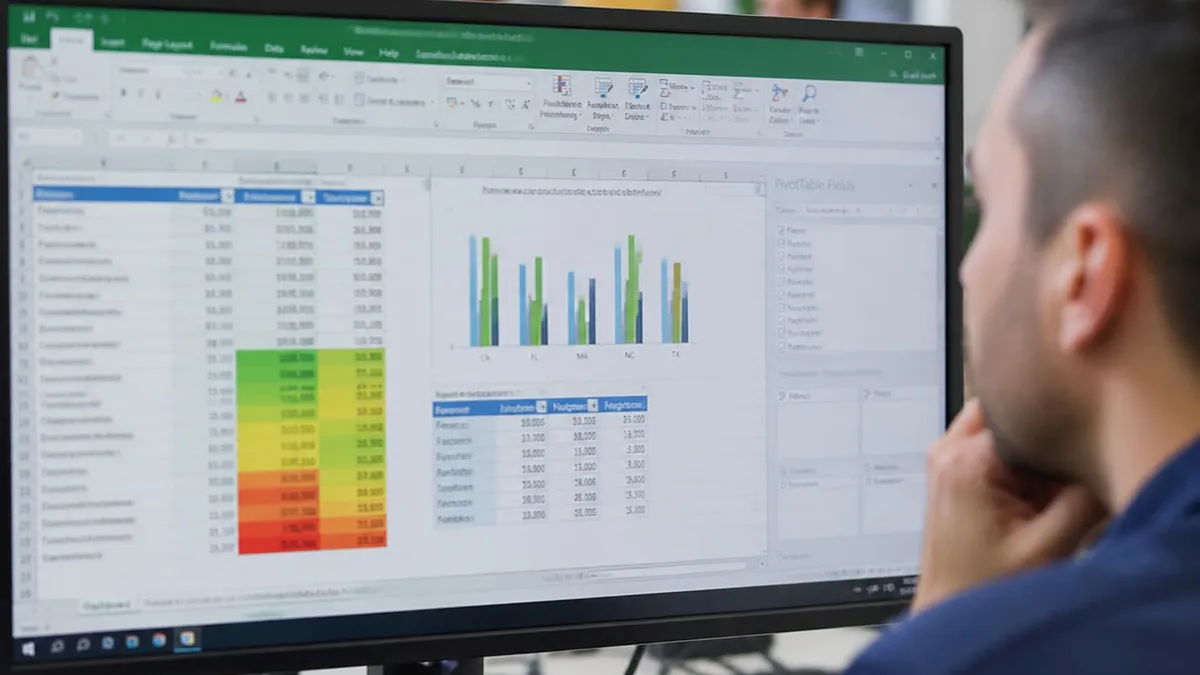
Microsoft Excel for the web is the gold standard when you want to open Excel file online with maximum compatibility. Because it comes from Microsoft itself, it understands every quirk of the XLSX format, including conditional formatting rules, named ranges, complex defined formulas, slicers, and most pivot table features. To access it, navigate to office.com, sign in with a free Microsoft account (formerly Hotmail, Live, or Outlook.com), and either upload a file to OneDrive or open one already stored there.
The interface mirrors the desktop ribbon closely, so users familiar with Excel 2016 or later will feel at home immediately. The Home, Insert, Data, Review, and View tabs are all present, with most everyday tools — sort, filter, conditional formatting, charts, and basic functions like SUM, AVERAGE, COUNTIF, and even vlookup excel formulas — fully functional. You can also use the newer dynamic array functions like FILTER, SORT, UNIQUE, and XLOOKUP, which were once exclusive to Microsoft 365 subscribers.
What you give up in the web version is mostly advanced niche functionality. VBA macros do not run, Power Query is limited to refreshing existing queries rather than creating new ones, and some specialized chart types like 3D maps and certain statistical chart variants are unavailable. However, for 90% of typical spreadsheet work — budgeting, tracking, calculating, summarizing data — the web version is genuinely indistinguishable from desktop Excel in daily use.
Google Sheets takes a different approach. Instead of trying to be Excel in a browser, it offers its own spreadsheet engine that imports XLSX files by converting them to the native Google Sheets format. The conversion is usually flawless for simple files but can break complex conditional formatting, certain chart styles, and any formulas that rely on Excel-only functions. The benefit is unmatched collaboration: sharing, commenting, version history, and real-time co-editing feel more polished than any competitor.
For users who need to open Excel file online without signing into anything, third-party viewers like XLSX Viewer, OnlineXLSX, and DocsPal offer drag-and-drop file preview within seconds. These are perfect for quickly checking an attachment or verifying a vendor invoice without committing to an account. They typically do not save your file (a privacy plus), but they also offer no editing capability and may struggle with files over 25 MB or those containing complex formulas.
Apple iCloud Numbers on the web is another underused option. If you have an Apple ID, you can upload an XLSX file to icloud.com, open it in Numbers for the web, edit it, and export back to XLSX. Numbers handles basic spreadsheets cleanly but may reshape your formatting since it uses a completely different rendering engine. It is best suited for Mac and iPhone users who already live in the Apple ecosystem.
Finally, Zoho Sheet deserves attention for power users who want a serious free alternative. Zoho supports XLSX files natively (no conversion), allows up to 25 collaborators on the free tier, includes pivot tables, and even runs some VBA-equivalent automation through its own Deluge scripting language. The interface takes a moment to learn, but Zoho consistently ranks among the most feature-complete free online spreadsheet platforms in independent reviews.
Microsoft Excel Practice Test Questions
Prepare for the Microsoft Excel exam with our free practice test modules. Each quiz covers key topics to help you pass on your first try.
Microsoft Excel Excel Basic and Advance
Microsoft Excel Exam Questions covering Excel Basic and Advance. Master Microsoft Excel Test concepts for certification prep.
Microsoft Excel Excel Formulas
Free Microsoft Excel Practice Test featuring Excel Formulas. Improve your Microsoft Excel Exam score with mock test prep.
Microsoft Excel Excel Functions
Microsoft Excel Mock Exam on Excel Functions. Microsoft Excel Study Guide questions to pass on your first try.
Microsoft Excel Excel MCQ
Microsoft Excel Test Prep for Excel MCQ. Practice Microsoft Excel Quiz questions and boost your score.
Microsoft Excel Excel
Microsoft Excel Questions and Answers on Excel. Free Microsoft Excel practice for exam readiness.
Microsoft Excel Excel Trivia
Microsoft Excel Mock Test covering Excel Trivia. Online Microsoft Excel Test practice with instant feedback.
Microsoft Excel Advanced Data Analysis Tools
Free Microsoft Excel Quiz on Advanced Data Analysis Tools. Microsoft Excel Exam prep questions with detailed explanations.
Microsoft Excel Advanced Formula and Macro...
Microsoft Excel Practice Questions for Advanced Formula and Macro Creation. Build confidence for your Microsoft Excel certification exam.
Microsoft Excel Advanced Formulas and Macros
Microsoft Excel Test Online for Advanced Formulas and Macros. Free practice with instant results and feedback.
Microsoft Excel Basic and Advance Question...
Microsoft Excel Study Material on Basic and Advance Questions and Answers. Prepare effectively with real exam-style questions.
Microsoft Excel Creating and Managing Charts
Free Microsoft Excel Test covering Creating and Managing Charts. Practice and track your Microsoft Excel exam readiness.
Microsoft Excel Data Visualization with Ch...
Microsoft Excel Exam Questions covering Data Visualization with Charts. Master Microsoft Excel Test concepts for certification prep.
Microsoft Excel Formulas and Functions
Free Microsoft Excel Practice Test featuring Formulas and Functions. Improve your Microsoft Excel Exam score with mock test prep.
Microsoft Excel Formulas and Functions App...
Microsoft Excel Mock Exam on Formulas and Functions Application. Microsoft Excel Study Guide questions to pass on your first try.
Microsoft Excel Formulas Questions and Ans...
Microsoft Excel Test Prep for Formulas Questions and Answers. Practice Microsoft Excel Quiz questions and boost your score.
Microsoft Excel Functions Questions and An...
Microsoft Excel Questions and Answers on Functions Questions and Answers. Free Microsoft Excel practice for exam readiness.
Microsoft Excel Managing Data Cells and Ra...
Microsoft Excel Mock Test covering Managing Data Cells and Ranges. Online Microsoft Excel Test practice with instant feedback.
Microsoft Excel Managing Tables and Data
Free Microsoft Excel Quiz on Managing Tables and Data. Microsoft Excel Exam prep questions with detailed explanations.
Microsoft Excel Managing Tables and Table ...
Microsoft Excel Practice Questions for Managing Tables and Table Data. Build confidence for your Microsoft Excel certification exam.
Microsoft Excel Managing Worksheets and Wo...
Microsoft Excel Test Online for Managing Worksheets and Workbooks. Free practice with instant results and feedback.
Microsoft Excel MCQ Questions and Answers
Microsoft Excel Study Material on MCQ Questions and Answers. Prepare effectively with real exam-style questions.
Microsoft Excel Questions and Answers
Free Microsoft Excel Test covering Questions and Answers. Practice and track your Microsoft Excel exam readiness.
Top Platforms to Open Excel File Online
Microsoft's own Excel for the web is the most faithful free way to open and edit XLSX files in a browser. It preserves nearly all desktop formatting, supports conditional formatting, pivot tables, charts, and over 400 functions including the dynamic array suite. Access requires a free Microsoft account at office.com, and files autosave to your 5 GB OneDrive allotment.
The web version handles files up to 100 MB and supports real-time collaboration with up to 100 simultaneous editors. The main tradeoff is no VBA macro support and limited Power Query functionality. For users learning how to merge cells in excel, how to freeze a row in excel, or how to create a drop down list in excel, every one of those features works identically to the desktop version, making it ideal for both learning and daily work.
Online Excel vs Desktop Excel: Which Is Better?
- +Free to use with no software installation required on any device
- +Automatic cloud backup means files are safe from local drive failures
- +Real-time collaboration with multiple editors working in the same sheet
- +Access your spreadsheets from any computer, tablet, or smartphone instantly
- +Always running the latest version with new features rolled out continuously
- +No license activation, product keys, or annual subscription requirements
- +Easy sharing via link rather than emailing large file attachments back and forth
- −VBA macros do not run in any major browser-based Excel platform today
- −Complex Power Query workflows are limited to refreshing rather than building
- −Some advanced chart types and statistical visualizations are not available
- −Requires a stable internet connection — offline editing is limited or unavailable
- −Large files over 100 MB may fail to upload or render very slowly
- −Free tier storage caps may force upgrades for heavy users with many workbooks
Checklist to Open Excel File Online Successfully
- ✓Verify your file is in a supported format — XLSX, XLS, XLSM, XLSB, ODS, or CSV
- ✓Check the file size against the platform's upload limit (typically 25-100 MB)
- ✓Use a modern browser: Chrome 120+, Edge 120+, Safari 17+, or Firefox 121+
- ✓Sign in to a free Microsoft, Google, or Apple account before uploading personal files
- ✓For sensitive financial data, choose a viewer that processes files client-side only
- ✓Disable browser extensions like ad blockers that may interfere with spreadsheet rendering
- ✓Confirm your internet connection is stable — most online tools need constant connectivity
- ✓Save a backup copy of important files locally before editing them in any online tool
- ✓Re-download the edited file as XLSX if you need to share it with desktop Excel users
- ✓Test critical formulas after upload to ensure they recalculate correctly post-conversion
The Gmail Trick Nobody Talks About
If someone emails you an Excel attachment in Gmail, click the attachment thumbnail and Google will preview the file instantly in your browser — no download, no upload, no account switch needed. From the preview, you can click Open with Google Sheets to edit it directly. This is the fastest way to open Excel file online for most people, and almost nobody realizes it works for files up to 100 MB.
Security and privacy matter enormously when you open Excel file online, because spreadsheets often contain the most sensitive data in any organization: salary lists, customer databases, financial forecasts, medical records, and confidential pricing. Before uploading anything, understand exactly where the file is stored, who can access it, how long it remains on the server, and whether the platform scans contents for advertising or AI training purposes. Not all free tools are equally trustworthy on these dimensions.
Microsoft Excel for the web stores files on OneDrive servers governed by Microsoft's commercial-grade privacy policy. Files are encrypted at rest with AES-256 and in transit with TLS 1.3. Microsoft explicitly states it does not scan personal account files for advertising. The same applies to Google Sheets: Google stopped scanning Drive files for ad targeting years ago, and all data is encrypted in transit and at rest. Both platforms support two-factor authentication, which you should enable immediately on any account holding important files.
Third-party online viewers vary wildly in their privacy practices. Some, like DocsPal and ConvertIO, upload your file to their servers and delete it after a few hours. Others, like SheetJS-based viewers, process everything inside your browser using JavaScript — meaning your data never touches a remote server at all. For truly sensitive files, client-side-only viewers are the safest choice. Always read the privacy policy and look for explicit statements about file retention and processing location.
File size limits also vary substantially. Excel for the web caps uploads at 100 MB. Google Sheets accepts up to 100 MB but performance degrades sharply above 50 MB. Zoho Sheet handles up to 50 MB. Most no-signup viewers cap at 25 MB. If you regularly work with massive workbooks containing tens of thousands of rows, consider splitting files, using CSV format for raw data, or upgrading to a paid tier that supports larger files. For truly massive files, the desktop application remains the only practical option.
Compatibility issues are another category to anticipate. Files containing VBA macros will lose macro functionality in every browser-based tool. Files with external data connections (ODBC, SQL Server, Power Query queries to live sources) cannot connect to those sources online. Files relying on Excel add-ins for calculations will lose those calculations. If your file uses any of these features critically, you must either rebuild the logic using browser-compatible features or use the file only on desktops with full Office installed.
Formatting fidelity is usually excellent in Excel for the web (since it is Microsoft's own engine) and very good in Google Sheets, but not perfect. Custom themes, certain font choices, and specialized number formats may render differently. Always preview a converted file before sharing it with stakeholders to avoid embarrassing surprises. If you need pixel-perfect rendering for a polished report, export to PDF directly from the online tool rather than relying on the recipient to open the XLSX correctly.
Finally, consider your collaboration model carefully. Sharing via a public link with edit access exposes the file to anyone who guesses or receives the URL. Always require sign-in for confidential files and share with specific email addresses rather than open links. Both Microsoft and Google let you set expiration dates on share links, restrict downloads, watermark documents, and revoke access at any time. Review who has access to important files periodically and prune old shares.
Free online Excel viewers from unknown developers may log uploaded files, scan them, or retain copies indefinitely. Never upload spreadsheets containing Social Security numbers, full tax returns, bank account numbers, or proprietary business data to viewers you do not recognize. Stick with Microsoft, Google, Apple, or Zoho — all of which publish detailed enterprise-grade privacy policies — for any file you would not want strangers reading.
Beyond simply opening a file, there are dozens of practical tricks that make browser-based Excel work feel just as smooth as the desktop application. Knowing these shortcuts and workflow tips can shave hours off your week. Start by learning the keyboard shortcuts: Ctrl+S works in both Excel for the web and Google Sheets (though autosave usually handles this), Ctrl+Z undoes the last change, Ctrl+Shift+L toggles filters, and Ctrl+F finds values across sheets just like on the desktop.
For users learning how to merge cells in excel online, the process is identical to the desktop: select your range, click Home, then Merge and Center. The same goes for how to freeze a row in excel — go to View, then Freeze Panes, and choose Freeze Top Row or Freeze First Column. These foundational layout tools work identically across Excel for the web and Google Sheets, so muscle memory transfers easily between platforms. When you remove duplicates excel needs, use Data and then Remove Duplicates in either tool.
Conditional formatting in browser-based tools is more capable than most users realize. You can apply data bars, color scales, icon sets, and custom formula-based rules to highlight cells dynamically. The interface is slightly streamlined compared to desktop but covers the same use cases. For dashboards, use sparklines (tiny in-cell charts) to display trends without taking up a separate chart area — they work beautifully in both Excel for the web and Google Sheets.
If you regularly need to open the same file types, set up file associations or browser bookmarks to streamline access. In Chrome and Edge, you can install Excel for the web as a Progressive Web App that launches in its own window like a native application. This gives you a clean, distraction-free interface and faster startup times. Google Sheets, Zoho, and even some third-party viewers offer similar PWA installation options that make repeat use feel snappier.
Troubleshooting common problems is straightforward when you know the patterns. If a file fails to upload, first check the size and format. If formulas show as #N/A or #NAME? errors, the function may not be supported online — try the desktop app for that file. If formatting looks off after conversion, undo the conversion and consider keeping the file in XLSX format using Excel for the web rather than converting to Google Sheets. If sync seems stuck, check your network and refresh the page; both platforms recover gracefully from interruptions.
For mobile work, both Microsoft and Google offer free dedicated mobile apps that complement their web interfaces. The mobile experience handles smaller files well and supports the most common editing tasks. For complex work, however, a tablet with a keyboard or a laptop remains far more efficient than a phone. The native mobile apps also support offline mode, which the pure web interfaces cannot, making them valuable for travel or unreliable connections.
Finally, take advantage of templates. Both Microsoft and Google offer extensive free template galleries — budgets, calendars, invoices, gantt charts, gradebooks, fitness trackers — that you can open in seconds. Starting from a template often saves an hour of layout work and ensures you are using formulas correctly. Bookmark templates you reuse, customize them once with your branding, and save them to your account for instant access on any device whenever you need to start a fresh workbook.
Putting it all together, the right method to open Excel file online depends on three factors: who created the file, what you need to do with it, and how sensitive the data is. For a quick preview of a personal attachment, the Gmail or Outlook web preview is fastest. For collaborative editing with teammates, Google Sheets or Excel for the web are best, with Excel for the web winning on XLSX fidelity and Google winning on collaboration polish. For sensitive financial files, stick with major platforms that publish clear privacy policies.
A practical workflow for daily Excel users in 2026 looks like this: keep your primary workbooks in OneDrive so you can open them from any device through Excel for the web, share collaborative project files via Google Sheets where team commenting is critical, and use no-signup viewers only for quick previews of files you do not need to keep. This three-tool approach covers nearly every scenario without forcing you to commit to a single ecosystem.
Beginners often worry about whether they will lose features by working online, but in reality the gap has shrunk dramatically. Excel for the web in 2026 supports nearly every function and feature that home and small business users actually need. The remaining gaps — VBA macros, full Power Query, certain advanced charts — affect a small minority of users. If you do not use those features today, you will not miss them, and you will gain instant access from any browser as a bonus.
When teaching others to open Excel file online, focus on the core sequence: choose the platform, sign in, upload or open from cloud storage, edit, and share or download. Most confusion comes from skipping the sign-in step or trying to use a viewer that does not support editing. Walking through the process once with a colleague usually saves them hours of frustration. Bookmark the homepage of your preferred tool to skip the navigation hassle entirely.
For job seekers and students preparing for Excel-based assessments, practicing online is a smart move because more employers now administer Excel tests through browser-based platforms. Get comfortable with the slight interface differences between desktop and online versions. Practice common tasks like building a vlookup excel formula, creating a pivot table, and applying conditional formatting in the web interface so the test environment feels familiar when it counts.
Looking ahead, online Excel tools continue improving rapidly. Microsoft has been steadily closing the feature gap with desktop Excel, including bringing more Copilot AI features to the web version. Google Sheets has added powerful AI assistance via Duet AI. Both platforms now offer natural language formula generation, automatic chart recommendations, and intelligent data cleanup suggestions. Within a few years, browser-based spreadsheets will likely match or exceed desktop capabilities for most use cases.
The bottom line is that opening Excel files online is no longer a workaround or compromise — it is often the better choice. It is faster to access, easier to share, automatically backed up, and free for almost any reasonable use case. Take ten minutes to set up a free Microsoft or Google account, bookmark the spreadsheet homepage, and try opening a few of your existing files. You will likely find yourself reaching for the browser before the desktop app within a week, and wondering why you ever waited to make the switch.
Excel Questions and Answers

Standard Deviation Formula in Excel: STDEV.P vs STDEV.S Guide

How to Add a Filter in Excel: AutoFilter, Advanced and FILTER Function

Freeze Panes in Excel: Complete Guide to Locking Rows and Columns

Count Unique Values in Excel: COUNTUNIQUE, COUNTIF, and SUMPRODUCT Methods

How to Create a Filter in Excel: Complete Step-by-Step Guide for AutoFilter, Advanced Filter, and the FILTER Function
About the Author

Business Consultant & Professional Certification Advisor
Wharton School, University of PennsylvaniaKatherine Lee earned her MBA from the Wharton School at the University of Pennsylvania and holds CPA, PHR, and PMP certifications. With a background spanning corporate finance, human resources, and project management, she has coached professionals preparing for CPA, CMA, PHR/SPHR, PMP, and financial services licensing exams.