
How to Add a Filter in Excel: AutoFilter, Advanced and FILTER Function
💯 How to add a filter in Excel using AutoFilter, Advanced Filter and the FILTER function. Shortcuts, wildcards, date filters and slicers explained

Filters in Excel let you hide rows that do not match a condition without deleting any data. Switch a filter on, narrow the view to one supplier or a single date range, then clear it and every record returns. The sheet stays untouched, which is the whole point of filtering instead of sorting or copying rows into a new tab.
Most analysts use filters every day for cleanups, weekly reports, and quick spot checks before sending a file to a manager. The feature ships in every modern version of Excel, so the steps below work in Excel for Microsoft 365, Excel 2021, and the web app.
Adding a filter takes two clicks once data is in a clean table. Click any cell inside the range, open the Data tab, then hit Filter. Excel reads the top row as headers and places small arrow buttons on each column. Click an arrow to see unique values, tick the ones to keep, and the rest disappear from view.
Row numbers on the left turn blue to remind you that some rows are hidden. Press Ctrl + Shift + L to toggle the same filter on or off without touching the ribbon. That shortcut is the fastest way once you remember it.

Filter at a Glance
Fastest path: Click any cell inside your data, press Ctrl + Shift + L, then click the arrow on any column header to tick or untick values. Press Ctrl + Shift + L again to remove the filter when you are finished.
Filter Tools in Excel
Standard dropdown arrows on every column header. Best for quick ad-hoc filtering on a single table, supports text, number, date, and color filters with multi-select tick lists.
Uses a criteria range elsewhere on the sheet. Supports OR conditions across columns and can copy results to a new location, useful for snapshot reports that should not refresh.
Dynamic array formula in Excel 365 and 2021 that returns a live filtered list. Updates instantly as source data changes and combines well with SORT, UNIQUE, and CHOOSECOLS.
Clickable button panels for Tables and PivotTables. Friendly for non-Excel users because every value is visible upfront, and one Slicer can drive several PivotTables.
Adding a Filter: Step-by-Step
- ✓Click any cell inside your data range
- ✓Open the Data tab on the ribbon
- ✓Click the Filter button to add dropdown arrows
- ✓Click a column arrow to tick or untick values
- ✓Use the search box for wildcard matching
- ✓Press Ctrl+Shift+L to toggle filters on and off
Before adding a filter, check three things. First, the top row must contain real headers, not blank cells or merged titles. Second, no fully empty rows can sit inside the range, because Excel treats them as the end of the table. Third, each column should hold a single data type so the menu groups values correctly.
Convert the range to a formal Table with Ctrl + T to bake the filters in. Tables also handle new rows automatically, so future entries get included without re-applying anything. This is the cleanest setup for long-running dashboards.
Filtering text values is the most common task. Click the arrow on a text column, then tick items from the value list or type a word into the search box. The search box accepts wildcards, so jo* matches Joe, John, Joseph, and Johnson in one go.
For more control, open Text Filters and pick Contains, Begins With, or Does Not Contain. To allow several specific values, search for each one and tick Add Current Selection to Filter so the criteria accumulate rather than resetting.
Merged header cells, blank rows inside the range, and mixed data types are the three issues that break Excel filters most often. Fix these before troubleshooting menu options.
Filter by Data Type
Tick values from the list, search with wildcards (jo* matches Joe, John, Joseph), or use the Text Filters submenu for Contains, Begins With, and Ends With. Search box accepts Add Current Selection to Filter for stacking values.
Number filters give you the ranges that finance teams need every week. Click a numeric column arrow, choose Number Filters, then pick from Equals, Greater Than, Between, Top 10, Above Average, or Below Average. The Top 10 dialog is misnamed, it can show any top or bottom count or percent you set.
Above Average uses the average of the visible range, which can shift after you apply other filters earlier in the chain. If the numeric arrow looks like a text filter, your column has numbers stored as text and needs a paste-special multiply by 1 to fix.
Date filters group entries by year, quarter, month, and day automatically. The filter menu expands into a tree so you can tick Q2, March, or every Friday in October without writing a formula. Use Date Filters for This Month, Last Quarter, Year to Date, or Custom for any rolling window the default list does not cover.
Excel only groups dates correctly when the column is true date format. Highlight the column and check the Number Format dropdown on the Home tab, it should read Date or Custom date code, not Text. If it reads Text, convert with DATEVALUE or Text to Columns first.
Right-click any colored cell and choose Filter → Filter by Selected Cell's Color for a one-click shortcut. Works with conditional formatting icon sets too, perfect for isolating flagged or completed rows in a single move.
Convert your range to a Table with Ctrl + T before inserting a Slicer. Slicers will not appear on plain ranges, only Tables and PivotTables can host them.
Filter by color is the quiet feature most users miss for years. If you have applied conditional formatting or manually highlighted certain cells, the filter arrow offers Filter by Color under both text and number filters. Isolate every red cell to review flagged items, then switch to green to confirm finished work.
Filter by font color works the same way. Conditional formatting that uses icon sets also feeds the color filter, so a quick high-medium-low icon scheme becomes a clickable filter with no extra setup once the rule is in place.
Multiple filters stack from left to right and act as AND conditions. A filter on Region for West plus a filter on Product for Widget shows only West Widgets. To express OR across different columns you need the Advanced Filter, which uses a criteria range with column headers that match your data.
List values across rows for OR or across columns for AND, then run Data → Advanced. The Advanced Filter can also copy results to another location, which is handy for weekly snapshots that should not change when the source data is re-filtered later.

Excel Filter Pros and Cons
- +Non-destructive, original data stays intact
- +Fast keyboard shortcut (Ctrl+Shift+L)
- +Works with any data type including dates and colors
- +FILTER function builds live, refresh-free views
- +Compatible with Slicers, PivotTables, and Power Query
- −Multiple filters across columns are always AND, not OR
- −Merged cells and blank rows break the range detection
- −Mixed data types confuse the date and number menus
- −Filter view does not survive older Excel versions cleanly
- −Sorting one column inside a filter can scramble adjacent data
Pros and Cons at a Glance
| Pros | Cons |
|---|---|
| Non-destructive, original data stays intact | Multiple filters across columns are always AND, not OR |
| Fast keyboard shortcut (Ctrl+Shift+L) | Merged cells and blank rows break the range detection |
| Works with any data type including dates and colors | Mixed data types confuse the date and number menus |
| FILTER function builds live, refresh-free views | Filter view does not survive older Excel versions cleanly |
| Compatible with Slicers, PivotTables, and Power Query | Sorting one column inside a filter can scramble adjacent data |
When to Use the Advanced Filter
- ✓You need OR conditions across two different columns
- ✓You want results copied to a separate sheet, not in place
- ✓You need to filter on a calculated formula condition
- ✓You want to extract unique values to a new location
- ✓You are building a repeating report from changing source data
The FILTER function changes the game in modern Excel. Type =FILTER(A2:D100, C2:C100="West") and the result spills into the next cells as a dynamic array. The output updates instantly when source rows are added or values change. Combine FILTER with SORT, UNIQUE, and CHOOSECOLS to build dashboards that need no manual refresh.
For a refresher on related lookup logic, see the VLOOKUP guide, or the broader Excel formulas reference. FILTER ignores rows hidden by AutoFilter, so you can layer both tools without conflict.
Slicers turn filters into clickable buttons for dashboards. Convert your range into a Table with Ctrl + T, click inside it, then go to Table Design and Insert Slicer. Tick the columns you want as filter buttons and Excel draws a panel for each one.
Slicers are friendly for non-Excel users because they show every value upfront with no menu digging. Pair them with PivotTables or charts so a single click rewires the whole view. Slicers also work across multiple PivotTables built from the same source.
FILTER Function Quick Reference
Clearing filters is as important as setting them. Click the small filter arrow showing a funnel with a red dot, then choose Clear Filter from that column. To clear every filter on the sheet, open Data and click Clear, the button sits right next to Filter.
To remove the dropdown arrows entirely, hit the Filter button on the Data tab again or press Ctrl + Shift + L. If filters are greyed out, your sheet is protected, two sheets are grouped, or your cursor is sitting outside the data range.
If filter results are missing rows you expected, check for blank rows splitting the range, hidden rows hidden manually before filtering, or merged cells in the header row. If the filter only catches some dates, your column has a mix of real dates and text dates, run Text to Columns and pick the matching date format.
If sorting after filtering shuffles unrelated rows, you sorted only one column instead of expanding the selection. Undo with Ctrl + Z and sort from the filter arrow instead, which always sorts the full table.
Three causes: the sheet is protected, multiple sheets are grouped, or your cursor sits outside the data range. Unprotect the sheet, click a single sheet tab to ungroup, and click any cell inside your data to re-enable the Filter button.
Filter Troubleshooting
Look for blank rows splitting the range, manually hidden rows, or merged header cells. Excel stops reading the range at the first fully empty row, so the filter never sees rows below it.
Column contains a mix of real dates and text dates. Use Text to Columns with the matching date format to standardise the column before re-applying the filter.
You sorted a single column without expanding the selection. Undo with Ctrl+Z and sort from inside the filter arrow menu instead, which always sorts the full table.
Sheet is protected, sheets are grouped, or the cursor is outside the data range. Unprotect, ungroup, and click inside data to fix all three causes in turn.
Print only the filtered rows by going to File → Print and confirming Print Active Sheets. Excel respects the filter and hides rows in print preview. If hidden rows still show in the PDF, set Page Layout → Print Area to the visible selection and try again.
Copying filtered rows to a new sheet works the same way. Select the visible cells, copy, and paste, the hidden rows do not travel along. For Power Query users, Query Editor filters can replace AutoFilter for repeating cleanups, saving clicks every week.
Filter views in Excel for the Web behave a little differently than the desktop application. Excel for the Web supports Sheet Views, which let multiple people apply different filters at the same time without disturbing each other. Open the View tab and click New, name the view, then apply your filters.
Other collaborators keep seeing the unfiltered data, and you can switch back to the default view whenever you want. This feature also exists in the desktop app for shared workbooks stored on OneDrive or SharePoint, which removes the old shared-filter problem.
Apply your filter first, then sort the visible rows from inside the same filter arrow menu so Excel only reorders what you see. If you sort before filtering, the filter still works, but the result list inside the dropdown is sorted in the new order, which can confuse you when looking for a specific value.
For very large data sets above 100,000 rows, sorting after filtering is also faster because Excel has fewer rows to compare. Sort by color is available too, and uses the same color rules as filter by color, so the two features stay in sync no matter which you reach for.
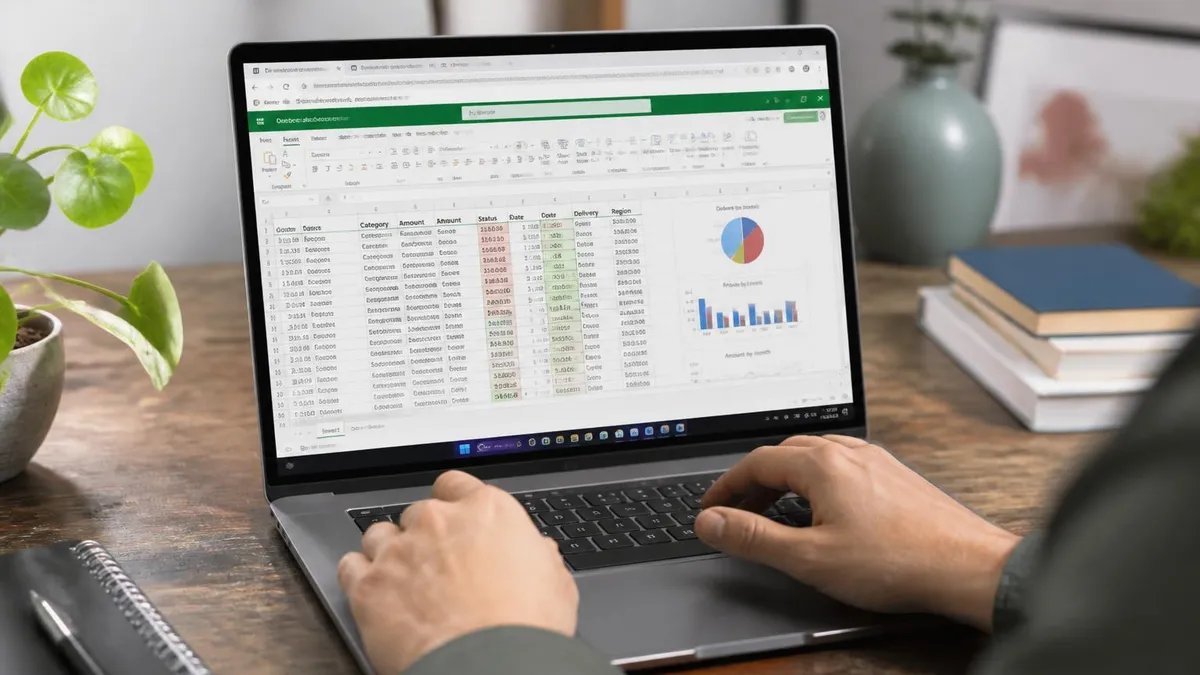
Excel for the Web supports Sheet Views, which let multiple collaborators filter the same workbook at the same time without affecting each other. Create a new view from the View tab, apply your filters, then switch back to the default view when finished.
PivotTable Filter Tips
- ✓Drop a field into the Filters area for a top-of-table dropdown
- ✓Use Slicers to filter several PivotTables with one click
- ✓Add a Timeline for any date field for a slider control
- ✓Use Report Filter Page to split into one sheet per value
- ✓Refresh after source data changes to update visible totals
PivotTables have their own filter system that operates independently of the source data. Drop a field into the Filters area of the PivotTable Fields pane to get a top-of-table dropdown, or use the column and row headers to slice the visible totals.
Slicers and Timeline controls work on PivotTables out of the box, and a single Slicer can drive several PivotTables built from the same data model. Use Report Filter Page from PivotTable Analyze to break one table into one sheet per filter value.
For repeating filter tasks, record a macro and assign it to a button. Open the View tab, click Macros, then Record Macro, perform your filter steps, and stop the recording. The VBA code that results is easy to read, even for non-programmers.
See the Excel VBA guide for the basics of editing recorded macros. A button on the Quick Access Toolbar can fire the macro with a single click, turning a multi-step filter into a one-click report.
Filter Automation Paths
Record a macro from the View tab, perform your filter steps, then stop recording. The resulting VBA code is short and readable, and you can assign it to a Quick Access Toolbar button for one-click filtering.
Keyboard Shortcut Cheatsheet
After turning on filters with Ctrl + Shift + L, press Alt + Down Arrow on any header cell to open the filter menu without the mouse. Use arrow keys to move through options and the space bar to toggle ticks. Alt + A + C clears every filter on the sheet in one shot.
Once these become habit, you can filter, clear, and re-filter a sheet in seconds without your hands ever leaving the keyboard. That makes a real difference during long data sessions when you keep changing what you are looking for.
Conditional formatting plays nicely with filters and can guide your filter choices visually. Highlight the top 10 sales rows in green, the bottom 10 in red, and below average in light yellow with three quick rules from Conditional Formatting on the Home tab.
Now use the column filter arrow to filter by color and isolate the top performers without writing a formula. This combination is the fastest way to build a quick management view from a raw data dump.
When sending filtered Excel files to clients, save a copy with values only or convert filtered data into a new Table. The receiver does not need to know your filter setup, they just need the rows that matter. Highlight the visible filtered cells, copy, and paste into a fresh sheet.
Test what you have learned with the quiz below. For more on tables and ranges, the Excel basics guide covers the foundations, and the Excel cheat sheet keeps the shortcuts close.
Before sending to clients, copy the visible filtered cells into a fresh sheet and delete the original. The receiver gets only the rows that matter, with no hidden data they could unhide by accident later.
For weekly reports, set up your filters on a blank sheet, then save the workbook as an .xltx template. Every new file from that template arrives with filters pre-configured, ready for fresh data the moment you paste it in.
Filtering is also a stepping stone to bigger Excel skills. Once filters feel automatic, the next natural moves are PivotTables for summarising filtered subsets, conditional formatting for visually flagging filtered values, and lookup functions for pulling matched data into new columns. Each builds on the muscle memory of selecting ranges, reading headers, and trusting that the data underneath stays intact.
Many spreadsheet errors come down to forgetting which rows are hidden by a filter. Always check the row numbers on the left, blue numbers mean some rows are hidden by a filter or manual hiding, while black numbers mean every row in the range is visible. Train yourself to scan that column before writing any formula that needs every row in the dataset.
When a colleague hands you a workbook with a filter already applied, clearing it first is the safest move before reviewing or summing anything. The Data tab Clear button does the job in one click. After that, re-apply the filter you actually want to work with so you know exactly which rows are in scope right now.
If you work with timesheets, expense logs, or attendance lists every week, save a filter view as part of a template. Open the workbook, set up filters the way you usually use them, and save the file as an .xltx template. Each time you start a new sheet from that template, the filters are preconfigured and ready for the new data you paste in.
Filter knowledge transfers across spreadsheet apps. Google Sheets, Apple Numbers, and LibreOffice Calc all use the same column-arrow pattern. The keyboard shortcuts differ, but the workflow of clicking, ticking, and clearing is identical. Once Excel filtering is second nature, the same skills work everywhere data lives in a spreadsheet.
One last word on performance. Filters on small ranges feel instant, but on workbooks with hundreds of thousands of rows the menu can take a second or two to open and refresh. Speed up the response by converting plain ranges into Tables, by clearing unused conditional formatting rules, and by closing other workbooks that compete for memory.
Filter Safety Checks
- ✓Glance at row numbers, blue means rows are hidden by a filter
- ✓Clear inherited filters before reviewing a colleague's workbook
- ✓Re-apply your own filter so you know exactly which rows are in scope
- ✓Save filtered output to a new sheet before sharing externally
- ✓Use Sheet Views on the web when collaborating in real time
For workbooks above 100,000 rows, convert ranges to Tables, trim unused conditional formatting, and close other open files. Filter menus open faster when fewer unique values need listing.
If a single column is dragging the menu down, look for thousands of unique values that Excel needs to list. Pre-aggregate the column with a helper formula like LEFT or TEXT to reduce the unique count to a manageable number before filtering. The smaller the unique set, the faster the dropdown opens and the easier it is to navigate by eye.
Sample Excel Practice Questions
Try these questions from our free Excel practice tests. The correct answer and an explanation follow each question.
How does Advanced Filter differ from AutoFilter?
- A. Advanced Filter is slower
- B. Can extract to another location, use complex AND/OR criteria, find unique records
- C. Only works with Tables
- D. Identical functionality
Answer: B. Can extract to another location, use complex AND/OR criteria, find unique records
Advanced Filter supports complex multi-field AND/OR criteria, copying results elsewhere, and unique records.
What does the TRIM function do?
- A. Removes all spaces from text
- B. Removes leading and trailing spaces and reduces internal spaces to one
- C. Truncates text to a specified length
- D. Removes special characters from text
Answer: B. Removes leading and trailing spaces and reduces internal spaces to one
TRIM removes leading and trailing spaces and reduces multiple consecutive spaces between words to a single space.
What does the NETWORKDAYS function calculate?
- A. Total calendar days between two dates
- B. The number of working days between two dates, excluding weekends
- C. Network latency in milliseconds
- D. Days remaining in the current month
Answer: B. The number of working days between two dates, excluding weekends
NETWORKDAYS calculates the number of working days between a start and end date, automatically excluding Saturdays and Sundays.
What does the FORMULATEXT function do?
- A. Converts a formula result to text
- B. Returns the formula in a cell as a text string
- C. Creates a formula from text
- D. Evaluates text as a formula
Answer: B. Returns the formula in a cell as a text string
FORMULATEXT returns the formula in a referenced cell as text, useful for documentation and auditing.
Excel Questions and Answers
About the Author

Business Consultant & Professional Certification Advisor
Wharton School, University of PennsylvaniaKatherine Lee earned her MBA from the Wharton School at the University of Pennsylvania and holds CPA, PHR, and PMP certifications. With a background spanning corporate finance, human resources, and project management, she has coached professionals preparing for CPA, CMA, PHR/SPHR, PMP, and financial services licensing exams.