
Arrow Keys Not Working in Excel: 6 Fixes That Actually Work 2026 September
❓ Arrow keys not working in Excel? Scroll Lock is the #1 cause. Here are 6 fast fixes for Windows, Mac, and laptops to get arrow keys moving cells again.

You're flying through a spreadsheet, then suddenly your arrow keys stop moving the active cell. Instead, the whole screen scrolls. Or worse, nothing happens at all. Frustrating, right? Don't worry, you're not alone. This is one of the most-searched Excel problems on the planet, hitting roughly 2,900 monthly searches in the US alone. The fix is almost always quick. In 95% of cases, the culprit is a tiny key called Scroll Lock that got toggled on by accident.
This guide walks you through every cause and every fix, from the obvious Scroll Lock toggle to sneaky macro conflicts and laptop-specific keyboard combos. Whether you're on a full keyboard, a slim laptop, or a Mac, you'll find the answer below. Most people resolve it in under a minute once they know where to look. We'll cover Windows, Mac, every major laptop brand, Excel for Web, mobile Excel, and even the rare hardware causes that need a fresh keyboard.
Here's the kicker: nothing's actually broken. Excel is behaving exactly as designed. A 40-year-old keyboard convention from the days of green-screen terminals is intercepting your arrow keys and sending them to the wrong place. Once you know that, the fix feels obvious. Let's get into it.
Before you panic and reinstall Office, take a breath. You almost certainly don't need a system restore, a driver update, or a new copy of Excel. Most fixes here cost nothing and take less than a minute. Even if your problem turns out to be a quirky macro or a stuck keycap, you can diagnose it with tools you already have on your machine. Bookmark this page now so you can find it the next time arrow keys revolt on you, because for most heavy Excel users this happens at least once a year.

Press the Scroll Lock key. On a full-size keyboard it's labeled ScrLk or Scroll Lock, usually top right near Print Screen. No Scroll Lock key? Open Windows On-Screen Keyboard: press Windows + R, type osk, hit Enter, then click ScrLk. On a Mac, try Fn + Shift + F14. That alone fixes the issue 9 times out of 10.
So why does Scroll Lock even exist? It's a holdover from 1980s spreadsheet software, when navigating massive data sheets meant scrolling the viewport instead of moving the cursor. Back then, computers didn't have mice. Keyboards were the only input device, and Scroll Lock let users page through huge data tables without losing their place. Lotus 1-2-3 and early Multiplan baked this behavior into spreadsheet culture, and Excel inherited it when it launched in 1985.
Today, Excel is one of the few modern apps that still honors it. Word, Chrome, your email client, and your text editor all ignore Scroll Lock entirely. That's why arrow keys in Notepad work fine but Excel suddenly acts weird. The state of Scroll Lock is stored at the operating system level, so any app that listens for it will respond. Most just don't bother listening anymore.
When Scroll Lock is ON, your arrow keys scroll the entire visible window. The active cell stays put, but the view shifts. When it's OFF (the default), arrows move the selected cell one space at a time, which is what 99% of users actually want. Some keyboards still have a dedicated LED that lights up when Scroll Lock is active, mostly older mechanical keyboards or full-size desktop boards. If your LED is on, that's your answer right there.
Curious history note: Microsoft considered removing Scroll Lock recognition from Excel in the early 2010s, but kept it for backwards compatibility with legacy enterprise workflows. Some accountants in banking and finance still rely on Scroll Lock for navigating massive ledger sheets the old-school way. So it's likely staying for the foreseeable future, which means knowing how to toggle it is a permanent Excel survival skill. The good news is you only need to learn it once.
Arrow Key Issues by the Numbers
Before we dive into the six main fixes, it's worth checking the Excel status bar at the bottom of the window. If you see the words Scroll Lock there, you've already found your problem. Right-click the status bar to toggle which indicators show, and make sure Scroll Lock is one of them. That little indicator saves a ton of guesswork down the road, and it's free to enable. You only need to do it once per Excel installation.
The status bar also shows other useful states: Caps Lock, Num Lock, Insert mode, End mode, and Extend Selection. Any of these can subtly change what your keyboard does inside Excel. If your arrow keys are acting strange and Scroll Lock isn't lit, scan the status bar for the other modes too. End mode, for instance, makes the next arrow press jump to the data boundary instead of moving one cell. It's a quick visual diagnostic that costs nothing.
Now let's break down the fixes by platform. Each one takes seconds. Start with the tab that matches your setup, and if the first method doesn't work, try the next one. Most users solve it on step one. If you also work with locked-down sheets, our guide on how to lock Excel sheet shows how protection settings can quietly interact with cell navigation. Sometimes a protected range blocks selection in ways that mimic broken arrows, so it's worth checking.
Fix Arrow Keys by Platform
Method 1: Press the Scroll Lock key, usually located top right of a full-size keyboard near Print Screen and Pause. Check the status bar in Excel to confirm the indicator disappears.
Method 2: If your keyboard has no Scroll Lock key, open the On-Screen Keyboard. Press Windows + R, type osk, hit Enter, then click the ScrLk button on the virtual keyboard. Close the OSK and test arrow keys in Excel.
Method 3: Disable Sticky Keys. Go to Settings, Ease of Access, Keyboard, and turn off Sticky Keys, Toggle Keys, and Filter Keys. Restart Excel and try again. Sticky Keys can intercept modifier presses and confuse Excel's input handling.
Method 4: Restart Excel completely. Save your work, choose File then Exit (don't just close the window), then reopen Excel. If that doesn't work, restart Windows. Background processes can lock keyboard input in rare cases.

On-Screen Keyboard Method (Step by Step)
Open Run Dialog
Type OSK
Find ScrLk Button
Click ScrLk
Switch to Excel
Test Arrow Keys
Close OSK
If Scroll Lock isn't your problem, it's time to check other possible causes. Frozen panes, active filters, macros, and edit mode can all mimic broken arrow keys. Each has a specific signature, so once you spot the symptoms, you'll know which fix to apply. Frozen panes are particularly sneaky because the arrows technically still work, but the visible cell appears to stop at the freeze line. Look at the Name Box in the top left to confirm the cell reference is changing as you press arrows.
Active filters are another easy miss. When a filter hides rows, your arrow key skips those hidden rows entirely. You press Down and the active cell jumps three rows instead of one because two rows are hidden in between. That's expected behavior, not a bug. Clear the filter (Data tab, Clear) to confirm. Hidden columns work the same way for the right and left arrows.
Edit mode is another common cause. If you accidentally double-clicked a cell or pressed F2, you're now editing the cell contents. Arrow keys in edit mode move the text cursor inside the cell, not between cells. Press Escape to exit edit mode and arrows return to normal. Knowing how to navigate complex spreadsheets also helps when you're building dashboards, so check out our walkthrough on building an Excel dashboard for tips on cell navigation in heavy layouts.
Extend Selection mode (toggled by F8) is the trickiest of all. After pressing F8 once, every arrow key extends your selection instead of moving it. The status bar shows Extend Selection while this mode is active. Press F8 again or Escape to turn it off. Power users sometimes leave it on by accident, then wonder why their selection grows every time they press an arrow. Watch the status bar for any unexpected mode indicators before assuming hardware failure.
Six Fixes at a Glance
- Full keyboard: Dedicated ScrLk key, top right
- Laptop: Fn + brand-specific key
- Excel for Web: Not applicable, no toggle
- Success rate: 95% of cases
- Open with: Windows + R then osk
- Mac equivalent: Keyboard Viewer
- Click: ScrLk button on virtual keyboard
- Best for: Laptops with no ScrLk key
- Path: Settings, Ease of Access, Keyboard
- Disable: Sticky, Toggle, Filter Keys
- Restart needed: Yes, restart Excel
- Affects: All apps, not just Excel
- Method: File then Exit (not X button)
- Backup option: Restart computer
- Time: 30 seconds
- Fixes: Stuck processes, memory leaks
- Open VBA: Press Alt + F11
- Look for: OnKey event handlers
- Reset: Application.OnKey "{LEFT}"
- Test in: Macro-free workbook (.xlsx)
- Test in: Notepad or Word
- Try: Different USB port or wired keyboard
- Wireless: Re-pair Bluetooth, check battery
- If broken: Replace keyboard
Macros deserve special attention because they're the most invisible cause. If a workbook has VBA code with an OnKey event handler, it can override the default arrow key behavior at the application level. That means even after fixing Scroll Lock, your arrows might still misbehave inside that specific file. Press Alt + F11 to open the VBA editor and search the code for OnKey. To reset the assignment, run Application.OnKey "{LEFT}" in the Immediate Window for each direction. You'll need to do it for up, down, left, and right separately.
To test if macros are the issue, save a copy as plain .xlsx (which strips macros) and try arrow keys in the new file. If they work there but not in the original .xlsm, you've confirmed a macro conflict. Some user-installed add-ins also bind to arrow keys, so disabling add-ins via File, Options, Add-ins is another quick test. COM add-ins are especially worth checking because they run at a lower level than VBA macros.
If you inherited a workbook from someone else and arrow keys behave oddly only in that file, suspect VBA first. Workbook_Open macros can run automatically when the file opens and rebind keys silently. Hold Shift while opening the file to bypass auto-run macros and test arrows in a clean state. This trick alone has saved countless hours of confusion in shared corporate spreadsheets.
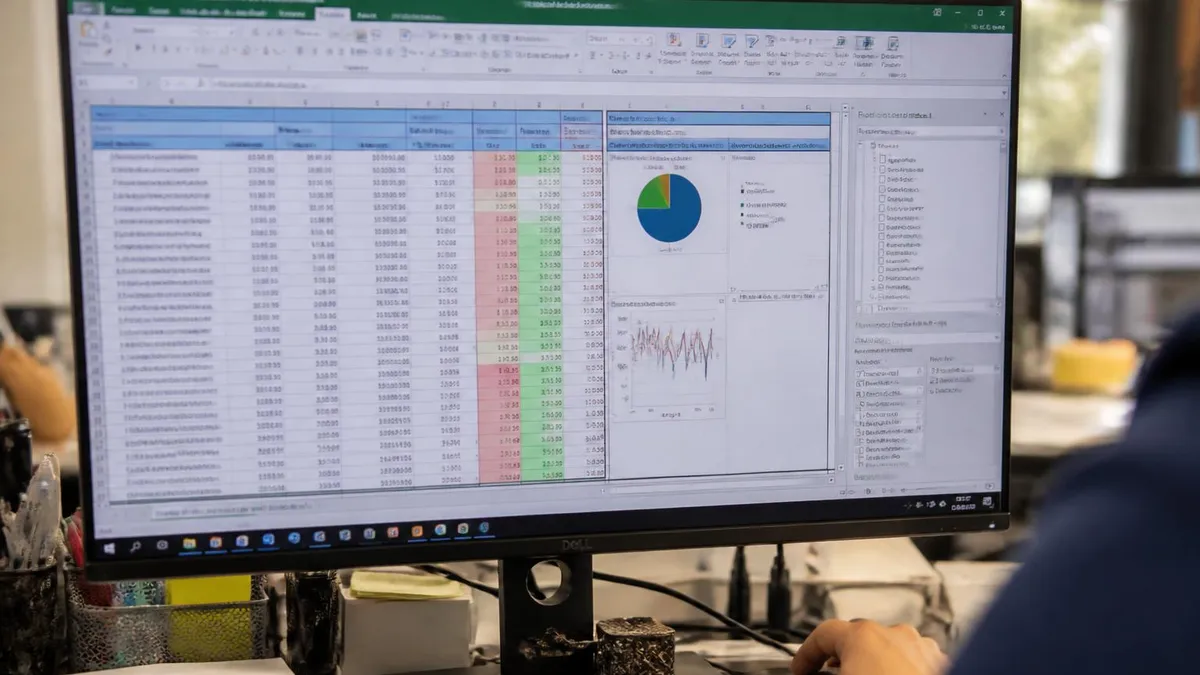
Heads up: If your spreadsheet has frozen panes (View tab, Freeze Panes), arrow keys may seem stuck at the freeze boundary. They're actually working correctly, but the freeze line creates an illusion that the cell isn't moving. To confirm, look at the Name Box in the top left, which shows the active cell reference. If the reference is changing, your arrows work fine. Unfreeze panes to test cleanly.
Quick Diagnostic Checklist
- ✓Test arrow keys in Notepad first to rule out hardware issues
- ✓Check Excel status bar for the Scroll Lock indicator
- ✓Press the Scroll Lock key (or Fn equivalent on laptops)
- ✓Open On-Screen Keyboard with Windows + R then osk
- ✓Disable Sticky Keys in Windows Ease of Access settings
- ✓Restart Excel using File then Exit (not just close window)
- ✓Check for active filters that might be hiding rows
- ✓Look for frozen panes blocking arrow movement
- ✓Press Escape to exit any selection or edit modes
- ✓Open VBA editor (Alt + F11) and search for OnKey handlers
- ✓Test with a different keyboard to isolate hardware faults
- ✓Disable Excel add-ins via File, Options, Add-ins menu
Hardware issues are rarer than software ones, but they happen. If only certain arrow keys fail (say, only the down arrow), that's a strong sign of a physical problem with the keyboard membrane or mechanical switch. Try a different keyboard, ideally a wired USB one for fastest diagnosis. Bluetooth keyboards add another layer of complexity since pairing, battery, and signal interference can all cause input glitches. Replace AAA batteries in wireless keyboards every six months as preventive maintenance.
For laptop users, another common gotcha is having a Function Lock (FnLk) enabled, which can change how the Fn key behaves and indirectly mess with your Scroll Lock combo. Look for an Fn indicator LED on your keyboard, often on the Esc or Caps Lock key. Tap FnLk or Fn + Esc to toggle it off, then retry your Scroll Lock combination. On some laptops the Function Lock state persists across reboots, so check it after every restart if you're chasing intermittent issues.
Dust and debris under arrow keys also cause intermittent failures. Compressed air clears most issues, but if a key feels mushy or doesn't fully rebound, the mechanism beneath may need cleaning. Pop the keycap off with a small flathead screwdriver, wipe the contact pad with isopropyl alcohol on a Q-tip, and let it dry for an hour. If you do a lot of analysis-heavy work, mastery of Excel Solver pays back big — and Solver needs accurate cell selection, so keyboard reliability really matters there.
Pros and Cons of These Fixes
- +Completely free, no software or licenses needed
- +Works on any version of Excel from 2007 onward
- +Doesn't require admin rights on Windows
- +Fixes resolve in under 30 seconds in most cases
- +On-Screen Keyboard works on every Windows PC
- +No risk of data loss or file corruption
- +Diagnoses both software and hardware causes
- +Methods transfer between Mac, Windows, and laptops
- −Scroll Lock key is hidden on most modern laptops
- −Brand-specific Fn combos vary widely across manufacturers
- −Macro conflicts can be tricky to diagnose for non-VBA users
- −Hardware failures still require keyboard replacement
- −Excel for Web doesn't expose a Scroll Lock toggle at all
- −Sticky Keys settings differ between Windows versions
Pros and Cons at a Glance
| Pros | Cons |
|---|---|
| Completely free, no software or licenses needed | Scroll Lock key is hidden on most modern laptops |
| Doesn't require admin rights on Windows | Brand-specific Fn combos vary widely across manufacturers |
| On-Screen Keyboard works on every Windows PC | Macro conflicts can be tricky to diagnose for non-VBA users |
| No risk of data loss or file corruption | Hardware failures still require keyboard replacement |
| Diagnoses both software and hardware causes | Excel for Web doesn't expose a Scroll Lock toggle at all |
| Methods transfer between Mac, Windows, and laptops | Sticky Keys settings differ between Windows versions |
Power users can avoid most arrow key headaches by mastering a few alternative navigation shortcuts. Ctrl + Home jumps straight to cell A1. Ctrl + End takes you to the last used cell. Ctrl + arrow jumps to the next data boundary in any direction, perfect for racing through large tables. Page Up and Page Down scroll vertically a screen at a time without needing Scroll Lock. Alt + Page Up and Alt + Page Down handle horizontal scrolling for very wide sheets. Together, these cover almost every navigation case where you'd otherwise reach for arrows.
The Name Box (left of the formula bar) is another underused tool. Type any cell reference like Z500 and press Enter to jump there instantly, no arrows required. Named ranges work the same way: type the range name and Enter. For huge workbooks with hundreds of named ranges, this is faster than any arrow navigation will ever be.
Once you're comfortable navigating without arrows, you might find Scroll Lock issues bother you less. Sizing your columns properly also helps reduce reliance on arrow scrolling, and our guide on AutoFit Excel covers that quickly. Properly sized columns mean less horizontal scrolling, which means fewer chances for Scroll Lock to bite you.
Mobile Excel users on iPad or iPhone rarely encounter arrow key issues because touch is the primary input. If you've connected a Bluetooth keyboard to your iPad and arrows aren't working, check the keyboard's pairing and battery, then try a different app to confirm the keyboard itself is functional. iPad Excel doesn't support Scroll Lock toggling natively, so a hardware reset of the keyboard is usually the answer.
Re-pair the keyboard from scratch if simple reconnection fails. Some Bluetooth keyboards enter a power-saving mode after inactivity that drops the first keystrokes when waking up. If your first arrow press after a break does nothing but the second works fine, that's wake-from-sleep, not Scroll Lock. Switch to a wired connection or disable power saving in the keyboard's companion app.
For Excel for Web, the situation is more limited. Browser-based Excel doesn't expose a Scroll Lock toggle at all, so most arrow key issues come from browser-specific behavior or accessibility extensions. Try a different browser, disable extensions one by one, and test in a private window to isolate the cause. Chrome, Edge, Firefox, and Safari all handle keyboard events slightly differently, so a problem in one may not exist in another. Formatting tools like the strikethrough shortcut Excel uses also behave differently in Web vs desktop, so don't assume parity across platforms.
Bottom line: Scroll Lock is the number one cause of arrow keys not working in Excel. Toggle it off using the Scroll Lock key on full keyboards, or the Fn combination on your specific laptop brand. The Windows On-Screen Keyboard (Windows + R, type osk) is a universal fallback when the physical key is missing. Also check Sticky Keys, restart Excel cleanly, look for macro overrides in VBA, and test your keyboard in another app.
Most arrow key problems resolve in under 30 seconds with one of these six fixes. Bookmark this page for the next time it happens, because trust us, it will happen again. Train your muscle memory: status bar first, Scroll Lock second, On-Screen Keyboard third. That sequence catches roughly 98% of cases without any deeper troubleshooting. The remaining 2% involve macros, hardware, or rare driver issues that the diagnostic steps in this guide will catch with a few extra minutes. Save yourself the panic and start with the basics every single time.
Arrow Keys Not Working in Excel Questions and Answers
About the Author

Business Consultant & Professional Certification Advisor
Wharton School, University of PennsylvaniaKatherine Lee earned her MBA from the Wharton School at the University of Pennsylvania and holds CPA, PHR, and PMP certifications. With a background spanning corporate finance, human resources, and project management, she has coached professionals preparing for CPA, CMA, PHR/SPHR, PMP, and financial services licensing exams.