
How to Filter in Excel: Step-by-Step Guide for All Filter Types 2026 September
🟢 Master Excel filtering with step-by-step instructions covering AutoFilter, advanced filters, slicers, FILTER function, and dynamic array filtering

Why Filtering Matters in Excel
Filtering data transforms how analysts work with spreadsheets by hiding rows that do not match specified criteria while leaving matching rows visible for analysis. Business analysts reviewing thousands of transactions, sales teams analyzing customer segments, project managers tracking task completion, and accountants reconciling line items all rely on filtering to focus attention on relevant subsets of large data sets. Without filtering, working with substantial data sets becomes impractical because the volume overwhelms direct manual review.
Excel provides multiple filtering approaches that suit different use cases. AutoFilter offers quick column-level filtering accessible through a single ribbon click. Advanced Filter supports complex multi-criteria filtering with output to separate locations. Slicers provide visual filter buttons that update PivotTables and PivotCharts interactively. The new FILTER function in modern Excel returns filtered results as a dynamic array, supporting formula-based filtering that updates automatically as source data changes.
Choosing the right filtering approach depends on the data structure, the user technical comfort level, and the desired output format. Quick exploratory filtering benefits from AutoFilter simplicity. Complex multi-criteria filtering with documentation needs uses Advanced Filter. Interactive dashboards favor slicers. Formula-driven outputs use the FILTER function. Mastering all four approaches produces flexibility that single-approach users cannot match across diverse business scenarios.
Filtering performance scales much better than manual review even for moderately sized data sets. A spreadsheet with ten thousand rows takes hours to review manually but processes filtered queries in milliseconds. The time savings compound across the typical business analysis workflow where many filtering operations occur during a single analysis session. Building strong filtering skills produces substantial productivity gains throughout the career of any spreadsheet-using professional.
Beyond simple visible row hiding, filtering integrates with conditional formatting, charts, and other Excel features to produce dynamic analytical environments. Filtered ranges feeding charts produce visualizations that update as filters change. Conditional formatting applied to filtered subsets highlights patterns within current focus. These integrations multiply the value of filtering beyond pure row hiding into a foundation for sophisticated data analysis workflows.
Excel Filter Quick Reference
AutoFilter appears through Data tab Filter button or Ctrl Shift L keyboard shortcut. Advanced Filter through Data tab Advanced button supports multi-criteria filtering. Slicers attach to PivotTables and Excel Tables for visual filtering. FILTER function uses syntax FILTER(array, include, if_empty) returning matching rows as dynamic array output.
SUBTOTAL function works correctly with filtered data while regular SUM, AVERAGE, and COUNT include hidden filtered rows. Choose function variants based on whether filter status should affect aggregations.
AutoFilter Basics
AutoFilter is the most accessible filtering option in Excel, enabling column-level filtering with minimal clicks. To apply AutoFilter, click any cell within the data range, then click the Filter button on the Data tab. Excel adds dropdown arrows to each column header. Clicking any arrow opens a filter dialog showing all unique values in that column with checkboxes for selecting which values to display.
Filter behavior depends on column data type. Text columns show checkbox selection of all unique values plus text filter options including equals, does not equal, begins with, ends with, contains, and does not contain. Numeric columns add filter options including greater than, less than, between, top ten, above average, and below average. Date columns add chronological filter options including before, after, between, and quick filters for last week, last month, this year, and other date ranges.
Multiple column filters apply simultaneously using AND logic. Filtering customers to those in California AND with orders above one thousand dollars produces only rows matching both criteria. The status bar shows the count of matching rows after filters apply. Clearing filters removes specific column filters or all filters through the Data tab Clear button or by selecting the Select All option in the filter dropdown.
Filter dropdown options vary based on the data type Excel detects in each column. Mixed data types within a single column can produce confusing filter behavior because Excel may apply text filters to columns that contain mostly numbers but include some text entries. Ensuring consistent data types within columns through data cleaning before filtering prevents these edge cases. The TYPE function can verify data type consistency programmatically when needed.
Filter color options support filtering by cell color or font color when conditional formatting or manual coloring has been applied to highlight specific records. The filter dialog includes color filter options that complement value-based filtering. This capability proves useful when team members have flagged specific records visually rather than through dedicated status columns that would otherwise be more straightforward to filter.

Excel Filter Methods
Standard column-level filtering through Data tab Filter button. Quick to apply, easy to understand, and suitable for most everyday filtering needs without requiring formula construction. Testing the chosen approach on representative data verifies correct behavior before applying to important business analyses.
Multi-criteria filtering through Data tab Advanced button. Supports complex OR logic, criteria across multiple columns, and output to separate worksheet locations for documentation purposes. Testing the chosen approach on representative data verifies correct behavior before applying to important business analyses.
Visual filter buttons attached to PivotTables or Excel Tables. Click-based interaction supports dashboards and exploratory analysis without requiring users to navigate filter dropdowns. Testing the chosen approach on representative data verifies correct behavior before applying to important business analyses.
Dynamic array function returning filtered results based on logical criteria. Output updates automatically as source data or criteria change without manual refresh operations. Testing the chosen approach on representative data verifies correct behavior before applying to important business analyses.
Advanced Filter Capabilities
Advanced Filter extends AutoFilter capabilities for complex filtering scenarios. Access through the Data tab Advanced button opens a dialog with options for filtering in place or copying results to another location. The Criteria range specifies a separate area containing column headers matching the source data plus rows specifying filter conditions. Each row in the criteria range produces OR logic with other criteria rows while conditions within a single row apply AND logic.
The criteria range structure provides remarkable flexibility. A criteria range with a single row applies AND logic across all specified conditions. A criteria range with multiple rows applies OR logic between rows while maintaining AND logic within rows. Wildcards including asterisk for any sequence and question mark for any single character work within text criteria. Comparison operators including greater than, less than, and not equal work within numeric and date criteria for advanced filtering scenarios.
Copying filtered results to another location preserves the source data unchanged while producing a filtered subset in the destination area. This output mode supports building filtered reports without disrupting the source data view that other users may rely on for unfiltered analysis. The destination accepts complete or selected column outputs depending on user preferences during filter setup through the Advanced Filter dialog.
Common Advanced Filter mistakes include forgetting to include header rows in the criteria range, mismatching column names between source data and criteria range, or specifying criteria in formats Excel does not recognize. The criteria range structure must use exact column names from the source data, with each criteria condition placed in a row below the appropriate column header. Verifying criteria range structure before running the filter prevents the frustration of incorrect results from improperly constructed criteria.
Calculated criteria in Advanced Filter support sophisticated filtering beyond simple value matching. A calculated criterion uses a formula that returns TRUE for matching rows. The criterion header must be either blank or different from any source column name. The formula references the first row of source data and Excel applies it to all rows during filtering. This capability enables filters that simple criteria ranges cannot express.
Common Filter Use Cases
Filtering sales data by territory, time period, product category, or customer segment isolates specific patterns for review. Combining multiple filters refines analysis to specific opportunities such as top customers in California buying premium products during the current quarter.
Each use case benefits from selecting the most appropriate filtering method based on data size, user audience, and required output format for the specific business scenario at hand.
The FILTER Function
The FILTER function introduced in Microsoft 365 and Excel 2021 returns rows from a source range that match specified criteria. The basic syntax is equals FILTER open paren array comma include comma if empty close paren where array is the data range to filter, include is the logical criteria producing TRUE for rows to keep, and if empty is an optional value to return when no rows match the criteria.
Multiple criteria combine through Boolean operators within the include argument. AND logic uses multiplication between conditions while OR logic uses addition. The formula equals FILTER open paren A2 colon D100 comma open paren B2 colon B100 equals quote California quote close paren times open paren C2 colon C100 greater than 1000 close paren close paren returns only rows where column B equals California AND column C exceeds one thousand. The multiplication of boolean conditions produces AND logic across criteria.
The FILTER function output spills into adjacent cells using dynamic arrays. Excel automatically sizes the output range to match the number of matching rows. Adding or removing source data triggers automatic recalculation that updates the filtered output without manual refresh. This automatic update behavior makes FILTER ideal for dashboards and reports that should reflect source data changes immediately.
The FILTER function works with single columns, single rows, or two-dimensional ranges as the array argument. Single-column output filters return one-dimensional results. Two-dimensional output filters return rectangular ranges. The include argument must match the dimensions of the corresponding row or column count in the array. Mismatched dimensions produce SPILL or VALUE errors that signal the criteria do not match the source array correctly.
SORT and FILTER combinations produce filtered and sorted output through nested function calls. The formula equals SORT open paren FILTER open paren A2 colon D100 comma C2 colon C100 greater than 1000 close paren comma 4 comma negative 1 close paren first filters rows where column C exceeds one thousand, then sorts the results descending by column four. This nesting pattern produces clean prepared outputs that other formulas or charts can consume directly.
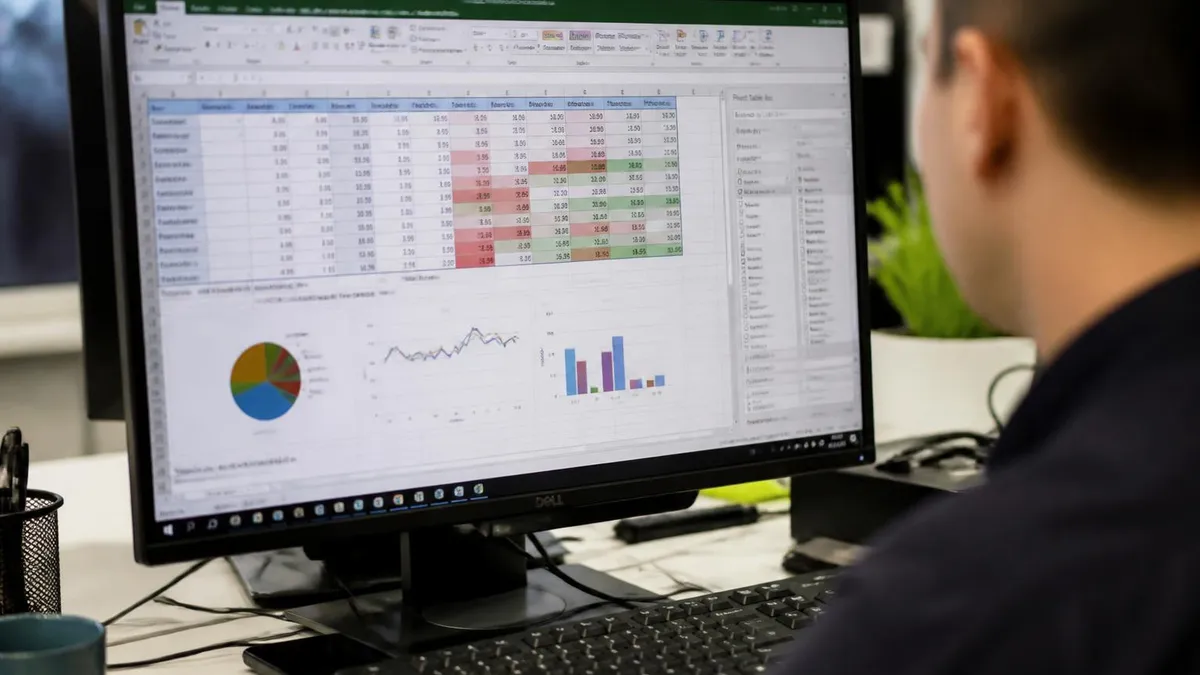
Filtered rows remain hidden from sums, averages, counts, and other aggregations using regular formulas. The SUBTOTAL function ignores hidden rows including filtered rows, producing correct sums of visible data only. Understanding this distinction prevents calculation errors when using filtered data for downstream calculations and analysis.
SUBTOTAL function with function numbers 101 through 111 ignores both manually hidden rows and filtered rows. SUBTOTAL with function numbers 1 through 11 only ignores filtered rows but includes manually hidden rows.
Slicers for Interactive Filtering
Slicers provide visual filter buttons that users click to apply filters interactively. Slicers attach to Excel Tables and PivotTables, displaying filter buttons for each unique value in the connected field. Selecting buttons applies filters that update the source table immediately. Multiple slicers can apply simultaneously, filtering by multiple dimensions through coordinated button clicks across slicers.
To insert a slicer, click any cell within an Excel Table or PivotTable, then choose Insert Slicer from the ribbon. Excel displays a dialog listing available columns. Selecting columns and clicking OK creates slicer objects that appear on the worksheet. Each slicer can be resized, repositioned, and styled through the Slicer Tools tab that appears when slicers are selected.
Slicer connections support filtering multiple PivotTables simultaneously. Right-clicking a slicer and choosing Report Connections opens a dialog listing PivotTables that share the same data source. Selecting multiple tables enables coordinated filtering across the entire connected set. This capability transforms slicers into dashboard controls that affect multiple related views with single click interactions.
Slicer styling through the Slicer Tools tab supports professional dashboard appearance. Built-in styles offer pre-designed color and border combinations. Custom styles let users create branded appearances matching organizational identity. Slicer captions, button sizes, and column counts all customize through the Slicer Tools options. Strong styling produces dashboards that look professional rather than appearing as default Excel output.
Slicer behavior with single versus multiple selections affects how users interact with the dashboard. Multi-select mode allows clicking multiple buttons to filter on any of the selected values using OR logic. Clear filter buttons remove all slicer selections returning to unfiltered view. These controls let users build intuitive filtering experiences without requiring explanation of how to interact with the dashboard for first-time users.
Excel Filter Method Selection Guide
- ✓Use AutoFilter for quick everyday column-level filtering with minimal setup complexity
- ✓Use Advanced Filter for complex multi-criteria filtering with OR logic between criteria rows
- ✓Use slicers for interactive dashboards where users need visual filter button controls
- ✓Use FILTER function for formula-based filtering that updates automatically with source data changes
- ✓Combine SUBTOTAL with AutoFilter to perform calculations that ignore hidden filtered rows
- ✓Document complex Advanced Filter criteria ranges in separate worksheets for future reference
- ✓Test filter outputs on representative data before deploying to important business analyses
- ✓Verify data type consistency within columns before filtering to prevent unexpected filter behavior
- ✓Save complex filter configurations as custom views for quick reuse across different work sessions
Combining Filters With Other Functions
SUBTOTAL aggregations work correctly with filtered data while regular SUM, AVERAGE, and COUNT functions include hidden filtered rows in their calculations. The SUBTOTAL function accepts a function number argument and a range, returning aggregations that respect filtered status. Function numbers from one to eleven include hidden rows from manual hiding while numbers from one hundred one to one hundred eleven exclude both manually hidden and filtered rows.
AGGREGATE provides similar functionality to SUBTOTAL with additional options including ignoring errors and nested SUBTOTAL formulas. The function accepts twelve different aggregation types beyond the eleven SUBTOTAL supports, including median, mode, large, small, and percentile calculations that handle filtered data correctly. Using AGGREGATE in dashboards that should respect filtering produces correct calculations regardless of which filters users apply during analysis.
Conditional aggregations using SUMIF, COUNTIF, AVERAGEIF, and their plural variants do not respect filtering by default. These functions calculate against all matching rows regardless of filter status. Combining conditional functions with SUBTOTAL or AGGREGATE produces hybrid approaches that respect both filter status and additional conditions. Modern Excel supports cleaner alternatives through FILTER plus aggregation function combinations.
Power Pivot data models support more sophisticated filtering through DAX measures that respect filter context. Measures using CALCULATE function can override or modify filter context for specific calculations. This capability enables sophisticated business intelligence outputs where summary calculations dynamically respond to filter selections without requiring manual formula adjustment for each filtering scenario.
Power Query filtering during data import handles initial data preparation before the data reaches the worksheet. Filtering at the query level reduces the data volume that Excel must manage, improving performance on large data sources. The combination of query-level filtering followed by worksheet filtering produces efficient workflows where coarse filtering happens during data load and fine filtering happens interactively during analysis.
Filter Sorting and Ordering
Sorting within filtered views applies only to visible rows by default. Filtering to a subset and then sorting reorders the visible rows without affecting hidden rows. This behavior supports focused analysis where users want to organize filtered subsets by specific criteria while preserving the original order of hidden data. Removing filters restores original row order unless explicit sorting was applied before filtering.
Custom sort orders apply alongside filtering for sophisticated data organization. The Sort dialog accessed through the Data tab supports multiple sort levels with custom sort orders for specific columns. A typical configuration sorts by region first, then by revenue descending, then by customer name alphabetically. Filters apply on top of this sort order, producing filtered views that maintain the multi-level sort structure.
Save view features in Excel Tables let users save specific combinations of filters and sorts as named views. Switching between views applies the saved combination instantly, supporting workflows where users repeatedly need specific filter and sort combinations. The feature reduces the time required to reapply common filter combinations across daily, weekly, or monthly analysis cycles.
Custom views in Excel save complete filter and view configurations as named views. Accessing custom views through the View tab Custom Views button lets users switch between saved configurations instantly. The feature works particularly well for shared workbooks where different team members need different views of the same data. Each user can save personal views that activate quickly when reopening the workbook.
Tab order and arrow key navigation within filtered ranges sometimes confuses users because hidden filtered rows are skipped during navigation. Pressing arrow keys moves to the next visible cell, not necessarily the cell adjacent to the current cell. Understanding this navigation behavior prevents confusion about apparent cell skipping during data entry or review within filtered ranges.

Excel Filter Quick Numbers
Filter Logic Combinations
Multiple criteria must all be true for a row to match. Use multiplication between conditions in FILTER function or single criteria row in Advanced Filter for AND logic. Testing the chosen approach on representative data verifies correct behavior before applying to important business analyses.
Any one of multiple criteria must be true for a row to match. Use addition between conditions in FILTER function or multiple criteria rows in Advanced Filter for OR logic. Testing the chosen approach on representative data verifies correct behavior before applying to important business analyses.
Excluding rows matching specific criteria. Use less than greater than syntax or negation in criteria to exclude unwanted rows from filtered results while keeping all other rows visible. Testing the chosen approach on representative data verifies correct behavior before applying to important business analyses.
Combining AND with OR for complex business rules. Group conditions appropriately using parentheses in FILTER function or careful criteria range structure in Advanced Filter. Testing the chosen approach on representative data verifies correct behavior before applying to important business analyses.
Performance Considerations
Filter performance scales with data set size. AutoFilter handles tens of thousands of rows efficiently on modern computers. Advanced Filter and slicers also perform well at this scale. The FILTER function on very large ranges can slow recalculation noticeably when the source data exceeds approximately one hundred thousand rows. For larger data sets, Power Query and Power Pivot provide better performance than formula-based filtering.
Memory consumption affects filter performance on machines with limited RAM. Each open workbook consumes memory proportional to data size. Filtering operations require additional working memory during execution. Closing other applications and unused workbooks before performing intensive filtering operations on large data sets produces better performance than attempting filtering with many concurrent memory-intensive tasks.
Auto-calculation mode affects perceived filtering responsiveness. Excel default mode recalculates all formulas after each filter change, which can cause noticeable delays on data sets with many complex formulas. Switching to manual calculation mode through the Formulas tab Calculation Options menu lets users apply multiple filter changes before recalculating, improving responsiveness during exploratory filtering work on complex workbooks.
VBA macros operating on filtered data require special handling because hidden rows behave differently than non-existent rows in code. SpecialCells visible-only selection methods access filtered subsets in code. UsedRange behavior includes hidden rows in row counts but excludes them in some other contexts. Macro developers must understand these subtleties to produce code that works correctly with filtered data without producing unexpected results.
Future Excel features building on filtering capabilities include Microsoft Copilot integration for natural language filter queries and AI-assisted analysis. These emerging capabilities will simplify filtering for non-technical users while preserving the precise control that current filtering methods provide for advanced users. Building strong filtering skills today positions analysts to take advantage of these enhanced capabilities as they mature.
Excel Filter Pros and Cons
- + —
- + —
- + —
- + —
- + —
- − —
- − —
- − —
- − —
- − —
Excel Questions and Answers
About the Author

Business Consultant & Professional Certification Advisor
Wharton School, University of PennsylvaniaKatherine Lee earned her MBA from the Wharton School at the University of Pennsylvania and holds CPA, PHR, and PMP certifications. With a background spanning corporate finance, human resources, and project management, she has coached professionals preparing for CPA, CMA, PHR/SPHR, PMP, and financial services licensing exams.