
Excel FILTER Function: Syntax, Examples, and Practical Use 2026 September
Excel FILTER function explained: dynamic array function for conditional data filtering, syntax, examples, common use cases, and troubleshooting. 🗨️

Excel FILTER function is a dynamic array function introduced in Excel 365 and Excel 2021 that returns rows or columns of data meeting specified conditions. FILTER substantially simplifies what previously required complex INDEX/MATCH formulas, array formulas, or pivot tables for conditional data extraction. The function returns dynamically updated results — when source data changes, FILTER results update automatically. Whether you're using FILTER for personal data analysis, business reporting, or building dashboards, understanding the function and its applications substantially improves Excel productivity.
For basic FILTER syntax specifically, the function takes three arguments. =FILTER(array, include, [if_empty]). The array is the range to filter. The include is the condition (Boolean array same size as array). The optional if_empty specifies what to return when no rows match conditions. The simplicity of three arguments belies substantial power for conditional data extraction. Building familiarity with the syntax supports diverse data analysis applications.
For specific basic example specifically, FILTER demonstrates conditional extraction. Source data: list of products with prices. To return only products over $50: =FILTER(A2:B100,B2:B100>50). Result: dynamic array of qualifying rows. To return products from specific category: =FILTER(A2:C100,C2:C100="Electronics"). Each example shows specific extraction. The dynamic nature means changes to source data automatically update results.
This guide covers Excel FILTER function comprehensively: syntax and basic use, common applications and examples, multiple-condition filtering, integration with other functions, and troubleshooting. Whether you're new to FILTER or building advanced applications, you'll find practical guidance here.

Function: =FILTER(array, include, [if_empty])
Availability: Excel 365 and Excel 2021+
Returns: Dynamic array of qualifying rows or columns
Updates: Automatically when source data changes
Common error: #CALC! when no rows match (use if_empty to handle)
For specific multiple condition filtering specifically, FILTER supports complex conditions. AND condition: multiply Boolean conditions together using *. Example: =FILTER(A2:C100,(B2:B100>50)*(C2:C100="Electronics")). OR condition: add Boolean conditions using +. Example: =FILTER(A2:C100,(B2:B100>100)+(C2:C100="Premium")). The Boolean math approach handles complex conditions. Each condition combination expands FILTER capability beyond single-condition extraction. The Excel shortcuts resources cover broader Excel features.
For specific if_empty parameter specifically, FILTER returns #CALC! error by default when no rows match conditions. The optional third argument specifies alternative return. Example: =FILTER(A2:B100,B2:B100>1000,"No products over $1000"). This handles empty results gracefully. Building if_empty into formulas prevents error displays. The simple parameter substantially improves user experience.
For specific common applications specifically, several patterns demonstrate FILTER value. Sales data filtering: extract sales from specific region or salesperson. Inventory filtering: find low-stock items meeting reorder threshold. Customer filtering: extract customers meeting specific criteria. Employee filtering: find employees in specific departments or matching criteria. Each application replaces what previously required pivot tables or complex formulas. FILTER substantially streamlines these analyses.
For specific dynamic dashboards specifically, FILTER enables sophisticated dashboard construction. Data drives dashboard automatically. Changes to source data update dashboard. User input through cell values can drive filter conditions. The combination supports highly interactive dashboards previously requiring substantial custom programming. The Excel shortcuts cheat sheet resources cover related Excel productivity.
For specific integration with other functions specifically, FILTER combines with various other Excel capabilities. SORT(FILTER(...)) sorts filtered results. UNIQUE(FILTER(...)) returns unique filtered results. SUM(FILTER(...)) sums filtered values. Various other combinations extend capability. Each combination produces sophisticated data analysis. FILTER is foundation for various advanced Excel applications.
FILTER Function Applications
Basic FILTER with one condition. =FILTER(data, condition). Simple and most common application. Examples: products above price threshold, sales in specific region, employees in specific department. Foundation for understanding more complex applications. Dynamic updates when source data changes.
AND with multiplication, OR with addition. =FILTER(data,(cond1)*(cond2)) for AND. =FILTER(data,(cond1)+(cond2)) for OR. Boolean math approach handles complex conditions. Each condition combination expands capability. Sophisticated extractions previously requiring complex formulas now straightforward.
FILTER conditions referencing cells supports user input. Dashboard responds to user-controlled inputs. Highly interactive dashboards possible. Supports data exploration through changing input values. Substantially more sophisticated than static reports. Common modern Excel dashboard construction approach.
SORT(FILTER(...)), UNIQUE(FILTER(...)), SUM(FILTER(...)). Combinations extend capability beyond basic FILTER. Aggregations on filtered subsets. Sorting filtered results. Unique values within filtered subsets. Each combination produces sophisticated analysis. Modern Excel data analysis often combines these dynamic array functions.
For specific syntax details specifically, FILTER has specific behaviors. Array argument and include argument must have compatible dimensions. Returning rows vs columns depends on include orientation. Specific cell references vs full column references affect performance and update behavior. Each detail affects FILTER use. Understanding subtle behaviors supports better application. The how to freeze panes in Excel resources cover related Excel features.
For specific multi-criteria examples specifically, complex business filtering supports diverse applications. Customer purchase analysis: =FILTER(orders,(orders[Region]="West")*(orders[Total]>1000)). Sales above threshold by salesperson: =FILTER(sales,(sales[Person]="Smith")*(sales[Amount]>5000)). Specific date range filtering: =FILTER(data,(data[Date]>=DATE(2026,1,1))*(data[Date]<=DATE(2026,12,31))). Each application uses Boolean math for multi-criteria filtering.
For specific OR condition examples specifically, broader filtering captures more results. Customers in multiple regions: =FILTER(customers,(customers[Region]="East")+(customers[Region]="West")). Products from multiple categories: =FILTER(products,(products[Category]="Electronics")+(products[Category]="Software")). The OR approach captures any matching condition. Combining AND and OR sometimes requires careful parenthesization for proper evaluation.
For specific named range usage specifically, FILTER works well with named ranges and tables. =FILTER(SalesData,SalesData[Region]="West") reads more clearly than cell references. Excel tables produce structured references particularly readable. Named ranges support more maintainable formulas. The combination of dynamic functions and structured references produces highly readable spreadsheet logic.
For specific performance considerations specifically, FILTER can be slow on very large datasets. Specific factors affecting performance include data size, formula complexity, dependency chains. For typical small-to-medium datasets, performance not concerning. For very large datasets (hundreds of thousands of rows), performance optimization sometimes matters. The how to add columns in Excel resources cover related Excel operations.
FILTER Function Use Cases
Common sales analysis patterns:
- Top performers: =FILTER(sales,sales[Amount]>=LARGE(sales[Amount],10))
- Regional analysis: =FILTER(sales,sales[Region]="West")
- Date range: =FILTER(sales,(sales[Date]>=startDate)*(sales[Date]<=endDate))
- Combined criteria: Multiple conditions using Boolean math
- Updates: Dynamic — changes when source data changes
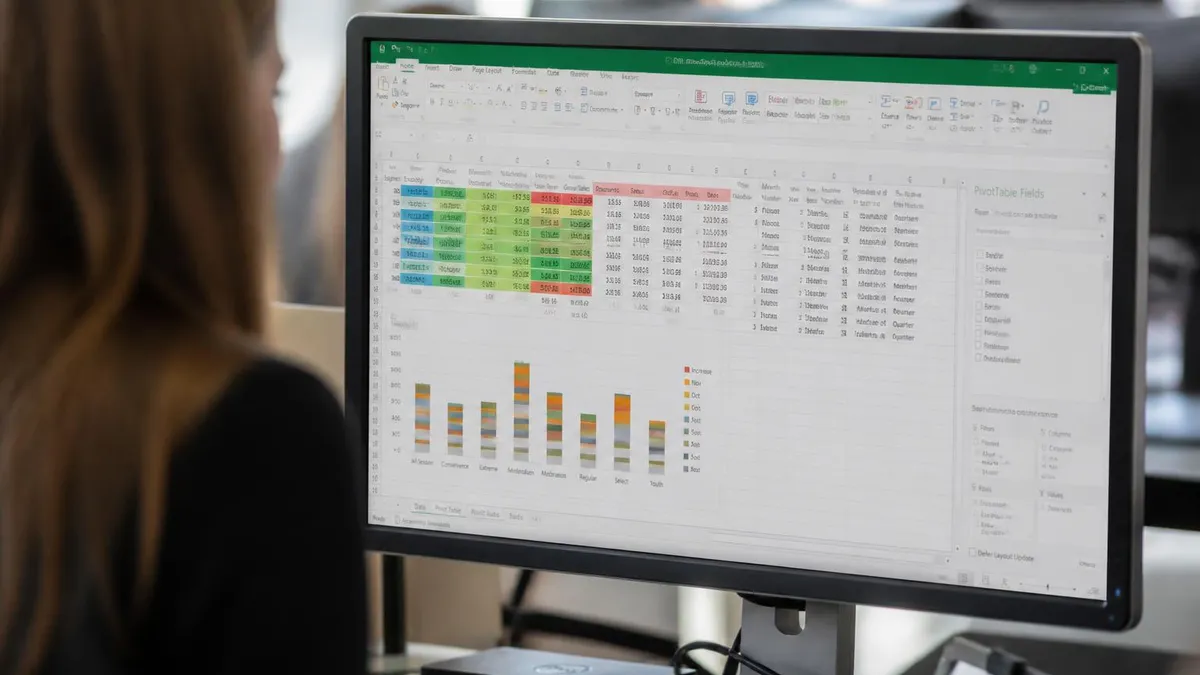
For specific spillover behavior specifically, FILTER produces dynamic arrays that spill across cells. Single formula returns multiple values across multiple cells. Spillover from formula's cell rightward and downward. Spilled cells display values as if entered individually. #SPILL! error appears if spill range obstructed. Understanding spillover essential for working with dynamic array functions including FILTER.
For specific common errors specifically, FILTER produces specific errors. #CALC! when no rows match conditions (handle with if_empty parameter). #SPILL! when spill range obstructed (clear cells where results would spill). #VALUE! when array and include arguments have incompatible dimensions. Each error has specific resolution. Understanding common errors supports troubleshooting. The how to merge two columns in Excel resources cover related Excel features.
For specific Excel version compatibility specifically, FILTER requires Excel 365 or Excel 2021. Older Excel versions don't support FILTER. Files containing FILTER opened in older Excel versions show #NAME? errors. Working with users on older Excel produces compatibility issues. Verify Excel version compatibility before sharing files using FILTER. Modern Excel substantially adopts dynamic array functions; older Excel substantially limits these capabilities.
For specific FILTER vs traditional approaches specifically, several alternatives existed before FILTER. Pivot tables for aggregated filtered analysis. INDEX/MATCH with array formulas for specific extractions. Power Query for substantial data transformations. Each alternative has specific applications. FILTER substantially simpler than INDEX/MATCH array formulas for most filtering. Pivot tables remain better for aggregated analysis. Power Query remains better for substantial data transformations.
For specific data validation integration specifically, FILTER results can drive data validation lists. Dynamic dropdown lists update when source data changes. Specific filtering criteria can drive specific dropdowns. Each integration extends Excel functionality. Modern Excel construction often uses combinations of FILTER, data validation, and other features for sophisticated worksheets.
FILTER function requires Excel 365 or Excel 2021 — not available in older Excel versions. Files containing FILTER opened in older Excel show #NAME? errors. When working with users on older Excel, FILTER produces compatibility issues. Verify all users have compatible Excel versions before deploying FILTER-based spreadsheets in shared environments. The dynamic array functions including FILTER represent substantial Excel capability advancement but require modern Excel installations. Plan compatibility before depending on FILTER in shared workbooks.
For specific learning resources specifically, several support FILTER mastery. Microsoft official documentation. ExcelIsFun YouTube channel by Mike Girvin. Various other Excel tutorial channels. ExcelJet articles on dynamic array functions. Books on modern Excel covering dynamic arrays. Each resource supports learning. Combining multiple resources produces stronger understanding than relying on single source.
For specific structured references specifically, Excel tables (Insert → Table) produce structured references particularly readable with FILTER. =FILTER(SalesTable,SalesTable[Region]="West") reads more clearly than cell-reference equivalents. Tables also automatically extend ranges as data added. The combination of FILTER with Excel tables produces particularly maintainable spreadsheets.
For specific business application examples specifically, FILTER enables various business solutions. Customer relationship management with filtered customer lists. Sales reporting with regional or product filtering. Inventory management with low-stock filtering. HR analysis with employee filtering. Various other business applications. Each application produces specific business value. The how to add columns in Excel resources cover related Excel operations.
For specific advanced techniques specifically, FILTER combinations support sophisticated applications. SORT(FILTER(...),sort_index,sort_order) sorts filtered results. UNIQUE(FILTER(...)) extracts unique values from filtered subset. SUM(FILTER(...)) sums filtered values. SEQUENCE supports row numbering. LARGE/SMALL with FILTER for top/bottom analysis. Each advanced technique extends FILTER capability for sophisticated analysis.
For specific testing and validation specifically, FILTER formulas should be tested before deployment. Verify expected results with test data. Test edge cases including empty results, single result, many results. Verify formulas update correctly when source data changes. Each testing element supports reliable production use. Quality testing prevents production formula failures.
FILTER Function Best Practices
- ✓Use Excel tables for cleaner structured references
- ✓Always include if_empty parameter to handle no-match scenarios
- ✓Use Boolean math (* for AND, + for OR) for multiple conditions
- ✓Test with sample data verifying expected results
- ✓Verify Excel version compatibility before sharing files using FILTER
For specific Excel for Mac specifically, FILTER works similarly on Mac Excel as Windows Excel. Same syntax. Same dynamic array behavior. Same Excel version requirements (Excel 365 or Excel 2021+). Mac users follow same approaches as Windows users with minor interface differences. Modern Excel substantially consistent across platforms.
For specific Excel Online specifically, FILTER works in Excel Online (web version) when account has appropriate Excel 365 license. Same syntax and behavior. Online version supports modern dynamic array functions including FILTER. Working with FILTER in Excel Online produces same capabilities as desktop Excel. Quality of Excel Online substantially better than older online versions.
For specific applying FILTER to specific data structures specifically, FILTER works with various Excel data structures. Excel tables (Insert → Table) particularly clean for FILTER. Plain ranges work fine. External data connected to Excel can be filtered. Each data structure has specific considerations. Excel tables produce particularly readable structured references for FILTER formulas.
For specific dynamic array fundamentals specifically, FILTER is one of several dynamic array functions in modern Excel. Other dynamic array functions include SORT, UNIQUE, SEQUENCE, RANDARRAY, SORTBY, FILTER, XLOOKUP. Each function returns dynamic arrays spilling across cells. Understanding dynamic array behavior supports using all these functions effectively. The dynamic array model represents major Excel evolution from older array formula approach.
For specific compared to legacy array formulas specifically, FILTER substantially simpler than legacy array formulas. Legacy array formulas required Ctrl+Shift+Enter to enter. Required specific cell range selection. Complex syntax for various operations. Modern dynamic array functions including FILTER simpler — just type formula and press Enter. Spillover behavior automatic. The simplification substantially expands accessibility of complex Excel operations to broader user base.
For specific FILTER with text matching specifically, several patterns help. Exact match: =FILTER(data,data[Column]="value"). Wildcard isn't directly supported but EXACT or other functions help. Contains text: =FILTER(data,ISNUMBER(SEARCH("text",data[Column]))). Each text matching approach has specific use case. Quality understanding of text matching supports diverse FILTER applications.
For specific FILTER with number ranges specifically, several patterns help. Greater than threshold: =FILTER(data,data[Column]>threshold). Between values: =FILTER(data,(data[Column]>=lower)*(data[Column]<=upper)). Multiple thresholds with OR: combine using +. Each numeric filtering pattern has specific use case. Quality understanding supports diverse numeric filtering applications.
For specific FILTER with date ranges specifically, dates work like numbers in FILTER. Date range: =FILTER(data,(data[Date]>=startDate)*(data[Date]<=endDate)). Specific date: =FILTER(data,data[Date]=specificDate). After specific date: =FILTER(data,data[Date]>cutoffDate). Each date filtering pattern has specific use case. Quality understanding supports date-based analysis common in business data.
For specific FILTER with empty cells specifically, several patterns matter. Filter for non-empty: =FILTER(data,data[Column]<>""). Filter for empty: =FILTER(data,data[Column]=""). Specific blank handling sometimes uses ISBLANK or LEN functions. Each empty handling pattern has specific use case. Quality understanding supports edge case handling.
For specific FILTER returning specific columns specifically, FILTER can extract specific columns from filtered rows. Use specific cell range as array argument rather than full table. =FILTER(table[Column1:Column3],condition) returns specific columns. Various other techniques extract specific columns. Each extraction approach has specific use case. Quality understanding supports producing specific output from filtering.
For specific aggregations on filtered data specifically, several patterns aggregate FILTER results. SUM(FILTER(...)) sums filtered values. AVERAGE(FILTER(...)) averages filtered values. COUNT(FILTER(...)) counts filtered rows. Various other aggregations work similarly. Each aggregation pattern produces summary statistic on filtered subset. Quality understanding supports various analytical applications.
For specific user input integration specifically, FILTER can reference cells for dynamic input. =FILTER(data,data[Column]=$E$1) where E1 contains user input value. Changing E1 changes filter results. Specific cell input drives filter behavior. Each input integration extends FILTER toward dashboard application. Quality input integration supports interactive analysis.
For specific FILTER with data validation specifically, dropdowns supporting user input work well with FILTER. Data validation creates dropdown list. User selects value driving FILTER. Combined approach produces interactive analysis. Quality combination produces sophisticated worksheets supporting various analytical needs.

FILTER Function Common Applications
For specific debugging FILTER specifically, several techniques help. Test array argument and include argument separately. Verify Boolean array results. Test with simple conditions before complex. Use Evaluate Formula tool for step-by-step. Each debugging element supports identifying issues in complex FILTER formulas.
For specific FILTER alternatives specifically, several other approaches provide similar capability. CHOOSEROWS and CHOOSECOLS for explicit selection. Power Query for substantial data transformations. Pivot tables for aggregated analysis. Each alternative has specific applications. FILTER substantially convenient for most simple-to-moderate filtering needs.
For specific real-world examples specifically, several patterns illustrate FILTER value. Sales report showing top 10 customers by revenue. Inventory dashboard showing low-stock items. Customer list filtered by criteria for marketing campaign. Employee list filtered by department. Each example replaces what previously required complex formulas or pivot tables with single FILTER formula.
For specific learning progression specifically, FILTER mastery develops progressively. Start with simple single-condition filters. Add multiple conditions through Boolean math. Combine with other dynamic array functions. Build user-input-driven dashboards. Each progression step builds capability. Quality progression produces fluent FILTER use over weeks of practice.
For specific organizational adoption specifically, organizations adopting FILTER produce substantial productivity gains. Replacing complex existing formulas with FILTER. Building new analyses faster than traditional approaches. Supporting interactive dashboards beyond static reports. Each adoption produces business value. The investment in modern Excel skills pays back through substantial productivity gains across many users.
For specific Microsoft 365 update considerations specifically, Microsoft continues developing FILTER and related functions. New parameters or behaviors sometimes added. Quality stays current with FILTER capabilities through Microsoft documentation. The active development ensures FILTER continues evolving with user needs.
For specific FILTER community resources specifically, Excel community substantial supporting FILTER learning. Reddit r/excel community. Mr. Excel forum. Various YouTube channels covering FILTER specifically. Twitter Excel community. Each community resource supports learning. Active engagement with community accelerates FILTER mastery.
For specific FILTER documentation specifically, Microsoft official documentation comprehensive. Examples covering various scenarios. Specific syntax details. Common error troubleshooting. Documentation accessible through Excel help (F1) or Microsoft support website. Quality reference documentation supports learning beyond community resources.
For specific FILTER in business contexts specifically, FILTER particularly useful in business contexts. Sales analysis. Inventory management. Customer relationship management. HR analytics. Financial reporting. Each business application uses FILTER for specific analytical needs. The breadth of application makes FILTER fundamental tool for business Excel users.
FILTER Function Quick Facts
Excel FILTER Function
- +Substantially simpler than INDEX/MATCH array formulas
- +Dynamic updates when source data changes
- +Multiple conditions through Boolean math (AND with *, OR with +)
- +Combines with SORT, UNIQUE, and other dynamic array functions
- +Substantially improves spreadsheet capability vs older Excel
- −Requires Excel 365 or Excel 2021 — not in older versions
- −Compatibility issues when sharing with older Excel users
- −Performance can suffer on very large datasets
- −Spillover errors when target cells obstructed
- −Specific syntax requires learning before fluent use
Excel Questions and Answers
About the Author

Business Consultant & Professional Certification Advisor
Wharton School, University of PennsylvaniaKatherine Lee earned her MBA from the Wharton School at the University of Pennsylvania and holds CPA, PHR, and PMP certifications. With a background spanning corporate finance, human resources, and project management, she has coached professionals preparing for CPA, CMA, PHR/SPHR, PMP, and financial services licensing exams.