
Free Excel: Online Versions, Alternatives, and Real Limitations 2026 September
Free Excel options compared: 🔎 Excel for the web, Microsoft 365 free trials, Google Sheets, LibreOffice Calc, and what each can and cannot actually do.

Free Excel is a phrase that searches reveal usually means one of several different things. Microsoft offers Excel for the web (free with Microsoft account), Microsoft 365 free trials, and various educational and other free access programs. Microsoft Excel desktop application requires paid Microsoft 365 subscription or one-time Office purchase. Various non-Microsoft alternatives provide spreadsheet capabilities that approximate Excel functionality (Google Sheets, LibreOffice Calc, others). Each option has tradeoffs in capability, compatibility, and cost. Understanding what's actually available helps choose the right option for your specific needs.
Excel for the web is the closest free option for users wanting actual Excel. Available at office.com or Microsoft 365 web portal with free Microsoft account, Excel for the web provides browser-based Excel access. It supports most common Excel features but lacks some advanced capabilities of desktop Excel (some specific functions, certain advanced features, performance with very large files). For typical spreadsheet work — basic formulas, formatting, charts, common analysis — Excel for the web works well. For demanding professional analysis or specific advanced features, the desktop application's full capability is significant.
Microsoft 365 trials provide temporary free access to full desktop Excel. The standard Microsoft 365 free trial runs 30 days with full feature access including desktop Excel installation. Trial requires credit card registration but doesn't charge if cancelled before trial end. The trial provides genuine full Excel experience for evaluation or short-term needs. Some users cycle through trials but Microsoft typically prevents abuse of repeated trials from same account. The trial is designed for genuine evaluation rather than ongoing free use.
This guide covers free Excel options comprehensively: Excel for the web capabilities and limitations, Microsoft 365 trials, educational and other free access programs, non-Microsoft alternatives like Google Sheets and LibreOffice Calc, and how to choose between options for your specific needs. Whether you're a student, occasional user, or someone evaluating before committing to paid Excel, you'll find practical context here.

Excel for the web: Free with Microsoft account, browser-based, most common features
Microsoft 365 trial: 30 days free with full desktop Excel access
Educational access: Free for verified students at participating institutions
Google Sheets: Free Google alternative, similar capabilities
LibreOffice Calc: Free open-source alternative, more like desktop Excel
Excel for the web specifically works well for many use cases. Free Microsoft account creation at signup.live.com provides access to Excel for the web plus Word, PowerPoint, and OneNote browser versions. Files save to OneDrive (5 GB free storage). Sharing and collaboration work similarly to Google Sheets — share with link or specific people, real-time co-editing, comments and chat. The interface mimics desktop Excel closely, helping desktop users transition. For most casual and intermediate Excel use, Excel for the web meets needs without paid subscription.
Excel for the web limitations matter for some users. Some specific functions aren't supported in web version (more obscure functions; common functions all work). Macros and VBA don't run in web version (you can view files containing macros but not run them). Power Query and Power Pivot have limited web functionality. Performance is good for most files but very large files (hundreds of thousands of rows) may struggle. Specific advanced features (some chart types, advanced data analysis tools) are desktop-only. The Excel shortcuts resources cover keyboard shortcuts that work across web and desktop.
For Microsoft 365 trial specifically, the 30-day trial provides comprehensive evaluation experience. Trial includes desktop Excel installation on Windows or Mac, full feature access, OneDrive cloud storage, all other Microsoft 365 apps. Subscription auto-renews after trial unless cancelled — calendar reminder before trial end prevents unwanted charges. The trial is genuine evaluation tool — make decisions during trial about whether ongoing subscription justifies cost ($70-$100/year typical for personal subscription). Cycling through trials repeatedly isn't sustainable as Microsoft tracks trials per account.
For educational access specifically, students at participating colleges and universities often have free Microsoft 365 access through their institutions. Microsoft's Education program provides free A1 license tier including Excel desktop, Word, PowerPoint, and other Office apps to verified students. Verification through institutional email (.edu address) typically required. Access continues while student remains enrolled. After graduation, access expires unless commercial subscription purchased. Many students don't realize their institutions provide this free access; checking with school IT or financial aid resources reveals what's available.
For other free or discounted access programs specifically, several exist. Microsoft 365 nonprofit pricing provides free or substantially reduced pricing for verified nonprofit organizations. Microsoft 365 government pricing reduces costs for qualifying government users. Various trial extensions during specific promotional periods. Microsoft Office Home (legacy versions) sometimes available at substantial discounts through specific channels (educational discount, refurbished computers, etc.). Each program has specific eligibility; verifying eligibility before relying on these channels matters. The Excel shortcuts cheat sheet resources cover Excel productivity broadly.
Free Excel Options
Browser-based Excel free with Microsoft account. Most common features available. Macros, some advanced functions, Power Query/Pivot limited or missing. Great for casual use, basic analysis, sharing/collaboration. Works on any modern browser. 5 GB OneDrive storage. Suitable for most casual and intermediate users.
30-day free trial with full desktop Excel and all Microsoft 365 apps. Genuine evaluation experience. Auto-renews after trial unless cancelled. Best for: trying full Excel before subscribing, short-term project needing full features, evaluating Microsoft 365 vs alternatives. Calendar reminder essential to avoid auto-renewal charges.
Free Microsoft 365 for verified students at participating colleges and universities. Includes desktop Excel, Word, PowerPoint, etc. Verification through institutional .edu email. Continues while enrolled. Many students don't realize this is available — check with school IT. Saves $70-$100/year while in school.
Non-Microsoft alternatives. Google Sheets free with Google account, browser-based, strong collaboration. LibreOffice Calc free open-source desktop application, more like Excel desktop. Both handle most common spreadsheet work but aren't perfect Excel substitutes for advanced users or specific compatibility needs.

For Google Sheets specifically, this represents the most popular free alternative to Excel. Browser-based, free with Google account, strong real-time collaboration features. Google Sheets handles most common spreadsheet tasks well. Some Excel users find Google Sheets adequate for their needs and never return to Excel. Other users find specific features missing or implemented differently in ways that frustrate Excel-trained users. The functional gap has narrowed substantially over years as Google Sheets has gained features. For collaborative team spreadsheet work, Google Sheets often works better than Excel because of its native collaboration features.
For Google Sheets vs Excel specifically, several differences matter. Google Sheets is cloud-native — automatic saving, easy sharing, real-time co-editing. Excel handles very large datasets better. Excel has more advanced statistical and financial functions. Google Sheets has stronger native integration with Google ecosystem (Drive, Forms, Looker Studio). Excel has stronger integration with Microsoft ecosystem (Power BI, Power Automate, Teams). Each has strengths; the right choice depends on your ecosystem and needs. Many users use both for different purposes.
For LibreOffice Calc specifically, this represents the strongest free desktop alternative to Excel. LibreOffice is open-source office suite free for download from libreoffice.org. Calc functions much like Excel desktop with similar interface, formulas, and capabilities. Compatibility with Excel files is generally good — open .xlsx files, save in .xlsx format. Some specific Excel features don't translate perfectly (specific formatting, complex macros, some advanced features). For most casual use, LibreOffice Calc handles needs well. Power users sometimes find specific compatibility or feature gaps.
For Apple Numbers specifically, Mac users have free Numbers spreadsheet app from Apple. Numbers takes different design approach than Excel — emphasizing formatting and layout over pure analysis. Compatibility with Excel files is moderate — many files open and edit reasonably; complex Excel files sometimes lose formatting or specific features. Numbers works well for personal use, simple business analysis, and presentations. For demanding analytical work, Numbers is less capable than Excel or alternatives. Its inclusion free with macOS makes it convenient for Mac users with light spreadsheet needs.
For online Excel-like alternatives specifically, several other free or low-cost options exist. Zoho Sheet provides free spreadsheet with reasonable capability. WPS Office (free with ads, paid removes ads) offers Excel-compatible spreadsheet. OnlyOffice provides free open-source office suite alternative. Quip integrates spreadsheet with chat. Each addresses specific niches. Most users wanting free Excel-equivalent settle on Excel for the web, Google Sheets, or LibreOffice Calc as primary options; the others mostly serve specific use cases. The how to freeze panes in Excel resources cover specific Excel features that work in alternatives.
Free Excel by User Type
For students:
- Best option: Free Microsoft 365 through institution (verified .edu email)
- Backup: Excel for the web with personal Microsoft account
- Alternative: Google Sheets if school uses Google Workspace
- Coverage: Most coursework spreadsheet needs
- After graduation: Plan transition to paid subscription or ongoing free options
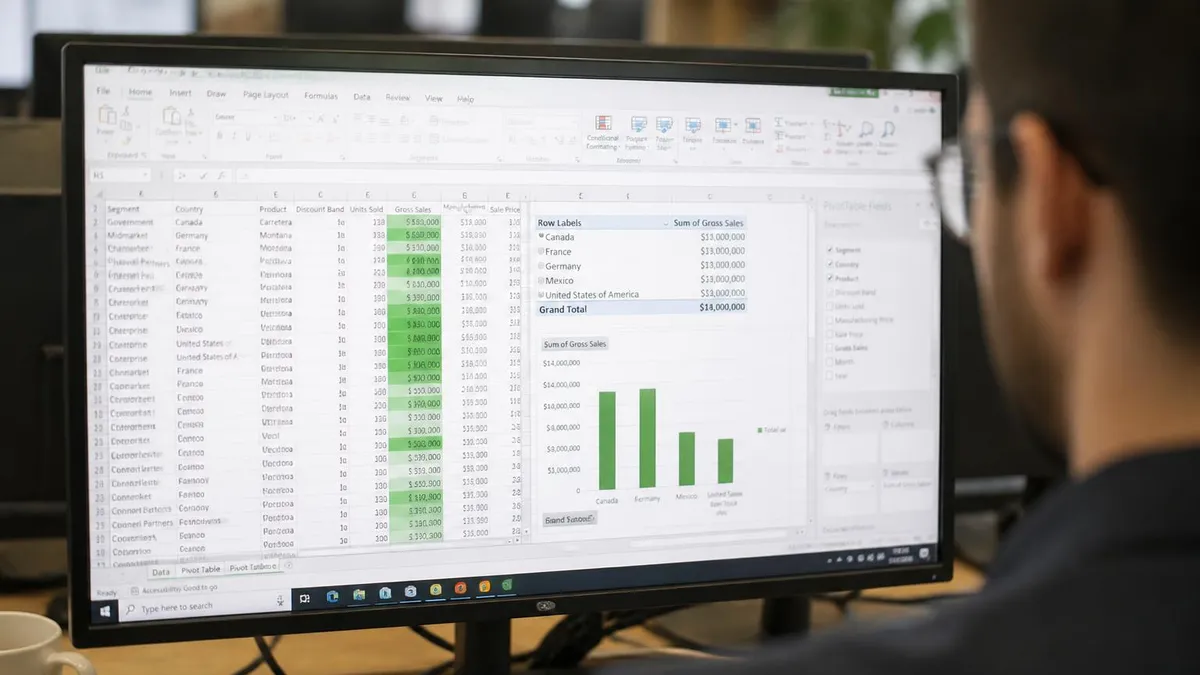
For specific use cases that warrant paid Excel specifically, several patterns emerge. Daily professional spreadsheet work typically benefits from paid Excel substantially. Macro development requires desktop Excel (web version cannot create macros). Power Query and Power Pivot for data analysis need desktop Excel. Very large file handling (hundreds of thousands of rows) works better in desktop. Specific advanced functions and features available only in desktop. Cost justification typically straightforward for professional users where time savings exceed subscription cost easily.
For specific use cases where free options work fine specifically, several patterns emerge. Personal budget tracking. Simple lists and inventories. Basic calculations and small datasets. Occasional sharing and collaboration. Educational coursework at most levels. Home-based small business with simple needs. Each works fine in Excel for the web, Google Sheets, or LibreOffice Calc. Don't pay for Excel subscription if free options meet your actual needs.
For mobile spreadsheet access specifically, several free options exist. Excel mobile (free for basic use, full features require Microsoft 365). Google Sheets mobile (free with Google account). Numbers (free on iPhone/iPad). Various third-party mobile spreadsheet apps. Mobile spreadsheet work has inherent limitations compared to desktop or web — small screen restricts complex work. Mobile is fine for review, simple edits, and quick reference; complex work typically requires larger screens. Most users use mobile for occasional access rather than primary spreadsheet work.
For enterprise free options specifically, organizations sometimes have access to Microsoft 365 through bulk licensing. Educational institutions licensing for students. Nonprofit licensing for verified nonprofits. Government licensing for qualifying agencies. Various other bulk license programs. Individual users at these organizations often have free access to full Excel through their institution rather than personal subscription. Verify with institution IT what's available; institutional licensing often provides better access than personal options.
For free Excel learning resources specifically, several options exist for users learning Excel. Microsoft's free Excel tutorials at support.microsoft.com cover basic to intermediate topics. YouTube channels provide extensive video instruction. Free online courses (some free Coursera, edX courses cover Excel) at various levels. Various blogs and websites provide articles on specific Excel topics. Combining structured free learning with practice on free Excel options provides solid Excel skills without subscription investment for those who don't yet need full desktop features.
Microsoft 365 free trial requires credit card and auto-renews after 30 days unless cancelled. Set calendar reminder for day 28 to make decision about renewing or cancelling. Cancellation through account settings is straightforward but easy to forget. Many users get unexpected $70-$100 charge because they didn't cancel before trial end. If you only need short-term Excel access, cancel before renewal triggers; you keep using through end of trial period. If you decide subscription is worthwhile, let it auto-renew. Don't let trial roll into subscription you didn't intend through inattention.
For pricing comparison specifically, paid Excel options have several tiers. Microsoft 365 Personal (1 user, $70/year) includes Word, Excel, PowerPoint, OneNote, OneDrive (1 TB), Outlook. Microsoft 365 Family (up to 6 users, $100/year) includes same apps for whole family. One-time Office Home & Student 2024 (~$150) includes Word, Excel, PowerPoint without subscription. Microsoft 365 Business plans for organizations vary by features. Most personal users find Microsoft 365 Personal or Family the right balance; one-time purchase suits users wanting to avoid recurring charges. Annual subscription cost ($70/year) is modest compared to time savings for regular users.
For evaluating whether to pay specifically, several considerations matter. How often do you use Excel? Daily users typically benefit from paid; occasional users may not. What specific features do you need? If features available in free options handle your needs, paid isn't necessary. What's your budget context? Subscription cost is small for most adults; large for students. What's your alternative? Google Sheets and LibreOffice Calc free; if those work, paid Excel adds incremental value over free alternatives. The decision depends on individual situation, not abstract "is paid worth it."
For migration between options specifically, several patterns emerge. Excel files (.xlsx) work in all major options including free alternatives. Some advanced Excel features don't translate cleanly to Google Sheets or LibreOffice Calc. Migrating between Excel and alternatives is straightforward for most files; complex files may have specific compatibility issues requiring rebuilding rather than simple translation. Users moving from paid Excel to free alternatives should verify their critical files work in target option before committing to migration. The how to freeze a column in Excel resources cover features that work across alternatives.
For cloud storage considerations specifically, Excel for the web requires OneDrive storage. Free OneDrive provides 5 GB; Microsoft 365 subscriptions provide 1 TB. Heavy spreadsheet users may exceed 5 GB free OneDrive eventually. Google Sheets stores in Google Drive with 15 GB free across all Google services. LibreOffice Calc files stored locally on your computer (or any cloud storage you configure). Cloud storage limits affect free option viability for users with extensive file collections. Storage management may require organization or paid storage upgrade over time.
Looking forward, free spreadsheet options continue improving. Google Sheets and LibreOffice Calc continue gaining capabilities approaching paid Excel. Microsoft continues offering free Excel for the web while reserving advanced features for paid versions. Various other free alternatives continue developing. The free spreadsheet landscape provides genuine functionality for most casual users; paid Excel remains valuable for power users with specific advanced needs. The right choice depends on individual situation rather than universal answer about whether free or paid is better.
For specific scenarios that highlight free option limitations specifically, several patterns emerge. Building complex automated reports requires macros that web Excel doesn't support. Connecting to enterprise data sources often requires Power Query desktop functionality. Performing advanced statistical analysis sometimes needs functions in desktop only. Creating sophisticated dashboards may need features only desktop offers. Each scenario where free options fall short can usually be identified before frustration sets in by understanding what advanced features require paid Excel.
For users transitioning from paid to free specifically, several considerations matter. Identify which Excel files use advanced features unavailable in free options. Plan rebuilding or alternative approaches for those files. Test critical files in target free option before committing fully. Some loss of capability is inevitable when transitioning to free; understanding the tradeoffs upfront prevents surprises. Some users transition successfully; others find the gap too significant. Trial period before committing helps inform the decision.
For users transitioning from free to paid Excel specifically, the experience is generally additive — features expand without losing existing capability. Files created in web Excel work in desktop. Skills learned in free options transfer. The main change is access to additional features and improved performance. The transition is straightforward technically; the question is whether expanded capability justifies subscription cost. Most users transitioning report the upgrade is worthwhile when their actual usage justifies it.
Free Excel Quick Facts
Free vs Paid Excel
- +Free options (web Excel, Sheets, Calc) cover most casual user needs
- +Microsoft 365 trial provides genuine 30-day full Excel evaluation
- +Educational access free for verified students at participating institutions
- +Free alternatives have improved substantially — closer to Excel parity
- +No financial commitment required for occasional spreadsheet work
- −Free options lack advanced features (macros, Power Query, Power Pivot)
- −Excel for the web has performance limitations for very large files
- −Trial requires credit card and auto-renews — must remember to cancel
- −Compatibility between Excel and free alternatives isn't perfect
- −Power users typically need paid subscription for productive work
Excel Questions and Answers
About the Author

Business Consultant & Professional Certification Advisor
Wharton School, University of PennsylvaniaKatherine Lee earned her MBA from the Wharton School at the University of Pennsylvania and holds CPA, PHR, and PMP certifications. With a background spanning corporate finance, human resources, and project management, she has coached professionals preparing for CPA, CMA, PHR/SPHR, PMP, and financial services licensing exams.