
How to Merge Two Columns in Excel: 5 Easy Methods 2026 September
Learn how to merge two columns in Excel using &, CONCATENATE, CONCAT, TEXTJOIN, and Flash Fill. Step-by-step with separators, examples, and common 🏆

& operator (fastest), CONCATENATE (all versions), CONCAT (Excel 2016+), TEXTJOIN (best for delimiters), and Flash Fill (no formula needed). Critical warning: The Merge & Center button does not merge data — it only formats cells and destroys data in merged cells. Use a formula instead.Why You'd Merge Two Columns in Excel
You'll need to merge columns constantly in real-world Excel work. First and last names stored in separate columns? You want one full name field for a mail merge. City and state living in different cells? A mailing label needs them combined with a comma. Address fields scattered across four columns? A CRM import expects one formatted address string.
Data cleanup is another big one. Imported spreadsheets often split data that should live together — product codes paired with descriptions, employee IDs joined with department names, date parts spread across day/month/year columns. Merging them into one column makes sorting, filtering, and lookups far more reliable.
The good news: Excel gives you five distinct ways to merge columns, each with its own strengths. The method you choose depends on your Excel version, how complex the separator needs to be, and whether you want to skip blanks automatically.

Method 1: The & Operator — Fastest Way to Merge Columns
The ampersand & operator is the quickest way to join two cells. It's available in every version of Excel, it's intuitive, and it takes about three seconds to type.
Say column A has first names and column B has last names. To merge them with a space in between, you'd type this in column C:
=A2&" "&B2
That formula grabs whatever's in A2, adds a literal space (wrapped in quotes), then tacks on whatever's in B2. The result is a full name like Sarah Johnson.
You can swap the space for any separator you need. Combining city and state? Use a comma and space:
=A2&", "&B2
No separator at all? Just skip the quoted string:
=A2&B2
That's useful for things like joining a product code with a version number where no space is needed — SKU-2024 instead of SKU- 2024.
One thing to watch: if you're merging numbers (like zip codes or phone numbers), wrap each cell reference in TEXT() to preserve leading zeros. =TEXT(A2,"00000")&" "&B2 keeps a zip like 07030 from becoming 7030.
Merge Column Methods at a Glance
Formula: =A2&" "&B2
Best for: Quick merges, any Excel version, simple separators
Limitation: Doesn't skip blank cells automatically — blanks result in double separators
Example output: John Smith, New York NY, SKU-2024
Method 2: CONCATENATE Function — Works in Every Excel Version
If you're working in an older version of Excel, or you're sharing files with people who might be, CONCATENATE is your safest bet. It's been in Excel since the beginning, so it works everywhere.
The syntax looks like this:
=CONCATENATE(A2," ",B2)
You list each piece as a separate argument separated by commas. The middle argument — the quoted space — is the separator. You can put anything in there: a comma, a hyphen, a dash, or nothing at all.
For more than two columns, just keep adding arguments:
=CONCATENATE(A2," ",B2,", ",C2)
That would give you something like John Smith, New York if A2 is the first name, B2 is the last name, and C2 is the city.
The downside to CONCATENATE is it's wordy. When you need to merge ten columns, listing every cell reference individually gets tedious fast. That's when you want TEXTJOIN instead.
Microsoft has officially deprecated CONCATENATE in favor of CONCAT, but it still works in current Excel versions and will for the foreseeable future. If you're writing formulas others will use, prefer CONCAT instead.
When to Use Each Method
- Speed: You want the fastest formula to type
- Compatibility: You need it to work in Excel 2007 or newer
- Simple merges: Joining 2–3 columns with a fixed separator
- Legacy files: Your file will be opened in Excel 2010 or older
- Familiarity: Your team already uses CONCATENATE in existing formulas
- Simple merge: You're combining a small number of cells
- Blanks: Some cells are empty and you want to skip them automatically
- Many columns: You're merging 4+ columns with the same delimiter
- Range support: You can specify A2:D2 instead of listing every cell
- One-time task: You don't need the result to update if source data changes
- No formulas: You prefer plain text values over formula-driven cells
- Pattern detection: Excel can infer your pattern from one or two examples
Method 3: CONCAT Function — Cleaner Syntax for Excel 2016+
Excel 2016 introduced CONCAT as a direct replacement for CONCATENATE. It does everything CONCATENATE does, just with a slightly cleaner name and the added ability to reference cell ranges.
Basic usage is identical to CONCATENATE:
=CONCAT(A2," ",B2)
The big difference is range support. While CONCATENATE forces you to list every cell, CONCAT lets you use a range — though it won't add a separator between cells in the range automatically. So =CONCAT(A2:C2) would smash all three values together without any spaces.
For that reason, you'll still usually need to spell out the separator explicitly when using ranges. TEXTJOIN handles that more elegantly. Think of CONCAT as the middle ground: cleaner than CONCATENATE, simpler than TEXTJOIN.
If you're on Microsoft 365, use CONCAT freely. It won't work in Excel 2013 or earlier, so keep that in mind if you share files with colleagues on older installations.

Pre-Merge Checklist
- ✓Clean up leading/trailing spaces in source columns using TRIM() before merging
- ✓Check for blank cells that might cause double-separator issues
- ✓Decide on the separator you need: space, comma-space, hyphen, or none
- ✓Choose an empty column for your merged output — don't overwrite source data yet
- ✓Confirm which Excel version is in use (determines which functions are available)
- ✓Plan whether you need a live formula or static text values after merging
- ✓Decide if you want to delete source columns after merging (paste values first!)
Method 4: TEXTJOIN — Best for Multiple Columns and Skipping Blanks
TEXTJOIN is the most powerful of the four formula methods, and it shines brightest when you're merging more than two columns or when your data has blanks that need to be skipped.
The syntax has three parts:
=TEXTJOIN(delimiter, ignore_empty, range)
In practice, it looks like this:
=TEXTJOIN(", ",TRUE,A2:D2)
That formula joins everything from A2 to D2, using a comma-space as the separator, and skips any blank cells automatically. The TRUE argument is what tells Excel to ignore empty cells. Set it to FALSE and blanks produce extra separators — usually not what you want.
Here's a real-world example: if you have address data spread across columns for street, suite, city, state, and zip, some cells might be blank (not every address has a suite number). A formula like:
=TEXTJOIN(", ",TRUE,A2:E2)
...would output 123 Main St, Chicago, IL, 60601 even when the suite column is empty. No double commas, no extra spaces — it just skips it cleanly.
TEXTJOIN is available in Excel 2019 and Microsoft 365. It's not in Excel 2016 base or any older version.
Excel Merge Methods: Version Support
Method 5: Flash Fill — No Formula Required
Flash Fill is Excel's pattern-detection feature, and it's magic for one-time merges. You don't write a formula at all. Instead, you show Excel what you want by typing it manually once or twice, and Excel fills in the rest.
Here's how it works:
Say column A has first names and column B has last names. In column C, type the combined result you want for the first row — for example, type John Smith in C2 if A2 is John and B2 is Smith. Then press Ctrl+E. Excel detects the pattern and fills the rest of the column automatically.
Flash Fill is great for quick tasks — it's faster than writing a formula for a one-time cleanup. But it has a major limitation: the results are static text values. If the data in column A or B changes later, the Flash Fill results won't update. You'd have to run Flash Fill again.
Use Flash Fill when you need a fast, formula-free merge that you won't need to maintain. For anything that needs to stay live as data changes, stick with one of the formula methods.
Flash Fill is available in Excel 2013 and later. If it doesn't trigger automatically, go to Data → Flash Fill in the ribbon, or press Ctrl+E.
Formula Merge vs Flash Fill: Pros and Cons
- +Formula merges (& / CONCATENATE / CONCAT / TEXTJOIN) update automatically when source data changes
- +Formulas can be audited and edited — you can see exactly what's happening
- +TEXTJOIN handles blank cells cleanly with the ignore_empty parameter
- +Formula results can reference cells across multiple sheets or workbooks
- +All methods except Flash Fill work in protected sheets with formula cells unlocked
- −Formulas add file complexity — merged columns must coexist with source columns until you paste values
- −Flash Fill produces static text and won't update if source data changes
- −TEXTJOIN and CONCAT are only available in newer Excel versions
- −Circular reference errors can occur if you accidentally overwrite source cells with the formula
- −Formula-based merged columns require converting to values before deleting the source columns
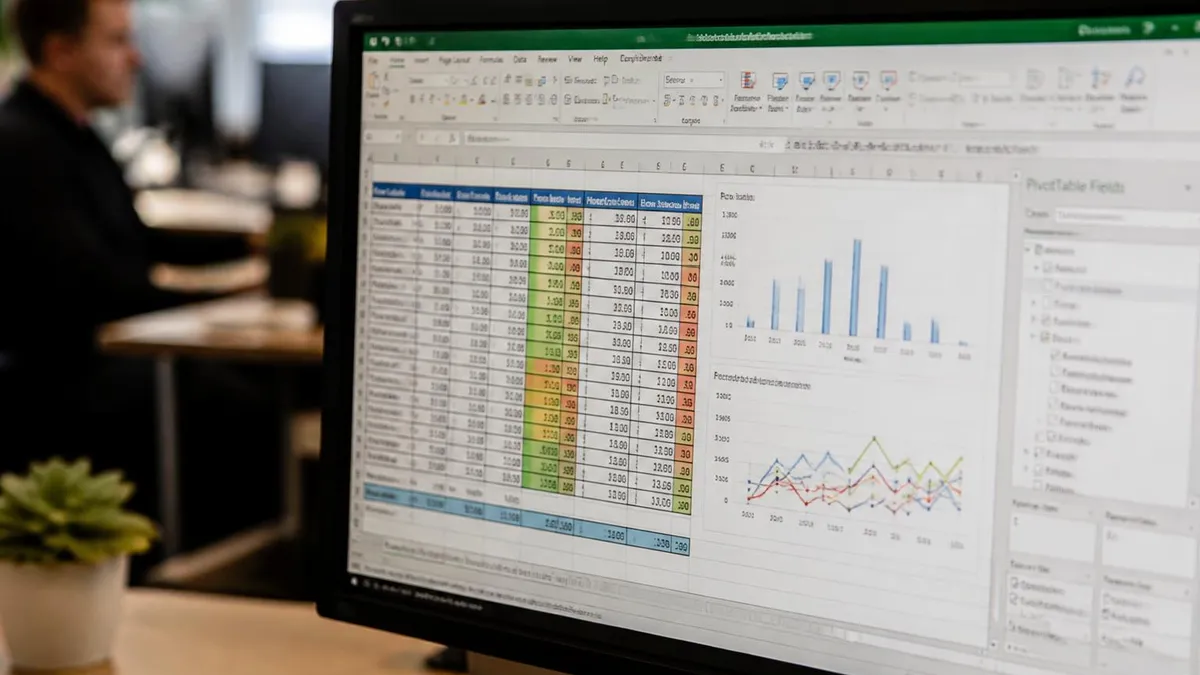
Critical Warning: Merge & Center Doesn't Merge Data
This is the most common mistake Excel beginners make — and it causes real data loss. The Merge & Center button in the Home tab looks like it merges columns, but it doesn't combine data. It only formats cells visually.
When you select A2 and B2 and click Merge & Center, Excel keeps the value from the upper-left cell (A2) and silently deletes everything in B2. You'll see a single wide cell that looks merged — but the data from B2 is gone.
Merged cells also break a lot of Excel features. You can't sort a range that contains merged cells. Filtering doesn't work properly on merged columns. Copy-paste behaves unexpectedly. And if you're building a pivot table in Excel, merged cells will cause errors or missing data.
The rule is simple: use Merge & Center only for formatting purposes — like centering a header across a range. For combining data from two columns into one, always use a formula.
&, CONCATENATE, CONCAT, or TEXTJOIN formulas instead. Merged cells also break sorting, filtering, and pivot tables.How to Keep Merged Values as Text (Remove the Formula)
Once your merge formula is working, you'll often want to convert those formula results to plain text. This lets you delete the source columns without breaking anything, and it makes the file simpler to share.
Here's the process:
Select all the cells in your merged column — the ones with the formula. Copy them with Ctrl+C. Then right-click the same range and choose Paste Special → Values (or press Alt+E+S+V then Enter). The formulas are replaced with their current text values.
Now your merged column is independent of the source columns. You can safely delete columns A and B, and the merged values in column C will stay intact.
One thing to do before deleting source columns: scroll through your merged column and spot-check a few rows to make sure everything looks right. Once the source columns are gone, there's no easy undo. If you're worried, move the source columns to a hidden sheet rather than deleting them outright.
After converting to values, you might also want to remove empty rows in Excel if your source data had gaps. That's especially common after importing data from external systems where blank rows get inserted between records.
Paste Special Shortcuts
Applying the Formula to an Entire Column
Writing the formula for one row is the easy part. Applying it to thousands of rows takes about two seconds once you know the trick.
After you've written your merge formula in the first row — say C2 — click on that cell. You'll see a small green square at the bottom-right corner of the cell. That's the fill handle. Double-click it, and Excel automatically fills the formula down through every row that has data in the adjacent columns.
Alternatively, click on C2, then hold Shift and click on the last row you want to fill. Press Ctrl+D to fill down.
For very large datasets, you can also type the formula directly into the formula bar with an explicit range. Or use a structured table — when your data is formatted as an Excel table (Ctrl+T), formulas in any column automatically propagate to all rows. That's often the cleanest approach for ongoing data entry.
If you're combining columns and then want to do more analysis, like using an IF function in Excel to flag certain merged values, keep the formula live rather than converting to values right away.
Common Mistakes When Merging Columns in Excel
Even experienced Excel users run into these. Knowing them in advance saves you a round of debugging.
Forgetting the separator: The most frequent issue. =A2&B2 gives you JohnSmith instead of John Smith. Always check whether you need a space, comma, or other character between values.
Referencing the wrong cells: When you drag a formula down, relative cell references shift automatically. That's usually what you want — but double-check the first few and last few rows to make sure nothing shifted incorrectly, especially if your formula spans multiple worksheets.
Confusing data merge with format merge: As covered above, Merge & Center is a formatting tool. If someone has already applied Merge & Center to your source cells, you may need to unmerge them first (Home → Merge & Center → Unmerge Cells) before your formulas will work correctly.
Leading and trailing spaces in source data: If A2 contains John (with a trailing space), your merged result looks fine on screen but has an invisible extra space. Use TRIM() to clean this: =TRIM(A2)&" "&TRIM(B2).
Numbers losing formatting: Merging a number with text converts the number to its raw value. A currency value of $1,234.56 becomes 1234.56 in the merged string. Wrap it in TEXT(): =TEXT(A2,"$#,##0.00")&" "&B2.
For broader data organization tasks, learning how to SUM a column in Excel and create a dropdown in Excel will round out your skills for working with combined data.
Step-by-Step: Merge Two Columns and Keep Values
Pick an empty output column
Type your merge formula
Extend the formula to all rows
Check the results
Convert to values (optional)
Delete or hide source columns
Final Tips for Clean Column Merging
A few habits make column merging faster and less error-prone every time. None of them are complicated — they're the kind of small steps that separate people who merge columns confidently from people who accidentally destroy data and spend an hour trying to get it back.
Always work in a copy of your spreadsheet when merging for the first time, especially if you're going to delete source columns afterward. It takes five seconds to save a backup and can save hours of reconstructing lost data. This is especially true when you're working with imported data — CSV files, database exports, or anything pulled from an external system often has quirks you won't notice until after you've already made changes.
Use named ranges or Excel Tables (Ctrl+T) for any data you merge regularly. Tables auto-expand formulas to new rows as you add data — you never have to drag the fill handle again. They also give your columns readable names like Table1[FirstName] instead of A2, which makes formulas much easier to audit months later when you've forgotten what each column contains.
If you're doing complex data transformations beyond simple merges, Power Query (Get & Transform) is worth learning. It handles column merging with a point-and-click interface and can be refreshed automatically when source data changes. For teams that process the same data imports every week, Power Query saves far more time than any formula shortcut.
For large-scale data analysis after merging, a pivot table in Excel is your next step — it lets you summarize and group the merged data in seconds without any additional formulas. Run your merge first to consolidate the fields you need, then build the pivot on the cleaned dataset.
Excel Merge Columns Questions and Answers
About the Author

Business Consultant & Professional Certification Advisor
Wharton School, University of PennsylvaniaKatherine Lee earned her MBA from the Wharton School at the University of Pennsylvania and holds CPA, PHR, and PMP certifications. With a background spanning corporate finance, human resources, and project management, she has coached professionals preparing for CPA, CMA, PHR/SPHR, PMP, and financial services licensing exams.