
How to Split Cells in Excel: 4 Methods for Every Situation 2026 September
Split cells in Excel using Text to Columns, Flash Fill, formulas, or Power Query. 🆕 Step-by-step methods for every Excel version.

Splitting cells in Excel is one of the most common data manipulation tasks. Whether you need to separate first and last names, parse addresses into components, or break apart concatenated codes, Excel offers four main methods to split cell contents into multiple columns. Choosing the right method depends on the structure of your data, whether the split needs to update dynamically, and how often you'll perform similar operations. Understanding all four methods builds a flexible toolkit that handles virtually any data parsing scenario.
The four methods are: Text to Columns (the classic, available in every Excel version, best for one-time splits at consistent delimiters), Flash Fill (Excel 2013+, learns from examples, handles complex patterns), formulas using LEFT/RIGHT/MID/FIND functions (most flexible, dynamic updating), and Power Query (best for repeated automated processing of large or complex datasets). Each handles different scenarios well, and combining methods often produces the best results for messy real-world data.
Before splitting any cells, take a moment to understand your data's structure. Are the splits at consistent delimiters (commas, spaces, fixed character positions)? Or are they pattern-based (first word, last word, everything before a specific phrase)? Are some entries unusual in ways that might confuse automated splitting? Reviewing a sample of your data before applying methods reveals edge cases that need special handling and prevents silent errors that go undetected until downstream reports show problems.
This guide walks through each method with step-by-step instructions, explains when to use which approach, and shows how to handle common edge cases. Whether you're cleaning a single dataset or building repeated parsing workflows, you'll find techniques that produce reliable results efficiently.
Real-world splitting scenarios often combine multiple challenges. A column might contain phone numbers in formats like "(555) 123-4567", "555.123.4567", and "5551234567" — all valid but with different parsing logic needed. A column of names might mix "Smith, John" (last-first format) with "John Smith" (first-last) and "Dr. Robert Brown Jr." (with prefix and suffix). Handling these mixed-format scenarios well requires either pre-processing data to normalize formats first or using flexible methods that handle multiple cases gracefully.

Text to Columns: Data tab → Text to Columns → Delimited or Fixed width
Flash Fill: Type desired output for first 1-3 cells, press Ctrl+E
Formulas: LEFT, RIGHT, MID, FIND, SEARCH for dynamic updating
Power Query: Get & Transform → Split Column for repeated processing
Choosing: One-time → Text to Columns; pattern-based → Flash Fill; dynamic → formulas
Text to Columns is the most established method for splitting cells. Available in every Excel version since 2003, it works through a wizard that walks you through the splitting process. Select the cells to split. Go to Data tab → Text to Columns. Choose Delimited (split at specific characters) or Fixed width (split at specific column positions). Click Next. Specify the delimiter (space, comma, tab, semicolon, or custom) or set the column boundaries. Click Next, optionally adjust column data formats, and click Finish.
Text to Columns works perfectly for cleanly delimited data. "John,Smith,Manager" splits at commas into three columns: John, Smith, Manager. "123 Main St Anytown CA" splits at spaces into separate cells for each word. The simplicity makes it ideal for one-time splits where you don't need the operation to update if data changes. The downside: it's not dynamic — running it once doesn't repeat for new data added later.
For data with consistent delimiter patterns but variable content, Text to Columns also handles fixed-width splitting. Useful for parsing data like "ABC123XYZ45" where you know specific character positions delimit different meanings (perhaps "ABC" is a category code, "123" is an ID, and "XYZ45" is a date). The fixed-width option lets you specify exact character columns where splits should occur. Excel formulas often work alongside Text to Columns when initial parsing leaves data that needs further cleaning.
Flash Fill (Excel 2013+) takes a different approach — pattern recognition rather than rule-based splitting. Type the desired output for the first 1-3 cells in an adjacent column. Press Ctrl+E. Excel detects the pattern and fills in the rest based on what you've shown it. Flash Fill handles complex patterns that would require multiple Text to Columns passes or complex formulas — for example, extracting just the area code from a list of varied phone number formats, or pulling first name initials from full names.
The strength of Flash Fill is intelligence; the weakness is that intelligence sometimes makes wrong inferences. Always verify Flash Fill results, especially for the first batch and edge cases. Unusual entries can confuse the pattern detection and produce unexpected outputs that look reasonable but are subtly wrong. Reviewing 10-20 of the auto-filled results catches most issues before they propagate through downstream work.
For data professionals working across Excel and other tools, the splitting concepts and skills transfer directly. SQL string functions (SUBSTRING, CHARINDEX, LEFT, RIGHT) work analogously to Excel's text functions. Python's string methods follow similar logic. R's stringr package provides similar capabilities. The fundamental concepts — finding delimiters, extracting substrings, handling edge cases — are the same regardless of tool. Investing in mastering Excel splitting builds general data fluency applicable across many environments.
Four Methods to Split Cells
Available in every Excel version. Wizard-based interface walks through splitting at delimiters or fixed positions. Best for one-time splits at consistent boundaries. Doesn't update dynamically when source data changes.
Excel 2013+. Pattern recognition learns from your examples. Handles complex patterns better than Text to Columns. Press Ctrl+E to trigger. Always verify results — pattern detection can occasionally make wrong inferences with unusual data.
Maximum flexibility. Dynamic updating as source data changes. Works in every Excel version. More complex syntax than other methods but provides full control over edge cases. Best for splits that need to update with data.
Best for large datasets or repeated processing. Get & Transform → Split Column with options for delimiter, character count, position, or pattern. Repeatable transformation refreshes automatically with source data updates.
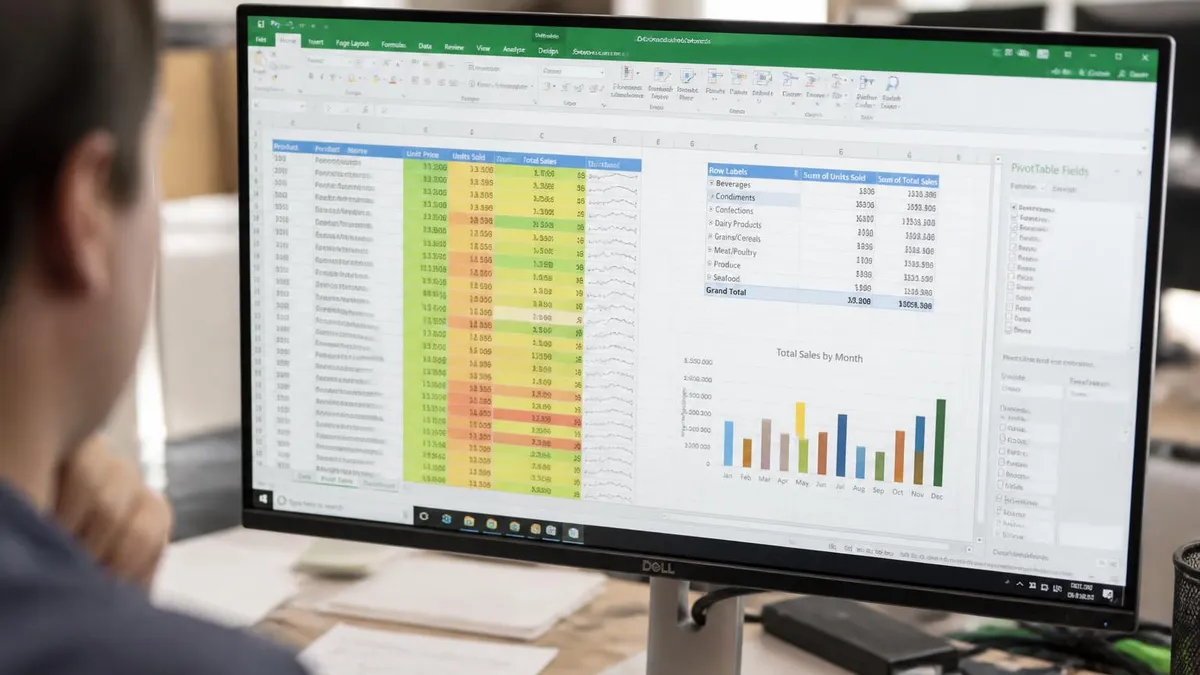
Formula-based splitting using LEFT, RIGHT, MID, FIND, and SEARCH functions provides maximum flexibility. The basic patterns: LEFT(cell, FIND("delimiter", cell)-1) extracts text before a delimiter; RIGHT(cell, LEN(cell)-FIND("delimiter", cell)) extracts text after; MID(cell, start, length) extracts a specific section. Combining these handles complex multi-delimiter splits dynamically. The major advantage: formulas update automatically when source data changes, making them ideal for live spreadsheets that need to stay current.
For more complex splits, the SUBSTITUTE and REPT trick handles multi-occurrence delimiters elegantly. To extract the third word from a space-separated string in cell A2: =TRIM(MID(SUBSTITUTE(A2," ",REPT(" ",100)),200,100)). The REPT(" ",100) replaces each space with 100 spaces, the MID extracts a 100-character chunk starting at the right position, and TRIM removes the extra spaces. Adjusting the start position (200 in this example, calculated as 100×2 for the third word) lets you extract any specific word position from delimited strings.
Excel 365 introduced TEXTSPLIT, TEXTBEFORE, and TEXTAFTER functions that simplify these operations significantly. TEXTSPLIT(cell, delimiter) directly returns multiple values from a single cell — combined with dynamic arrays, this produces clean splits with minimal formula complexity. TEXTBEFORE(cell, delimiter) returns text before the specified delimiter. TEXTAFTER(cell, delimiter) returns text after. For users on Microsoft 365, these new functions handle most splitting tasks more cleanly than the older LEFT/RIGHT/FIND combinations. The conditional formatting applied to split results helps verify the splits worked correctly across large datasets.
Power Query offers the most reliable splitting for large datasets and repeated workflows. Select your data, Data tab → From Table/Range. In Power Query Editor, select the column to split. Home tab → Split Column with options including: by Delimiter, by Number of Characters, by Positions, by Lowercase to Uppercase transition, by Digit to Non-Digit transition. Each option handles specific splitting scenarios cleanly. Power Query operations are saved as repeatable steps that re-run automatically when source data refreshes — ideal for monthly imports or recurring data feeds.
Combining methods often produces the best results for messy real-world data. Start with Text to Columns or Flash Fill for the bulk split. Apply formulas for edge cases the bulk method missed. Use Power Query for the entire workflow when the parsing will be repeated regularly. Excel's flexibility lets you mix approaches based on what each part of the data needs. Don't feel constrained to use just one method — the right approach is whatever produces clean correct results most efficiently for your specific situation.
Performance optimization matters for very large datasets. Formula-based splitting on 100,000+ rows can cause Excel to slow noticeably as it recalculates. Switching to manual calculation mode (Formulas tab → Calculation Options → Manual) before applying many formula-based splits prevents excessive recalculation. After all formulas are in place, recalculating once and then converting formulas to values (copy → paste special → values) further improves performance for the resulting workbook.
Step-by-Step Methods
Step-by-step process:
- Select the cells you want to split
- Go to Data tab → Text to Columns
- Choose Delimited for delimiter-based or Fixed width for position-based
- Click Next
- Specify the delimiter (space, comma, semicolon, tab) or set column boundaries
- Click Next, optionally adjust column formats
- Click Finish
Backup your data first — Text to Columns overwrites adjacent columns.

Common edge cases need specific handling. Cells with leading or trailing whitespace can produce unexpected splits — wrap source cells in TRIM() before splitting to avoid issues. Cells with no delimiter cause errors with formula-based methods — wrap formulas in IFERROR to handle gracefully: =IFERROR(LEFT(A2, FIND(" ", A2)-1), A2). Empty cells need similar handling. International data with different delimiter conventions (semicolons in European CSV files instead of commas) requires adjusting your method's expected delimiter.
For very large datasets where performance matters, formula-based splitting can slow Excel substantially when applied across thousands of rows. Power Query handles large data more efficiently because it processes the transformation once rather than recalculating per cell. Text to Columns is also fast because it produces values rather than formulas. For 50,000+ row datasets, choose Power Query or Text to Columns over formulas to maintain reasonable performance.
For users frequently splitting similar data — perhaps weekly imports of CSV files with the same structure — building reusable Power Query connections or recorded macros saves significant time. Set up the parsing logic once with all the necessary transformations. Future imports apply the same logic automatically when you refresh the connection. The investment in automation typically pays back within 5-10 uses for typical workflows. Excel's automation features turn one-time problem solving into reusable infrastructure that compounds productivity over time.
Documentation matters for parsing logic that others may need to understand or modify later. Adding comments explaining what each step does, why specific approaches were chosen, and what assumptions about data format underlie the parsing helps future maintenance. Power Query operations are inherently documented through their step list.
Formula-based parsing benefits from comments in adjacent cells explaining what the formulas do. Text to Columns operations are not documented at all — if you use Text to Columns regularly for similar data, documenting the steps in a separate procedure file helps consistency. The COUNTIF function in Excel and other text functions integrate well with parsing workflows for downstream analysis of split data.
For Excel users new to data parsing, starting with Text to Columns for simple cases builds confidence. Try Flash Fill for slightly more complex patterns. Build up to formula-based splitting as you gain comfort with text functions. Eventually try Power Query for repeated workflows. This progression introduces concepts gradually and produces sustainable skill growth that compounds over time. Trying to learn everything at once frustrates beginners and rarely produces lasting competence.
For users mastering splitting and looking for next steps in Excel skill development, related areas include: combining multiple cells into one (concatenation, the reverse of splitting), conditional logic for different data types (IF, IFS, SWITCH functions), aggregating split results (COUNTIFS, SUMIFS, AVERAGEIFS for analyzing data after splitting), and visualizing patterns in split data (charts, pivot tables). Each builds on splitting fundamentals to handle progressively more sophisticated data analysis tasks.
Text to Columns overwrites adjacent columns with the split results. If you have important data in those columns, it gets replaced without warning. Always copy your data to a new sheet, save the workbook before splitting, or expand columns first to make space. Flash Fill writes to the column you're typing in but doesn't overwrite existing data unless you accept its suggestions. Formulas don't modify source data at all. Choose methods deliberately based on whether you want source data preserved or transformed in place.
Looking forward, Excel continues evolving with new text functions and AI-assisted features. Microsoft Copilot integration in Excel can suggest splitting approaches based on examining your data. The TEXTSPLIT, TEXTBEFORE, and TEXTAFTER functions added recently to Microsoft 365 simplified previously-complex parsing tasks. Future updates likely add more intelligent automation that handles edge cases without requiring user intervention. Staying current with Excel's evolving capabilities helps you find easier ways to handle parsing as the tools continue improving.
The skills developed for cell splitting generalize broadly to other data manipulation tasks. Combining values from multiple cells (concatenation, the reverse of splitting) uses the same conceptual framework. Reformatting dates, parsing structured codes, transforming categories all build on similar foundational text-processing skills. Investment in mastering Excel text manipulation pays returns across many other Excel tasks beyond just cell splitting.
For organizations standardizing on parsing methods across teams, choosing one or two preferred methods and building shared training around them produces more consistent results than letting each team member use whatever approach they happen to know. A simple internal procedure document covering preferred methods, when to use each, and how to handle common edge cases creates organizational knowledge that survives staff changes. Combined with shared Power Query templates for common workflows, this approach builds capability that compounds across teams over time.
Cell splitting may seem like a basic Excel operation, but doing it well requires understanding multiple methods, knowing when to apply each, handling edge cases gracefully, and building reusable patterns for repeated work. The investment in mastering these skills pays back through faster, more reliable data work across years of Excel use. Whether you handle parsing occasionally or daily, building strong fundamental skills with the methods covered here makes you more capable and confident with data work generally.
The combination of skills built through repeated cell splitting compounds into broader Excel competence. Each task teaches you about edge cases, performance characteristics, formula syntax, and Excel's behavior with various data types. Over time, this accumulated knowledge transforms how you approach data work — what felt difficult becomes routine, what required help becomes self-service, and you find yourself the person colleagues come to with their Excel questions rather than the one asking. This trajectory of skill growth is one of the rewarding aspects of investing seriously in Excel as a tool.
For students entering data-heavy careers, mastering Excel parsing fundamentals creates valuable career capital regardless of which specific industry you enter. Finance, marketing, operations, healthcare administration, scientific research, journalism, and many other fields all involve significant data work. Demonstrating competence with Excel splitting and broader data manipulation in interviews and on the job differentiates you from candidates whose Excel skills are limited to basic spreadsheet entry. Investment in these skills early in your career produces returns across decades of professional work.
Excel Cell Splitting Numbers
Method Selection Tradeoffs
- +Text to Columns: simple, fast, works in every Excel version
- +Flash Fill: handles complex patterns intuitively when shown examples
- +Formulas: dynamic updating as source data changes
- +Power Query: efficient for large datasets and repeatable processing
- +Combining methods: handles edge cases that single methods miss
- −Text to Columns: not dynamic — must rerun for new data
- −Flash Fill: requires Excel 2013+; can occasionally make wrong inferences
- −Formulas: complex syntax for some splits; performance issues at scale
- −Power Query: steeper learning curve; overkill for simple one-time splits
- −All methods: edge cases (whitespace, empty cells, varied delimiters) need handling
Excel Questions and Answers
About the Author

Business Consultant & Professional Certification Advisor
Wharton School, University of PennsylvaniaKatherine Lee earned her MBA from the Wharton School at the University of Pennsylvania and holds CPA, PHR, and PMP certifications. With a background spanning corporate finance, human resources, and project management, she has coached professionals preparing for CPA, CMA, PHR/SPHR, PMP, and financial services licensing exams.