
How to Calculate Percentages in Excel (Formulas, Shortcuts & Examples)
How to calculate percentages in Excel: percent of total, percent change, increase/decrease formulas, shortcuts, formatting tips, and common mistakes 🎓

Percentages sit at the heart of nearly every spreadsheet you'll ever build. Budgets, sales reports, growth metrics, tax calculations, grades, commissions — they all lean on the same handful of formulas. And yet, Excel still trips people up. You enter =10/100, expect to see 10%, and instead you get 0.1. Or you click the % button and watch your number balloon from 50 to 5000%. Frustrating? Yes. Complicated? Not really, once you understand what Excel is actually doing under the hood.
Here's the truth: Excel doesn't store percentages the way you read them. A cell showing 25% actually holds the value 0.25. The percent sign is purely a display format. Get that one idea straight, and every percentage formula you'll ever write suddenly makes sense. You can then move on to the interesting questions — what percent of total sales does each region contribute, how much has revenue grown month over month, how does a 10% discount stack on top of a 15% loyalty rebate, what's the percentage difference between two competing products?
This guide walks through the formulas you'll use 95% of the time. We'll cover percent of total, percent change (also called percent difference), percent increase and decrease, percent of a percent, the Number-format trick versus multiplying by 100, the lightning-fast Ctrl+Shift+% shortcut, and the silly mistakes that send pivot tables into chaos. You don't need to be an Excel wizard. If you can type = into a cell, you're already halfway there.
Excel Percentage Quick Facts

The One Concept That Unlocks Every Percentage Formula
Before any formula, you need to internalize this: a percentage in Excel is just a decimal with a fancy hat on. When the cell reads 50%, the underlying value is 0.5. When it reads 7.25%, the stored value is 0.0725. Excel multiplies by 100 only for display purposes. That's it. That's the trick.
Why does this matter? Because the moment you type =A1*15% versus =A1*15, you get two completely different results. The first multiplies A1 by 0.15. The second multiplies A1 by 15. Same keystrokes, wildly different math. The percent sign is doing all the work — it's a built-in division by 100.
Once you accept that, every formula below becomes intuitive. You stop fighting Excel and start working with it. And honestly? The error messages stop happening too.
What Happens When You Click the % Button
Say you have 50 sitting in cell B2 and you click the % icon on the Home ribbon. Excel doesn't think "ah, the user wants 50 percent." It thinks "this number, 50, should now be displayed in percentage format." So it shows 5000%. Which is technically correct — 50 expressed as a percentage really is 5000% — but it's almost never what you wanted.
The fix? Either type your decimal first (0.5) and then click %, or type your number with the % sign already attached (50%). Excel will store 0.5 either way. Both routes land at the same destination.
Always format your cell as Percentage before typing in a number — or use the % suffix while typing. Reformatting after the fact will multiply your value by 100 and create a mess. If a cell already has 0.5 in it, applying % format shows 50%. If a cell has 50 in it, applying % format shows 5000%. Same button, very different outcome.
How to Calculate Percentage of a Total in Excel
This is the workhorse formula. You've got individual values and a grand total, and you want to know what slice each value represents. Sales by region, expenses by category, marks by subject — same setup, same formula.
The formula is dead simple: =part/total. So if cell B2 contains your regional sales figure (let's say $4,500) and cell B10 contains the company-wide total ($30,000), you'd write =B2/B10 in C2. Excel returns 0.15. Apply percentage format, and you see 15%. That region contributed 15% of total sales.
Want to drag the formula down for every row? You'll need to anchor the total with dollar signs: =B2/$B$10. Without those anchors, when you copy the formula to C3, Excel shifts the reference to =B3/B11 — and B11 is probably empty. Suddenly every cell shows a #DIV/0! error and you're cursing the screen. Lock that total. Always.
A Real Example: Sales Breakdown
Imagine a four-region sales report. North did $4,500. South did $7,200. East did $6,300. West did $12,000. Total: $30,000. Drop the totals into B10, write =B2/$B$10, format C2:C5 as percentage, drag down. North gets 15%, South 24%, East 21%, West 40%. Adds up to 100%. Done.
If the percentages don't add to exactly 100%, that's almost always a rounding display issue, not a math error. The underlying decimals still sum to 1. You can show more decimal places if it bothers you.
The Five Core Percentage Formulas in Excel
=part/total — divide the smaller value by the grand total. Anchor the total with $ signs when copying down. Used for budgets, sales mix, expense breakdowns.
=(new-old)/old — subtract old from new, divide by old. Returns positive for growth, negative for decline. Core formula for month-over-month or year-over-year analysis.
=value*(1+percent) — multiply original by 1 plus the percentage. To add 15%, multiply by 1.15. Quick for markups, raises, tax additions.
=value*(1-percent) — multiply original by 1 minus the percentage. To subtract 20%, multiply by 0.8. Use for discounts, depreciation, sale prices.
=ABS(A-B)/((A+B)/2) — absolute difference divided by the average. Used when neither value is a clear baseline. Great for comparing two competing products or quotes.
How to Calculate Percent Change in Excel
Percent change tells you how much something grew or shrank between two points. Last month versus this month. Q1 versus Q2. 2024 revenue versus 2025 revenue. The formula is:
=(new value - old value) / old value
Or in cell terms: =(B2-A2)/A2, where A2 holds the old value and B2 holds the new one. Format as percentage. Positive numbers mean growth. Negative numbers mean decline.
Example: revenue went from $8,000 in March to $10,000 in April. =(10000-8000)/8000 returns 0.25, or 25%. Revenue grew by 25%. Easy.
Now flip it. April was $10,000, May dropped to $9,000. =(9000-10000)/10000 returns -0.1, or -10%. Down by 10%. The minus sign carries the meaning — you don't need to reverse the formula.
The Common Trap with Percent Change
People sometimes write =(new-old)/new instead. Don't. The denominator should always be the starting value, because that's what you're measuring change relative to. If sales doubled from $1,000 to $2,000, the change is 100% (using old as denominator), not 50% (using new). Both are technically valid measurements of "something," but only one matches what business analysts mean when they say "percent change."
How to Calculate Percent Increase and Decrease in Excel
Slightly different question: not "how much did it change?" but "what's the new value after a known percent increase or decrease?" This comes up with markups, raises, tax additions, and discounts.
For an increase: =original*(1+percent). If a product costs $80 and you want to mark it up 20%, write =80*(1+20%) or =80*1.2. Result: $96. The 1 represents the original 100% of the value, and the 0.2 adds the markup.
For a decrease: =original*(1-percent). A $120 jacket on a 30% sale becomes =120*(1-30%) or =120*0.7. Result: $84. The 1 is again the full original value, and you're subtracting 30% of it.
Why the 1+percent shortcut beats the long way? Because =80+80*20% works too, but it's two operations instead of one. When you have 5,000 rows of price data to update, the shorter formula is faster and harder to mistype.
Three Ways to Format as Percentage
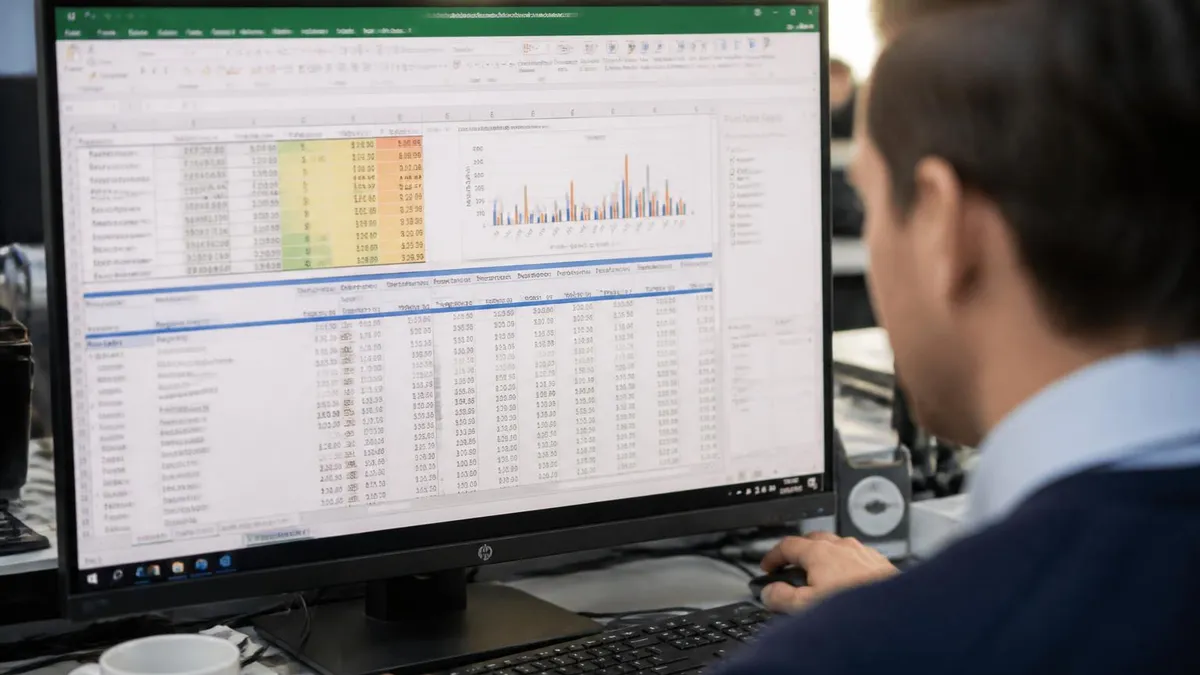
Select your cells. Go to the Home ribbon. Find the % icon in the Number group. Click it. Done. Default shows 0 decimal places. To add decimals, click the icon that looks like .00 next to it. Each click adds one decimal place.
How to Calculate Percentage Difference in Excel
Here's where people get tangled up. Percent change and percent difference sound interchangeable but they aren't. Change has a starting point — a clear before and after. Difference doesn't. You're comparing two values where neither is obviously the baseline.
Use percentage difference when you're comparing, say, the price of Product A versus Product B. Neither is "the original." You just want to know how far apart they are, expressed as a percentage of their average.
The formula: =ABS(A-B)/((A+B)/2)
The ABS wrapping makes the result always positive — useful, because direction doesn't matter here. The denominator is the average of the two values, which gives a symmetric measure regardless of which value you put first.
Example: Product A is $80, Product B is $100. =ABS(80-100)/((80+100)/2) returns 20/90, or about 22.2%. The two prices differ by roughly 22% of their midpoint. Swap the values and you get the same answer. That symmetry is the whole point.
How to Calculate Percentage of a Percentage in Excel
This one melts brains. A retailer offers 20% off, then a loyalty member gets an extra 10% off the discounted price. What's the final discount? Not 30% — that's the common mistake. The second percent applies to the new price, not the original.
Start with the original price in A1 (say $100). Apply the first discount: =A1*(1-20%) → $80. Apply the second discount to the result: =80*(1-10%) → $72. Total discount from the original $100 is $28, or 28%. Not 30%. The two discounts don't add — they stack multiplicatively.
One-line version: =A1*(1-20%)*(1-10%). Combines both stages. This formula is exactly how stacked discounts work in retail, how compound tax-on-tax structures work in some countries, and how progressive raises stack year over year.
The 10% of 25% Question
"What is 10% of 25%?" Even simpler: =10%*25%. Excel multiplies 0.1 * 0.25 = 0.025, or 2.5%. Use this when calculating, say, the commission share of a sales bonus, or the tax-of-tax on certain investment instruments. It's just multiplication of two decimals — the percent format takes care of the display.
Typing =A1*15 multiplies by 15. Typing =A1*15% multiplies by 0.15. These are wildly different numbers. If a result looks 100 times too big or too small, this is usually why. Always double-check whether your multiplier carries a % sign — and remember, the % sign tells Excel to divide by 100 silently in the background.
The Number Format vs Multiplying by 100 Debate
Here's a debate that crops up in office Slack channels weekly. Should you format a cell as percentage, or should you store the actual percentage value (like 25) and multiply by 100 manually? The answer, honestly, is: format as percentage. Always.
Why? Because Excel's percentage format is the only way the math stays consistent. Once a cell is formatted as percentage, every formula that references it treats the value as a decimal automatically. =A1*B1 where A1 is $100 and B1 is 25% gives you $25 — exactly what you wanted. Beautiful.
Now imagine B1 holds the number 25 instead, with no percentage format. =A1*B1 gives you $2,500. To get the right answer, you'd have to write =A1*B1/100 every single time. Forget once, and your numbers are 100× off. Multiply by 1.07 forty times in a complex spreadsheet, and you've just calculated a 5,000% markup instead of 7%. Bad day.
The percentage format isn't a cosmetic luxury — it's a structural feature that prevents bugs. Use it.
When You Might Want the Raw Number Instead
One exception: if you're exporting to a system that doesn't understand Excel formatting (an old database, a CSV pipeline, certain reporting tools), the raw decimal value is what gets exported anyway. The display format is stripped on export. So your cell showing 25% becomes 0.25 in the CSV. That's fine — whatever system receives it should know to multiply by 100 for display. If it doesn't, you may need to store 25 directly and add a column header that says "Value × 100". Rare situation, but worth knowing.
Percentage Formula Sanity Check
- ✓Did you type the % sign or click the % button? If neither, Excel thinks you wrote a whole number.
- ✓Are your cell references locked with $ signs when you're dragging the formula down or across?
- ✓Is the denominator the correct baseline? (Old value for percent change, total for percent of total.)
- ✓Did you format the cell as percentage BEFORE entering the value, or AFTER? Doing it after multiplies the displayed value by 100.
- ✓If you're stacking percentages, are you multiplying through (1-x)(1-y) instead of adding x+y?
- ✓Are you checking against a known answer? A 10% increase on $100 should yield $110, not $1,100.
- ✓Did you wrap with ABS when comparing two values where direction doesn't matter?
- ✓Did you handle the divide-by-zero case? If the old value can be zero, percent change explodes. Wrap with IFERROR.

How to Enter a Percentage Formula in Excel (Step by Step)
Brand new to this? Here's the absolute basic workflow for entering your first percentage formula. No assumptions, no jargon.
Step 1. Open Excel. Click an empty cell. Let's say C2.
Step 2. Type the equals sign: =. This tells Excel you're writing a formula, not just typing text or a number. Every formula starts with the equals sign.
Step 3. Type your formula. For percent of total, click cell B2 (Excel will insert its address), type /, then click your total cell (say B10) and press F4 to lock it (Excel adds dollar signs: $B$10). Your formula bar should read =B2/$B$10.
Step 4. Press Enter. The result appears as a decimal (something like 0.15).
Step 5. With the cell still selected, press Ctrl+Shift+%. The display flips to 15%.
Step 6. If you have more rows, hover over the bottom-right corner of the cell until your cursor becomes a thin black plus sign. Click and drag down. Excel copies the formula, keeping the $B$10 anchor in place. Every row now shows its own percentage of the total. Magic.
Using Named Ranges for Cleaner Formulas
For long workbooks, ditch the cell references and use named ranges. Select your total cell, type "TotalSales" in the Name Box (top-left of the spreadsheet), press Enter. Now your formula reads =B2/TotalSales — far easier to read at a glance, and immune to accidental edits when you reorganize rows. Six months from now, when you reopen the file, your future self will thank you.
Percentage Format vs Raw Decimal Storage
- +Percentage format auto-handles the *100 display — your math stays clean
- +Formulas remain readable: =A1*B1 instead of =A1*B1/100
- +Drag-and-fill works without breaking the visual meaning
- +Charts and pivot tables read percentages correctly without extra steps
- +Easier handoff: collaborators see exactly what you mean at a glance
- −Beginners get confused when the underlying value (0.5) doesn't match the display (50%)
- −Reformatting an existing column can multiply values unexpectedly — back up first
- −CSV exports strip the format, leaving raw decimals that some systems mis-read
- −Some financial models prefer raw integers (e.g. 25 instead of 25%) for downstream tools
- −Conditional formatting rules need to reference the decimal, not the displayed percentage
Common Excel Percentage Mistakes (And How to Fix Them)
Even experienced spreadsheet users hit these. Don't feel bad if you've made every single one. I have too.
Mistake 1: The Cell Shows 5000% Instead of 50%
Cause: you typed 50, then applied the percentage format. Excel multiplied your number by 100 for display purposes. Fix: divide the cell by 100 (or type 0.5), then reapply the format. Or use Find & Replace to fix entire columns at once: search for the values, replace with the decimal equivalents.
Mistake 2: #DIV/0! Errors Everywhere
Cause: your denominator is empty or zero — usually because you didn't lock the total with dollar signs and the formula drifted into blank rows. Fix: =IFERROR(B2/$B$10, 0). The IFERROR wrapper returns 0 (or "N/A", or whatever you prefer) instead of the ugly error.
Mistake 3: Percentages Don't Add to 100%
Cause: rounding display. Your numbers might show 33%, 33%, 33% — but the underlying decimals are 0.3333, 0.3333, 0.3334. They sum correctly under the hood. Fix: show more decimal places, or accept that small rounding gaps are normal. If precision matters (in financial reports, audits), use the ROUND function explicitly to control where the rounding happens.
Mistake 4: Stacked Percent Discounts Don't Add
Cause: assuming 20% + 10% = 30%. As we covered above, it's actually 28%. The second discount applies to the discounted price. Fix: multiply through with =A1*(1-d1)*(1-d2).
Mistake 5: Negative Percent Change Looks Wrong
Cause: you flipped the numerator and denominator. =(old-new)/old gives the opposite sign of what you want. Fix: write =(new-old)/old. New minus old, always. Then a positive number means growth, a negative means decline. Consistent direction, consistent meaning.
Mistake 6: Formula Returns a Decimal Instead of Percent
Cause: cell format is still General or Number. Fix: select the cell, hit Ctrl+Shift+%. Or apply percentage format from the dropdown. The math is fine — only the display is wrong.
The Ctrl+Shift+% Shortcut: Your New Best Friend
If you remember nothing else from this guide, remember this keyboard shortcut. Ctrl+Shift+% on Windows. Cmd+Shift+5 on Mac. Select cells, hit the combo, done. Percentage format applied instantly with zero decimal places.
Want decimals back? Click the .00 icon on the Home ribbon, or hit Ctrl+1 to open Format Cells and dial in exact decimal places. For most business reports, 1 decimal is enough. For scientific work or precise financial breakdowns, 2 or 3 decimals.
Quick note for keyboard purists: the Ctrl+Shift sequence in Excel covers all the common formats. Ctrl+Shift+$ is currency. Ctrl+Shift+# is date. Ctrl+Shift+@ is time. Ctrl+Shift+! is comma-separated thousands. Ctrl+Shift+~ is general. Memorize the percentage one first — it's the most-used by a country mile.
For a fuller set of questions on this topic, see our excel latest version resource.
Wrapping Up: The Five Formulas to Memorize
You don't need to know forty percentage formulas. You need to know five, deeply, and the rest are just variations.
One. Percent of total: =part/total. Lock the total. Format as %.
Two. Percent change: =(new-old)/old. New minus old, always. Positive means growth.
Three. Percent increase or decrease: =value*(1+percent) or =value*(1-percent). Shortcut for markup and discount.
Four. Percentage difference: =ABS(A-B)/((A+B)/2). Symmetric, baseline-free.
Five. Percent of percent: =A%*B% or stacked discounts: =value*(1-a)*(1-b). Multiply through, never add.
Drill these five with your own data. Build a tiny practice sheet. Make up sales numbers. Apply each formula. Drag, copy, format. Within an afternoon, percentage calculations will feel as natural as adding two cells together. Within a week, you'll be the person in the office who actually understands why the percentages don't sum to 100% (rounding, obviously).
And then? Then you move on to compound percentages, growth rates, CAGR, weighted averages, and a whole world of analytical math that all rests on this same foundation. But that's another guide. For now: open Excel, pick a cell, type =, and go.
Excel Questions and Answers
About the Author

Business Consultant & Professional Certification Advisor
Wharton School, University of PennsylvaniaKatherine Lee earned her MBA from the Wharton School at the University of Pennsylvania and holds CPA, PHR, and PMP certifications. With a background spanning corporate finance, human resources, and project management, she has coached professionals preparing for CPA, CMA, PHR/SPHR, PMP, and financial services licensing exams.