
Excel Project Tracker Template: Build a Powerful, Reusable Project Management Spreadsheet
Build a powerful excel project tracker template with formulas, drop-downs, dashboards, and Gantt views. 🧠 Free guide, examples, and step-by-step setup.

An excel project tracker template is the single most underrated productivity asset a manager can keep in their toolkit. Whether you are juggling a marketing launch, a software rollout, or a home renovation, a well-built spreadsheet replaces clunky software, expensive subscriptions, and confusing email threads with one clean source of truth. Excel gives you formulas, conditional formatting, drop-downs, and charts in a single grid that anyone on your team already knows how to open. That accessibility is exactly why project tracker templates remain the workhorse of modern project management in 2026.
What makes Excel so effective for tracking projects is the freedom it grants you. You can design columns that match your exact workflow, define statuses that mirror your team's vocabulary, and pull in calculations that surface risk before it derails a deadline. Compared to rigid SaaS tools, Excel adapts to you, not the other way around. The trade-off is that you need to know a few core features deeply, including vlookup excel for joining data, conditional logic for status colors, and pivot tables for summarizing tasks by owner or sprint.
This guide walks through every layer of a professional template you can build in under an hour. We start with the foundational columns every tracker needs, then move into formulas that automate progress, calculate variance, and flag overdue items. After that, we cover dashboards, Gantt-style visualizations, validation lists, and protection so your team cannot accidentally break what you built. By the end you will have a template you can reuse across dozens of projects and customize quickly for new initiatives.
The big idea is repeatability. Most teams rebuild trackers from scratch each quarter, losing institutional memory and wasting hours on formatting. Instead, design once and clone forever. A solid template includes a Tasks sheet, a Dashboard sheet, a Settings sheet for drop-down values, and an Archive sheet for completed work. Add a project metadata block at the top with start date, sponsor, budget, and risk score. These four sheets cover ninety percent of real-world project management without any external integrations.
Excel also bridges the gap between executives and individual contributors better than most platforms. A leader can glance at the dashboard tab and see a red, amber, or green health indicator. An engineer or marketer can drop into the Tasks tab and update progress percentages or comment fields. Because Excel files can be hosted on OneDrive or SharePoint, multiple users can co-edit in real time, which means there is no longer a meaningful difference between Excel and many cloud-first tools for small to mid-sized teams.
Finally, remember that templates are living documents. The best ones grow with you. After every project closeout, hold a 15-minute retrospective and tweak two or three cells, drop-downs, or formulas. Over a year, that compounding effort turns an ordinary spreadsheet into a finely tuned operating system for your team. The sections below will give you the building blocks. The discipline of refining your template after every project is what turns those blocks into something genuinely indispensable for managing real work at real speed.
Excel Project Tracker Templates by the Numbers
Template Structure and Setup
The primary grid where every task, owner, due date, status, and percent complete is captured. This becomes the data source that powers your formulas, dashboards, and filtered views across the entire workbook.
A read-only overview tab with KPI cards, status pie charts, and burndown lines. It pulls from the Tasks sheet using COUNTIFS, SUMIFS, and pivot tables so leadership can scan progress in five seconds.
Hidden tab that stores drop-down lists for status, priority, and owners. Centralizing these here means you change values once and every drop-down across the workbook updates instantly, preventing typos.
Storage for completed or cancelled tasks. Moving finished rows here keeps your active Tasks sheet fast and uncluttered while preserving a full historical record for audits, retrospectives, and lessons learned.
Optional fifth tab listing risks, owners, impact, likelihood, and mitigation. Pairs nicely with conditional formatting to highlight high-impact items and connect them back to specific tasks on the main grid.
Designing the columns of an excel project tracker template is where most teams either succeed or struggle for the next twelve months. Start by listing every question stakeholders ask about a project. Who owns this? When is it due? How far along are we? What is blocking it? Each of those questions becomes a column. Resist the urge to add fields you might use someday. A focused tracker with twelve excellent columns beats a sprawling one with thirty-five fields nobody fills in.
The minimum viable column set is Task ID, Task Name, Owner, Start Date, Due Date, Status, Priority, Percent Complete, Dependencies, Notes, and a calculated Days Remaining field. Place Task ID in column A and use a formula like ROW()-1 so IDs auto-increment as you add rows. Owner and Status should both pull from drop-down lists stored on the Settings tab, keeping data clean. Percent Complete should be formatted as a percentage with a data bar applied through conditional formatting for instant visual context at a glance.
Dates deserve special attention because they drive nearly every calculated field downstream. Always format date columns explicitly as dates rather than text. Use a Days Remaining formula such as =IF(F2="Done",0,E2-TODAY()) so completed tasks do not show negative numbers. Pair that with conditional formatting that turns the cell red when negative, amber when under three days, and green when greater. This single visual cue surfaces every overdue or at-risk task without anyone having to ask for a status update.
The Dependencies column is where the difference between amateur and professional templates becomes obvious. Use it to list predecessor Task IDs separated by commas. Then add a calculated Blocked flag using a formula that checks whether any listed predecessor is not yet complete. This converts your spreadsheet into a lightweight network diagram. Combined with a Critical Path indicator computed from the longest chain of dependent tasks, you get behavior approaching what you would expect from dedicated project management software, all inside familiar Excel.
For multi-team projects, add a Workstream or Phase column. This single field unlocks pivot tables that let you slice work by team, sprint, or milestone in a few clicks. Pair Workstream with a Priority drop-down using values like Critical, High, Medium, and Low. Then build a matrix on the Dashboard tab showing count of open tasks by Workstream and Priority. Project managers can identify imbalances such as too many Critical items concentrated in one team that will obviously cause a future bottleneck.
One often overlooked column is Estimated Hours and Actual Hours. Tracking both lets you compute variance and improve future estimates. Use a simple formula like =I2-H2 to surface overruns, and aggregate the result on the Dashboard for a project-wide variance number. Over multiple projects, this becomes one of the most valuable datasets your team owns because it teaches you exactly how optimistic your initial estimates tend to be and where the chronic underestimation happens.
Finally, design your template assuming the row count will grow into the thousands. Convert your data range into an Excel Table with Ctrl plus T so formulas auto-extend, structured references stay clean, and filtering works out of the box. Tables also play beautifully with pivot tables, slicers, and Power Query if you eventually decide to graduate into more advanced reporting workflows down the road without rebuilding from scratch.

Microsoft Excel Practice Test Questions
Prepare for the Microsoft Excel exam with our free practice test modules. Each quiz covers key topics to help you pass on your first try.
Microsoft Excel Excel Basic and Advance
Microsoft Excel Exam Questions covering Excel Basic and Advance. Master Microsoft Excel Test concepts for certification prep.
Microsoft Excel Excel Formulas
Free Microsoft Excel Practice Test featuring Excel Formulas. Improve your Microsoft Excel Exam score with mock test prep.
Microsoft Excel Excel Functions
Microsoft Excel Mock Exam on Excel Functions. Microsoft Excel Study Guide questions to pass on your first try.
Microsoft Excel Excel MCQ
Microsoft Excel Test Prep for Excel MCQ. Practice Microsoft Excel Quiz questions and boost your score.
Microsoft Excel Excel
Microsoft Excel Questions and Answers on Excel. Free Microsoft Excel practice for exam readiness.
Microsoft Excel Excel Trivia
Microsoft Excel Mock Test covering Excel Trivia. Online Microsoft Excel Test practice with instant feedback.
Microsoft Excel Advanced Data Analysis Tools
Free Microsoft Excel Quiz on Advanced Data Analysis Tools. Microsoft Excel Exam prep questions with detailed explanations.
Microsoft Excel Advanced Formula and Macro...
Microsoft Excel Practice Questions for Advanced Formula and Macro Creation. Build confidence for your Microsoft Excel certification exam.
Microsoft Excel Advanced Formulas and Macros
Microsoft Excel Test Online for Advanced Formulas and Macros. Free practice with instant results and feedback.
Microsoft Excel Basic and Advance Question...
Microsoft Excel Study Material on Basic and Advance Questions and Answers. Prepare effectively with real exam-style questions.
Microsoft Excel Creating and Managing Charts
Free Microsoft Excel Test covering Creating and Managing Charts. Practice and track your Microsoft Excel exam readiness.
Microsoft Excel Data Visualization with Ch...
Microsoft Excel Exam Questions covering Data Visualization with Charts. Master Microsoft Excel Test concepts for certification prep.
Microsoft Excel Formulas and Functions
Free Microsoft Excel Practice Test featuring Formulas and Functions. Improve your Microsoft Excel Exam score with mock test prep.
Microsoft Excel Formulas and Functions App...
Microsoft Excel Mock Exam on Formulas and Functions Application. Microsoft Excel Study Guide questions to pass on your first try.
Microsoft Excel Formulas Questions and Ans...
Microsoft Excel Test Prep for Formulas Questions and Answers. Practice Microsoft Excel Quiz questions and boost your score.
Microsoft Excel Functions Questions and An...
Microsoft Excel Questions and Answers on Functions Questions and Answers. Free Microsoft Excel practice for exam readiness.
Microsoft Excel Managing Data Cells and Ra...
Microsoft Excel Mock Test covering Managing Data Cells and Ranges. Online Microsoft Excel Test practice with instant feedback.
Microsoft Excel Managing Tables and Data
Free Microsoft Excel Quiz on Managing Tables and Data. Microsoft Excel Exam prep questions with detailed explanations.
Microsoft Excel Managing Tables and Table ...
Microsoft Excel Practice Questions for Managing Tables and Table Data. Build confidence for your Microsoft Excel certification exam.
Microsoft Excel Managing Worksheets and Wo...
Microsoft Excel Test Online for Managing Worksheets and Workbooks. Free practice with instant results and feedback.
Microsoft Excel MCQ Questions and Answers
Microsoft Excel Study Material on MCQ Questions and Answers. Prepare effectively with real exam-style questions.
Microsoft Excel Questions and Answers
Free Microsoft Excel Test covering Questions and Answers. Practice and track your Microsoft Excel exam readiness.
Formulas Including VLOOKUP Excel for Smart Trackers
The vlookup excel function is the backbone of any multi-sheet project tracker. Use it to pull owner email addresses, departments, or hourly rates from a separate Team Directory tab into your Tasks sheet. A formula like =VLOOKUP(C2,Team!A:D,2,FALSE) returns the matching email beside each task owner, keeping your main grid lean while still showing rich contextual information.
This pattern scales remarkably well. When someone changes roles, you update the Team Directory once and every row reflects it. For modern workbooks you can switch to XLOOKUP for cleaner syntax and exact match by default. XLOOKUP also handles missing values gracefully with an if-not-found argument, so your tracker stays clean instead of broken when an owner gets reassigned mid-sprint.
Excel Project Tracker Template Versus Dedicated PM Software
- +Zero additional software cost when you already own Microsoft 365
- +Fully customizable columns, formulas, and visualizations without engineering tickets
- +Universal familiarity means near-zero onboarding time for new team members
- +Works offline and syncs automatically when reconnected via OneDrive
- +Easy data export, backup, and integration with Power BI or Power Query
- +Formulas like VLOOKUP and XLOOKUP enable lightweight relational data modeling
- +Strong audit trail through version history on OneDrive or SharePoint
- −Manual setup required compared to ready-made tools like Asana or Monday
- −Real-time collaboration is less smooth than purpose-built SaaS platforms
- −Risk of accidental formula deletion without strong cell protection
- −No native automated notifications for due dates or status changes
- −Mobile editing experience is clunkier than dedicated mobile project apps
- −Scaling beyond a few thousand rows can slow workbook performance
- −Complex dependency tracking requires advanced formulas most users do not know
Pros and Cons at a Glance
| Pros | Cons |
|---|---|
| Fully customizable columns, formulas, and visualizations without engineering tickets | Manual setup required compared to ready-made tools like Asana or Monday |
| Universal familiarity means near-zero onboarding time for new team members | Real-time collaboration is less smooth than purpose-built SaaS platforms |
| Works offline and syncs automatically when reconnected via OneDrive | Risk of accidental formula deletion without strong cell protection |
| Easy data export, backup, and integration with Power BI or Power Query | No native automated notifications for due dates or status changes |
| Formulas like VLOOKUP and XLOOKUP enable lightweight relational data modeling | Mobile editing experience is clunkier than dedicated mobile project apps |
| Strong audit trail through version history on OneDrive or SharePoint | Scaling beyond a few thousand rows can slow workbook performance |

Project Tracker Template Validation Checklist
- ✓Confirm all date columns are formatted as dates, not text strings
- ✓Convert the Tasks range into an Excel Table for auto-expanding formulas
- ✓Add data validation drop-downs for Status, Priority, and Owner fields
- ✓Apply conditional formatting to flag overdue and at-risk tasks visually
- ✓Freeze the header row so column labels stay visible while scrolling
- ✓Lock formula cells and protect the sheet to prevent accidental edits
- ✓Build Dashboard KPI cards using COUNTIFS and SUMIFS for live counts
- ✓Add a pivot table summarizing tasks by owner and workstream
- ✓Test the workbook with at least 100 sample rows for performance
- ✓Save a master copy as a .xltx template file for easy reuse
Build the Dashboard Before the Data
Counterintuitive but true: design your Dashboard tab first, then build the Tasks columns needed to feed it. Starting from the questions stakeholders actually ask forces you to capture only the data that matters and prevents bloated trackers that nobody updates after week two.
Once your column structure and formulas are solid, the dashboard is where your excel project tracker template earns its reputation inside the organization. A great dashboard tells the project's story in five seconds. Start with three or four big KPI cards across the top: total open tasks, tasks overdue, percent complete, and days until next milestone. Use large fonts, white space, and subtle borders. Avoid the rainbow trap where every cell has a different color. Restraint here makes the truly important numbers pop visually on the page.
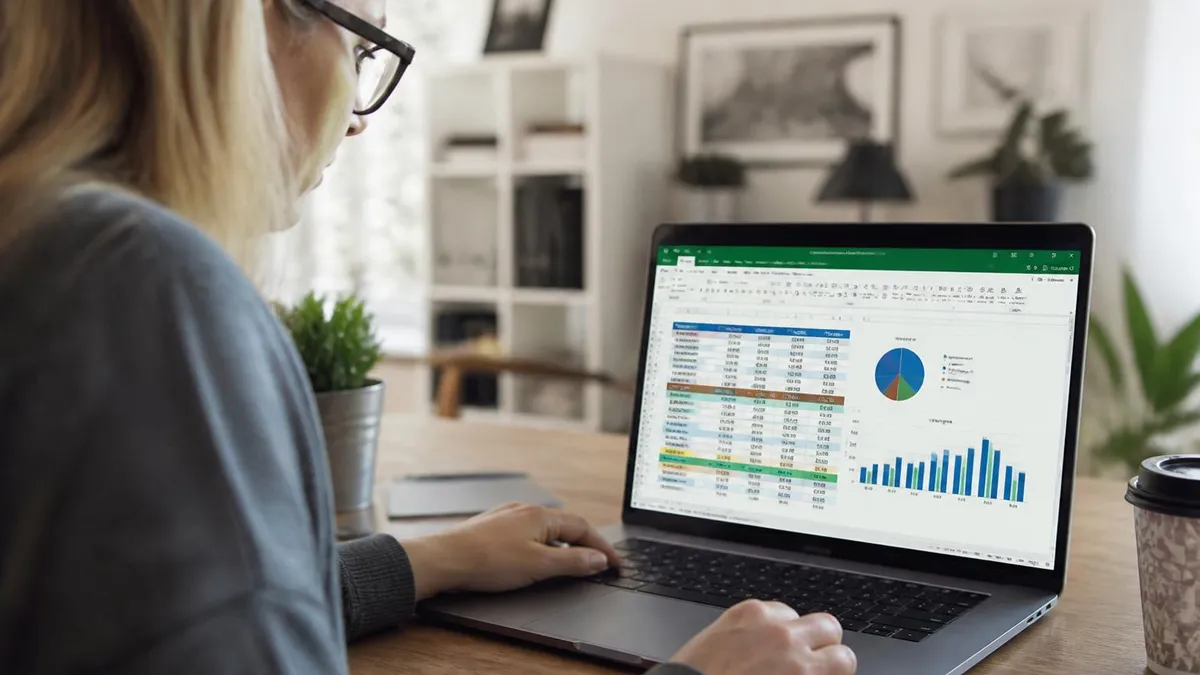
Below the KPI cards, add a status donut or pie chart driven by a COUNTIFS table. Slice tasks by status, then by priority. Place these two donuts side by side so leaders can compare distribution at a glance. Beneath those, insert a horizontal bar chart showing open tasks per owner. This single visual surfaces workload imbalance instantly and is often the most-shared screenshot in stand-ups. Make sure to sort bars descending so the highest workload owner appears at the top consistently.
For time-series visualization, build a simple burndown chart. Create a helper table with one row per day in the project, the planned remaining work, and the actual remaining work computed from the Tasks sheet. Plot both as line series on a single chart. The gap between planned and actual lines is your variance, the most honest single picture of project health you can produce. Add a third line for forecast remaining if you want a predictive touch using basic linear regression.
Gantt-style views are surprisingly easy in Excel without expensive add-ins. Use a stacked bar chart with two series: one transparent series for the gap from project start to task start, and a visible series for task duration. Format the y-axis in reverse order so the first task appears at the top. Color the bars based on status using conditional formatting on a helper column. The result is a clean, interactive Gantt that updates automatically as you change start dates or durations on the Tasks tab.
Slicers transform a static dashboard into an interactive one. If your Tasks data lives in a pivot table or an Excel Table, you can insert slicers for Owner, Workstream, Priority, and Status. Stakeholders click a slicer button and every chart, KPI, and table on the dashboard filters instantly. This experience rivals tools like Power BI and Tableau for typical project management use cases, and your team can operate it without any new software training because everything stays inside familiar Excel.
Do not forget the printable view. Most executives still ask for a one-page weekly status. Design a print area on the Dashboard tab that fits on a single landscape page. Hide gridlines, set narrow margins, and use Page Layout view to confirm everything fits cleanly. Export to PDF for distribution. A polished printable status is often what gets your tracker adopted at the leadership level, because senior stakeholders rarely open Excel themselves but will absolutely read a clean PDF in their inbox.
Finally, document your dashboard. Add a small Notes section on the side explaining what each KPI means, how it is calculated, and what threshold counts as red, amber, or green. This single act of documentation prevents a hundred questions over the life of the project and lets you hand the template off to a colleague without a multi-hour walkthrough. Treat your dashboard like a product: design it intentionally, label it clearly, and iterate based on user feedback collected during weekly status meetings.
Before sending your template to a team, lock all formula cells and protect the sheet with a password. Without this step, one well-meaning teammate can paste over a critical SUMIFS formula and silently break every KPI on the dashboard for weeks before anyone notices.
Sharing your excel project tracker template responsibly is the difference between a tool the team loves and a fragile mess that breaks the moment more than one person touches it. The first rule is to store the workbook on OneDrive or SharePoint, never as an email attachment. Cloud storage gives you simultaneous co-authoring, automatic version history, and granular permissions. You can let one stakeholder view only the dashboard while granting editors full access to the Tasks tab using role-based sharing links built into Microsoft 365 for free.
Cell protection is your second pillar of defense. Select every formula cell, open Format Cells, and on the Protection tab confirm Locked is checked. Then unlock only the cells users should edit, such as Task Name, Owner, Due Date, Status, and Notes. Finally use Review and Protect Sheet to enable the protection with an optional password. This way contributors can update legitimate fields freely but cannot accidentally overwrite a formula or delete a column header that everything else depends on downstream.
Versioning matters as much as protection. Adopt a naming convention like ProjectTracker_v1.3_2026-05-20.xlsx so anyone can spot the latest copy at a glance. Better yet, keep a single canonical file on SharePoint and rely on built-in version history to roll back if needed. For genuinely critical projects, set up a weekly Power Automate flow that snapshots the workbook to an archive folder. That five-minute automation has saved more project managers than any other single trick in the playbook.
Access control deserves more thought than most people give it. Sensitive projects often include budget, vendor pricing, or personnel data. Use SharePoint sensitivity labels and audience targeting so finance only sees the budget tab, vendors only see their own rows, and leadership sees the rollup dashboard. Power Query can also pull from the master file into derivative workbooks scoped per audience. This is far safer than emailing tailored copies that immediately drift out of sync the moment someone updates the source.
Performance is a real concern once your tracker grows past a few thousand rows. Convert volatile functions like OFFSET and INDIRECT into stable equivalents using INDEX or structured references. Replace array formulas with dynamic array equivalents where possible. Move historical data to the Archive tab quarterly so the active Tasks sheet stays under a thousand rows. These small habits keep the workbook snappy and prevent the dreaded calculating dialog from interrupting your team's stand-up presentations.
For mobile contributors, simplify the experience. Create a Mobile View tab that hides advanced columns and shows only what is needed on a phone screen. Excel for iOS and Android handle simple grids reasonably well but choke on heavy formulas. A clean mobile tab lets field workers update task status from a job site without scrolling sideways across thirty columns. Pair this with a column that captures the last update timestamp using a small VBA macro or Office Script for accountability.
Finally, treat your template like an open-source project. Maintain a Changelog tab listing every meaningful tweak with date, author, and rationale. Encourage teammates to propose improvements after each project closeout. Over time this turns one spreadsheet into your organization's accumulated wisdom about how projects really work, captured in a portable file anyone can open. That cultural shift, more than any single formula, is what makes a tracker template genuinely durable across many years and many different project managers in your team.
The final layer of a great excel project tracker template is the practical habits that make it sing on a Monday morning. Start every week by sorting the Tasks sheet by due date ascending, then status. Spend ten minutes scanning the top of the list. Anything overdue or in-flight at the top should be the focus of your stand-up. This single ritual transforms the tracker from a passive log into an active steering instrument, used in real-time by the team rather than reviewed only during quarterly checkpoints when it is far too late to course-correct.
Train your team on three keyboard shortcuts that pay for themselves immediately. Ctrl plus T converts a range to a Table. Ctrl plus semicolon enters today's date. Alt plus equals inserts SUM. These are micro-skills but compound across a year of daily use into hours of saved time. Pair this with how to merge cells in excel sparingly, since merged cells break sorting and filtering, but knowing how to add a clean header banner across the top of the Dashboard is a tiny detail that gives your template a polished, finished feel.
Documentation is the secret weapon of long-lived templates. Add a Read Me tab as the first sheet. Explain in plain English what each tab is for, who owns the file, how to add a new task, and what the colors on the dashboard mean. Include a small how to freeze a row in excel reminder so newcomers can adjust their view. Five minutes of documentation saves five hundred minutes of questions from confused new joiners over the lifespan of the workbook. This single tab is what separates professional templates from amateur ones.
Iterate based on actual usage, not imagined needs. After every project closes, ask three questions in a fifteen-minute retro. Which columns did we never update? Which formulas surfaced issues early? What did we wish we could see at a glance? Apply two or three changes to the master template before starting the next project. Resist the temptation to add fields just in case. The discipline of subtraction makes a template better, while the temptation of addition slowly turns a useful template into a bloated monstrosity that nobody enjoys updating week after week.
Pair your tracker with one or two simple integrations to amplify its reach. A Power Automate flow can post a daily summary to a Teams channel when any task moves into At Risk status. A scheduled Power Query refresh can pull data from a CRM or time-tracking tool into your Tasks sheet automatically. Even a simple email reminder triggered when Days Remaining reaches three can dramatically reduce missed deadlines across the project. These integrations turn a static Excel file into a small but capable project management platform built mostly with tools you already own.
For teams that genuinely outgrow Excel, the data inside your tracker is the most portable asset you will ever own. Export it to CSV and import into Jira, Asana, ClickUp, or Smartsheet in minutes. Because you built your tracker with clean column structure and consistent data validation, migration becomes painless. This is one of the underappreciated benefits of starting with Excel: you preserve optionality. Your data is never trapped in a proprietary format, and you can graduate to specialized tooling on your own schedule rather than the vendor's roadmap.
Above all, remember that the goal is not a beautiful spreadsheet. The goal is on-time delivery of a successful project. The tracker is a means to that end, not the end itself. Keep it simple enough that the team actually updates it. Keep it powerful enough that it answers the questions leadership actually asks. And keep iterating it after every project so that, two years from now, your template represents the accumulated craft of your team rather than a one-time burst of enthusiasm that slowly faded into Excel obscurity over time.
Sample Excel Practice Questions
Try these questions from our free Excel practice tests. The correct answer and an explanation follow each question.
A project manager is analyzing the potential impact of changes in variable costs and marketing spend on a project's net profit. They want to display the results for many different combinations of these two variables simultaneously in a grid format. Which What-If Analysis tool should they use?
- A. Scenario Manager
- B. Goal Seek
- C. A two-variable Data Table
- D. A PivotTable
Answer: C. A two-variable Data Table
A two-variable Data Table is the perfect tool for this analysis. It allows you to see how changing two input values in a formula affects the result. It calculates the results for all possible combinations of the two variables and displays them in a structured table, which is exactly what the project manager needs.
Which Excel view shows the spreadsheet exactly as it will look when printed, including headers, footers, and margins?
- A. Normal View
- B. Page Break Preview
- C. Full Screen View
- D. Page Layout View
Answer: D. Page Layout View
Page Layout View displays the worksheet with rulers, margins, headers, and footers as they will appear on the printed page. Page Break Preview shows where pages will break but does not show the full print layout.
Which spreadsheet application was Excel primarily designed to compete against?
- A. Lotus 1-2-3
- B. VisiCalc
- C. Quattro Pro
- D. Google Sheets
Answer: A. Lotus 1-2-3
Lotus 1-2-3 dominated the spreadsheet market in the 1980s, and Microsoft developed Excel specifically to surpass it in features and usability.
What are the short cuts in an Excel spreadsheet to add a new row?
- A. ALT + H + I + C
- B. ALT + H + I + S
- C. ALT + H + I + R
- D. ALT + H + I + I
Answer: C. ALT + H + I + R
The shortcut sequence ALT + H + I + R is used to insert a new row in Excel. ALT activates the ribbon, H navigates to the Home tab, I opens the Insert options, and R specifically selects 'Insert Sheet Rows'. This allows for quick row insertion without needing to use the mouse.
Excel Questions and Answers

Standard Deviation Formula in Excel: STDEV.P vs STDEV.S Guide

How to Add a Filter in Excel: AutoFilter, Advanced and FILTER Function

Freeze Panes in Excel: Complete Guide to Locking Rows and Columns

Count Unique Values in Excel: COUNTUNIQUE, COUNTIF, and SUMPRODUCT Methods

How to Create a Filter in Excel: Complete Step-by-Step Guide for AutoFilter, Advanced Filter, and the FILTER Function
About the Author

Business Consultant & Professional Certification Advisor
Wharton School, University of PennsylvaniaKatherine Lee earned her MBA from the Wharton School at the University of Pennsylvania and holds CPA, PHR, and PMP certifications. With a background spanning corporate finance, human resources, and project management, she has coached professionals preparing for CPA, CMA, PHR/SPHR, PMP, and financial services licensing exams.