
Excel Table: Complete Guide to Creating, Using, and Mastering Structured Tables
Excel table guide: create tables, use structured references, auto-expanding formulas, slicers, styling, and converting between tables and ranges. 🎯

An Excel Table is one of the most underused features in Excel — and one of the most valuable. Converting a plain data range to a Table (Insert > Table or Ctrl+T) unlocks automatic formula expansion, structured references that make formulas more readable, built-in filters and totals, automatic styling, and seamless integration with pivot tables and charts. The conversion takes 10 seconds and dramatically improves how the data behaves for the life of the spreadsheet. If you've been working with plain ranges in Excel, this guide will change how you think about data organization.
By the end of this guide you'll know how to create Excel Tables from existing data, write formulas using structured references like Table1[Column], use Total Rows for automatic aggregations, apply and customize Table Styles, and integrate Tables with pivot tables, charts, and slicers. We'll also cover when to use Tables versus when to keep plain ranges, common gotchas with table behavior, and the keyboard shortcuts that make Tables really shine in daily Excel work.
The Five Big Benefits
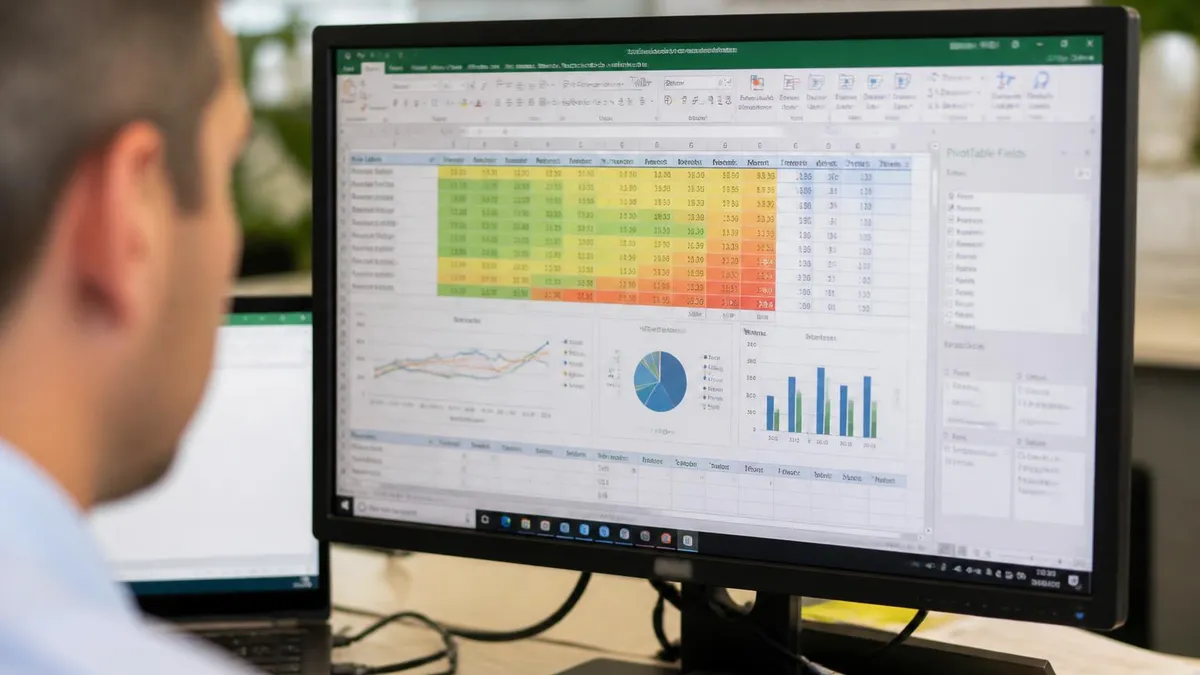
Excel Tables provide: (1) automatic range expansion as you add rows, so formulas always cover all data; (2) structured references like =SUM(Table1[Sales]) that read more clearly than =SUM(B2:B100); (3) built-in totals row with one-click aggregations; (4) automatic alternating row formatting; (5) seamless integration with pivot tables, charts, and slicers that auto-update with new data.
Three Ways to Create an Excel Table
Select your data range, click Insert > Table on the ribbon. Confirm the range and whether headers are included. Click OK. Your range becomes a Table.
Select your data range and press Ctrl+T. The Create Table dialog appears with the same options as the ribbon method. Faster for keyboard users.
Select range, Home > Format as Table. Pick a style from the gallery. Excel converts the range to a Table with that style applied.
Creating an Excel Table from existing data is a one-step operation that transforms how the data behaves. Click anywhere inside your data range. Press Ctrl+T (or Insert > Table). Excel shows a Create Table dialog with the detected range. Check the box if your data has headers (almost always yes). Click OK. Your data is now an Excel Table with a default name like Table1 and a default style applied.
Once created, the Table has several immediate differences from a plain range. Filter dropdowns appear on each header. Alternating row colors apply automatically. The selection feels different — clicking inside the Table shows special Table Tools tabs on the ribbon. The Name Box (left of the formula bar) shows the Table name when you click inside it. These visible changes signal that the data is now structured rather than just a grid of cells.
Renaming the Table is important for clarity. The default Table1, Table2 names are not very descriptive. Click inside the Table. On the Table Design tab (or Table Tools > Design in some versions), change the Table Name field to something meaningful like SalesData or EmployeeList. The name will appear in all structured references using this Table. Good naming makes formulas dramatically more readable and self-documenting over time.
Excel Table Quick Reference
Structured Reference Patterns
=SUM(SalesData[Amount]) sums the Amount column across all rows of the SalesData table. The reference automatically expands as you add rows. No need to update ranges manually.
Structured references make formulas more readable and more maintainable. =SUM(Sales[Amount]) clearly references the Amount column in the Sales table. The equivalent =SUM(B2:B100) requires you to remember what B contains and where the data ends. As datasets grow and worksheets are shared with others, structured references stay clear while raw cell references become harder to interpret. This readability advantage compounds over months and years of spreadsheet use.
Auto-expansion is the killer feature of Tables. When you add a new row at the bottom of a Table, Excel automatically extends the range. Formulas referencing the Table (whether structured or not) include the new row without manual adjustment. Conditional formatting extends. Data validation extends. Charts referencing the Table show the new data. This eliminates an entire class of bugs where formulas pointed at fixed ranges that became out of date when data grew.
The Total Row provides instant aggregations. With the Table selected, on Table Design tab, check the Total Row checkbox. A row appears at the bottom of the Table. Click any cell in the total row and a dropdown appears with aggregation options: Sum, Average, Count, Max, Min, StdDev, Var. Pick what you want and Excel inserts the SUBTOTAL formula automatically. The Total Row respects filters — totals reflect only visible rows. This is far more powerful than typing SUM formulas manually.

Excel Table names follow strict naming rules: must start with a letter, can include letters/numbers/underscores but not spaces, must not match existing names, can't exceed 255 characters. Use camelCase (SalesData) or underscores (Sales_Data) for multi-word names. Excel suggests valid names when you try invalid ones, so naming errors are easy to fix.
Table Styles and Formatting
Table Design tab > Table Styles gallery offers dozens of pre-built styles. Light, medium, and dark variants in each accent color. Hover to preview, click to apply.
Toggle Header Row, Total Row, Banded Rows, First Column, Last Column, and Banded Columns. Customize which formatting elements are active without changing the base style.
New Table Style at the bottom of the gallery lets you create your own style. Define formatting for each element. Save and reuse across multiple Tables in your workbook.
Choose None from the style gallery to remove all Table styling while keeping Table behavior. Useful when corporate templates have specific formatting requirements.
Tables integrate beautifully with pivot tables. Create a pivot table from a Table by clicking inside the Table and choosing Insert > PivotTable. The pivot table uses the Table as its source, which means when you add data to the Table, refreshing the pivot table includes the new data automatically. No need to update source ranges manually. This is the single most reliable way to build pivot table reports that stay current as data grows.
Charts referencing Tables also auto-update with new data. Create a chart by selecting Table data and Insert > Chart. The chart's data source is the Table, not a fixed range. Add rows to the Table and the chart updates to include them. This is dramatically better than charts with fixed ranges that need manual updates whenever data changes. For dashboards built on Tables, the maintenance burden essentially disappears.
Slicers add visual filtering to Tables. With the Table selected, Table Design tab > Insert Slicer. Pick which columns to add slicers for. Slicers appear as floating filter buttons that users can click to filter the Table interactively. Slicers also work with pivot tables, and a single slicer can filter multiple connected Tables or pivot tables. This produces dashboard experiences that are easier for non-technical users than dropdown filters.
Common Table Operations
Type in any cell to the right of the Table. The Table expands to include the new column automatically. Add a header in row 1 of the Table. The column inherits Table formatting and behaviors.
The auto-fill behavior for formulas in Tables is one of the most useful but subtle features. When you write a formula in a column that's already populated with data in other rows, Excel offers to fill the formula down the column automatically. Accept (Enter or Tab) and the formula populates the entire column. Subsequent rows added to the Table also get the formula automatically. This eliminates the need to manually drag the fill handle down or copy-paste formulas — they just appear correctly in every row.
Tables work especially well with Power Query and Power Pivot. Power Query (Data tab > Get & Transform) can use Tables as its data sources, transforming and combining them with one-click refreshes. Power Pivot can include Tables in its data model, enabling DAX calculations and relationships across multiple Tables. For analysts building data models in Excel, Tables are the natural building block for these more advanced capabilities.
When sharing Excel files containing Tables, remember that some older versions of Excel and some non-Microsoft spreadsheet tools may not fully support Table features. The Tables typically still work, but features like structured references, automatic expansion, and Table-specific formatting may behave differently. If your audience uses older or alternative tools, consider whether to send a Table-based file or a plain-range version. Most modern Excel installations handle Tables correctly.
Getting the Most From Excel Tables
- ✓Convert plain data ranges to Tables (Ctrl+T) before adding formulas
- ✓Rename Tables to descriptive names (SalesData not Table1)
- ✓Use structured references in formulas for clarity
- ✓Add Total Row for instant aggregations
- ✓Use Tables as pivot table sources for auto-refreshing reports
- ✓Use Tables as chart sources for auto-expanding visualizations
- ✓Add Slicers for interactive filtering dashboards
- ✓Avoid blank rows in Tables — they break the contiguous structure
- ✓Don't merge cells inside Tables — breaks many Table features
- ✓Convert back to Range if sharing with users on very old Excel versions
- ✓Use New Table Style to create reusable custom formatting

Tables have a few limitations worth knowing. They can't span discontinuous ranges — your data must be a single contiguous block of rows and columns. They don't play well with merged cells inside the Table area — most Table features stop working with merged cells. They require headers in the first row — Excel insists on identifying columns by name. They generally can't share rows or columns with another Table on the same sheet. These constraints rarely matter for normal data analysis, but worth knowing if you hit edge cases.
For Excel users transitioning from plain ranges to Tables, the learning curve is gentle. Within a few hours of using Tables on a real project, the benefits become obvious and the habits become natural. The conversion process is reversible (Convert to Range) so there's no risk in experimenting. Start with one Table on a new project. Once you see the benefits, you'll find yourself converting more ranges to Tables routinely.
The combination of Tables, structured references, pivot tables, and slicers represents Excel's most sophisticated data analysis capabilities short of Power Query and Power Pivot. Together these features let analysts build genuinely powerful interactive dashboards without writing any code. The setup time is modest. The results scale to thousands of rows of data. The maintenance burden is dramatically lower than fixed-range alternatives because everything auto-expands. For analytical workbooks that will be used for months or years, this combination is essentially required for sustainable productivity.
VBA code that manipulates ranges sometimes behaves unexpectedly inside Excel Tables. If you're writing macros that work with the data, consider converting Tables to ranges temporarily, running the macro, then converting back. Or use Table-aware VBA syntax that explicitly handles the Table object model. Mixing range-based macros with Tables produces hard-to-debug issues.
For users on Excel for the web or Excel Mobile, Tables work in most respects but with some feature limitations. Custom Table styles are limited. Some structured reference features may behave differently. Slicers may not work the same way. For workbooks that will be edited primarily in browser or mobile Excel, test the Table behaviors you depend on before relying on them. Desktop Excel remains the most full-featured version.
The naming conventions for Tables and their columns become important as your workbook grows. Use consistent naming patterns across Tables: SalesData, CustomerList, ProductCatalog. Use clear column names without special characters: ProductID rather than Product#ID. Keep names short enough to read in formulas but long enough to be self-explanatory. Good naming pays off when formulas combine multiple Tables and the formulas need to be readable months later by people who weren't involved in building the workbook initially.
Finally, the integration between Tables and modern Excel features continues to deepen. Dynamic array functions like FILTER, SORT, and UNIQUE work naturally with Tables. The XLOOKUP function pairs especially well with Tables since structured references make the lookups self-documenting. Each new Excel version tends to add more Table-aware features. Building habits around Tables now positions you to take advantage of future Excel improvements as they roll out across the product's continuing evolution.
Excel Tables vs Plain Ranges
- +Auto-expansion of formulas and references as data grows
- +Structured references read clearer than raw cell references
- +Built-in Total Row with instant aggregations
- +Automatic styling with banded rows and headers
- +Seamless integration with pivot tables and charts
- +Slicers enable interactive filtering for dashboards
- −Can't span discontinuous ranges or work with merged cells
- −Some VBA operations behave differently than with plain ranges
- −Older Excel versions and non-Microsoft tools have limited support
- −Custom styling can be harder than freeform range formatting
- −Naming conventions require some discipline to maintain consistency
Pros and Cons at a Glance
| Pros | Cons |
|---|---|
| Auto-expansion of formulas and references as data grows | Can't span discontinuous ranges or work with merged cells |
| Structured references read clearer than raw cell references | Some VBA operations behave differently than with plain ranges |
| Built-in Total Row with instant aggregations | Older Excel versions and non-Microsoft tools have limited support |
| Automatic styling with banded rows and headers | Custom styling can be harder than freeform range formatting |
| Seamless integration with pivot tables and charts | Naming conventions require some discipline to maintain consistency |
When you share a workbook built with Tables, future maintainers (including future you) can understand the data structure immediately. The Table name, column headers, and auto-expanding ranges make the intent clear without requiring written documentation. This is especially valuable when handing off workbooks to colleagues or when returning to your own work months later.
Several real-world use cases illustrate why Excel Tables are worth adopting. For sales tracking, a Table with columns for Date, Customer, Product, Quantity, and Amount supports any analytical question. Pivot tables built on this Table refresh automatically as new sales are entered. Charts update with new data. Conditional formatting highlights large transactions or specific customers. The entire workflow scales from 10 transactions to 10,000 without changing the formulas.
For project tracking, a Table with columns for Task, Owner, Start Date, End Date, Status, and Percent Complete becomes the single source of truth. Adding new tasks at the bottom extends the Table. Total Row counts tasks by status. Slicers filter to specific owners or statuses for focused views. The same Table feeds multiple summary views for different stakeholders without duplicating data anywhere.
For inventory management, a Table with columns for SKU, Description, Category, Quantity, Unit Cost, and Reorder Level handles ongoing inventory work. Formulas calculate total inventory value, identify low stock items, and flag products needing reorder. As new products are added or existing products updated, the calculations stay current without manual range adjustments. This is a typical case where Tables pay back their setup time immediately.
For survey data analysis, a Table holds responses with one row per respondent. Filters narrow to specific demographics or response patterns. Pivot tables summarize responses by question. Charts visualize distributions. The Table structure handles datasets of any size from small focus groups to large-scale surveys with thousands of responses.
For financial models, Tables hold underlying data while traditional formulas build the model layer. Income statements reference sales Tables. Cash flow projections reference receivables Tables. Budget variance reports reference Tables for both budget and actual figures. Separating data (in Tables) from logic (in formulas) makes models more maintainable and easier to audit.
Tables also pair well with Form controls and data entry interfaces. A form on one sheet can write new rows to a Table on another sheet using VBA or even simple macro buttons. The Table grows automatically as new entries arrive. Reports built on the Table reflect the new data immediately. This separation between input forms and underlying data Tables creates clean user experiences for non-technical users while preserving structured data for analysis.
For organizations standardizing on Excel for data work, establishing conventions around Tables pays dividends. Adopt naming conventions like 'TableName_DataType' or category-based prefixes. Maintain a master template with pre-built Table structures for common data types your team handles regularly. Train team members on structured reference syntax. The collective productivity gains from these small investments compound dramatically over months and years of work.
Pick a convention and stick with it: SalesData, InventoryData, EmployeeData. Or use prefixes: tbl_Sales, tbl_Inventory. Consistency makes formulas easier to read across worksheets and helps colleagues who inherit your files understand the structure quickly without confusion.
One subtle but important point about Excel Tables involves how they interact with data validation. Data validation rules applied to columns within a Table automatically extend to new rows added to the Table. This is genuinely useful — set up a dropdown list once on the column header row of your Table, and every new row inherits that dropdown without manual setup. The combination of Tables and Data Validation produces clean data entry interfaces that scale effortlessly as data grows over time.
For users coming to Excel Tables from database backgrounds, the mental model is similar but not identical. Excel Tables behave somewhat like database tables — they have named columns, data rows, and structured access patterns. But they don't enforce relationships between Tables, primary key constraints, or referential integrity. They're best thought of as enhanced ranges rather than as actual database tables. For relational data work, Power Pivot's data model provides more database-like capabilities while still working within Excel.
Common questions that come up when introducing colleagues to Tables include: Will this break my existing formulas? Generally no, since formulas using cell references still work. Can I undo the Table? Yes, Convert to Range removes Table behavior while keeping the data. Do I lose my formatting? No, formatting is preserved when converting. These reassuring answers help adoption.
Most people who try Tables on one project become advocates for using them more broadly because the productivity benefits become obvious very quickly during real analytical work across many different types of business spreadsheet projects ranging from simple lists to complex analytical models that drive critical business decisions every day in many countless organizations operating around the world.
Sample Excel Practice Questions
Try these questions from our free Excel practice tests. The correct answer and an explanation follow each question.
A user has finished their analysis using an Excel table and now needs to send the worksheet to a colleague who is using a much older version of Excel that does not support table features. The user wants to remove the table functionality (e.g., structured references, automatic expansion) but keep all the data and cell formatting. What is the most direct way to do this?
- A. Select the table and use the 'Clear Formats' button on the Home tab.
- B. Delete the table's name from the Name Manager.
- C. On the 'Table Design' tab, in the 'Tools' group, click 'Convert to Range'.
- D. Copy the table and use 'Paste Special' with the 'Values' option.
Answer: C. On the 'Table Design' tab, in the 'Tools' group, click 'Convert to Range'.
The 'Convert to Range' command is the designated feature for removing the underlying table object and its functionality while preserving the data and the visual formatting that was applied by the table style.
A project manager has a table listing tasks, assigned team members, and departments. They need to sort the table first by 'Department' in alphabetical order (A to Z), and then within each department, sort by 'Task Priority' from 'High' to 'Low'. Which of the following is the correct method to apply this multi-level sort?
- A. Use the filter drop-down on the 'Task Priority' column to sort, then the drop-down on the 'Department' column to sort.
- B. On the 'Data' tab, open the 'Sort' dialog box, add a level, and set the primary and secondary sort criteria.
- C. Create two separate slicers, one for 'Department' and one for 'Task Priority'.
- D. Sort the 'Department' column A to Z, then separately sort the 'Task Priority' column Z to A.
Answer: B. On the 'Data' tab, open the 'Sort' dialog box, add a level, and set the primary and secondary sort criteria.
The 'Sort' dialog box, found on the 'Data' tab, is specifically designed for multi-level sorting. It allows the user to define a primary sort key ('Department') and then add subsequent levels ('Task Priority') to sort the data within the primary groups.
You are using the XLOOKUP function to find an employee's salary in a table. The formula is `=XLOOKUP(E2, A2:A100, D2:D100, "Not Found", 0, -1)`. What does the final argument, `-1`, specify?
- A. An exact match is required.
- B. The search will start from the bottom of the lookup array and go up.
- C. If an exact match isn't found, it will return the next smaller item.
- D. The search will be performed horizontally instead of vertically.
Answer: B. The search will start from the bottom of the lookup array and go up.
The sixth argument in the XLOOKUP function is `[search_mode]`. A value of -1 specifies that the search should be conducted in reverse order, from the last item to the first. The default is 1, which searches from first to last.
Which of the following allows you to create relationships between multiple tables and build complex calculations using Data Analysis Expressions (DAX) to overcome the limitations of traditional PivotTables on a single flat table?
- A. Power Pivot
- B. Power Query Editor
- C. Analysis ToolPak
- D. Scenario Manager
Answer: A. Power Pivot
Power Pivot is an Excel add-in that enables you to perform powerful data analysis and create sophisticated data models. It allows you to import millions of rows of data from multiple sources, create relationships between heterogeneous data, and write complex formulas using the DAX language.
Excel Table Questions and Answers
About the Author

Business Consultant & Professional Certification Advisor
Wharton School, University of PennsylvaniaKatherine Lee earned her MBA from the Wharton School at the University of Pennsylvania and holds CPA, PHR, and PMP certifications. With a background spanning corporate finance, human resources, and project management, she has coached professionals preparing for CPA, CMA, PHR/SPHR, PMP, and financial services licensing exams.