
Project Plan Template in Excel: Building One That Actually Works 2026 September
❓ Project plan template in Excel: build a working project plan with tasks, dependencies, dates, Gantt chart, status tracking, and resource assignments.

A project plan template in Excel is one of the most useful spreadsheets you can build. Once you have a solid template, you can spin up project plans for any initiative in minutes — from small marketing campaigns to multi-year construction projects. The key is building a template flexible enough to handle different project types while structured enough that team members can update it consistently. This guide walks through building a project plan template from scratch, with real formulas and design patterns you can use immediately.
By the end of this guide, you'll have a complete project plan template covering task lists, start and end dates, durations, dependencies, status tracking, resource assignments, and a visual Gantt chart. We'll cover the essential columns and formulas, the conditional formatting that makes status visible at a glance, and the design choices that keep your template maintainable as projects grow. No add-ins required — everything works with standard Excel features available in any version from the past decade.
What Every Template Needs
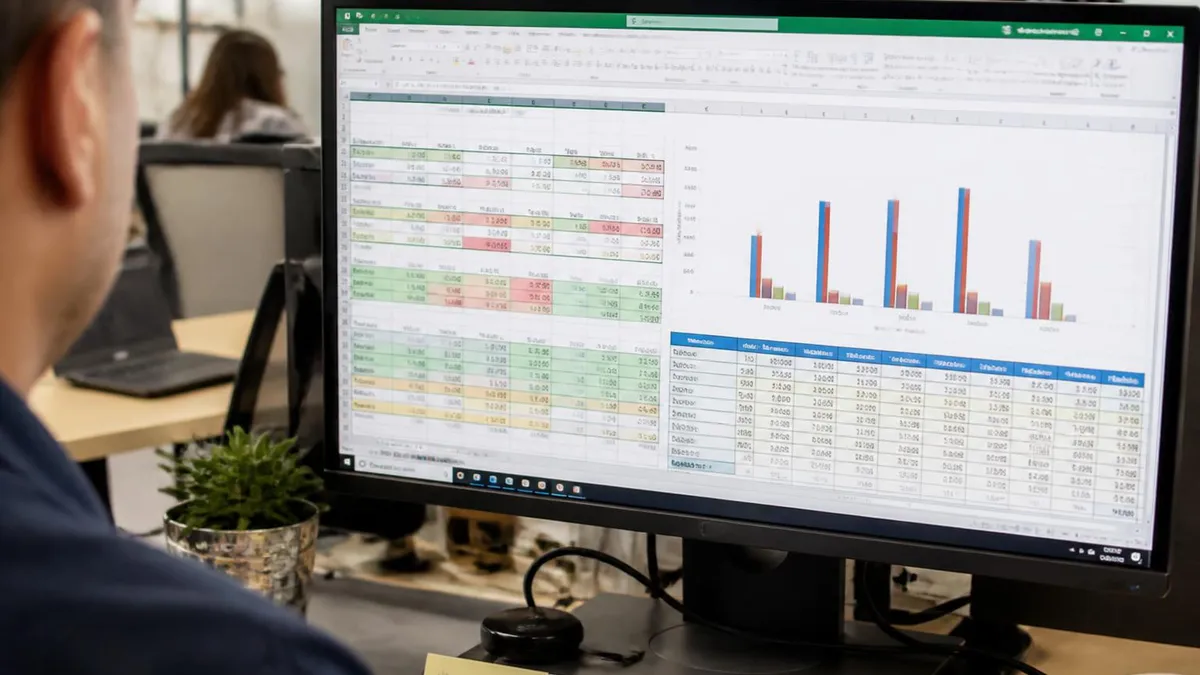
An effective project plan template includes: task list with hierarchical numbering, start and end dates with automatic duration calculation, dependencies between tasks, status indicators with conditional formatting, resource assignments, percent complete tracking, and a Gantt-style visual timeline. These pieces work together to give you both detailed task management and high-level visual planning in one document.
Three Levels of Project Plan Templates
Task name, owner, due date, status. Works for projects with under 20 tasks and short timelines. Easy to maintain and share.
Adds dependencies, durations, percent complete, and a basic Gantt chart. Right for most projects in the 20-100 task range.
Includes critical path analysis, resource leveling, baseline vs actual tracking, and milestone summary. For large complex projects.
Let's start with the essential columns for any project plan template. Column A: Task ID (1, 1.1, 1.2, 2, 2.1 — using hierarchical numbering). Column B: Task Name. Column C: Owner (the person responsible). Column D: Start Date. Column E: End Date. Column F: Duration (calculated). Column G: Status (Not Started, In Progress, At Risk, Complete). Column H: Percent Complete (0-100). Column I: Dependencies (Task IDs this task depends on). Column J: Notes. These ten columns cover most project management needs without overwhelming the user with information.
The Duration column uses a simple formula: =E2-D2+1 to calculate business days inclusive of both start and end dates. For working days only (excluding weekends), use =NETWORKDAYS(D2, E2). For working days excluding both weekends and holidays, =NETWORKDAYS(D2, E2, HolidayList) where HolidayList is a range of holiday dates. Most project managers prefer NETWORKDAYS since it reflects actual work capacity.
For automatic end date calculation based on dependencies, use formulas that reference the end dates of predecessor tasks. If Task 2 depends on Task 1 completing, then Task 2's start date should be =E1+1 (one day after Task 1 ends). For tasks with multiple dependencies, use =MAX of predecessor end dates plus one day. This automation means changing one task's duration cascades through the rest of the plan automatically, which is the major advantage over manual date entry.
Project Plan Template Essentials
Status Tracking Approaches
Simple dropdown with values: Not Started, In Progress, At Risk, Blocked, Complete. Use Data Validation to enforce consistent values. Easiest to set up and understand.

Building a Gantt chart in Excel without third-party tools is straightforward but requires some setup. The standard approach uses a stacked bar chart with the start date as the first (invisible) series and the duration as the visible bar. Select your task names, start dates, and durations. Insert > Bar Chart > Stacked Bar.
Click the start date series and format it as no fill (making it invisible). Adjust the date axis to show appropriate date intervals. Reverse the task category order so tasks appear top-to-bottom in plan order. The result is a clean Gantt visualization that updates as your data changes.
An alternative approach uses conditional formatting on a date matrix. Create a grid where columns are dates and rows are tasks. Use conditional formatting with a formula like =AND(D$2>=$D2, D$2<=$E2) to highlight cells where the date falls within the task's duration. This approach gives you a Gantt-style view directly in the worksheet without creating a separate chart. The disadvantage is that the date range is fixed by your column choices, while a real chart can dynamically scale.
For tracking actual versus baseline progress, add two extra columns: Baseline Start and Baseline End. When you finalize your initial plan, copy Start Date to Baseline Start and End Date to Baseline End for every task. Then add a second set of bars in your Gantt chart showing the baseline dates in a different color. As actual dates shift, the comparison to baseline becomes visible — schedule slippage shows up immediately. This baseline tracking is essential for projects where executives want to see whether you're on the original schedule.
Convert your project plan range to an Excel Table (Insert > Table). Then formulas using structured references like =[@StartDate]+5 automatically work for every row. Adding new tasks at the bottom of the table extends formulas and conditional formatting automatically. This is genuinely worth the small setup time — it transforms maintenance from constant adjustment to simple data entry.
Dependency Types in Project Plans
The most common dependency. Task B can't start until Task A finishes. Example: testing can't start until development finishes. Default in most project plans.
Task B can start once Task A starts. Useful for parallel work that begins together. Example: documentation can start when development starts.
Task B can't finish until Task A finishes. Less common but useful for related closure tasks. Example: quality review can't finish before testing finishes.
Rare dependency. Task B can't finish until Task A starts. Mostly used in specialized contexts like shift handoff scheduling.
Resource assignments add another dimension to project planning. Add a column for Resource Names listing who's working on each task. Use Data Validation with a list of team members to ensure consistent names. For tasks with multiple resources, separate names with commas. Use COUNTIF formulas elsewhere to count how many tasks each person is assigned to in any given week — a quick way to spot resource over-allocation. =COUNTIFS(ResourceColumn, '*'&PersonName&'*', StartColumn, '<='&WeekEnd, EndColumn, '>='&WeekStart) returns the count of tasks for a person in a specific week.
Critical path analysis identifies which tasks directly drive the project end date. A delay to any critical path task delays the whole project; delays to non-critical path tasks have slack and may not affect overall timing. Building automatic critical path calculation in Excel is complex but possible. The simpler approach: identify dependencies, calculate longest paths through the network manually, and mark critical path tasks with a flag column. Highlight critical path tasks in red in your Gantt chart to communicate priority.
For tracking milestones — major project events without duration — create separate rows with zero duration. The Gantt chart will show these as diamond markers if you use the right chart type. Common milestones: Project Kickoff, Phase Completion, Customer Approval, Launch. Adding a Milestone column with Yes/No values lets you filter to just milestones for executive reporting. Milestone tracking is especially important for stakeholder communication — executives often care more about milestones than individual task progress.
Customization Layers
Use indentation in task names plus hierarchical numbering (1, 1.1, 1.1.1) to show task structure. Excel's Group feature (Data > Group) lets you collapse and expand sections. Essential for plans with more than 30 tasks.

Conditional formatting brings project plans to life visually. Several common patterns: highlight overdue tasks where end date is in the past but status isn't Complete (=AND(E2
Data Validation prevents data entry errors. Use list validation for Status, Owner, and Resource columns to ensure consistent values. Use date validation for Start Date and End Date columns to prevent text entries. Use custom formula validation for dependencies to ensure they reference valid task IDs. Set up error messages that explain valid entries. Good validation makes templates more strong when shared with team members who might not understand all the formulas underneath.
For larger teams, consider splitting your project plan into multiple sheets. One Summary tab with high-level milestones and rolled-up status. Multiple Detail tabs with team-specific or phase-specific tasks. A Resources tab listing all team members and their general availability. A Risks tab tracking project risks and mitigation. This separation keeps each view focused while linking the pieces through formulas. The cost is more setup time and slightly more maintenance complexity.
Building Your Project Plan Template
- ✓Open a new Excel workbook and save with descriptive name
- ✓Set up column headers: Task ID, Task Name, Owner, Start, End, Duration, Status, % Complete, Dependencies, Notes
- ✓Add Data Validation dropdowns for Owner and Status columns
- ✓Add Duration formula: =NETWORKDAYS(StartCol, EndCol)
- ✓Add formulas for dependent task start dates
- ✓Convert range to an Excel Table for auto-expansion
- ✓Add Conditional Formatting for status colors and overdue tasks
- ✓Create a Gantt chart from task names, start dates, and durations
- ✓Add a summary section showing total tasks, complete, in progress, etc.
- ✓Test with sample data before applying to real project
- ✓Save as template (.xltx) for reuse on future projects
Common pitfalls when using Excel for project management include letting plans become outdated (update status at least weekly), making templates too complex (most projects need 10 columns not 30), losing track of formulas when team members edit cells (use cell protection on calculated columns), and trying to use Excel for things better handled by dedicated tools (Excel works well up to a few hundred tasks; beyond that, consider Asana, Smartsheet, or Microsoft Project). Knowing Excel's limits prevents frustration with overly complex plans.
Sharing project plans effectively requires thought. Email attachments quickly produce version-control chaos as multiple people make changes. OneDrive or SharePoint with co-authoring lets everyone work in the same file simultaneously. Google Sheets is another option if your team uses Google Workspace. For executive reviews, export key sections to PDF or paste into PowerPoint rather than sharing the full working file. Different audiences need different formats — match the format to the audience and purpose.
Backup discipline matters for project plans. The active working file should sync to cloud storage automatically. Periodic snapshots (weekly or after major changes) preserve historical states for later reference. Naming convention with dates helps: ProjectPlan_2026-05-20.xlsx. This way you can always recover an older version or see how plans evolved. Lost or corrupted project plans are demoralizing and disruptive — protect them like the valuable artifacts they are.
Beyond the basic mechanics, the discipline of regular plan updates separates effective project management from theatrical project management. Set a recurring weekly meeting where the team reviews the plan together. Update statuses, surface risks, adjust dates as needed. The plan should be a living document that reflects reality, not a document that was beautiful at kickoff and then ignored. A simple plan kept current beats a sophisticated plan that's three weeks out of date every time.
The most beautifully designed project plan template provides zero value if no one updates it. Build the update cadence into your project process from day one. Weekly status reviews. Daily standups for active sprints. Stakeholder updates monthly. Without discipline around updates, project plans become historical fiction rather than management tools. Choose the simplest template that supports your update cadence reliably.
When Excel project plans hit their limits, signs include: more than 200-300 tasks making the file slow, frequent merge conflicts when multiple people update simultaneously, complex resource scheduling across many overlapping projects, sophisticated reporting needs your team requests repeatedly, and integration with other systems like time tracking or financial accounting. These are signals to evaluate dedicated project management tools rather than continuing to extend Excel.
Excel still has advantages even when more sophisticated tools are available. It's universally accessible — everyone has Excel. It's fast for small to medium plans. It integrates easily with other Excel-based analysis. It produces clean printable outputs without subscription costs. For many projects, especially internal initiatives and smaller efforts, Excel is genuinely the right tool. The key is recognizing both its strengths and limitations and applying it where it shines rather than forcing it into roles where dedicated tools work better.
For analysts and managers building their Excel project planning skills, the path forward involves practicing with real projects, gradually adding template features as you encounter needs, learning the formulas behind the patterns rather than just copying them, and adapting templates to your organization's specific processes. Within a few months of regular use, you'll develop strong intuition for what makes a good plan and how to build one efficiently in Excel for any size project.
Excel for Project Planning
- +Universally available — everyone has Excel
- +No subscription costs beyond Excel itself
- +Highly flexible — adapt to any project structure
- +Easy to share and review in familiar format
- +Integrates well with other Excel-based analysis
- +Quick to set up for small to medium projects
- −Becomes slow and unwieldy at 200+ tasks
- −Limited concurrent editing without cloud setup
- −No built-in resource leveling or critical path automation
- −Less integration with time tracking and other PM tools
- −Templates can become outdated as Excel features evolve
Pros and Cons at a Glance
| Pros | Cons |
|---|---|
| Universally available — everyone has Excel | Limited concurrent editing without cloud setup |
| No subscription costs beyond Excel itself | No built-in resource leveling or critical path automation |
| Highly flexible — adapt to any project structure | Less integration with time tracking and other PM tools |
| Easy to share and review in familiar format | Templates can become outdated as Excel features evolve |
Once your project plan template is working well, save it as Excel Template (.xltx) format. File > Save As > Excel Template. New projects then start from this template via File > New > Personal Templates rather than opening and editing the master file. This prevents accidental modifications to your base template and makes creating new project plans a one-click operation.
Real-world project plan templates evolve over time as you learn what works for your specific projects and team. Start simple. Add complexity only when you encounter a specific need. Resist the temptation to build elaborate templates with features you might use someday — they create friction without value. Each addition should solve a problem you've actually encountered. Periodically review your template and remove columns or features that you've stopped using. Templates accumulate cruft if not pruned.
Common mistakes when designing project plan templates include over-engineering (too many columns, complex formulas that team members can't maintain), under-engineering (missing basic features that you'll add manually for every project), inflexibility (hard-coding values that should be parameters), and poor documentation (no comments or instructions, so users don't know how to use the template). Aim for the middle ground: enough structure to be useful, simple enough to use without training, flexible enough to adapt to different project types.
For organizations adopting consistent project plan templates across teams, the rollout matters as much as the template design. Provide training when introducing new templates. Maintain a single authoritative version controlled by a template owner. Document the conventions and rules. Build in feedback channels so users can suggest improvements. Update the template centrally as needs evolve. Without governance, templates fragment quickly into team-specific variants that defeat the purpose of standardization.
The interaction between your project plan template and other tools matters too. If your team uses Jira for sprint tracking, Slack for communication, and Excel for high-level project planning, design the template to complement rather than duplicate the other tools. The Excel template should focus on what Excel does well: cross-team visibility, executive summary views, time-phased planning, and resource overview. Detail tracking belongs in tools designed for it.
For long-running programs spanning months or years, the project plan template often grows into a portfolio view. Add columns for Project Name, Phase, Quarter, Strategic Goal. Use pivot tables to summarize by these dimensions. Build a separate dashboard tab that shows portfolio-level health alongside the detailed task list. The same fundamental template can serve project-level and portfolio-level management with the right structure. This scalability is one of Excel's underrated strengths for project management.
Consider building a lessons learned section into your template. A separate tab where the team captures what worked, what didn't, and what to do differently next time. At project closure, this becomes a valuable reference for future projects. Many teams skip this step because the project is over and they want to move on — but the small investment of capturing lessons learned pays dividends on every subsequent project. Make it easy by building it into the template from the start.
One subtle aspect of project plan templates worth thinking about is how dates and times integrate. Excel stores dates as serial numbers, which means you can do math with them directly. =TODAY()-StartDate gives you days elapsed since project kickoff. =EndDate-TODAY() gives you days remaining until completion. These computed columns help everyone understand where they are relative to the schedule without needing to look at a calendar separately.
For projects spanning multiple time zones, build time zone awareness into your template. Use date-only fields rather than datetime when possible to avoid timezone confusion. If you must track specific times (meeting times, release windows), use UTC as the reference and let local viewers convert as needed. Note time zones in the column headers or notes column to prevent assumptions. Global teams have lost countless hours to ambiguous timestamp interpretations — a small upfront investment in time zone discipline pays back many times.
Finally, recognize that the best project plan template is the one your team actually uses consistently. A perfect template ignored by your team produces nothing. A simple template updated daily produces clarity and alignment. Optimize for the path of least resistance to keep the plan current rather than for the most sophisticated feature set imaginable. Sometimes the right answer is a stripped-down version of a more elaborate template, traded for consistent updates.
Project Plan Template Questions and Answers
About the Author

Business Consultant & Professional Certification Advisor
Wharton School, University of PennsylvaniaKatherine Lee earned her MBA from the Wharton School at the University of Pennsylvania and holds CPA, PHR, and PMP certifications. With a background spanning corporate finance, human resources, and project management, she has coached professionals preparing for CPA, CMA, PHR/SPHR, PMP, and financial services licensing exams.