
Excel 2026 September Download Free: Every Legal Way to Get Microsoft Excel (Web, Mobile, Trials, Student Plans)
Learn how to download Microsoft Excel for free in 2026 September using web apps, ✏️ mobile downloads, student plans, and 30-day trials. Legal methods only.

If you want to download Microsoft Excel for free in 2026, you have more legitimate options than most people realize. Microsoft itself offers several no-cost pathways, including Excel for the web, the free Excel mobile app for phones, a one-month Microsoft 365 trial, and a fully free version for verified students and teachers at eligible schools. Each route has different limitations on file size, advanced features, and offline access, so picking the right one depends on whether you need basic spreadsheet work or heavy data analysis.
Many users searching for free Excel actually need only a fraction of the desktop app's power. Tasks like household budgets, invoices, or learning how to merge cells in Excel work perfectly inside Excel Online, which runs in any modern browser without installation. The web version supports formulas, charts, PivotTables, conditional formatting, and real-time collaboration, all backed by OneDrive's free 5 GB of cloud storage. For most students and casual users, this alone replaces the need to pay $69.99 per year for Microsoft 365 Personal.
However, free Excel is not unlimited Excel. Power users who rely on Power Query, Power Pivot, VBA macros, custom add-ins, or files larger than 100 MB will hit walls quickly in the browser. Excel for the web also caps certain functions, restricts advanced PivotTable features, and lacks the Solver and Analysis ToolPak add-ins that desktop users depend on. Understanding these gaps before you commit prevents the frustration of starting a project and discovering halfway through that your spreadsheet refuses to open.
This guide walks through every legal MS Excel free download option and every other way to access Excel without paying full price. We cover the official Microsoft pathways first, then trial extensions, student verification, employer benefits, and the surprisingly capable free alternatives like Google Sheets, LibreOffice Calc, and WPS Office. We also flag the sketchy download sites you should avoid because they bundle malware, expired keys, and pirated installers that put your data and identity at risk.
You will learn exactly how to install each free version step by step, how to migrate existing .xlsx files, how to keep formulas like VLOOKUP working across platforms, and how to upgrade later without losing your work. By the end, you will know which free path matches your actual usage pattern, whether you are a high school student tracking grades, a freelancer building invoices, or a small business owner who needs collaboration without the subscription price tag.
Before we dive in, a quick note on terminology. "Microsoft Excel" technically refers to the desktop application that ships with Microsoft 365 or Office 2024. "Excel for the web" is the free browser version. "Excel Mobile" is the free Android and iOS app with a screen-size limit on editing. There is no free downloadable version of Excel for the desktop beyond the one-month trial and the Education plan, so anything else advertised that way is either the web app in disguise or a pirated installer. All three official versions open the same .xlsx file format, but they are not feature-identical, and confusing them is the most common source of disappointment for first-time free users.
The good news: in 2026, the free options are better than they have ever been. Microsoft has steadily added Copilot AI features, real-time co-authoring, and improved formula compatibility to Excel for the web. If you choose the right pathway and understand its limits, you can build professional-grade spreadsheets without spending a cent.
Free Excel Access by the Numbers

Every Legal Way to Get Microsoft Excel Free in 2026
The browser version of Excel runs at office.com with a free Microsoft account. It supports formulas, charts, PivotTables, and real-time collaboration. No installation required and works on Chromebooks, Macs, Windows, and Linux equally.
Free on iOS and Android for screens under 10.1 inches. Lets you view, create, and edit spreadsheets on phones and small tablets. Larger devices like iPads require a Microsoft 365 subscription to unlock editing.
Microsoft offers a one-month free trial of Microsoft 365 Family that includes the full desktop Excel for up to six people. A credit card is required, and you must cancel before day 30 to avoid being charged $99.99 per year.
Students and teachers at eligible institutions get the full desktop Excel, Word, PowerPoint, and OneNote completely free with a valid school email. Sign up at microsoft.com/education using your .edu address.
Many employers with Microsoft 365 enterprise agreements offer the Home Use Program. Eligible employees install full Office at home at no personal cost. Check your IT department or benefits portal to verify access.
The fastest legitimate way to download Microsoft Excel for free is to skip the download entirely and use Excel for the web. No installer is needed, which is why it beats every "free Microsoft Excel download" link you will find on third-party sites. Go to office.com, click Sign In, and either create a free Microsoft account or sign in with an existing one. Once you reach the dashboard, click the Excel icon in the left rail and you are inside a fully functional spreadsheet within seconds. Files save automatically to your OneDrive, and you can pin Excel to your taskbar as a Progressive Web App so it launches like a desktop program.
Creating a Microsoft account is free and takes about two minutes. You need a working email address, which can be Gmail, Yahoo, your school address, or anything else. Microsoft will send a verification code, and once you confirm it, you receive 5 GB of OneDrive storage along with web access to Excel, Word, PowerPoint, OneNote, and Outlook. If you already use Outlook.com, Xbox Live, Skype, or Hotmail, you already have a Microsoft account and can sign in directly.
Excel for the web handles the same .xlsx file format as the desktop version, so files move between them perfectly. You can upload existing spreadsheets by dragging them into the OneDrive panel, and they open with formulas intact. Most everyday functions work, including SUM, AVERAGE, IF, INDEX, MATCH, COUNTIF, and even VLOOKUP. Newer dynamic array functions like XLOOKUP, FILTER, SORT, and UNIQUE work too, which is a significant upgrade from the early days when Excel Online lagged behind the desktop on formula support.
There are real limits to know about. Excel for the web does not support VBA macros, custom add-ins beyond Microsoft's approved store, or files larger than 100 MB. Power Query and Power Pivot are unavailable, the Analysis ToolPak is missing, and some advanced PivotTable features like calculated fields cannot be edited in the browser.
If you open a macro-enabled .xlsm file, the macros are preserved on save but cannot be edited or run in the browser. For users learning how to freeze a row in Excel or how to create a drop down list in Excel, these limits will never matter.
Collaboration is where the free web version actually outshines the paid desktop version. Multiple people can edit the same workbook simultaneously, see each other's cursors, and chat inside the file. You share by clicking Share in the upper right, entering email addresses, and choosing edit or view permissions. This used to require a Microsoft 365 Business subscription, and now it ships free. For group projects, club budgets, or small business inventory, this single feature replaces dozens of email back-and-forths.
To install Excel for the web as a Progressive Web App on Chrome or Edge, open excel.cloud.microsoft, click the install icon in the address bar (it looks like a small monitor with an arrow), and confirm. The app then opens in its own window, appears in your Start menu or Dock, and works offline for recently opened files. This is the closest thing to a free desktop Excel without violating Microsoft's licensing terms.
Performance has improved dramatically over the past three years, and the web app receives new features on Microsoft's monthly release cadence, so a feature announced in the Excel August update typically lands in the browser version within weeks. Spreadsheets with 50,000 rows and complex formulas now recalculate within a second or two on a midrange laptop. The interface looks nearly identical to the desktop ribbon, so transferring skills between versions is seamless. If your spreadsheet work fits the limits, the web version is genuinely all you need.
Microsoft Excel Practice Test Questions
Prepare for the Microsoft Excel exam with our free practice test modules. Each quiz covers key topics to help you pass on your first try.
Microsoft Excel Excel Basic and Advance
Microsoft Excel Exam Questions covering Excel Basic and Advance. Master Microsoft Excel Test concepts for certification prep.
Microsoft Excel Excel Formulas
Free Microsoft Excel Practice Test featuring Excel Formulas. Improve your Microsoft Excel Exam score with mock test prep.
Microsoft Excel Excel Functions
Microsoft Excel Mock Exam on Excel Functions. Microsoft Excel Study Guide questions to pass on your first try.
Microsoft Excel Excel MCQ
Microsoft Excel Test Prep for Excel MCQ. Practice Microsoft Excel Quiz questions and boost your score.
Microsoft Excel Excel
Microsoft Excel Questions and Answers on Excel. Free Microsoft Excel practice for exam readiness.
Microsoft Excel Excel Trivia
Microsoft Excel Mock Test covering Excel Trivia. Online Microsoft Excel Test practice with instant feedback.
Microsoft Excel Advanced Data Analysis Tools
Free Microsoft Excel Quiz on Advanced Data Analysis Tools. Microsoft Excel Exam prep questions with detailed explanations.
Microsoft Excel Advanced Formula and Macro...
Microsoft Excel Practice Questions for Advanced Formula and Macro Creation. Build confidence for your Microsoft Excel certification exam.
Microsoft Excel Advanced Formulas and Macros
Microsoft Excel Test Online for Advanced Formulas and Macros. Free practice with instant results and feedback.
Microsoft Excel Basic and Advance Question...
Microsoft Excel Study Material on Basic and Advance Questions and Answers. Prepare effectively with real exam-style questions.
Microsoft Excel Creating and Managing Charts
Free Microsoft Excel Test covering Creating and Managing Charts. Practice and track your Microsoft Excel exam readiness.
Microsoft Excel Data Visualization with Ch...
Microsoft Excel Exam Questions covering Data Visualization with Charts. Master Microsoft Excel Test concepts for certification prep.
Microsoft Excel Formulas and Functions
Free Microsoft Excel Practice Test featuring Formulas and Functions. Improve your Microsoft Excel Exam score with mock test prep.
Microsoft Excel Formulas and Functions App...
Microsoft Excel Mock Exam on Formulas and Functions Application. Microsoft Excel Study Guide questions to pass on your first try.
Microsoft Excel Formulas Questions and Ans...
Microsoft Excel Test Prep for Formulas Questions and Answers. Practice Microsoft Excel Quiz questions and boost your score.
Microsoft Excel Functions Questions and An...
Microsoft Excel Questions and Answers on Functions Questions and Answers. Free Microsoft Excel practice for exam readiness.
Microsoft Excel Managing Data Cells and Ra...
Microsoft Excel Mock Test covering Managing Data Cells and Ranges. Online Microsoft Excel Test practice with instant feedback.
Microsoft Excel Managing Tables and Data
Free Microsoft Excel Quiz on Managing Tables and Data. Microsoft Excel Exam prep questions with detailed explanations.
Microsoft Excel Managing Tables and Table ...
Microsoft Excel Practice Questions for Managing Tables and Table Data. Build confidence for your Microsoft Excel certification exam.
Microsoft Excel Managing Worksheets and Wo...
Microsoft Excel Test Online for Managing Worksheets and Workbooks. Free practice with instant results and feedback.
Microsoft Excel MCQ Questions and Answers
Microsoft Excel Study Material on MCQ Questions and Answers. Prepare effectively with real exam-style questions.
Microsoft Excel Questions and Answers
Free Microsoft Excel Test covering Questions and Answers. Practice and track your Microsoft Excel exam readiness.
Desktop, Mobile, and Web: How the Free Versions Compare
Excel for the web is the most capable free option for desktop and laptop users. It runs in Chrome, Edge, Safari, and Firefox without installation, supports nearly all formulas including VLOOKUP, XLOOKUP, and dynamic arrays, and saves automatically to OneDrive. Real-time co-authoring lets multiple users edit a workbook at once, and Copilot AI features are now available even on free accounts with usage limits.
What you give up: no VBA macros, no Power Query, no Analysis ToolPak, and a 100 MB file size cap. The Solver add-in is not available, and some advanced PivotTable manipulations like creating calculated fields must be done in the desktop app. For 80% of users, including students learning how to create a drop down list in Excel or build a budget, none of these missing features matter at all.
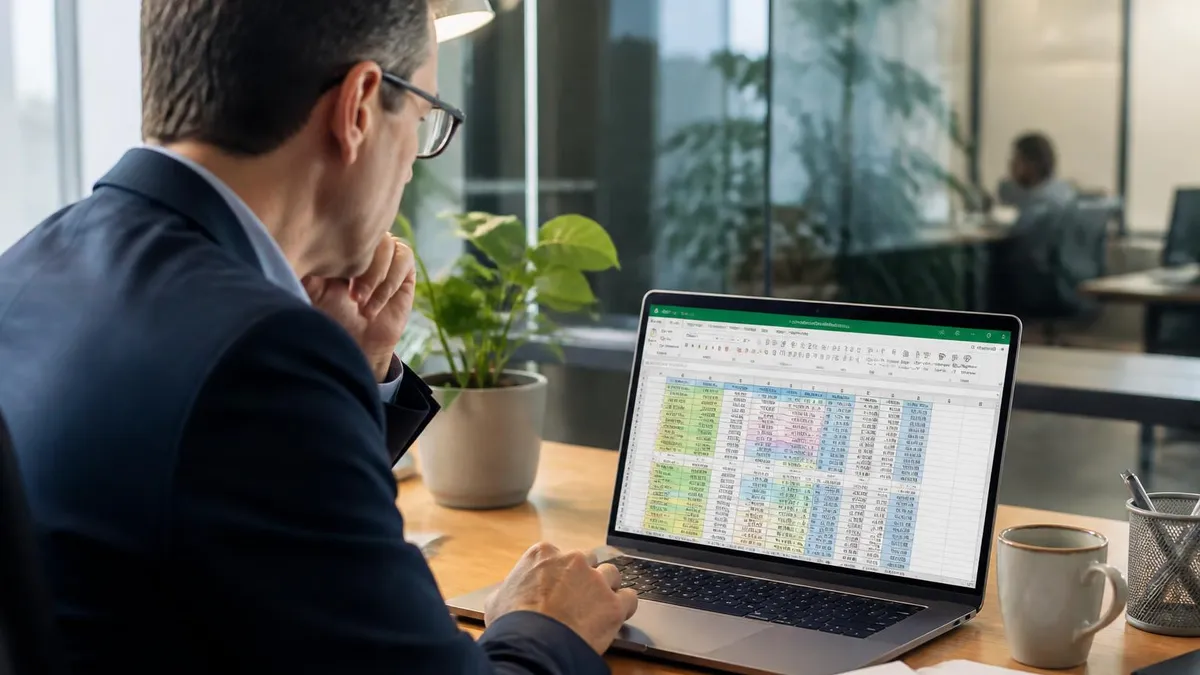
Free Excel Versions: Pros and Cons at a Glance
- +Excel for the web is genuinely free forever with no time limit
- +Same .xlsx file format as paid desktop, so files transfer perfectly
- +Real-time collaboration with multiple editors built in
- +Works on Chromebooks, Macs, Linux, and Windows equally
- +Automatic saving to OneDrive prevents data loss
- +Mobile app handles edits on phones with full formula support
- +Students and teachers at eligible schools get the full desktop suite free
- −No VBA macro editing or execution in the free web version
- −Power Query, Power Pivot, and Solver add-ins unavailable online
- −100 MB file size cap blocks very large datasets
- −Requires internet connection for most web features
- −Tablets larger than 10.1 inches lose free editing on mobile app
- −30-day trial requires credit card and auto-renews at $99.99 per year
Your Step-by-Step Free Excel Download Checklist
- ✓Decide whether you need desktop power, web access, or mobile editing before downloading anything
- ✓Go to office.com and create a free Microsoft account using any email address
- ✓Verify your email by entering the six-digit code Microsoft sends within five minutes
- ✓Open Excel for the web from the office.com dashboard to confirm your account works
- ✓Install the Progressive Web App version through Chrome or Edge for a desktop-like experience
- ✓Download the official Excel mobile app only from the App Store or Google Play
- ✓Sign in to the mobile app with the same Microsoft account to sync your files via OneDrive
- ✓If you are a student, sign up for Office 365 Education at microsoft.com/education with your .edu email
- ✓For a desktop trial, visit microsoft.com/microsoft-365/try and set a cancel reminder for day 28
- ✓Avoid any site offering 'free Office download' that is not microsoft.com or store.microsoft.com
Never trust third-party Office download sites
Pirated Office installers from sites like getintopc, filehippo mirrors, or random torrent trackers are the single biggest source of ransomware infections on home PCs in 2026. Microsoft's free options are abundant and legal. There is zero reason to risk a malware-infected installer when Excel for the web is free forever and a 30-day desktop trial requires only a credit card you can cancel.
Students and educators get the best free Excel deal of anyone. Microsoft's Office 365 Education plan provides the full desktop Excel, Word, PowerPoint, OneNote, Teams, and 1 TB of OneDrive storage at no cost to anyone affiliated with an eligible academic institution. This is the complete paid product, not a stripped-down version, and the license remains active as long as you can verify your school email annually. To enroll, visit microsoft.com/en-us/education/products/office and enter your school-issued email address ending in .edu, .ac.uk, or another recognized academic domain.
Eligibility extends beyond traditional college students. Most public and private K-12 schools in the United States qualify, as do community colleges, graduate programs, and accredited online universities. Teachers, professors, teaching assistants, and even some school staff with verified school email addresses are eligible. Homeschool families do not qualify unless the program is registered as an accredited school in their state. International students at recognized institutions abroad also qualify, with Microsoft supporting hundreds of country-specific academic domains.
The enrollment process is automatic for most eligible schools. After you submit your school email, Microsoft checks it against its institutional database and provisions your license within minutes. Some schools require manual verification, which can take 24 to 48 hours. Once approved, you download the full Office installer from the same education portal and install it on up to five PCs or Macs, plus five tablets and five phones per account. This makes the Education plan unbeatable for families with multiple students.
Beyond Excel itself, the Education plan unlocks features that paid Personal subscribers do not get. You receive a Teams account configured for academic collaboration, OneNote class notebooks, Sway for interactive reports, and access to Forms for quizzes and surveys. The OneDrive storage allowance of 1 TB is twenty times what free personal accounts receive, more than enough for years of coursework, research files, and large datasets used in statistics or data science classes.
For independent learners not affiliated with a school, the picture is different but still has options. The free Microsoft Learn platform offers official Excel courses with hands-on labs that run inside cloud-hosted Excel environments. While this is not a downloadable Excel, it lets you practice advanced features like Power Query without owning a license. LinkedIn Learning, Coursera, and edX all offer Excel courses, and some include short-term access to virtual lab environments with full desktop Excel installed.
If you are a teacher building lesson materials, take advantage of the free Microsoft Educator Center, which provides ready-made Excel curriculum modules. These include sample workbooks, lesson plans, and student exercise files covering everything from basic data entry to building a complete dashboard. The materials are designed to work in Excel for the web so every student can participate regardless of personal device type, including the millions of K-12 students using school-issued Chromebooks.
One final tip for student users: after you graduate, your free Office 365 Education license eventually expires when your school deactivates your email. Plan ahead by exporting any critical files to a personal OneDrive account before that happens. Files remain readable in Excel for the web with a free Microsoft account, so you do not lose access to your data, just to the desktop editing privileges. Many graduates transition smoothly to the free web version or to a paid Personal subscription at the discounted recent-grad rate Microsoft offers some markets.
Search results in 2026 are littered with ads pretending to offer a Microsoft 365 free trial that actually harvest your credit card on a lookalike domain. The only legitimate trial URL is microsoft.com/microsoft-365/try. Verify the lock icon in your browser, check that the domain reads microsoft.com exactly, and never enter payment details on a site that looks even slightly off. Microsoft will never ask for payment outside its own checkout flow.
If you decide the free Microsoft pathways do not fit your needs, three full-featured alternatives deserve consideration before you pay for a subscription. Google Sheets is the most popular, runs entirely in the browser at sheets.google.com, and includes real-time collaboration that arguably exceeds Excel's own. It opens .xlsx files directly, supports most common formulas with similar syntax, and integrates tightly with the rest of Google Workspace. The trade-off is that some advanced Excel features translate imperfectly, and very large or formula-heavy spreadsheets can slow down significantly in Sheets.
LibreOffice Calc is the best free desktop alternative for users who want offline work without paying. It is open source, runs on Windows, Mac, and Linux, and reads and writes .xlsx files. The interface looks dated compared to Excel, but the functionality is deep, including support for macros, pivot tables, and over 500 built-in functions. Power users who need a true desktop spreadsheet for large local files often prefer LibreOffice Calc over Excel for the web because there is no file size limit and no internet dependency.
WPS Office is a third option that mimics the Microsoft Office interface closely. The free tier includes a complete Excel-compatible spreadsheet program with strong .xlsx fidelity, though it shows advertisements and limits some features behind a paid Pro upgrade. WPS is particularly popular on Chromebooks and on lower-end Windows laptops because it installs quickly and uses less memory than either LibreOffice or the full Microsoft Office suite.
When choosing between Microsoft's free options and these alternatives, the deciding factor is usually compatibility with people you collaborate with. If your team, school, or clients all use Microsoft Excel files, staying inside the Microsoft ecosystem (even on the free web version) prevents the small formatting glitches that happen when files round-trip through Google Sheets or LibreOffice. Macros and complex conditional formatting are the most common casualties of cross-platform conversion.
For solo users with no compatibility constraints, Google Sheets often wins because of its collaboration features, mobile experience, and complete absence of any installation step. For users who need real desktop power without paying, LibreOffice Calc is the strongest no-cost option. For everyone in between, Excel for the web is the best compromise: it is the real Microsoft Excel, it is free, and it works everywhere.
Be very cautious about "free Office 2024" or "free Office 2021" downloads circulating online, and about any free Microsoft Excel download offered from a domain other than microsoft.com. These are almost universally pirated installers tied to expired or stolen volume license keys. Even if the installation succeeds, Microsoft routinely deactivates these keys, leaving you with a deactivated copy that refuses to save files. Worse, modified installers are a documented vector for keyloggers and credential stealers. The risk-to-reward ratio is absurd when legal free options exist.
If you need Excel for occasional professional work and the free tier is not enough, the most cost-effective paid path is Microsoft 365 Personal at $69.99 per year, which includes Excel, Word, PowerPoint, Outlook, OneNote, and 1 TB of OneDrive. For households, Microsoft 365 Family at $99.99 per year covers up to six people. Both are billed annually, and Microsoft frequently offers discounted gift card versions through retailers like Costco, Amazon, and Best Buy, which often work out to 20% less than the direct subscription price.
Once you have downloaded or accessed your free version of Excel, a few practical setup steps will save hours of frustration later. First, sign in to OneDrive on every device where you use Excel so files sync automatically. This single habit eliminates the most common cause of lost work: saving to a local folder on a device that later dies or gets reformatted. OneDrive's version history also lets you roll back unwanted changes for up to 30 days, which is essentially free insurance against accidentally deleted formulas.
Second, enable AutoSave on every workbook stored in OneDrive. Excel for the web does this automatically, but the desktop trial version requires you to flip the AutoSave toggle in the upper-left corner. Combined with OneDrive sync, AutoSave means you can close a file without saving, switch devices, and pick up exactly where you left off. It also means that real-time collaboration partners always see your latest changes without you having to remember to press Ctrl+S.
Third, install the free Excel mobile app on your phone even if you primarily work on a laptop. The mobile app's camera-to-table feature is genuinely useful: point your phone at a printed receipt, invoice, or table from a textbook, and the app converts it to editable Excel cells in seconds. This alone saves enormous amounts of manual data entry for accountants, students transcribing research data, and small business owners tracking expenses.
Fourth, take time to learn keyboard shortcuts before you build complex spreadsheets. Ctrl+; inserts today's date, Alt+= sums the selected range, Ctrl+Shift+L toggles filters on a table, and F4 repeats your last action. These shortcuts work identically in Excel for the web, the desktop app, and the mobile app's external keyboard mode. Investing one hour in shortcut practice multiplies your speed for years afterward.
Fifth, bookmark or download a free Excel functions reference so you can look up formulas like VLOOKUP, INDEX, MATCH, and XLOOKUP when you need them. Excel has over 500 built-in functions and nobody memorizes them all. Knowing where to look quickly is more valuable than knowing the syntax by heart. Microsoft's official function reference at support.microsoft.com is searchable, complete, and free, and it covers any version of Excel including the free web edition.
Sixth, plan for the eventual day when you want to upgrade. Files created in Excel for the web are 100% compatible with the desktop app, so if you ever switch to a paid subscription, your existing work opens flawlessly. The same is true in reverse for desktop files moved to the web. The only caveat is macro-enabled files, which require the desktop app to edit but display fine in the browser. Building habits around the .xlsx format (not .xls or .xlsm unless required) keeps your future options open.
Finally, treat Excel as a skill worth investing in. The free practice quizzes linked throughout this article cover the most common workplace and academic Excel scenarios, and they are an efficient way to identify gaps in your knowledge. A few hours of structured practice can take you from a casual user to someone who genuinely enjoys spreadsheets, and that enjoyment is the difference between dreading data work and looking forward to it.
MS Excel Free Download: Every Legal Option
Every legitimate no-cost route to Excel runs through Microsoft's own domains, and each delivers a different edition. Ranked by how much of the real desktop application you get:
- Microsoft 365 Education (microsoft.com/education) gives verified students and teachers the full desktop Excel on up to five PCs or Macs, plus 1 TB of OneDrive. It is the only free downloadable version of Excel with no expiration date, as long as your school email stays active.
- Microsoft 365 one-month trial (microsoft.com/microsoft-365/try) installs the complete desktop suite for 30 days. It requires a credit card and converts to the $99.99 Family plan unless you cancel before the renewal date.
- Excel for the web (excel.cloud.microsoft) is free forever with any Microsoft account and can be pinned as a Progressive Web App so it behaves like an installed program.
- Excel mobile app is free to create and edit workbooks on any phone or tablet with a screen of 10.1 inches or smaller; larger iPads need a subscription to edit.
- Employer licenses: business and enterprise Microsoft 365 plans let each employee install Office on five personal devices, and the Home Use Program discounts Personal and Family plans by 30%.
Update timing differs too. Subscription and Education installs receive each monthly feature release, including the Excel August update, through the Current Channel, while the perpetual Office 2024 edition only gets security fixes. If a tutorial shows a command you cannot find, check which edition you are running before assuming the feature is missing.
Excel Download Free: Quick Facts
🌐 Is there a real Microsoft Excel download free of charge?
Yes. Excel for the web is free with any Microsoft account at office.com and needs no download at all. It runs in Chrome, Edge, Safari, and Firefox and saves your workbooks to 5 GB of free OneDrive storage.
START EXCEL PRACTICE TEST💻 How do I get the full desktop MS Excel download free for 30 days?
Start the Microsoft 365 free trial at microsoft.com/microsoft-365/try. You get the complete desktop Excel for one month on up to five devices. A payment method is required and the plan renews automatically unless you cancel before day 30.
START EXCEL PRACTICE TEST🎓 Can students get Microsoft Excel free download for PC?
Yes. Office 365 Education gives verified students and teachers the full desktop Excel, Word, PowerPoint, and 1 TB of OneDrive at no cost. Sign up with a school email address at microsoft.com/education and the license stays active while you are enrolled.
START EXCEL PRACTICE TEST📱 Is the Excel mobile app a free download?
The Microsoft Excel app for iPhone, iPad, and Android is free to download and free to edit on phones and tablets up to 10.1 inches. Larger tablets can view files free but need a Microsoft 365 subscription to edit.
START EXCEL PRACTICE TEST⚠️ Is a Microsoft Excel free crack version download safe?
No. Cracked and pirated Excel installers are the top source of ransomware and keyloggers on home PCs, and they never receive security updates. Every legitimate free option comes directly from microsoft.com or office.com, so there is no reason to risk it.
START EXCEL PRACTICE TEST🔢 What formulas work in the free Excel for the web?
Almost all of them. VLOOKUP, XLOOKUP, SUMIFS, INDEX/MATCH, dynamic arrays, and PivotTables all work in the browser. The main gaps are VBA macros, Power Query, Power Pivot, and the Solver add-in, which need the desktop app.
START EXCEL PRACTICE TEST🆚 Excel for the web vs desktop Excel: what is the difference?
Desktop Excel adds macros, Power Query, Power Pivot, offline use, and no file size cap. Excel for the web is free, opens files up to 100 MB, and offers live co-authoring with autosave. For everyday budgets, lists, and charts the free web version is enough.
START EXCEL PRACTICE TEST📦 What file types can the free version of Excel open?
Excel for the web opens and saves .xlsx, .xlsm (viewing macros only), .csv, and .ods files stored in OneDrive or SharePoint. Upload a file to OneDrive, click it, and it opens in the browser editor with formatting and formulas intact.
START EXCEL PRACTICE TEST🔄 Does the free Excel get the monthly feature updates?
Yes. Excel for the web and the mobile app update automatically, so new functions and the monthly Excel update roll out without any action. Desktop Excel on a Microsoft 365 trial or Education plan updates through the Office update channel.
START EXCEL PRACTICE TEST💼 Can I use the free Excel to prepare for a job or certification test?
Absolutely. Every skill tested in Microsoft Office Specialist exams and typical employer screenings, such as formulas, sorting, filtering, charts, and PivotTables, works in Excel for the web. Pair it with free practice questions to build speed.
START EXCEL PRACTICE TESTExcel Questions and Answers

Excel Functions List: The Complete Reference Guide to Every Formula You Need in 2026

Excel Finance Functions Guide With PMT, NPV, IRR and Loan Models

Standard Deviation Formula in Excel: STDEV.P vs STDEV.S Guide

Excel Data Analysis Toolpak: Complete Guide to the Analysis ToolPak Add-In

How to Create a Report in Excel: The Complete 2026 Guide to Building Professional Spreadsheet Reports
Official Resources
- Microsoft 365 for the web (free Excel, Word, PowerPoint) — Microsoft's official page for using Excel free in the browser with a Microsoft account and 5 GB of OneDrive storage.
- Microsoft 365 Free Trial — The only legitimate place to start the one-month trial of the full desktop Excel and the rest of the Microsoft 365 suite.
- Excel Help & Learning (Microsoft Support) — Official Microsoft documentation, tutorials, and troubleshooting for every version of Excel, including the web and mobile apps.
About the Author

Business Consultant & Professional Certification Advisor
Wharton School, University of PennsylvaniaKatherine Lee earned her MBA from the Wharton School at the University of Pennsylvania and holds CPA, PHR, and PMP certifications. With a background spanning corporate finance, human resources, and project management, she has coached professionals preparing for CPA, CMA, PHR/SPHR, PMP, and financial services licensing exams.