
Tips for Writing Macros in Excel: A Practical Guide to Cleaner, Faster VBA 2026
💡 Write better macros in Excel: record, then edit VBA, use Option Explicit, skip Select, speed up code, handle errors, and save as .xlsm.

The best tips for writing macros in Excel are to record a rough draft, then edit the VBA in the Visual Basic Editor: declare every variable with Option Explicit, avoid Select and Activate, turn off screen updating while code runs, add error handling, test with F8, and save the file as .xlsm. Practice with the free Excel practice test on PracticeTestGeeks (25 questions with answer explanations).
Tips for Writing Macros in Excel: Key Facts (Updated November 2026)
| Fact | Details | Source |
|---|---|---|
| Exam delivery | The Microsoft Office Specialist Excel exam is proctored and delivered live inside the Excel application through Certiport Authorized Testing Centers, in person or remote-proctored. | Microsoft Learn |
| Recommended experience | About 150 hours of instruction and hands-on experience for the MOS Excel Associate (Microsoft 365 Apps) certification. | Microsoft Learn |
| Number of questions | Excel Associate (MO-210): 33 to 37 questions. Excel Expert (MO-211): 23 to 27 questions. | Certiport |
| Time limit | 50 minutes of exam time, with 60 minutes of total seat time. | Microsoft Learn |
| Passing score | 700 on Certiport's 1 to 1000 scaled score. Your score report is available as soon as you finish. | Certiport |
| Retake policy | Wait 24 hours before the first retake and 48 hours before each later retake. There is no annual limit on attempts. | Microsoft Learn |
| Certification validity | Certifications earned on or after September 23, 2025 are valid for five years. Earlier certifications do not expire. | Certiport |
| Retired versions | MOS Excel 2016 was retired on June 30, 2026. The Microsoft 365 Apps and Office 2019 Excel exams remain available. | Certiport |
If you are brand new to automation, test yourself first with the excel fundamentals quiz so you know whether formulas, references, and ranges feel comfortable. Macros magnify whatever you already do in a worksheet, which means a shaky grasp of absolute references or named ranges will turn into shaky code. Spend an hour on those basics, then come back here. Everything below assumes you can build a simple formula, format a table, and navigate the ribbon.
A macro is a saved sequence of instructions that Excel replays on demand. Behind the scenes each macro is a Sub procedure written in Visual Basic for Applications, usually shortened to VBA. You can create one in two ways: record your clicks with the Macro Recorder or type code by hand in the Visual Basic Editor. Most professionals do both, recording to discover the right object names and then rewriting the result into something cleaner, faster, and safe to reuse on other files.
Before you write anything, turn on the Developer tab. Go to File, Options, Customize Ribbon, and tick Developer in the right-hand list. That tab gives you Record Macro, Visual Basic, and the macro security settings. Press Alt+F11 at any time to jump into the editor. Save macro-enabled workbooks as .xlsm, because a standard .xlsx file silently strips every line of VBA the moment you save, and that mistake costs people hours of work.
The recorder is a superb teacher but a poor author. It captures every click literally, so a five-second formatting job becomes forty lines of code full of Select statements and hard-coded cell addresses. It also cannot loop, branch, or ask questions. Treat a recording as a first draft: run it once, open the module, and read what Excel wrote. Within a week you will recognize patterns like Range, Cells, and Worksheets, the building blocks of nearly everything.
Know where your code can run. Desktop Excel on Windows and Mac supports VBA, but Excel for the web does not run it, and mobile apps are limited too. Microsoft's newer alternative for the web is Office Scripts, which uses TypeScript. If your colleagues open files in a browser, a VBA button will do nothing for them. Confirm your audience before investing in a big macro project, and keep a plain-formula fallback for any critical calculation.
The sections below move from setup to habits to debugging. You will see how to structure procedures, speed up slow code, handle errors, and apply the techniques to everyday jobs such as a vlookup excel formula, a drop-down list, merged headers, and frozen panes. Each section opens with a direct answer so you can skim, and the checklist and practice links near the end help you turn knowledge into repeatable skill before you automate real business data.
If you want more targeted practice, the excel free download page covers the same material with additional questions and explanations.
If you want more targeted practice, the microsoft excel exam practice test page covers the same material with additional questions and explanations.
Free Excel Study Tools
Interactive Excel resources on PracticeTestGeeks, free to start:
- EXCEL Practice Test: Video 1 Answers (25 Questions) — 25 questions with instant scoring and answer explanations
- Excel flashcards — review key terms and concepts card by card
- Excel study guide — topic-by-topic overview of what the exam covers
- Excel cheat sheet — one-page printable summary for last-minute review
Excel Macros and the MOS Exam by the Numbers

How Do You Write Your First Macro in Excel?
Turn on the Developer tab
Record a small, repeatable task
Open the editor and read the code
Clean up and generalize
Save as .xlsm and assign a button
How Should You Structure and Name Macro Code?
Structure your macros around small procedures that each do one job. A 300-line Sub that imports data, cleans it, formats it, and emails it is almost impossible to debug. Split it into ImportData, CleanData, and FormatReport, then call them in order from a short main Sub. Smaller procedures are easier to test with F8, easier to reuse in other workbooks, and far easier to explain to a coworker who inherits the file next year.
Always put Option Explicit at the top of every module. It forces you to declare each variable with Dim, so a typo such as totl instead of total triggers a compile error instead of quietly creating an empty variable that produces wrong results. You can have the editor insert it automatically under Tools, Options, Require Variable Declaration. Choose specific types like Long for row counts and String for text, because Integer overflows at 32,767 and worksheets hold over a million rows.
Use clear, consistent names. A procedure called FormatMonthlyReport tells the next reader far more than Macro1 ever will. Prefix variables with a short type hint if your team likes that style, for example wsData for a worksheet and lngLastRow for a Long, and keep constants in capitals near the top of the module. Good names replace most comments, but still add an apostrophe comment above any block that explains why the code does something unusual.
Avoid Select and Activate whenever possible. The recorder writes a Select line followed by Selection.Value, but you can simply write Range("A1").Value = 5 and skip the extra step. Direct references run faster and do not break when the user clicks another sheet mid-run. Qualify objects fully, as in ThisWorkbook.Worksheets("Data").Range("A1"), so the code never depends on whichever workbook happens to be active, a common cause of mysterious errors when two files are open.
Store objects in variables and use With blocks to avoid repeating yourself. Write Set ws = ThisWorkbook.Worksheets("Data") once, then open With ws.Range("A1:D1") followed by .Font.Bold = True and .Interior.Color = RGB(221, 235, 247). Fewer repeated lookups make code shorter and quicker, and a change to the sheet name happens in one place. This is the single biggest readability gain you can make when cleaning up a recorded macro.
Never hard-code the last row of your data. Find it dynamically with lngLastRow = ws.Cells(ws.Rows.Count, 1).End(xlUp).Row, which jumps up from the bottom of column A the way Ctrl+Up does. Then loop or fill from row 2 to that value. A macro that handled 200 rows last month should handle 20,000 this month without edits. Hard-coded ranges like A2:A200 are the number one reason automations fail after a data refresh.
Before you write code for a feature, check whether plain Excel already does it. Current versions of ms excel include dynamic arrays, XLOOKUP, and Power Query, which replace many macros outright. A formula recalculates automatically, while a macro runs only when someone clicks. Reserve VBA for repetitive tasks that need user prompts, file handling, or actions formulas cannot perform, such as saving a PDF, sending an email, or looping across a folder of workbooks.
How Do You Automate VLOOKUP Excel, Drop-Down Lists, and Frozen Rows With a Macro?
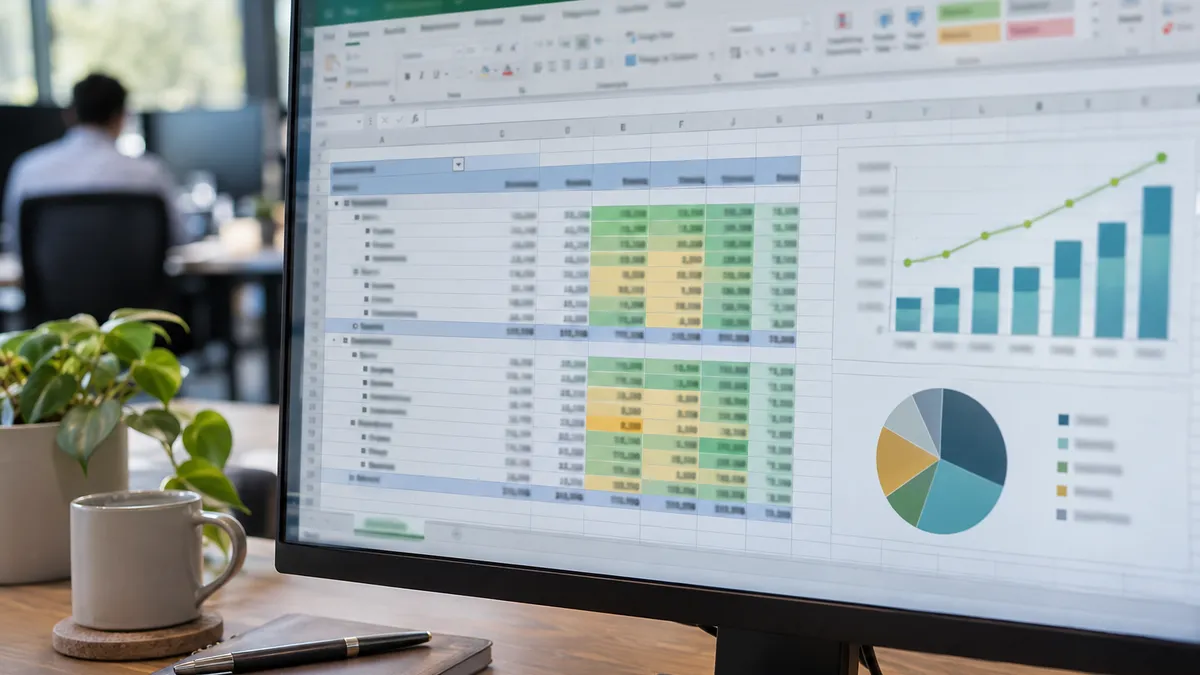
To automate a vlookup excel task, write the formula into a whole column at once instead of looping cell by cell. For example, ws.Range("C2:C" & lngLastRow).Formula = "=VLOOKUP(A2,Prices!A:B,2,FALSE)" fills every row in one step, and Excel adjusts the relative reference A2 for each line. The fourth argument FALSE requests an exact match, which is almost always what you want for product codes, employee IDs, or invoice numbers.
If you only need values, convert the results afterward with .Value = .Value so the file no longer depends on the lookup table. Wrap the lookup in IFERROR so missing keys display a message rather than #N/A. For single lookups inside code, Application.WorksheetFunction.VLookup raises a runtime error when nothing matches, so pair it with error handling, or use Application.VLookup, which returns an error value you can test with IsError before using the result.
Are Excel Macros Worth Learning Compared With Formulas?
- +Macros automate repetitive work that formulas cannot do, such as saving PDFs or looping through files.
- +One button click can replace 20 minutes of manual formatting every week.
- +Recorded code gives beginners a fast way to learn object names and syntax.
- +VBA can prompt users, validate input, and guide them through multi-step processes.
- +Macros work across workbooks, so one routine can clean any monthly export.
- +Strong VBA skills are valued in finance, operations, and reporting roles.
- −Macros do not run in Excel for the web, which limits sharing with browser users.
- −Security settings and blocked downloads make distribution more complicated than formulas.
- −Running a macro clears the undo stack, so mistakes can be permanent.
- −Poorly written code is hard for coworkers to maintain after you leave.
- −Files must be saved as .xlsm, which some email filters and IT policies block.
- −Formulas, Power Query, or dynamic arrays often solve the same problem more transparently.
What Is the Best Checklist for Writing Macros in Excel?
- ✓Enable the Developer tab and learn the Alt+F11 shortcut.
- ✓Type Option Explicit at the top of every module.
- ✓Give each Sub a descriptive name and one clear purpose.
- ✓Replace Select and Activate with direct object references.
- ✓Find the last row dynamically instead of hard-coding a range.
- ✓Turn off ScreenUpdating while the macro runs, then restore it.
- ✓Add an On Error GoTo handler that restores Excel settings.
- ✓Step through new code with F8 on a small sample first.
- ✓Back up the workbook before every test run.
- ✓Save the finished file as .xlsm and label the button clearly.
Turn off screen updating and automatic calculation
Add Application.ScreenUpdating = False and Application.Calculation = xlCalculationManual at the start, then restore both at the end and inside your error handler. On a loop that touches tens of thousands of cells, these two lines often cut runtime from minutes to seconds.
How Do You Make a Macro Run Faster in Excel?
Make a macro run faster by switching off screen updating, automatic calculation, and event handling while it works, then reading and writing data in bulk instead of cell by cell. These changes routinely cut runtimes from minutes to seconds. Excel redraws the screen and recalculates every dependent formula after each change, and a loop touching 50,000 cells triggers that overhead 50,000 times unless you tell Excel to wait.
Start with Application.ScreenUpdating = False at the top of your procedure and set it back to True at the end. Add Application.Calculation = xlCalculationManual and Application.EnableEvents = False for heavy jobs, restoring xlCalculationAutomatic and True afterward. The restore step matters: if your code crashes before it runs, the workbook stays in manual mode, and users will wonder why their formulas stopped updating. Put the restore lines inside your error handler so they run even after a failure.
The biggest gains come from arrays. Reading a range into a Variant, such as arr = ws.Range("A2:D20000").Value, copies the whole block into memory in a single operation. You can loop through arr in milliseconds, change values, and write the result back with one assignment. A loop that touches the worksheet 80,000 times can take a minute; the array version of the same logic often finishes in under a second.
Avoid looping when Excel already has a built-in command. AutoFilter, Find, RemoveDuplicates, Sort, and SpecialCells operate on entire ranges at native speed. For example, ws.Range("A1:F20000").RemoveDuplicates Columns:=Array(1), Header:=xlYes removes repeated IDs without a single line of loop logic. Similarly, set a formula once across a whole column instead of writing it row by row, then let Excel fill in the relative references itself.
Sometimes the fastest macro is no macro. If your routine imports files, removes columns, merges tables, and reshapes data every month, read best tips for using power query in excel: import, clean, merge, and build refresh-proof queries before writing VBA. Power Query records each transformation as a repeatable step and refreshes with one click, which is more transparent than code for most cleanup jobs. You can still use a short macro to call RefreshAll and then format the output.
Measure before you optimize. Store t = Timer at the start and use Debug.Print Timer - t at the end to see elapsed seconds in the Immediate window. Test each change separately so you know which one helped. Many people spend hours tweaking code that takes 0.2 seconds while the real delay is one Copy and Paste inside a loop. Replace copy and paste with direct value assignment, such as rngTarget.Value = rngSource.Value, which skips the clipboard entirely.
Finally, watch for hidden slowdowns in the workbook itself. Volatile functions such as OFFSET, INDIRECT, TODAY, and NOW recalculate constantly. Whole-column references inside thousands of SUMIFS formulas can be expensive, and excessive conditional formatting rules slow every redraw. Sometimes the macro is innocent and the worksheet is the problem. Switch to manual calculation, press F9, and time a recalculation to see how much of the delay comes from formulas rather than VBA.
If a macro turns off ScreenUpdating, EnableEvents, or automatic calculation and then crashes, Excel stays in that state until you reset it. Always restore these settings in your error handler, and keep a tiny recovery macro that sets them all back.
What Are the Main Types of Macro Errors?
These appear before the code runs, often highlighted in red, such as a missing parenthesis or an undeclared variable under Option Explicit. They are the easiest to fix because the editor points to the exact line and describes what it expected to find.
These occur while the macro runs, such as error 1004 for a failed range operation or error 9 when a sheet name does not exist. The macro stops and shows a dialog, and the Debug button takes you straight to the failing line.
The code runs without complaint but produces the wrong answer, like an off-by-one loop that skips the last row. These are hardest to catch, so stepping through with F8 and printing values to the Immediate window is the best strategy.
The macro works on your computer but fails elsewhere because of blocked macros, missing files, different regional settings, or a different Excel version. Test on a second machine and avoid hard-coded folder paths to reduce these surprises.
How Do You Debug and Handle Errors in Excel Macros?
Debug a macro by stepping through it with F8, setting breakpoints with F9, and checking values in the Immediate and Locals windows; handle errors with an On Error GoTo block that reports the problem and restores Excel settings. Together these tools show you exactly which line failed and why, so you fix causes instead of guessing. Expect to spend roughly as much time testing as writing.
Press F8 inside the Visual Basic Editor to execute one line at a time, watching the worksheet change as each statement runs. Press F9 on a line to set a breakpoint, a red dot where execution pauses when you press F5. Hover over any variable to see its current value, or right-click and choose Add Watch to monitor it continuously. This beats scattering message boxes through your code, because you can inspect everything without altering the program.
Use the Immediate window, opened with Ctrl+G, to print values with Debug.Print and to test statements on the fly. Typing ?Range("A1").Value and pressing Enter returns the cell's contents instantly. The Locals window lists every variable in the current procedure, and the Call Stack shows which procedure called which. If a variable shows Empty or Nothing when you expected data, you have found your bug, usually a misspelled sheet name or an unset object.
Add structured error handling to every procedure that other people will run. Place On Error GoTo ErrHandler near the top, put Exit Sub before the ErrHandler label so normal runs skip it, and under the label display Err.Number and Err.Description in a message box. Restore ScreenUpdating, Calculation, and EnableEvents there too. A clear message such as the Data sheet was not found is far more helpful than the default runtime error 9 dialog.
Be careful with On Error Resume Next. It tells VBA to ignore errors and continue, which hides real bugs and can leave half-finished work. Use it only around one risky line, such as checking whether a sheet exists, and turn normal handling back on immediately with On Error GoTo 0. A common pattern attempts to set a worksheet variable, tests whether it is Nothing, and then reacts. Wide use of Resume Next is a warning sign.
Learn the usual suspects. Error 1004 means Excel could not complete a range or worksheet operation, often because a sheet is protected. Error 13 is a type mismatch, like text where a number belongs. Error 91 means an object variable was never set, and error 6 is an overflow. For a structured path through each topic, try the excel vba course: the complete guide to mastering macros and automation.
Always test on a copy. Macros cannot be undone with Ctrl+Z, because running VBA clears Excel's undo stack, so a bad loop that overwrites data is permanent once saved. Keep a backup, test with a small sample of 10 to 20 rows, then scale up. Add input validation at the start, for example checking that the active workbook has the expected sheet and headers, so the macro stops politely instead of damaging unrelated files.
How Long Does It Take to Learn Excel Macros?
- ▸Enable the Developer tab
- ▸Record three small macros and read the code
- ▸Save a workbook as .xlsm
- ▸Add Option Explicit to every module
- ▸Rewrite a recording without Select
- ▸Loop through rows using a dynamic last row
- ▸Step through code with F8 and breakpoints
- ▸Write an On Error GoTo handler
- ▸Practice with Debug.Print and the Locals window
- ▸Use ScreenUpdating and array techniques
- ▸Store utilities in Personal.xlsb
- ▸Test a macro on a second computer
What Final Tips Help You Write Macros in Excel That Last?
Write macros that last by documenting them, protecting users with sensible security settings, storing reusable tools in a central location, and keeping backups before every change. A macro is a small software product: other people will run it, edit it, and break it. Treat it with the same care as a critical spreadsheet, and it will keep saving time for years rather than months.
Understand macro security before you share files. In Trust Center settings, the default for most users is to disable VBA macros with a notification. Microsoft also blocks macros in files downloaded from the internet or received as email attachments by default, showing a red security banner. Recipients must unblock the file in its Properties dialog or open it from a trusted location. Warn colleagues in advance, and never ask them to lower security globally; trusted locations or digital signatures are safer.
Store macros you use everywhere in the Personal Macro Workbook, Personal.xlsb. Choose it in the Store macro in box when you record, and Excel opens it silently in the background each session. Utilities such as clearing formats, converting text to numbers, or toggling gridlines then work in any workbook. Keep workbook-specific macros inside that workbook so they travel with the data, and export modules as .bas files to keep a text backup you can store in version control.
Document as you go. Add a header comment at the top of each procedure listing its purpose, author, last edit date, and any assumptions, such as the data starting in cell A1 with headers. Create a Readme sheet describing which buttons to press and in what order. Add a button using Developer, Insert, Button, and label it plainly. People will not read a manual, but they will click a clear button labeled Refresh Report.
Plan for different environments. Desktop Excel on 64-bit Windows needs the PtrSafe keyword on any Declare statements that call Windows API functions, and Mac Excel does not support ActiveX controls or most Windows API calls. Stick to native Excel objects, which work everywhere desktop Excel runs. Test on a second computer if possible. Also avoid hard-coded folder paths from your own machine, since a colleague's computer will differ; use ThisWorkbook.Path to build file locations relative to the workbook.
If you are studying for a certification, remember that macro skills are a smaller part of the Microsoft Office Specialist path than formulas, tables, and charts. Expert-level objectives have historically included recording and editing simple macros, but the associate exam focuses on core features. Check Microsoft's current skills outline before you test, and use practice questions to confirm your fundamentals. A solid grasp of references, lookups, and data validation also makes your VBA far more effective.
Finish with a habit loop: automate one annoying task a week, keep the code, and refine it. After a month you will have a personal library of ten routines, from cleaning imported text to building a summary tab. Revisit old macros every few months and simplify them, because your skills improve faster than you notice. Share the best ones with your team, collect feedback, and you will become the person everyone asks when a spreadsheet job feels too repetitive.
Sample Excel Practice Questions
Try these questions from our free Excel practice tests. The correct answer and an explanation follow each question.
What file extension does a macro-enabled Excel workbook use?
- A. .xlsm
- B. .xlsx
- C. .xlsb
- D. .xltm
Answer: A. .xlsm
The .xlsm extension indicates a macro-enabled workbook that can contain VBA macros, while .xlsx files cannot store macros.
What is a macro-enabled workbook (.xlsm)?
- A. Any workbook with formulas
- B. A workbook that stores and runs VBA macros
- C. Enhanced security workbook
- D. Compressed format
Answer: B. A workbook that stores and runs VBA macros
.xlsm supports VBA macros; needed when workbook contains macro code.
A user is writing a complex formula that references the same calculated result multiple times, making the formula long and inefficient. Which function allows the user to assign a name to a calculation result and reuse that name within the formula to improve readability and performance?
- A. LAMBDA
- B. IFERROR
- C. LET
- D. SUBSTITUTE
Answer: C. LET
The LET function assigns names to calculation results, allowing you to store an intermediate calculation and reuse it multiple times within the formula. This improves performance by calculating the result only once and makes the formula easier to read.
Which of the following is a primary benefit of using the macro recorder to create a VBA macro?
- A. It automatically adds comments and error handling to the code.
- B. It creates the most efficient code possible without any redundancies.
- C. It is the only way to create loops and conditional logic in VBA.
- D. It provides a quick way to generate VBA code for actions performed in the Excel interface, which can be a good starting point for customization.
Answer: D. It provides a quick way to generate VBA code for actions performed in the Excel interface, which can be a good starting point for customization.
The macro recorder translates user actions directly into VBA code. While this code is often not the most efficient, it serves as an excellent foundation. A user can record a series of actions and then edit the generated code to add loops, logic, or to clean it up, making it a valuable learning and development tool.
Excel Questions and Answers
Excel Practice Test 2026

Latest Excel Version 2026: Excel 2026, Microsoft 365 and the August 2026 Update Explained

Best Tips for Using Power Query in Excel: Import, Clean, Merge, and Build Refresh-Proof Queries

Excel VBA Course: The Complete Guide to Mastering Macros and Automation

Insert Text Box in Excel: The Complete 2026 Guide to Adding, Formatting, and Linking Text Boxes in Spreadsheets

Does Not Equal in Excel: How to Use the <> Operator

How to Change Case in Excel: UPPER, LOWER, PROPER Methods That Work

Excel IF Not Blank: Complete Guide to ISBLANK, IF, and Conditional Logic for Empty Cells

Excel Standard Deviation: STDEV.S, STDEV.P and Practical Use
Written and edited by Nathan Beja, founder of Practice Test Geeks, with AI assistance. Exam facts are checked against the official sources linked below. Editorial policy
Sources & references
Exam facts on this page (fees, format, dates, passing scores) are checked against these official sources; the date is our last check. Editorial policy
- learn.microsoft.com — Retake policy, test delivery, time limit, eligibility · verified Oct 2026
- certiport.pearsonvue.com — Exam format, score validity, passing score, score release, exam information · verified Oct 2026