
Open Excel Online: The Complete 2026 September Guide to Using Microsoft Excel in Your Browser for Free
Open Excel online free in your browser. Step-by-step guide to Microsoft Excel for the web, OneDrive setup, collaboration, formulas, and shortcuts. ✅

Learning how to open Excel online has become one of the most useful skills for students, remote workers, and small business owners who need spreadsheet power without paying for a desktop license. Microsoft offers a completely free web version of Excel through Office.com, and it runs directly inside Chrome, Edge, Firefox, or Safari without any installation. You only need a Microsoft account, an internet connection, and roughly two minutes to be editing your first workbook in the cloud from any laptop, Chromebook, or tablet you happen to have nearby.
The browser version of Excel is not a stripped-down toy. It supports the same .xlsx file format as the desktop app, handles workbooks with hundreds of thousands of rows, and includes the formulas most people actually use every day, including SUM, IF, XLOOKUP, and even modern dynamic arrays. Files save automatically to OneDrive every few seconds, which means you will never lose work to a sudden power loss or a crashed browser tab. That alone makes it a superior choice for many casual users compared to traditional desktop spreadsheets.
In this guide, we will walk through every method to open Excel online, including the official Microsoft 365 web app, OneDrive integration, Outlook attachments, SharePoint links, and even the mobile browser experience on iPhones and Android phones. We will also cover what works the same as desktop Excel, what works differently, and the small handful of features you will need a paid subscription or the installed app to access. By the end you will know exactly which path fits your workflow.
Browser Excel has come a remarkably long way since Microsoft launched the original Office Web Apps back in 2010. The 2024 and 2025 updates added co-authoring with cursor presence, real-time comments, threaded conversations, full conditional formatting, PivotTables, and even Power Query basics in the web client. For roughly 80 percent of everyday spreadsheet tasks, opening Excel in a browser tab is now genuinely indistinguishable from launching the desktop application, and in some collaborative scenarios it is actually better.
This article is written for a 2026 audience, which means every screenshot reference, menu path, and keyboard shortcut reflects the current Microsoft 365 interface. Microsoft refreshes the web UI roughly every quarter, but the core workflows we describe here, signing in, creating a blank workbook, uploading an existing file, and sharing it with a coworker, have stayed stable for years and will keep working for the foreseeable future. Bookmark this page so you can return to it whenever you onboard a new teammate or a family member who needs help getting started.
We will also briefly compare browser Excel to alternatives such as Google Sheets, LibreOffice Calc Online, Zoho Sheet, and Apple Numbers for iCloud. Each has strengths, but if your school, employer, or accountant already lives in the Microsoft ecosystem, the path of least friction is almost always Excel for the web. Files round-trip perfectly to desktop Excel, formula syntax is identical, and macros stored in legacy .xlsm files at least open in read mode so you can extract the data inside them.
Finally, we will address the practical questions readers send us most often. Can you use Excel online without a Microsoft account? Does it work offline? How much storage do you get? Is the data encrypted? Can your IT department block it? Are there any tracking concerns? Every answer below comes from current Microsoft documentation and hands-on testing as of early 2026, not from outdated 2018 forum threads that still rank in search results.
Excel Online by the Numbers
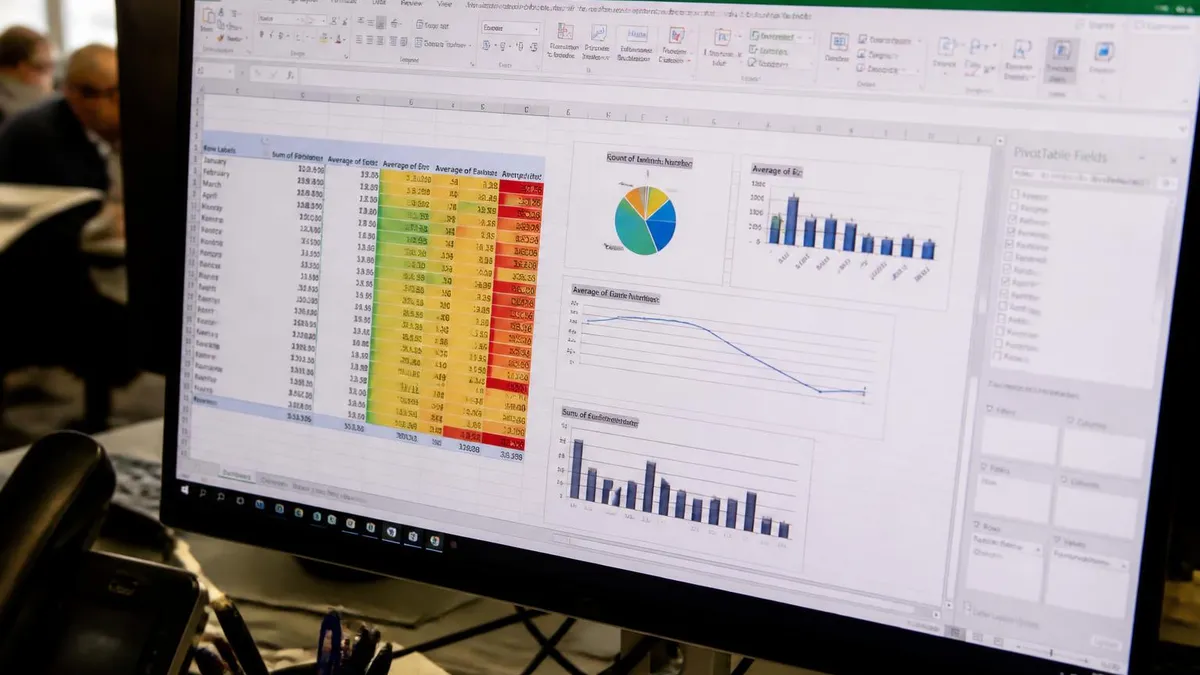
How to Open Excel Online in Under 2 Minutes
Visit Office.com
Sign in or Create Account
Click the Excel Icon
Create or Upload a File
Start Editing With Autosave
Share With Collaborators
Setting up your Microsoft account properly is the single most important step in making Excel online a pleasant daily experience rather than a frustrating one. If you already use Outlook.com, Xbox Live, Skype, or any Windows 10 or 11 PC, you almost certainly already have a Microsoft account that works with Office.com. Try signing in with the email address you use for any of those services before creating a new account, because consolidating into one identity makes file sharing, license tracking, and password recovery dramatically easier down the road.
OneDrive is the cloud storage layer that powers Excel online, and it is automatically provisioned the moment you create your account. Free personal accounts get 5 GB, which is enough to store roughly 50,000 typical spreadsheets. If you need more, Microsoft 365 Personal at $7 per month upgrades you to 1 TB plus the full desktop Office apps. Educational accounts often include 1 TB or even unlimited storage at no cost, so always check whether your school or university already provides you a license before paying out of pocket.
Once signed in, take a moment to install the OneDrive sync client on your computer if you use Windows or Mac. It is not required for browser Excel to work, but it creates a magic folder on your hard drive that mirrors your cloud files. Drop any .xlsx into that folder and it appears instantly in the Excel online file picker. Right-click any cloud file and you can open it in the desktop app or the browser interchangeably, which is incredibly useful when you need offline access or a feature only the desktop supports.
The Excel start screen at excel.cloud.microsoft is worth bookmarking directly. It skips the Office.com dashboard and drops you straight into Excel with your recent files visible. Pinning this URL to your browser bookmarks bar saves three clicks every time you need to jump into a spreadsheet. Power users often configure their browser to open this page on startup, which effectively turns any laptop into a dedicated spreadsheet workstation in seconds.
Account security deserves a few minutes of attention. Turn on two-factor authentication under your Microsoft account security settings, ideally using the Microsoft Authenticator app rather than SMS codes. This protects every file in your OneDrive from credential-stuffing attacks, which have become alarmingly common in 2025 and 2026. Also review the Connected devices section every few months and remove any old phones or laptops you no longer use, especially shared family computers where someone might still be signed in.
If you work across multiple Microsoft accounts, such as a personal Outlook address and a work or school account, browser profiles are your best friend. Chrome and Edge both support multiple profiles, each with its own cookie jar and saved logins. Create one profile per identity, sign each into the matching Microsoft account, and you can have personal Excel files open in one window and work files open in another without constantly signing out and back in.
Finally, customize your Excel online defaults the first time you visit. Click File then Options to set your preferred reference style, default font, autocomplete behavior, and regional number formatting. These settings sync to your Microsoft account, so once you configure them they follow you to any device or browser where you sign in. Spending five minutes here saves countless small annoyances over the months and years of using browser Excel that follow.
Microsoft Excel Practice Test Questions
Prepare for the Microsoft Excel exam with our free practice test modules. Each quiz covers key topics to help you pass on your first try.
Microsoft Excel Excel Basic and Advance
Microsoft Excel Exam Questions covering Excel Basic and Advance. Master Microsoft Excel Test concepts for certification prep.
Microsoft Excel Excel Formulas
Free Microsoft Excel Practice Test featuring Excel Formulas. Improve your Microsoft Excel Exam score with mock test prep.
Microsoft Excel Excel Functions
Microsoft Excel Mock Exam on Excel Functions. Microsoft Excel Study Guide questions to pass on your first try.
Microsoft Excel Excel MCQ
Microsoft Excel Test Prep for Excel MCQ. Practice Microsoft Excel Quiz questions and boost your score.
Microsoft Excel Excel
Microsoft Excel Questions and Answers on Excel. Free Microsoft Excel practice for exam readiness.
Microsoft Excel Excel Trivia
Microsoft Excel Mock Test covering Excel Trivia. Online Microsoft Excel Test practice with instant feedback.
Microsoft Excel Advanced Data Analysis Tools
Free Microsoft Excel Quiz on Advanced Data Analysis Tools. Microsoft Excel Exam prep questions with detailed explanations.
Microsoft Excel Advanced Formula and Macro...
Microsoft Excel Practice Questions for Advanced Formula and Macro Creation. Build confidence for your Microsoft Excel certification exam.
Microsoft Excel Advanced Formulas and Macros
Microsoft Excel Test Online for Advanced Formulas and Macros. Free practice with instant results and feedback.
Microsoft Excel Basic and Advance Question...
Microsoft Excel Study Material on Basic and Advance Questions and Answers. Prepare effectively with real exam-style questions.
Microsoft Excel Creating and Managing Charts
Free Microsoft Excel Test covering Creating and Managing Charts. Practice and track your Microsoft Excel exam readiness.
Microsoft Excel Data Visualization with Ch...
Microsoft Excel Exam Questions covering Data Visualization with Charts. Master Microsoft Excel Test concepts for certification prep.
Microsoft Excel Formulas and Functions
Free Microsoft Excel Practice Test featuring Formulas and Functions. Improve your Microsoft Excel Exam score with mock test prep.
Microsoft Excel Formulas and Functions App...
Microsoft Excel Mock Exam on Formulas and Functions Application. Microsoft Excel Study Guide questions to pass on your first try.
Microsoft Excel Formulas Questions and Ans...
Microsoft Excel Test Prep for Formulas Questions and Answers. Practice Microsoft Excel Quiz questions and boost your score.
Microsoft Excel Functions Questions and An...
Microsoft Excel Questions and Answers on Functions Questions and Answers. Free Microsoft Excel practice for exam readiness.
Microsoft Excel Managing Data Cells and Ra...
Microsoft Excel Mock Test covering Managing Data Cells and Ranges. Online Microsoft Excel Test practice with instant feedback.
Microsoft Excel Managing Tables and Data
Free Microsoft Excel Quiz on Managing Tables and Data. Microsoft Excel Exam prep questions with detailed explanations.
Microsoft Excel Managing Tables and Table ...
Microsoft Excel Practice Questions for Managing Tables and Table Data. Build confidence for your Microsoft Excel certification exam.
Microsoft Excel Managing Worksheets and Wo...
Microsoft Excel Test Online for Managing Worksheets and Workbooks. Free practice with instant results and feedback.
Microsoft Excel MCQ Questions and Answers
Microsoft Excel Study Material on MCQ Questions and Answers. Prepare effectively with real exam-style questions.
Microsoft Excel Questions and Answers
Free Microsoft Excel Test covering Questions and Answers. Practice and track your Microsoft Excel exam readiness.
Browser Excel Features: VLOOKUP, Drop Down Lists, and More
The vlookup excel function works identically in browser Excel as it does in the desktop app. Type =VLOOKUP(lookup_value, table_array, col_index_num, FALSE) into any cell and the function searches your range and returns the matching value from the column you specify. Auto-complete suggestions appear as you type, and the formula bar shows live argument tooltips, which makes learning VLOOKUP in the browser arguably easier than in older desktop versions where help was buried in menus.
Browser Excel also supports the newer XLOOKUP function, which is more flexible and forgiving than the classic VLOOKUP. XLOOKUP can search left or right, return multiple values, and handle missing matches with an if_not_found argument that eliminates the need for IFERROR wrappers. If your workbook will be shared with users on older Excel versions, stick with VLOOKUP for compatibility, but for personal files XLOOKUP is the modern recommendation in 2026.
Excel Online vs Desktop Excel: Honest Comparison
- +Completely free with no installation or licensing required
- +AutoSave to OneDrive eliminates lost work from crashes
- +Real-time co-authoring with up to 100 concurrent editors
- +Works on Chromebooks, Linux, and any device with a browser
- +Files always sync across phone, tablet, and laptop automatically
- +Built-in version history lets you restore any prior save
- +No software updates to manage, always running the latest version
- −VBA macros do not execute in the browser version
- −Power Pivot and advanced data model features are limited
- −Some Power Query connectors only work in desktop Excel
- −Performance slows on workbooks larger than about 50 MB
- −Requires an active internet connection for full functionality
- −Add-ins library is smaller than the desktop equivalent

Open Excel Online Setup Checklist
- ✓Create a free Microsoft account at outlook.com if you do not already have one
- ✓Bookmark excel.cloud.microsoft for one-click access to the Excel start screen
- ✓Enable two-factor authentication on your Microsoft account for security
- ✓Install the OneDrive desktop client to sync local files into the cloud
- ✓Verify AutoSave is toggled on in the top-left corner of every workbook
- ✓Test the Share button by sending a sample workbook to yourself at another email
- ✓Practice keyboard shortcuts such as Ctrl plus S, Ctrl plus Z, and Ctrl plus F
- ✓Try the mobile Excel browser experience on your phone for emergency edits
- ✓Explore the templates gallery for budgets, schedules, and project trackers
- ✓Set your default time zone and number format in File then Options
Excel Online Saves Every 2 to 5 Seconds Automatically
Unlike desktop Excel, the browser version writes every change to OneDrive within seconds of you typing. There is no Ctrl plus S habit to maintain because the work is already saved. Combined with built-in version history, this means you can confidently experiment with formulas knowing you can restore any previous state from the File menu.
Collaboration is where Excel online genuinely outshines its desktop counterpart. The moment you click the Share button in the top-right corner, a panel appears letting you generate a link or email-invite specific people. Permissions are granular, meaning you can grant view-only, comment-only, or full edit access on a per-person basis. You can also set expiration dates on links, require sign-in to access, and even password-protect a shared workbook from this same panel, all of which used to require a SharePoint administrator just a few years ago.
When two or more people open the same workbook at the same time, their cursors appear as colored flags showing exactly which cell they are editing. Changes propagate within roughly two seconds, fast enough to feel like working in the same room. The Comments feature, accessible from the Review tab, supports threaded conversations and tagging coworkers with @mentions, which sends them an email notification with a direct link to the cell being discussed. This is far more productive than emailing files back and forth with version-number suffixes.
Version history is built into every file stored in OneDrive. Click File then Info then Version History to see a chronological list of every save point, complete with the user who made each change. You can preview any prior version side-by-side with the current one, restore it with a single click, or download it as a separate file to compare formulas manually. This makes Excel online a forgiving environment for teams where multiple people edit the same financial model or shared tracker without strict change-control discipline.
For larger teams, integration with Microsoft Teams is seamless. Pin any Excel workbook as a tab inside a Teams channel and team members can edit it directly without ever leaving the chat. Edits sync to the same underlying OneDrive or SharePoint file, so changes made in Teams are visible in the browser and vice versa. This is the recommended pattern for shared trackers like project status, expense logs, and meeting notes that benefit from being immediately visible to a whole team.
External sharing works smoothly too. You can share a workbook with someone who does not have a Microsoft account by sending them a guest link. They open the file in their browser, edit if you granted edit rights, and their changes save just like a logged-in user. Microsoft tracks guest activity for audit purposes, so admins in enterprise tenants can see exactly which external email addresses accessed which files and when, providing compliance peace of mind.
One often overlooked collaboration feature is the ability to embed Excel workbooks into web pages, blog posts, and intranet sites. From the File menu, choose Share then Embed to generate an iframe code snippet. Viewers see a live, read-only or interactive version of your spreadsheet directly inside the host page. This is perfect for publishing public dashboards, sharing class schedules on a school website, or displaying a real-time inventory count on a small business homepage without any custom development.
Communication etiquette matters in shared workbooks. Establish team conventions for using comments versus chat, for naming sheets clearly, and for using color codes consistently. A workbook that is technically shared but practically chaotic is no better than ten separate files emailed around. Spend a few minutes upfront agreeing on basic standards, and Excel online becomes a genuine collaboration platform rather than just a fancy file viewer with multi-user editing bolted on top.
If your workbook depends on VBA macros, custom UserForms, or ActiveX controls, opening it in Excel online will display the data but the macros will not execute. You will need the desktop version of Excel to run automation code. Modern alternatives like Office Scripts and Power Automate flows do work in the browser and are the recommended path for new automation projects starting in 2026.
Beyond the basics of opening and editing, browser Excel has accumulated a surprising number of power features that even longtime desktop users miss. Office Scripts, accessible from the Automate tab, lets you record actions or write TypeScript code that runs in the cloud. Unlike VBA, Office Scripts work in the browser, on Macs, and inside Power Automate flows. A simple recorded script to format a report and email it can replace hours of manual work and runs reliably on a schedule without anyone keeping a desktop app open.
Mastering how to merge cells in excel is a common request, and the browser version handles it identically to desktop. Select the cells you want to combine, then click the Merge and Center button on the Home tab. The dropdown next to it offers Merge Across, Merge Cells without centering, and Unmerge options. Use merging sparingly because merged cells break sorting, filtering, and many formulas, but for report titles and section headers they remain the cleanest visual option available.
The remove duplicates excel feature lives under the Data tab and works on any selected range. Highlight your data, click Remove Duplicates, choose which columns to check for uniqueness, and Excel deletes the redundant rows while reporting how many were removed. This is invaluable for cleaning up email lists, customer records, and survey responses. For non-destructive deduplication, use the UNIQUE function instead, which returns a clean list to a new range without touching the original data.
Conditional formatting is fully supported in browser Excel and is one of the most underused productivity features. From the Home tab, click Conditional Formatting to apply data bars, color scales, icon sets, or custom rules. Highlighting all values above a threshold in red or flagging duplicates in yellow makes patterns visible at a glance. Rules sync with desktop Excel perfectly, so a workbook designed online displays identically when opened in the installed app.
PivotTables work in the browser and are easier than ever to create. Select your data, click Insert then PivotTable, and a side panel guides you through dragging fields into Rows, Columns, Values, and Filters. Recommended PivotTables analyzes your data and suggests useful summary layouts automatically. For most analysis tasks, a five-minute pivot table delivers more insight than an hour of writing manual SUMIFS formulas, and the browser version performs surprisingly well even on datasets approaching 100,000 rows.
Keyboard shortcuts in Excel online generally match the desktop, with a few browser-specific tweaks. Ctrl plus arrow keys jumps to the edge of data regions, F2 enters edit mode, F4 toggles absolute references in formulas, and Alt plus Equals inserts a SUM. The Tell Me search box near the top of the ribbon is your fastest path to any command if you forget where it lives. Type what you want to do in plain English, and Excel surfaces the exact button or menu path you need.
Finally, take advantage of the mobile experience. Excel works in mobile Safari and Chrome and looks reasonable on tablets, but the dedicated Microsoft Excel mobile app is even better for phones. Files sync through OneDrive, so a workbook you start on a laptop is editable on your phone during a commute and back on your desktop in the evening. The mobile app is free for screens 10.1 inches or smaller, making it perfect for iPhones, Android phones, and most tablets.
Now that you understand the mechanics, let us talk strategy. The best way to become proficient with Excel online is to use it for one real task you currently do somewhere else. Move your monthly budget out of a notes app, port your gym workout log out of a paper notebook, or rebuild your reading list as a tracked spreadsheet. Real use builds muscle memory far faster than tutorials, and within two or three weeks of daily use most people internalize the core navigation patterns without conscious effort.
Templates accelerate learning dramatically. From the Excel start screen click More Templates and browse the hundreds of professionally designed workbooks Microsoft provides for free. Categories include budgets, calendars, invoices, project trackers, expense reports, attendance sheets, and more. Open any template, study how the formulas and formatting are constructed, then modify it for your own needs. You will learn techniques you would never have discovered on your own, including advanced conditional formatting and clever lookup patterns.
Keyboard shortcuts deliver the biggest single productivity boost. Commit five shortcuts to memory in your first week: Ctrl plus C to copy, Ctrl plus V to paste, Ctrl plus Z to undo, Ctrl plus arrow to jump, and Ctrl plus Shift plus L to toggle filters. Add five more each subsequent week and within two months you will edit faster in a browser than most casual users do in the desktop app. The official Microsoft shortcut reference page is worth printing once and keeping next to your monitor.
Formulas reward incremental learning. Start with SUM, AVERAGE, and COUNT. Add IF and IFS next week. Then layer in VLOOKUP or XLOOKUP. After that comes INDEX MATCH, SUMIFS, and the modern dynamic array functions like FILTER, SORT, and UNIQUE. By the time you can comfortably combine three of these in one formula, you are operating in the top 5 percent of Excel users worldwide and qualified for roles that pay accordingly in finance, operations, and analytics positions.
Make backups, even though OneDrive autosaves. Once a month, download your most important workbooks as local .xlsx files and store them on an external drive or a second cloud service like Google Drive or Dropbox. Microsoft is reliable, but no single vendor should be your only copy of irreplaceable data. The download takes seconds from the File menu and gives you genuine peace of mind against the rare but real possibility of account lockout or service outage.
Build a personal reference workbook to remind you how to do things you only need occasionally. One sheet for formula examples, one for formatting tricks, one for chart types you like, and one for shortcuts. Update it whenever you figure out something new. Six months from now you will thank yourself when a question that took an hour to research the first time gets answered in 30 seconds by opening your own notes. This habit alone separates casual users from genuine power users.
Finally, join an online community to keep learning. The r/excel subreddit, the official Microsoft Tech Community Excel forum, and YouTube channels like ExcelIsFun and Leila Gharani publish high-quality content daily. Watch one tip per day for a month and your skills will transform. Pair that with our quiz practice tests linked throughout this article and you will build both speed and accuracy at the same time, which is exactly the combination employers and clients reward most generously in 2026.
Excel Questions and Answers

Excel Functions List: The Complete Reference Guide to Every Formula You Need in 2026

Excel Finance Functions Guide With PMT, NPV, IRR and Loan Models

Standard Deviation Formula in Excel: STDEV.P vs STDEV.S Guide

Excel Data Analysis Toolpak: Complete Guide to the Analysis ToolPak Add-In

How to Create a Report in Excel: The Complete 2026 Guide to Building Professional Spreadsheet Reports
About the Author

Business Consultant & Professional Certification Advisor
Wharton School, University of PennsylvaniaKatherine Lee earned her MBA from the Wharton School at the University of Pennsylvania and holds CPA, PHR, and PMP certifications. With a background spanning corporate finance, human resources, and project management, she has coached professionals preparing for CPA, CMA, PHR/SPHR, PMP, and financial services licensing exams.