
How to Print Labels From Excel: Complete 2026 October Guide
How to print labels from Excel using Word mail merge, Avery templates, direct print, or barcode tools. ❓ Step-by-step guide with fixes for common errors.

You've got 400 addresses sitting in an Excel spreadsheet. Now you need them on actual labels — peel-and-stick, ready to slap on envelopes. Sounds simple. It usually isn't.
Printing labels from Excel trips up plenty of office workers, mostly because Excel doesn't print labels directly. Excel holds the data. Word (or a third-party tool) handles the merging and placing. Get the workflow right and you'll print hundreds of perfect labels in under ten minutes. Get it wrong and you'll waste three sheets of $0.40 Avery paper before lunch.
This guide walks you through every working method — Word mail merge, direct Excel print, Avery's online tool, barcode labels, and shipping labels. You'll learn how to mail merge from Excel and how to merge Excel to Word, plus what to do when alignment goes sideways.
Why does this matter? Because most office workflows still run on Excel. Mailing lists. Customer records. Inventory tags. Conference attendees. Every one of those becomes a label job eventually. And the difference between a smooth print run and a frustrating afternoon comes down to knowing the right method for your specific job — and avoiding the three or four traps that bite everyone the first time around.
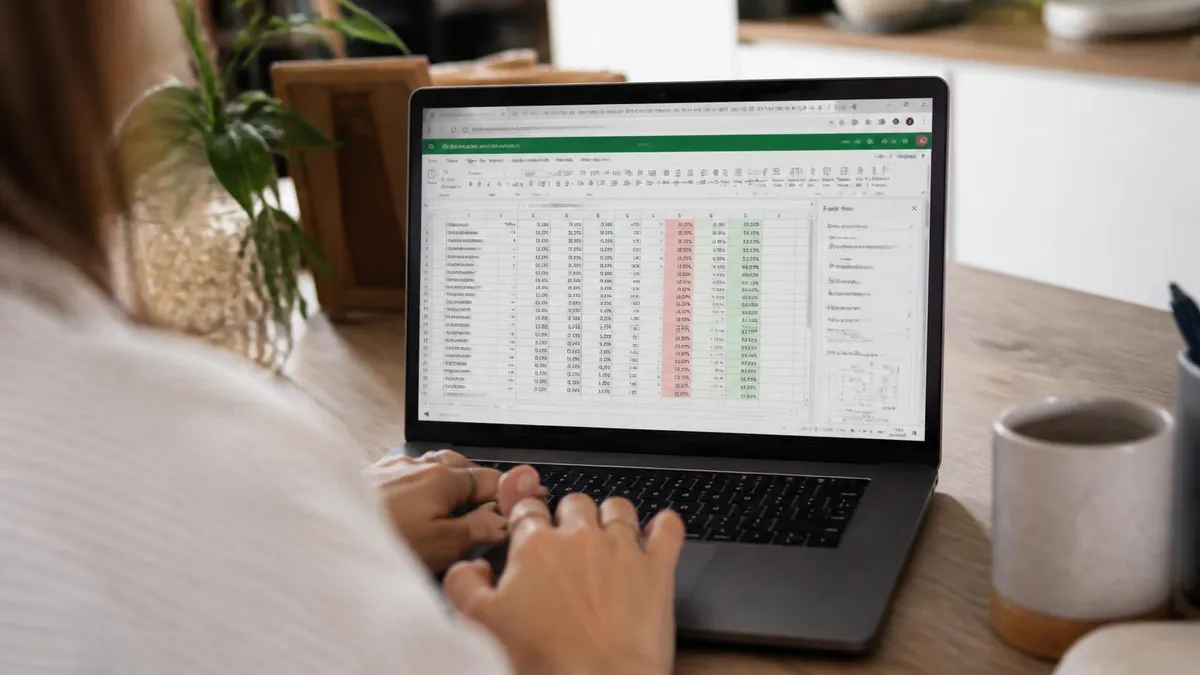
Fastest path: Set up clean data in Excel (headers in row 1, one row per label, no merged cells). Open Word. Go to Mailings → Start Mail Merge → Labels. Pick your Avery vendor and product number. Click Select Recipients → Use Existing List → choose your Excel file. Insert merge fields, hit Update Labels, preview, then Finish & Merge → Print. Always test on plain paper first — you'll save sheets.
Let's start with why this matters. Labels handle bulk-print jobs Excel alone can't manage. Mailing campaigns. Holiday cards. Shipping orders. File folders. Asset tags for inventory. Name badges for conferences. Anything you need printed in volume with unique data per piece — labels are the answer.
Why Excel? Easy data entry, formulas for cleanup, sorting, deduplication, and instant filtering. You can pull a list of 5,000 customers, filter by state, and have a clean 247-row dataset in under a minute. Labels then turn that data into something physical — stickers your mail carrier can scan, tags your employees can wear, identifiers your warehouse can track.
The combination works because each tool does what it's best at. Excel handles tabular data — sorting, formulas, deduplication, conditional filtering. Word handles document layout — fonts, spacing, page setup, print drivers. Mail merge is the bridge. You're not forcing Excel to do something it's bad at (page layout) or forcing Word to do something it's bad at (managing 1,000 rows of structured data). You're using each for its strength.
The other reason this combo wins: it's free. Every Windows office worker already has Excel and Word. No add-ons. No subscriptions beyond the Office license you already pay for. Compare that to dedicated label software like NiceLabel or BarTender, which start at $300 per seat and add complexity for jobs Word handles just fine. For 95% of label-printing tasks, Excel plus Word is the right answer.
Label Sizes at a Glance
Before any printing, your Excel data needs to be clean. This is non-negotiable. Garbage in, garbage labels.
Headers go in row 1 — Name, Address, City, State, Zip, or whatever fields apply. Each subsequent row is one label. No blank rows in the middle (mail merge stops or skips). No merged cells anywhere in your data range. Format zip codes as text, not numbers — otherwise Excel strips leading zeros and your Boston (02134) addresses become 2134, which the post office will return.
Save the file as .xlsx. Close it before starting mail merge — Word can't open it if Excel has it locked. If you've got addresses with commas (like "Smith, Jr."), wrap the cell value or use proper CSV escaping. While you're at it, check for trailing spaces with TRIM() and consider using wrap text in Excel to view long addresses cleanly in your prep sheet.
One more prep step that saves grief later: standardize your data. State abbreviations should all be two letters (CA, not California or Calif.). Phone numbers in one format. Names in title case, not ALL CAPS. Excel's PROPER() function fixes most case issues in seconds — wrap it around a column with =PROPER(A2) and copy down. Spend ten minutes cleaning before merging and you'll skip an hour of reprinting later.
Also worth doing: deduplicate. Hit Data → Remove Duplicates and pick the columns that define a unique record. If you've got the same customer twice with slightly different formatting, that's two wasted labels. For mailing lists, deduping on Address+City+Zip usually catches most cases. For shipping lists, dedup on order number. For asset tags, dedup on serial. Whatever your key is, run it before merge.
Three Ways to Print Labels From Excel
Best for: Unique data per label (addresses, names, account numbers). The standard workflow.
- Save and close your Excel file
- Open Word — blank document
- Click Mailings tab
- Start Mail Merge → Labels
- Choose vendor (Avery US Letter) and product number (e.g., 5160)
- Click Select Recipients → Use Existing List
- Browse to your .xlsx file, pick the sheet
- Insert Merge Fields — drop Name, Address, etc. in first label cell
- Format the first label (font, size, spacing)
- Click Update Labels — propagates to all label positions
- Preview Results to verify
- Finish & Merge → Print Documents
Avery Product Numbers Reference
- Size: 1" x 2-5/8"
- Per sheet: 30 labels
- Use: Standard mailing addresses
- Size: 2" x 4"
- Per sheet: 10 labels
- Use: Shipping, large addresses
- Size: 3-1/3" x 4"
- Per sheet: 6 labels
- Use: Oversize / weatherproof
- Size: 2-1/3" x 3-3/8"
- Per sheet: 8 labels
- Use: Name badges, events
- Size: 1/2" x 1-3/4"
- Per sheet: 80 labels
- Use: Return address mini
- Size: 2/3" x 3-7/16"
- Per sheet: 30 labels
- Use: File folders, color-coded

Barcode labels deserve their own section because they trip up almost everyone the first time. Excel doesn't natively render scannable barcodes. You need either a barcode font (Code 39 is the classic free option) or a dedicated add-in.
For Code 39, wrap your data in asterisks: *ABC123*. Without those start/stop characters, no scanner will read it. Install the free Code 39 TrueType font, apply it to your data column, and test-scan before mass-printing. For Code 128 or QR codes, use a paid add-in like TBarCode Office or generate barcode images via a service and link them into Word during mail merge.
One thing nobody mentions about barcode labels: font size matters a lot. Too small and scanners struggle. Too big and the barcode overflows your label boundary. For Code 39 on a standard 1" x 2-5/8" label, aim for 18-24 point font. For a 4x6 shipping label, 36-point is reasonable. Always test-scan with the actual device you'll use in production — not just your phone's camera. A handheld scanner reads at a different angle than a phone, and what looks fine on screen might fail under a real-world scanner.
If you're printing product labels, asset tags, or inventory labels that need barcodes plus other data (SKU, price, description), the standard pattern is two text columns plus one barcode column in Word's merge document. The barcode column uses the Code 39 font; the other columns use Arial or whatever you prefer. Format the first label position carefully, then let Update Labels propagate that formatting across the sheet.
Shipping labels follow a different path. USPS, UPS, and FedEx all want their own label formats — they include barcodes, routing data, and tracking info you can't easily generate from Excel alone. The right move is to export your Excel data as CSV, upload it to the carrier's bulk tool (USPS Click-N-Ship, UPS WorldShip, FedEx Ship Manager), and let them generate the labels.
Most carriers accept CSV uploads with 50-500 records at once. The system handles label generation, postage, and tracking numbers. You then print on 4x6 thermal label paper using a Zebra, Rollo, or similar thermal printer. Thermal printers don't need ink — they're cheaper per label long-term and faster for e-commerce volume. If you ship 20+ packages a week, the $200 thermal printer pays for itself in months.
The CSV format expected by each carrier varies slightly. USPS Click-N-Ship wants columns named Recipient Name, Address Line 1, City, State, Zip, Weight, Service. UPS WorldShip uses a different schema. Download the template CSV from your carrier's bulk-ship tool first, paste your Excel data into matching columns, and re-upload. Saves an hour of manual reformatting compared to figuring out the schema from scratch.
For Shopify, Etsy, or eBay sellers, the better workflow skips manual exports entirely. ShipStation, Shippo, and similar tools connect directly to your store's order data, generate labels in bulk, and print to a thermal printer with one click. The Excel-to-CSV-to-carrier path is for situations where you're not running an e-commerce platform — like a one-time mailing or a wholesale customer shipment.
Mail Merge: Step-by-Step Timeline
Step 1: Clean Your Excel Data
Step 2: Open Word
Step 3: Start Mail Merge
Step 4: Pick Avery Product
Step 5: Connect Excel Data
Step 6: Insert Fields
Step 7: Format First Label
Step 8: Update Labels
Step 9: Preview Results
Step 10: Print
So your mail merge worked, but the labels print misaligned — first label cut off at the top, everything shifted half an inch. This is the most common complaint. The fix is almost always page margins.
Open Word's Page Setup (Mailings tab won't show this — go to Layout → Margins → Custom Margins). Check the top, bottom, left, and right margins against your Avery product spec. The 5160 template, for example, needs a 0.5" top margin, 0.1875" left margin, and exact label height/width matching the spec. If your printer driver adds its own margin, you may need to shift everything by 0.05" to compensate. Test, adjust, test again.
Another alignment gremlin: the printer itself. Different printers feed paper slightly differently. A laser printer that grips paper from the front edge will produce different alignment than an inkjet that grips from the side. If you switch printers mid-job, your perfectly calibrated margins might suddenly drift. The solution is to calibrate once per printer — print a test sheet on plain paper with each printer you use, measure the offset, and save a printer-specific Word template with adjusted margins.
One trick that catches almost everyone: paper orientation. Most Avery label sheets are portrait, but a few specialty products are landscape. If you load a landscape sheet into a printer set to portrait (or vice versa), every label is rotated 90 degrees. Check the orientation on the Avery box before printing, and match it in Word's Page Setup. Free fix, costs nothing, but easy to miss until you've ruined three sheets.
Pre-Flight Checklist Before Mass Printing
- ✓Print one test sheet on plain paper
- ✓Hold the printed test up to a real label sheet against a window or light box
- ✓Verify the first 5 records look correct (no field swaps, no missing data)
- ✓Check spelling on the test sheet — it's far easier now than after printing 200 labels
- ✓Confirm the printer is set to Actual Size, not Fit to Page (Fit to Page will distort labels)
- ✓Load label sheets face-down or face-up per your printer's manual (check by feeding a marked plain page first)
- ✓Verify you have enough label sheets — running out mid-job is brutal
- ✓Set printer to single-sheet feed for thick label stock — multi-feed jams more often
- ✓Disable Print on Both Sides — duplex destroys labels and printers
- ✓Save your Word merge document with the data source linked — recurring jobs use the same template

Common problems get common solutions. Zip codes losing leading zeros — format the column as Text in Excel before entering data, or prefix with an apostrophe ('02134). Skipped labels mid-print — your data source connection dropped; reconnect via Mailings → Select Recipients. Cut-off text — your field is wider than the label; either shorten the data, reduce font size, or pick a bigger label. Wrong characters showing — your Excel file uses an unsupported encoding; save as Unicode (.xlsx is fine; CSV needs UTF-8).
If you're working with longer-form data and want to format it cleanly before merging, you can convert Excel to PDF first for a backup, or use the Excel TEXT function to format numbers (currency, percentages, dates) before they hit your label.
Less common but still painful: the "first label always wrong" bug. You'll see the first label position blank or showing the field codes instead of merged data, while every other label looks fine. The cause is usually that the Update Labels button wasn't clicked after inserting fields. Word treats the first label as the master template, then propagates to the rest only when you hit Update Labels. Click in the first cell, redo the merge fields, click Update Labels — fixed in 30 seconds.
Another lurking issue: Word linking to the wrong sheet in a multi-sheet Excel file. If your .xlsx has Customers, Vendors, and Archive tabs and you accidentally pick Archive, the merge will pull stale data and you won't notice until labels print. Always check which sheet Word selected. The Select Recipients dialog shows a list — pick the right one, double-check by previewing.
Word Mail Merge vs Direct Excel Print
- +Bulk-prints hundreds of labels in minutes
- +Pulls accurate data straight from your Excel database
- +Reusable templates — save the merge document, swap the data file later
- +Avery sheets are affordable and widely available at office stores
- +Professional appearance — clean alignment, consistent fonts
- +Data refresh works automatically when Excel updates
- +Filter recipients on the fly (only customers in California, only orders over $100)
- +Free — Excel and Word handle the entire workflow with no add-on cost
- −Alignment can be fiddly — first print rarely lines up perfectly
- −Wasted sheets on misprints add up at $0.40-$0.50 each
- −Special label paper required (regular cardstock won't peel)
- −Mail merge has a learning curve, especially the Update Labels step
- −Printer must support thick label stock — some inkjets jam
- −Updating field formatting requires re-running Update Labels
- −Connection to Excel breaks if file is moved or renamed
- −Long addresses can overflow the label area silently
Pros and Cons at a Glance
| Pros | Cons |
|---|---|
| Bulk-prints hundreds of labels in minutes | Alignment can be fiddly — first print rarely lines up perfectly |
| Pulls accurate data straight from your Excel database | Special label paper required (regular cardstock won't peel) |
| Reusable templates — save the merge document, swap the data file later | Mail merge has a learning curve, especially the Update Labels step |
| Avery sheets are affordable and widely available at office stores | Printer must support thick label stock — some inkjets jam |
| Professional appearance — clean alignment, consistent fonts | Updating field formatting requires re-running Update Labels |
| Data refresh works automatically when Excel updates | Connection to Excel breaks if file is moved or renamed |
Choosing the right printer matters more than people think. A $80 inkjet from 2018 will print labels — but the alignment drifts, the ink smudges if labels get damp, and feed jams are constant. A modern laser printer is the right tool for sheet labels. Sharp text, fast output (40+ pages per minute), no smudging, handles thick paper reliably.
For shipping labels specifically, you want a thermal printer — Zebra ZP450, Rollo, or DYMO 4XL. No ink, prints on heat-sensitive paper, $200-$400 range, prints a 4x6 shipping label in under 2 seconds. Pairs with USPS, UPS, FedEx, ShipStation, Shopify. If you ship 10+ packages per week, thermal is the move. Don't try to use a regular printer for shipping — the ink runs in rain and the carrier scanners hate inkjet barcodes.
What about color labels? If you need full-color product labels (think wine bottles, cosmetics, gourmet food packaging), a regular laser or inkjet won't cut it. You want a dedicated color label printer like the Epson ColorWorks C3500 or Primera LX910. These run $1,000-$3,000 but produce vibrant, waterproof labels on rolls. For one-off needs, send the job to a print shop — most charge $0.20-$1.00 per label for short runs and the quality crushes anything you'd get at home.
One more consideration: feed mechanism. Sheet-fed printers (regular laser/inkjet) work great with Avery sheets but won't handle continuous label rolls. Roll-fed thermal printers do the opposite — perfect for shipping rolls, useless for Avery sheets. Don't try to feed an Avery sheet through a Zebra ZP450 or a continuous roll through your office HP LaserJet. They'll jam, and you might damage the printer.
Most printer drivers default to "Fit to Page" or "Shrink to Fit". For labels, this is fatal. The driver scales your page down by 2-5%, which means every label is off by 1/16" to 1/8". Multiply across 30 labels and the bottom row is half off the sheet. Always set print to "Actual Size" or "100%" — never let the driver scale.
Conditional formatting in labels is where mail merge gets genuinely powerful. You can show different content per recipient using IF MERGEFIELD rules. Customer in California? Show "California Resident — sales tax applies." Order over $100? Add "FREE SHIPPING" tag. Empty middle name field? Skip the line so the label doesn't have an awkward blank gap.
The syntax goes: {IF { MERGEFIELD State } = "CA" "California Customer" ""}. Right-click the field, choose Toggle Field Codes to see/edit the raw syntax. This is also how you handle the "PO Box vs Street Address" problem — show one or the other based on what the customer provided. Spend an hour learning Word's field code syntax and you'll save dozens of hours on future label runs.
Another power-user trick: filter your recipient list inside Word, not Excel. After Select Recipients → Use Existing List, click Edit Recipient List in the Mailings tab. You'll see a filter dialog where you can sort, filter, or exclude records on the fly. Say you want to mail only customers who haven't ordered in 90 days — filter by your LastOrder column, untick the rest, and only the filtered set prints. The Excel file stays intact; the filter applies only to this merge.
For recurring monthly mailings, save your Word merge template with the data source path baked in. Next month, open the same Word file, update your Excel data (overwriting the same path), and Word picks up the new data automatically. You don't have to redo the merge from scratch every time. This pattern saves hours over a year if you're running weekly or monthly mailings to a consistent customer base.
Sample Excel Practice Questions
Try these questions from our free Excel practice tests. The correct answer and an explanation follow each question.
How does ROUND differ from TRUNC?
- A. ROUND works with negatives, TRUNC does not
- B. ROUND applies mathematical rounding, TRUNC removes decimals without rounding
- C. They produce identical results
- D. TRUNC is more precise
Answer: B. ROUND applies mathematical rounding, TRUNC removes decimals without rounding
ROUND follows rounding rules (5 rounds up); TRUNC simply cuts off digits.
Which Excel feature automatically fills a column by detecting a pattern from examples you type, such as extracting first names?
- A. AutoSum
- B. Flash Fill
- C. Goal Seek
- D. Data Validation
Answer: B. Flash Fill
Flash Fill recognizes patterns and completes the column with Ctrl+E.
Which Excel function removes leading, trailing, and extra internal spaces from text?
- A. CLEAN
- B. TRIM
- C. SUBSTITUTE
- D. PROPER
Answer: B. TRIM
TRIM strips extra spaces, leaving single spaces between words.
A user wants to combine the first name from cell A2 and the last name from cell B2, separated by a space. Which of the following formulas is the most efficient and modern way to achieve this, especially if needing to handle many text strings and a consistent delimiter?
- A. =A2 & " " & B2
- B. =CONCATENATE(A2, " ", B2)
- C. =TEXTJOIN(" ", TRUE, A2, B2)
- D. =MERGE(A2, " ", B2)
Answer: C. =TEXTJOIN(" ", TRUE, A2, B2)
While CONCATENATE and the '&' operator work, TEXTJOIN is the most powerful and modern function for this task. It allows you to specify a delimiter (a space, in this case) once and can optionally ignore empty cells, making it more efficient for larger ranges.
How to Print Labels From Excel Questions and Answers
Bottom line — Excel plus Word mail merge is the easiest path to bulk-print labels. Clean your data first (headers, no blanks, zip codes as text). Match your Avery product number to the actual sheets you bought. Run a plain-paper test print, hold it against a real label sheet up to the light, adjust margins if needed, then print on labels. The whole process takes 10 minutes once you've done it twice.
For shipping labels, skip Word — go straight to USPS Click-N-Ship or your carrier's bulk tool, upload a CSV, and print on a thermal printer. For barcode labels, install Code 39 fonts (free) or buy a barcode add-in. For complex designs without fighting Word, use avery.com/print — it imports Excel data and handles layout in the browser. The right tool depends on volume, label type, and how much custom design you need. Test before printing the full batch — wasted sheets cost more than time spent testing.
The single most useful habit you can build with label printing: always test on plain paper before loading actual labels. Sounds obvious. Almost nobody does it. The plain-paper test catches alignment issues, field-mapping problems, font sizing errors, and forgotten record filters. One sheet of plain paper costs basically nothing; one sheet of misprinted Avery labels costs $0.40. Over a year of label jobs, the plain-paper habit saves you 20-50 sheets of labels and dozens of frustrated reprints — easily worth the 30 seconds it adds to each job.
About the Author

Business Consultant & Professional Certification Advisor
Wharton School, University of PennsylvaniaKatherine Lee earned her MBA from the Wharton School at the University of Pennsylvania and holds CPA, PHR, and PMP certifications. With a background spanning corporate finance, human resources, and project management, she has coached professionals preparing for CPA, CMA, PHR/SPHR, PMP, and financial services licensing exams.