
Excel Spreadsheet Templates: Where to Find and How to Use Them 2026 October
Excel spreadsheet templates — built-in Microsoft library, top free third-party sources, common template types, customisation tips and how to build 💯

Why Excel Spreadsheet Templates Are Worth Knowing
Excel spreadsheet templates save the part of any spreadsheet project that takes the most time and produces the least value: setting up the structure. A good template arrives with the column headings, formulas, formatting and validation rules already in place, leaving you to drop in your specific data and start working immediately. Templates exist for nearly every common business and personal use case — budgets, project plans, invoices, gradebooks, inventory trackers, meeting agendas — and the supply has matured enough that there is rarely a reason to build a basic spreadsheet from scratch any more.
This guide walks through the main sources of Excel templates worth knowing, the most useful template categories, the practical workflow for finding and customising a template for your specific situation, and the small set of pitfalls to avoid. The aim is to make you a confident template user — not someone who blindly downloads the first thing they find, but someone who picks the right tool for the job and adapts it cleanly to local needs.
Templates also encode best practice in their structure. A well-built budget template enforces a clean separation between data entry cells and calculation cells, includes appropriate validation rules, and produces a summary view that highlights the metrics most worth attention. Building those patterns from scratch requires both Excel skill and domain knowledge that most users lack. Starting from a strong template borrows that combined expertise without requiring you to acquire it independently. Over time, working with strong templates also teaches general spreadsheet design principles that improve every workbook you build afterwards.
Excel templates at a glance
Built-in: File → New shows curated Microsoft templates. Free third-party: Vertex42, Smartsheet, Spreadsheet123, Excel Easy, Microsoft Create. Paid third-party: Etsy, dedicated template publishers. Most popular categories: budget, calendar, invoice, project tracker, Gantt chart, gradebook, inventory, timesheet. Personal templates location: Documents/Custom Office Templates. File extension: .xltx (or .xltm if macros are required). Always scan downloaded templates for malicious macros before opening.
The Built-In Microsoft Template Library
The first place to look for an Excel spreadsheet template is the built-in library that ships with Excel itself. Click File, then New, and you will see a curated set of templates organised by category — Personal, Business, Industry — alongside a search box that queries the broader Microsoft Office template gallery online. The built-in templates have been reviewed by Microsoft, do not contain macros that need security clearance, and are guaranteed to open cleanly in any current Excel version. They are the safest starting point for any first-time template user.
The selection covers the most common business and personal use cases. The Personal section includes household budgets, monthly calendars, weekly meal planners, simple debt-payoff trackers and event-planning checklists. The Business section covers invoices, expense reports, P&L statements, time sheets, employee directories and basic project plans. The Industry section drills into use cases like construction estimates, sales pipelines, real estate property trackers and education gradebooks. Several templates are decorated with Microsoft Designer-style imagery and modern typography that makes them suitable for client-facing documents without further design work.
One detail worth noting is that the built-in templates are refreshed periodically as Microsoft updates Excel. New templates appear quarterly or with major Excel updates, and older templates are sometimes retired. This means the library you see today is not exactly the library a colleague saw two years ago. If a specific built-in template was useful and you want to keep using it, save a copy to your personal templates folder so it survives any future Microsoft library changes.

Common Excel Template Categories
Monthly and annual budgets, debt payoff trackers, net worth statements, retirement planners, expense logs, mortgage amortisation schedules. Some include charts that update automatically as data is entered. Strong fit for individuals managing household money.
Invoices with auto-totalling line items, profit and loss statements, cash flow forecasts, accounts receivable trackers, sales pipelines, employee directory templates and travel expense reports. Common in small business and freelance use.
Gantt charts that build automatically from task dates, sprint planners, project roadmaps, RAID (risks, actions, issues, decisions) logs, time tracking, milestone trackers. Used heavily by individual project managers and small teams without dedicated PM software.
Employee timesheets, attendance logs, leave request trackers, performance review forms, training matrices, headcount planning models, onboarding checklists, salary benchmarking. Common in small companies handling HR without dedicated software.
Gradebooks with weighted assessment categories, lesson plan templates, attendance trackers, student progress reports, course curriculum maps. Common in K-12 teaching and corporate training environments.
Stock counting sheets, supply trackers, contact lists, equipment registers, asset tracking, library catalogues, maintenance logs. The simplest template category but covers a wide range of practical day-to-day record keeping.
The Top Third-Party Sources
Beyond the built-in library, several third-party sites have become reliable sources for Excel templates. Vertex42 is one of the longest-running template publishers and offers an extensive free library covering personal finance, project management, calendars and business documents. Templates are well-engineered with clear formula logic, and many include detailed instructions explaining how to adapt them. Smartsheet maintains a substantial free template gallery alongside its commercial product, and the templates work cleanly in Excel even though Smartsheet's main business is its own platform.
Spreadsheet123 and Excel Easy round out the major free template publishers, with strong coverage of household and small-business needs. Microsoft Create (formerly known as the Office Templates gallery) hosts both first-party Microsoft templates and contributions from independent designers, with a polished design aesthetic that often suits client-facing deliverables. Etsy has grown into a meaningful market for paid Excel templates, particularly for niche use cases like wedding budgets, niche fitness trackers, real estate analysis and crafting business management.
Reading reviews and ratings before downloading any third-party template is a small step that saves significant frustration. A template with consistently positive reviews and active comment threads usually performs well; a template with recent negative reviews about broken formulas or unclear instructions usually has problems that will reach you. The same principle applies to Etsy and other paid marketplaces — the cheapest template is rarely the best value, and a slightly higher price often buys substantially better engineering and documentation.
Notable Template Sources Compared
Free, curated, accessible from File → New inside Excel. No download or upload required. Limited customisation by Microsoft but consistently safe and reliable. Strong starting point for any first-time template user. Refreshed periodically as Microsoft adds new template designs.
How to Use a Template
The basic template workflow is straightforward. Start by finding the template through one of the channels above. For the built-in library, click File → New and use the search bar to locate the right template. Click the template and Excel opens a new workbook based on the template — the original template file is not modified, which is the entire point. For downloaded templates, save the file to your computer first, then open it. Save the working copy as a new file with a meaningful name so the original template stays untouched and reusable.
Replace the sample data with your own values column by column. Templates typically include placeholder data that demonstrates the intended layout, formulas and formatting. Delete the placeholder content cleanly without deleting the underlying formulas or formatting. Test that the template's automated calculations still work correctly with your data — sum totals, percentages, charts. Adjust labels, headers and any branding to match your organisation. Save the customised version with a clear file name that distinguishes it from the original template you started with.
Print preview is also worth checking before relying on any new template for shareable output. Many templates look great on screen but produce awkward page breaks, cut-off columns or oversized output when printed or saved as PDF. Excel's Page Layout view (View tab → Page Layout) shows the printed appearance and lets you adjust page size, margins and orientation before issues become visible to the recipient. A few minutes here prevents an embarrassing printout for a client meeting.

Templates downloaded from untrusted sources can contain malicious macros that run when the file is opened. Excel's default security settings disable macros and prompt for confirmation, but the warning is easy to bypass. Only enable macros in templates from publishers you trust. Inspect macro code through the VBA editor (Alt+F11) before enabling if the source is uncertain. .xltx templates without macros are inherently safer than .xltm templates that contain macros.
Customising a Template Properly
Customising a template well is the difference between using it productively and creating a maintenance burden. The first rule is to understand the template's formulas before changing anything. Click into the formula bar of any cell that calculates a value and read what it depends on. Edit the formula only after you understand what it produces and why. Breaking a formula by accident usually does not produce an obvious error message — the cell may simply show the wrong number, which then propagates through any chart or summary based on that cell.
The second rule is to lock the formula cells once you have customised them. Format Cells (Ctrl+1) → Protection tab → Locked checkbox makes the cell uneditable when the worksheet is protected. Then go to Review → Protect Sheet to enable protection. The result is that data entry cells stay open while formula cells are protected from accidental edits. This pattern matters most for templates that will be used by colleagues less familiar with the spreadsheet logic — protecting formulas prevents accidental damage that can be hard to diagnose later.
Conditional formatting is one of the most useful customisation layers to add to a downloaded template. Highlighting cells that exceed a budget threshold, flagging missing data, drawing attention to the largest line items — these visual cues turn a static template into something that actively communicates with the user. Most templates ship with limited conditional formatting because the publisher does not know which thresholds matter to your specific situation. Adding a small number of well-chosen conditional formatting rules is one of the highest-use customisations you can make.
Template Workflow Checklist
- ✓Source the template from a trusted publisher with a clear license
- ✓Save downloaded templates to your computer first, then open
- ✓Always save a working copy with a new file name before editing
- ✓Read existing formulas before changing anything they depend on
- ✓Replace placeholder data column by column without breaking structure
- ✓Test calculations with your own data before relying on the template
- ✓Lock formula cells via Format Cells protection then Review → Protect Sheet
- ✓Add your branding through the Page Layout headers and footers
- ✓Document any custom changes in a Notes sheet or top-row comment
- ✓Save your final version both as .xlsx and as a personal .xltx if you'll reuse it
Building Your Own Template
Once you find yourself rebuilding the same spreadsheet structure for several projects, it is time to build your own template. Open a workbook, design the structure exactly the way you want future copies to start, replace any sample data with descriptive placeholder text and save the file as Excel Template (*.xltx) rather than Excel Workbook (*.xlsx). Save it to the personal templates folder — typically Documents/Custom Office Templates on Windows, or a similar path on macOS that Excel knows about. From then on, the template appears in File → New under a Personal tab alongside the built-in templates.
Custom templates are particularly useful for organisations where multiple staff need to produce similar deliverables with consistent formatting and branding. A finance team can publish a quarterly review template that everyone uses, ensuring the same structure, formatting and formulas across reports. A project management team can publish a sprint planner template. The investment in building the template once pays back across every project that uses it, and the consistency benefits often exceed the time savings on the initial setup work.
Version control matters more for templates than for ordinary workbooks because the template is the source for many derived files. Keep a master copy of each personal template in a clearly labelled folder, with a version number in the file name when you make significant changes. Consider documenting the changes in a Notes sheet inside the template itself so future users (including future you) can see why the template evolved as it did. The discipline pays back when you discover that a calculation needs to change across all derivative spreadsheets a year later.
Templates in Excel for Web and Mobile
Templates work in Excel for the Web and the Excel mobile apps but with limits. Excel for the Web shows a curated subset of the desktop template library when you create a new workbook from the OneDrive or SharePoint home page. The selection focuses on common personal and business use cases and skips the more advanced templates that depend on desktop-only features like macros, conditional formatting variations or complex pivot caching. Templates downloaded from third-party sources can be uploaded to OneDrive and opened in Excel for the Web, with the same caveat that desktop-only features may not render fully.
Excel mobile apps for iOS and Android offer a smaller template library focused on the most common categories. The mobile apps are excellent for filling in template data on the go but are not ideal for designing or heavily customising templates because the formula bar and editing experience are constrained on small screens. The practical pattern most users follow is to design the template on a desktop, save it to OneDrive, and use the mobile app for routine data entry against the existing template structure.
Sharing templates with colleagues is also worth thinking through. The simplest sharing pattern is to upload the .xltx file to OneDrive and share the file with team members. Each person can save the template to their own personal templates folder, and from then on the template appears in their own File → New → Personal tab. This decentralised pattern works well for small teams. Larger organisations sometimes use SharePoint document libraries or shared template repositories accessible from a known location, but the underlying file format and workflow are the same.
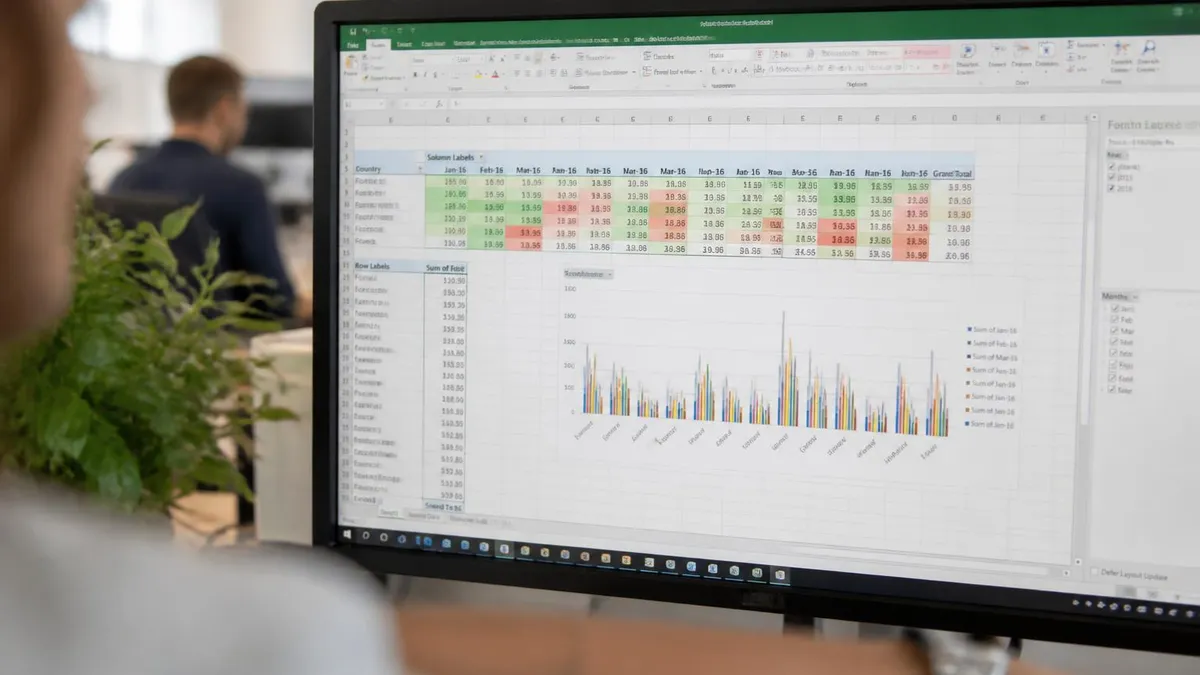
Excel Template Numbers
Common Template Mistakes to Avoid
Always save a working copy first. Editing the original .xltx file replaces the reusable template with a one-off workbook and means you have to download or rebuild the template next time you need it.
Breaking a formula does not always show an obvious error. Read the formula bar before changing anything that produces a calculated value. Trace dependencies if necessary using the Formula Auditing tools.
Macros can run any code on your computer. Only enable macros from sources you trust. .xltx without macros is inherently safer than .xltm with macros for downloaded templates.
Templates used by multiple people benefit from cell protection on formula cells. Without it, accidental edits silently break the template downstream. Protect Sheet locks formulas while leaving data entry cells open.
Use the template a few times in its existing form before making major structural changes. Patterns and pain points become clear with use. Premature customisation often produces a worse template than the original.
If you are going to use a customised version more than once, save it as your own .xltx in the personal templates folder. Treating every project as a one-off prevents the compounding time savings that templates are supposed to deliver.
Excel Templates vs Other Tools
Excel templates compete with several adjacent tool categories. Google Sheets has its own template library accessible from File → New → From Template Gallery. The selection is smaller than Excel's but covers the same major categories — budgets, calendars, invoices, project trackers. Google Sheets templates work in real-time collaboration mode, which is the strongest reason to choose them over Excel templates for shared documents. The trade-off is that Google Sheets has fewer formula functions and slower performance on very large datasets.
Power BI templates are a different category entirely — they are dashboard layouts that connect to data sources rather than transactional spreadsheets. Notion, Airtable and ClickUp publish their own templates that compete with Excel for project management and database use cases, with the advantage of relational structure that single-sheet Excel cannot match. The right tool depends on the use case. Excel remains the strongest choice for numerical analysis, financial modelling and any work that benefits from formula transparency and direct data manipulation.
One advantage Excel templates retain over alternatives is the ability to operate fully offline once downloaded. Cloud-first tools like Notion and Airtable require internet access to function, which can be a constraint in airplane workflows, secure-network environments and rural connectivity scenarios. Excel templates work offline by default and synchronise to the cloud only if you choose to save them to OneDrive. The flexibility makes Excel templates resilient in ways their cloud-native competitors are not, even though the cloud-native tools have caught up on most other dimensions.
Templates also help bridge skill gaps between team members. Junior staff who would struggle to design a complex spreadsheet from scratch can produce professional outputs immediately by working from a strong template. Senior staff retain their time for higher-value analysis rather than rebuilding similar structures repeatedly. The compounding effect of using and reusing templates is one of the quiet productivity advantages that mature spreadsheet teams enjoy over teams that approach every new project as a clean-slate build.
Investing the first hour in choosing the right template usually saves many hours across the rest of the project.
Templates: Honest Trade-offs
- +Skip the slow setup work for common spreadsheet structures
- +Pre-built formulas, formatting and charts ready out of the box
- +Curated Microsoft library is safe and free
- +Custom personal templates compound time savings across projects
- +Strong third-party ecosystem covers nearly every common use case
- −Templates from untrusted sources can carry malicious macros
- −Customising without understanding the formulas can silently break calculations
- −Some templates depend on desktop-only features that fail in Excel for the Web
- −Etsy and paid templates vary widely in quality — careful review needed
- −Heavy customisation may produce a worse fit than building from scratch
Pros and Cons at a Glance
| Pros | Cons |
|---|---|
| Skip the slow setup work for common spreadsheet structures | Templates from untrusted sources can carry malicious macros |
| Pre-built formulas, formatting and charts ready out of the box | Customising without understanding the formulas can silently break calculations |
| Curated Microsoft library is safe and free | Some templates depend on desktop-only features that fail in Excel for the Web |
| Custom personal templates compound time savings across projects | Etsy and paid templates vary widely in quality — careful review needed |
| Strong third-party ecosystem covers nearly every common use case | Heavy customisation may produce a worse fit than building from scratch |
Sample Excel Practice Questions
Try these questions from our free Excel practice tests. The correct answer and an explanation follow each question.
Which spreadsheet application was Excel primarily designed to compete against?
- A. Lotus 1-2-3
- B. VisiCalc
- C. Quattro Pro
- D. Google Sheets
Answer: A. Lotus 1-2-3
Lotus 1-2-3 dominated the spreadsheet market in the 1980s, and Microsoft developed Excel specifically to surpass it in features and usability.
Which Excel view shows the spreadsheet exactly as it will look when printed, including headers, footers, and margins?
- A. Normal View
- B. Page Break Preview
- C. Full Screen View
- D. Page Layout View
Answer: D. Page Layout View
Page Layout View displays the worksheet with rulers, margins, headers, and footers as they will appear on the printed page. Page Break Preview shows where pages will break but does not show the full print layout.
Which Excel view shows exactly how a spreadsheet will look when printed, including page breaks and margins?
- A. Normal View
- B. Page Layout View
- C. Page Break Preview
- D. Reading View
Answer: B. Page Layout View
Page Layout View displays the worksheet as it will appear on printed pages, showing headers, footers, margins, and rulers.
You are working with a large dataset and want to quickly select all the blank cells within a specified range to either delete them or fill them with specific data. Which feature would be most efficient for this task?
- A. Find and Replace
- B. Conditional Formatting
- C. Go To Special
- D. Flash Fill
Answer: C. Go To Special
The Go To Special feature allows you to select cells that meet specific criteria, such as being blank. By selecting 'Blanks' in the Go To Special dialog box, you can highlight all empty cells in a range at once for further action.
Excel Questions and Answers
About the Author

Business Consultant & Professional Certification Advisor
Wharton School, University of PennsylvaniaKatherine Lee earned her MBA from the Wharton School at the University of Pennsylvania and holds CPA, PHR, and PMP certifications. With a background spanning corporate finance, human resources, and project management, she has coached professionals preparing for CPA, CMA, PHR/SPHR, PMP, and financial services licensing exams.