
Download Excel for Free — Complete Guide (2026 October)
Download Excel for free legally — 🎓 Excel for the Web, Microsoft 365 free trial, student offers, mobile apps, and the best free alternatives like

Free Excel by the Numbers
What you can grab without paying a cent — and the catches behind each offer.

Download Excel for Free — The Honest Guide
Short answer: yes, you can use Excel for free. No, you can't download the full desktop app at zero cost forever. Those two facts confuse a lot of people, and the gap between them is where most bad advice lives.
Microsoft offers several legitimate free routes. Excel for the Web runs in any browser at no charge — same Microsoft account you'd use for Outlook. The Microsoft 365 free trial gives you the full desktop app for 30 days. Students and teachers at eligible schools get the entire Office suite free for as long as they're enrolled. Phone and tablet users with screens under 11 inches can install the mobile apps and edit files without paying a thing.
The catch? None of these get you a permanent, offline, full-feature desktop Excel for $0. That product doesn't exist. Anyone selling you a "free Excel download" through a sketchy link is either bundling malware or pointing you at pirated keys that Microsoft kills within weeks. Don't go there. We'll cover what actually works, what's safe, and which free alternatives match Excel feature-for-feature.
If your work is mostly formulas, charts, and pivot tables — you've got options. The excel online route handles 90% of real-world spreadsheet jobs. Heavy VBA macros and Power Query? You'll need a paid plan or a free alternative like LibreOffice. Read on for the full breakdown.
This guide covers Windows, Mac, Linux, Chromebook, iPhone, iPad, and Android. Every legitimate free route Microsoft offers. Plus the strongest free alternatives if those don't fit. No piracy, no sketchy downloads, no "crack files" — just the real options that actually work in 2026.
Pick your path based on what you actually need. Just opening a .xlsx someone emailed you? Use Excel for the Web — free, browser-based, two-minute setup. Need the full desktop app for one big project? Grab the 30-day Microsoft 365 trial. Student or teacher? Check if your school's on Microsoft 365 Education — totally free while you're enrolled. On a phone or tablet? Install the Office Mobile apps free if your screen is under 11 inches.
Every Legitimate Way to Get Excel Without Paying
Free browser version. Runs on Windows, Mac, Linux, Chromebook — anywhere with a browser. No install. No download. Sign in with a free Microsoft account and you're in.
- Cost: $0 forever
- Works on: Any device with a browser
Full desktop Excel + Word + PowerPoint + OneDrive for 30 days. Credit card required, but you can cancel anytime before day 31 and pay nothing.
- Duration: 1 month
- Catch: Card required, auto-renews
Free for students and teachers at qualifying schools. Full Office suite plus 1 TB OneDrive. You'll need a valid school email address that's on Microsoft's eligibility list.
- Eligibility: School email required
- Includes: Full Office + 1 TB cloud
Excel, Word, and PowerPoint apps for iPhone, iPad, Android. Free for personal use on screens under 11 inches. iPad Pro 11" and bigger need a paid Microsoft 365 plan.
- Free if: Screen under 11 inches
- Paid if: iPad Pro 12.9" or larger
Can You Actually Download Excel for Free?
Here's the truth nobody wants to say out loud: the full desktop version of Excel — the .exe you install on Windows, the .dmg on Mac — has never been free, and Microsoft has no plans to change that. Search results promising a permanent free download are either ads for the 30-day trial in disguise, or links to pirated copies that flag your Windows install as non-genuine.
What IS free, permanently, with no credit card and no time limit: Excel for the Web. It lives at office.com. Sign in with any Microsoft account — a free Outlook.com or Hotmail address counts — and you've got Excel running in your browser. It handles formulas, pivot tables, conditional formatting, charts, and most of what a typical office worker does. It autosaves to OneDrive. It opens .xlsx files emailed to you.
The desktop and web versions aren't identical. Power Query, Power Pivot, and complex VBA macros only run in the paid desktop app. If your job involves heavy data modeling or automation, the free web app won't cut it. But if you're tracking expenses, building a budget, sorting a contact list, or analyzing a CSV — the browser version does everything you need.
The excel online guide walks through every web-app feature. The microsoft excel overview covers the full desktop feature set if you're trying to decide whether the upgrade is worth it.
Bottom line: if "download Excel for free" really means "use Excel without paying" — you have several legit options. If it means "get the full desktop app to keep forever at no cost" — that doesn't exist legally. We're going to focus on what actually works.
One more thing: this guide stays focused on legal, safe, Microsoft-supported routes. We're not covering pirate sites, key generators, or cracked installers. Those break your install, get your Windows flagged, and increasingly carry malware that empties bank accounts. The legitimate free paths cover almost every real-world need — read on and you'll find one that fits.
Comparing the Three Main Free Routes
Free forever. Runs in any browser. Go to office.com, sign in with a Microsoft account (free to make if you don't have one), click Excel, and you're working. New blank workbook or upload an existing .xlsx — same screen.
What it has: formulas, functions, pivot tables, charts, conditional formatting, sorting and filtering, real-time collaboration, comment threads, autosave to OneDrive. What it doesn't: Power Query, Power Pivot, complex macros, custom add-ins, full keyboard shortcuts, offline access without setup. About 85% of the desktop feature set, give or take.
Works on Windows, Mac, Linux, Chromebook, iPad — anywhere with a modern browser. Chrome, Firefox, Safari, Edge all supported.
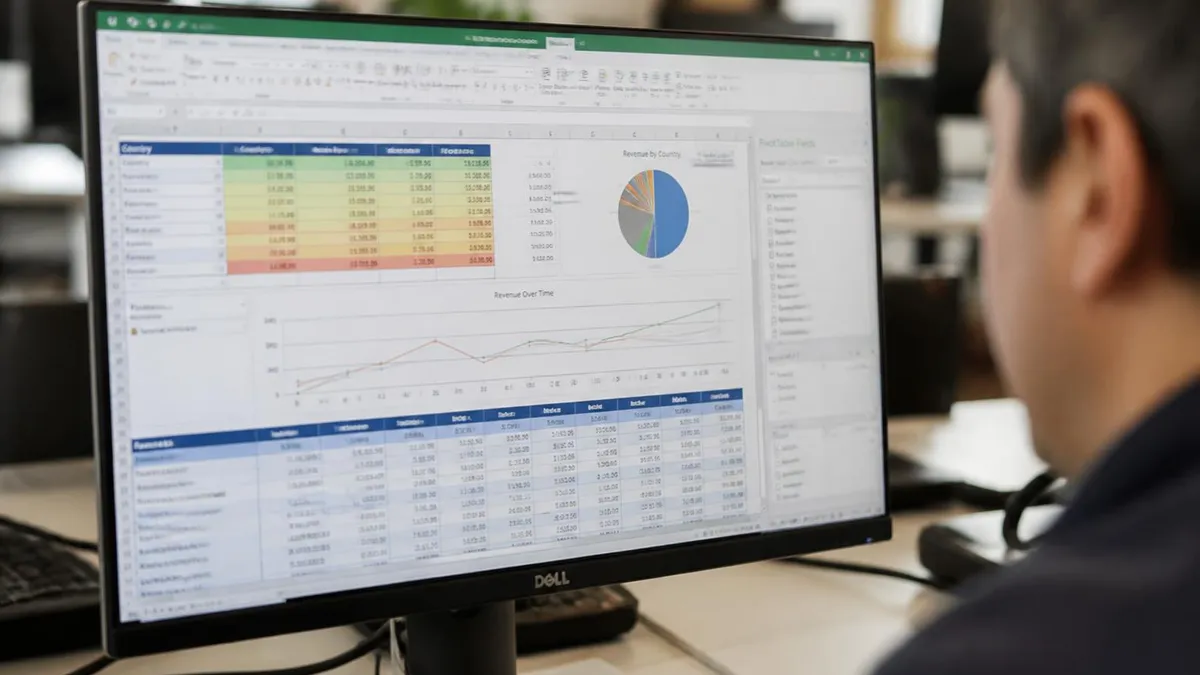
Excel for the Web — The Easiest Free Option
Most people overthink this one. You don't need to download anything. You don't need to install anything. You don't even need a Windows PC.
Open your browser. Type office.com in the address bar. Click the Excel icon on the left side of the page. If you don't have a Microsoft account yet, click "sign up" — it takes 90 seconds, costs nothing, and works with any email address you already own (Gmail, Yahoo, school email, whatever). Done. You're in Excel.
The web app looks almost identical to the desktop version. Same ribbon at the top. Same cells. Same formula bar. You can open .xlsx files from email attachments by clicking the attachment and choosing "open in Excel" — they load straight into the browser.
Save? Forget about it. The web app autosaves to OneDrive every few seconds. Your file shows up at onedrive.live.com under the "documents" folder. You can download a copy as .xlsx anytime via File → Download a Copy. That copy is yours to keep, edit offline in another app, or email to anyone.
Sharing works in seconds. Click the green Share button in the top right, paste an email address or grab a link, set whether the other person can view or edit, and send. They open the file in their own browser — no Microsoft account required for view-only links. Comments thread along the side. Track changes show who edited what cell and when.
Mobile bonus: the web app works on iPad and Android tablets in a browser too. Pinch-zoom, tap-edit, swipe-scroll. Not as smooth as the dedicated apps, but free everywhere. For full mobile features, see the section on Office Mobile below. The excel spreadsheet guide covers everything you can build in either the web or desktop app.
One small frustration worth knowing: the web app pauses occasionally on very large files. Anything past 500,000 rows or workbooks with dozens of pivot tables can stall the browser tab. For files that big, you'll want the desktop app — or a free alternative like LibreOffice. Most users never come close to that limit.
Get Started with Excel for the Web in 5 Minutes
- ✓Open Chrome, Safari, Firefox, or Edge — any modern browser works
- ✓Go to office.com — the official Microsoft entry point
- ✓Click "sign in" if you have a Microsoft account, or "sign up" to create a free one
- ✓Use any email you own — Gmail, Yahoo, school email all work for sign-up
- ✓Click the green Excel icon on the left-hand sidebar
- ✓Choose "new blank workbook" or click "upload" to open an existing .xlsx
- ✓Start typing — autosave to OneDrive happens automatically every few seconds
- ✓Click File → Download a Copy anytime to grab an .xlsx file for offline use
Microsoft 365 Free Trial — Full Desktop App for 30 Days
This is the right route when Excel for the Web isn't enough. You need Power Query for that data pull. Power Pivot for the model. VBA for the macro you wrote three years ago that still runs your monthly close. The web version skips all of that. The trial gives you the lot.
How it works: go to microsoft.com/microsoft-365/try. Click "try free for one month". Pick a plan — Microsoft 365 Family covers six people; Personal covers one. Enter card details (Microsoft will charge after day 30 unless you cancel). Download the installer, run it on Windows or Mac, sign in with the same account you used for the trial. Excel desktop opens — full features, no restrictions.
Important: the trial is one per Microsoft account. Once you've used it, you can't get another. Burning it on a single project is fine — just don't waste it casually. Pick the month you genuinely need full features.
Cancellation is the part most people get wrong. Sign in at account.microsoft.com, find "services and subscriptions", click your Microsoft 365 trial, hit "cancel". Do this BEFORE day 30. After cancellation, the app keeps working until the trial ends, then locks read-only. Files stay safe — you just can't edit until you reactivate or move to another option.
Pricing if you keep it: Microsoft 365 Personal runs $70/year (£59) — works out around $6/month. Family is $100/year for up to six users. Cheaper than most monthly software subscriptions, and it covers Word, PowerPoint, Outlook, and 1 TB OneDrive per person too. Compare against the google excel alternatives before committing.
Free Excel Options vs Paid Plans — The Real Numbers

Free for Students and Teachers — Microsoft 365 Education
If you've got a school email — and most students and teachers do — you might be sitting on a free Microsoft 365 license without knowing it. The program covers tens of thousands of accredited high schools, colleges, and universities worldwide. It's not just an Excel deal. You get the full desktop suite: Word, PowerPoint, OneNote, Outlook, Teams, Forms, plus 1 TB of OneDrive storage per user.
To check eligibility, go to microsoft.com/education/products/office and click "get started". Enter your school email address. Microsoft pings your institution's domain against their eligibility database. Within seconds you'll see either "you're eligible — let's set up your account" or a message asking for a faculty/student verification code.
If you're eligible, the next step is downloading the desktop apps from your Office portal. No credit card required. No trial period. The license stays active for as long as your school email keeps working — typically through graduation, sometimes a year or two after if your institution extends alumni access.
Worth knowing: the install is full Microsoft 365, not the web version. You're getting the same software a paying subscriber gets, including Power Query, Power Pivot, full macro support, and offline mode. For deep certification prep see the microsoft excel certification guide — your school email might also unlock free MOS exam vouchers through your institution's IT department.
One trap to avoid: don't use a school email you've been issued temporarily (like a guest account for a one-day workshop) — those domains rarely qualify, and signing up just locks you out of the real account when you enroll properly later. Use your primary student email — the one tied to your enrollment record — and the license stays valid every semester you're registered.
Excel for the Web vs Desktop Excel
- +$0 forever, no card required
- +Works on any OS with a browser — Windows, Mac, Linux, Chromebook
- +Autosaves to OneDrive automatically
- +Real-time collaboration with shared workbooks
- +Opens .xlsx attachments straight from email
- +No install, no updates, no version mismatches
- −Requires Microsoft 365 subscription — $70/year minimum
- −Power Query, Power Pivot, advanced VBA macros work fully
- −Full offline access without internet
- −All keyboard shortcuts and accessibility features
- −Custom add-ins from the Office Store install permanently
- −Faster on large files (100k+ rows) and complex models
Pros and Cons at a Glance
| Pros | Cons |
|---|---|
| Works on any OS with a browser — Windows, Mac, Linux, Chromebook | Power Query, Power Pivot, advanced VBA macros work fully |
| Autosaves to OneDrive automatically | Full offline access without internet |
| Real-time collaboration with shared workbooks | All keyboard shortcuts and accessibility features |
| Opens .xlsx attachments straight from email | Custom add-ins from the Office Store install permanently |
Office Mobile — Free Excel on Phone and Tablet
Microsoft does something interesting here. The Office Mobile apps — Excel, Word, PowerPoint for iOS and Android — are free to edit and save files, but ONLY on devices with screens smaller than 10.1 inches. iPhones, all of them. Most Android phones. Smaller tablets like the standard iPad (which is 10.2" — yes, edge case, but it qualifies on most readings). Anything bigger triggers Microsoft's "commercial use" definition and you need a paid subscription to edit, save, or print.
For phone users, this means free Excel forever. Install the Excel app from the App Store or Google Play. Sign in with any Microsoft account (the same free one you'd use for the web). Open files from email, Dropbox, OneDrive, Google Drive, or the camera (it'll OCR a table from a photo into a spreadsheet — genuinely useful feature). Edit, save, share. No charge.
The mobile app handles formulas, charts, pivot tables, conditional formatting — basically the same feature set as Excel for the Web. Plus mobile-specific tools: scan a paper table with the camera to convert it to cells, voice-narrate insights into a workbook, share via SMS or messaging apps.
One overlooked trick: the camera-to-table feature. Point your phone at a printed table — a receipt, a printout, even handwritten numbers if they're clear — and the app converts the image straight into editable cells. Beats typing 200 rows manually. It works on iOS and Android, no subscription needed. Accuracy is around 95% on typed text and 70-80% on neat handwriting.
For iPad users, check your model. iPad mini and standard iPad (10.2" or 10.9"): free. iPad Air 11": free. iPad Pro 11": technically free under the screen rule. iPad Pro 12.9" or 13": you need a paid Microsoft 365 plan to do more than view files. Most regular iPad users land in the free tier. Need a quick formula refresher? The excel formulas guide covers what works in both the mobile and desktop apps.
Heads up: the apps push you toward signing up for paid Microsoft 365 fairly aggressively. Banners, popups, free-trial offers. You can dismiss all of them — the core edit-and-save functions stay free indefinitely on qualifying devices.
Your Free Excel Journey — From Setup to Pro
Pick Your Path
Create Microsoft Account
Sign In to office.com
Save to OneDrive
Practice with Real Data
Upgrade When Ready
Best Free Excel Alternatives — Sheets, LibreOffice, WPS
If Microsoft's free options don't fit — maybe you need full offline desktop power without paying — there's a whole world of legitimate free spreadsheet apps that open and save .xlsx files just fine.
Google Sheets is the heavyweight. Free forever with any Google account. Runs in the browser, has dedicated iOS/Android apps, autosaves to Google Drive. Handles 99% of what most users need. Formulas mostly match Excel syntax. Pivot tables, charts, conditional formatting — all there. Real-time collaboration is arguably better than Microsoft's. Weakness: complex Excel macros don't run in Sheets — they'd need rewriting in Apps Script.
LibreOffice Calc is the open-source desktop alternative. Free, installable on Windows, Mac, and Linux. Opens, edits, and saves .xlsx files natively. The feature set comes closest to desktop Excel of any free option — pivot tables, advanced formulas, charts, even basic macro recording. Interface looks dated but works fast. Download from libreoffice.org — about 350 MB install. No ads, no nag screens.
WPS Office is the slickest-looking alternative. Free tier with ads, paid tier without. The interface mimics Microsoft Office almost pixel-for-pixel — comfortable transition for anyone used to Excel's ribbon. Strong .xlsx compatibility. Available on Windows, Mac, Linux, iOS, Android. The free version inserts watermarks on PDF exports and shows occasional banner ads.
Apache OpenOffice Calc is the older sibling of LibreOffice — same project lineage, slightly different philosophy. Still actively maintained. Less updated than LibreOffice but rock-solid for basic spreadsheet work. Best for users on older hardware that struggles with newer apps.
One more option worth a look: OnlyOffice Desktop Editors. Free and open-source. Cleanest modern interface in the free desktop category — closer to current Microsoft Office aesthetics than LibreOffice. Strong .xlsx fidelity. Smaller user base means fewer tutorials online if you get stuck, but the app itself is solid for everyday spreadsheet work.
Compatibility tip: when you save .xlsx from any non-Microsoft app, double-check the file in actual Excel before sending it to colleagues. Charts and conditional formatting sometimes render slightly differently. Test once with a real workbook and you'll know what survives the round trip and what doesn't.
For specific tasks, check the excel online walkthrough and the how to use excel beginner guide — most techniques translate directly between Excel and these alternatives.
Sample Excel Practice Questions
Try these questions from our free Excel practice tests. The correct answer and an explanation follow each question.
Which Excel function returns the position of a value within a range?
- A. FIND
- B. MATCH
- C. INDEX
- D. LOOKUP
Answer: B. MATCH
MATCH returns the relative position of a lookup value within a range.
What does the AutoFill handle look like in Excel?
- A. A small square at the bottom-right corner of a selected cell
- B. A green arrow pointing down
- C. A blue circle in the center of the cell
- D. A double-headed arrow on the cell border
Answer: A. A small square at the bottom-right corner of a selected cell
The AutoFill handle is the small green square that appears at the bottom-right corner of a selected cell or range.
Which function returns the largest value in a set of values?
- A. LARGE
- B. MAX
- C. UPPER
- D. CEILING
Answer: B. MAX
MAX returns the maximum (largest) value from a list of numbers or a range.
How do you compare two worksheets side by side?
- A. Compare button in File
- B. View > View Side by Side with optional synchronized scrolling
- C. Right-click tab > Compare
- D. Not possible
Answer: B. View > View Side by Side with optional synchronized scrolling
View Side by Side tiles two windows and can synchronize scrolling.
Excel Questions and Answers
Related Excel Guides

Excel Online: Open, Edit, and Master Spreadsheets Free in 2026

Microsoft Excel: Formulas, Functions, Certifications, and Skills You Need in 2026

Excel Download: How to Get Microsoft Excel Free or Paid

Microsoft Excel Certification: Levels, Costs & How to Get Certified in 2026

How to Use Excel: Formulas, Functions & Tips
About the Author

Business Consultant & Professional Certification Advisor
Wharton School, University of PennsylvaniaKatherine Lee earned her MBA from the Wharton School at the University of Pennsylvania and holds CPA, PHR, and PMP certifications. With a background spanning corporate finance, human resources, and project management, she has coached professionals preparing for CPA, CMA, PHR/SPHR, PMP, and financial services licensing exams.