
What Is VLOOKUP in Excel? A Complete Guide for 2026 September
What is VLOOKUP in Excel? Learn syntax, all 4 arguments, common errors, and real examples in our complete 2026 September guide for beginners. 🎓

VLOOKUP is one of those Excel functions that separates beginners from confident users. You might have heard the name tossed around in meetings, seen it on job descriptions, or stumbled across it while trying to match data between two sheets. Either way — if you have ever stared at a column of values and thought, there has to be a faster way to find what I need, then this guide is for you.
So, what is VLOOKUP in Excel? In short: it is a built-in function that searches for a value in the first column of a range and returns a value in the same row from another column. Think of it as Excel's way of saying "look this up for me, and bring back what matches." Sounds simple, right? It is — once you get the hang of it. But it has quirks. Plenty of them.
Here is the thing. VLOOKUP has been around since the early days of Excel. It is the function people learn first when they graduate from basic SUM and AVERAGE work. It shows up on certification exams, in interview questions, and in nearly every spreadsheet job task. And while newer functions like XLOOKUP have started to replace it, VLOOKUP is still everywhere. You will run into it. You will need to use it. You will probably need to fix someone else's broken VLOOKUP formula at some point.
This article walks through what VLOOKUP does, how the syntax works, when to use it, and — just as importantly — when not to. We will cover the four arguments, the common errors, and a few real-world cases that show why this function still earns its place in 2026.
VLOOKUP at a Glance

The VLOOKUP Function Explained
The letters V-L-O-O-K-U-P stand for Vertical Lookup. The word vertical is the clue here — it tells you the function searches down a column (top to bottom), not across a row. If you ever need to search across a row, that is HLOOKUP territory (the H stands for horizontal). But VLOOKUP is the one you will use 95% of the time, because most data in Excel is organized in columns.
Picture this. You have a list of 500 employees, each with an ID number, a name, a department, and a salary. Your boss hands you a sheet with just the ID numbers and asks for the matching salaries. You could scroll through 500 rows by hand. Or — and this is where VLOOKUP shines — you could type one formula, drag it down, and let Excel do the matching for you in two seconds.
The basic syntax looks like this:
=VLOOKUP(lookup_value, table_array, col_index_num, [range_lookup])
That's it. Four arguments, separated by commas, wrapped in parentheses. The square brackets around the last one mean it is optional — but as we'll see in a moment, leaving it out (or filling it in wrong) is the #1 reason VLOOKUP formulas break.
Worth noting — Microsoft has tried to retire VLOOKUP a few times. They added INDEX/MATCH workarounds in the 2000s, then released XLOOKUP in 2019 as a clean replacement. But VLOOKUP refuses to die. It is too entrenched. Too many spreadsheets depend on it. Too many people learned it as their first lookup function. So Microsoft keeps supporting it, and we keep teaching it.
VLOOKUP searches for a value in the leftmost column of a table, then returns a value in the same row from a column you specify. The lookup column must always be the first column in your selected range — VLOOKUP can only look right, never left. That single limitation is the source of about half of all VLOOKUP frustration, and the main reason many users eventually switch to INDEX/MATCH or XLOOKUP.
Breaking Down the Four Arguments
Let's walk through each piece. Once these click, the rest of VLOOKUP becomes second nature.
1. lookup_value
This is what you are searching for. It could be a number, a text string, a cell reference, or even a logical value. If you are looking up employee ID 1042, your lookup_value might be the cell where that ID lives — say, A2. Excel will take whatever is in A2 and start hunting for it.
2. table_array
This is the range of cells you want Excel to search inside. The critical rule: the column containing your lookup_value must be the leftmost column of this range. So if your IDs are in column B and the salaries are in column E, your table_array would be B2:E500. Not A2:E500. Not C2:E500. The lookup column always comes first.
3. col_index_num
This tells VLOOKUP which column inside your table_array holds the answer you want. It is a number, not a letter. If your table_array is B2:E500, then column B is 1, column C is 2, column D is 3, and column E is 4. Want the salary from column E? Type 4.
4. range_lookup
This is the optional fourth argument — and the one that causes more headaches than the other three combined. You enter either TRUE or FALSE (or 1 or 0). FALSE means "find me an exact match." TRUE means "find me an approximate match." If you leave it blank, Excel defaults to TRUE, which is almost never what you want. The fix? Always type FALSE unless you have a specific reason not to.
Real-World VLOOKUP Use Cases
Match employee IDs to names, salaries, departments, or hire dates across HR systems. Saves hours during quarterly reviews and audit prep.
Look up product codes to find stock levels, prices, or supplier info. Essential for retail, warehouse, and e-commerce spreadsheets.
Pull customer details, regional data, or sales rep names into commission reports. Cross-reference with one formula instead of manual lookups.
Teachers use VLOOKUP to assign letter grades from numeric scores or pull student data from class rosters into final grade sheets.
Connect account numbers to budget categories, fetch exchange rates, or reconcile transaction logs against general ledgers.
Match task IDs to owners, deadlines, or status. Useful when managing data spread across multiple project sheets or systems.
A Step-by-Step VLOOKUP Example
Let's put theory into practice. Imagine you have two tables in the same workbook.
Table 1 (the lookup table) sits in columns A and B, rows 1 through 6. Column A holds product codes (P001, P002, P003, P004, P005), and column B holds prices ($12.99, $24.50, $8.75, $15.00, $30.20). The header row is in row 1.
Table 2 (where you need the answer) starts in column D. You have a list of product codes that customers ordered, and you need to fill in the matching prices in column E.
In cell E2, you type: =VLOOKUP(D2, A:B, 2, FALSE)
Here is what each piece does. D2 is the product code you are searching for. A:B is the table_array — note how column A (where the codes live) comes first. The number 2 tells VLOOKUP to return the value from column B (the price column). FALSE forces an exact match — no approximations allowed.
Press Enter. The matching price appears. Drag the formula down to fill the rest of column E, and Excel handles all 50, 500, or 5,000 orders in seconds. That is the magic.
Now — what if you change your mind and want to also pull the product description from column C? Easy. Just change the third argument from 2 to 3 (assuming descriptions sit in column C and you expand the table_array to A:C). The same formula structure works for any number of return columns.

Common VLOOKUP Errors
The most common error. It means Excel cannot find your lookup_value. Causes: typos, extra spaces, mismatched data types (number vs text), or the value genuinely doesn't exist in the table. Fix: use TRIM() to remove spaces, check formatting, or wrap your VLOOKUP in IFERROR() to display a friendlier message like "Not found" instead of the ugly #N/A.
Exact Match vs Approximate Match
This is the single most important concept in VLOOKUP, and it is where most learners get tripped up. Let's clear it up once and for all.
An exact match (FALSE or 0) tells Excel: "I want this exact value or nothing." If the lookup_value isn't in your table, you get #N/A. No guesswork. This is the right choice for things like product codes, employee IDs, social security numbers, or any unique identifier where close-enough doesn't cut it.
An approximate match (TRUE or 1) tells Excel: "Find the largest value that is still less than or equal to my lookup_value." It is designed for sorted ranges — like a grading scale or a tax bracket. If you are looking up the score 87 and your table only has 80, 85, 90, 95, Excel returns whatever is associated with 85.
Here is the catch nobody mentions in tutorials: approximate match requires your lookup column to be sorted in ascending order. If it is not, you will get wrong answers without any error message. The formula returns something — it just returns the wrong thing. That is far more dangerous than a visible #N/A.
Our rule of thumb: when in doubt, type FALSE. Always. You can change it later if you discover you need approximate matching for a specific case. But starting with FALSE prevents 90% of subtle VLOOKUP bugs. It is the safest default and the one experienced Excel users learn to reach for automatically.
If you leave the fourth argument blank, Excel assumes TRUE (approximate match). This is a holdover from old Excel design — and it bites new users constantly. Even if you only enter three arguments, your formula may run, look correct, and return entirely wrong results on unsorted data. Always type the fourth argument explicitly. Make it muscle memory: VLOOKUP-comma-comma-comma-FALSE.
VLOOKUP vs INDEX/MATCH vs XLOOKUP
If you spend much time in Excel forums, you'll see endless debates about whether VLOOKUP is still relevant. The short answer: yes, but with caveats.
INDEX/MATCH is the classic alternative. It uses two functions instead of one — INDEX returns a value from a specific position in a range, and MATCH finds that position. The combo can look left (not just right), works with unsorted data, and doesn't break when you insert columns. It is more flexible. But it is harder to read at a glance, and many people find the two-function syntax confusing at first.
XLOOKUP arrived in Excel 365 and Excel 2021. It is the modern replacement Microsoft built to fix every VLOOKUP weakness. It defaults to exact match, looks both directions, returns custom error messages, and handles arrays. If you have access to it, use it. The catch: XLOOKUP doesn't work in older versions of Excel, and if you share files with someone on Excel 2019 or earlier, they will see a #NAME? error.
So why teach VLOOKUP at all in 2026? Because it is still the most common function on inherited spreadsheets. You will open a file your coworker built three years ago and find VLOOKUPs everywhere. You need to read them. You need to debug them. And on certification exams — Excel MOS, financial modeling, CPA prep — VLOOKUP still gets the spotlight.
VLOOKUP Best Practices Checklist
- ✓Always specify the fourth argument — never leave it blank
- ✓Use FALSE for exact match unless you specifically need approximate
- ✓Place the lookup column as the leftmost column in your range
- ✓Lock your table_array with $ signs ($A$2:$B$100) when copying down
- ✓Wrap formulas in IFERROR() to handle missing values gracefully
- ✓Use TRIM() on text data to strip invisible spaces before lookups
- ✓Verify data types match — VLOOKUP treats "100" (text) and 100 (number) differently
- ✓Sort your lookup column ascending if using approximate match
- ✓Consider XLOOKUP or INDEX/MATCH for new workbooks when possible
How VLOOKUP Handles Different Data Types
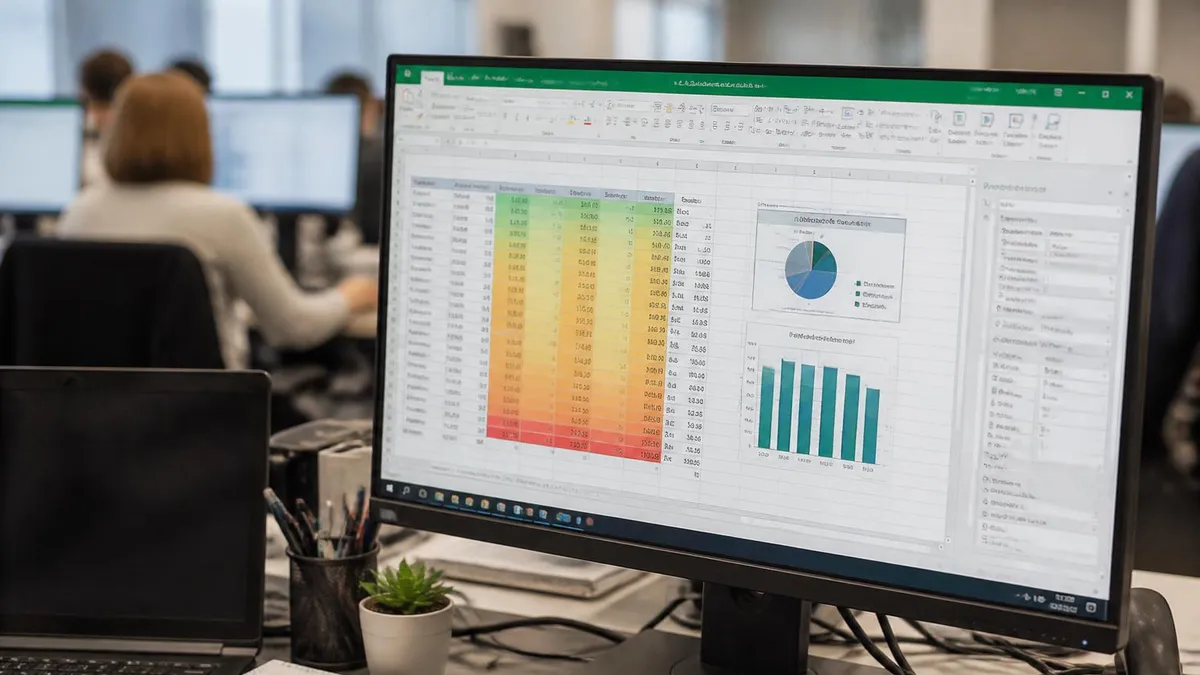
One thing that surprises beginners — VLOOKUP cares deeply about whether your data is text or a number. To Excel, "500" (text) and 500 (number) are two completely different values. If your lookup table stores IDs as text and you type the lookup_value as a number, the formula returns #N/A.
How can you tell? In Excel, text values usually align to the left of a cell, while numbers align to the right. If you see your IDs aligned left, they are stored as text — even if they look like numbers. To convert, you can use the VALUE() function, multiply by 1, or paste-special with the "Add" option.
Another thing — capitalization doesn't matter to VLOOKUP. Searching for "smith", "Smith", or "SMITH" will all return the same result. But trailing or leading spaces? Those break everything. "Smith " with a trailing space is a different value than "Smith" without one. This is the silent killer of imported CSV data, and the reason TRIM() should become muscle memory anytime you receive a file from another system.
VLOOKUP Across Multiple Sheets and Workbooks
VLOOKUP works fine when the data lives on another sheet. You just prefix the range with the sheet name and an exclamation mark. So if your lookup table is on a sheet called "Inventory", your formula becomes =VLOOKUP(A2, Inventory!A:E, 3, FALSE).
For data in another workbook, you reference the file name in square brackets. The formula gets longer — and it breaks if either file moves or is renamed. For that reason, most experienced users avoid cross-workbook VLOOKUPs when possible. If you need to combine data from two files regularly, Power Query is a more reliable solution.
VLOOKUP Pros and Cons
- +Simple syntax that beginners can learn in 15 minutes
- +Available in every version of Excel from 1985 onward
- +Works for the vast majority of lookup tasks
- +Universal recognition — every Excel user knows it
- +Fast on small to medium datasets (under 100,000 rows)
- −Can only look right, never left
- −Breaks when you insert or delete columns in the table_array
- −Slower than INDEX/MATCH on large datasets
- −Default approximate match traps beginners with wrong answers
- −Doesn't handle multiple criteria without workarounds
Should You Still Learn VLOOKUP in 2026?
Yes. Without hesitation. Here is why.
First, VLOOKUP is still on every Excel certification exam, including the Microsoft Office Specialist (MOS) Excel Associate and Expert tracks. If you are studying for a certification, you cannot skip it.
Second, the vast majority of business spreadsheets created before 2021 — meaning most spreadsheets currently in use — were built with VLOOKUP. You will be reading and editing them for years to come. Knowing how the function works (and breaks) is essential.
Third, even if you eventually move to XLOOKUP or INDEX/MATCH for new work, learning VLOOKUP first builds the foundation. The concepts — lookup_value, table arrays, column references, exact vs approximate matches — carry over to every other lookup function. Master VLOOKUP and the rest fall into place quickly.
And finally — VLOOKUP is the #1 most-asked Excel question in technical interviews. Whether you are applying for an analyst role, a finance position, or an admin job, expect to be asked about it. Knowing how to write one, debug one, and explain when it fails is a small skill that pays back many times over.
Excel Questions and Answers
Final Thoughts on VLOOKUP
VLOOKUP has been called "the function that launched a thousand Excel careers." It is the moment most people stop being spreadsheet users and start being spreadsheet pros. The first time you replace an hour of manual data matching with a single formula that runs in two seconds — you feel it. The lightbulb goes on. From there, every other Excel function feels approachable.
So if you are just starting out, this is the function to practice until it is automatic. Build a few sample tables. Try lookup_values that don't exist and watch the errors. Switch between TRUE and FALSE and see what changes. Break your own formulas on purpose, then fix them. That is how the muscle memory forms.
And once you can write a VLOOKUP without thinking — that is when you are ready to learn its more powerful cousins, INDEX/MATCH and XLOOKUP. But every one of those journeys starts here, with the question: what is VLOOKUP in Excel? Now you know.
One last point. Many learners ask whether VLOOKUP is being deprecated. The honest answer is no — Microsoft has stated officially that VLOOKUP will remain in Excel indefinitely. XLOOKUP is the recommended choice for new workbooks, but VLOOKUP itself is safe. Your formulas will keep working for years to come, on every version of Excel, on every platform from desktop to web to mobile.
About the Author

Business Consultant & Professional Certification Advisor
Wharton School, University of PennsylvaniaKatherine Lee earned her MBA from the Wharton School at the University of Pennsylvania and holds CPA, PHR, and PMP certifications. With a background spanning corporate finance, human resources, and project management, she has coached professionals preparing for CPA, CMA, PHR/SPHR, PMP, and financial services licensing exams.