
Python in Excel: Complete Guide to Using PY Function and Cloud Compute
Master Python in Excel with PY function syntax, cloud compute basics, 🎓 data analysis examples, pandas integration, charts, and tips for productivity

What Python in Excel Provides
Python in Excel integrates Python programming directly into Excel worksheets through the PY function introduced by Microsoft in 2023. The feature enables analysts to write Python code that runs against worksheet data and returns results back to cells. The integration brings popular Python libraries including pandas, NumPy, matplotlib, and scikit-learn into the Excel environment without requiring separate Python installations or development environments outside the spreadsheet.
The execution model uses Microsoft Cloud for running Python code rather than local installation on user computers. The cloud-based execution ensures consistent Python environments regardless of user machine configuration. The approach trades local execution speed and offline capability for consistency and security advantages that enterprise IT departments value when supporting Python use across diverse user populations with varying technical skills.
The integration targets data analysts who already use Excel for substantial work but want Python capabilities for specific scenarios where Python excels over native Excel functionality. Statistical analysis, machine learning, advanced visualization, and complex data transformations all benefit from Python libraries that Excel formulas cannot easily replicate. The hybrid environment lets analysts choose the right tool for each task rather than committing entirely to one platform or the other.
Microsoft positioned Python in Excel as bridging the gap between casual spreadsheet users and dedicated data scientists. Many organizations have analysts comfortable with Excel but not full Python development environments. Bringing Python into Excel reduces tooling complexity while expanding analytical capability for these analysts. The strategic positioning aligns with broader Microsoft initiatives connecting Excel to advanced analytics platforms.
Competitive context for Python in Excel includes Jupyter Notebooks, Google Colab, RStudio, and various other data science platforms. Each platform offers different strengths. Python in Excel specifically targets users who already work substantially in Excel and want Python capabilities without leaving the spreadsheet environment. Users with different starting points may find dedicated data science platforms better fit for their specific work patterns.
Python in Excel Quick Facts
Python in Excel runs through the PY function introduced in 2023. Code executes in Microsoft Cloud rather than locally. Popular libraries pandas, NumPy, matplotlib, seaborn, and scikit-learn are pre-installed in the cloud environment. Requires Microsoft 365 subscription with appropriate license. Cells using Python show specific PY prefix indicator distinguishing them from standard formulas.
Pandas, NumPy, matplotlib, and over 100 other Python libraries are pre-installed in the cloud environment. Custom library installation is not supported but the comprehensive pre-installed selection covers most common analytical needs.
Getting Started With Python in Excel
Accessing Python in Excel requires Microsoft 365 subscription with Python in Excel licensing included. The feature appears in newer Excel versions through the Formulas ribbon and through the PY function available in cell formulas. Microsoft has gradually rolled out access across subscription tiers since the 2023 launch. Verifying availability in your specific Excel installation confirms whether the feature is ready for use or requires subscription upgrade.
The basic PY function syntax is equals PY open paren quote python code quote close paren where the Python code references worksheet ranges through specific syntax. The function returns Python output values to the cell, with various output types supported including numbers, strings, DataFrames, plots, and other Python objects. Output rendering depends on object type with appropriate Excel display for each common Python output category.
Cell references in Python code use xl function syntax. The expression xl open paren quote A1 colon A100 quote close paren returns the values in that range as a Python object. The xl function supports both individual cells and ranges, single sheets and multiple sheets, and various Excel data types. The integration provides the bridge between worksheet data and Python computation that makes the feature genuinely useful for practical analysis.
Initial usage typically begins with simple expressions that demonstrate the integration. A formula such as equals PY open paren quote 2 plus 2 quote close paren returns four as basic verification that Python execution works. Subsequent expressions build complexity gradually as users develop comfort with both Python syntax and Excel-Python integration patterns specific to the PY function context.
Help resources for Python in Excel include Microsoft official documentation, integrated help within Excel, and community resources online. The integrated help displays parameter descriptions and basic examples for Python in Excel functions. Community resources on Stack Overflow and various Microsoft community sites provide answers to common questions that users encounter during learning.
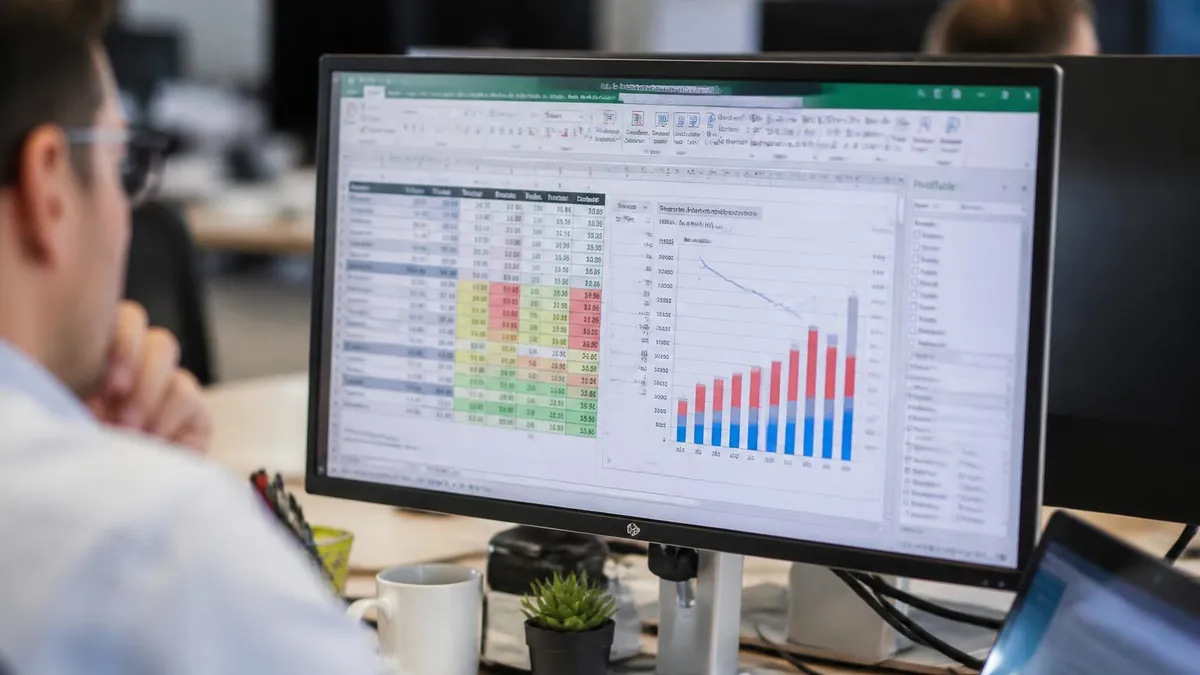
Pre-Installed Python Libraries
Data analysis library providing DataFrame structure for tabular data operations. Most common library for data manipulation, filtering, grouping, and transformation tasks within Python in Excel. Combining multiple libraries through Python integration produces analytical capability exceeding what any single tool provides natively.
Numerical computing library providing array operations and mathematical functions. Foundation for many other libraries including pandas. Essential for numerical calculations beyond basic spreadsheet capabilities. Combining multiple libraries through Python integration produces analytical capability exceeding what any single tool provides natively.
Plotting library for creating visualizations including line charts, scatter plots, bar charts, and histograms. Output renders as images embedded in Excel cells alongside other content. Combining multiple libraries through Python integration produces analytical capability exceeding what any single tool provides natively.
Machine learning library for classification, regression, clustering, and other algorithms. Enables predictive modeling and pattern discovery beyond what Excel native features support natively. Combining multiple libraries through Python integration produces analytical capability exceeding what any single tool provides natively.
Common Python in Excel Use Cases
Data cleaning operations using pandas often complete more efficiently in Python than Excel formulas allow. Removing duplicates, handling missing values, parsing dates, splitting columns, and combining data sources all benefit from pandas methods. The Python code expresses cleaning logic more clearly than complex nested Excel formulas while supporting transformations that pure Excel struggles to handle elegantly.
Statistical analysis through SciPy and NumPy provides capabilities beyond Excel native functions. Hypothesis testing, regression analysis, distribution fitting, and other statistical operations work cleanly in Python while requiring complex workarounds in pure Excel. Analysts performing significant statistical work benefit substantially from Python integration that brings full statistical capability into the spreadsheet environment.
Advanced visualization through matplotlib and seaborn produces charts that Excel charts cannot easily replicate. Statistical distributions, heat maps, pair plots, and other specialized visualizations all work cleanly in Python. The plotted output embeds directly in worksheets where readers can view results alongside underlying data without switching between applications during analysis review and presentation.
Time series analysis through pandas and statsmodels supports forecasting that pure Excel handles less effectively. The libraries support seasonality decomposition, autocorrelation analysis, ARIMA modeling, and other time series techniques. Business forecasting for sales, inventory, financial projections, and other metrics benefits substantially from these capabilities that pure Excel cannot replicate efficiently.
Geographic analysis through libraries including geopandas and folium supports mapping and spatial analysis. Location-based business analysis benefits from these capabilities when combined with sales, customer, or operational data including geographic dimensions. Excel cannot natively produce sophisticated geographic visualizations that geopandas and folium support through Python in Excel integration.
Python vs Native Excel Approach
Complex data transformations, statistical analysis, machine learning, advanced visualization, and operations requiring specific Python libraries all favor Python in Excel. The integration brings substantial capability that pure Excel cannot match while keeping the familiar spreadsheet interface for inputs and outputs.
Tool selection should match the specific task characteristics rather than defaulting to one approach for all scenarios within the analytical workflow.
DataFrame Operations
Working with pandas DataFrames represents the most common Python in Excel pattern. The expression xl open paren quote A1 colon Z1000 quote comma headers equals True close paren returns the range as a DataFrame with column headers from the first row. Subsequent code performs pandas operations on this DataFrame including filtering, grouping, sorting, and transforming data through pandas methods that produce new DataFrames or summary values.
Filtering DataFrames through boolean indexing supports complex multi-criteria selection. The code df open square bracket open paren df open square bracket quote Revenue quote close square bracket greater than 1000 close paren and open paren df open square bracket quote Region quote close square bracket equals equals quote West quote close paren close square bracket selects rows meeting both conditions. The syntax differs from Excel but produces equivalent results through compact code that handles complex filtering more cleanly than nested Excel formulas could.
Aggregation operations group data and compute summaries efficiently. The code df dot groupby open paren quote Category quote close paren dot agg open paren open curly brace quote Revenue quote colon quote sum quote comma quote Quantity quote colon quote mean quote close curly brace close paren computes total revenue and average quantity by category. The compact expression replaces complex SUMIFS and AVERAGEIFS formulas across multiple groups with single readable Python statement.
Pivot operations through pandas pivot_table function produce summary tables similar to Excel PivotTables but with substantially more flexibility. The pivot table syntax accepts row dimensions, column dimensions, value aggregations, and multiple aggregation functions simultaneously. Output displays in Excel cells supporting subsequent analysis or formatting through native Excel features.
Merging DataFrames combines data from multiple sources through join operations. The pandas merge function supports inner, outer, left, and right joins with flexible matching on multiple columns. The capability replaces complex VLOOKUP and INDEX MATCH chains with cleaner code expressing relationships between data sources. The clarity benefits maintenance of complex workbooks combining data from many sources.
Python in Excel executes code in Microsoft Cloud, sending data to remote servers for processing. Sensitive or confidential data may have specific handling requirements that affect whether cloud-based Python execution is appropriate. Review organizational data classification policies before processing sensitive data through Python in Excel to ensure compliance with relevant privacy and security requirements.
Specific data classification policies should guide Python in Excel use for organizational data. IT teams can clarify which data categories support cloud Python processing under organizational governance standards.
Machine Learning in Excel
scikit-learn integration brings practical machine learning into spreadsheet workflows. Common applications include linear regression for forecasting, classification for category prediction, clustering for customer segmentation, and many other techniques. The library provides consistent interfaces across diverse algorithms supporting easy experimentation with multiple approaches to find the best fit for specific problems.
Model training and evaluation work through standard scikit-learn patterns. Split data into training and test sets, fit model on training data, predict on test data, and evaluate accuracy through appropriate metrics. The compact Python expressions handle complete machine learning pipelines that would require substantial custom programming or specialized analytical software in non-Python environments.
Visualization of model results combines scikit-learn with matplotlib for comprehensive analysis output. Confusion matrices for classification, residual plots for regression, decision boundaries for two-feature problems, and feature importance charts all support model interpretation. The visualizations embed in Excel worksheets where business stakeholders can review results alongside data without specialized software access.
Cross-validation techniques in scikit-learn produce more reliable model evaluation than simple train-test splits. The cross_val_score function tests model performance across multiple data partitions, providing statistical confidence intervals around performance estimates. The technique prevents the optimistic estimates that single train-test splits can produce when data partitions happen to favor specific algorithms over others.
Hyperparameter tuning through GridSearchCV automatically tests multiple parameter combinations to find optimal model configuration. The systematic approach prevents the manual tuning that often misses superior parameter combinations. Combined with cross-validation, hyperparameter tuning produces more reliable final models than ad hoc parameter selection through trial and error approaches.
Python in Excel Best Practices
- ✓Verify Microsoft 365 subscription includes Python in Excel before planning workflows around the feature
- ✓Test Python code on small data subsets before applying to full data sets for performance verification
- ✓Document Python formulas with comments explaining intent for future maintainers of the workbook
- ✓Use native Excel formulas for simple operations rather than Python overhead for trivial calculations
- ✓Save workbooks periodically since cloud Python execution can occasionally produce session issues
- ✓Build error handling for situations where Python code might encounter unexpected data conditions
- ✓Review organizational data classification before processing sensitive data through cloud Python
- ✓Build personal reusable code snippet library across multiple workbook contexts
- ✓Connect with Python in Excel community through Microsoft forums and Stack Overflow for ongoing learning
Performance Considerations
Python in Excel performance differs from native Excel formula performance in important ways. Initial Python session startup takes several seconds when first invoked. Subsequent operations within the same session run faster. Operations involving large data transfers between Excel and cloud Python incur network latency that local Excel operations avoid. Understanding these characteristics supports realistic performance expectations and architectural choices.
Calculation order matters when Python formulas depend on each other or on native Excel formulas. Excel calculates Python formulas in a specific order that affects when each result becomes available. Complex dependencies can produce unexpected execution patterns until users understand the underlying ordering rules. Most simple use cases avoid these complications, but power users designing complex workflows benefit from understanding execution order mechanics.
Caching of Python results within sessions improves performance for repeated calculations. Python in Excel caches results so that unchanged inputs produce cached outputs rather than re-execution. Changes to inputs trigger appropriate recalculation. The caching matches Excel native formula behavior, producing consistent user experience across Python and native formula updates as data changes during analysis.
Memory limits in cloud execution affect maximum data set size that Python in Excel can handle. The specific limits depend on Microsoft Cloud allocation for the feature. Most practical business data sets fit within limits but very large transaction logs or sensor data streams may exceed available memory. Sampling or filtering data before Python processing produces practical workarounds when raw data exceeds processing capacity.
Cost considerations for Python in Excel relate primarily to Microsoft 365 subscription licensing rather than per-use charges. Specific subscription tiers including Python in Excel cost more than basic tiers without the feature. Evaluating cost versus benefit for the specific organization use cases informs subscription tier decisions for enterprise environments with substantial Microsoft 365 user populations.
Working With External Data
Python in Excel works with data already in the worksheet rather than fetching from external sources during code execution. The integration prioritizes data security by restricting Python code to worksheet-provided data rather than allowing arbitrary internet access. Importing data through standard Excel data connections then processing through Python produces clean workflows respecting both flexibility and security considerations.
Power Query integration with Python in Excel supports complex data preparation workflows. Power Query handles data import, transformation, and cleaning from diverse sources. The cleaned data lands in worksheet tables that Python in Excel can then analyze with statistical or machine learning techniques. The combination uses each tool for what it does best rather than forcing single-tool solutions.
Large data set handling within Python in Excel requires consideration of memory and performance constraints. The cloud Python environment has specific resource limits that affect very large data processing. Sampling representative subsets rather than processing complete data sets sometimes produces faster outcomes while still supporting analytical conclusions. Knowing limits before attempting massive operations prevents frustration from operations that cannot complete in the available environment.
Refresh behavior for Python in Excel formulas works similarly to native Excel formulas. Changes to source data trigger appropriate recalculation including Python code re-execution when relevant inputs change. Manual recalculation through F9 or Calculate Now triggers immediate refresh of Python formulas alongside native formula refresh. The familiar behavior reduces learning curve for Excel users adopting Python in Excel.
Version control for workbooks using Python in Excel requires consideration of how Python code embedded in formulas affects diff comparison. Standard Excel file comparison tools may not handle Python code well within formula contents. Documenting Python code in adjacent cells or external documentation supports version control workflows that pure binary file comparison cannot effectively support for complex Python-laden workbooks.

Python in Excel Quick Numbers
Common Python in Excel Workflows
Pandas operations for removing duplicates, handling missing values, parsing dates, and combining data sources. More efficient than complex nested Excel formulas for substantial cleaning work. Combining multiple libraries through Python integration produces analytical capability exceeding what any single tool provides natively.
Hypothesis testing, regression analysis, distribution fitting, and other statistical operations through NumPy and SciPy. Beyond Excel native statistical capabilities for serious analytical work. Combining multiple libraries through Python integration produces analytical capability exceeding what any single tool provides natively.
Predictive modeling through scikit-learn including classification, regression, and clustering. Embeds machine learning capabilities directly in spreadsheet workflows for business analysis. Combining multiple libraries through Python integration produces analytical capability exceeding what any single tool provides natively.
Matplotlib and seaborn visualizations including heat maps, pair plots, statistical distributions, and other specialized charts beyond what Excel native charts can produce. Combining multiple libraries through Python integration produces analytical capability exceeding what any single tool provides natively.
Learning Python for Excel Users
Excel users transitioning to Python in Excel benefit from focused learning on data analysis libraries rather than general Python programming. Pandas tutorials covering DataFrames, NumPy basics for numerical operations, and matplotlib introductions provide foundation for most Python in Excel use cases. Comprehensive general Python knowledge is not required for productive Python in Excel use.
Online resources for learning Python in Excel include Microsoft official documentation, community blog posts, YouTube tutorials, and structured courses on platforms like Coursera and Udemy. Free official Microsoft documentation provides authoritative reference. Community resources often provide practical examples that documentation can lack. Combining official references with community examples supports stronger learning than either approach alone.
Practice through real analytical work produces stronger Python skills than purely theoretical study. Tackling actual business problems with Python in Excel builds competence that transfers across problem types. Starting with simple problems and gradually increasing complexity supports sustainable learning. Most Excel users develop productive Python in Excel competence within several weeks to a few months of consistent practice.
Reusable Python code patterns develop through practice across multiple workbooks. Common transformations, statistical operations, and visualization patterns appear repeatedly across analytical work. Saving frequently used code snippets in personal reference documents accelerates future analytical work. Building personal code libraries reduces the time required for similar analyses on different data sets over time.
Community sharing of Python in Excel code through public repositories and forums supports broader learning. Posting questions and reviewing answers from others builds knowledge of the community. Sharing successful approaches to common problems contributes to others while reinforcing personal understanding through articulation. The reciprocal learning benefits both individuals and the broader Python in Excel user community.
Python in Excel Pros and Cons
- + —
- + —
- + —
- + —
- + —
- − —
- − —
- − —
- − —
- − —
Excel Questions and Answers
About the Author

Business Consultant & Professional Certification Advisor
Wharton School, University of PennsylvaniaKatherine Lee earned her MBA from the Wharton School at the University of Pennsylvania and holds CPA, PHR, and PMP certifications. With a background spanning corporate finance, human resources, and project management, she has coached professionals preparing for CPA, CMA, PHR/SPHR, PMP, and financial services licensing exams.