
Percent Change in Excel: Formula, Examples, and Common Errors 2026 October
🎯 Calculate percent change in Excel with the (new-old)/old formula. Includes IFERROR fixes, negative base handling, pivot tables, and YoY tricks.

Percent change in Excel measures how a number rises or falls compared to its starting point, then expresses that movement as a percentage. Sales teams use it to track monthly growth. Finance teams plug it into variance reports. Students drop it into homework. The math is light, but the formula trips people up because Excel will happily return a giant decimal, a #DIV/0! error, or the wrong sign if you set it up the wrong way.
The core formula is simple: (new value − old value) / old value. Type that into a cell, hit Enter, and format the result as a percentage. Done. But Excel rarely lets you stop at the simple version. You will need to handle negative starting values, zero divisors, multiple comparison periods, and reports that need cleanly formatted output. This guide walks through every variant, plus the keyboard tricks that make the work go faster.
If you already work with formulas like subtract formula in Excel or the divide formulas, functions, error fixes, percent change will feel familiar. It is just subtraction on top of division. The twist is the formatting step and the edge cases the textbook example never shows you.
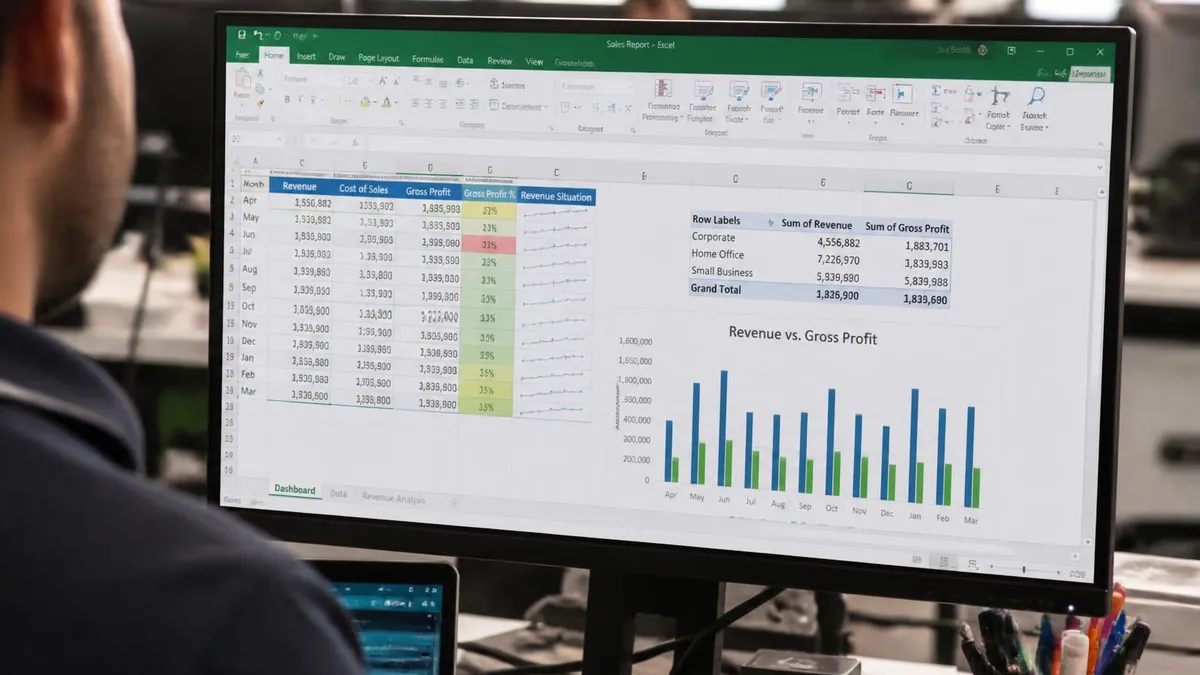
Excel Percent Change at a Glance
Open a blank sheet and put 200 in A2 and 250 in B2. In C2 type =(B2-A2)/A2 and press Enter. The result will look like 0.25 or 0.25000000. That is not wrong, it is just unformatted. Select C2, hit Ctrl+Shift+5, and the cell switches to 25%. That keyboard shortcut is the percent format toggle and it works on any cell or range.
The same formula works for negative growth. Put 500 in A3, 400 in B3, and the cell shows -20%. The minus sign tells you the value dropped. Decimals work too: 1.05 and 1.15 returns 9.52% because the engine cares about ratio, not absolute size. Most people who get this wrong are dividing by the new value instead of the old. The denominator is always the starting number.
For a cleaner formula, use =B2/A2-1. It returns the same answer but skips one subtraction step. Both versions are valid and you will see both in real spreadsheets. Pick whichever reads better to your team and stick with it for consistency across the workbook.
Two equivalent formulas: =(B2-A2)/A2 and =B2/A2-1. Both return the decimal change. Format the cell with Ctrl+Shift+5 to display as a percentage. Always use the old value as the denominator.
Real spreadsheets break the simple formula in three places: a zero in the denominator, a negative starting value, and blank cells. A zero divisor returns #DIV/0!, which is loud and ugly in a finance dashboard. Wrap the formula in IFERROR to swap the error for a clean dash: =IFERROR((B2-A2)/A2,"-"). Now any blank or zero produces a quiet placeholder instead of red text.
Negative starts are trickier. If a company lost $1,000 last quarter and gained $500 this quarter, the raw formula returns -150%, which technically reads as a worse performance even though the business improved. There is no perfect fix, but flagging negative bases with a separate column and a note keeps stakeholders from misreading the chart. Some analysts use ABS in the denominator: =(B2-A2)/ABS(A2). That returns a sensible 150% improvement on the example above.
Blank cells return errors too. The safest pattern combines IFERROR and a NULL check: =IF(A2=0,"",IFERROR((B2-A2)/A2,"")). Drop that into a template and the column stays clean even when source data is incomplete. That matters for shared workbooks where someone else will paste numbers in tomorrow.
A zero in the old-value cell breaks the formula with #DIV/0!. A negative old value can flip the sign and confuse readers. Always wrap with IFERROR and consider ABS for finance reports.
The percent format does most of the work, but you can refine it. Right-click the cell, choose Format Cells, pick Percentage, and set decimal places to 2 for tight financial output or 0 for headline numbers. Custom formats give you even more control. The code 0.0%;[Red]-0.0% shows positives in default color and negatives in red, which is a tidy way to flag declines in a status report.
Conditional formatting takes this further. Select your percent-change column, open Home → Conditional Formatting → Color Scales, and pick a red-yellow-green scale. Now the worst declines glow red and the strongest growth glows green. It reads instantly even at a glance, which is why dashboards lean on it heavily. For sparkline-style visuals, use data bars instead.
If you build the same report every month, save the formatting as a cell style. Home → Cell Styles → New Cell Style, name it "Percent Change", and apply it from the gallery. That keeps the look consistent across sheets without re-clicking the format menu every time. Styles travel with the workbook, so collaborators get the same view you do.
Formatting Percent Change Cells
Select the cell, press Ctrl+Shift+5 or open Format Cells and pick Percentage. Set decimal places to 0, 1, or 2 based on the audience.
Custom format 0.0%;[Red]-0.0% renders declines in red. Conditional formatting color scales add gradient visual signal across a column.
Home → Cell Styles → New saves the look as a reusable style. Apply it to any cell in any sheet with one click.
Use $B$2 to peg one side of the formula. Useful when comparing every period against a fixed baseline.
One row is easy. A whole table needs a different approach. Suppose you have months in column A, last year in B, this year in C. In D2 type =(C2-B2)/B2, hit Enter, then double-click the small green square at the bottom-right of the cell. Excel fills the formula down the column automatically. That fill handle trick saves a lot of time on tables with hundreds of rows.
For non-contiguous ranges, copy D2, select the target cells with Ctrl+click, and paste. The relative references shift as expected. If you want absolute references (say, comparing every month against a fixed January baseline), lock the row with $: =(C2-$B$2)/$B$2. Now copying down keeps pointing at B2 while C shifts naturally.
Tables (the Excel feature, not just a range) take this even further. Convert your range to a table with Ctrl+T and Excel auto-fills formulas to every new row you add. Plus the column names show up in the formula bar, so =(C2-B2)/B2 becomes =([@ThisYear]-[@LastYear])/[@LastYear]. Easier to read and harder to break. Pair it with the how to add filter in Excel tools and you can slice the same data twenty different ways without rewriting a thing.

Four Ways to Calculate
Type =(B2-A2)/A2 in C2. Press Enter. Format with Ctrl+Shift+5. That is the minimum viable version of the formula.
Year-over-year and month-over-month calculations are the same formula with different ranges. YoY: compare the same month across two years. MoM: compare consecutive months. The choice depends on the question you are answering. YoY smooths seasonality. MoM catches short-term shifts. Both belong in most business dashboards.
For a YoY column in a long table, build a helper that pulls the prior-year value with INDEX/MATCH or XLOOKUP, then run the standard percent-change formula on it. XLOOKUP is cleaner: =(B2-XLOOKUP(A2-365,$A:$A,$B:$B))/XLOOKUP(A2-365,$A:$A,$B:$B). That dynamically pulls the value from 365 days earlier and computes the change. Adjust the offset for fiscal calendars.
MoM works with simpler relative references. If your data is sorted by date with one row per month, =(B3-B2)/B2 in row 3 and filled down gives you month-over-month change for the entire history. Drop those numbers into a small chart and you have a trend view ready for the next meeting. Pair the calc with methods from beginner to power user averaging for a 3-month rolling view.
Percent Change Checklist
- ✓Old value is the denominator, not the new value
- ✓Cell is formatted as Percentage with appropriate decimals
- ✓IFERROR wraps the formula to handle zero divisors
- ✓Negative starting values use ABS in the denominator if needed
- ✓Sign is correct: positive means growth, negative means decline
- ✓Conditional formatting flags large swings for quick scanning
- ✓Pivot table version exists for ad-hoc exploration
- ✓Documentation explains percent vs percentage point distinction
Pivot tables compute percent change without any manual formula. Drop your data into a pivot, add Date to Rows and Value to Values twice. Right-click the second Value column, choose Show Values As → % Difference From, pick Date as the base field and (previous) as the base item. A percent-change column appears with no typing required.
This is the fastest path for ad-hoc analysis. It updates automatically when you add new data and refresh the pivot. You can also change the base item from (previous) to a specific period like January, which gives you a percent change versus a fixed baseline. Useful for tracking goals against a target month.
The trade-off is flexibility. Pivot calculations live inside the pivot and cannot be reused elsewhere without copy-paste. For one-off reports, pivots win. For templates that other people will modify, regular cell formulas are easier to maintain. Many analysts use both: pivots for exploration, then promote the winning views into formula-based dashboards.
Formula vs Pivot Table for Percent Change
- +Cell formula works anywhere in any worksheet without needing a separate pivot table object
- +Formula references travel through copy and paste, which makes the calculation portable across files
- +Easier to audit because the logic is visible in the formula bar for every individual cell
- +Plugs into other calculations like CAGR or SUMIFS without restructuring the underlying data
- +Smaller file size since there is no pivot cache attached to the workbook
- +Works perfectly inside Excel tables with structured column-name references
- −Manual fill on new rows unless using an Excel table with auto-expanding formulas
- −Repeats the same formula across many cells, which can clutter audit trails for finance teams
- −Edge cases need explicit IFERROR or IF wrapping, which adds maintenance overhead
- −Pivot version updates automatically on refresh without touching the formula at all
- −Pivot can group by week, month, quarter, or year with one drag instead of helper columns
- −Formula version forces you to choose YoY or MoM up front, whereas pivots toggle on demand
Pros and Cons at a Glance
| Pros | Cons |
|---|---|
| Cell formula works anywhere in any worksheet without needing a separate pivot table object | Manual fill on new rows unless using an Excel table with auto-expanding formulas |
| Formula references travel through copy and paste, which makes the calculation portable across files | Repeats the same formula across many cells, which can clutter audit trails for finance teams |
| Easier to audit because the logic is visible in the formula bar for every individual cell | Edge cases need explicit IFERROR or IF wrapping, which adds maintenance overhead |
| Plugs into other calculations like CAGR or SUMIFS without restructuring the underlying data | Pivot version updates automatically on refresh without touching the formula at all |
| Smaller file size since there is no pivot cache attached to the workbook | Pivot can group by week, month, quarter, or year with one drag instead of helper columns |
| Works perfectly inside Excel tables with structured column-name references | Formula version forces you to choose YoY or MoM up front, whereas pivots toggle on demand |
Five mistakes account for most percent-change bugs in real workbooks. First: dividing by the new value. The denominator must be the old value or the result is meaningless. Second: forgetting to format. A raw 0.25 in a report looks like a quantity, not a percentage. Always toggle the % format. Third: mixing percent and decimal in the same column. Pick one and stay there.
Fourth: not handling zero. A blank or zero starting value crashes the formula and breaks any downstream chart. Wrap it in IFERROR or IF every time. Fifth: ignoring the sign. A -50% drop and a +50% gain do not cancel each other out. Going from 100 to 50 then back to 100 is not 0% net change, it is two opposite moves. If you need cumulative growth, use the geometric mean of the period returns or chain the multipliers.
One bonus mistake: comparing percent changes of percentages. If a metric goes from 10% to 15%, that is a 5 percentage point increase or a 50% relative increase. Both numbers are valid but they answer different questions, and audiences confuse them constantly. Spell out which one you mean in chart titles and table headers.

A move from 10% to 15% is a 5 percentage point change and a 50% relative change. Label which one you mean in titles and labels. Audiences mix them up constantly.
For finance work, the formula often plugs into bigger expressions. Compound annual growth rate (CAGR) is one example: =(EndValue/StartValue)^(1/Years)-1. Same shape, just raised to a fractional power for annualization. Period returns chain together to give cumulative growth. Volatility is the standard deviation of those period returns, which is where the standard deviation formula in Excel takes over.
Sales reporting uses simpler nesting. Put percent change in one column, then SUMIFS over a category column to roll the changes up: =SUMIFS(D:D,A:A,"Region 1"). The Excel SUMIFS function syntax, examples, and common errors guide covers the corner cases. Pair SUMIFS with COUNTIFS for averages of percent change by category, using the COUNTIFS in Excel multi criteria counting patterns.
For analytics dashboards, the workflow is: raw data in a table, percent change in a calculated column, summary metrics in pivot tables, and visualization in a chart linked to the pivot. Each layer feeds the next. Build it once, refresh monthly, and the report rebuilds itself with new numbers.
Keyboard Shortcuts for Faster Percent Change Work
One question that confuses newcomers: should percent change be calculated on raw data or on summarized data? Both work but give different answers in subtle ways. Calculating on raw data and then averaging the percent changes gives an unweighted view. Summarizing first then computing percent change gives a weighted view. Pick based on the story you want to tell.
For revenue reports, weighted (summarize first) is almost always right because larger units should count more. For customer satisfaction scores, unweighted (average the changes) is often better because each respondent counts equally. Document the choice in a cell note or a methods tab so future readers know which version they are looking at.
This sounds like a small detail but it matters in audits and reviews. Two analysts can pull the same source data, compute percent change in different ways, and arrive at numbers that differ by 5 or 10 points. The math is correct in both cases. The discrepancy comes from the order of operations. Always be explicit.
Build a Percent Change Report in 6 Steps
Step 1: Lay out columns
Step 2: Type the formula
Step 3: Format as percentage
Step 4: Handle edge cases
Step 5: Add visual signal
Step 6: Chart and share
Charting percent change deserves its own treatment. A bar chart works for short series. A line chart fits longer trends. Sparklines (Insert → Sparklines → Line) drop tiny in-cell charts next to each row, which is great for dashboards where space is tight. Pick the visualization that matches how the audience will read the report. Executives often want one big number. Operators want the full trend.
Add a horizontal zero line on percent-change charts so readers can see at a glance which periods were positive and which were negative. In Excel charts, this is the category axis crossing at zero, which is the default for line charts but sometimes needs a tweak for bar charts. A subtle gray line at zero turns a confusing chart into a clear one.
Avoid 3D charts. They look impressive but distort the data. A flat 2D bar or line chart communicates the same information with less visual noise. Stick to two or three colors, label the axes, and let the numbers do the talking. Most percent-change charts only need a title, a y-axis label, and the data series.
- Dividing by the new value instead of the old value flips the result.
- Forgetting Ctrl+Shift+5 leaves a confusing decimal in the report.
- Mixing percent format and decimal format in the same column creates inconsistency.
- Ignoring negative starting values when the change crosses zero misleads readers.
- Skipping IFERROR and shipping a workbook full of #DIV/0! cells looks unprofessional.
- Confusing percentage points with percent change in chart titles is a classic blunder.
- Using 3D chart styles distorts the visual story and hides real differences.
- Forgetting to lock baseline references with $ when copying down breaks the math.
Practicing on real data is the fastest way to internalize this. Grab a free dataset, build a percent-change column, format it properly, and add conditional formatting. Then try the variants: ABS in the denominator, IFERROR for zero handling, and a pivot-table version of the same calculation. Spend 30 minutes on those exercises and the formula stops feeling fragile.
If you are preparing for an interview or certification test, expect at least one percent-change question. The setup is usually a two-column table and a request for growth rate, often with a negative or zero somewhere in the data to catch you off guard. Knowing the IFERROR wrap and the ABS variant is what separates a passing answer from a top score.
One last tip: build a personal cheat sheet. Open a new workbook, put the four key formulas (basic, with IFERROR, with ABS, and the pivot-table version) into named cells, and save it as PercentChangeCheatSheet.xlsx. Next time you face a tricky variance report or interview question, you can copy the right pattern in under a minute instead of rebuilding it from memory under pressure.
Ready to test what you just read? The practice questions below cover every variant from the basic formula to negative starting values and pivot-table calculations. Work through them once, then come back tomorrow and run them again to lock in the pattern across multiple sessions.
Sample Excel Practice Questions
Try these questions from our free Excel practice tests. The correct answer and an explanation follow each question.
The formula palette can be used to
- A. Enter assumptions data
- B. Copy a range of cells
- C. Create and edit formula containing functions
- D. Format cells containing numbers
Answer: C. Create and edit formula containing functions
The Formula Palette (or Function Arguments dialog box in modern Excel versions, accessed via the 'Insert Function' button next to the formula bar) is a helpful tool designed to assist users in creating and editing formulas, especially those involving functions. It provides a guided interface to input arguments for functions, making complex formulas easier to construct and debug by showing argument descriptions and results.
A financial analyst created the formula `=C2*D2` in cell E2 to calculate the total cost. They want to copy this formula down to cell E10. However, the tax rate used in the calculation is in a fixed cell, G1. Which formula should be entered in E2 before copying it down to ensure the tax rate reference does not change?
- A. =C2*D2+$G$1
- B. =(C2*D2)*$G1
- C. =C2*$G$1
- D. =C2*G1
Answer: C. =C2*$G$1
Using dollar signs ($) creates an absolute reference. `$G$1` locks both the column 'G' and the row '1', so when the formula is copied down, the reference to cell G1 remains constant, while the relative reference C2 will adjust to C3, C4, etc.
What is the result of the formula =MOD(17,5)?
- A. 2
- B. 3
- C. 5
- D. 17
Answer: A. 2
MOD returns the remainder after division. 17 divided by 5 is 3 with a remainder of 2, so MOD(17,5) returns 2.
What does the TRANSPOSE function do when entered as an array formula?
- A. Sorts data alphabetically
- B. Converts rows to columns and columns to rows
- C. Removes duplicate values
- D. Reverses the order of values
Answer: B. Converts rows to columns and columns to rows
TRANSPOSE swaps the orientation of a range, turning rows into columns and vice versa.
Excel Questions and Answers
About the Author

Business Consultant & Professional Certification Advisor
Wharton School, University of PennsylvaniaKatherine Lee earned her MBA from the Wharton School at the University of Pennsylvania and holds CPA, PHR, and PMP certifications. With a background spanning corporate finance, human resources, and project management, she has coached professionals preparing for CPA, CMA, PHR/SPHR, PMP, and financial services licensing exams.