
Percentage Change Formula Excel: Calculate Percent Increase or Decrease
Learn the percentage change formula in Excel: increase, decrease, growth rates with practical examples and step-by-step instructions. 💡

Calculating percentage change is one of the most common analytical tasks in Excel. Whether you're tracking sales growth month-over-month, comparing year-over-year performance, calculating budget variances, or analyzing investment returns, the percentage change formula gives you a standardized way to measure how values move over time. The basic formula is straightforward, but applying it correctly across various scenarios requires understanding several variations and edge cases that affect what your results actually mean.
The basic percentage change formula is: (New Value - Old Value) / Old Value. Multiply by 100 to express as a percentage, or format the cell as percentage to display automatically. In Excel, if A2 contains your old value and B2 contains the new value, the formula =(B2-A2)/A2 calculates the change. Format the cell as percentage (Ctrl+Shift+5 or Home tab → Number group → Percentage), and Excel displays the result with the % sign automatically.
The result is positive when the new value exceeds the old value (an increase) and negative when the new value is less than the old (a decrease). A 25% increase displays as 25%; a 15% decrease displays as -15%. The formula handles both cases automatically without special conditions, making it equally suitable for tracking growth or contraction. Understanding what positive and negative results mean in your specific context — sales growth is usually good but expense growth is usually bad — depends on what you're measuring.
This guide walks through the percentage change formula in detail with practical examples, common variations, edge cases like dividing by zero, formatting tips, and how to apply the formula across rows of data efficiently. Whether you're new to Excel or looking to handle percentage change calculations more confidently, you'll find practical guidance here.
Different industries have different conventions for how percentage change is presented. Financial reporting often uses parentheses for negative percentages: (15.0%) instead of -15.0%. Some industries prefer showing percentages without decimal places for clarity; others use one or two decimal places for precision. Knowing your audience's conventions and applying them consistently produces reports that feel professional and familiar to readers. Custom Excel number formats can match almost any industry convention you need.

Basic formula: =(NewValue - OldValue) / OldValue
Excel example: =(B2-A2)/A2 where A2 is old, B2 is new
Format result as: Percentage (Ctrl+Shift+5)
Increase: Positive result (e.g., 25%)
Decrease: Negative result (e.g., -15%)
Edge case: Old value of 0 produces #DIV/0! error — wrap in IFERROR
Walking through specific examples helps cement the formula. Consider sales data: January sales were $50,000 and February sales were $62,000. The percentage change formula =(62000-50000)/50000 equals 0.24, or 24% when formatted as percentage. February sales increased 24% from January. The simple positive number tells you growth happened and quantifies the magnitude relative to the starting point.
Now consider a decrease: January sales of $50,000 dropped to $42,000 in March. The formula =(42000-50000)/50000 equals -0.16, or -16%. March sales decreased 16% from January. The negative sign indicates the direction (decrease); the magnitude (16%) quantifies the size of the decline. This consistent treatment of increases and decreases is one of the percentage change formula's strengths — you don't need different formulas for different directions.
The base value matters significantly for percentage change interpretation. A change from $100 to $200 is a 100% increase; a change from $1,000 to $1,100 is only a 10% increase. Both represent $100 in absolute terms but very different magnitudes relative to the starting points.
Comparing percentage changes across items with very different base values can mislead — a small percentage of a large number may matter more in absolute terms than a large percentage of a small number. Combined with Excel formulas for absolute differences alongside percentages, you can present complete picture of change rather than relying on percentages alone.
For a series of values across multiple periods, calculate percentage change between consecutive periods to track ongoing trends. If your data has months in column A and values in column B starting at row 2, put =(B3-B2)/B2 in C3 to calculate the change from January to February. Copy the formula down for each subsequent period. The result column shows the period-over-period changes, making trends visible at a glance. Combined with conditional formatting highlighting positive and negative values in different colors, the visual presentation of trends becomes immediately clear.
For year-over-year comparisons (comparing current month to same month last year), the formula structure is the same but the cells you reference are different. If current year data is in column B and prior year in column A for the same months, =(B2-A2)/A2 calculates year-over-year change for that month. This format works well for businesses with seasonal patterns where comparing to the equivalent period last year is more meaningful than comparing to the previous month.
Beyond simple percentage change calculations, related Excel formulas extend your analytical capabilities. The PERCENTRANK function returns where a value ranks within a dataset as a percentage. The RANK function returns the position of a value within a list. The PERCENTILE function returns the value at a specific percentile of a dataset. Each handles different aspects of percentage-based analysis. Combined with percentage change, these functions provide comprehensive tools for percentage-based statistical analysis in business and research contexts.
Common Percentage Change Use Cases
Compare consecutive periods (month-over-month, quarter-over-quarter). Formula references current and previous period. Shows ongoing trend direction. Most common use case for tracking business performance over time. Combined with charts, reveals momentum or deceleration.
Compare current period to same period in prior year. Removes seasonal effects when seasonality matters. Standard format for retail, hospitality, and other seasonal businesses. Formula references current period and same-period-last-year. Often shown alongside period-over-period for context.
Compare actual performance to budgeted or forecasted values. Formula references actual and plan. Positive variance means exceeding plan (good for revenue, bad for expenses). Used in financial reporting, budget reviews, and performance management contexts.
Calculate percentage gain or loss on investments. Formula references current value and original investment. Annual returns compared across investments. Combined with time periods to calculate annualized rates and CAGR (Compound Annual Growth Rate).

Edge cases need specific handling for robust formulas. The most common edge case is dividing by zero — if the old value is zero, the formula produces #DIV/0! error because you can't divide by zero. To handle this, wrap the formula in IFERROR: =IFERROR((B2-A2)/A2, "N/A") returns "N/A" instead of an error when the old value is zero. Alternatively, return empty string or specific message that fits your context.
Another edge case: comparing very small numbers. Going from 0.001 to 0.002 is a 100% increase mathematically, but the percentage may not be meaningful in your context. For data where small absolute values mean the percentages are misleading, consider showing both absolute and percentage changes, or applying minimum threshold filters that suppress percentage display for changes below a meaningful absolute amount.
Negative starting values create interpretation challenges. If your old value is -100 and new value is -50, the formula =(-50-(-100))/(-100) produces -0.5, displayed as -50%. Mathematically the absolute value increased (became less negative), but the percentage change formula returns negative because we're dividing by a negative number. For data with negative values, consider whether percentage change is the right metric or whether absolute change should be used instead. The COUNTIF function and other aggregation functions can help identify rows with negative values that may need special handling.
For displaying percentage change with appropriate sign conventions, Excel's number formatting offers options. The default percentage format shows positive numbers as 25.00% and negative as -15.00%. Custom formats like 0.0%;[Red]-0.0%;0.0% show positive in default color, negative in red, zero in default — useful for visual quick-scanning of trend directions. Format Cells dialog (Ctrl+1 → Number tab → Custom) lets you create these conditional formatting patterns easily.
Calculating growth rates over multi-period intervals requires the CAGR (Compound Annual Growth Rate) formula rather than simple percentage change. CAGR formula in Excel: =(EndValue/StartValue)^(1/Periods)-1. For example, going from $100,000 to $150,000 over 3 years is calculated as =(150000/100000)^(1/3)-1, returning approximately 14.5% as the average annual growth rate. CAGR provides a smoothed measure of growth that better represents typical year-over-year performance for multi-year analyses than simple total percentage change divided by years.
For automated reporting workflows, combining percentage change calculations with conditional formatting, charts, and pivot tables creates dashboards that update automatically as data is refreshed. Set up the percentage change formulas once, build the dashboard around them, and refresh data periodically — the percentages, formatting, and visualizations update without manual intervention. This automation pattern produces ongoing value for monthly executive reports, KPI tracking, and trend monitoring across many business contexts.
Variations and Step-by-Step Examples
Sales went from $100,000 to $125,000 — what's the percentage increase?
- Cell A2: 100000 (old value)
- Cell B2: 125000 (new value)
- Cell C2:
=(B2-A2)/A2 - Format C2 as percentage (Ctrl+Shift+5)
- Result: 25.00%
Sales increased 25% from the old period to the new period.
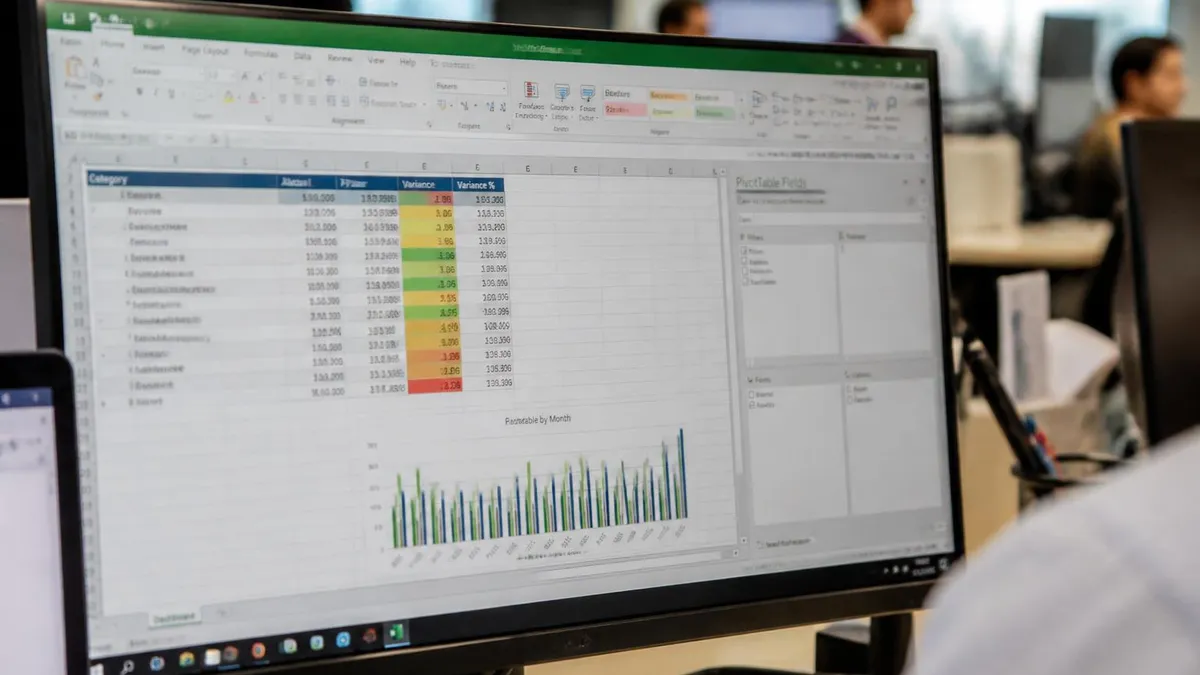
Applying percentage change formulas across many rows efficiently requires understanding Excel's relative reference behavior. Type the formula in the first row, then drag the fill handle (small square at bottom-right of selected cell) down to copy the formula to subsequent rows. Excel automatically adjusts the cell references for each row — A2 becomes A3, A4, etc. as you copy down. This is what makes Excel powerful for repeated calculations across rows of data.
For percentage change calculations comparing each row to a fixed baseline (perhaps the first period), use absolute references with $ signs. =(B2-$A$2)/$A$2 always references cell A2 as the baseline regardless of which row the formula is in. Combining absolute and relative references lets you apply different change calculations across data — period-over-period (relative references) versus from-baseline (absolute references) — based on what analysis you're doing.
For datasets converted to Excel Tables (Ctrl+T), formulas use structured references that are even more readable than cell addresses. =([@CurrentMonth]-[@PriorMonth])/[@PriorMonth] in a table references the same row's CurrentMonth and PriorMonth columns by name. Tables also auto-fill formulas to new rows as data is added, eliminating manual fill-down operations. For ongoing data analysis tracking percentage change, tables provide cleaner, more maintainable structure than fixed ranges.
Visualizing percentage change effectively requires choosing the right chart type. Column or bar charts work well for comparing percentage changes across categories. Line charts show trends in percentage change over time. Sparklines (mini-charts within cells) provide compact visual indicators alongside the percentage values. Combining the numeric percentages with appropriate visualization makes data more accessible for non-numeric viewers — many people grasp visual trends faster than reading rows of numbers.
For business reporting that includes percentage change alongside other metrics, consider using both absolute and percentage values together. Showing $25,000 increase (25%) provides more context than showing 25% alone — the absolute number anchors the percentage in business reality, while the percentage shows relative magnitude. The combination prevents misleading interpretations from looking at percentages without context, especially when comparing items with very different base values.
For Excel users new to percentage calculations, the conceptual foundation is worth solidifying before getting deep into formula details. Understanding what a percentage represents (parts per hundred), how it relates to fractions and decimals, when to use percentage change versus absolute change, and how percentages can mislead — these concepts inform when and how to apply Excel's percentage change formula effectively. Strong conceptual foundations prevent the formula errors that arise from applying tools without understanding what they're measuring.
Without percentage formatting, the formula result displays as a decimal (0.25 instead of 25%). This isn't wrong — 0.25 and 25% are mathematically identical — but it's confusing for readers expecting percentage display. Always format the result cell as percentage (Ctrl+Shift+5 or Home tab → Number Format dropdown) immediately after entering the formula. This produces correct visual interpretation alongside correct calculation.
Statistical interpretation of percentage change matters when communicating results. Significant percentage changes in small samples can be misleading — a 50% increase from 2 to 3 sales is statistically less meaningful than a 5% increase from 1,000 to 1,050 sales. Showing both percentages and underlying counts (or volumes) helps readers assess the practical significance of changes alongside the raw percentages. Combined with statistical confidence intervals where applicable, this presentation supports better decision-making.
For organizations using percentage change extensively in dashboards and reports, building reusable templates saves time across many similar analyses. Build a template once with appropriate formulas, formatting, and chart structures. Reuse the template by replacing data while keeping the analytical structure. Templates also enforce consistency across teams' analyses — everyone calculates and presents percentage change the same way, supporting comparison across reports and avoiding interpretation issues from varied methodologies.
Common errors when working with percentage change include: confusion about which value is "old" versus "new" (formula direction matters), forgetting to format as percentage (decimal display confuses readers), missing error handling for zero baselines (formulas fail), and comparing percentages across very different base values without context (misleading conclusions). Each of these errors becomes apparent when results don't match expectations or when reviewers question your numbers. Building habits to verify formulas are constructed correctly, cells are formatted appropriately, and edge cases are handled robustly produces more reliable analysis.
Beyond Excel-specific calculation, the conceptual fluency with percentage change applies broadly. Understanding what a 10% change means in absolute and relative terms, recognizing when percentages mislead, and presenting changes effectively to varied audiences are skills that apply across business analysis, scientific research, journalism, and many other contexts. Excel is the implementation tool, but the analytical thinking transfers to many other environments where understanding change is important.
Effective communication of percentage changes to varied audiences requires adapting presentation style to listener context. Executives often prefer high-level summary percentages with brief context. Analysts want underlying numbers and methodology. General audiences benefit from analogies and visualizations. Tailoring how you present the same percentage data to different audiences maximizes the value of your analysis. Excel handles the calculation; effective communication translates the math into insight that influences decisions.
For students or career changers building Excel skills, the percentage change formula is a natural early formula to learn well because it appears constantly in business contexts. Mastering this single formula and its variations introduces concepts (cell references, error handling, formatting) that apply to most other Excel work. Solid early foundations with simple formulas build the muscle memory and conceptual understanding that supports learning more complex formulas later.
Looking forward, Excel continues to add features that streamline percentage change analysis. Dynamic arrays, the new TEXT functions, improved chart types, and AI-assisted features through Copilot all reduce the manual effort required for analytical work. Staying current with Excel's evolving capabilities means your percentage change calculations gradually become easier to perform and more powerful in the analyses they enable. Periodic exploration of new Excel features prevents your skills from becoming stagnant relative to the tool's growing capabilities.
The fundamentals you build today serve you across the years of Excel use that follow. Mastery comes through consistent application across many real analytical tasks. Patience and consistent application of fundamentals produces the lasting expertise that compounds across careers and projects.Percentage Change Formula Quick Facts
Percentage Change in Analysis: Considerations
- +Standardized way to measure relative change regardless of absolute magnitude
- +Easy comparison across items with different base values when used carefully
- +Equivalent treatment of increases and decreases through positive/negative results
- +Combines well with absolute differences for complete picture of change
- +Supports trend analysis across periods, year-over-year comparisons, and variance reporting
- −Misleading when base values differ dramatically (small percentage of large number vs. large percentage of small)
- −Divide-by-zero errors when starting from zero baseline
- −Negative starting values create interpretation challenges
- −Statistical significance not captured — small samples can produce volatile percentages
- −Always pair with absolute values in reporting to provide context
Excel Questions and Answers
About the Author

Business Consultant & Professional Certification Advisor
Wharton School, University of PennsylvaniaKatherine Lee earned her MBA from the Wharton School at the University of Pennsylvania and holds CPA, PHR, and PMP certifications. With a background spanning corporate finance, human resources, and project management, she has coached professionals preparing for CPA, CMA, PHR/SPHR, PMP, and financial services licensing exams.