
IF Then Statements in Excel: The Complete Guide to Conditional Logic
Master if than in excel with step-by-step examples. Learn nested IFs, AND/OR logic, and real-world formulas. 💡 Build smarter spreadsheets today.

Understanding if than in excel is one of the most transformative skills any spreadsheet user can develop. The IF function sits at the heart of Excel's conditional logic system, allowing you to automate decisions inside your worksheet without writing a single line of code. Whether you are tracking sales performance, grading student scores, or managing inventory levels, the IF statement lets your spreadsheet respond intelligently to the data it contains, producing different results based on conditions you define. Once you grasp this concept, your Excel work will fundamentally change.
The basic syntax of Excel's IF function is straightforward: =IF(logical_test, value_if_true, value_if_false). The first argument is the condition you want to test — for example, whether a number is greater than 100, or whether a cell contains a specific word. The second argument is what Excel should display when that condition is TRUE. The third argument is what it should display when the condition is FALSE. This three-part structure is consistent across every version of Excel, from Excel 2010 through Microsoft 365, making it one of the most universal formulas in the entire application.
Many users first encounter the IF function when they need to categorize data automatically. Imagine you manage a spreadsheet with 500 employee records and you need to flag anyone earning below $50,000 for a compensation review. Without the IF function, you would scan each row manually. With it, a single formula in a new column instantly evaluates every record and labels it "Review" or "OK" in seconds. This kind of automation is exactly why Excel is the dominant tool in offices worldwide, and why learning if then statements excel is so valuable for professionals at every level.
Beyond simple true/false outputs, Excel's IF function can return numbers, text strings, references to other cells, or even the results of additional formulas. This flexibility makes it genuinely powerful. For instance, you might use an IF formula to calculate a commission rate — returning 10% if a salesperson exceeded their quota, or 5% if they did not. You could equally use it to display custom messages, convert raw numeric scores into letter grades, or control which calculation runs depending on user-selected criteria. The range of practical applications is enormous and grows as you combine IF with other Excel functions.
One of the most important concepts to master alongside the basic IF statement is nesting — placing one IF function inside another to handle multiple conditions. Excel supports up to 64 nested IF functions in a single formula, though in practice most situations require only two or three levels. For example, a grading formula might check if a score is above 90 first (returning "A"), then check if it is above 80 (returning "B"), then above 70 (returning "C"), and so on down to "F" for any score below 60. Nesting correctly requires careful attention to parentheses and logical ordering.
In modern versions of Excel (2019 and Microsoft 365), Microsoft introduced the IFS function specifically to simplify multiple nested IF statements. Where a nested IF formula might stretch across dozens of characters and become difficult to read, an IFS formula presents all your conditions and results in a clean, sequential list. This newer function reduces formula errors and makes your logic far easier to audit. However, the classic IF function remains essential because it works in all Excel versions and is the foundation on which IFS, SWITCH, and other conditional functions are built.
Throughout this guide, we will cover everything you need to confidently use IF then statements in Excel: the core syntax, nested formulas, combining IF with AND and OR functions, common errors and how to fix them, and real-world examples drawn from business, education, and data analysis scenarios. By the time you finish reading, you will be equipped to build conditional logic that makes your spreadsheets work harder and smarter than ever before.
Excel IF Statements by the Numbers

How to Build an IF Statement in Excel Step by Step
Select the Target Cell
Type the IF Function Opening
Enter the Logical Test
Add the True and False Values
Close and Confirm the Formula
Test Edge Cases and Verify
Nested IF statements are the natural next step once you understand the basic IF function. The idea is simple: instead of returning a static value when a condition is TRUE or FALSE, you return another IF formula. This creates a chain of checks that Excel evaluates one at a time, working through your conditions in order until it finds one that is true. The classic example is a letter-grade calculator where a score maps to A, B, C, D, or F — a scenario that requires four separate conditions evaluated in sequence.
Here is how a typical nested IF grade formula looks: =IF(A1>=90,"A",IF(A1>=80,"B",IF(A1>=70,"C",IF(A1>=60,"D","F")))). Excel reads this from left to right: first checking if the score is 90 or above, then 80, then 70, then 60, and finally defaulting to "F" if none of those conditions were true. The order of your conditions matters enormously — if you accidentally placed the 60 check before the 90 check, every score above 60 would return "D" and the higher grade levels would never be reached.
When building nested IFs, keeping track of your parentheses is the biggest practical challenge. Each IF function opens with a parenthesis after IF( and closes with a ) — and since each nested IF is an argument inside its parent IF, you accumulate closing parentheses at the end of the formula. A formula with three nested IFs ends with four closing parentheses. Excel's formula bar color-codes matching parenthesis pairs, which helps enormously when you are debugging a complex formula that is not returning the expected result.
Microsoft introduced the IFS function in Excel 2019 and Microsoft 365 to address exactly this readability problem. The IFS function takes pairs of arguments — each pair consisting of a logical test and the value to return if that test is true. The same grade formula written with IFS looks like: =IFS(A1>=90,"A",A1>=80,"B",A1>=70,"C",A1>=60,"D",TRUE,"F"). Notice the final pair: the condition TRUE always evaluates as true, making it a catch-all default — the equivalent of the last FALSE argument in a nested IF chain. This syntax is far easier to read and extend.
Another powerful approach to replacing complex nested IFs is the CHOOSE function combined with numeric logic, or the SWITCH function available in Excel 365. SWITCH evaluates a single expression against a list of possible values and returns a corresponding result, making it ideal for scenarios where a cell might contain specific codes or categories rather than a range of numbers. For example, a formula that converts department codes (1, 2, 3) into full names ("Sales", "Marketing", "Engineering") is much cleaner with SWITCH than with multiple nested IFs checking each code value individually.
When you combine IF with VLOOKUP, a whole new category of dynamic formulas becomes possible. A common pattern is using IF to handle the case where VLOOKUP returns an error — for instance, when a lookup value is not found in a reference table. The formula =IF(ISNA(VLOOKUP(A1,Table,2,0)),"Not Found",VLOOKUP(A1,Table,2,0)) performs the lookup and, if Excel returns the #N/A error, displays a friendly message instead. Learning vlookup excel in combination with IF is a staple skill for anyone working with data tables and reference lists in a professional environment.
One advanced nesting technique worth mastering is using array logic inside IF statements. In Excel 365, dynamic array formulas let a single IF expression return an entire column of results simultaneously, without needing to copy the formula down row by row. By writing =IF(A1:A100>50,"Pass","Fail") in a single cell, Excel spills the results automatically into a range of 100 cells. This spill behavior dramatically simplifies workbook design and reduces the risk of partial updates when new rows are added to your data set. Dynamic IF arrays represent the modern frontier of Excel conditional logic.
How to Use IF with AND, OR, and NOT in Excel
The AND function inside an IF statement lets you require multiple conditions to all be true simultaneously before returning the TRUE result. The syntax is =IF(AND(condition1, condition2), value_if_true, value_if_false). For example, =IF(AND(A1>50, B1="Approved"), "Eligible", "Ineligible") marks a record as Eligible only when both the score exceeds 50 AND the status is Approved. You can include up to 255 conditions inside the AND function, though keeping it to 3-5 conditions is recommended for maintainability.
A practical business use of IF+AND is calculating bonus eligibility. Suppose employees qualify for a bonus only if their sales exceeded $100,000 AND their customer satisfaction score is above 4.0. The formula =IF(AND(C2>100000, D2>4), "Bonus", "No Bonus") evaluates both criteria instantly across your entire employee table. Because AND requires every condition to be true, even one failing criterion disqualifies the record — which is exactly the behavior most real-world eligibility rules demand.

Pros and Cons of Using IF Statements in Excel
- +Automates repetitive decision-making instantly across hundreds or thousands of rows
- +Works in every version of Excel from 2003 through Microsoft 365 with no compatibility issues
- +Combines seamlessly with AND, OR, NOT, VLOOKUP, and dozens of other functions
- +Returns text, numbers, dates, or formula results — highly flexible output types
- +Dynamic array versions in Excel 365 spill results automatically without copying formulas down
- +Readable logic that can be audited and understood by other spreadsheet users with basic training
- −Deeply nested IF formulas (4+ levels) become difficult to read, debug, and maintain over time
- −Logic errors in condition ordering silently produce wrong results without any error message
- −Performance can degrade in large workbooks with thousands of volatile or complex IF formulas
- −Text comparisons are case-insensitive by default — "YES" and "yes" are treated identically
- −IFS and SWITCH functions that simplify complex logic are unavailable in Excel 2016 and earlier
- −Errors inside the logical_test argument propagate as formula errors rather than FALSE results
IF Formula Best Practices Checklist
- ✓Always test your formula with both TRUE and FALSE input values before distributing the workbook.
- ✓Use IFS instead of nested IFs when you have three or more conditions to evaluate.
- ✓Wrap text values in double quotes inside every IF argument (e.g., "Pass", "Fail").
- ✓Check parenthesis counts — a formula with N nested IFs needs N+1 closing parentheses.
- ✓Order conditions from most restrictive to least restrictive in nested IF chains.
- ✓Use IFERROR or IFNA to handle potential lookup errors cleanly within IF formulas.
- ✓Avoid volatile functions like TODAY() or NOW() inside IF tests unless recalculation is acceptable.
- ✓Name your ranges or use structured table references to make IF formulas self-documenting.
- ✓Test boundary values explicitly — if your condition is >=50, test with exactly 50 and 49.
- ✓Document complex nested IF logic in a comment cell nearby so future editors understand the intent.
IFERROR Is Your Best Friend for Bulletproof Formulas
Wrapping any IF-based formula inside IFERROR — for example, =IFERROR(IF(VLOOKUP(A1,Table,2,0)>100,"High","Low"),"Not Found") — ensures that lookup errors, division-by-zero errors, and other unexpected values never break your report. This single habit eliminates most spreadsheet errors that appear when source data is incomplete or changes structure between refreshes.
Real-world IF formula applications span virtually every industry and job function. In finance, analysts use IF statements to flag budget variances, categorize expense types, and drive conditional formatting rules that color-code cells based on whether actuals are above or below forecast. A simple formula like =IF(C2>B2,"Over Budget","On Track") applied across a 200-row departmental budget instantly highlights problem areas without anyone needing to scan row by row. This kind of automation saves hours of manual review work every reporting cycle.
Human resources teams rely heavily on IF formulas for compensation analysis. A common pattern is using IF to calculate tiered pay increases based on performance ratings. For example: employees rated 5 receive a 5% raise, those rated 4 receive 3%, those rated 3 receive 1%, and anyone rated below 3 receives no increase. This requires nested IFs or an IFS formula, but once built, it applies consistently across the entire headcount without manual calculation errors. HR departments processing hundreds of employees annually save significant time with this approach.
In education, teachers and administrators use IF formulas for gradebook automation. Beyond simple pass/fail checks, sophisticated gradebook formulas use nested IF statements to assign letter grades, flag students who need intervention, calculate GPA points, and even identify attendance patterns. A school tracking whether students meet a minimum grade threshold for extracurricular eligibility can use =IF(AND(G2>=70, H2>=80), "Eligible", "Ineligible") to cross-check both academic and attendance requirements simultaneously across hundreds of student records.
Supply chain and inventory management represent another domain where IF formulas deliver enormous value. Inventory planners use IF statements to trigger reorder alerts: =IF(B2
Data cleaning is another area where IF formulas shine. When importing data from external systems, values are often inconsistent — "Yes", "YES", "Y", and "1" might all mean the same thing but appear in different rows. A series of nested IF formulas can standardize these values: =IF(OR(A1="Yes",A1="YES",A1="Y",A1="1"),"Yes","No") maps all the variants to a clean, consistent output. This kind of data normalization is essential before running pivot tables, COUNTIF formulas, or any analysis that depends on consistent category labels.
Project managers use IF statements to build dynamic status trackers. By comparing planned completion dates against today's date and actual completion status, a single formula can classify each task as "Complete", "On Track", "At Risk", or "Overdue". For example: =IF(E2="Done","Complete",IF(D2
Marketing teams apply IF formulas to segment customer data, calculate campaign ROI thresholds, and score leads for sales handoff. A lead scoring model might assign point values based on job title, company size, and engagement activity, then use an IF formula to determine whether the total score qualifies the lead for immediate sales outreach or continued nurturing. These formulas become the backbone of data-driven marketing operations, ensuring that sales teams focus their time on the highest-potential opportunities rather than manually reviewing every inbound contact record.
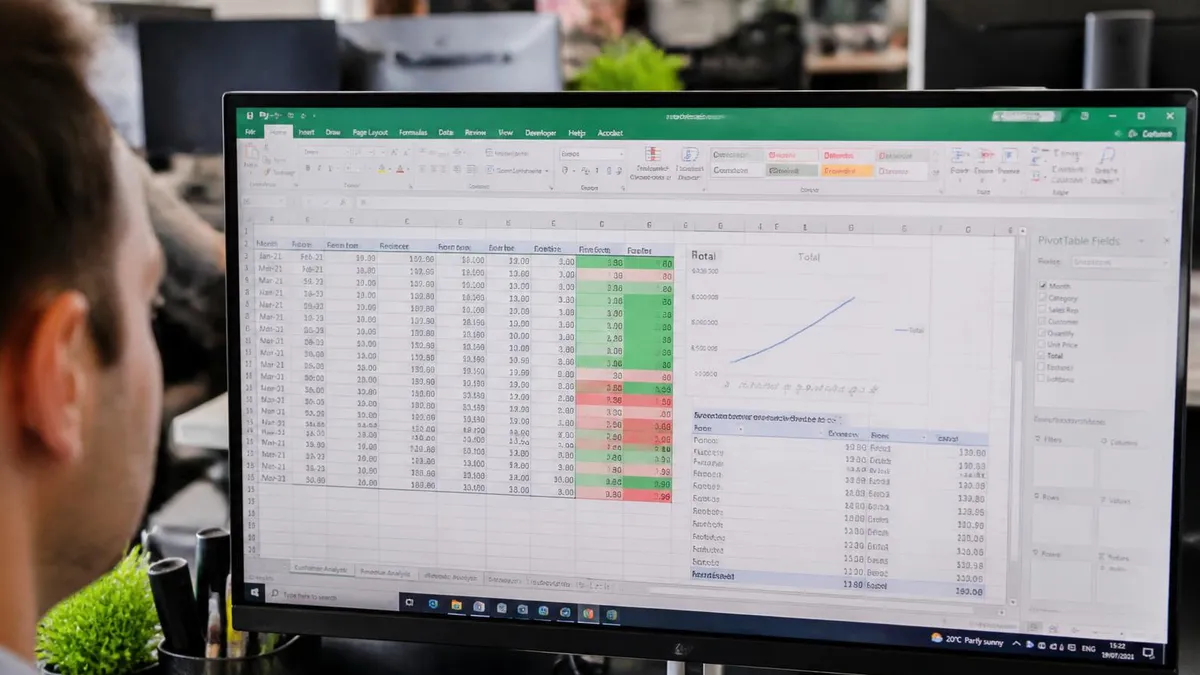
When writing nested IF formulas for numeric ranges, always order your conditions from highest to lowest (or lowest to highest — but be consistent). If you check whether a score is above 60 before checking whether it is above 90, every score above 60 will match the first condition and the 90-point check will never be reached. This silent logic error produces wrong results with no error message, making it one of the most dangerous mistakes in Excel formula design.
Mastering Excel's IF function opens the door to a broader toolkit of conditional and lookup formulas that work together to handle almost any data challenge. COUNTIF and SUMIF, for example, are specialized functions that apply a condition internally — counting or summing only the values that meet a criterion you specify. Understanding IF first makes COUNTIF immediately intuitive, because the logical structure is identical: you are simply asking Excel to count (or sum) where a condition is true rather than displaying a value. These functions together cover a huge proportion of the conditional logic that business spreadsheets require.
Another essential pairing is IF with data validation, which lets you control what users can enter into a cell in the first place. By combining a data validation rule with an IF formula elsewhere in the sheet, you can build guided data entry forms where downstream calculations adapt dynamically to user selections.
For instance, a dropdown list that lets users choose a product category (covered in how to create a drop down list in excel guides) can trigger IF formulas in adjacent cells that display the appropriate pricing tier, tax rate, or shipping estimate for that category automatically, creating a self-updating order form.
The SUMIFS function extends the SUMIF concept to multiple criteria, and understanding IF helps you reason about how SUMIFS evaluates its conditions. When you need to sum sales for a specific region AND a specific product AND a specific quarter, SUMIFS handles all three conditions in one formula. Users who first learned IF thoroughly find SUMIFS natural to read and write because the multi-condition AND logic mirrors what they already do in IF+AND formulas. Building this mental model early in your Excel learning journey pays dividends across dozens of related functions.
IFERROR and its companion IFNA deserve special attention as essential quality-of-life improvements to any IF-based workbook. IFERROR wraps around any formula and catches any error type — #VALUE!, #REF!, #DIV/0!, and others — returning a clean fallback value instead. IFNA is narrower, catching only #N/A errors, which makes it ideal for VLOOKUP and MATCH formulas where a missing value is expected and should display a user-friendly message. Using these functions consistently throughout a workbook ensures that users never see confusing error codes, even when underlying data is incomplete or structured differently than expected.
Conditional formatting, while not a formula function itself, integrates tightly with IF logic and deserves mention in any complete IF guide. You can use formula-based conditional formatting rules — which follow the same logical syntax as IF statements — to highlight cells, rows, or entire tables based on conditions.
For example, a rule like =$C2>$B2 applied to an entire row will highlight the row in red whenever the actual value in column C exceeds the budget in column B. This visual layer on top of your IF formula logic makes spreadsheet reports far more scannable and impactful for stakeholders who need to quickly identify outliers.
For users preparing for Excel certification exams or job interviews, IF statements are consistently among the most heavily tested topics. Microsoft's MOS (Microsoft Office Specialist) Excel certification includes questions on basic IF formulas, nested IF logic, and combining IF with AND/OR. Many technical interview processes for analyst and data roles also include hands-on Excel tasks that require writing IF formulas under time pressure. Practicing with real datasets and progressively more complex scenarios — rather than memorizing syntax in isolation — is the fastest path to genuine fluency with these functions.
Understanding how to freeze a row in excel and other navigation shortcuts also helps when working with large IF formula workbooks, since you will want to keep header rows visible while scrolling through hundreds of formula results. Similarly, knowing how to merge cells in excel helps you create clean report layouts around your IF formula outputs. These structural skills, combined with your mastery of conditional logic, allow you to build polished, professional spreadsheets that not only calculate correctly but also communicate results clearly to anyone who opens them.
Building genuinely useful IF formulas requires more than knowing the syntax — it demands a problem-solving mindset where you clearly define the question your formula should answer before you write a single character. Start by writing the condition in plain English: "If the sales amount is greater than $10,000, the commission rate is 8%; otherwise it is 5%." Translating that English sentence directly into Excel syntax is then mechanical: =IF(A1>10000, A1*0.08, A1*0.05). This write-first-in-English habit prevents most formula logic errors before they happen and makes your formulas far easier for colleagues to verify.
Testing your IF formulas thoroughly before using them in production is a discipline that separates expert Excel users from casual ones. After writing any conditional formula, create a small test table with values that cover the TRUE branch, the FALSE branch, exact boundary values, empty cells, text where numbers are expected, and very large or very small numbers.
Run your formula against all of these cases and verify that each result is correct. This ten-minute investment in testing saves hours of hunting for the subtle logic error that only surfaces when a real edge case appears in live data weeks later.
Version compatibility is a practical concern that many Excel users overlook until it causes a problem. If you use IFS, SWITCH, or dynamic array spill behavior in your workbooks, those features will not work in Excel 2016 or earlier. If your organization has a mix of Excel versions, or if you share workbooks with external partners, stick to classic nested IF formulas for maximum compatibility. Alternatively, document clearly in the workbook which Excel version is required, so recipients know to upgrade before opening if they want the formulas to function correctly.
Performance optimization matters once you are working with IF formulas applied across tens of thousands of rows. Volatile functions like NOW(), TODAY(), RAND(), and OFFSET() inside IF statements cause Excel to recalculate every time any cell in the workbook changes, which can make large sheets feel sluggish. Where possible, replace volatile functions with static values or non-volatile alternatives. Also consider whether COUNTIFS or SUMIFS could replace an array of IF formulas — Excel processes these aggregation functions far more efficiently than evaluating thousands of individual IF results.
Documentation habits inside Excel workbooks extend the useful life of your IF formula logic significantly. Add comments to cells containing complex formulas using the Review > New Comment feature. Name key ranges using the Name Manager so that your formulas read like =IF(Revenue>TargetRevenue,"Met","Below") instead of =IF(C2>B2,"Met","Below") — the named version is self-explanatory even without reading the source data. Consider creating a hidden "Logic" sheet that explains what each major IF formula does, what inputs it expects, and what edge cases it handles. Future you (or your successor) will appreciate this investment enormously.
Combining your IF formula skills with Excel's other analytical tools creates a complete data analysis toolkit. Pivot tables summarize data by category — but using IF formulas to pre-classify your data before pivoting gives you cleaner categories and more meaningful summaries.
Power Query can automate data cleaning steps that you might otherwise do with IF formulas, handling them at import time rather than with spreadsheet functions. For users who eventually move into Python or SQL for data analysis, the conditional logic skills developed through Excel IF statements transfer directly — they are foundational programming concepts expressed in a familiar spreadsheet environment.
Finally, remember that Excel's conditional functions are a means to an end, not an end in themselves. The goal is always to answer a business question accurately and communicate the answer clearly. A formula that works perfectly but produces results nobody can interpret has failed its purpose.
Always pair your IF formula logic with clear column headers, appropriate number formatting, and summary visuals that translate the formula outputs into insights your audience can act on. Combining technical Excel fluency with communication clarity is what makes truly excellent spreadsheet work — and it is a skill that practice and intentional effort steadily build over time.
Excel Questions and Answers

Excel to PDF: 5 Ways to Convert Your Spreadsheet

Excel COUNTA Function — Complete Guide (2026)

How to Create Hyperlinks in Excel: The Complete 2026 Guide to Linking Cells, Sheets, Files, and URLs

How to Use SUMIFS in Excel: The Complete Guide to Multi-Criteria Summing

Excel Data Validation: How to Restrict Input, Create Drop-Downs, and Prevent Errors
About the Author

Business Consultant & Professional Certification Advisor
Wharton School, University of PennsylvaniaKatherine Lee earned her MBA from the Wharton School at the University of Pennsylvania and holds CPA, PHR, and PMP certifications. With a background spanning corporate finance, human resources, and project management, she has coached professionals preparing for CPA, CMA, PHR/SPHR, PMP, and financial services licensing exams.