
How to Refresh Data in Excel: The Complete 2026 October Guide to Updating Connections, PivotTables, and External Sources
Learn how to refresh excel spreadsheet data, PivotTables, queries, and external connections. Auto-refresh, troubleshooting, and shortcuts inside. ✅

Learning how to refresh excel spreadsheet data is one of the most underrated skills in modern spreadsheet work, yet it sits at the heart of every reliable dashboard, report, and live model. Whether you are pulling figures from a SQL database, syncing a Power Query connection to a SharePoint folder, or updating a PivotTable tied to a sales export, refreshing is the action that turns a stale workbook into a current source of truth. In 2026, with cloud data sources everywhere, mastering refresh is no longer optional.
This guide walks through every refresh path in Excel: manual refresh with Alt+F5, full refresh with Ctrl+Alt+F5, background refresh, scheduled refresh in Power Query, auto-refresh on open, and the new refresh behaviors built into Excel for Microsoft 365 and Excel for the Web. We will cover PivotTables, Power Query, legacy data connections, linked workbooks, Stock and Geography data types, and Power Pivot models, so you can refresh confidently regardless of how your data arrives.
If you are coming from a background where you mostly use functions like vlookup excel formulas, you may have never needed to refresh anything because every recalculation happens automatically. But the moment you connect to an external source, that changes. External data lives outside the workbook, and Excel only re-reads it when you tell it to refresh. Understanding that distinction is the foundation of everything that follows in this article.
We will also tackle the most common refresh problems analysts run into: connections that fail silently, queries that take minutes to load, PivotTables that lose their formatting after refresh, and credentials that expire mid-report. Each of these has a known fix, and once you see the pattern, troubleshooting becomes a five-minute job instead of a half-day support ticket. By the end, refresh will feel routine, not risky.
The guide assumes you have a recent version of Excel, ideally Microsoft 365 or Excel 2021 and later, because Power Query and modern refresh controls are dramatically more capable in those releases. If you are on Excel 2016 or earlier, most concepts still apply, but a few menu locations differ and some features like dataflows and the refresh-all-from-cloud experience will be missing entirely.
Finally, we will end with practical tips: how to design workbooks that refresh quickly, how to avoid the classic pitfalls that break refresh chains, and how to use VBA or Office Scripts when you need refresh on a schedule. Treat this article as both a tutorial and a reference. Bookmark it, return to specific sections as you build, and use the FAQ at the bottom whenever a colleague asks why their numbers will not update.
Refresh is the bridge between the data your business creates and the spreadsheet your decision-makers stare at every morning. Get it right, and you save hours every week. Get it wrong, and you ship reports that quietly disagree with reality. The next 20 minutes will make sure you land on the right side of that line.
Refresh Data in Excel by the Numbers

Six Ways to Refresh Data in Excel
Manual Refresh (Alt+F5)
Refresh All (Ctrl+Alt+F5)
Refresh on Open
Scheduled Background Refresh
VBA or Office Script Refresh
Power Automate Cloud Refresh
PivotTables are the most common refresh target in Excel, and they behave a little differently than other data objects. A PivotTable does not actually store its source data twice; it holds a compressed cache, and refresh is what rebuilds that cache from the original range, table, query, or data model. If the source has grown by ten thousand rows since last week, those rows do not magically appear in the PivotTable until you refresh, even though the formulas around it might already be using vlookup excel lookups to grab the new values.
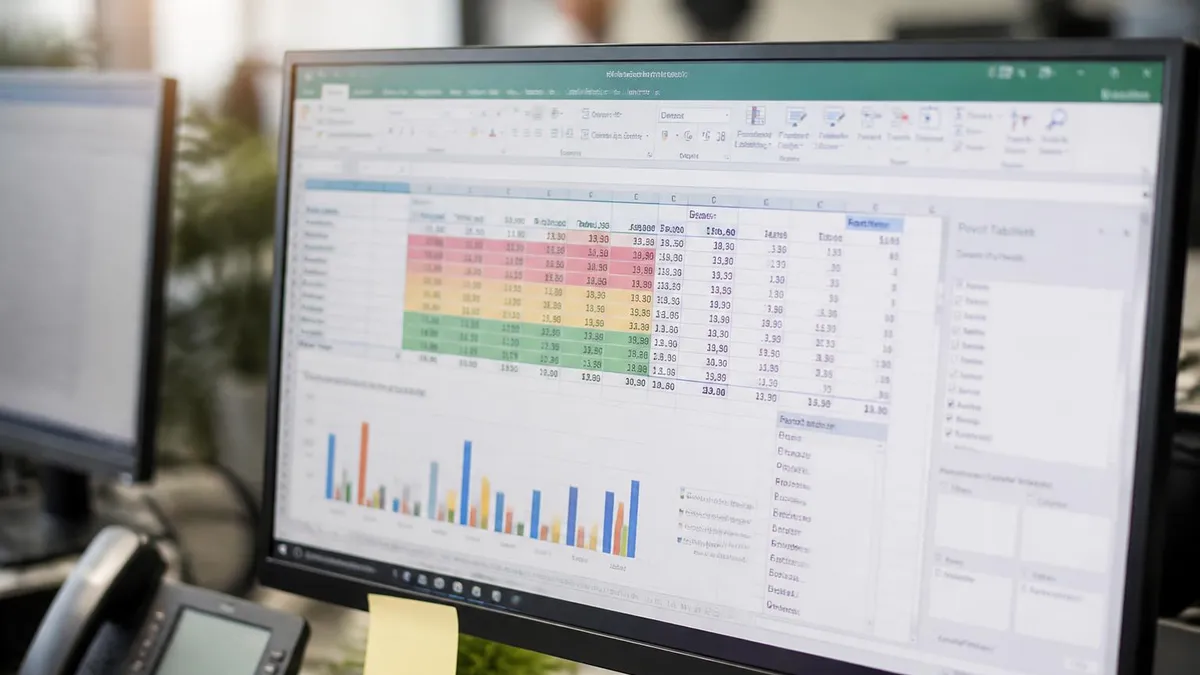
To refresh a single PivotTable, click anywhere inside it and press Alt+F5, or right-click and choose Refresh. To refresh every PivotTable in the workbook, use the PivotTable Analyze tab and click the Refresh dropdown, then Refresh All. The dropdown also shows Refresh Status, which is invaluable when a large model is taking minutes and you want to confirm the operation has not hung. Watch the bottom status bar for the same indicator.
One sharp edge to know about: when you change the structure of source data, such as adding a new column, refresh alone is not enough. You must also click Change Data Source on the PivotTable Analyze tab and re-select the expanded range. The cleanest fix is to convert your source into an Excel Table with Ctrl+T before building the PivotTable. Tables auto-expand, so future refreshes pick up new rows and columns without any manual intervention from you.
PivotTables built on the Data Model behave even better. The Data Model lives inside the workbook as a tabular engine and supports relationships, measures written in DAX, and millions of rows. When you refresh a Data Model PivotTable, Excel refreshes every table loaded into the model, recalculates every measure, and then pushes the result back into the visible PivotTable. This is the same engine that powers Power BI, just embedded inside Excel.
Formatting loss after refresh is the complaint analysts raise most often, and there are two fixes. First, in PivotTable Options on the Layout and Format tab, tick Preserve cell formatting on update and untick Autofit column widths on update. Second, apply formats using PivotTable Styles rather than direct cell formatting; styles survive refresh perfectly because they are tied to PivotTable structure rather than absolute cell addresses that shift as rows expand or contract.
If your PivotTable is slow to refresh, the culprit is almost always source data size or excessive calculated fields. Move heavy lifting into Power Query or the Data Model, where it executes once at refresh time rather than every recalculation. Replace calculated fields with measures whenever possible. And if the source is a network file, copy it locally before building, or use a Power Query staging step that pulls the file once and caches the result for downstream queries.
Finally, remember that PivotTables sharing the same cache also share refresh. If two PivotTables were built from the same range using the Create PivotTable wizard, refreshing one updates both. This is great for performance but occasionally surprising when a colleague expects independent refresh schedules. To force independent caches, hold Alt+D, then P to launch the legacy wizard and explicitly answer No when asked to share.
Microsoft Excel Practice Test Questions
Prepare for the Microsoft Excel exam with our free practice test modules. Each quiz covers key topics to help you pass on your first try.
Microsoft Excel Excel Basic and Advance
Microsoft Excel Exam Questions covering Excel Basic and Advance. Master Microsoft Excel Test concepts for certification prep.
Microsoft Excel Excel Formulas
Free Microsoft Excel Practice Test featuring Excel Formulas. Improve your Microsoft Excel Exam score with mock test prep.
Microsoft Excel Excel Functions
Microsoft Excel Mock Exam on Excel Functions. Microsoft Excel Study Guide questions to pass on your first try.
Microsoft Excel Excel MCQ
Microsoft Excel Test Prep for Excel MCQ. Practice Microsoft Excel Quiz questions and boost your score.
Microsoft Excel Excel
Microsoft Excel Questions and Answers on Excel. Free Microsoft Excel practice for exam readiness.
Microsoft Excel Excel Trivia
Microsoft Excel Mock Test covering Excel Trivia. Online Microsoft Excel Test practice with instant feedback.
Microsoft Excel Advanced Data Analysis Tools
Free Microsoft Excel Quiz on Advanced Data Analysis Tools. Microsoft Excel Exam prep questions with detailed explanations.
Microsoft Excel Advanced Formula and Macro...
Microsoft Excel Practice Questions for Advanced Formula and Macro Creation. Build confidence for your Microsoft Excel certification exam.
Microsoft Excel Advanced Formulas and Macros
Microsoft Excel Test Online for Advanced Formulas and Macros. Free practice with instant results and feedback.
Microsoft Excel Basic and Advance Question...
Microsoft Excel Study Material on Basic and Advance Questions and Answers. Prepare effectively with real exam-style questions.
Microsoft Excel Creating and Managing Charts
Free Microsoft Excel Test covering Creating and Managing Charts. Practice and track your Microsoft Excel exam readiness.
Microsoft Excel Data Visualization with Ch...
Microsoft Excel Exam Questions covering Data Visualization with Charts. Master Microsoft Excel Test concepts for certification prep.
Microsoft Excel Formulas and Functions
Free Microsoft Excel Practice Test featuring Formulas and Functions. Improve your Microsoft Excel Exam score with mock test prep.
Microsoft Excel Formulas and Functions App...
Microsoft Excel Mock Exam on Formulas and Functions Application. Microsoft Excel Study Guide questions to pass on your first try.
Microsoft Excel Formulas Questions and Ans...
Microsoft Excel Test Prep for Formulas Questions and Answers. Practice Microsoft Excel Quiz questions and boost your score.
Microsoft Excel Functions Questions and An...
Microsoft Excel Questions and Answers on Functions Questions and Answers. Free Microsoft Excel practice for exam readiness.
Microsoft Excel Managing Data Cells and Ra...
Microsoft Excel Mock Test covering Managing Data Cells and Ranges. Online Microsoft Excel Test practice with instant feedback.
Microsoft Excel Managing Tables and Data
Free Microsoft Excel Quiz on Managing Tables and Data. Microsoft Excel Exam prep questions with detailed explanations.
Microsoft Excel Managing Tables and Table ...
Microsoft Excel Practice Questions for Managing Tables and Table Data. Build confidence for your Microsoft Excel certification exam.
Microsoft Excel Managing Worksheets and Wo...
Microsoft Excel Test Online for Managing Worksheets and Workbooks. Free practice with instant results and feedback.
Microsoft Excel MCQ Questions and Answers
Microsoft Excel Study Material on MCQ Questions and Answers. Prepare effectively with real exam-style questions.
Microsoft Excel Questions and Answers
Free Microsoft Excel Test covering Questions and Answers. Practice and track your Microsoft Excel exam readiness.
Power Query Refresh Options for Your Excel Spreadsheet
The simplest Power Query refresh path is the Queries and Connections pane on the Data tab. Right-click any query and choose Refresh, or hover the query tile and click the refresh icon that appears. You can also click into the loaded table on the worksheet, go to Query Tools, and click Refresh from there. All three methods produce identical results and re-run the M code from source to destination.
Use manual refresh when you are actively editing a query and want to see the impact of a change without committing to a full workbook refresh. It is also the safest option when working with a slow source like a remote SQL Server or a large CSV on a network drive, because you can cancel mid-operation. If a refresh hangs, press Escape twice or click Cancel on the status dialog that floats near the formula bar.
Manual Refresh vs Automatic Refresh: What Should You Use?
- +Automatic refresh keeps dashboards current without user action every morning
- +Refresh on open guarantees colleagues never see yesterday's numbers by accident
- +Scheduled background refresh works invisibly while you keep editing other sheets
- +Power Automate refresh runs even when no one has the workbook open
- +Auto-refresh reduces support tickets from users who forgot to click Refresh All
- +Combined with email alerts, automation surfaces refresh failures before stakeholders notice
- −Automatic refresh can lock the file mid-edit and frustrate concurrent collaborators
- −A failed automated refresh may silently leave stale data in production reports
- −Scheduled refresh hits source systems on a timer even when no one is looking
- −Background refresh can spike CPU and slow other workbook calculations dramatically
- −Auto-refresh on open delays file load times, sometimes by several minutes
- −Credentials embedded for automation must be rotated, audited, and protected carefully
Pros and Cons at a Glance
| Pros | Cons |
|---|---|
| Automatic refresh keeps dashboards current without user action every morning | Automatic refresh can lock the file mid-edit and frustrate concurrent collaborators |
| Refresh on open guarantees colleagues never see yesterday's numbers by accident | A failed automated refresh may silently leave stale data in production reports |
| Scheduled background refresh works invisibly while you keep editing other sheets | Scheduled refresh hits source systems on a timer even when no one is looking |
| Power Automate refresh runs even when no one has the workbook open | Background refresh can spike CPU and slow other workbook calculations dramatically |
| Auto-refresh reduces support tickets from users who forgot to click Refresh All | Auto-refresh on open delays file load times, sometimes by several minutes |
| Combined with email alerts, automation surfaces refresh failures before stakeholders notice | Credentials embedded for automation must be rotated, audited, and protected carefully |

Refresh Setup Checklist for Every Excel Spreadsheet
- ✓Convert all source ranges to Excel Tables with Ctrl+T so refresh picks up new rows automatically
- ✓Document each connection's source, owner, and credential type in a hidden Notes sheet
- ✓Enable Refresh data when opening the file for any workbook used by non-technical readers
- ✓Disable background refresh on the final query in a chain that feeds dependent formulas
- ✓Set privacy levels explicitly to prevent slow safe-mode refresh on combined sources
- ✓Buffer intermediate Power Query results that are referenced more than once downstream
- ✓Use Connection Only load for staging queries to avoid materializing huge tables to sheets
- ✓Preserve PivotTable formatting by enabling the Preserve cell formatting on update option
- ✓Add a refresh timestamp cell using NOW() that updates with each manual refresh action
- ✓Test refresh from a clean workbook open on a colleague's machine before publishing widely
Add a visible refresh timestamp to every published workbook.
Place a cell with the formula =TEXT(NOW(),"yyyy-mm-dd hh:mm") next to your dashboard title and label it Last Refreshed. Stakeholders instantly know whether the numbers they are about to screenshot are five minutes or five days old. This single habit eliminates more confusion than any other refresh hygiene practice and costs you literally zero seconds to implement on the next workbook you build.
When refresh fails in Excel, the error messages are often vague, so building a mental troubleshooting checklist saves enormous time. Start with credentials. Power Query and legacy connections cache credentials per data source URL, and when a password changes in Active Directory, SharePoint, or your SQL Server, the cached credential becomes invalid. Open Data > Get Data > Data Source Settings, find the offending source, click Edit Permissions, and re-enter credentials. Refresh usually succeeds immediately afterward without any other change.
The second most common failure is a source that moved. If someone renamed a SharePoint folder, migrated a database, or relocated a CSV file from a personal OneDrive to a shared team site, the original path in your query no longer resolves. Edit the query, change the source step, and update the path. For production workbooks, parameterize the path so future moves require updating one parameter cell rather than digging into every query in the chain across multiple worksheets.
Network and firewall issues produce intermittent failures that are maddening to diagnose. A workbook that refreshes perfectly at the office may fail entirely on VPN because the gateway blocks certain ports, or because DNS resolves the source server to an internal address that is unreachable. Test connectivity using a browser or a simple ping before assuming Excel is at fault. If your organization uses a Power BI gateway, ensure the gateway is online and the data source is registered correctly inside it.
Formula and structural errors after refresh often trace back to schema changes. If the source added or removed a column, your query may have hardcoded that column name in a Remove Columns or Renamed Columns step, and Power Query throws a Column not found error. Edit the query, find the failing step in the Applied Steps pane, and either restore the missing column or remove the step that references it. Build queries defensively by using Table.SelectColumns rather than Table.RemoveColumns whenever possible.
PivotTable refresh failures are typically caused by source data that violates expectations: text in a number column, blank rows breaking the range, or merged cells in the header row. Open the source, run a quick audit, and clean the offending cells. If you are refreshing a PivotTable backed by Power Query, the cleaning step belongs inside the query so it survives every future refresh automatically. Never clean data in the loaded table itself, because the next refresh will undo your edits without warning.
Finally, watch out for race conditions in large multi-query workbooks. When Refresh All runs, Excel determines a refresh order based on declared dependencies, but if you load a query to both a worksheet and the Data Model, the order can surprise you. If a PivotTable returns stale numbers immediately after Refresh All, run it a second time and compare. If the numbers change, you have an ordering issue. Solve it by consolidating into a single Data Model query or by adding an explicit dependency through a merge step.
For truly stubborn refresh problems, enable Power Query diagnostics under Data > Get Data > Query Options > Diagnostics. Excel writes a detailed trace log that reveals exactly which step took how long and which underlying API call returned an error. Open the trace in Power Query itself and filter for errors and slow steps. This is the same technique Microsoft support uses, and it turns a guessing game into a precise root-cause analysis you can solve in minutes.
Typing or pasting values into a worksheet table that was loaded from Power Query feels harmless, but the next refresh will overwrite your edits without any warning dialog. Always make corrections inside the query itself using a Replace Values, Conditional Column, or merge step. This guarantees the fix survives every future refresh and is documented in your query history for any colleague who inherits the workbook.
Automated refresh is where Excel shifts from a personal productivity tool to a small piece of corporate data infrastructure. The simplest automation is VBA. A few lines of code attached to a workbook open event can trigger ActiveWorkbook.RefreshAll, wait for completion using DoEvents and connection status checks, then save and notify the user. This works reliably on a desktop running Excel under a Windows scheduled task, and it has powered finance dashboards for two decades without complaint.
Office Scripts, the modern TypeScript-based automation layer in Excel for the Web, gives you cloud-native refresh without any desktop dependency. Write a script with workbook.refreshAllDataConnections(), save it, and trigger it from Power Automate on a schedule, on a SharePoint event, or from a Teams button. Because the script runs in the Microsoft 365 cloud, you do not need a virtual machine or a service account logged into Windows somewhere just to keep an Excel report current.
For workbooks tied to Power BI datasets, the right pattern is often to refresh the dataset rather than the workbook. Schedule dataset refresh in the Power BI service, and let Excel pivot tables built using the Analyze in Excel connector pick up the new numbers automatically the next time the user opens the workbook. This separates data refresh from presentation and scales to thousands of users without each one triggering their own expensive source query.
If your workbook uses the Data Model and DAX measures, you can refresh just the model without rebuilding visible PivotTables using a small VBA snippet that calls ThisWorkbook.Model.Refresh. This is dramatically faster than full Refresh All when you have many PivotTables on slow sources, because Excel only renders new values into existing PivotTable layouts rather than rebuilding caches from scratch. Pair this with a button on a hidden admin sheet for power users.
Notification is the unsung hero of automation. Every refresh job should emit a success or failure signal that someone actually sees. Send a Teams message via Power Automate, write a log entry to a SharePoint list, or update a status cell that a separate monitoring workbook reads. Without notifications, a failed refresh becomes invisible, and stakeholders consume stale numbers for days before someone notices the dashboard has not changed since Tuesday afternoon at three.
Security deserves equal attention in any automation pipeline. Service accounts used for unattended refresh should have the minimum permissions necessary to read source data, with multi-factor authentication exemptions documented and reviewed quarterly. Store credentials in Azure Key Vault or the Power Automate connection vault rather than embedding them in scripts. Rotate them on a schedule, and audit which workbooks and flows reference each connection so offboarding an employee does not silently break a critical morning report.
Finally, think about cost. Each scheduled refresh hits source systems, consumes Power Automate runs, and may incur Azure consumption if you use Functions or Logic Apps as part of the pipeline. Daily refresh of one critical workbook is essentially free. Hourly refresh of fifty workbooks across an organization quickly becomes a five-figure annual budget line. Schedule refresh at the frequency the business genuinely needs, not the maximum frequency Excel and your tooling will technically allow.
The most reliable workbooks I have ever seen share a few practical habits, and they cost almost nothing to adopt. First, every external data source is wrapped in a named Power Query parameter for path or server name. When the source moves, you change one cell, save, and refresh. No hunting through queries. No broken connections. No production incident at month-end. Set this habit on the very first query you build in a new workbook, and you will never regret it later.
Second, every workbook has a hidden Diagnostics sheet that captures the last refresh time, last refresh duration, last refresh status, and the source path for every connection. A simple Office Script or VBA event populates these cells automatically on refresh completion. When a user reports a problem, you ask them to screenshot the Diagnostics sheet, and ninety percent of support tickets resolve in under three minutes without ever opening their workbook on your screen.
Third, never build a critical report on a single user's OneDrive. The moment that person changes roles, leaves the company, or has their license downgraded, every refresh fails silently. Move the source files and the workbook itself to a shared team site or SharePoint document library, and grant access via Microsoft 365 groups. This is boring infrastructure hygiene, but it is the difference between a report that survives turnover and one that becomes a postmortem ticket.
Fourth, design queries with refresh time as a first-class constraint. If a query takes more than thirty seconds, examine query folding, push filters earlier, eliminate Sort steps that prevent folding, and consider an incremental refresh pattern that only pulls new or changed rows from the source. A workbook that refreshes in five seconds gets refreshed frequently. A workbook that takes five minutes gets refreshed rarely, and stale numbers leak into decisions that should have been made on current data.
Fifth, document the refresh contract in the workbook itself. A simple text block on the cover sheet stating refresh frequency, source systems, data owners, and last validation date sets expectations clearly. Auditors love it. New team members love it. You will love it the next time someone asks whether the dashboard updates hourly or daily, because the answer is right there on the front page instead of buried in tribal knowledge nobody documented.
Sixth, treat refresh failures as production incidents, not minor annoyances. The instant a scheduled refresh fails, route a notification to a monitored channel and assign an owner. A culture that tolerates silent refresh failures will eventually ship a report with numbers from two weeks ago, and the trust cost takes months to rebuild. A culture that fixes failures within an hour preserves the reputation of every report it produces and earns the dashboard a permanent place in executive routines.
Finally, practice refresh patterns the same way you practice formulas. The next time you sit down to learn a new Excel skill, do not just build a clever lookup or a fancy conditional format. Build it on a source that can change, then change the source and confirm refresh handles it cleanly. That single habit will make you faster at every analytical task you tackle for the rest of your career, because real-world data never stays still for long enough to ignore.
Sample Excel Practice Questions
Try these questions from our free Excel practice tests. The correct answer and an explanation follow each question.
How can you connect a single Slicer to filter multiple PivotTables simultaneously?
- A. Right-click the Slicer and select 'Link to All PivotTables'
- B. Use the Slicer Settings dialog box
- C. Use the Report Connections option from the Slicer tab or right-click menu
- D. Hold Ctrl while dragging the Slicer to each PivotTable
Answer: C. Use the Report Connections option from the Slicer tab or right-click menu
The Report Connections option lets you connect one Slicer to multiple PivotTables so they all filter at the same time.
Which of the following is NOT a standard date grouping option available in PivotTables?
- A. Months
- B. Quarters
- C. Decades
- D. Years
Answer: C. Decades
Excel's built-in date grouping options include Seconds, Minutes, Hours, Days, Months, Quarters, and Years — Decades is not an available option.
Which Excel feature automatically completes a data entry based on values already in the same column?
- A. Flash Fill
- B. AutoFill
- C. AutoComplete
- D. Data Validation
Answer: C. AutoComplete
AutoComplete suggests the rest of a text entry based on existing entries in the column. Flash Fill recognizes patterns to fill a series, while AutoFill extends a series by dragging the fill handle.
Which Excel feature automatically suggests a formula pattern based on adjacent data you have already entered?
- A. AutoCorrect
- B. Flash Fill
- C. AutoFill
- D. Quick Analysis
Answer: C. AutoFill
AutoFill extends a pattern (numbers, dates, or formulas) by dragging the fill handle across adjacent cells.
Excel Questions and Answers

Excel Functions List: The Complete Reference Guide to Every Formula You Need in 2026

Excel Finance Functions Guide With PMT, NPV, IRR and Loan Models

Standard Deviation Formula in Excel: STDEV.P vs STDEV.S Guide

Excel Data Analysis Toolpak: Complete Guide to the Analysis ToolPak Add-In

How to Create a Report in Excel: The Complete 2026 Guide to Building Professional Spreadsheet Reports
About the Author

Business Consultant & Professional Certification Advisor
Wharton School, University of PennsylvaniaKatherine Lee earned her MBA from the Wharton School at the University of Pennsylvania and holds CPA, PHR, and PMP certifications. With a background spanning corporate finance, human resources, and project management, she has coached professionals preparing for CPA, CMA, PHR/SPHR, PMP, and financial services licensing exams.