
How to Insert Dates in Excel: The Complete 2026 September Guide to Date Entry, Formatting, and Automation
🗨️ Learn how to put a date in Excel using shortcuts, TODAY, DATE functions, formatting, and automation. Step-by-step tutorial for beginners and pros.

Learning how to put a date in Excel is one of the most fundamental skills any spreadsheet user must master, yet it is also one of the most misunderstood. Dates in Excel are not just text strings sitting in a cell; they are serial numbers that the application interprets as calendar values, which means a tiny formatting mistake can cascade into broken formulas, sorting errors, or pivot tables that refuse to group by month. Whether you are tracking invoices, building project timelines, or just logging when a task was completed, you need to enter dates correctly.
Excel offers more than a dozen ways to insert a date into a worksheet, ranging from the lightning-fast Ctrl+; shortcut that stamps today's date as a static value, to the dynamic TODAY() and NOW() functions that refresh every time the workbook recalculates. There is also the powerful DATE() function for constructing dates from individual year, month, and day arguments, plus DATEVALUE() for converting text into proper date serials. Each method has a specific use case, and choosing the right one prevents headaches later.
This guide walks you through every reliable technique for date entry, from the simplest typed input like "5/21/2026" to the most advanced approaches involving VBA macros, Power Query, and dynamic arrays. We will also cover regional format issues that confuse many US users when they share workbooks with European colleagues, plus the keyboard shortcuts that experienced analysts use to save hours each week. By the end, you will know exactly which method to use for any situation.
Excel stores every date as a serial number counted from January 1, 1900, which is day 1 in the default system. So when you type 5/21/2026, Excel actually stores the number 46163 and applies a date format to display it as a calendar value. This dual nature is what allows you to subtract one date from another to get the number of days between them, or add 30 to a date to get the deadline 30 days later. Understanding this is the key to everything that follows.
Whether you are a beginner just learning vlookup excel and basic formulas, or a seasoned analyst building dashboards with how to create a drop down list in excel and dynamic ranges, mastering date entry will make your spreadsheets cleaner and more reliable. The methods in this guide work across Excel 2016, 2019, 2021, Microsoft 365, and Excel for the web, with notes where behavior differs between desktop and online versions.
We will start with the absolute basics — typing a date manually and using keyboard shortcuts — and progressively build toward more sophisticated automation. Along the way, you will pick up tips on how to merge cells in excel without losing date values, how to freeze a row in excel so your date headers stay visible while you scroll, and how to use conditional formatting to highlight overdue items automatically. By the end, you will have a complete date-handling toolkit.
Each section includes concrete examples, exact keystrokes, and real screenshots of what your spreadsheet should look like. Bookmark this page; you will refer back to it whenever a date format misbehaves or you need to remember the exact syntax for a function you use rarely. Let's start by exploring the building blocks of Excel's date system.
Excel Dates by the Numbers

How to Insert a Date in Excel: Step by Step
Select Your Target Cell
Choose Your Entry Method
Type or Insert the Date
Verify the Cell Format
Apply Custom Formatting
Test with Calculations
The fastest way to put a date in Excel is the keyboard shortcut Ctrl+; (Control plus semicolon), which inserts today's date as a static value into the active cell. This shortcut is invaluable for logging entries, timestamping decisions, or recording when data was entered, because the value never changes — even if you open the workbook a year later, the original date remains intact. Pair it with Ctrl+Shift+; to add the current time in an adjacent cell, and you have a complete date-and-time stamp in two keystrokes flat.
For manual date entry, Excel accepts a remarkable range of formats and intelligently converts them. You can type 5/21/2026, 5-21-26, May 21 2026, 21-May, or even just 5/21 (Excel assumes the current year). The application parses your input, identifies it as a date, and stores the underlying serial number while displaying it according to the cell's current format. If you want to override US regional defaults, type ISO format like 2026-05-21 — this is unambiguous and works correctly even when sharing files internationally with colleagues in different locales.
The DATE function is the most reliable way to construct a date from individual components, especially when those components live in separate cells or come from other calculations. The syntax is =DATE(year, month, day), so =DATE(2026, 5, 21) produces May 21, 2026. This function is bulletproof because it bypasses any regional ambiguity — month is always the second argument, day is always the third, regardless of whether the user's computer is set to US or European format. It also handles invalid inputs gracefully by rolling them forward: =DATE(2026, 13, 1) returns January 1, 2027.
For dynamic dates that auto-update, use =TODAY() to get the current date with no time component, or =NOW() to get the current date and time together. Both functions recalculate whenever the workbook recalculates, which happens automatically on opening, when you press F9, or when any input cell changes. This makes them perfect for dashboards showing "Report Generated On:" headers, age calculations like =TODAY()-B2 to compute how old an invoice is, or countdown timers showing days until a deadline.
One trick many users miss is the autofill handle for dates. Type a date in one cell, grab the small square at the bottom-right corner of that cell, and drag down or across. Excel automatically increments the date by one day per cell, creating an instant date sequence. Right-click and drag instead of left-click and drag to get a menu offering options like Fill Months, Fill Years, Fill Weekdays, or Fill Series with a custom step value — extremely useful for monthly reports or weekday-only project schedules.
If you need a date that points to a relative day like "the first Monday of next month" or "the last business day of this quarter," combine DATE with WEEKDAY and EOMONTH. For example, =EOMONTH(TODAY(),0) returns the last day of the current month, and =EOMONTH(TODAY(),0)-WEEKDAY(EOMONTH(TODAY(),0),11)+1 returns the last Monday of the current month. These formulas look intimidating at first but become routine once you understand the building blocks. Save your favorites as named ranges for easy reuse across workbooks.
Finally, remember that pasted dates from web pages or emails often come in as text rather than true dates. The giveaway is that text dates align left in the cell while real dates align right. To convert, use =DATEVALUE(A1) or the Text-to-Columns wizard with Date format selected on step three. After conversion, sorting, filtering, and arithmetic will all work correctly. This single fix solves about 80% of the date problems users encounter when importing external data.
Microsoft Excel Practice Test Questions
Prepare for the Microsoft Excel exam with our free practice test modules. Each quiz covers key topics to help you pass on your first try.
Microsoft Excel Excel Basic and Advance
Microsoft Excel Exam Questions covering Excel Basic and Advance. Master Microsoft Excel Test concepts for certification prep.
Microsoft Excel Excel Formulas
Free Microsoft Excel Practice Test featuring Excel Formulas. Improve your Microsoft Excel Exam score with mock test prep.
Microsoft Excel Excel Functions
Microsoft Excel Mock Exam on Excel Functions. Microsoft Excel Study Guide questions to pass on your first try.
Microsoft Excel Excel MCQ
Microsoft Excel Test Prep for Excel MCQ. Practice Microsoft Excel Quiz questions and boost your score.
Microsoft Excel Excel
Microsoft Excel Questions and Answers on Excel. Free Microsoft Excel practice for exam readiness.
Microsoft Excel Excel Trivia
Microsoft Excel Mock Test covering Excel Trivia. Online Microsoft Excel Test practice with instant feedback.
Microsoft Excel Advanced Data Analysis Tools
Free Microsoft Excel Quiz on Advanced Data Analysis Tools. Microsoft Excel Exam prep questions with detailed explanations.
Microsoft Excel Advanced Formula and Macro...
Microsoft Excel Practice Questions for Advanced Formula and Macro Creation. Build confidence for your Microsoft Excel certification exam.
Microsoft Excel Advanced Formulas and Macros
Microsoft Excel Test Online for Advanced Formulas and Macros. Free practice with instant results and feedback.
Microsoft Excel Basic and Advance Question...
Microsoft Excel Study Material on Basic and Advance Questions and Answers. Prepare effectively with real exam-style questions.
Microsoft Excel Creating and Managing Charts
Free Microsoft Excel Test covering Creating and Managing Charts. Practice and track your Microsoft Excel exam readiness.
Microsoft Excel Data Visualization with Ch...
Microsoft Excel Exam Questions covering Data Visualization with Charts. Master Microsoft Excel Test concepts for certification prep.
Microsoft Excel Formulas and Functions
Free Microsoft Excel Practice Test featuring Formulas and Functions. Improve your Microsoft Excel Exam score with mock test prep.
Microsoft Excel Formulas and Functions App...
Microsoft Excel Mock Exam on Formulas and Functions Application. Microsoft Excel Study Guide questions to pass on your first try.
Microsoft Excel Formulas Questions and Ans...
Microsoft Excel Test Prep for Formulas Questions and Answers. Practice Microsoft Excel Quiz questions and boost your score.
Microsoft Excel Functions Questions and An...
Microsoft Excel Questions and Answers on Functions Questions and Answers. Free Microsoft Excel practice for exam readiness.
Microsoft Excel Managing Data Cells and Ra...
Microsoft Excel Mock Test covering Managing Data Cells and Ranges. Online Microsoft Excel Test practice with instant feedback.
Microsoft Excel Managing Tables and Data
Free Microsoft Excel Quiz on Managing Tables and Data. Microsoft Excel Exam prep questions with detailed explanations.
Microsoft Excel Managing Tables and Table ...
Microsoft Excel Practice Questions for Managing Tables and Table Data. Build confidence for your Microsoft Excel certification exam.
Microsoft Excel Managing Worksheets and Wo...
Microsoft Excel Test Online for Managing Worksheets and Workbooks. Free practice with instant results and feedback.
Microsoft Excel MCQ Questions and Answers
Microsoft Excel Study Material on MCQ Questions and Answers. Prepare effectively with real exam-style questions.
Microsoft Excel Questions and Answers
Free Microsoft Excel Test covering Questions and Answers. Practice and track your Microsoft Excel exam readiness.
Date Functions: TODAY, NOW, and DATE Explained
The TODAY function takes no arguments and returns the current system date as a serial number formatted as a date. Simply type =TODAY() into any cell and press Enter. The result updates automatically whenever the workbook recalculates, which means opening the file tomorrow will show tomorrow's date. This volatility makes TODAY perfect for dynamic headers, age calculations, and overdue indicators.
Common uses include calculating someone's age with =DATEDIF(B2,TODAY(),"Y"), counting days remaining until a deadline with =A2-TODAY(), or building a "Days Overdue" column with =MAX(0,TODAY()-DueDate). Because TODAY changes daily, do not use it when you need a permanent timestamp — use Ctrl+; instead to lock in a static value that survives recalculation cycles.

Static vs Dynamic Date Entry: Which Should You Use?
- +Static dates (Ctrl+;) create permanent timestamps that never change
- +Dynamic dates (TODAY/NOW) auto-refresh for live dashboards
- +DATE function eliminates regional format confusion entirely
- +Autofill handle creates date sequences instantly with drag
- +Custom format codes work consistently across all Excel versions
- +ISO format (yyyy-mm-dd) is unambiguous for international sharing
- +DATEVALUE converts pasted text dates back to real date serials
- −Volatile functions (TODAY/NOW) slow down large workbooks
- −Text-formatted dates break sorting, filtering, and arithmetic
- −Regional differences cause 5/6/2026 to mean different dates
- −Merged cells corrupt date columns and break pivot tables
- −Excel cannot store dates before January 1, 1900
- −Two-digit years like 21 may be interpreted incorrectly
- −Time zones are not handled natively — Excel uses local system time
Date Formatting Checklist for Every Excel Worksheet
- ✓Verify each date cell is formatted as Date, not General or Text
- ✓Use ISO format (yyyy-mm-dd) when sharing files internationally
- ✓Apply consistent format across an entire date column for clean sorting
- ✓Check that pasted dates display right-aligned, not left-aligned
- ✓Convert text dates to real dates using DATEVALUE or Text-to-Columns
- ✓Avoid two-digit years; always type four-digit years like 2026
- ✓Test arithmetic by adding 30 to a date — should return a date
- ✓Replace TODAY() with Ctrl+; when you need permanent timestamps
- ✓Use named ranges for frequently-referenced dates like FiscalYearStart
- ✓Document your date logic in cell comments for future reviewers
Always use four-digit years
When you type 5/21/21, Excel interprets it as 2021 by default — but the cutoff for two-digit years depends on regional settings and can vary. Eliminate all ambiguity by typing the full four-digit year every time. This single habit prevents 90% of date-related errors and makes your spreadsheets bulletproof against unexpected interpretation.
Regional date formatting is one of the most frustrating issues in Excel, especially for US users who share workbooks with colleagues in Europe, Asia, or Latin America. The same string "5/6/2026" means May 6th in the United States but June 5th in the United Kingdom, Germany, and most of the world. Excel reads incoming text dates based on the user's Windows regional settings, so a file that looks perfect on your computer may show garbled or transposed dates on a colleague's screen. The safest defense is to always use the ISO 8601 format yyyy-mm-dd, which has only one possible interpretation.
To check or change your regional settings on Windows, open Control Panel, navigate to Region, and look at the Short Date format. On macOS, go to System Settings, General, Language & Region, and inspect the Date Format preview. Excel inherits these system-level defaults when interpreting typed dates, so if you frequently work with international data, consider matching your regional settings to your most common collaborators. Alternatively, store all dates internally as ISO strings and apply display formats per worksheet.
Custom number format codes give you complete control over how dates appear without changing the underlying serial value. Press Ctrl+1 to open Format Cells, choose Custom, and enter codes like dd-mmm-yyyy for "21-May-2026" or dddd, mmmm d, yyyy for "Thursday, May 21, 2026." The letter codes are intuitive: d for day, m for month, y for year, with single letters showing minimum digits and repeated letters showing more detail. So mmm shows "May" while mmmm shows the full month name.
For weekday-only displays, use ddd for "Thu" or dddd for "Thursday." Combine codes to build elaborate formats like "Q"q" "yyyy for quarterly labels — though note that Q is not a built-in code, so you would need a helper formula. A common business format is mmm-yy for compact monthly reports, producing "May-26." These formats apply only to display; the underlying value remains 46163, so all calculations continue to work normally regardless of how the date appears on screen.
When you copy and paste data between worksheets or workbooks, formats sometimes transfer and sometimes do not, depending on the paste mode. Paste Special with Values Only strips all formatting and keeps just the raw serial numbers, which then default to the destination's format. Paste Special with Formats transfers only the visual appearance without touching values. For safe round-trip transfers, paste values first then manually apply your preferred format to the destination cells — this avoids surprise format inheritance.
Conditional formatting on dates lets you highlight overdue items, color-code upcoming deadlines, or flag weekends in red. Select your date range, go to Home, Conditional Formatting, New Rule, and choose "Use a formula to determine which cells to format." Enter a formula like =A2
Finally, when sharing workbooks with users in different regions, consider locking critical date columns with Data Validation set to Date type. Go to Data, Data Validation, choose Date from the Allow dropdown, set min and max bounds, and add a custom error message explaining the expected format. This prevents users from typing invalid strings or numbers in date columns and reduces support requests dramatically. Combined with ISO formatting, validation creates a robust date entry experience that survives any regional handoff.
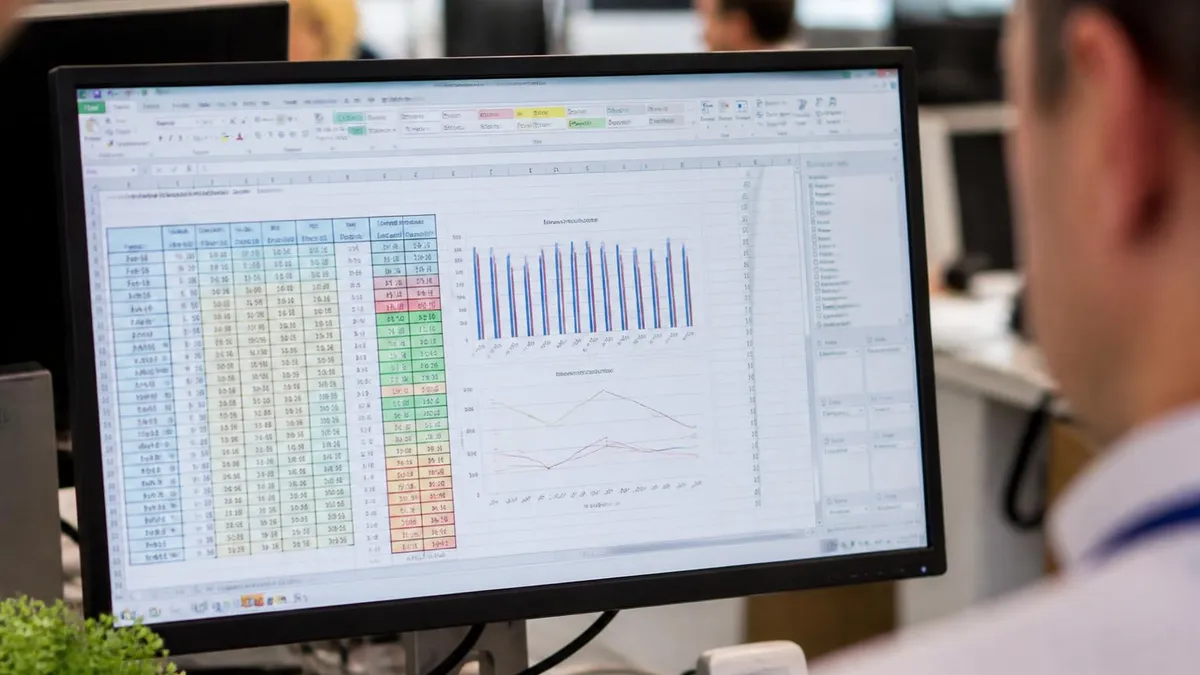
Excel incorrectly treats 1900 as a leap year for backward compatibility with the original Lotus 1-2-3 spreadsheet. This means February 29, 1900 exists in Excel but did not actually occur on the calendar. The bug adds one day of error to all dates before March 1, 1900. For modern business use this rarely matters, but historians and genealogists working with 1800s data should switch to the 1904 date system or use DATE-based math carefully.
Once you have mastered basic date entry, the next level is automating date workflows with VBA macros, Power Query, and dynamic array functions. A simple macro to insert today's date into the active cell looks like this: Sub InsertToday() ActiveCell.Value = Date End Sub. Bind it to a keyboard shortcut via Developer, Macros, Options, and you can stamp dates with a single keystroke combination of your choosing. For NOW equivalent, replace Date with Now in the macro. These macros run instantly and store static values, not volatile functions.
Power Query, accessible via Data, Get & Transform, is the modern way to import date columns from CSV files, databases, or web sources while controlling the format at import time. In the Power Query Editor, right-click any date column and choose Change Type, Using Locale. This dialog lets you specify the source format explicitly — say, English (United Kingdom) for British DMY data — so Power Query interprets the values correctly regardless of your local Windows settings. The cleaned data lands in Excel as proper date serials ready for analysis.
Dynamic array functions introduced in Microsoft 365 make date sequences trivially easy. Type =SEQUENCE(30,1,TODAY()) into a cell and Excel spills 30 consecutive dates starting today across 30 rows. Combine with TEXT to format the output, or wrap in FILTER to exclude weekends: =FILTER(SEQUENCE(30,1,TODAY()), WEEKDAY(SEQUENCE(30,1,TODAY()),2)<6). These spill formulas update automatically as the source date changes, making them ideal for rolling forecasts and dynamic calendar views.
For project schedules, the WORKDAY function calculates business days while skipping weekends and optional holiday lists. Syntax is =WORKDAY(start_date, days, [holidays]), so =WORKDAY(TODAY(), 10, HolidayList) returns the date 10 business days from today, excluding any dates in the named range HolidayList. The companion NETWORKDAYS function counts business days between two dates the same way. These two functions handle 95% of project planning math without requiring complex custom formulas or VBA.
The EDATE and EOMONTH functions handle monthly date arithmetic intelligently. EDATE(start, months) returns the same day in a future or past month, so =EDATE("2026-01-31", 1) returns February 28, 2026 — Excel automatically adjusts because February lacks a 31st. EOMONTH(start, months) returns the last day of the target month. Use these for invoice due dates, subscription renewals, and recurring billing schedules. They eliminate the brittle day-arithmetic that breaks at month boundaries.
For dropdown date pickers, combine Data Validation with a hidden helper column containing a list of valid dates. Create a column with =SEQUENCE(365,1,DATE(2026,1,1)) to generate all dates in 2026, name the range CalendarDates, then apply Data Validation, List, =CalendarDates to your input cell. Users see a dropdown showing valid dates and cannot type invalid entries. This pattern is invaluable for shared workbooks where date format discipline matters and you want to enforce consistency.
Finally, if you need timezone-aware dates, Excel does not handle them natively, but you can simulate timezone math by adding or subtracting hours as fractions: =NOW()-5/24 converts UTC to Eastern Standard Time. For more robust timezone handling, push the work to Power Query or a custom VBA function that calls the Windows API. Most business spreadsheets do not need this complexity, but international teams coordinating across regions benefit from explicit timezone columns alongside their date entries.
Putting all of these techniques into practice starts with adopting a few simple habits that experienced Excel users follow without thinking. First, always reserve a dedicated column for dates and apply the same format to every cell in that column. Consistency makes sorting, filtering, and pivoting trivial. Avoid mixing dates and text in the same column, and never use merged cells in a date column — merged cells break sorting and create gaps in pivot table groupings that are nearly impossible to debug later.
Second, when entering a date manually, default to typing it the same way every time. Choose either 5/21/2026 with slashes or 2026-05-21 with dashes and stick with it. Consistency in your typing pattern reduces the cognitive load of double-checking formats, and it makes your workflow faster over time. If you find yourself entering many dates in sequence, use the autofill handle to extend a pattern rather than typing each one — it is both faster and less error-prone.
Third, leverage keyboard shortcuts aggressively. Ctrl+; for today's date, Ctrl+Shift+; for the current time, Ctrl+1 to open Format Cells, and Ctrl+Shift+# to apply the default date format. These four shortcuts will save you hours over a typical work month. If you build workbooks for others, document these shortcuts in a brief instructions tab so colleagues can adopt them too — it pays back the time investment many times over in reduced support questions.
Fourth, validate before you trust. After importing dates from any external source — a CSV file, a web table, an emailed report — immediately test whether Excel sees them as real dates by entering =ISNUMBER(A2) in a helper cell. TRUE means the value is a real date serial; FALSE means it is text and needs conversion. This 10-second check prevents hours of downstream debugging when filters fail to show recent rows or pivot tables refuse to group by month because half the data is hidden behind text formatting.
Fifth, learn the function vocabulary. The core date functions every Excel user should know are TODAY, NOW, DATE, DATEVALUE, EDATE, EOMONTH, WORKDAY, NETWORKDAYS, WEEKDAY, YEAR, MONTH, DAY, HOUR, MINUTE, and TEXT. That sounds like a lot, but each one has a single clear purpose and the syntax is consistent. Spend an hour with a practice file experimenting with each function, and you will retain them permanently. Refer back to this guide whenever you need a refresher on a specific syntax.
Sixth, document your assumptions. If your spreadsheet contains date formulas that depend on the current year, fiscal calendar, or a specific holiday list, write a note in a clearly-labeled cell explaining the logic. Six months from now, you (or a coworker) will thank you for the breadcrumb. Cell comments work well for this, as do dedicated documentation tabs at the front of complex workbooks. Treat date logic as code — because that is what it is — and code deserves comments.
Finally, practice with real exercises. Reading about dates is useful, but typing them, formatting them, and writing formulas against them is what builds lasting skill. Take the free practice quizzes linked throughout this guide, build a few sample workbooks with project schedules and birthday lists, and experiment with edge cases like leap years and month boundaries. Within a week of deliberate practice, you will handle Excel dates with confidence — and the techniques in this guide will become second nature.
Excel Questions and Answers

Excel Functions List: The Complete Reference Guide to Every Formula You Need in 2026

Excel Finance Functions Guide With PMT, NPV, IRR and Loan Models

Standard Deviation Formula in Excel: STDEV.P vs STDEV.S Guide

Excel Data Analysis Toolpak: Complete Guide to the Analysis ToolPak Add-In

How to Create a Report in Excel: The Complete 2026 Guide to Building Professional Spreadsheet Reports
About the Author

Business Consultant & Professional Certification Advisor
Wharton School, University of PennsylvaniaKatherine Lee earned her MBA from the Wharton School at the University of Pennsylvania and holds CPA, PHR, and PMP certifications. With a background spanning corporate finance, human resources, and project management, she has coached professionals preparing for CPA, CMA, PHR/SPHR, PMP, and financial services licensing exams.