
How to Create a Scatter Plot in Excel: Step-by-Step Guide 2026 September
✅ Learn how to create a scatter plot in Excel: step-by-step XY chart, trendlines, axes, multiple series, bubble charts, and common errors fixed.

A scatter plot in Excel, sometimes called an XY chart, is one of the simplest ways to see whether two numbers move together. Each dot represents one observation with an X value and a Y value, so you can spot patterns, clusters, and outliers at a glance. If you have ever wondered whether marketing spend really drives sales, or whether study hours connect to test scores, the scatter plot is the chart you want. It is also the only Excel chart type built specifically to compare two numeric variables.
This guide walks you through every step. You will learn when scatter beats line or bar, how to build a basic chart, how to add trendlines and multiple series, and how to fix the small mistakes that make charts look wrong. We cover the keyboard shortcuts that build a chart in one keypress, the right-click menus that hide formatting power, and the rules for picking a trendline that fits your data. The same workflow helps when you tackle how to make a graph in Excel for any chart type.
Most beginners reach for a line chart by default, then wonder why their data looks distorted. The scatter plot fixes that, but only if you set it up right. Get the data layout, the chart subtype, and the axis bounds in order, and the chart almost builds itself. Skip those steps and you spend an hour fighting Excel. The good news is that the entire workflow takes about two minutes once you have done it twice.
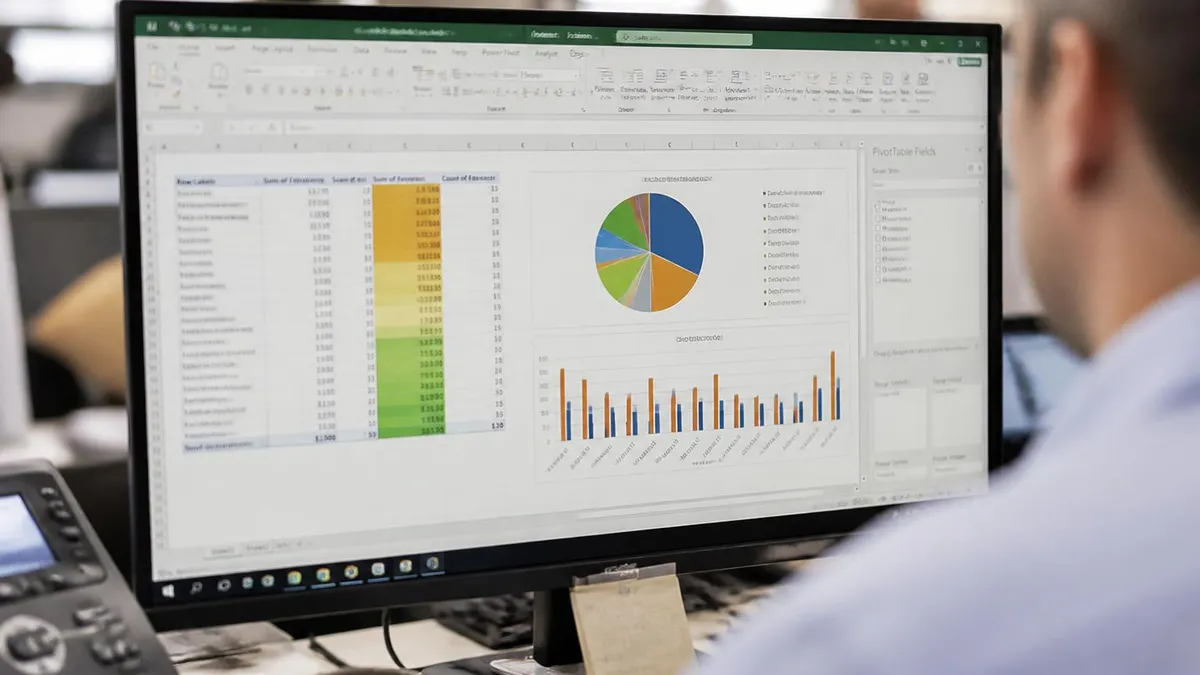
To create a scatter plot in Excel: put your X values in one column and Y values in the next column, select both, then go to Insert → Charts → Insert Scatter (X,Y) Chart and pick the markers-only subtype. Customize the title, axis labels, and add a trendline through Chart Design → Add Chart Element. Use scatter (not line) whenever your X-axis is truly numeric.
Before you click anything, get the data layout right. Excel expects two adjacent columns: X on the left, Y on the right. Headers in row 1 are fine and become the series name. If your data sits in non-adjacent columns, hold Ctrl while you select each range. Sort order does not matter for a pure markers chart, because each point stands on its own. Sort order does matter if you pick a subtype with connecting lines, because Excel draws the line in the order the rows appear.
Clean your data first. Delete blank rows inside the range, because Excel sees them as missing observations and either skips the gap or treats it as zero, depending on your settings. Strip any text from numeric columns, including stray spaces or hidden characters. Format the columns as Number or General, not Text. If your numbers came from a CSV import, do a quick sanity check by clicking a cell and confirming the value shows right-aligned (numbers right-align, text left-aligns by default).
Build a Basic Scatter Plot in 6 Steps
Organize Your Data
Select Both Columns
Open the Insert Tab
Click the Scatter Icon
Pick the Subtype
Customize the Chart
The chart appears on the same worksheet as a floating object. Drag it to move, drag a corner handle to resize. To park the chart on its own sheet, right-click the chart border and pick Move Chart → New sheet. The keyboard shortcut F11 creates a default chart on a new sheet from your selection. Alt + F1 creates the same chart on the current sheet. Both shortcuts pick the default chart type, which you can change to scatter under Chart Design → Change Chart Type.
Want to change Excel's default chart type so F11 always builds a scatter? Open File → Options → Customize Ribbon and enable the Developer tab. Or skip the menu entirely: build a scatter chart, right-click the chart border, pick Change Chart Type, then in the dialog right-click the scatter thumbnail and pick Set as Default Chart. From then on, F11 jumps straight to scatter for any selection. This shaves seconds off every chart you make, and it adds up fast if you build dozens a week.
One detail catches everyone the first time. When you click anywhere outside the chart, the ribbon switches back to the Home tab and Chart Design vanishes. Click the chart once to bring it back. Chart Design and Format only appear when a chart is selected.
The same trick applies to the green plus icon, which only shows when the chart is the active object. If the ribbon seems to be missing options, check that you have the chart selected first. This is the single most common confusion for new users, and it is easy to fix once you know what to look for. Once that clicks, the rest of the chart workflow feels far less mysterious and you stop hunting for buttons that simply need a chart selection to appear.
Three Ways to Build the Chart
This is the markers-only version. Each dot is one observation, nothing more. Use it when you want a clean view of how X and Y relate. Steps: select your two columns, hit Insert → Scatter, and pick the first thumbnail. Excel auto-scales both axes. If you have a header row, the series name shows in the legend. Right-click any dot and choose Format Data Series to change marker shape, size, or color. Smaller markers help when you have hundreds of points.
Picking the wrong chart type is the most common mistake. Excel offers many options, and they look similar in the ribbon thumbnails. The rule is simple: scatter for two numeric variables you want to compare, line for a value tracked across time, bar for category comparison, pie for parts of a whole. If you are choosing between scatter and line, ask whether your X-axis values are evenly spaced. If not, scatter is correct. For a deeper look at the line option, see how to make a line graph in Excel.
The bubble chart is technically a scatter variant, but it deserves its own moment. Use it when you have three numeric values per observation. A classic example: plot revenue (X) against profit (Y) with market share controlling bubble size. The eye picks up the third dimension instantly, no extra chart needed. Excel scales the bubbles automatically, so a wide spread of sizes works fine. The downside is that very small bubbles vanish when print-resized, so test the chart at the size you plan to publish before you finalize.
Reading Correlation in a Scatter Plot
- Pattern: Points form an upward line, lower-left to upper-right
- R-squared: 0.7 or higher
- Example: Marketing spend and revenue
- Trendline: Linear
- Pattern: Points form a downward line, upper-left to lower-right
- R-squared: 0.7 or higher
- Example: Practice hours and test errors
- Trendline: Linear (negative slope)
- Pattern: Points scattered with no clear direction
- R-squared: Near 0
- Example: Shoe size and IQ score
- Trendline: Flat or unhelpful
- Pattern: Curve or U-shape, not a straight line
- R-squared: Higher with polynomial fit
- Example: Workload and productivity
- Trendline: Polynomial order 2 or 3

Once you can read the pattern, customize the chart so others can read it too. Click the chart, then look for the green plus icon at the top-right corner. That is the Chart Elements menu. From there you toggle the title, axis titles, data labels, gridlines, legend, error bars, and trendline. For finer control, right-click any element and pick Format to open the side pane. The pane changes based on what you selected, so click the chart title for title options, click an axis for axis options, and so on.
The green plus icon also has a fly-out arrow next to each element. Hover over Data Labels and a tiny arrow appears. Click it for placement options (above, below, right, center, callout). The same arrow on Trendline opens the trendline picker without making you right-click the data series first. These shortcuts save clicks once you know they exist. Most Excel users never notice them because they look like part of the icon, not interactive controls.
Customize Chart Elements
- ✓Click the chart title placeholder and type a clear, descriptive title
- ✓Add axis titles via Chart Design then Add Chart Element then Axis Titles
- ✓Toggle data labels (above, below, right, center) for points you want to call out
- ✓Move the legend to top, bottom, left, or right based on chart space
- ✓Add or remove major and minor gridlines for cleaner styling
- ✓Insert a trendline (linear, polynomial, log, power, exponential, moving average)
- ✓Show R-squared value to demonstrate trendline fit quality
- ✓Add error bars (standard error, percentage, standard deviation, custom)
- ✓Right-click the data series to change marker shape, size, and color
- ✓Use Chart Design then Change Colors to swap the entire palette in one click
Axes give you the most leverage over how a scatter plot looks. Right-click an axis and pick Format Axis to open the side pane. Set Bounds → Minimum and Maximum to fixed numbers, and Excel stops auto-rescaling every time you tweak the data. Adjust Units → Major to change tick spacing. For data that spans many orders of magnitude (sales of $10 to $10,000,000), tick the Logarithmic scale box. You can reverse an axis, change the number format to currency or percent, and rotate axis labels for long text.
One axis trick that pays off in business reports: set the X-axis bounds to round numbers like 0 and 100, even if your data only runs from 12 to 87. The chart looks cleaner and is easier to compare across multiple slides. The same goes for the Y-axis. Round bounds and consistent units across charts make a deck feel professional. Tick spacing of 10 or 25 reads better than the auto-spacing Excel often picks, like 13.7 or 21.4.
Scatter Plot at a Glance
Trendlines are powerful, but pick the wrong one and you mislead your audience. Linear is the safe default for proportional relationships. Polynomial (order 2 or 3) handles curves, like a U-shape that bottoms out and rises again. Logarithmic fits diminishing returns: each extra unit of X moves Y less than the last. Exponential captures compounding growth or decay. The Moving Average option is different from the others. It does not summarize the relationship. It smooths a noisy series so the trend pops out, especially helpful for time-stamped data plotted on a scatter chart.
R-squared, the number you see when you tick Display R-squared, runs from 0 to 1. A value of 1 means the trendline fits perfectly. A value of 0 means the line explains none of the variance. In real-world data, anything above 0.7 is a meaningful relationship. Below 0.3 and you are likely seeing noise. Keep in mind that polynomial trendlines almost always fit better than linear ones, but only because they have more flexibility. The honest test is whether the higher fit comes from a real pattern or from over-fitting noise.
Scatter vs Line Chart for XY Data
- +Scatter treats X as a true number, so spacing reflects real values
- +Each point stands alone, perfect for correlation analysis
- +Trendlines, R-squared, and equations all work on scatter
- +Multiple series with different X ranges plot correctly
- +Bubble variation adds a third dimension of data
- −Line chart treats X as evenly spaced categories, which warps real numeric data
- −Line chart connects dots in row order, which can look misleading
- −Line chart is awkward when series have different X values
- −Bar and column charts assume categorical X, not continuous
- −Pie chart cannot show a relationship between two variables at all

The scatter-versus-line distinction matters more than most people realize. Plot the height of a sapling at ages 1, 2, 3, 5, and 10. A line chart spaces those ages evenly across the X-axis, so the growth curve looks linear when it is actually accelerating. Scatter puts each point at its true X value, so the gap between age 5 and age 10 is twice the gap between age 1 and age 2. The shape becomes honest. For pure category comparison you would use how to make a bar chart in Excel instead.
Try a quick test on your own data. Plot the same numbers as both a line chart and a scatter chart side by side. If the two charts look almost identical, your X values were probably evenly spaced and either chart works. If they look very different, the scatter is the honest version. The line chart was distorting the spacing to make every category equal-width. This is the single most common chart-misuse pattern in business presentations, and switching to scatter fixes it in two clicks.
Empty chart inserted: you forgot to select your data first. Click in any data cell, then re-insert.
Wrong chart type appears: you picked Line instead of Scatter. Right-click the chart and choose Change Chart Type to swap.
X and Y look swapped: Excel guessed wrong about which column is which. Right-click the chart, pick Select Data → Edit, then re-map the X and Y series.
Trendline missing: the data is text instead of numbers, or you clicked the chart background instead of the data series. Click directly on a marker, then add the trendline.
#NAME? errors elsewhere: a misnamed function in a source cell. Fix the formula and the chart updates.
Adding error bars takes scatter plots from descriptive to scientific. Click the chart, click the green plus, and tick Error Bars. You can pick Standard Error, Percentage, Standard Deviation, or Custom. Custom lets you point to a column of plus-and-minus values you calculated yourself, which is how researchers show measurement uncertainty. Error bars also help in business reporting. If your sales forecast has a confidence range, error bars communicate that range visually rather than burying it in a footnote.
By default Excel adds error bars on both X and Y axes. For most scatter plots, you only want them on Y. Click any error bar to select that set, then press Delete to remove the X bars while keeping Y. The Format Error Bars pane also lets you change cap style, color, and width. Thin gray bars read as supporting context, thick black bars read as critical data. Pick the style based on whether the uncertainty is the story or just a footnote.
Tips for Scatter Plots That Read Well
- ✓Always include a chart title that describes what the data shows
- ✓Add axis titles with units (Revenue $ or Time minutes)
- ✓Use circles for one series, squares for another, so colorblind viewers can tell them apart
- ✓Add transparency to markers when points overlap, so density is visible
- ✓Skip connecting lines unless your data is genuinely time-ordered
- ✓Add a trendline only when the relationship is real, not as decoration
- ✓Stick to a consistent color scheme across all your charts
- ✓Cite the data source under the chart if presenting to clients or readers
- ✓Drop marker size to small or tiny when plotting 100+ points
- ✓Save finished charts as templates so the team gets consistent styling
Common business use cases pop up everywhere once you start looking. Sales versus marketing spend tells you whether ad dollars convert. Test scores versus study hours show whether prep effort pays off. Temperature versus ice cream sales is a textbook example of seasonal correlation. Stock price versus a market index reveals beta. Engine RPM versus torque maps performance for car enthusiasts. Customer age versus average purchase amount drives segmentation. The same chart pattern handles all of them, because all of them share the same shape: two numeric variables, one observation per row.
Outliers deserve special attention. A single point far from the cluster can change the slope of a linear trendline dramatically. Before you remove an outlier, ask whether it represents a real but unusual observation (a viral marketing campaign that broke the normal pattern) or a data entry error. The first you keep and call out. The second you fix. Either way, do not silently delete points to make your trendline look better. Excel makes outliers easy to highlight: right-click the lone point twice and apply a different marker color so readers can see what is going on.
Save your finished chart as a template so you do not redo the formatting next time. Right-click the chart border and pick Save as Template. Excel stores the .crtx file in your Charts folder. Next time you build a chart, click Insert Chart → All Charts → Templates and your saved style appears. This matters most for teams. If everyone saves and shares the same templates, your reports look consistent across departments. The same logic helps when you build dashboards: a saved template keeps the design language tight even when ten people are editing.
Mac users get the same workflow with minor menu differences. The Insert tab still has the scatter chart icon, the right-click menu still works, and trendlines live under the chart elements menu. Excel for Web supports basic scatter creation but limits some trendline options and can be patchy with bubble charts. For serious chart work, stick to desktop Excel. Shortcut keys differ slightly on Mac (Command instead of Ctrl), but the chart workflow is identical. F11 still creates a default chart, and Cmd+1 opens the Format pane for the selected element.
Knowing when not to use a scatter plot saves you from forcing the wrong chart on the wrong data. Categorical data (product names, regions, departments) belongs in a bar chart. Time-series data on evenly spaced dates belongs in a line chart. Parts of a whole (market share by competitor) belongs in a pie or donut. A single variable distribution belongs in a histogram. Geographic data belongs in a map chart. If pies are next on your list, see how to make a pie chart in Excel. The overview at how to create a graph in Excel covers every type.
The honest test: ask yourself what question the chart answers. If the answer is "do these two numbers move together?" then scatter is correct. If the answer is "how did this number change over time?" then line is correct. If the answer is "which category has the biggest value?" then bar is correct. If you cannot state the question in a single sentence, the chart is probably trying to do too much. Split it into two charts, each answering one question, and your audience will follow you instead of squinting.
One advanced trick before we wrap up: combine scatter with reference lines. Add a second series with two points, like (0, 100) and (50, 100), to draw a horizontal threshold line at Y=100. Style that series as a line, hide its markers, and you have a target line on top of your scatter data. The same trick draws vertical thresholds.
Highlighting individual points works the same way. Right-click a single marker (click once for the series, click again for the single point), then format that point with a brighter color or a different shape. Excel keeps the change tied to that one observation, even if the data changes. Build the data layout first, pick scatter not line for numeric XY data, drop in a trendline only when the relationship is real, and you will reach for this chart constantly.
Scatter Plot in Excel Questions and Answers
About the Author

Business Consultant & Professional Certification Advisor
Wharton School, University of PennsylvaniaKatherine Lee earned her MBA from the Wharton School at the University of Pennsylvania and holds CPA, PHR, and PMP certifications. With a background spanning corporate finance, human resources, and project management, she has coached professionals preparing for CPA, CMA, PHR/SPHR, PMP, and financial services licensing exams.