
How to Create a Graph in Excel: Chart Types, Steps and Tips 2026 September
🎓 How to create a graph in Excel — basic three-step process, chart types compared, customisation, dynamic data linking and pitfalls to avoid.

How to Create a Graph in Excel: The Quick Answer
The fastest way to create a graph in Excel is three steps. Select the data you want to chart including the column and row headers. Click the Insert tab on the ribbon. Click the chart type you want from the Charts group. Excel produces a chart based on your selection in about a second, places it on the active worksheet, and gives you a toolbox of customization options to refine the result. Most working spreadsheet users build charts this way thousands of times across their careers, and the basic flow has not changed substantially since the early 2000s.
The longer version of the question — how to create the right graph for the question you are trying to answer — is more involved. Excel offers more than a dozen chart types, several variations within each type, and dozens of customization options. Picking the right chart for the data and the audience matters more than knowing every available option. This guide walks through the basic creation process, the major chart types and when to use each, the customization options worth knowing, and the common pitfalls that produce charts that confuse readers rather than informing them.
Charts have been part of Excel since the program's earliest releases, and the underlying chart engine has accumulated layers of functionality across decades of versions. Modern Excel charts are visually richer than the early ones but the basic mental model — select data, choose a type, customize — has remained stable. That stability is part of the value proposition. A user who learned Excel charting in the 2000s can still build effective charts in modern Excel without relearning the workflow, and the muscle memory transfers cleanly across versions and platforms.
Excel charts at a glance
Basic process: select data → Insert tab → choose chart type. Quick alternative: select data and press F11 for a default chart on a new sheet. Major types: Column, Bar, Line, Pie, Scatter, Area, Histogram, Combo, Waterfall, Map. Customization: Chart Title, Axis Titles, Data Labels, Legend, Gridlines, Trendlines via Chart Elements (+) menu. Modern dynamic data: Excel Tables and dynamic arrays update connected charts automatically. Avoid: 3D charts, pie with many slices, default formatting in client-facing reports.
Step One: Select the Right Data
Selecting data correctly is the most important step in chart creation because Excel uses the selection to decide what the chart should show. Include the column headers and row labels in your selection — Excel uses these as the chart's category axis labels and legend entries. A typical selection covers a contiguous block of cells with one header row at the top and one label column on the left. If your data is split across non-adjacent columns, hold Ctrl while clicking each column to add it to the selection.
Empty cells in the selection cause Excel to draw gaps in the chart, which is sometimes what you want and sometimes not. The Hidden and Empty Cells dialog (Chart Design → Select Data → Hidden and Empty Cells) lets you choose how Excel treats empty cells: leave gaps, treat as zero, or interpolate across the gap. The interpolation option is useful for line charts where missing data points should connect through to the next available value rather than producing a misleading break in the trend line.
Data layout for charting follows the same conventions as data layout for pivot tables. Each column represents one variable, each row represents one observation. Categorical labels go in the leftmost column or the top row. Numeric values fill the body of the table. This format, sometimes called tidy data, makes charting straightforward because Excel knows how to interpret the structure. Data laid out for visual readability rather than for analysis usually needs reshaping before it charts well, and reshaping after the fact is far more work than designing the layout correctly from the start.

Common Chart Types and When to Use Each
Vertical bars compare values across categories. Strong default for comparing a small number of items at one point in time. Avoid stacked column charts when readers need to compare individual values rather than totals — readers struggle to compare segments above the baseline.
Connected points showing change over time. Best for trends, progress against goals and time-series data. Use multiple lines on the same chart to compare trends across categories. Avoid more than five lines — additional lines clutter the chart and reduce readability.
Slices of a circle showing proportions of a whole. Best for two to six categories that sum to 100 percent. Avoid pie charts with more than six slices and avoid 3D pie charts — they distort the proportions and confuse readers. A bar chart usually works better for the same data.
Plots paired numeric values to show relationships between two variables. Best for showing correlation, regression analysis or scientific data. Different from line charts because scatter does not assume a sequential X axis. Add trendlines for regression visualization.
Horizontal bars compare values across categories. Better than column charts when category labels are long or numerous because horizontal bars give the labels room to breathe. Strong fit for survey results and ranking lists.
Mixes two chart types — typically column and line — on the same axes. Best for showing two different metrics that need different scales, like revenue (columns) and growth percentage (line). Use a secondary axis for the line when the value ranges are very different.
Step Two: Choose a Chart Type
The Insert tab on the ribbon contains a Charts group with buttons for the major chart families. Hovering over each button reveals subtypes — clustered column versus stacked column, line versus smoothed line, exploded pie versus standard pie. The right subtype depends on what comparison you want the reader to draw. Clustered column shows individual values side by side; stacked column shows totals with category contributions; 100 percent stacked column shows proportions adding to 100 percent for each category. The same data shown three different ways tells three different stories.
Recommended Charts is a useful starting point when you are not sure which type fits. Insert → Recommended Charts opens a dialog where Excel analyzes your selection and suggests several chart types appropriate for the data shape. The recommendations are not always optimal but they are usually reasonable starting points. The dialog also shows the All Charts tab where you can browse every available type and subtype with a live preview based on your data. This is the fastest way to compare options before committing to a final chart type.
One useful framing for chart selection is to start with the comparison the reader needs to make. Comparisons across categories at one point in time fit column or bar charts. Comparisons over time fit line charts. Composition comparisons (this is X percent of the whole) fit pie or stacked bar charts. Distribution comparisons fit histograms or box plots. Relationship comparisons between two variables fit scatter charts. Building the mental discipline of starting with the comparison rather than the chart type produces better visualisation choices than picking from the chart menu first.
Step-by-Step: Building Your First Chart
Organize your data in a clean table with column headers in row 1 and row labels in column A. Remove blank rows or columns inside the data range. Confirm the data types are consistent — number columns contain numbers, text columns contain text. Clean data produces clean charts; messy data produces charts that need extensive cleanup afterwards.
Step Three: Customize the Chart
The Chart Elements (+) button at the upper right of the chart opens a menu that toggles every element on or off. Chart Title goes at the top by default and can be edited by clicking and typing. Axis Titles appear when toggled and label the X and Y axes — usually a good idea because readers cannot infer what the axes represent from the data alone. Data Labels show the actual numeric value for each data point, useful when precise numbers matter and the chart is the main delivery medium rather than a supplement to a table.
The Legend explains which color represents which data series. Excel places the legend at the right by default but it can be moved to the top, bottom or left depending on the chart layout. Gridlines stretch across the plot area to help readers estimate values; major gridlines are usually enough, with minor gridlines reserved for charts where fine-grained reading matters. Trendlines fit a line through scatter or line data using linear, exponential, polynomial or moving-average regression — useful for showing the underlying pattern in noisy data.
Right-clicking any element of the chart opens the Format pane on the right side of the window. The Format pane offers detailed control over fill colors, line styles, fonts, axis numeric formats, axis scale (linear or logarithmic), data series colors and many other properties. Most chart improvements come from systematically working through the Format pane for each element rather than relying on the preset Chart Styles. The presets are useful starting points but rarely produce the exact look needed for a polished deliverable.

3D charts distort the visual proportions readers use to interpret the data. A 3D pie chart's front slices look larger than back slices even when they represent equal values. The same applies to 3D bar and column charts. Stick to 2D charts unless the visual depth is genuinely required for a specific design reason. Excessive decoration — gradients, drop shadows, textured fills — also reduces the chart's information density and makes the data harder to read.
Linking Charts to Dynamic Source Data
Charts in Excel reference the source data range that was selected when the chart was created. By default that reference is a fixed range — A1:D10, for example. If you add a row of new data below the selection, the chart does not include it automatically. The fix is converting the source data into an Excel Table using Ctrl+T before creating the chart. Excel Tables expand automatically as new rows are added, and any chart referencing the table grows along with it.
Dynamic array formulas in Microsoft 365 also produce expanding ranges that charts can reference. A formula like =FILTER(A2:D100, B2:B100>1000) returns a spilled array that grows or shrinks with the source data. Charts pointing at the spilled range update automatically. The combination of Excel Tables for raw data and dynamic arrays for filtered or aggregated views produces dashboards that stay accurate as the underlying data evolves, without manually editing chart ranges. This is one of the most useful productivity patterns introduced in modern Excel.
Named ranges are an older but still valid way to create dynamic chart sources. Define a named range using formulas like OFFSET or INDEX that expand based on the data in the worksheet, then point the chart's data series at the named range rather than a fixed cell range. This was the standard approach before Excel Tables and dynamic arrays became available. Modern Excel users rarely need named-range OFFSET tricks because the newer features handle the same use cases more cleanly, but legacy workbooks often still use the technique.
Chart Quality Checklist
- ✓Does the chart type actually fit the question being asked
- ✓Are axes labeled with units (Sales in USD, Time in months)
- ✓Is the chart title specific and meaningful, not just the spreadsheet name
- ✓Are colors distinguishable from each other and accessible to colorblind readers
- ✓Does the legend explain what each color represents
- ✓Are data labels present where precise values matter
- ✓Does the source data range expand automatically when new data is added
- ✓Have you removed Excel default 3D effects and gradients
- ✓Does the chart look correct in print preview as well as on screen
- ✓Have you saved the chart as a template if you'll use the same style again
Specialty Chart Types Worth Knowing
Beyond the basic types, Excel offers several specialty charts that solve specific problems. Histograms show distribution by binning numeric data into ranges and counting observations per bin — strong fit for showing how a population is distributed across a metric like age, income or test scores. Box and whisker charts show median, quartiles and outliers in a single visual — useful for comparing distributions across multiple categories. Waterfall charts show cumulative changes from a starting value to an ending value through positive and negative steps — strong fit for financial bridges, budget variance and step-change visualisations.
Funnel charts show progressive reduction across stages — a typical sales pipeline showing leads, qualified, proposed, closed. Map charts plot data onto geographic regions using built-in maps of countries, US states, counties or postal codes. Stock charts show open-high-low-close data for financial instruments. PivotCharts are linked to PivotTables and update automatically when the pivot is refreshed. Each of these has its place, and learning when to reach for the specialty type rather than forcing data into a basic chart improves the quality of analytical output.
One specialty chart type that deserves attention is the small multiples pattern. Excel does not have a built-in small multiples chart type, but you can produce the effect by creating several small charts laid out in a grid, each showing the same metric for a different category. Small multiples are often more informative than a single dense chart with many series because each small chart has its own clean axis and the reader compares across panels rather than untangling overlapping lines. Building small multiples by hand is a useful skill that distinguishes intermediate from advanced Excel chart work.
Sparklines: In-Cell Mini Charts
Sparklines are tiny charts that fit inside a single cell and provide an at-a-glance trend visualisation alongside numeric data. Excel offers three sparkline types: line, column and win-loss. Insert a sparkline through Insert → Sparklines → choose type, then specify the data range and the cell where the sparkline should appear. The result is a small chart inline with the rest of the spreadsheet content rather than a separate floating chart object. Sparklines are particularly useful in dashboards and tables where adding a full chart for each row would consume too much space.
Customisation options for sparklines include color, marker visibility, axis settings and the ability to highlight the high and low points. The Sparkline Tools tab appears in the ribbon when a sparkline cell is selected, providing access to these options. Sparklines do not have legends or titles because they are designed for compact inline display rather than standalone presentation. The combination of a numeric column showing the current value and a sparkline column showing the trend produces a useful summary table format that fits a lot of information into a small footprint.
One subtle advantage of sparklines is that they live in the spreadsheet flow rather than on the chart layer. This means sparklines move and copy with the cells around them, get cut and pasted with rows and columns, and respect Excel's general data manipulation behaviour. Standalone charts are objects that float on top of the worksheet and have their own positioning rules. The flow advantage of sparklines makes them ideal for tabular dashboards where the analytical view is laid out in rows of metrics rather than as a separate chart panel.
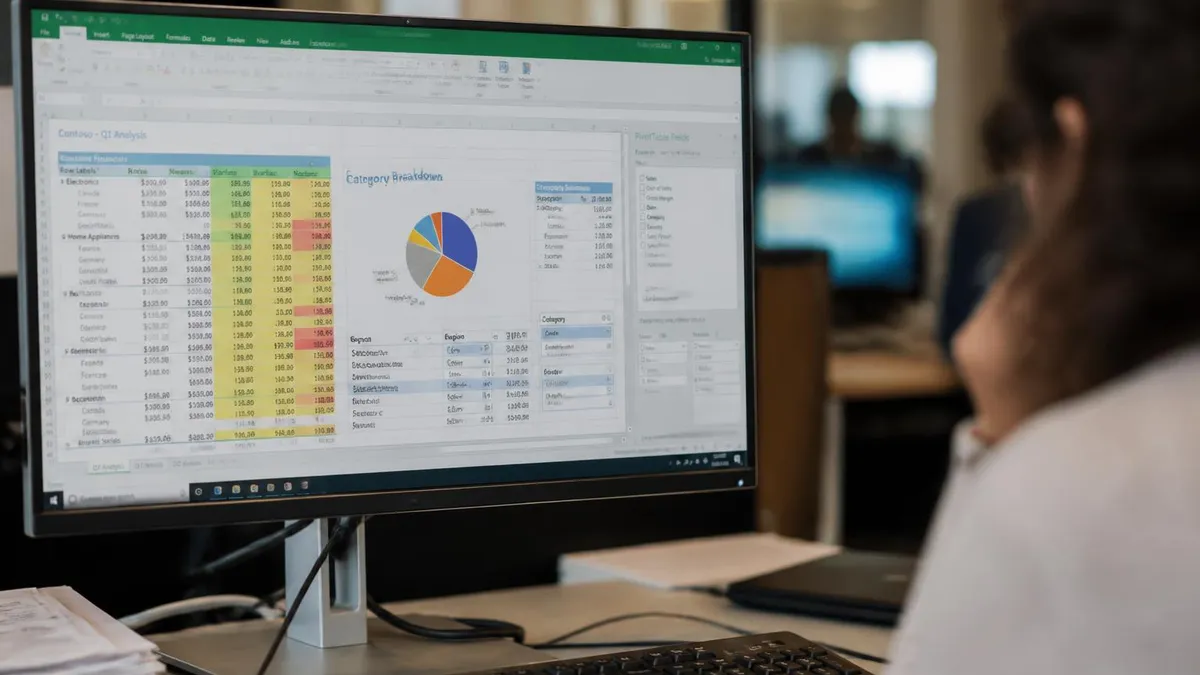
Excel Chart Quick Reference
Common Chart Mistakes to Avoid
Pie charts with more than six slices become unreadable. Slices smaller than 5 percent of the total are invisible. Replace with a bar chart or a stacked bar chart for the same data with better readability.
3D charts make front-positioned values look larger than back-positioned ones regardless of actual values. Stick to 2D charts. The flat presentation conveys the data more accurately.
Charts without axis labels force readers to guess what the numbers represent. Always label both axes including units of measurement. The five seconds it takes to add labels saves readers minutes of confusion.
Excel default colors are recognisable as Excel defaults and signal hasty work. Apply your brand or document theme colors via the Chart Design tab. Even a small custom palette improves the perceived quality of the deliverable.
Static-range charts do not include new rows added below. Convert the source range to an Excel Table or use dynamic arrays so the chart range expands automatically. This is the single most useful technical upgrade for working dashboards.
Five or more line series on the same chart produce visual noise. Split into multiple smaller charts (small multiples) so each chart has at most three to five series. Readers compare across small multiples better than they parse single dense charts.
Saving Charts as Templates
If you find yourself building the same chart style repeatedly, save it as a chart template. Right-click the chart, choose Save as Template, and give the template a meaningful name. Excel saves the template in your user profile under the Charts folder. Future charts can be created from the template by opening the All Charts dialog and clicking the Templates tab. The template captures formatting choices including colors, fonts, axis settings and gridline visibility, but it does not capture the specific data — the new chart inherits the look while showing whatever data you have selected.
Templates are especially useful in teams that publish charts with consistent branding. A finance team can save a chart template that uses the company color palette, specific axis formatting and a standard layout, then every team member produces consistent charts without hand-styling each one. The templates can be shared by copying the .crtx file from the Charts folder to other team members' computers, although Microsoft has been moving toward cloud-based template synchronisation for Microsoft 365 users.
Beyond personal templates, Excel also supports applying themes from the Page Layout tab. Themes change the colors, fonts and effects across the entire workbook, including any charts. Switching themes is a fast way to test how a chart looks in different brand palettes before committing to a specific design. Custom themes can be created and saved similarly to chart templates, and they affect every visual element rather than just charts. The combination of consistent themes and chart templates produces dashboards that feel polished and intentional rather than assembled piecemeal.
Excel Charts vs Alternatives
- +Built into every Excel installation — no additional software required
- +Direct connection to the underlying spreadsheet data
- +Wide variety of chart types covering most common analytical needs
- +Easy to update as data changes
- +Familiar to nearly every spreadsheet user globally
- −Default formatting looks dated compared to modern data visualisation tools
- −Limited interactivity compared to Power BI, Tableau or web-based alternatives
- −Complex multi-series charts can become cluttered quickly
- −Mobile and Excel for the Web have reduced chart customisation options
- −Brand-consistent styling requires manual setup unless saved as templates
Pros and Cons at a Glance
| Pros | Cons |
|---|---|
| Built into every Excel installation — no additional software required | Default formatting looks dated compared to modern data visualisation tools |
| Direct connection to the underlying spreadsheet data | Limited interactivity compared to Power BI, Tableau or web-based alternatives |
| Wide variety of chart types covering most common analytical needs | Complex multi-series charts can become cluttered quickly |
| Easy to update as data changes | Mobile and Excel for the Web have reduced chart customisation options |
| Familiar to nearly every spreadsheet user globally | Brand-consistent styling requires manual setup unless saved as templates |
Excel Questions and Answers
About the Author

Business Consultant & Professional Certification Advisor
Wharton School, University of PennsylvaniaKatherine Lee earned her MBA from the Wharton School at the University of Pennsylvania and holds CPA, PHR, and PMP certifications. With a background spanning corporate finance, human resources, and project management, she has coached professionals preparing for CPA, CMA, PHR/SPHR, PMP, and financial services licensing exams.