
Excel Program: Complete Guide to Microsoft Excel Features, Formulas, and Practical Uses
Master the Excel program with this complete guide covering formulas, VLOOKUP, drop-down lists, freezing rows, merging cells, and removing duplicates. ⏳

The Excel program is Microsoft's flagship spreadsheet application and remains the most widely used data analysis tool in business, finance, education, and research across the United States. From small business owners tracking inventory to Wall Street analysts modeling complex derivatives, the Excel program offers a depth of functionality that has kept it dominant for over thirty-five years. Whether you are opening your first workbook or refining advanced pivot table skills, understanding the core capabilities of this software unlocks productivity gains that translate directly into career advancement and better decision-making.
At its heart, the Excel program organizes information into a grid of rows and columns called a worksheet, with each individual box known as a cell. Cells can contain raw text, numbers, dates, or formulas that calculate values dynamically based on other cells. This simple structure scales remarkably well, supporting workbooks with millions of rows, dozens of linked sheets, and thousands of formulas working in concert to deliver real-time insights for everything from monthly budgets to enterprise financial reports.
The current version of Excel ships as part of Microsoft 365, the subscription suite that also includes Word, PowerPoint, and Outlook, alongside a standalone perpetual license called Office 2024. The software is available on Windows, macOS, the web, iOS, and Android, giving users flexibility to work across devices without losing formatting or formulas. Cloud integration through OneDrive enables real-time collaboration, version history, and automatic saving, which has transformed how teams build and maintain shared spreadsheet models.
Beginners often start by learning navigation, basic formatting, and simple SUM formulas, then progress to intermediate tools such as conditional formatting, data validation, and lookup functions like VLOOKUP and XLOOKUP. Advanced users dive into pivot tables, Power Query for data transformation, Power Pivot for relational modeling, and VBA macros for automation. The Excel program's learning curve rewards consistent practice, and most professionals continue discovering new features years into daily use. For a deeper dive on related statistical tooling, see our guide on excellent bath towels shortcuts and standard deviation functions.
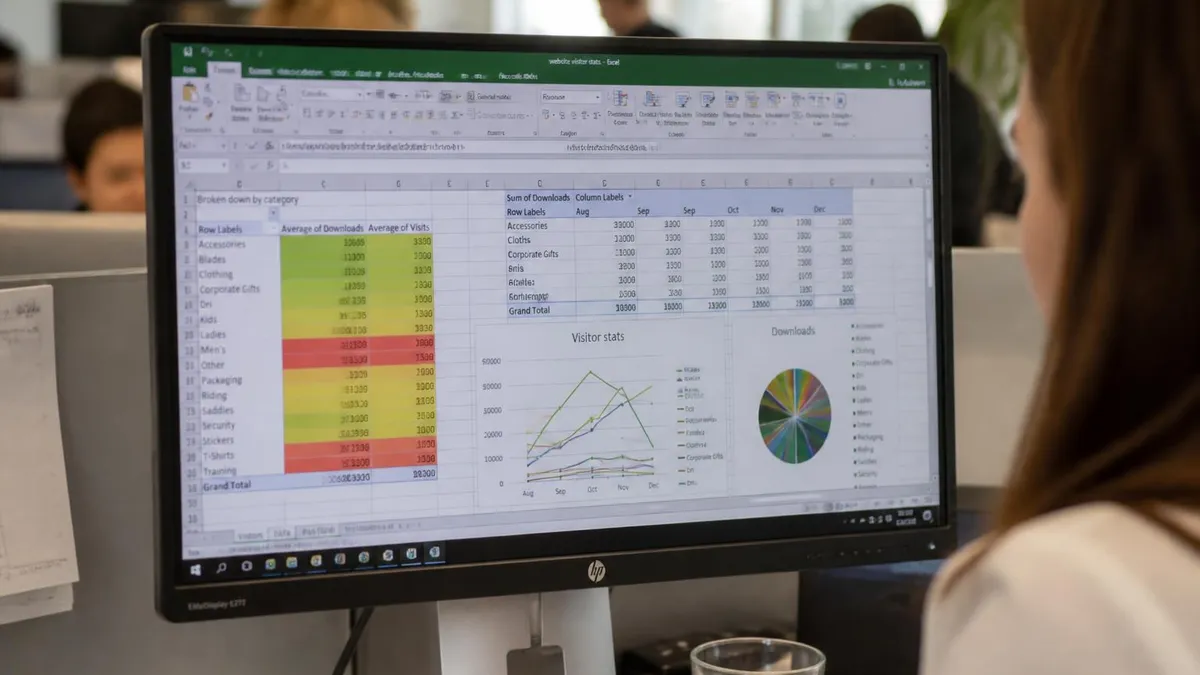
Beyond formulas, the Excel program supports strong data visualization through charts, sparklines, conditional formatting heatmaps, and Power BI integration. You can build interactive dashboards that update automatically when underlying data refreshes, present executive-level summaries with slicers and timelines, and export polished visuals into presentations. These capabilities turn raw numbers into stories that decision-makers can act on, which is why Excel literacy is consistently ranked among the top three job skills demanded across finance, accounting, marketing, operations, and human resources roles.
This comprehensive guide walks you through everything from the fundamentals of opening your first workbook to mastering high-value features like VLOOKUP, drop-down lists, freezing rows, merging cells, and removing duplicates. We will also cover keyboard shortcuts, common pitfalls, and study resources designed to help you build job-ready proficiency. Whether you are preparing for a Microsoft Office Specialist certification, polishing your résumé, or simply trying to finish that quarterly report faster, the strategies below will help you use the Excel program more efficiently and accurately.
By the end of this article, you should understand not just what the Excel program can do, but how to choose the right feature for each task you face. Excel is enormous, and trying to learn every function at once leads to overwhelm. Instead, we focus on the twenty percent of capabilities that deliver eighty percent of real-world value, then point you to deeper resources, including free quizzes, to reinforce what you have learned through active practice rather than passive reading.
Excel Program by the Numbers

Excel Program Core Features You Should Know
A workbook is a single Excel file containing one or more worksheets. Each worksheet is a grid with over a million rows and sixteen thousand columns, giving you ample space for large datasets, financial models, and multi-sheet reports.
Excel includes over 500 built-in functions across math, statistics, lookup, text, logical, and financial categories. Formulas always begin with an equals sign and can reference cells, ranges, or other worksheets to deliver dynamic, recalculating results.
Build column, bar, line, pie, scatter, waterfall, funnel, and map charts directly from selected data. Combined with sparklines and conditional formatting, Excel turns raw numbers into intuitive visuals that highlight trends, outliers, and performance gaps.
Pivot tables summarize large datasets by dragging fields into rows, columns, values, and filters. They aggregate, sort, count, and average instantly, making them the most powerful analytical feature in the Excel program for non-programmers.
Power Query connects to databases, web pages, and files to transform messy data into clean tables. Power Pivot extends pivot tables with relationships, DAX formulas, and the ability to handle millions of rows efficiently in memory.
Formulas are what separate the Excel program from a simple table editor. Every formula begins with an equals sign, followed by a combination of cell references, operators, and functions. The simplest example is =A1+B1, which adds the values of two cells, but Excel quickly scales to sophisticated expressions like nested IF statements, array formulas, and dynamic spilling functions introduced in recent versions. Mastering this syntax is the single highest-use skill any Excel user can develop, and most certifications test it heavily.
Functions are pre-built formulas that handle common tasks. SUM, AVERAGE, COUNT, MIN, and MAX are the foundation, followed by logical tools like IF, AND, OR, and IFS for decision-based calculations. Text functions including CONCAT, LEFT, RIGHT, MID, TRIM, and SUBSTITUTE clean and reshape strings, while date functions like TODAY, NETWORKDAYS, EOMONTH, and DATEDIF handle the messy reality of calendars, time zones, and fiscal years that every business eventually faces.
Lookup functions deserve special attention because they answer the most common business question: given one value, what is the related value somewhere else? VLOOKUP, the most famous example, searches the first column of a range and returns a value from a column to the right. XLOOKUP, introduced in 2020, removes VLOOKUP's directional limitation and handles errors gracefully without nested IFERROR wrappers. INDEX and MATCH remain powerful for complex two-way lookups that XLOOKUP cannot match. Our guide on excel definition explores related techniques.
Statistical functions support data analysis at every skill level. AVERAGEIF, COUNTIF, SUMIF, and their plural cousins AVERAGEIFS, COUNTIFS, and SUMIFS apply conditions to aggregations, letting you answer questions like average sales for the West region during Q3. STDEV.P, STDEV.S, VAR.P, and PERCENTILE handle deeper statistical work, while LINEST and TREND fit regression models without leaving the spreadsheet, making Excel a credible alternative to specialized tools for many analytical workflows.
Logical and information functions provide conditional branching and error handling. IF returns one value when a condition is true and another when false; IFS handles multiple conditions cleanly without nested parentheses; IFERROR and IFNA catch division-by-zero and lookup failures so dashboards stay clean. ISNUMBER, ISBLANK, ISTEXT, and ISERROR validate inputs before downstream calculations run, preventing silent errors that can quietly compound across a model and undermine its credibility with stakeholders.
The Excel program added dynamic array functions in 2020 that revolutionized formula writing. FILTER returns rows matching criteria, SORT and SORTBY reorder ranges, UNIQUE extracts distinct values, and SEQUENCE generates number series. These functions spill results across multiple cells from a single formula, eliminating the need for complex helper columns. LAMBDA, introduced shortly after, lets advanced users define reusable custom functions in pure Excel without VBA, opening doors to truly modular spreadsheet design.
Financial functions support business modeling directly. PMT calculates loan payments, NPV and IRR evaluate project returns, FV and PV handle compound interest, and SLN, DDB, and SYD depreciate assets under different methods. Combined with data tables, scenario manager, and Goal Seek, these functions turn Excel into a complete financial modeling environment that powers everything from personal mortgage planning to billion-dollar corporate forecasts at Fortune 500 finance teams across the country.
Microsoft Excel Practice Test Questions
Prepare for the Microsoft Excel exam with our free practice test modules. Each quiz covers key topics to help you pass on your first try.
Microsoft Excel Excel Basic and Advance
Microsoft Excel Exam Questions covering Excel Basic and Advance. Master Microsoft Excel Test concepts for certification prep.
Microsoft Excel Excel Formulas
Free Microsoft Excel Practice Test featuring Excel Formulas. Improve your Microsoft Excel Exam score with mock test prep.
Microsoft Excel Excel Functions
Microsoft Excel Mock Exam on Excel Functions. Microsoft Excel Study Guide questions to pass on your first try.
Microsoft Excel Excel MCQ
Microsoft Excel Test Prep for Excel MCQ. Practice Microsoft Excel Quiz questions and boost your score.
Microsoft Excel Excel
Microsoft Excel Questions and Answers on Excel. Free Microsoft Excel practice for exam readiness.
Microsoft Excel Excel Trivia
Microsoft Excel Mock Test covering Excel Trivia. Online Microsoft Excel Test practice with instant feedback.
Microsoft Excel Advanced Data Analysis Tools
Free Microsoft Excel Quiz on Advanced Data Analysis Tools. Microsoft Excel Exam prep questions with detailed explanations.
Microsoft Excel Advanced Formula and Macro...
Microsoft Excel Practice Questions for Advanced Formula and Macro Creation. Build confidence for your Microsoft Excel certification exam.
Microsoft Excel Advanced Formulas and Macros
Microsoft Excel Test Online for Advanced Formulas and Macros. Free practice with instant results and feedback.
Microsoft Excel Basic and Advance Question...
Microsoft Excel Study Material on Basic and Advance Questions and Answers. Prepare effectively with real exam-style questions.
Microsoft Excel Creating and Managing Charts
Free Microsoft Excel Test covering Creating and Managing Charts. Practice and track your Microsoft Excel exam readiness.
Microsoft Excel Data Visualization with Ch...
Microsoft Excel Exam Questions covering Data Visualization with Charts. Master Microsoft Excel Test concepts for certification prep.
Microsoft Excel Formulas and Functions
Free Microsoft Excel Practice Test featuring Formulas and Functions. Improve your Microsoft Excel Exam score with mock test prep.
Microsoft Excel Formulas and Functions App...
Microsoft Excel Mock Exam on Formulas and Functions Application. Microsoft Excel Study Guide questions to pass on your first try.
Microsoft Excel Formulas Questions and Ans...
Microsoft Excel Test Prep for Formulas Questions and Answers. Practice Microsoft Excel Quiz questions and boost your score.
Microsoft Excel Functions Questions and An...
Microsoft Excel Questions and Answers on Functions Questions and Answers. Free Microsoft Excel practice for exam readiness.
Microsoft Excel Managing Data Cells and Ra...
Microsoft Excel Mock Test covering Managing Data Cells and Ranges. Online Microsoft Excel Test practice with instant feedback.
Microsoft Excel Managing Tables and Data
Free Microsoft Excel Quiz on Managing Tables and Data. Microsoft Excel Exam prep questions with detailed explanations.
Microsoft Excel Managing Tables and Table ...
Microsoft Excel Practice Questions for Managing Tables and Table Data. Build confidence for your Microsoft Excel certification exam.
Microsoft Excel Managing Worksheets and Wo...
Microsoft Excel Test Online for Managing Worksheets and Workbooks. Free practice with instant results and feedback.
Microsoft Excel MCQ Questions and Answers
Microsoft Excel Study Material on MCQ Questions and Answers. Prepare effectively with real exam-style questions.
Microsoft Excel Questions and Answers
Free Microsoft Excel Test covering Questions and Answers. Practice and track your Microsoft Excel exam readiness.
VLOOKUP Excel, Drop-Down Lists, and Freezing Rows
VLOOKUP excel is one of the most-searched functions in the entire Excel program because it solves a universal business problem: finding related data across two tables. The syntax is VLOOKUP(lookup_value, table_array, col_index_num, [range_lookup]). For example, =VLOOKUP(A2, EmployeeData!A:D, 3, FALSE) finds the value in A2 within the first column of the EmployeeData sheet and returns the matching value from the third column, with FALSE forcing an exact match rather than approximate.
Common VLOOKUP pitfalls include the function only searching to the right of the lookup column, returning #N/A when values are not found, and producing wrong results when the table array shifts because absolute references were not used. Wrap VLOOKUP in IFERROR for friendlier output, lock ranges with dollar signs like $A$1:$D$100, and consider XLOOKUP for new spreadsheets since it removes the column-index numbering and supports left-direction lookups natively.

Excel Program: Pros and Cons for Business Use
- +Familiar interface that millions of professionals already know reduces training costs
- +Massive function library covers finance, statistics, text manipulation, and lookups
- +Pivot tables let non-programmers analyze tens of thousands of rows instantly
- +Power Query automates messy data cleaning from databases, websites, and CSV files
- +Cross-platform availability on Windows, Mac, web, iOS, and Android via Microsoft 365
- +Strong ecosystem of templates, add-ins, and online learning resources from beginner to expert
- +VBA and Office Scripts enable powerful automation when built-in features fall short
- −Performance degrades on workbooks above a few hundred thousand rows or many formulas
- −Errors are easy to introduce and hard to audit without disciplined naming and formatting
- −Real-time collaboration still lags Google Sheets in some edge cases and conflict handling
- −Subscription pricing for Microsoft 365 adds up across teams compared to free alternatives
- −Steep learning curve for advanced features like Power Pivot, DAX, and array formulas
- −File-based versioning leads to copies floating around email instead of single source of truth
Pros and Cons at a Glance
| Pros | Cons |
|---|---|
| Familiar interface that millions of professionals already know reduces training costs | Performance degrades on workbooks above a few hundred thousand rows or many formulas |
| Massive function library covers finance, statistics, text manipulation, and lookups | Errors are easy to introduce and hard to audit without disciplined naming and formatting |
| Pivot tables let non-programmers analyze tens of thousands of rows instantly | Real-time collaboration still lags Google Sheets in some edge cases and conflict handling |
| Power Query automates messy data cleaning from databases, websites, and CSV files | Steep learning curve for advanced features like Power Pivot, DAX, and array formulas |
| Strong ecosystem of templates, add-ins, and online learning resources from beginner to expert | File-based versioning leads to copies floating around email instead of single source of truth |
Excel Program Mastery Checklist
- ✓Memorize the top twenty keyboard shortcuts including Ctrl+C, Ctrl+V, Ctrl+Z, F2, F4, and Ctrl+Shift+L
- ✓Practice writing SUM, AVERAGE, COUNTIF, and SUMIF without looking up syntax
- ✓Build at least three pivot tables from scratch using a real dataset of one thousand rows or more
- ✓Learn how to create a drop down list in excel using Data Validation with both static and dynamic sources
- ✓Master VLOOKUP, then upgrade to XLOOKUP and INDEX-MATCH for flexible two-way lookups
- ✓Use Conditional Formatting to highlight duplicates, top values, and out-of-range numbers automatically
- ✓Apply remove duplicates excel through the Data tab and via formulas like UNIQUE and COUNTIF
- ✓Practice how to freeze a row in excel and how to merge cells in excel for clean report headers
- ✓Build one complete dashboard combining charts, slicers, and pivot tables linked to source data
- ✓Take at least two practice quizzes to identify weak areas before any certification exam
Shortcut keys save the average analyst 8 hours per month
Studies from productivity researchers show that fluent keyboard shortcut users finish identical Excel tasks roughly forty percent faster than mouse-driven users. Investing one focused hour into memorizing the top twenty shortcuts pays back within a single workweek and compounds for the rest of your career.
Data cleaning is where most Excel work actually happens, even though formulas get the spotlight. Real datasets arrive with leading spaces, inconsistent capitalization, mixed date formats, stray punctuation, and duplicate rows that quietly inflate counts and break joins. Learning the remove duplicates excel feature is therefore one of the highest-impact skills you can develop early. Select your range, click the Data tab, choose Remove Duplicates, pick the columns that define uniqueness, and Excel will report how many rows were removed and how many unique entries remain.
Beyond the dialog box, formulas give you nondestructive ways to identify and count duplicates. COUNTIF(A:A, A2) returns the number of times the value in A2 appears in the entire column, and any result greater than one flags a duplicate. The UNIQUE function, available in Microsoft 365 and Excel 2021, returns a clean spilled list of distinct values from any range, making it perfect for building dropdown sources, dashboard filters, and summary tables without manually trimming the data.
TRIM removes leading, trailing, and internal multiple spaces, which solves an astonishing number of mysterious lookup failures. CLEAN strips nonprintable characters that often arrive in data exported from web forms or legacy systems. UPPER, LOWER, and PROPER standardize text casing, while SUBSTITUTE and REPLACE handle targeted find-and-replace operations inside formulas. Combining TRIM with CLEAN inside an IFERROR-wrapped VLOOKUP eliminates roughly ninety percent of the lookup mismatches that plague beginner analysts working with externally sourced data.
Text-to-Columns under the Data tab splits a single cell into multiple columns based on a delimiter like a comma, space, or tab, which is invaluable when full names, addresses, or comma-separated tags arrive lumped together. Flash Fill, accessible with Ctrl+E, takes this further by detecting patterns from a few examples and applying the same transformation to thousands of rows automatically. Power Query offers the most strong solution for repeatable cleaning pipelines that refresh whenever new data arrives.
Conditional formatting transforms data quality work into a visual experience. Highlight Cells Rules can flag values greater than a threshold, between two numbers, equal to a specific text, or containing a substring. Top/Bottom Rules surface the largest or smallest entries, and Data Bars, Color Scales, and Icon Sets turn entire columns into mini-charts that reveal outliers and patterns at a glance. These visual cues catch errors that pure numerical inspection often misses, especially across long columns.
Sorting and filtering remain workhorses for exploration. The standard AutoFilter, activated with Ctrl+Shift+L, adds dropdown arrows to every column header so you can quickly narrow rows by value, color, or condition. Advanced Filter handles complex multi-criteria queries with output to a separate location, while the FILTER function provides a formula-based alternative that updates automatically. Sorting on multiple columns through the Sort dialog handles primary, secondary, and tertiary ordering, perfect for organizing records by region, then product, then date.
Excel Tables, created with Ctrl+T, are the unsung hero of clean spreadsheet design. Converting a range into a table gives you automatic header banding, built-in filters, structured references like Sales[Revenue] instead of $B$2:$B$5000, and automatic expansion when new rows are added. Pivot tables and charts built on top of tables refresh seamlessly when the underlying data grows. Adopting tables as your default for any list of related records is a foundational habit that pays dividends across every subsequent skill you build.
Remove Duplicates and Sort operations are destructive and cannot be undone after saving and closing the file. Always work on a copy of your source data, or convert ranges to Excel Tables first so structured references protect downstream formulas. Save a snapshot before any large cleaning operation.
The career value of fluency with the Excel program is hard to overstate. Job postings from Indeed, LinkedIn, and Glassdoor consistently list Excel as a required or preferred skill for roles in accounting, finance, marketing analytics, operations, supply chain, project management, human resources, and even healthcare administration. Salary surveys show that candidates who can demonstrate intermediate or advanced Excel proficiency earn five to fifteen percent more than otherwise comparable applicants, and certification can shorten the path from entry-level to analyst-track positions significantly.
Microsoft offers an official Microsoft Office Specialist credential, with separate Associate and Expert levels for Excel. The Associate exam covers managing workbooks, cell formatting, tables, formulas, and charts, while the Expert exam tests advanced data management, custom formats, advanced formulas including dynamic arrays, and advanced charts and pivot tables. Both exams are performance-based, meaning you complete real tasks inside a live Excel environment rather than answering multiple-choice questions about features you might never have used.
Beyond Microsoft's certifications, third-party credentials from providers like LinkedIn Learning, Coursera, and Udemy can demonstrate skill, though they carry less weight than the official MOS. For finance-specific roles, Wall Street Prep and Corporate Finance Institute offer Excel-heavy programs that teach financial modeling using the program's tools in context. Combining a recognized certification with a portfolio of three to five well-documented spreadsheet projects gives interviewers concrete evidence of your capabilities far more persuasive than a generic résumé line.
Self-study remains the most popular path, and the resources available today are exceptional. Microsoft's own support documentation is thorough and free. YouTube channels run by experts like ExcelIsFun, Leila Gharani, and MyOnlineTrainingHub cover everything from beginner basics to advanced Power Pivot. Books such as Excel 2024 Bible and Microsoft Excel Inside Out offer comprehensive reference material. Pair video learning with deliberate practice on real datasets to convert passive watching into durable skill. For specialized practice, our guide on bill and ted's excellent adventure cast covers pane-freezing in detail.
Practice quizzes are particularly effective because they force active recall, which research consistently shows produces deeper learning than rereading or highlighting. Mixing quiz formats across multiple choice, scenario-based, and fill-in-the-blank styles exposes gaps that single-format study masks. After each quiz, review every missed question, look up the relevant feature in Excel itself, and replicate the example until you can do it without hints. This loop of practice, feedback, and application builds genuine fluency rather than surface familiarity.
Networking with other Excel users accelerates growth in ways that solo study cannot. Reddit's r/excel community answers thousands of questions weekly, and the Microsoft Tech Community hosts deeper discussions among MVPs and product engineers. Stack Overflow remains the go-to for formula and VBA troubleshooting, while LinkedIn groups and local user meetups offer career-focused networking. Sharing your own solutions, even as a beginner, cements your understanding and builds visibility that often leads to freelance work, internal promotions, or new job opportunities.
Finally, never underestimate the value of teaching Excel to others. Explaining a pivot table to a colleague, recording a short Loom video for your team, or writing a blog post about a tricky formula forces you to articulate exactly what is happening under the hood. This articulation reveals gaps in your own understanding and converts implicit knowledge into explicit mastery. Many of the most respected Excel experts started by simply documenting their own learning publicly, and that habit can quietly transform a useful workplace skill into a defining career advantage.
To get the most out of the Excel program, structure your practice around real projects rather than abstract exercises. Download a public dataset from a government open data portal, a Kaggle competition, or your own bank statement, and try to answer three meaningful questions about it. This grounding in real questions forces you to combine multiple features in realistic ways, which is exactly how working analysts use the tool every day. Abstract drills teach syntax; real projects teach judgment.
Build a personal cheatsheet as you learn. Every time you look up a formula or feature for the second time, copy the syntax and a short example into a running document organized by topic. After a few weeks, you will have a personalized reference that matches your actual workflows. Searching your own notes is faster than searching the web, and the act of writing the cheatsheet entries reinforces the memory. Many professionals maintain such reference workbooks for their entire careers.
Adopt a consistent style for your spreadsheets. Use one tab color for input sheets, another for calculations, and a third for outputs and dashboards. Format inputs in a distinct color like blue, formulas in black, and external links in green so future you and your collaborators can instantly tell what is hardcoded versus calculated. Name important ranges and tables clearly so formulas read like English. Style discipline scales: messy spreadsheets become unmaintainable nightmares within weeks. Our guide on excel high school shortcuts complements this approach.
Automate repetitive tasks early. If you find yourself doing the same five clicks every Monday morning, that workflow belongs in a macro, an Office Script, or a Power Query connection. Recording a macro takes minutes and turns a thirty-minute weekly chore into a single button press, freeing you for higher-value analysis. Even simple automations compound across a year into days of recovered time, and the discipline of identifying repetition is itself a transferable skill that hiring managers actively look for.
Always validate critical numbers with a second independent calculation. If a pivot table reports revenue of one point two million dollars, build a SUMIF formula in a separate cell and confirm it matches. This cross-check catches filter mistakes, accidentally-included blank rows, and silent data-type issues that would otherwise reach stakeholders unnoticed. The five seconds it takes to add a check formula is the cheapest insurance you can buy against a public spreadsheet error that erodes trust in your work.
Schedule regular skill-building blocks on your calendar, even just thirty minutes per week. Consistency beats intensity in skill development, and Excel rewards spaced practice more than cramming. Pair each session with a specific feature or function you want to learn, work through two or three examples, and apply it to a real workbook before the session ends. Six months of weekly thirty-minute blocks produces noticeably more capable analysts than two intensive weekends followed by no practice for a year.
Finally, remember that the Excel program is constantly evolving. Microsoft ships meaningful updates to Microsoft 365 several times each year, including major function additions like XLOOKUP, dynamic arrays, LAMBDA, and recently Python in Excel. Subscribing to the official Excel blog, following Microsoft's Excel team on LinkedIn, and watching release notes ensures you know about new capabilities as they ship. Many advanced users build their reputation simply by being the first on their team to adopt and demonstrate each new feature in real workflows.
Sample Excel Practice Questions
Try these questions from our free Excel practice tests. The correct answer and an explanation follow each question.
Which of the following is NOT a valid cell reference style in Excel?
- A. A1
- B. R1C1
- C. AA100
- D. 1A
Answer: D. 1A
Cell references in the A1 style must begin with the column letter(s) followed by the row number.
Which Excel chart type is best suited for showing the proportion of parts to a whole?
- A. Line chart
- B. Bar chart
- C. Pie chart
- D. Scatter chart
Answer: C. Pie chart
A pie chart displays each category as a slice of the whole circle, making part-to-whole relationships immediately visible.
Which of the Excel screen components can't be turned on or off?
- A. Tool Bar
- B. Formula Bar
- C. Status Bar
- D. None of these
Answer: D. None of these
Show Formula bar option by clciking the File (or Office button) > Options > Advances > Display> Show Formula bar. In earlier version of Excel, you could hide the status bar if you wanted more space available for your worksheets. However, the capability was removed starting with Excel 2017. In earlier version of Excel, yoou could hide the tool bar as per requirement. However, that capability was removed starting Excel 2007 and introduced Ribbon.
Which spreadsheet application was Excel primarily designed to compete against?
- A. Lotus 1-2-3
- B. VisiCalc
- C. Quattro Pro
- D. Google Sheets
Answer: A. Lotus 1-2-3
Lotus 1-2-3 dominated the spreadsheet market in the 1980s, and Microsoft developed Excel specifically to surpass it in features and usability.
Excel Questions and Answers

Standard Deviation Formula in Excel: STDEV.P vs STDEV.S Guide

How to Add a Filter in Excel: AutoFilter, Advanced and FILTER Function

Freeze Panes in Excel: Complete Guide to Locking Rows and Columns

Count Unique Values in Excel: COUNTUNIQUE, COUNTIF, and SUMPRODUCT Methods

How to Calculate Coefficient of Variation in Excel: Complete Step-by-Step Guide
About the Author

Business Consultant & Professional Certification Advisor
Wharton School, University of PennsylvaniaKatherine Lee earned her MBA from the Wharton School at the University of Pennsylvania and holds CPA, PHR, and PMP certifications. With a background spanning corporate finance, human resources, and project management, she has coached professionals preparing for CPA, CMA, PHR/SPHR, PMP, and financial services licensing exams.