
Excel Practice Exercises: The Complete 2026 October Guide to Hands-On Spreadsheet Training That Builds Real Skills
🟢 Master Excel with hands-on practice exercises covering formulas, VLOOKUP, pivot tables, and more. Free drills, datasets, and quizzes inside.

Excel practice exercises are the fastest way to move from passive tutorial watching to genuine spreadsheet fluency, and they remain the single most reliable predictor of on-the-job Excel performance in 2026. Reading about INDEX-MATCH or watching a five-minute YouTube walkthrough creates the illusion of competence, but recall collapses the moment you face a blank workbook and a messy dataset. Structured drills build the muscle memory recruiters actually test for in technical interviews.
Whether you are preparing for a Microsoft Office Specialist certification, a finance analyst case study, or simply trying to stop wasting hours on tasks Excel could do in seconds, deliberate practice beats every other study method. The exercises in this guide range from beginner cell formatting to advanced array formulas, and each one is designed around a real workplace scenario rather than abstract textbook puzzles.
The same principle drives elite training programs from finance bootcamps to the institute of creative excellence — repetition under realistic constraints. You do not learn to drive by reading the manual, and you do not learn Excel by hovering over the ribbon. You learn by typing formulas, breaking them, debugging them, and typing them again until the syntax feels automatic.
This guide walks you through twelve categories of practice exercises, from foundational navigation and formatting drills to advanced Power Query and dynamic array challenges. Each section pairs concept explanations with downloadable-style datasets you can recreate in minutes, plus links to free interactive quizzes so you can verify your understanding before moving on to the next skill tier.
You will also find practical guidance on how often to practice, how to track progress, which exercises map to which job roles, and which mistakes derail most self-taught learners. The goal is not to overwhelm you with a thousand functions but to build a focused rotation of twenty-five high-use skills that cover roughly ninety percent of real-world Excel work.
If you are already comfortable with basics like SUM and IF, jump to the intermediate and advanced sections covering VLOOKUP, XLOOKUP, dynamic arrays, conditional aggregation, and pivot table drill-downs. If you are starting from zero, work through the beginner drills first and resist the temptation to skip ahead — the foundations make every advanced technique easier to absorb later.
By the end of this guide, you will have a repeatable practice routine, a measurable skill checklist, and a clear understanding of how to convert thirty minutes a day into demonstrable spreadsheet expertise within ninety days. Bookmark this page, open a blank workbook, and let the typing begin.
Free Excel Study Tools
Interactive Excel resources on PracticeTestGeeks, free to start:
- Excel practice test — 500+ questions with instant scoring and answer explanations
- Excel flashcards — review key terms and concepts card by card
- Excel study guide — topic-by-topic overview of what the exam covers
- Excel cheat sheet — one-page printable summary for last-minute review
Excel Practice by the Numbers

Twelve Categories of Excel Practice Exercises
Drills that build keyboard fluency, ribbon awareness, and selection speed. The foundation for every other skill — slow navigation caps your ceiling no matter how good your formulas are.
Cell styles, number formats, conditional formatting, borders, and merged cells. Includes practice on how to merge cells in excel without losing data and when alternative layouts work better.
SUM, AVERAGE, IF, COUNTIF, SUMIFS, ROUND, and the logical operators. Master these twenty core functions and you can solve roughly seventy percent of everyday spreadsheet problems.
VLOOKUP, HLOOKUP, INDEX, MATCH, XLOOKUP, and the dynamic array family. The single most-tested skill in Excel job interviews and finance certifications.
Drop-down menus, input restrictions, custom rules, and dependent lists. Practice how to create a drop down list in excel for clean data entry forms and dashboards.
Building pivot tables from raw data, grouping fields, calculated items, slicers, and connecting multiple pivots to a single slicer for executive dashboards.
Beginner Excel practice exercises focus on building the unconscious habits that separate fluent users from people who fight with the software every day. Before you touch a single formula, spend at least three sessions drilling navigation: Ctrl+Arrow to jump to the edge of data, Ctrl+Shift+Arrow to extend a selection, F2 to edit in place, Alt+Enter to insert a line break, and Ctrl+; to drop in today's date. These shortcuts compound — a user who saves three seconds per task performs thousands of extra operations per week.
The next foundational exercise is data entry under constraints. Create a blank workbook, type a column of fifty random product names, a column of fifty prices, and a column of fifty quantities. Then format the prices as US currency with two decimals, the quantities as comma-separated whole numbers, and apply alternating row shading using conditional formatting. This single drill reinforces formatting, number types, and visual hierarchy in under fifteen minutes.
Formatting drills should include practicing how to freeze a row in excel so the header stays visible while you scroll through long tables. Use View > Freeze Panes > Freeze Top Row, then experiment with Freeze First Column and the more flexible Freeze Panes option that locks everything above and to the left of your active cell. Many beginners never learn this, then suffer through scrolling-back-to-check-headers a hundred times a day.
Another essential beginner exercise is the merge-and-center workout. Build a small invoice header, merge the top row across columns A through F, center the company name, then unmerge and recreate the same visual effect using Center Across Selection from the Format Cells dialog. The second approach preserves cell structure for sorting and filtering, which is why most professional financial models avoid true merges entirely.
Sorting and filtering drills teach you to interrogate data quickly. Take any dataset with at least five columns, apply an AutoFilter, then practice multi-level sorting by region first and revenue second. Add a Number Filter to show only values above a threshold, then a Text Filter to isolate entries containing a specific substring. The goal is to perform each of these operations without looking at the ribbon by the end of week two.
Beginners should also practice the paste-special menu until it feels automatic. Copy a range with formulas, then paste only values, only formats, only formulas, or transposed. Each option solves a recurring real-world problem: paste values stops formulas from breaking when you move data, paste formats applies a style without overwriting numbers, and transpose flips rows into columns in a single action rather than a manual rewrite.
Finally, every beginner exercise routine should include a save-and-version habit. Create a folder called Excel Practice, save each daily exercise with a date-stamped filename, and never overwrite yesterday's work. Within thirty days you will have a portfolio of solved problems you can revisit, refactor, and use as reference templates — a quiet form of compound progress that most self-taught learners completely overlook.
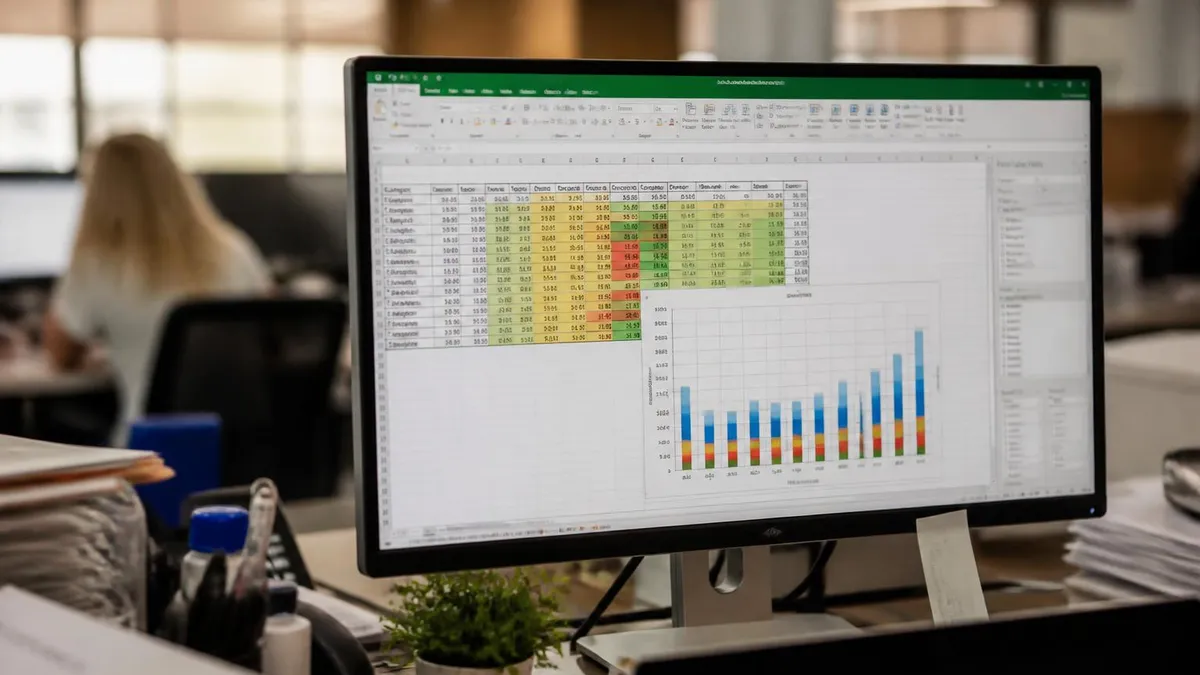
Microsoft Excel Practice Test Questions
Prepare for the Microsoft Excel exam with our free practice test modules. Each quiz covers key topics to help you pass on your first try.
Microsoft Excel Excel Basic and Advance
Microsoft Excel Exam Questions covering Excel Basic and Advance. Master Microsoft Excel Test concepts for certification prep.
Microsoft Excel Excel Formulas
Free Microsoft Excel Practice Test featuring Excel Formulas. Improve your Microsoft Excel Exam score with mock test prep.
Microsoft Excel Excel Functions
Microsoft Excel Mock Exam on Excel Functions. Microsoft Excel Study Guide questions to pass on your first try.
Microsoft Excel Excel MCQ
Microsoft Excel Test Prep for Excel MCQ. Practice Microsoft Excel Quiz questions and boost your score.
Microsoft Excel Excel
Microsoft Excel Questions and Answers on Excel. Free Microsoft Excel practice for exam readiness.
Microsoft Excel Excel Trivia
Microsoft Excel Mock Test covering Excel Trivia. Online Microsoft Excel Test practice with instant feedback.
Microsoft Excel Advanced Data Analysis Tools
Free Microsoft Excel Quiz on Advanced Data Analysis Tools. Microsoft Excel Exam prep questions with detailed explanations.
Microsoft Excel Advanced Formula and Macro...
Microsoft Excel Practice Questions for Advanced Formula and Macro Creation. Build confidence for your Microsoft Excel certification exam.
Microsoft Excel Advanced Formulas and Macros
Microsoft Excel Test Online for Advanced Formulas and Macros. Free practice with instant results and feedback.
Microsoft Excel Basic and Advance Question...
Microsoft Excel Study Material on Basic and Advance Questions and Answers. Prepare effectively with real exam-style questions.
Microsoft Excel Creating and Managing Charts
Free Microsoft Excel Test covering Creating and Managing Charts. Practice and track your Microsoft Excel exam readiness.
Microsoft Excel Data Visualization with Ch...
Microsoft Excel Exam Questions covering Data Visualization with Charts. Master Microsoft Excel Test concepts for certification prep.
Microsoft Excel Formulas and Functions
Free Microsoft Excel Practice Test featuring Formulas and Functions. Improve your Microsoft Excel Exam score with mock test prep.
Microsoft Excel Formulas and Functions App...
Microsoft Excel Mock Exam on Formulas and Functions Application. Microsoft Excel Study Guide questions to pass on your first try.
Microsoft Excel Formulas Questions and Ans...
Microsoft Excel Test Prep for Formulas Questions and Answers. Practice Microsoft Excel Quiz questions and boost your score.
Microsoft Excel Functions Questions and An...
Microsoft Excel Questions and Answers on Functions Questions and Answers. Free Microsoft Excel practice for exam readiness.
Microsoft Excel Managing Data Cells and Ra...
Microsoft Excel Mock Test covering Managing Data Cells and Ranges. Online Microsoft Excel Test practice with instant feedback.
Microsoft Excel Managing Tables and Data
Free Microsoft Excel Quiz on Managing Tables and Data. Microsoft Excel Exam prep questions with detailed explanations.
Microsoft Excel Managing Tables and Table ...
Microsoft Excel Practice Questions for Managing Tables and Table Data. Build confidence for your Microsoft Excel certification exam.
Microsoft Excel Managing Worksheets and Wo...
Microsoft Excel Test Online for Managing Worksheets and Workbooks. Free practice with instant results and feedback.
Microsoft Excel MCQ Questions and Answers
Microsoft Excel Study Material on MCQ Questions and Answers. Prepare effectively with real exam-style questions.
Microsoft Excel Questions and Answers
Free Microsoft Excel Test covering Questions and Answers. Practice and track your Microsoft Excel exam readiness.
VLOOKUP Excel and Lookup Function Practice
VLOOKUP excel practice starts with a simple two-column lookup table — say, product IDs in column A and prices in column B. In a separate cell, type a product ID, then use VLOOKUP to return its price. Practice toggling the fourth argument between TRUE and FALSE until you understand why exact-match lookups require FALSE and why approximate matches require sorted data.
Once basic VLOOKUP feels natural, build a price lookup that returns five different columns from a master table using a single key. Then deliberately break the formula by inserting a new column in the middle of your lookup range — this exposes VLOOKUP's brittleness and motivates the upgrade to INDEX-MATCH or XLOOKUP, both of which survive column insertions without rewrites.
Self-Guided Excel Practice vs Structured Courses
- +Free or near-free compared to bootcamp tuition that often exceeds two thousand dollars
- +Schedule flexibility — practice during lunch, evenings, or weekend mornings as your calendar allows
- +Lets you focus deeply on the exact functions your role demands rather than a generic curriculum
- +Repetition is unlimited — repeat the same exercise five times until the syntax becomes automatic
- +Builds genuine problem-solving stamina because you debug your own mistakes without a safety net
- +Portfolio of saved workbooks becomes interview material you can walk through with hiring managers
- +Forces you to read official Microsoft documentation, a habit that pays off across every other software tool
- −No instructor feedback means you can reinforce bad habits like merged-cell overuse for months
- −Easy to skip uncomfortable topics like array formulas or Power Query, leaving permanent skill gaps
- −Hard to know whether your speed and accuracy match professional benchmarks without external testing
- −Lack of structured progression can leave you bouncing between random tutorials with no curriculum
- −Motivation tends to collapse around week three without external accountability or cohort pressure
- −Self-taught users often miss enterprise features like shared workbooks, data models, and OneDrive coauthoring
- −No formal certificate at the end, which still matters for some HR screening filters in larger companies
Pros and Cons at a Glance
| Pros | Cons |
|---|---|
| Free or near-free compared to bootcamp tuition that often exceeds two thousand dollars | No instructor feedback means you can reinforce bad habits like merged-cell overuse for months |
| Schedule flexibility — practice during lunch, evenings, or weekend mornings as your calendar allows | Easy to skip uncomfortable topics like array formulas or Power Query, leaving permanent skill gaps |
| Lets you focus deeply on the exact functions your role demands rather than a generic curriculum | Hard to know whether your speed and accuracy match professional benchmarks without external testing |
| Repetition is unlimited — repeat the same exercise five times until the syntax becomes automatic | Lack of structured progression can leave you bouncing between random tutorials with no curriculum |
| Builds genuine problem-solving stamina because you debug your own mistakes without a safety net | Motivation tends to collapse around week three without external accountability or cohort pressure |
| Portfolio of saved workbooks becomes interview material you can walk through with hiring managers | Self-taught users often miss enterprise features like shared workbooks, data models, and OneDrive coauthoring |
Daily Excel Practice Exercises Checklist
- ✓Open a blank workbook and type a fresh dataset of at least 50 rows from memory
- ✓Complete one navigation drill using only keyboard shortcuts — no mouse for ten minutes
- ✓Write three lookup formulas using VLOOKUP, INDEX-MATCH, and XLOOKUP on the same dataset
- ✓Build one pivot table from raw data and add a slicer to filter results dynamically
- ✓Practice creating a drop-down list in a validation cell with a custom error message
- ✓Apply conditional formatting that uses a formula rule rather than a preset
- ✓Use Text-to-Columns or Power Query to split one messy column into structured fields
- ✓Write one nested IF or IFS formula with at least three conditions and edge-case handling
- ✓Save the workbook with a date-stamped filename in your Excel Practice folder
- ✓Take a five-minute timed quiz to test recall before closing your laptop for the day
Spend thirty minutes a day on thirty different exercises across thirty days
Most self-taught Excel users plateau because they repeat the same five formulas they already know. The 30-30-30 method forces variety: every day you tackle a different exercise category, and within thirty days you have touched every major Excel skill at least twice. Pair this rotation with a written log of what felt easy and what felt confusing, and your weak spots become impossible to ignore.
Advanced Excel practice exercises move beyond single-formula drills into integrated workflows that mirror real analyst work. Start with a financial modeling exercise: download or recreate three years of fictional company income statements, then build a fourth year projection using growth-rate assumptions in a separate input section. Link every projected cell to assumption cells with absolute references, and stress-test by changing a single growth rate to confirm the entire model updates correctly.
A second advanced exercise is the reconciliation challenge. Create two datasets that should match — say, a sales ledger and a bank deposit log — but introduce ten deliberate discrepancies like rounding errors, missing entries, and date mismatches. Use SUMIFS, COUNTIFS, and conditional formatting to surface every difference within ten minutes. This exact workflow appears in nearly every accounting and audit job, and mastering it pays dividends for an entire career.
Power Query exercises take practice to a new level. Import a folder of monthly CSV files using From Folder, then combine them into a single appended table, clean the column types, and load the result back into Excel. Once the query is built, dropping a new CSV into the source folder and clicking Refresh updates the entire workbook in seconds — a transformation that often replaces hours of manual copy-paste work.
Dynamic array exercises in Microsoft 365 unlock a completely new style of formula writing. Practice FILTER to return rows matching multiple conditions, SORT and SORTBY to reorder spillable arrays, UNIQUE to extract distinct values without removing duplicates manually, and SEQUENCE to generate numbered lists on the fly. Combine these in a single dashboard cell that auto-updates as your underlying data changes — no pivot table required.
Statistical exercises deserve their own practice block. Build a dataset of student test scores, then calculate mean, median, mode, standard deviation, variance, and percentiles using both formulas and the Data Analysis ToolPak. Compare STDEV.P and STDEV.S to internalize the difference between population and sample statistics, and use the AVERAGEIFS function to compute conditional averages by category — a frequent exam question on Excel certifications.
Macro and VBA exercises bridge Excel into automation territory. Record a simple macro that applies your standard formatting to any selected range, then open the VBA editor and read the generated code line by line. Once comfortable, write a short Sub that loops through a column and highlights every cell containing a specified word. You do not need to become a developer, but understanding VBA basics multiplies what Excel can do for you.
Finally, the capstone advanced exercise is a full mini-dashboard. Take messy raw data, clean it with Power Query, summarize it with pivot tables, visualize it with at least three chart types, and add interactive slicers tied to multiple pivots. Save it, walk away for a week, then return and try to reproduce it from scratch. The second build reveals which steps you actually understood versus which ones you copied from memory.
Always practice in sandbox workbooks with fictional or scrubbed datasets. Practicing advanced functions on live financial records, customer lists, or HR files risks accidental overwrites, formula errors that propagate, and potential data-privacy violations. Create a dedicated practice folder, use clearly labeled filenames like practice-vlookup-2026-05-23.xlsx, and never connect practice files to live data sources or shared drives.
Building a sustainable Excel practice routine is mostly a calendar problem, not a knowledge problem. The most common failure mode is the weekend warrior approach — eight hours on Saturday, nothing for two weeks, then guilt-driven cramming. Spaced practice of thirty focused minutes per day produces dramatically better retention than long marathon sessions, just as it does in language learning and athletic training. Block the time on your calendar like any other meeting and protect it.
Pair your practice routine with measurable milestones. Week one: navigation and formatting fluency. Week two: core formulas including SUMIFS, COUNTIFS, and nested IFs. Week three: lookup functions with VLOOKUP, INDEX-MATCH, and XLOOKUP. Week four: pivot tables and slicers. Each week, end with a self-administered quiz from a trusted source, and grade yourself honestly. A score below eighty percent means repeat the week — there is no rush.
Track your progress in a simple log workbook with three columns: date, exercise completed, and confidence rating from one to five. After thirty entries, sort by confidence and you will see exactly which skills need more reps. This metacognitive habit alone separates serious learners from casual dabblers, and it costs nothing beyond a few seconds at the end of each session.
Use real-world datasets whenever possible. Kaggle hosts thousands of free CSV files covering everything from movie ratings to airline delays, and government open-data portals offer demographic, economic, and weather data that mimic what you will face in actual jobs. Working with imperfect data — extra spaces, inconsistent dates, mixed text and numbers — forces you to use Excel's cleaning tools rather than just its calculation tools.
Find or build a small accountability circle. A weekly fifteen-minute call with one other Excel learner where you each demo something new keeps motivation high and exposes you to techniques you would never discover alone. If no peer is available, post screenshots of your practice workbooks on Reddit's r/excel or LinkedIn — the feedback from strangers is often surprisingly specific and useful.
Resist the urge to chase every new feature Microsoft announces. The Excel team ships updates monthly, and most are irrelevant to ninety percent of users. Focus your practice on the twenty-five core functions and ten core workflows that dominate real-world spreadsheet work. Once those feel automatic, you can add Power Pivot, LAMBDA, and Python-in-Excel selectively as specific problems demand them.
Finally, reward yourself for consistency, not for difficulty. A thirty-day streak of basic-to-intermediate exercises produces more lasting skill than five sessions of trying to wrestle with array formulas you do not yet have the foundation for. Excel mastery is a long compounding curve, and the people who win are the ones who simply keep showing up to the keyboard, day after day, for months at a time.
Practical Excel preparation tips can shave weeks off your learning curve if you adopt them early. First, customize your Quick Access Toolbar to include the five commands you use most often — typically Paste Values, Format Painter, Sort, Filter, and Freeze Panes. These become single-keystroke operations via Alt+1 through Alt+5, and the time savings compound across every workbook you ever touch for the rest of your career.
Second, learn to navigate the Name Box and use named ranges aggressively. Selecting a range and typing TaxRate into the Name Box turns that cell into a global variable you can reference by name in any formula. Named ranges make formulas self-documenting and dramatically reduce the cognitive load of reading complex models built by other people, including the older version of yourself from six months ago.
Third, master the F-key family. F2 edits the active cell, F4 toggles absolute references in a formula, F9 recalculates the workbook (or evaluates a selected formula fragment when editing), F5 opens Go To with its powerful Special menu, and F11 creates a chart from selected data instantly. Each of these saves dozens of mouse clicks per day, and together they form the keyboard backbone of expert Excel users.
Fourth, build a personal snippet library of formulas you frequently use. A simple text file or Notion page with your most-used SUMIFS patterns, XLOOKUP templates, and conditional formatting formulas means you never have to rewrite the same nested logic twice. Copy from your snippet library, paste into the workbook, swap the cell references, and ship. Professional engineers do this constantly — Excel users should too.
Fifth, learn Excel's error values cold. The seven main errors — #DIV/0, #N/A, #NAME?, #NULL!, #NUM!, #REF!, and #VALUE! — each signal a specific problem class, and recognizing them instantly cuts debugging time in half. Wrap risky formulas in IFERROR to display friendly fallback values, but never use IFERROR as a lazy way to hide problems you have not actually diagnosed.
Sixth, prioritize speed over flash. A clean, well-organized workbook with consistent formatting and clear input cells beats a flashy dashboard with broken links every single time. Practice the habit of color-coding inputs in blue, formulas in black, and links to other sheets in green — the same convention used in professional investment banking models. Recruiters notice this instantly during technical interviews.
Finally, practice teaching what you have learned. Explain VLOOKUP out loud to an imaginary student, or write a one-paragraph blog post on how to create a drop-down list. The act of articulating knowledge exposes gaps that quiet reading never reveals. The best Excel users in any office are usually the ones who answer the most colleague questions, because explaining the answer is itself the highest-use form of practice.
Sample Excel Practice Questions
Try these questions from our free Excel practice tests. The correct answer and an explanation follow each question.
Which feature determines the input value that will provide a desired outcome after starting with a desired result?
- A. Reverse formula
- B. Data validation
- C. SmartArt
- D. Goal seek
Answer: D. Goal seek
Goal Seek is an Excel feature that determines the input value required to achieve a specific desired result (outcome) from a formula. Instead of manually adjusting input values, you tell Excel the target value you want for a formula and which input cell to change. Excel then iteratively calculates the necessary input to reach that goal.
How do you create a named range that automatically expands?
- A. Use Define Name with a fixed range
- B. Use OFFSET and COUNTA in the name definition
- C. Set the range to 'Dynamic' in Name Manager
- D. Named ranges cannot expand
Answer: B. Use OFFSET and COUNTA in the name definition
Combining OFFSET with COUNTA creates a dynamic named range that grows with your data.
Which tool lets you add clickable buttons that filter both a PivotTable and its PivotChart at the same time?
- A. Data Validation list
- B. Slicer
- C. Conditional Formatting
- D. Sparklines
Answer: B. Slicer
Slicers provide visual filters connected to one or more PivotTables and their charts.
Which function counts only the cells in a range that contain numbers?
- A. COUNTA
- B. COUNTIF
- C. COUNT
- D. COUNTBLANK
Answer: C. COUNT
COUNT tallies only numeric values, ignoring text, blanks, and errors.
⌨️ Which keyboard shortcuts should I practice first in Excel?
Start with Ctrl+Arrow keys, which jump to the edge of the current data region, and Ctrl+Shift+Arrow, which extends the selection to that edge. On Windows, Ctrl+Home returns to cell A1 and Ctrl+; enters today's date as a static value.
START EXCEL BASICS PRACTICE TEST🔎 How do I make VLOOKUP return an exact match?
Set the fourth argument, range_lookup, to FALSE or 0, as in =VLOOKUP(A2,Prices!A:B,2,FALSE). If you omit it, Excel defaults to TRUE (approximate match), which requires the first column to be sorted ascending and can silently return the wrong row.
START EXCEL FORMULAS PRACTICE TEST🧭 Which Excel versions have XLOOKUP?
XLOOKUP is available in Microsoft 365, Excel 2021, Excel 2024 and Excel for the web, but not in Excel 2019 or earlier. It returns exact matches by default and can look left, so it replaces most VLOOKUP and INDEX-MATCH exercises on newer versions.
START EXCEL FUNCTIONS PRACTICE TEST🔗 Why practice INDEX and MATCH instead of only VLOOKUP?
INDEX-MATCH works in every Excel version and can return values from a column to the left of the lookup column, which VLOOKUP cannot. Use 0 as the third argument of MATCH for an exact match, as in =INDEX(B:B,MATCH(E2,C:C,0)).
START EXCEL FORMULAS PRACTICE TEST💲 How do I lock a cell reference so it does not change when copied?
Add dollar signs to make it absolute, such as $A$1, or a mixed reference like $A1 or A$1. On Windows, pressing F4 while the cursor is in a reference cycles through the four reference types.
START EXCEL FORMULAS PRACTICE TEST➕ What is the argument order difference between SUMIF and SUMIFS?
SUMIF puts the range to add last: =SUMIF(range,criteria,sum_range). SUMIFS puts it first, followed by criteria pairs: =SUMIFS(sum_range,criteria_range1,criteria1,...). Mixing up this order is one of the most common errors in formula practice.
START EXCEL FUNCTIONS PRACTICE TEST📋 What does Ctrl+T do in Excel?
Ctrl+T converts the selected range into an Excel table with filter buttons and banded rows. Tables grow automatically when you add rows, and formulas can use structured references like =SUM(Sales[Amount]) instead of fixed cell ranges.
START EXCEL TABLES PRACTICE TEST📊 How do I create a pivot table for practice?
Click any cell in a dataset with a single header row and no blank columns, then choose Insert > PivotTable. Drag fields into the Rows, Columns, Values and Filters areas; summarizing one dataset several ways is a classic intermediate exercise.
START EXCEL BASICS PRACTICE TEST⚡ What is Flash Fill and how do I use it?
Flash Fill, added in Excel 2013, fills a column automatically once it detects a pattern from your examples, such as splitting full names into first names. Type one or two examples, then press Ctrl+E or choose Data > Flash Fill.
START EXCEL BASICS PRACTICE TEST🛡️ How do I hide #N/A and other errors in formula results?
Wrap the formula in IFERROR(value,value_if_error), for example =IFERROR(VLOOKUP(A2,D:E,2,FALSE),"Not found"). Use it carefully in practice, because it hides every error type, including real mistakes such as #REF! or #NAME?.
START EXCEL FUNCTIONS PRACTICE TESTExcel Questions and Answers
Official Resources
- Microsoft Support: Excel help & learning is Microsoft's official hub for Excel training videos, function references and how-to articles.
- Microsoft Learn: Microsoft Office Specialist Excel Expert (Microsoft 365 Apps) lists the official skills measured for Microsoft's advanced Excel certification.
- Certiport: Microsoft Office Specialist is the Pearson VUE testing program that delivers MOS exams, including Excel, and explains how to schedule one.

Excel Functions List: The Complete Reference Guide to Every Formula You Need in 2026

Excel Finance Functions Guide With PMT, NPV, IRR and Loan Models

How to Convert Text to Excel: The Complete 2026 Guide to Importing TXT and CSV Files Into Spreadsheets

Excel Merge Tables: The Complete 2026 Guide to Combining Data Across Worksheets

Standard Deviation Formula in Excel: STDEV.P vs STDEV.S Guide
About the Author

Business Consultant & Professional Certification Advisor
Wharton School, University of PennsylvaniaKatherine Lee earned her MBA from the Wharton School at the University of Pennsylvania and holds CPA, PHR, and PMP certifications. With a background spanning corporate finance, human resources, and project management, she has coached professionals preparing for CPA, CMA, PHR/SPHR, PMP, and financial services licensing exams.