
Excel Basics for Beginners: Cells, Rows, Columns and the Ribbon Explained
🔎 Learn Excel basics: workbooks vs sheets, cells (A1), 1,048,576 rows, columns A-XFD, the ribbon, formula bar, Name Box, typing, and saving.

Open Excel for the first time and the screen looks like a dashboard for a small spaceship. There is a grid. There are tabs. There is a long fat strip of icons at the top, a thin white box on the left, a wider box stretching across, and a status bar humming at the bottom.
None of it is labeled in plain English. That is the bad news. The good news — every single one of those pieces has a name, a job, and a shortcut. Once you learn the names, the spaceship turns into a workshop you can actually use.
This guide walks through the absolute basics of Excel for someone who has either never opened it, or has opened it a hundred times and still nods politely when a colleague says "just put it in cell B7." You will learn what a workbook is, what a worksheet is, why cells are named with letters and numbers, what the ribbon does, where to find the formula bar and the Name Box, and what the status bar is quietly tracking for you. By the time you finish, the layout will stop being a mystery and start being a tool.
One small promise before we dive in. You do not need to memorise anything. Excel is a giant program — even people who use it daily for years still discover features. The goal here is not memorisation. It is recognition. When someone says "check the formula bar," you will know where to look. When they ask "is that on a different worksheet," you will know what they mean. The vocabulary is the hardest part. After that, everything else is just practice.

Those numbers are not just trivia. They are the boundaries of the grid you are about to learn to live inside. A single worksheet holds over a million rows and sixteen thousand columns — that is roughly 17 billion cells per sheet, far more than anyone uses in a normal spreadsheet. Yet if you ever scrape a giant CSV from a database, you will run into those limits. Good to know they exist.
Let us start with the most important piece of vocabulary in the whole program. A workbook is the file. One Excel file = one workbook. The file ends in .xlsx (or .xlsm if it contains macros), and when you double-click it in Finder or File Explorer, Excel opens that workbook in its own window.
Inside the workbook are one or more worksheets, also called "sheets" or just "tabs." Look at the bottom of the Excel window — those little tabs labeled Sheet1, Sheet2, and so on are individual worksheets. A fresh workbook starts with one worksheet. You can add more by clicking the plus icon next to the tabs. Each worksheet has its own grid, its own formulas, its own data. They share the same file, but they are otherwise independent.
So when someone asks what is a workbook in Excel, the cleanest answer is: a workbook is the whole .xlsx file, the container. The worksheets inside are the pages of that container. Think of a workbook as a binder, and worksheets as individual sheets of paper inside it.
Workbook is the file. Worksheet is a tab inside it.
If you ever lose the thread, come back to this: the workbook is the saved file (the .xlsx). The worksheets are the individual tabs you see along the bottom — Sheet1, Sheet2, and so on. One workbook can hold many worksheets. People also call worksheets "sheets" or "tabs." All three words mean the same thing.
Now the cell. A cell is one rectangle in the grid — the intersection of a single column and a single row. That is it. When you click on the grid, the rectangle you highlighted is a cell, and Excel calls it by its address: the column letter followed by the row number. Click the top-left rectangle and you are in cell A1. Click one to the right and you are in B1. Click one down from there and you are in B2. Letters first, numbers second, always.
Beginners often ask what is a Excel cell in the most practical sense. Here is the answer that actually matters. A cell is the smallest container Excel has. You type a value into a cell. You write a formula into a cell. You apply formatting to a cell. Every single thing Excel does happens inside, or with reference to, a cell. Learn to think in cells, and Excel makes sense fast.
The address — A1, B2, C3 — is called a cell reference. References are how formulas talk about cells. If you type =A1+B1 into cell C1, you are telling Excel: take whatever is in A1, add whatever is in B1, show the result here. Move the values around and the formula updates automatically. That is the engine that makes spreadsheets a calculation tool, not just a fancy table.
Columns and rows are the cell's coordinates. A column is a vertical strip of cells, identified by a letter at the top — A, B, C, D, and so on. Past Z, Excel rolls over to AA, AB, AC… all the way out to XFD, which is the 16,384th and last column. So when someone asks what is a column in Excel, the answer is: it is the vertical group of cells that share a column letter. Column A. Column B. Column AA.
A row is a horizontal strip of cells, identified by a number on the left — 1, 2, 3, all the way down to 1,048,576. What is a row on Excel? It is the horizontal group of cells sharing a row number. Row 1. Row 2. Row 47. Where a column and a row meet, you get a cell. Every cell sits at exactly one column-letter, row-number coordinate. Always.
The Four Pieces of the Grid
The Excel file itself (.xlsx). One workbook is one saved file. Open it, close it, share it as a single document.
A single tab inside the workbook, also called a sheet. A workbook can hold many worksheets, each with its own grid.
A single rectangle on the grid, the intersection of one column and one row. Identified by its address — A1, B7, AA42.
Columns run vertically with letter labels (A to XFD). Rows run horizontally with number labels (1 to 1,048,576).
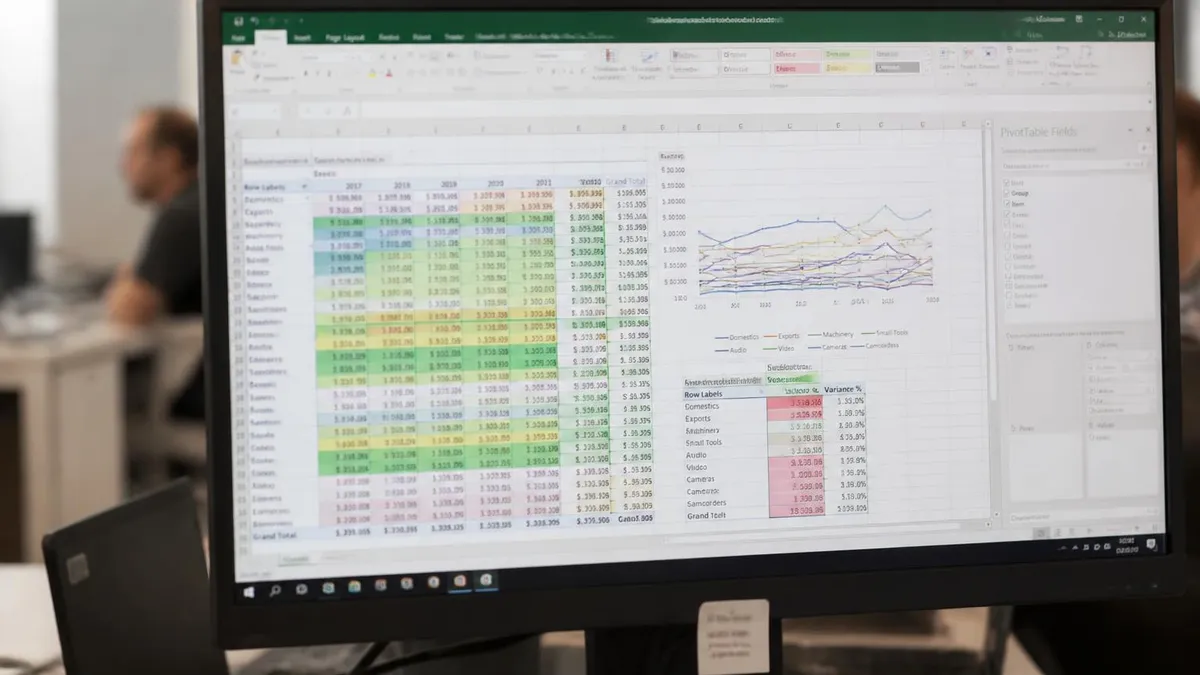
With the grid vocabulary out of the way, let us look at everything that surrounds the grid. The top of the Excel window is dominated by the ribbon interface. The ribbon is that wide strip of colored icons and labels that sits above the grid. It contains all of Excel's commands, grouped into tabs — Home, Insert, Page Layout, Formulas, Data, Review, View, and on newer versions, Help. Click any tab and the ribbon redraws to show that tab's commands.
The ribbon replaced the old File menu and toolbar system back in Excel 2007, and people had strong feelings at the time. Today, almost every Office app uses the same ribbon. Once you accept that the commands live in tabs by category, the ribbon becomes friendly. Want to format text? Home tab. Want to add a chart? Insert tab. Want to write a formula? Formulas tab. Categories are mostly intuitive.
Some quick orientation. The Home tab is where the most-used commands live — copy, paste, font, alignment, number formats, conditional formatting, sort, filter. You will spend more time on Home than on any other tab. Insert is for adding things that did not exist before — charts, pivot tables, pictures, shapes, hyperlinks. Page Layout controls how the worksheet prints. Formulas hosts the function library. Data covers external connections, sort, filter, and validation. Review has spell-check and comments. View toggles gridlines, freeze panes, and zoom.
Above the ribbon, on the very top of the window, sits the Quick Access Toolbar. By default it has Save, Undo, and Redo. You can right-click any ribbon command and add it to the Quick Access Toolbar — handy for commands you use constantly. Some users move the toolbar below the ribbon for easier reach; right-click and pick "Show below the ribbon."
The Three Bars You See on Every Screen
The formula bar is the long white strip directly above the grid. It shows whatever is in the active (currently selected) cell. If the cell contains a number, you see the number. If the cell contains a formula like =SUM(A1:A10), the grid shows the result while the formula bar shows the formula. Click into the formula bar to edit the cell's contents directly — useful for long formulas that overflow the cell.
To toggle the formula bar on or off: View tab > Show group > Formula Bar checkbox.
Now let us actually type something. Click any cell — let us say B2. The cell gets a green border, the Name Box on the left shows "B2," and Excel is waiting. Type the word Hello and press Enter. The word lands in B2, and the selection drops to B3. That is text input, the simplest thing Excel does.
Click B2 again. Press Delete. Type the number 100 and press Enter. Now B2 holds a number. Notice that Excel aligned the word "Hello" to the left and the number 100 to the right. That is the default — text left, numbers right. Excel uses alignment to give you a fast visual signal about what kind of data is in a cell.
Type something more interesting. Click B3. Type =B2*2 and press Enter. B3 now displays 200. The cell shows the calculated result, while the formula bar shows the formula you typed. That is the core trick of every spreadsheet ever made: type a formula, get a result, change the inputs, watch the result update. Every Excel feature, from pivot tables to dashboards, is just a more elaborate version of that one trick.
Formulas always start with an equals sign. =A1+A2. =SUM(A1:A10). =IF(B5>100,"big","small"). The equals sign tells Excel: do not store this as text, evaluate it. Skip the equals sign and Excel treats your formula as a plain string. That is the single most common beginner mistake — typing SUM(A1:A10) and wondering why the cell shows the text SUM(A1:A10) instead of a number. Equals sign first, always.
What about copy and paste? Select any cell, press Ctrl+C (Cmd+C on Mac), click a destination, press Ctrl+V (Cmd+V). The contents — value, formula, formatting — move to the new cell. If you copy a formula, Excel automatically updates cell references to be relative to the new location. Copy =A1+B1 from C1 to C2 and the formula in C2 becomes =A2+B2. That auto-adjustment is called a relative reference, and it is genuinely one of the most useful things Excel does for free.
If you type SUM(A1:A10) into a cell, you will see the text "SUM(A1:A10)" sitting there as a string — no calculation, no result. Excel only treats a cell's contents as a formula when the very first character is an equals sign. Type =SUM(A1:A10) and you get the answer. This is the number-one beginner mistake, and once you internalise it, formulas stop being mysterious.
A quick word on saving — because nothing in this guide matters if your work vanishes when you close the program. The first time you save a new workbook, Excel asks where to put it and what to call it. The default file extension is .xlsx, which is the modern Microsoft Excel file format. That is what you want for almost everything. (.xlsm is for workbooks that contain macros; .csv is plain text for data exchange; .pdf is for read-only sharing.)
To save, press Ctrl+S (Windows) or Cmd+S (Mac). The first save opens a dialog so you can name the file and pick a folder. Every save after that is silent — the keystroke just overwrites the existing file. A microsoft excel file save takes a fraction of a second. Hit Ctrl+S every minute or two while you work. It is the cheapest insurance in the program.
If you are signed into Microsoft 365 with OneDrive, Excel will offer to save the file to the cloud. Accept that, and AutoSave turns on. From that moment, every change is pushed to OneDrive within a second, and you never have to think about saving again. The green AutoSave toggle in the top-left corner of the window confirms it is running. For local files on your hard drive, AutoSave stays off and Ctrl+S is your friend.
Your First Excel Session — A Checklist
- ✓Open Excel and create a blank workbook — notice the single Sheet1 tab at the bottom
- ✓Click cell A1 and watch the Name Box on the left confirm A1
- ✓Type your name in A1, press Tab, type your age in B1, press Enter
- ✓Click cell A2 and type =B1*2 — see the formula bar show the formula and the cell show the result
- ✓Use the Home tab to make A1 bold, then change the font size
- ✓Press Ctrl+S, name the file practice.xlsx, and save it to your Desktop
- ✓Click the plus icon next to Sheet1 to add a second worksheet
- ✓Select cells A1:B1, look at the status bar at the bottom — Excel shows the sum, average, and count

Beyond the cell, formulas, ribbon, and save shortcut, there are a few habits that separate someone who can use Excel from someone who is comfortable on Excel. None of them are technically advanced — they are just things to do automatically until they become muscle memory.
First, use keyboard shortcuts. Ctrl+S to save. Ctrl+C and Ctrl+V to copy and paste. Ctrl+Z to undo, Ctrl+Y to redo. Ctrl+Arrow keys to jump to the edge of a data block. Ctrl+Home to jump back to A1. Ctrl+End to jump to the last used cell. F2 to edit the current cell without retyping it. F12 to open Save As. These ten or so shortcuts cover most of what you will ever do, and they are roughly ten times faster than reaching for the mouse.
Second, learn to navigate with the Name Box. Type Z500 into the Name Box and press Enter — you teleport straight there. Type A1:C10 to select that range. Once you have a few defined names (custom labels for ranges), the Name Box becomes a search box for your data.
Third, watch the status bar at the bottom. When you select a column of numbers, the status bar instantly shows the sum, average, and count. No formula needed. It is the quickest way in Excel to sanity-check a number — total a column without writing =SUM, and confirm the total looks right. Right-click the status bar to enable Minimum, Maximum, and Numerical Count too.
Fourth, do not be afraid of the ribbon. Click into every tab once and just look. Home, Insert, Page Layout, Formulas, Data, Review, View. Most of the commands have icons that suggest what they do, and hovering over any icon for a second gives you a tooltip with the keyboard shortcut. The ribbon is large because Excel is large. The more you click around, the smaller it feels.
Learning Excel the Right Way
- +Cell-based thinking transfers to Google Sheets, Numbers, and any future spreadsheet you touch
- +Keyboard shortcuts (Ctrl+S, Ctrl+Arrow) save real minutes every day
- +The formula bar and Name Box turn navigation from clicks into typing
- +AutoSave on OneDrive means lost work is mostly a thing of the past
- −Forgetting the equals sign on a formula gives you text instead of a result
- −The ribbon has dozens of tabs and groups — feels overwhelming on day one
- −Default cell references are relative, which surprises people copying formulas
- −Cross-sheet formulas break if you move sheets between workbooks
Pros and Cons at a Glance
| Pros | Cons |
|---|---|
| Cell-based thinking transfers to Google Sheets, Numbers, and any future spreadsheet you touch | Forgetting the equals sign on a formula gives you text instead of a result |
| Keyboard shortcuts (Ctrl+S, Ctrl+Arrow) save real minutes every day | The ribbon has dozens of tabs and groups — feels overwhelming on day one |
| The formula bar and Name Box turn navigation from clicks into typing | Default cell references are relative, which surprises people copying formulas |
| AutoSave on OneDrive means lost work is mostly a thing of the past | Cross-sheet formulas break if you move sheets between workbooks |
One more thing about working on Excel — and this matters more than the shortcuts. Spreadsheets reward small, repeated, low-stakes practice. Open a blank workbook for ten minutes a day, type a few numbers, write a couple of formulas, format the cells, save the file. Do that for two weeks and you will know the ribbon layout, the keyboard shortcuts, the formula-bar trick, and the cell-address system without needing to think. Trying to learn Excel from a single three-hour tutorial almost never sticks. Ten minutes a day for two weeks always does.
If you want a structured path: start with arithmetic formulas (+, -, *, /), then move to SUM, AVERAGE, MIN, MAX, COUNT. Then IF and the logical functions. Then VLOOKUP or the newer XLOOKUP. Then sorting and filtering. Then conditional formatting. Then pivot tables. By the time you reach pivots, you will know enough Excel to be useful in almost any office job in the world. The whole journey is maybe a month of light daily practice.
And do not skip the boring stuff. Saving, naming files, building a folder structure for your workbooks — these habits matter more than any clever formula. The best Excel users I know have files that are easy to find, named clearly, and saved often. The shortcuts and formulas are a layer on top of that boring foundation, not a substitute for it.
To recap the absolute essentials. A workbook is the Excel file. A worksheet is a tab inside the workbook. A cell is one rectangle on the grid, identified by a column letter and a row number — A1, B7, AA42. Columns run vertically (A to XFD), rows run horizontally (1 to 1,048,576). The ribbon at the top holds all the commands grouped into tabs.
The formula bar shows the active cell's contents. The Name Box on the left shows the cell's address and lets you jump anywhere. The status bar at the bottom quietly totals selected numbers. And every formula starts with an equals sign.
That vocabulary is the entire foundation of Excel. Everything else — pivot tables, charts, macros, Power Query — sits on top of those eight or nine concepts. Get them solid and you can learn anything else in Excel by following a YouTube video or a Google search. Skip them and even simple tasks feel like guessing.
So open Excel right now if it is not already open. Click a cell. Type a number. Type a formula. Save the file with Ctrl+S. That is the whole game. The rest is just practice.
Sample Excel Practice Questions
Try these questions from our free Excel practice tests. The correct answer and an explanation follow each question.
Which tab on the Excel ribbon contains the Sort and Filter commands?
- A. Data
- B. Home
- C. View
- D. Insert
Answer: A. Data
The Data tab contains Sort and Filter commands along with other data management tools like Data Validation, Text to Columns, and Remove Duplicates.
A ________ is the point where two rows and columns meet.
- A. sum
- B. chart
- C. cell
- D. worksheet
Answer: C. cell
In spreadsheet programs like Excel, a cell is the fundamental unit where data is stored. It is precisely defined as the intersection point where a row and a column meet. Each cell has a unique address, such as A1 or B5, derived from its column letter and row number.
Which Excel feature automatically applies colors or icons to cells based on their values?
- A. Data Validation
- B. Format Painter
- C. Cell Styles
- D. Conditional Formatting
Answer: D. Conditional Formatting
Conditional Formatting applies rules (color scales, data bars, icon sets, or custom rules) that change a cell's appearance automatically based on its value. Format Painter copies existing formats manually; Data Validation restricts input; Cell Styles apply preset static formats.
Which Excel tool applies different formatting to cells automatically based on the values they contain?
- A. Data Validation
- B. Conditional Formatting
- C. Cell Styles
- D. Format Painter
Answer: B. Conditional Formatting
Conditional Formatting changes a cell's appearance (color, font, borders) dynamically based on rules tied to the cell's value.
Excel Questions and Answers
About the Author

Business Consultant & Professional Certification Advisor
Wharton School, University of PennsylvaniaKatherine Lee earned her MBA from the Wharton School at the University of Pennsylvania and holds CPA, PHR, and PMP certifications. With a background spanning corporate finance, human resources, and project management, she has coached professionals preparing for CPA, CMA, PHR/SPHR, PMP, and financial services licensing exams.