
Excel Date Formatting: The Complete 2026 October Guide to Custom Date Codes, Formulas, and Regional Settings
📗 Master excel date formatting with custom codes, regional settings, formulas, and troubleshooting tips. Complete 2026 October guide with examples and shortcuts.

Excel date formatting is one of those deceptively simple topics that quietly trips up millions of spreadsheet users every single day. You type a perfectly reasonable date like 03/04/2026 into a cell, and Excel decides it should look like a serial number, a left-aligned text string, or worse, March 4th when you meant April 3rd. Mastering how Excel stores, interprets, and displays dates is the foundation for nearly every reporting workflow, from financial models to project timelines to inventory aging reports.
At its core, Excel does not actually store dates as dates. It stores them as sequential serial numbers starting from January 1, 1900, which is day 1. January 1, 2026 is serial number 46023. This means every date calculation, comparison, and format you see on screen is really just arithmetic happening behind a custom display mask. Understanding this distinction unlocks the ability to manipulate, convert, and troubleshoot dates with confidence and precision.
The challenge with dates compounds when you combine regional settings, imported CSV files, text-formatted columns, and pivot table groupings. A single workbook can contain American MM/DD/YYYY values, European DD/MM/YYYY values, ISO 8601 strings, and Unix timestamps all at once. Without consistent formatting rules, your VLOOKUP returns errors, your sort order looks random, and your charts plot the wrong quarters. This guide will walk you through every layer of the system in plain English.
We will cover the built-in date format options, the powerful custom format code language using d, m, y, h, n, and s placeholders, and how to use functions like TEXT, DATEVALUE, DATE, EOMONTH, and WORKDAY to transform raw values. You will also learn how to fix the dreaded text-that-looks-like-a-date problem, handle two-digit year cutoffs, and build dynamic headers that update automatically when the month changes.
For analysts who pivot between functions daily, knowing date formatting alongside core lookup formulas like vlookup excel functions is essential because dates are often the join key between tables. A misformatted date column in one sheet will cause every match against another sheet to fail silently, returning #N/A errors that look like missing data when the problem is actually invisible type mismatch.
Beyond the technical mechanics, smart date formatting transforms how your dashboards communicate. A column showing 1/15/2026 conveys far less than one showing Thu, Jan 15 or Q1 Week 3. Format choices guide the reader's eye, reduce cognitive load, and make trends pop. Excel gives you nearly unlimited control if you know the codes, and this guide hands you that vocabulary along with templates you can copy directly into your own files.
By the end of this article, you will be able to format any date in any style your audience needs, convert messy imported text into clean serial dates, calculate business days between any two points in time, and avoid the regional setting traps that ruin shared workbooks. Whether you are preparing for an Excel certification, building a finance model, or just cleaning up a quarterly report, the skills here will save you hours of frustration.
Excel Date Formatting by the Numbers

How Excel Interprets Dates Step by Step
You Type a Value
Parser Matches Pattern
Serial Number Stored
Format Mask Applied
Recalculation on Change
Excel ships with roughly a dozen built-in date and time format presets that cover the most common display needs. You access them by selecting a cell or range, pressing Ctrl+1 to open the Format Cells dialog, and clicking the Date category. The list shows short dates, long dates, day-month combinations, and locale-specific variants based on the dropdown at the top. Choosing one applies a format mask without you ever needing to learn the underlying code, which is perfect for quick formatting jobs.
The Short Date preset typically displays as M/D/YYYY in US locale, while Long Date renders the full weekday and month name like Thursday, January 15, 2026. Behind both presets is a format code Excel generates automatically. If you ever want to see exactly what code is being used, click Custom in the same dialog after selecting a preset and the Type field will show the mask. This is a fantastic learning trick for understanding how the built-in formats are built up from primitive codes.
Keyboard shortcuts speed things up significantly. Ctrl+Shift+# applies the default date format to the selected range immediately, no dialog required. Ctrl+Shift+@ applies the default time format. For tasks like quickly skimming a column of timestamps, this combination saves dozens of clicks per session. Power users learn these shortcuts early because they appear constantly in tasks similar to how to merge cells in excel workflows where formatting follows structural changes.
One important nuance is that built-in date formats follow your Windows or macOS regional settings, not the workbook itself. If you build a report on a US machine and email it to a colleague in Germany, the same cells may display 15.01.2026 instead of 1/15/2026 even though the underlying serial number is identical. This locale dependency is helpful for personal use but can confuse multinational teams. Custom format codes, which we cover next, bypass this behavior and lock in a specific appearance.
The Format Painter tool is another underrated ally. Once you have a cell formatted exactly the way you want, click the paintbrush icon in the Home tab, then drag across the cells you want to receive the same format. Double-clicking the Format Painter locks it on so you can apply the same mask to multiple non-adjacent ranges without re-selecting. This single trick can replicate complex date formatting across an entire workbook in under a minute.
Conditional formatting also plays a role here. You can highlight dates that fall within the next seven days, mark weekends in gray, or flag overdue items based on TODAY(). The format rules apply visual styling on top of whatever base format the cell already has, so you can layer color coding without disturbing the actual text display. This is how professional dashboards build their at-a-glance status indicators for project timelines and aging reports.
Finally, remember that dates can be combined with times in a single cell. The serial number 46037.75 represents January 15, 2026 at 6:00 PM, since 0.75 of a day equals 18 hours. Format codes like m/d/yyyy h:mm AM/PM display both components together, which is essential for log files, audit trails, and any data where the exact moment matters as much as the calendar day.
Microsoft Excel Practice Test Questions
Prepare for the Microsoft Excel exam with our free practice test modules. Each quiz covers key topics to help you pass on your first try.
Microsoft Excel Excel Basic and Advance
Microsoft Excel Exam Questions covering Excel Basic and Advance. Master Microsoft Excel Test concepts for certification prep.
Microsoft Excel Excel Formulas
Free Microsoft Excel Practice Test featuring Excel Formulas. Improve your Microsoft Excel Exam score with mock test prep.
Microsoft Excel Excel Functions
Microsoft Excel Mock Exam on Excel Functions. Microsoft Excel Study Guide questions to pass on your first try.
Microsoft Excel Excel MCQ
Microsoft Excel Test Prep for Excel MCQ. Practice Microsoft Excel Quiz questions and boost your score.
Microsoft Excel Excel
Microsoft Excel Questions and Answers on Excel. Free Microsoft Excel practice for exam readiness.
Microsoft Excel Excel Trivia
Microsoft Excel Mock Test covering Excel Trivia. Online Microsoft Excel Test practice with instant feedback.
Microsoft Excel Advanced Data Analysis Tools
Free Microsoft Excel Quiz on Advanced Data Analysis Tools. Microsoft Excel Exam prep questions with detailed explanations.
Microsoft Excel Advanced Formula and Macro...
Microsoft Excel Practice Questions for Advanced Formula and Macro Creation. Build confidence for your Microsoft Excel certification exam.
Microsoft Excel Advanced Formulas and Macros
Microsoft Excel Test Online for Advanced Formulas and Macros. Free practice with instant results and feedback.
Microsoft Excel Basic and Advance Question...
Microsoft Excel Study Material on Basic and Advance Questions and Answers. Prepare effectively with real exam-style questions.
Microsoft Excel Creating and Managing Charts
Free Microsoft Excel Test covering Creating and Managing Charts. Practice and track your Microsoft Excel exam readiness.
Microsoft Excel Data Visualization with Ch...
Microsoft Excel Exam Questions covering Data Visualization with Charts. Master Microsoft Excel Test concepts for certification prep.
Microsoft Excel Formulas and Functions
Free Microsoft Excel Practice Test featuring Formulas and Functions. Improve your Microsoft Excel Exam score with mock test prep.
Microsoft Excel Formulas and Functions App...
Microsoft Excel Mock Exam on Formulas and Functions Application. Microsoft Excel Study Guide questions to pass on your first try.
Microsoft Excel Formulas Questions and Ans...
Microsoft Excel Test Prep for Formulas Questions and Answers. Practice Microsoft Excel Quiz questions and boost your score.
Microsoft Excel Functions Questions and An...
Microsoft Excel Questions and Answers on Functions Questions and Answers. Free Microsoft Excel practice for exam readiness.
Microsoft Excel Managing Data Cells and Ra...
Microsoft Excel Mock Test covering Managing Data Cells and Ranges. Online Microsoft Excel Test practice with instant feedback.
Microsoft Excel Managing Tables and Data
Free Microsoft Excel Quiz on Managing Tables and Data. Microsoft Excel Exam prep questions with detailed explanations.
Microsoft Excel Managing Tables and Table ...
Microsoft Excel Practice Questions for Managing Tables and Table Data. Build confidence for your Microsoft Excel certification exam.
Microsoft Excel Managing Worksheets and Wo...
Microsoft Excel Test Online for Managing Worksheets and Workbooks. Free practice with instant results and feedback.
Microsoft Excel MCQ Questions and Answers
Microsoft Excel Study Material on MCQ Questions and Answers. Prepare effectively with real exam-style questions.
Microsoft Excel Questions and Answers
Free Microsoft Excel Test covering Questions and Answers. Practice and track your Microsoft Excel exam readiness.
Custom Format Codes for How to Create a Drop Down List in Excel and Beyond
The d placeholder controls how the day portion appears in your custom format string. A single d shows the day number without a leading zero, so the 5th of the month displays as 5. Double dd forces a leading zero, displaying 05 instead. Use ddd to show the three-letter abbreviated weekday like Mon, Tue, Wed, and dddd to spell out the full weekday name such as Monday or Wednesday in long form.
Combining day codes creates expressive labels for dashboards. The mask ddd, mmm d produces strings like Thu, Jan 15, which read naturally in reports. For inventory aging buckets you might use dd to keep all values two digits wide so they align in a column. Remember that the day code is purely a display transformation, so the same underlying serial drives every variation regardless of which combination you choose.

Custom Format Codes vs Built-In Date Formats
- +Lock in exact appearance regardless of recipient's regional settings
- +Combine date, time, and text elements in one mask like Updated mmm d at h:mm AM/PM
- +Display weekday names and abbreviated months for friendlier dashboards
- +Conditionally color positive and negative date differences using semicolons
- +Build dynamic chart titles that update with the underlying data
- +Use color codes like [Red] to highlight specific date ranges automatically
- −Learning curve for memorizing the d, m, y, h, n, s placeholder vocabulary
- −Mistyping m versus mm can silently change meaning in mixed date-time codes
- −Custom formats do not change the underlying serial, only the display
- −Sharing workbooks with very complex masks can confuse less experienced users
- −Some formats render differently in older Excel versions or Google Sheets
- −Format Cells dialog only shows recently used custom codes, harder to discover
Excel Date Formatting Best Practices Checklist
- ✓Always store dates as real serial values, never as text strings
- ✓Use four-digit years yyyy in custom formats to avoid century ambiguity
- ✓Apply consistent date formats across every sheet in a shared workbook
- ✓Use ISO 8601 format yyyy-mm-dd for international data exchange
- ✓Verify imported CSV dates with =ISNUMBER() before running calculations
- ✓Set the same regional locale across all team members for shared files
- ✓Use DATE function to build dates from separate year, month, day cells
- ✓Apply Ctrl+Shift+# shortcut to quickly format selected cells as dates
- ✓Test format codes on edge cases like leap day February 29 and year boundaries
- ✓Document custom format conventions in a cover sheet for collaborators
Format codes use semicolons to separate positive, negative, zero, and text outputs
A complete custom format can have up to four sections separated by semicolons: positive;negative;zero;text. For date differences, you can use [Red]-d to color negative durations red automatically. This single technique replaces dozens of manual conditional formatting rules in aging reports.
Excel offers a deep library of date functions that turn raw serial numbers into actionable business intelligence. The DATE function is the safest way to construct a date from three integer arguments: DATE(2026, 1, 15) always returns January 15, 2026 regardless of your regional settings. This is essential when you have year, month, and day stored in separate columns from a database export, and you need to combine them into a single sortable, filterable date column for analysis.
The TEXT function flips that operation, taking a date serial and returning a formatted string. TEXT(A1, "dddd, mmmm d, yyyy") converts the value in A1 into a string like Thursday, January 15, 2026. This is perfect for building dynamic headers, email body text, and concatenated labels for dashboards. Just remember that the result is a text string, not a date, so you cannot perform further date math on it without reconverting using DATEVALUE.
EOMONTH and EDATE handle relative date arithmetic that would be painful to do manually. EOMONTH(A1, 0) returns the last day of the month containing A1, while EOMONTH(A1, 3) jumps three months forward to the end of that month. EDATE simply adds or subtracts months while preserving the day. These functions handle leap years, varying month lengths, and year boundaries automatically, which is why they form the backbone of most financial models and amortization schedules.
For business day calculations, WORKDAY and NETWORKDAYS are indispensable. WORKDAY(A1, 10) returns the date that is 10 business days after A1, skipping weekends. NETWORKDAYS(A1, A2) counts the number of business days between two dates. Both accept an optional holiday list as a third argument, so you can exclude federal holidays, company shutdowns, or industry-specific closures from the count. SLA tracking, project deadlines, and payroll periods all rely on these functions.
WEEKDAY returns a number representing the day of the week, where the second argument controls which day counts as 1. WEEKDAY(A1, 2) uses the ISO convention where Monday is 1 and Sunday is 7. Combined with CHOOSE you can return any custom label, such as Weekend or Weekday flags for analytical pivots. WEEKNUM provides the calendar week number for the year, which is useful for weekly summaries and timesheet calculations across long date ranges.
YEAR, MONTH, and DAY pull individual components out of a date serial, which is essential for building summary reports broken down by period. Combined with SUMIFS, you can write formulas like =SUMIFS(Sales, Date, ">="&DATE(2026,1,1), Date, "<="&DATE(2026,3,31)) to sum any quarterly total without hardcoding values. This pattern is the foundation of dynamic financial dashboards that auto-update as new data is appended below.
Finally, NOW and TODAY return the current moment and current date respectively. They recalculate every time the workbook recalculates, which means timestamp columns built with them are volatile. For static audit trails you need to paste the value as a literal using Ctrl+Shift+; for the current date or Ctrl+Shift+: for the current time. Knowing when to use the volatile function versus the literal shortcut prevents subtle bugs in compliance reporting.
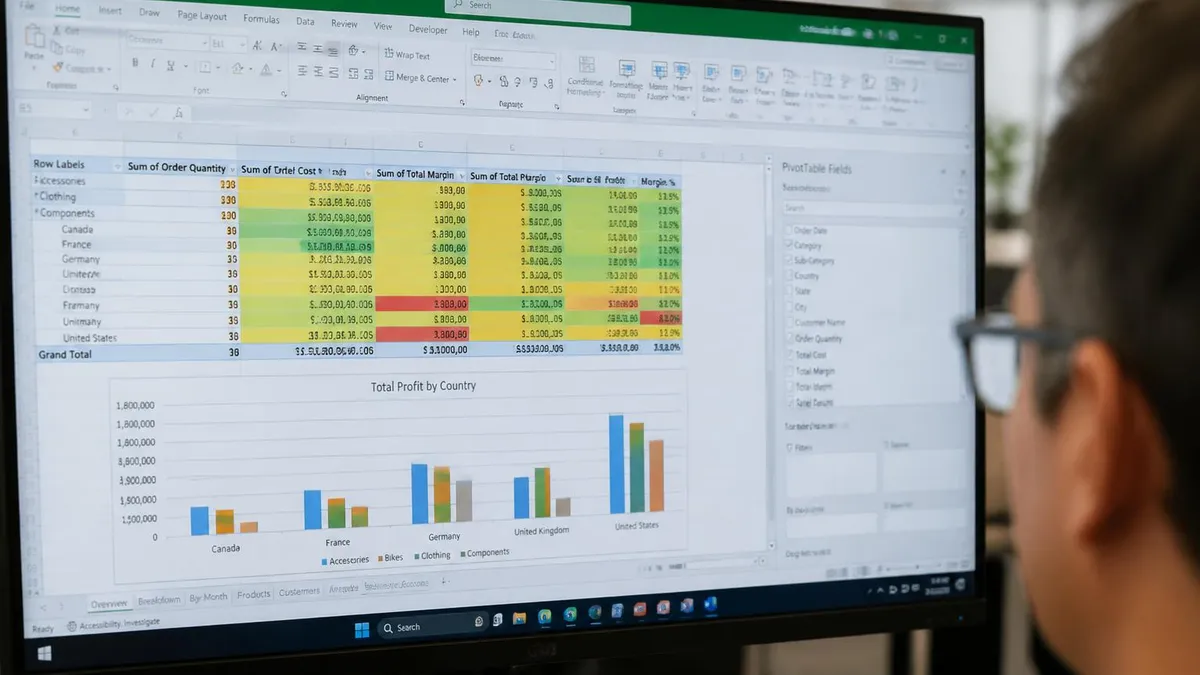
If your imported dates are left-aligned by default, they are almost certainly stored as text rather than serial numbers. Filters, sorts, and date functions will fail silently. Convert them using DATEVALUE, Text-to-Columns, or by multiplying by 1 with a paste-special operation before relying on them in calculations.
Troubleshooting date issues is a skill every Excel user develops the hard way. The most common problem is dates that look correct but behave like text. The quickest diagnostic is selecting a cell and checking the alignment. Numbers and dates align right by default, while text aligns left. If your dates are stubbornly left-aligned even after you applied a date format, the cell contains a text string that Excel never converted to a serial. The format mask has nothing to operate on because the underlying value is not numeric.
The fix depends on the data shape. For a single column of mixed-format text dates, select the column, choose Data > Text to Columns, click Next twice, then select the Date option in step three and pick the correct MDY, DMY, or YMD pattern matching your source. Excel will convert every cell into a real serial number.
For more complex patterns, you can wrap each value in DATEVALUE inside a helper column, then paste the results back as values, similar to techniques used when you need to learn how to freeze a row in excel for header consistency across long datasets.
Another classic gotcha is the difference between dates exported from American and European systems. A US-locale workbook reading a German CSV will misinterpret 03/04/2026, treating it as March 4 instead of April 3. Always open foreign CSVs through Power Query rather than double-clicking the file. Power Query lets you explicitly declare the source locale during import, so date parsing happens correctly regardless of your local Windows settings. This single habit eliminates an entire category of subtle reporting errors.
The 1900 leap year bug is a quirky historical artifact you should know about. Excel treats February 29, 1900 as a valid date even though it never actually existed, because the year 1900 was not a leap year on the Gregorian calendar. This bug exists for backward compatibility with Lotus 1-2-3 from the 1980s. For dates after March 1, 1900 the math still works correctly, but for the rare project involving 19th-century data, use the 1904 date system option found in File Options Advanced settings.
Pivot table date grouping can also produce surprising results. When you group a date field by month, Excel uses the underlying serial but displays month names. If your source data spans multiple years, you must also group by year, otherwise January 2025 and January 2026 will be aggregated into a single January bucket. The auto-grouping behavior changed in Excel 2016 and later, so users moving between versions sometimes see different default groupings for identical data.
Conditional formatting on dates uses the same serial number logic. A rule like Cell Value greater than TODAY() will correctly flag future dates, but only if the target cells contain real serials. If even one cell holds a text string masquerading as a date, the comparison silently returns false and the formatting skips it. Always validate your data type before building conditional rules on date columns, especially in shared workbooks where multiple contributors may have pasted from various sources.
The custom format code language has one more advanced feature worth knowing: brackets for elapsed time. The format [h]:mm displays total hours including values over 24, which is essential for timesheets summing days of work. Without the brackets, 25 hours would display as 1:00 because Excel rolls over to the next day. Similarly, [m] shows elapsed minutes and [s] shows elapsed seconds. This single bracketing technique solves the most common timesheet bug new analysts encounter.
Building reliable date workflows starts with a few habits that pay dividends for the rest of your Excel career. First, standardize on one display format per workbook. If your company uses YYYY-MM-DD internally, apply it everywhere from raw data tabs to executive summaries. Inconsistency invites misinterpretation, and a single ambiguous date in a board report can cause real business consequences. Document your convention in a cover sheet so future analysts inherit the standard rather than reinventing it.
Second, separate raw data from presentation layers. Keep one tab for unformatted source records with serial dates and ISO formatting, and a second tab for the dashboard that pulls those values forward with custom display masks. This pattern, sometimes called a presentation tier, makes it trivial to change the display style for a client or executive without touching the underlying calculations. It also makes auditing dramatically easier because you always know which tab holds the truth.
Third, use Named Ranges for important date constants like quarter end dates, fiscal year start, or freeze deadlines. A formula referencing FiscalYearStart reads more clearly than one referencing $B$2 on a hidden config sheet. Named ranges also propagate automatically across the workbook, so changing the date in one place updates every dependent formula instantly. This pattern shines in financial models that recalculate quarterly across multiple analysis sheets.
Fourth, embrace Power Query for any recurring date transformation. Once you build a query that pulls dates from a source file, applies the correct locale, splits into year and month columns, and adds business day flags, you can refresh it with a single click whenever new data arrives. Manual transformation steps are bug factories. Automated queries are bulletproof and self-documenting because the steps are visible in the applied steps panel for any reviewer.
Fifth, when collaborating across regions, default to ISO 8601 format yyyy-mm-dd for all written communication. Emails, screenshots, file names, and chat messages should never use ambiguous DD/MM or MM/DD because the receiver may interpret them incorrectly. ISO format is unambiguous, sorts correctly as plain text, and is increasingly recognized as a global standard in international business and software systems. Adopting it removes an entire category of mistakes from your daily work.
Sixth, practice the keyboard shortcuts until they become reflexive. Ctrl+; inserts today's date as a static literal. Ctrl+Shift+; inserts the current time. Ctrl+Shift+# applies the default date format. Ctrl+1 opens Format Cells. Combined, these four shortcuts handle 90 percent of routine date work without ever touching the mouse. Speed in Excel comes from muscle memory more than from knowing obscure functions, and date shortcuts are the highest-use ones to learn first.
Finally, when something looks wrong, always check the underlying value before blaming the formula. Press F2 or click in the formula bar to see what Excel actually has stored. If it shows a serial number or full date, the data is fine and your format mask is the issue. If it shows a text string or apostrophe-prefixed value, you have a data type problem that no format change will solve. This diagnostic discipline separates analysts who fix problems in minutes from those who spend hours guessing.
Excel Questions and Answers

Excel Functions List: The Complete Reference Guide to Every Formula You Need in 2026

Excel Finance Functions Guide With PMT, NPV, IRR and Loan Models

How to Convert Text to Excel: The Complete 2026 Guide to Importing TXT and CSV Files Into Spreadsheets

Excel Merge Tables: The Complete 2026 Guide to Combining Data Across Worksheets

Standard Deviation Formula in Excel: STDEV.P vs STDEV.S Guide
About the Author

Business Consultant & Professional Certification Advisor
Wharton School, University of PennsylvaniaKatherine Lee earned her MBA from the Wharton School at the University of Pennsylvania and holds CPA, PHR, and PMP certifications. With a background spanning corporate finance, human resources, and project management, she has coached professionals preparing for CPA, CMA, PHR/SPHR, PMP, and financial services licensing exams.