
Excel Skills for Business Specialization: The Complete Guide to Mastering Spreadsheets at Work
Master Excel skills for business specialization: VLOOKUP, drop-down lists, merge cells & more. 🎯 Real examples, practice tests, career tips.

Developing strong excel skills for business specialization has become one of the most valuable investments a professional can make in today's data-driven workplace. Whether you are analyzing quarterly revenue, building financial models, or managing supply chain logistics, Microsoft Excel remains the dominant tool across virtually every industry sector. Companies from Fortune 500 corporations to small startups rely on spreadsheet proficiency as a baseline requirement, and candidates who can demonstrate advanced competency consistently command higher salaries and faster promotions than their peers who rely only on basic knowledge.
Many professionals underestimate exactly how broad the Excel skill set has become. The modern business user must understand not just simple arithmetic formulas, but also complex lookup functions like VLOOKUP, data organization techniques like how to freeze a row in Excel, and dynamic interactivity tools like how to create a drop down list in Excel. Each of these capabilities serves a distinct business purpose, from reducing data entry errors to making large datasets navigable for entire teams. The gap between a beginner and a truly business-ready Excel user is wider than most people realize when they first start learning.
The concept of business specialization in Excel goes well beyond memorizing individual commands. It means understanding which tool is appropriate for a given analytical challenge, how to structure a workbook so that colleagues can use it without guidance, and how to protect data integrity through validation and controlled inputs. Professionals who reach this level are not just spreadsheet users — they become the go-to analytical resource in their departments, solving problems that others cannot and translating raw data into clear, actionable business insights that influence real decisions.
Learning Excel for business purposes also requires an understanding of how different functions interact with one another. A strong financial dashboard might combine VLOOKUP with conditional formatting, data validation drop-downs, and frozen header rows all in a single workbook. Knowing how to merge cells in Excel to create clean report headers, or how to freeze a row so column labels stay visible while scrolling through thousands of records — these are the practical skills that separate theoretical knowledge from genuine workplace productivity. Each technique compounds on the others, creating exponential value as proficiency grows.
Formal study paths have emerged specifically to address this need. Online platforms including Coursera, LinkedIn Learning, and Microsoft's own training portal offer structured courses in Excel for business, often organized into specialization tracks that guide learners from foundational concepts through advanced analytics. These programs typically conclude with a capstone project or certification assessment, giving employers a standardized way to evaluate and compare candidates. The credential signals not just tool familiarity, but the ability to apply Excel thinking to actual business scenarios under realistic conditions.
Practice testing is one of the most effective preparation strategies available to anyone pursuing Excel business specialization. Working through realistic multiple-choice and scenario-based questions forces active recall of formula syntax, function behavior, and workflow logic in ways that passive reading simply cannot replicate. Regular practice sessions also help learners identify specific knowledge gaps before they encounter those gaps on a certification exam or, more importantly, in front of a manager or client. The combination of structured learning and deliberate practice testing is the fastest proven path to genuine Excel competency.
This guide covers the most important Excel skills for business specialization, walking through key functions, formatting techniques, data management strategies, and certification pathways in practical detail. Whether you are preparing for a Microsoft Office Specialist exam, trying to level up for a promotion, or simply building the analytical foundation your career demands, the information here will give you a clear, actionable roadmap. Read through each section carefully, then test your knowledge using the free practice quizzes linked throughout the article to reinforce what you have learned and identify where to focus your next study session.
- Microsoft Office Specialist (MOS) Excel exams, both Associate MO-210 and Expert MO-211, give candidates 50 minutes to complete the exam, with 60 minutes of total seat time. (Microsoft (Microsoft Office Specialist program), delivered by Certiport, a Pearson VUE business)
- The passing score for a Microsoft Office Specialist (MOS) Excel exam is always set at 700 on Certiport's scale of 1 to 1000. (certiport.pearsonvue.com)
- A Microsoft Office Specialist (MOS) Excel exam voucher costs $104 on the US Certiport Store. Microsoft says the price depends on the country or region where the exam is proctored. (store.certiport.com)
- A Microsoft Office Specialist (MOS) Excel exam voucher that includes a retake costs $120 on the US Certiport Store. (store.certiport.com)
- After failing a Microsoft Office Specialist (MOS) Excel exam, a candidate must wait 24 hours before the first retake and 48 hours before each later retake, and there is no annual limit on attempts. (Microsoft (Microsoft Office Specialist program), delivered by Certiport, a Pearson VUE business)
- Microsoft Office Specialist (MOS) Excel certifications earned on or after September 23, 2025 are valid for five years. Certifications earned before that date do not expire. (certiport.pearsonvue.com)
- Microsoft lists a 60-month renewal frequency for the Microsoft Office Specialist (MOS) Excel certification. Certiport says eligible MOS holders can renew before expiry starting in March 2030, through a short, online, unproctored, open-book assessment that extends the certification by three years. (certiport.pearsonvue.com)
- The Microsoft Office Specialist (MOS) Excel exam is a proctored, live-in-the-application exam that is scheduled through Certiport and taken at Certiport Authorized Testing Centers. (Microsoft (Microsoft Office Specialist program), delivered by Certiport, a Pearson VUE business)
- Microsoft recommends that candidates for the Microsoft Office Specialist Excel Associate (MO-210) certification have about 150 hours of instruction and hands-on experience with Excel. (Microsoft (Microsoft Office Specialist program), delivered by Certiport, a Pearson VUE business)
Facts verified Oct 15, 2026 against Microsoft (Microsoft Office Specialist program), delivered by Certiport, a Pearson VUE business. Dates that have passed are removed automatically.
Microsoft Excel Exam at a Glance
| Item | Detail | Official source |
|---|---|---|
| Time limit | 50 minutes (60 minutes seat time) | Microsoft (Microsoft Office Specialist program), delivered by Certiport, a Pearson VUE business |
| Passing score | 700 on a 1–1000 scale | certiport.pearsonvue.com |
| Exam fee | $104 per exam voucher (US Certiport Store) | store.certiport.com |
| Retake fee | $120 for exam voucher with one retake | store.certiport.com |
| Retake policy | Wait 24h after 1st fail, 48h before each later retake; no annual limit | Microsoft (Microsoft Office Specialist program), delivered by Certiport, a Pearson VUE business |
| Validity | Valid 5 years (earned on/after Sept 23, 2025) | certiport.pearsonvue.com |
| Renewal | Every 60 months; renewal assessments open March 2030 | certiport.pearsonvue.com |
| Delivery | Proctored live-in-the-application exam via Certiport Authorized Testing Centers | Microsoft (Microsoft Office Specialist program), delivered by Certiport, a Pearson VUE business |
| Eligibility | No formal prerequisites; ~150 hours of instruction and hands-on experience recommended (Associate) | Microsoft (Microsoft Office Specialist program), delivered by Certiport, a Pearson VUE business |
| Score release | Score report at end of exam; also in Certiport profile | certiport.pearsonvue.com |
Facts verified Oct 15, 2026 against Microsoft (Microsoft Office Specialist program), delivered by Certiport, a Pearson VUE business. Dates that have passed are removed automatically.
Excel for Business — By the Numbers

Core Excel Skills Every Business Professional Needs
Efficient data entry, consistent number formats, cell alignment, and merge cells techniques form the foundation of every professional spreadsheet. Clean formatting ensures reports are readable and credible to decision-makers at every level of the organization.
SUM, AVERAGE, IF, COUNTIF, SUMIFS, and VLOOKUP are the workhorses of business Excel. Mastering these functions enables professionals to automate calculations, summarize large datasets, and build dashboards that update dynamically as new data flows in.
Learning how to create a drop down list in Excel and setting up data validation rules prevents costly input errors. Controlled data entry is essential for any shared workbook used by a team, ensuring that reports and summaries remain accurate and consistent.
PivotTables allow rapid summarization of thousands of rows with drag-and-drop simplicity. Paired with professional charts, they transform raw transaction data into executive-ready reports that communicate trends, outliers, and performance at a glance.
Knowing how to freeze a row in Excel, use named ranges, protect sheets, and organize multi-tab workbooks separates functional spreadsheets from truly professional ones. These skills dramatically reduce errors and make large workbooks usable for entire teams.
The VLOOKUP function in Excel is one of the most searched and most frequently tested skills in business spreadsheet work, and understanding it deeply is a cornerstone of any serious excel skills for business specialization program. VLOOKUP stands for vertical lookup, and it allows you to search for a specific value in the leftmost column of a table and return a corresponding value from any column to the right. The classic use case is matching employee IDs to names, or product codes to prices, across two separate data tables that share a common identifier column.
The syntax of VLOOKUP follows a consistent four-argument structure: the lookup value, the table array, the column index number, and the range lookup parameter. The most critical detail that trips up beginners is the final argument — entering FALSE forces an exact match, while TRUE or omitting the argument allows an approximate match. In virtually every business application, you will want an exact match, which means you should almost always end your VLOOKUP formula with a comma followed by FALSE or zero. Failing to do this can produce silently incorrect results that are difficult to spot during a review.
One of the most important limitations of traditional VLOOKUP is that it can only look to the right — the lookup column must always be the leftmost column in your table array. If your identifier column sits to the right of the data you want to retrieve, VLOOKUP will not work without restructuring the data.
This limitation led many advanced users to combine INDEX and MATCH functions instead, which offer greater flexibility. Microsoft's newer XLOOKUP function, available in Excel 365 and Excel 2021, eliminates this restriction entirely and also handles errors more gracefully, making it the preferred choice for modern business workbooks.
In a business specialization context, VLOOKUP is routinely used for tasks like reconciling purchase orders against inventory records, mapping customer account numbers to sales representative assignments, or pulling current pricing from a master product table into an invoice template. The function becomes even more powerful when nested inside IF statements or combined with IFERROR to handle cases where no match exists. A formula like IFERROR(VLOOKUP(...), "Not Found") prevents the #N/A error from appearing in reports and makes workbooks more professional and user-friendly for non-technical colleagues.
Practice is the fastest way to build VLOOKUP fluency. Start with a simple two-table exercise: create a products list with codes and prices, then create a separate orders sheet and use VLOOKUP to pull the correct price for each ordered product code. Gradually add complexity by introducing approximate matches for tax bracket lookups or commission tier calculations, where values fall within ranges rather than matching exactly. This progression mirrors how the function is actually used in real financial and operational analysis, building genuine competency rather than just theoretical familiarity with the syntax.
Beyond VLOOKUP, business-focused Excel learners should also invest time in related lookup and reference functions. HLOOKUP works horizontally across row headers, useful for time-series data organized with months across columns. The MATCH function returns the position number of a value within a range, which is invaluable when combined with INDEX to create flexible two-way lookups.
CHOOSE allows you to select from a list of values based on an index number, useful for building dynamic scenario models. Together these functions form a toolkit that enables sophisticated data retrieval across virtually any workbook structure you are likely to encounter in a professional setting.
Understanding lookup functions also creates a natural bridge to more advanced Excel capabilities like Power Query and data modeling. Once you are comfortable retrieving data across tables using formulas, the transition to relationship-based data models using Power Pivot becomes more intuitive. Business professionals who invest in mastering the full spectrum of lookup tools — from basic VLOOKUP through XLOOKUP and ultimately into Power Query joins — position themselves to handle enterprise-scale analytical challenges that go far beyond what a single-sheet formula approach can accomplish. This progression is exactly what distinguishes an intermediate Excel user from a true business specialization professional.
How to Create a Drop Down List, Merge Cells, and Freeze a Row in Excel
Learning how to create a drop down list in Excel starts with the Data Validation dialog. Select the cell or range where you want the drop-down to appear, then navigate to the Data tab and click Data Validation. In the Allow menu, choose List, and then either type your options separated by commas directly into the Source field or select a range of cells that contains your list values. Click OK and the selected cells will display a small arrow that users click to choose from your predefined options, preventing free-text errors entirely.
Drop-down lists are especially valuable in shared workbooks used for data collection. When a sales team logs deal stages, a logistics team records shipment statuses, or an HR department tracks employee classifications, enforcing consistent vocabulary through drop-downs ensures that downstream formulas, PivotTables, and filters all work reliably. You can also add an error alert message that appears when someone tries to type a value not on the list, making the validation rule self-explanatory even to users who have never seen the workbook before.

Is Pursuing Excel Business Specialization Worth It?
- +Directly increases earning potential — advanced Excel users earn measurably more than basic users in finance, operations, and marketing roles
- +Transferable across every industry — Excel proficiency built in one sector applies immediately when changing jobs or industries
- +Relatively fast to acquire — a focused 40-hour study and practice program can take most professionals to a job-ready intermediate level
- +Supports remote work credibility — strong spreadsheet skills demonstrate analytical independence that is highly valued in distributed team environments
- +Certification provides third-party validation that differentiates your resume in competitive applicant pools
- +Builds a foundation for advanced tools — Excel mastery creates an intuitive bridge to Power BI, SQL, and Python data analysis workflows
- −Excel has a steep learning curve for advanced features like Power Query, array formulas, and VBA macros that require significant dedicated study time
- −Skills can become outdated as organizations migrate to cloud-based tools like Google Sheets or specialized business intelligence platforms
- −Certification exams require ongoing renewal and associated fees as Microsoft updates versions and exam objectives
- −Heavy Excel reliance can create single-point-of-failure risks in organizations where one person holds complex workbook knowledge others cannot maintain
- −Large Excel files with complex formulas can become slow and unstable, creating frustrating productivity bottlenecks in real business workflows
- −Self-study without structured feedback can reinforce bad habits, such as hardcoding values that should be formulas or skipping data validation best practices
Pros and Cons at a Glance
| Pros | Cons |
|---|---|
| Directly increases earning potential — advanced Excel users earn measurably more than basic users in finance, operations, and marketing roles | Excel has a steep learning curve for advanced features like Power Query, array formulas, and VBA macros that require significant dedicated study time |
| Transferable across every industry — Excel proficiency built in one sector applies immediately when changing jobs or industries | Skills can become outdated as organizations migrate to cloud-based tools like Google Sheets or specialized business intelligence platforms |
| Supports remote work credibility — strong spreadsheet skills demonstrate analytical independence that is highly valued in distributed team environments | Certification exams require ongoing renewal and associated fees as Microsoft updates versions and exam objectives |
| Certification provides third-party validation that differentiates your resume in competitive applicant pools | Heavy Excel reliance can create single-point-of-failure risks in organizations where one person holds complex workbook knowledge others cannot maintain |
| Builds a foundation for advanced tools — Excel mastery creates an intuitive bridge to Power BI, SQL, and Python data analysis workflows | Large Excel files with complex formulas can become slow and unstable, creating frustrating productivity bottlenecks in real business workflows |
Excel Business Specialization Readiness Checklist
- ✓Master VLOOKUP with exact match and practice at least five real business data-matching scenarios
- ✓Learn how to create a drop down list in Excel and apply data validation to at least one shared workbook
- ✓Practice how to merge cells in Excel for report headers while keeping data tables free of merged cells
- ✓Understand how to freeze a row and freeze columns simultaneously for large dataset navigation
- ✓Build at least one PivotTable from a raw transaction dataset and add a slicer for dynamic filtering
- ✓Write nested IF statements with three or more conditions to handle real-world business classification logic
- ✓Use SUMIFS and COUNTIFS to summarize data based on multiple simultaneous criteria across large tables
- ✓Create a professional chart with proper labels, a formatted legend, and a data source that updates automatically
- ✓Apply conditional formatting rules to highlight outliers, overdue dates, or threshold breaches automatically
- ✓Complete at least two timed practice tests to simulate real exam or interview conditions and identify weak areas
The Pareto Principle Applies to Excel Skills
Research consistently shows that roughly 20% of Excel's feature set handles 80% of real business workbook needs. Mastering VLOOKUP, PivotTables, SUMIFS, conditional formatting, data validation, and basic chart creation will make you more productive than 90% of typical business users — even before you touch advanced topics like Power Query or VBA macros. Focus your practice time on these high-use skills first, then expand outward as your role demands it.
Formal certification in Excel for business specialization provides professionals with a structured learning path and a credential that employers can verify. Microsoft's primary certification for Excel is the Microsoft Office Specialist (MOS) program, which offers exams at the Associate level covering Excel 2019 or Microsoft 365 Apps, and at the Expert level for users who have mastered advanced features. The MOS Associate exam tests core competencies including worksheet management, cell formatting, formula creation, and basic chart building, while the Expert exam adds advanced formula logic, data validation, PivotTable mastery, and macro basics.
Coursera's Excel Skills for Business specialization, developed by Macquarie University, is one of the most widely recognized online programs specifically designed around practical business application. The specialization consists of four sequential courses covering Essentials, Intermediate I, Intermediate II, and Advanced topics, with each course building on the previous one. Learners who complete all four courses earn a specialization certificate that can be shared directly on LinkedIn, added to a resume, or presented to employers as evidence of structured, verified learning. The program uses realistic business datasets and scenario-based assignments that mirror actual workplace challenges rather than simplified textbook examples.
LinkedIn Learning, formerly Lynda.com, offers a parallel Excel for Business path that many professionals pursue because it integrates directly into the LinkedIn profile and is often covered through employer learning budgets. The platform's Excel courses range from the absolute beginner level through advanced topics like Power Query, Power Pivot, and introduction to DAX formulas. Unlike Macquarie's Coursera specialization, LinkedIn Learning courses are self-paced with no cohort structure, making them accessible to professionals who need to fit learning around unpredictable work schedules without worrying about assignment deadlines or course session windows.
Corporate training programs represent another significant pathway, particularly for employees whose companies invest in team-wide upskilling initiatives. Many organizations partner with training providers like New Horizons, Global Knowledge, or local community colleges to deliver instructor-led Excel training workshops ranging from half-day bootcamps to multi-week classroom series. The advantage of instructor-led training is immediate access to expert answers for specific questions, the ability to work through problems with guidance, and the social accountability of learning alongside colleagues. These programs often conclude with a practice assessment that helps participants benchmark their progress against business-readiness standards.
The MOS Excel Expert certification exam deserves particular attention for professionals targeting financial analyst, operations manager, or business intelligence roles. The exam format uses a project-based task completion model rather than multiple-choice questions — candidates are given a sample workbook and must complete specific tasks within the Excel application itself under timed conditions.
This live-environment format tests genuine operational skill rather than memorized answers, which is why MOS credentials are highly regarded by employers who want proof of actual hands-on competency rather than just familiarity with concepts. Passing requires both knowledge and speed, making practice testing under realistic time pressure an essential preparation strategy.
Salary data consistently validates the return on investment for Excel certification and specialization training. According to Payscale and Glassdoor data, financial analysts with advanced Excel skills earn a median salary of approximately $72,000 annually in the United States, compared to roughly $55,000 for analysts who list only basic Excel proficiency.
Business operations roles show a similar pattern, with spreadsheet-proficient candidates earning 15 to 25 percent more than peers in equivalent positions. These salary differentials appear across industries from healthcare administration and manufacturing to retail management and nonprofit finance, confirming that Excel business specialization delivers measurable compensation benefits that far outweigh the cost and time of earning the credential.
For professionals who are unsure whether to pursue formal certification or self-directed learning, the decision often comes down to career goals and employer expectations. Roles in finance, accounting, and data analytics at larger companies frequently list MOS certification or equivalent coursework as a preferred qualification, making formal credentials worth the investment for competitive application pools.
Professionals in smaller organizations or entrepreneurial environments may find that a strong portfolio of practical Excel projects, combined with demonstrated skill in interviews, carries equal or greater weight than a formal certificate. In either case, the underlying skill development is what matters most, and consistent deliberate practice remains the most direct path to genuine proficiency regardless of which credential pathway you choose to pursue.
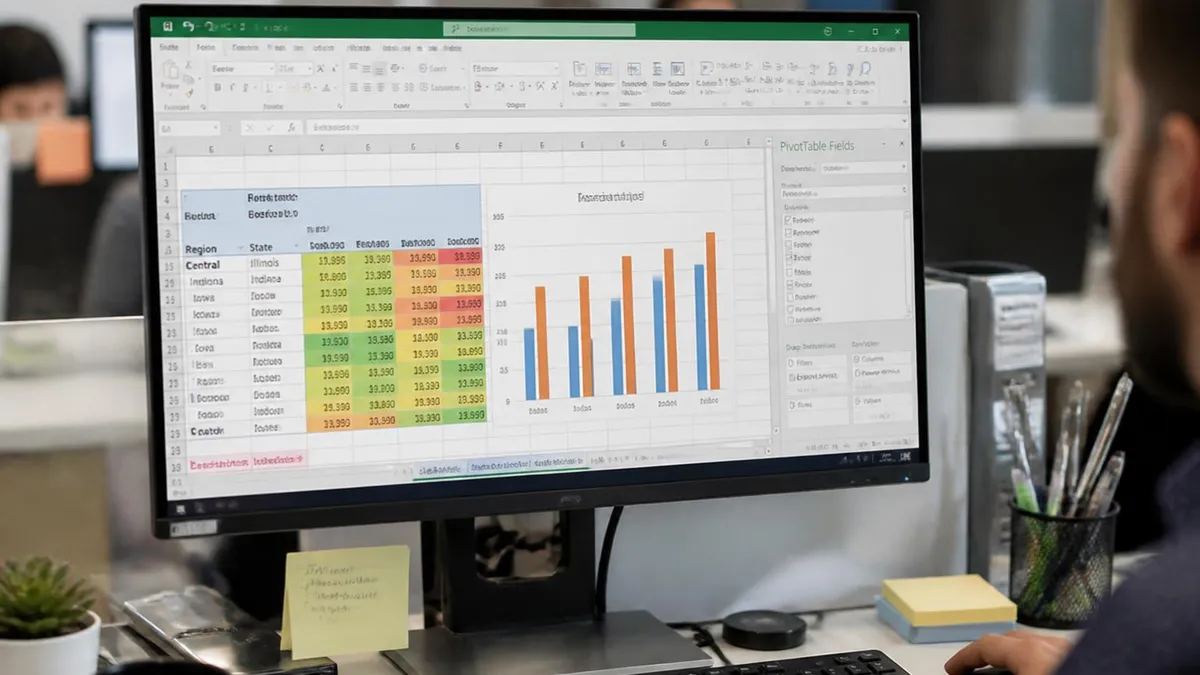
Microsoft offers separate MOS Excel exams for Excel 2019 and Excel for Microsoft 365. If your employer uses Microsoft 365 subscriptions, make sure you prepare for and register for the 365 version of the exam — the task objectives and available features differ meaningfully between versions, and studying for the wrong exam can leave you unprepared for questions on features like XLOOKUP, dynamic arrays, and LET functions that only exist in the 365 environment.
Building an effective study plan for Excel business specialization requires balancing conceptual learning with hands-on practice in roughly equal measure. Many learners make the mistake of watching video tutorials passively without opening Excel themselves, then discovering during a test or real task that they cannot reproduce what they observed without the video playing beside them. Active practice — actually typing formulas, building PivotTables from scratch, and troubleshooting errors as they arise — is what converts watching into knowing. Aim for at least one hour of active application practice for every hour of video or reading content you consume.
Spaced repetition is one of the most well-supported learning strategies for technical skill acquisition, and it applies directly to Excel mastery. Rather than completing a marathon single-day session on VLOOKUP and never revisiting it, schedule shorter daily practice sessions that cycle back through previously learned skills every few days.
This approach keeps earlier material active in memory while you continue adding new skills on top of the existing foundation. A simple weekly schedule might allocate Monday to formulas, Tuesday to data validation and formatting, Wednesday to PivotTables, Thursday to charts, and Friday to review and practice testing — with deliberate callbacks to prior weeks woven into each session.
Error analysis is a particularly high-value study technique that most Excel learners underuse. When a formula returns an unexpected result or an error code like #REF!, #VALUE!, or #DIV/0!, resist the urge to simply fix it and move on. Instead, take five minutes to understand exactly why the error occurred — what Excel was trying to do, what went wrong, and what the correct logic should be.
Building this debugging reflex early transforms you from a formula-user into a formula-thinker, enabling you to diagnose and fix problems in other people's workbooks, not just your own. This skill is one of the clearest markers of genuine business-level Excel proficiency.
Practice exams and quiz-based review are essential components of any serious certification preparation strategy. Timed practice under realistic conditions does two critical things simultaneously: it identifies specific knowledge gaps that you need to address before the real exam, and it builds the mental processing speed needed to complete task-based exam items within the allotted time.
Most MOS exam candidates who fail their first attempt report that time management was a significant factor, not just knowledge gaps. Regular timed practice sessions train both the knowledge recall and the pacing skills together, which is why the free practice quizzes available throughout this guide are worth using repeatedly rather than just once.
Building a personal Excel project portfolio is another highly effective strategy that serves both learning and career purposes simultaneously. Choose three to five realistic business scenarios — a personal budget tracker, a sales performance dashboard, an inventory management system, a project timeline with conditional formatting, and a multi-sheet financial model — and build each one from scratch using only the techniques appropriate to the task.
Document what each workbook does and the key functions it uses. When you interview for roles that require Excel proficiency, being able to walk an interviewer through a portfolio of real workbooks you built independently is far more compelling than citing a certification score or listing functions on a resume.
Study groups and online communities accelerate Excel learning significantly, particularly for learners who thrive with social accountability and peer feedback. The Microsoft Tech Community, Reddit's r/excel subreddit, and LinkedIn Excel user groups all contain active communities of practitioners sharing real-world problems, creative formula solutions, and study resources.
Engaging with these communities exposes you to use cases and techniques that no single course curriculum covers, and the habit of explaining your own solutions to help others simultaneously deepens your own understanding through the well-documented learning benefits of teaching. Many professional-level Excel skills were originally discovered in exactly these kinds of community discussions rather than in formal training materials.
Finally, remember that Excel business specialization is not a single destination but an ongoing learning journey. Microsoft regularly adds new functions and features to Excel 365, including dynamic array functions, LAMBDA for custom formula creation, and enhanced Power Query capabilities that continue to expand what is possible directly inside a spreadsheet without external tools.
Staying current means allocating some study time every quarter to exploring what is new, not just deepening knowledge of what you already know. Professionals who maintain this growth mindset consistently outpace colleagues who treat Excel as a static tool mastered once and then left alone, continuing to deliver new analytical value to their organizations long after their initial certification work is complete.
Practical daily habits separate Excel professionals who continue improving from those who plateau at an intermediate level and stay there. The single most effective habit is what practitioners call the formula-first mindset: before reaching for manual data entry or copy-paste shortcuts, always ask whether a formula could accomplish the same result automatically. This reflex, applied consistently across daily work tasks, compounds into thousands of hours of saved time over a career while simultaneously keeping your formula skills sharp through constant real-world application rather than occasional deliberate practice sessions.
Keyboard shortcuts are dramatically underutilized by intermediate Excel users and represent one of the fastest ways to increase working speed without learning any new formulas or features. Critical shortcuts every business user should internalize include Ctrl+Shift+L for toggling filters on and off, Ctrl+T for converting a range to a formatted table with automatic filter and formula expansion, F4 for cycling through absolute and relative reference types when building formulas, Alt+= for auto-summing a selected range, and Ctrl+; for inserting the current date.
These shortcuts save seconds per action, but across a workday involving hundreds of spreadsheet interactions, the cumulative time savings are substantial and immediately noticeable.
Named ranges are a professional technique that makes complex workbooks dramatically more readable and maintainable. Instead of a formula like =SUMIF($A$2:$A$500, "West", $C$2:$C$500), a well-named workbook uses =SUMIF(Region, "West", Revenue), where Region and Revenue are named ranges defined once and referenced throughout the workbook.
To create a named range, select your data range, click the Name Box at the top-left of the screen where the cell address normally appears, type your chosen name, and press Enter. Named ranges persist across the workbook and make formulas self-documenting, reducing the time needed for a new user to understand how a complex workbook functions.
Table structures — created with Ctrl+T or the Insert Table command — are another underused professional technique that delivers significant benefits in real business workbooks. When data is formatted as an Excel Table, formulas within the table automatically expand to include new rows added at the bottom, column headers become permanent filter selectors, and references in formulas use readable column names like [@Revenue] instead of relative cell addresses.
Charts and PivotTables connected to an Excel Table also update automatically when new data is added, eliminating one of the most common sources of stale reporting in organizations that manually extend data ranges every month when new data arrives.
Conditional formatting is a visual analysis tool that transforms static data tables into dynamic dashboards requiring no additional chart-building work. Color scales apply gradient shading across a range to instantly reveal high and low values without manual scanning. Icon sets add traffic light indicators, arrows, or rating stars next to values based on thresholds you define.
Data bars create in-cell bar charts that allow immediate visual comparison across all values in a column simultaneously. These visual features are particularly effective in executive summary reports and team performance dashboards where the audience needs to absorb key information quickly without drilling into underlying data tables or switching to separate chart sheets.
Error proofing your workbooks before sharing them with colleagues is a professional responsibility that distinguishes careful analysts from careless ones. Use the IFERROR function to wrap any formula that might return an error code when data is missing or mismatched. Use data validation to restrict inputs to appropriate ranges, lists, or formats in cells that others will fill in.
Protect sheets with passwords to prevent accidental overwriting of formula cells while leaving input cells unlocked for legitimate data entry. Add a clear Instructions tab as the first sheet in any workbook that others will use independently, documenting what each sheet does, what inputs are required, and where outputs appear. These finishing touches take an extra thirty minutes but prevent hours of confusion and error-correction downstream.
Finally, the most overlooked aspect of Excel business specialization is communication skill — the ability to translate spreadsheet outputs into clear verbal and written explanations for non-Excel users. A technically perfect model that your audience cannot understand delivers no business value.
Practice summarizing your findings in one to three sentences before presenting any dashboard or analysis: what does the data show, why does it matter, and what action does it suggest? This synthesis habit, combined with strong technical Excel skills, is the combination that genuinely distinguishes a data-capable business professional from a pure technical specialist, and it is what will most consistently open doors to leadership roles as your career advances.
Sample Excel Practice Questions
Try these questions from our free Excel practice tests. The correct answer and an explanation follow each question.
How do calculated columns work in Excel Tables?
- A. Require manual entry in each cell
- B. A formula in one cell automatically fills the entire column
- C. Only basic math
- D. PivotTable feature only
Answer: B. A formula in one cell automatically fills the entire column
Formulas auto-propagate through the entire Table column using structured references.
How does multi-level sorting work in Excel?
- A. Only one level allowed
- B. Each level sorts within groups created by the previous level
- C. Multiple sorts overwrite each other
- D. Each level sorts independently
Answer: B. Each level sorts within groups created by the previous level
Multi-level sorting creates a hierarchy: first level sorts all data, subsequent levels sort within groups.
How does AutoSave work in Excel?
- A. Always available for all files
- B. Saves in real-time for files on OneDrive, SharePoint, or Teams
- C. Saves locally every 5 minutes
- D. Paid add-on
Answer: B. Saves in real-time for files on OneDrive, SharePoint, or Teams
AutoSave continuously saves for cloud-stored files, enabling collaboration and version history.
What is the result of =TEXT(1234.5, "$#,##0.00")?
- A. 1234.5
- B. $1,234.50
- C. #,##0.00
- D. $1234.5
Answer: B. $1,234.50
TEXT converts a number to a formatted text string; the format code "$#,##0.00" produces "$1,234.50".
Excel Questions and Answers

Excel to PDF: 5 Ways to Convert Your Spreadsheet

Excel COUNTA Function — Complete Guide (2026)

How to Create Hyperlinks in Excel: The Complete 2026 Guide to Linking Cells, Sheets, Files, and URLs

How to Use SUMIFS in Excel: The Complete Guide to Multi-Criteria Summing

Excel Data Validation: How to Restrict Input, Create Drop-Downs, and Prevent Errors
About the Author

Business Consultant & Professional Certification Advisor
Wharton School, University of PennsylvaniaKatherine Lee earned her MBA from the Wharton School at the University of Pennsylvania and holds CPA, PHR, and PMP certifications. With a background spanning corporate finance, human resources, and project management, she has coached professionals preparing for CPA, CMA, PHR/SPHR, PMP, and financial services licensing exams.