
Data Analysis with Excel: The Complete Guide to Mastering Spreadsheet Analytics
Master data analysis with Excel using PivotTables, VLOOKUP, charts & more. 🎯 Step-by-step guide for US professionals to analyze data faster.

Data analysis with Excel remains one of the most sought-after skills in today's data-driven workplace, powering decisions across finance, marketing, operations, and healthcare. Whether you are just starting out or looking to sharpen your spreadsheet skills, Excel provides a robust toolkit that lets you sort, filter, summarize, and visualize information without needing a dedicated business intelligence platform. From small businesses to Fortune 500 companies, Excel is the backbone of everyday analytical work, making proficiency in this tool an undeniable career advantage.
Learning data analysis with excel opens doors to roles that pay significantly above the median US wage. Analysts who can build dynamic dashboards, write complex formulas, and automate repetitive tasks consistently outpace peers in promotions and salary negotiations. The power of Excel lies in its versatility: the same application that tracks a household budget can model multi-million-dollar financial scenarios, run regression analyses, and produce publication-ready charts in under an hour.
One of the first things new analysts discover is that Excel rewards curiosity. Each function you master — whether it is a simple SUM or a multi-condition SUMIFS — compounds in value when combined with others. Beginners often start by learning how to merge cells in Excel and how to freeze a row in Excel so that large datasets remain readable as they scroll. These foundational formatting skills set the stage for more advanced analytical work and prevent the common frustration of losing track of column headers in sprawling worksheets.
Intermediate users quickly move into the world of lookup functions. VLOOKUP in Excel is arguably the most famous formula in the entire application, allowing analysts to pull matching records from one table into another with a single expression. This capability — often called a lookup join — is fundamental to combining data from multiple sources such as customer lists, sales records, and inventory tables. Mastering VLOOKUP alone can save hours of manual copy-and-paste work each week and dramatically reduce transcription errors.
Beyond formulas, Excel offers a rich suite of data tools including PivotTables, Power Query, and the Data Analysis ToolPak. PivotTables let you summarize thousands of rows in seconds, grouping data by date, region, product, or any other dimension you choose. Power Query handles data cleaning tasks that would otherwise require hours of manual effort, such as removing duplicates, splitting columns, and merging tables from different file formats. The Data Analysis ToolPak extends Excel into statistical territory, supporting regression, ANOVA, histograms, and descriptive statistics.
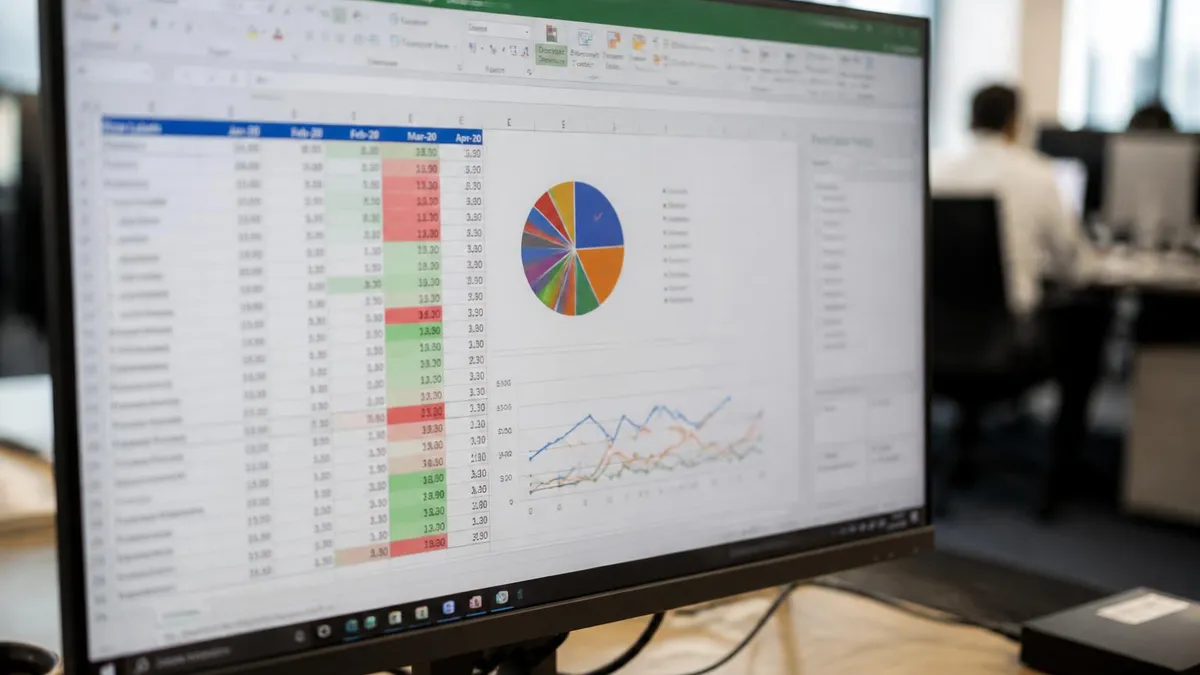
Visualization is the other half of the analytical story. Excel charts translate raw numbers into compelling narratives that non-technical stakeholders can immediately grasp. Bar charts, line graphs, scatter plots, and the newer funnel and map chart types all live within Excel, eliminating the need for a separate graphics application in many business contexts. Learning to choose the right chart type for your data — and formatting it clearly — is as important as building the underlying calculations, because a misread chart can lead to costly decisions.
This guide walks you through every major pillar of data analysis in Excel, from setting up your spreadsheet correctly to building advanced models. Along the way, you will find practical tips on how to create a drop-down list in Excel to control data entry, how to freeze a row in Excel so column headers stay visible, and how to leverage conditional formatting to highlight outliers automatically. By the end, you will have a clear roadmap for leveling up your Excel skills and putting them to work in real analytical scenarios.
Excel Data Analysis by the Numbers

Core Excel Data Analysis Tools You Must Know
Automatically summarize large datasets by dragging fields into rows, columns, and value areas. PivotTables update instantly when your source data changes, making them the fastest way to explore patterns across thousands of records without writing a single formula.
Import, clean, and reshape data from Excel files, CSVs, databases, and web pages. Power Query records every step in a reusable query so you can refresh the entire transformation pipeline whenever new data arrives, slashing manual prep time.
An add-in that unlocks statistical functions including descriptive statistics, regression, t-tests, ANOVA, and histograms. Essential for analysts who need to move beyond basic summaries into hypothesis testing and predictive modeling within Excel.
Apply color scales, data bars, and icon sets automatically based on cell values. Conditional formatting makes outliers, trends, and exceptions visible at a glance, turning a plain table into a visual heat map that guides faster decision-making.
Restrict what users can enter into cells using rules, pick-lists, and custom formulas. Knowing how to create a drop-down list in Excel is critical for shared workbooks because it prevents typos and ensures data consistency across large teams.
Formulas are the engine of every Excel analysis, and understanding how they work — and how they can fail — separates competent users from true power users. Every formula in Excel begins with an equals sign, followed by a function name and its arguments. Arguments can be individual cell references, ranges, numbers, text strings, or even nested functions. Excel evaluates these expressions instantly, recalculating the entire workbook whenever any referenced cell changes, which means your analysis always reflects the latest data as long as your formulas are written correctly.
VLOOKUP in Excel is the classic starting point for anyone learning to join tables. The function takes four arguments: the value you are searching for, the table range to search within, the column number to return, and a flag indicating whether to match exactly or approximately. Exact-match VLOOKUP (the fourth argument set to FALSE or 0) is almost always what analysts need when combining customer IDs, product codes, or employee numbers across datasets. While newer functions like XLOOKUP offer more flexibility and eliminate VLOOKUP's left-column limitation, VLOOKUP remains prevalent in older workbooks and is still widely tested on certification exams.
INDEX and MATCH together form a more powerful alternative to VLOOKUP that many intermediate analysts prefer. INDEX returns the value at a specific row-column intersection within a range, while MATCH finds the position of a lookup value within a single row or column. Combining them allows lookups in any direction — left, right, up, or down — and handles situations where the lookup column is to the right of the return column, something that VLOOKUP cannot do natively. Once you internalize how these two functions complement each other, you will reach for them instinctively in complex data models.
Conditional aggregation formulas like SUMIF, COUNTIF, and AVERAGEIF allow you to total, count, or average only the rows that meet a specific criterion. Their multi-criteria siblings — SUMIFS, COUNTIFS, and AVERAGEIFS — accept multiple condition pairs, letting you answer questions like "what is the total revenue from the Western region in Q3 for the Product A line?" in a single formula. These functions are workhorses in sales reporting, financial modeling, and operational dashboards, and they execute far faster than manually filtered subtotals.
Text functions form another important category that analysts frequently overlook. LEFT, RIGHT, and MID extract substrings from text cells. TRIM removes leading, trailing, and extra internal spaces that cause mismatches in VLOOKUP lookups. CONCATENATE (or the ampersand operator) joins text from multiple cells into a single string. SUBSTITUTE replaces specific characters within text, which is invaluable when cleaning data exported from other systems that contain unwanted delimiters or formatting characters. Mastering even a handful of text functions can save enormous manual cleanup time when working with imported data.
Date and time functions are equally essential for time-series analysis. DATEDIF calculates the difference between two dates in days, months, or years. EOMONTH returns the last day of a month offset by a specified number of months, which is useful for building rolling forecasts. NETWORKDAYS counts working days between two dates while excluding weekends and optional holiday lists, making it the go-to formula for project timeline calculations. Understanding how Excel stores dates as serial numbers — where January 1, 1900 equals 1 — explains why date arithmetic with plain subtraction works so reliably.
Error handling is a professional-level skill that keeps dashboards clean even when source data is incomplete. IFERROR wraps any formula and returns a custom value — an empty string, a zero, or a descriptive message — whenever the formula produces an error. IFNA specifically catches #N/A errors, which are common in lookup functions when a match is not found. Using these wrappers judiciously ensures that a single missing record does not cascade into a sea of error codes that alarm stakeholders and obscure valid results elsewhere in the workbook.
How to Freeze a Row, Merge Cells & Create Drop-Downs in Excel
Knowing how to freeze a row in Excel is one of the first productivity skills every analyst needs. Navigate to the View tab on the ribbon, click Freeze Panes, and choose Freeze Top Row to lock the first row so it remains visible as you scroll down through thousands of records. To freeze both a row and a column simultaneously, click the cell directly below and to the right of where you want the freeze, then select Freeze Panes from the same menu.
You can unfreeze at any time by returning to View and selecting Unfreeze Panes. Freezing is non-destructive — it affects only the visual display and never changes your underlying data. For large financial models with dozens of columns, freezing the first column alongside the header row creates a stable reference frame that makes navigating the spreadsheet far more efficient, reducing scrolling errors and improving data entry accuracy across the entire team.

Excel for Data Analysis: Strengths and Limitations
- +Universally available — nearly every office computer already has Excel installed, requiring no additional software purchase or IT approval.
- +Gentle learning curve for beginners — basic operations like sorting, filtering, and summing are intuitive and learnable within hours.
- +Massive formula library — 400+ built-in functions cover math, statistics, text, date, financial, and logical operations.
- +Powerful PivotTables enable fast exploratory analysis of large datasets without writing any formulas.
- +Excellent visualization tools — built-in chart types and conditional formatting turn raw data into clear visual summaries.
- +Strong integration with Microsoft 365 ecosystem — connects to SharePoint, Teams, Power BI, and Azure for collaborative and automated workflows.
- −Row limit of approximately 1.05 million rows per worksheet makes it unsuitable for truly big datasets that require database-scale processing.
- −Manual refresh cycles — unless Power Query or macros are configured, analysts must remember to update data manually, risking stale reports.
- −Version control is poor — multiple analysts working on the same file can overwrite each other's changes without a robust change history.
- −Formula errors can cascade silently — a broken reference in one cell can propagate incorrect values throughout an entire model undetected.
- −Not designed for real-time data — refreshing live connections requires manual triggers or VBA automation, unlike dedicated BI tools.
- −Limited collaboration features compared to Google Sheets — simultaneous co-editing in Excel Online is improving but still lags behind browser-native alternatives.
Excel Data Analysis Skills Checklist
- ✓Set up your data in a proper flat-table format with one header row and no blank rows or merged cells inside the data range.
- ✓Apply Freeze Panes to lock header rows and key reference columns before sharing the workbook with your team.
- ✓Use Data Validation drop-down lists on any column where users must choose from a fixed set of values.
- ✓Write VLOOKUP or XLOOKUP formulas to join data from separate tables rather than copying and pasting values manually.
- ✓Build at least one PivotTable to summarize the dataset and confirm your row-level data is clean and consistent.
- ✓Add conditional formatting rules to highlight values above thresholds, duplicate entries, or blank cells that indicate missing data.
- ✓Use IFERROR or IFNA wrappers around all lookup formulas so that missing matches display cleanly instead of showing #N/A errors.
- ✓Create named ranges for frequently referenced cells and tables to make formulas easier to read and audit.
- ✓Record or write a macro to automate any repeated formatting or data preparation steps you perform more than once per week.
- ✓Save a copy of the workbook with all source data intact before applying any destructive transformations like Remove Duplicates or Text to Columns.
Master These Five Functions First
Studies of professional Excel usage consistently show that SUM, IF, VLOOKUP, COUNTIF, and PivotTables account for roughly 80% of all analytical work performed in spreadsheets. Before chasing exotic functions or VBA macros, ensure you can write these five without looking them up — that foundation will cover the vast majority of real-world data analysis scenarios you will encounter on the job.
Advanced Excel techniques begin where basic formulas leave off, and Power Query is arguably the most transformative feature added to Excel in the past decade. Previously, analysts spent enormous amounts of time cleaning imported data — removing extra spaces, splitting combined fields, replacing error codes, and reshaping tables from wide format to long format. Power Query automates all of these steps through a visual interface that records each transformation as a step in a reusable query. When the source data updates next month, you simply click Refresh and every transformation replays automatically in seconds.
Array formulas represent another major leap in analytical power. Traditional Excel formulas operate on one cell or one range at a time, but array formulas can perform calculations across entire arrays of values simultaneously, returning either a single result or a spill of multiple results. In Excel 365 and Excel 2021, dynamic array functions like FILTER, SORT, UNIQUE, SEQUENCE, and XLOOKUP automatically spill their results into adjacent cells without requiring special entry with Ctrl+Shift+Enter. These functions make previously complex multi-step analyses achievable in a single formula, dramatically simplifying workbook architecture.
Named ranges and Excel Tables (created with Ctrl+T) are structural choices that separate beginner workbooks from professional ones. Converting a data range into an Excel Table automatically applies structured reference notation, so formulas refer to column names like [@Revenue] instead of cryptic cell addresses like C2. Tables also expand automatically when you add new rows, which means any formulas, PivotTables, or charts based on the Table update seamlessly without manual range adjustments. This behavior eliminates one of the most common sources of analytical errors: formulas that silently exclude new data because their reference range was not extended.
Statistical analysis in Excel goes well beyond basic averages and counts. The Data Analysis ToolPak add-in provides one-click access to descriptive statistics, moving averages, exponential smoothing, correlation matrices, regression outputs, and several hypothesis tests. For analysts who need to determine whether a difference between two groups is statistically significant, the t-Test tools handle both paired and unpaired scenarios with minimal configuration. For more complex designs, ANOVA tools support both single-factor and two-factor experiments. While Excel cannot replace dedicated statistical software like R or SPSS for advanced research, it handles the statistical needs of the overwhelming majority of business analysts.
Dashboard building is where all the individual skills converge into a product that stakeholders actually use. A well-built Excel dashboard typically lives on a dedicated sheet that contains only charts, summary metrics, and slicers — no raw data visible. Source data sits on separate sheets, PivotTables pull from that data, and charts are built from the PivotTables.
Slicers provide interactive filtering so users can click a region or a product category and instantly see every chart and metric update in real time. Designing dashboards this way enforces separation of concerns, making the workbook easier to maintain and less prone to accidental data corruption.
Sensitivity analysis and scenario modeling push Excel into financial planning territory. Data Tables (found under What-If Analysis on the Data tab) let you calculate how a formula output changes as one or two input variables change across a defined range, producing a grid of results that reveals the full sensitivity landscape at a glance.
The Scenario Manager saves named sets of input values so you can switch between best-case, base-case, and worst-case assumptions with a single click. Goal Seek works in the opposite direction: you specify the desired output value and Excel calculates the input needed to achieve it, which is invaluable for pricing decisions and budget planning.
Macro recording and VBA programming represent the ceiling of Excel capability for most analysts. The macro recorder captures your mouse clicks and keystrokes as Visual Basic for Applications code that can replay the same sequence on demand.
Even without learning to write VBA from scratch, analysts who understand enough code to edit recorded macros — adjusting ranges, adding loops, and inserting conditional logic — can automate complex multi-step processes that would otherwise consume hours each week. VBA also enables interactions that the Excel interface cannot perform natively, such as sending emails from Outlook, creating PDF reports, and pulling data from external APIs.
The three most costly Excel errors in professional settings are: storing numbers as text (which breaks SUM and other math functions silently), using volatile functions like NOW() and RAND() excessively (which slow recalculation dramatically in large workbooks), and hard-coding values that should be formula-driven (which creates maintenance nightmares when assumptions change). Audit your workbooks regularly for these patterns before sharing them with stakeholders or basing high-stakes decisions on their outputs.
Building a data analysis career on Excel skills is a proven path that remains relevant even as Python, R, and cloud BI tools grow in popularity. The reason is straightforward: Excel is the universal language of business data. Decision-makers, finance teams, and operations managers overwhelmingly prefer receiving analysis in Excel format, which means Excel fluency is a requirement rather than a nice-to-have in virtually every analytical role. Candidates who position themselves as Excel experts alongside complementary skills in SQL or Power BI consistently command stronger job offers than those who specialize in only one tool.
Certification is one of the fastest ways to signal Excel proficiency to employers. Microsoft offers the Microsoft Office Specialist (MOS) certification specifically for Excel, with separate exams for Excel Associate and Excel Expert levels. The Expert exam covers advanced functions, data analysis tools, and PivotTable features that align directly with professional analytical work. Many employers explicitly list MOS Excel certification as a preferred or required qualification in job postings for financial analyst, data analyst, and business intelligence roles, making the certification a concrete return on the study investment.
Practice tests are essential preparation for any Excel certification exam. The MOS Excel exams are project-based, meaning you complete tasks directly inside a live Excel environment rather than answering multiple-choice questions on paper. This format rewards hands-on skill over memorization, so the most effective preparation combines reading about concepts with actually performing them in Excel repeatedly until the correct steps become automatic. Timed practice sessions that simulate the 50-minute exam window are especially effective at building the speed and confidence needed to pass on the first attempt.
Beyond certification, building a portfolio of Excel projects demonstrates capability far more convincingly than a certificate alone. Analytical portfolio projects might include a sales performance dashboard built from public data, a personal finance tracking workbook with charts and projections, or a data cleaning exercise that transforms a messy CSV export into a structured, analysis-ready table. Posting these projects on LinkedIn or GitHub with brief write-ups explaining the business problem solved and the Excel techniques applied gives recruiters and hiring managers tangible evidence of skill that a resume line item cannot convey.
Networking within the Excel community accelerates learning and opens professional doors. The Microsoft Tech Community forums, Reddit's r/excel subreddit, and dedicated Excel YouTube channels collectively represent one of the most active free learning ecosystems available for any software tool. Asking specific questions about formulas you cannot figure out, answering questions from beginners to reinforce your own understanding, and following prolific Excel experts on social media creates a learning feedback loop that compounds over months and years into deep expertise that general tutorials rarely provide.
Salary expectations for Excel-proficient professionals vary significantly by role and industry, but the data is encouraging. Entry-level data analysts with solid Excel skills typically earn between $55,000 and $70,000 annually in the United States. Mid-level analysts who also command SQL and Power BI alongside advanced Excel earn $75,000 to $95,000. Senior analysts and financial modelers with deep Excel expertise in specialized industries like investment banking, private equity, or management consulting frequently earn well above $100,000, with bonuses that can match or exceed base salary in strong performance years.
The investment required to reach professional Excel proficiency is modest relative to these earnings outcomes. Most analysts reach intermediate competency — comfortable with VLOOKUP, PivotTables, conditional formatting, and basic charting — within 40 to 60 hours of deliberate practice. Reaching advanced proficiency with Power Query, dynamic arrays, and dashboard building typically requires another 60 to 100 hours of project-based learning. Certification preparation adds roughly 20 to 30 additional hours. Compared to other technical credentials, this is an exceptionally high return on time invested, which explains why Excel skills remain a top priority for career-focused professionals across every industry.
Practical tips make the difference between an analyst who struggles with Excel and one who flows through analytical tasks efficiently. The single most impactful habit is keeping your data in a single flat table with one row per record and one column per variable. Analysts who spread data across multiple disconnected ranges, embed subtotals within data tables, or use merged cells inside datasets create workbooks that resist every advanced Excel feature — PivotTables cannot handle merged cells, VLOOKUP cannot search subtotaled ranges, and Power Query will import formatting artifacts that require extra cleaning steps to remove.
Keyboard shortcuts are the second major productivity lever. Ctrl+T converts a range to a structured Table in one keystroke. Ctrl+Shift+L toggles filters on and off. Alt+= inserts a SUM formula automatically selecting the most likely range. F4 cycles a cell reference between relative, absolute, and mixed modes while editing a formula — essential for getting dollar-sign anchoring right quickly. Ctrl+` (grave accent) toggles between showing formula results and showing the formulas themselves, which is invaluable when auditing a workbook someone else built.
Documentation discipline separates professional workbooks from amateur ones. Use the Name Manager to assign descriptive names to key ranges and constants so that formulas like =Revenue - COGS are self-explanatory without requiring separate documentation. Add a brief comment to any formula whose logic is non-obvious by right-clicking the cell and selecting Insert Comment.
Keep a separate Documentation sheet that lists the purpose of each worksheet, the source of any imported data, the date of last refresh, and any known limitations. This investment of five minutes saves hours of confusion when the workbook is revisited six months later or handed off to a colleague.
Version control is a discipline Excel does not enforce automatically, so analysts must impose it manually. Create a naming convention like Workbook_v1.0_YYYYMMDD.xlsx and save a new version each time you make significant structural changes. Before performing any destructive operation — such as removing duplicates, running Text to Columns, or pasting values over formulas — save a backup copy first. For collaborative workbooks, Microsoft SharePoint and OneDrive provide automatic version history that lets you restore any previous saved state, which is a compelling reason to store important analytical files in the cloud rather than on a local hard drive.
Testing formulas is another professional habit that beginners rarely practice. Before deploying a complex formula across thousands of rows, validate it on five to ten rows where you already know the expected results and can verify the output manually. Use the Evaluate Formula tool (found under Formulas tab) to step through a formula one calculation at a time, watching how Excel resolves each nested function. When results look wrong, trace precedents and dependents with the auditing arrows to visualize which cells feed into the broken formula and where the error originates.
Learning resources for Excel are abundant and largely free. Microsoft's own support documentation is comprehensive and updated regularly to reflect new features in Excel 365. The Excel subreddit solves an enormous variety of formula and feature questions within hours of posting. YouTube channels dedicated to Excel cover everything from beginner concepts to advanced Power Query transformations and VBA programming in detailed video walkthroughs that let you follow along at your own pace. For structured learning, platforms like LinkedIn Learning, Udemy, and Coursera offer full Excel courses with completion certificates that carry some weight with employers who value demonstrated learning investment.
Finally, the best way to accelerate your Excel growth is to analyze data you genuinely care about. Download a public dataset from Kaggle, Data.gov, or the US Census Bureau and build a small dashboard around a question that interests you. The motivation to answer a real question drives deeper exploration of Excel features than any tutorial exercise can, and the finished workbook becomes an immediate portfolio artifact. Combine that hands-on project work with regular practice quizzes to keep your formula recall sharp, and you will build the kind of Excel proficiency that employers notice and reward with meaningful career opportunities.
Excel Questions and Answers

Excel to PDF: 5 Ways to Convert Your Spreadsheet

Excel COUNTA Function — Complete Guide (2026)

How to Create Hyperlinks in Excel: The Complete 2026 Guide to Linking Cells, Sheets, Files, and URLs

How to Use SUMIFS in Excel: The Complete Guide to Multi-Criteria Summing

Excel Data Validation: How to Restrict Input, Create Drop-Downs, and Prevent Errors
About the Author

Business Consultant & Professional Certification Advisor
Wharton School, University of PennsylvaniaKatherine Lee earned her MBA from the Wharton School at the University of Pennsylvania and holds CPA, PHR, and PMP certifications. With a background spanning corporate finance, human resources, and project management, she has coached professionals preparing for CPA, CMA, PHR/SPHR, PMP, and financial services licensing exams.