
How to Count Cells With Text in Excel: COUNTIF, SUMPRODUCT, and Wildcard Methods
Learn how to count cells with text in Excel using COUNTIF, COUNTA, SUMPRODUCT, and wildcards. Step-by-step formulas with examples for any spreadsheet task. ⏳

Learning how to count cells with text excel formulas is one of the most practical skills you can pick up when working with spreadsheets that mix numbers, labels, and blank entries. Whether you are tallying survey responses, auditing a customer list, or cleaning up an inventory file, Excel gives you several precise ways to isolate text-only cells. The right approach depends on whether you want every non-empty cell, only string values, or text matching a specific pattern, and each method behaves slightly differently under the hood.
At the surface level, counting text feels simple, but Excel treats numbers stored as text, empty strings returned by formulas, and visually blank cells very differently. A cell containing ="" looks empty to your eyes but registers as text to most counting functions. Numbers that were imported from a CSV may appear numeric but actually live as text strings. Understanding these quirks is what separates a beginner formula from a reliable production workbook that you can trust for reporting.
The two workhorse functions for this job are COUNTIF and COUNTA, with SUMPRODUCT stepping in for more advanced scenarios. COUNTIF accepts criteria like "*" to match any text, while COUNTA counts everything that is not truly empty. SUMPRODUCT and ISTEXT combine to give you a logical, array-style count that ignores everything except genuine string values. We will walk through each formula with concrete examples you can paste directly into your own sheet.
You will also see how wildcards transform basic counting into pattern matching. The asterisk (*) represents any sequence of characters, while the question mark (?) stands for a single character. These tiny symbols let you count cells containing a particular word, cells starting with a specific letter, or cells that are exactly four characters long. Mastering wildcards is a turning point for most Excel users because it unlocks searches that would otherwise require complicated nested formulas.
Beyond the formulas themselves, this guide covers troubleshooting the most common reasons your count comes back wrong. Trailing spaces, mixed data types, formula-driven blanks, and hidden characters from web copy-paste are the usual culprits behind off-by-one or wildly inflated counts. We will look at how TRIM, CLEAN, and LEN can help diagnose what is really inside your cells before you blame the count formula. These small habits save hours when reports do not reconcile.
Finally, we connect text counting to broader spreadsheet workflows: filtering, pivot tables, data validation, and conditional formatting all benefit from accurate text counts. If you have ever worked with vlookup excel formulas or built a dashboard, you already know how often the underlying data needs a sanity check. By the end of this guide, you will have a toolkit of formulas, a checklist for verifying results, and the confidence to count any text-based dataset cleanly in Excel.
Counting Text in Excel by the Numbers
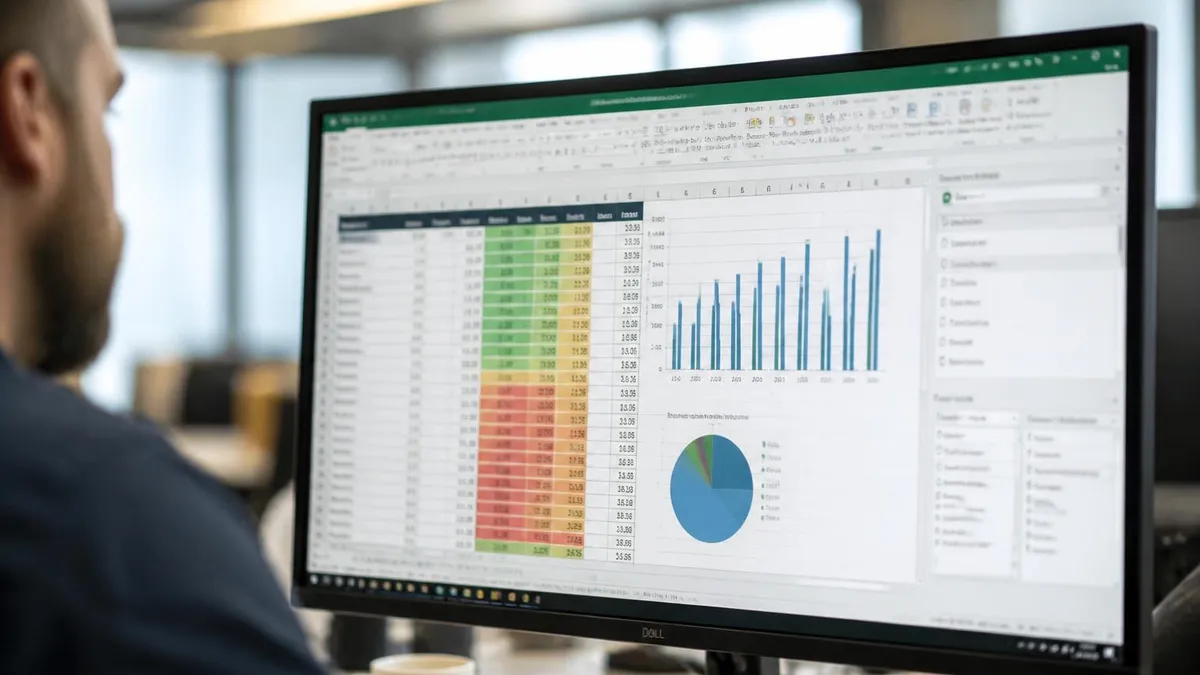
Methods to Count Cells With Text in Excel
Use =COUNTIF(range,"*") to count every cell containing text. The asterisk is a wildcard that matches any character sequence, so it ignores numbers, errors, and truly blank cells while catching all string values.
COUNTA(range) counts every cell that is not empty, including numbers, text, dates, and error values. Use it when you simply need a non-blank tally rather than text-specific results.
=SUMPRODUCT(--ISTEXT(range)) returns only cells that contain genuine text, excluding numbers formatted as text in some cases. It is the strictest and most reliable text counter for clean datasets.
When you need text matching plus a second condition, like text in column A and a status in column B, COUNTIFS lets you stack criteria pairs efficiently in one formula without arrays.
Combine COUNTIF with patterns like "apple*", "*report", or "???" to count cells starting with, ending with, or matching a specific character length for precise text searches.
The single most useful formula for this entire topic is =COUNTIF(A2:A100,"*"). The asterisk inside the quotes is a wildcard that tells Excel to match any number of characters, including zero. Because numbers are not strings of characters, this formula skips them entirely, and because truly empty cells contain nothing to match against, they are ignored too. The result is a clean count of every cell holding genuine text, which is exactly what most users want when they say they need to count cells with text.
Wildcards open up much more than just a generic text count. If you want to count cells containing the word "invoice" anywhere in the string, use =COUNTIF(A2:A100,"*invoice*"). To count cells starting with a specific prefix like product codes that begin with "SKU", use =COUNTIF(A2:A100,"SKU*"). To count cells ending in a particular suffix such as the file extension ".pdf", use =COUNTIF(A2:A100,"*.pdf"). Each pattern leverages the same asterisk principle, but the placement of the wildcard changes the meaning.
The question mark wildcard is less famous but equally powerful when you need positional precision. The pattern "???" matches any cell that contains exactly three characters, no more and no less. Mix it with the asterisk to build expressions like "A??" which finds three-character strings starting with A. This becomes incredibly useful when validating fixed-length codes, airport identifiers, or state abbreviations where length itself is the rule you care about.
One common confusion comes from users who try =COUNTIF(A2:A100,"text") and get zero results even though they can see text on screen. The literal word "text" is being treated as the search criterion, so Excel only counts cells whose entire content is the four letters t-e-x-t. To count any cell containing text, you must use the wildcard "*", not the word "text". This small distinction trips up new users constantly and is worth memorizing the first time you see it.
Case sensitivity is another nuance. COUNTIF is case-insensitive by design, so =COUNTIF(A2:A100,"apple") counts "apple", "Apple", and "APPLE" identically. If you need a case-sensitive count, COUNTIF will not help you. Instead, switch to a SUMPRODUCT and EXACT combination like =SUMPRODUCT(--EXACT(A2:A100,"apple")), which compares each cell precisely against your target string and returns the array sum of TRUE matches converted to 1s.
You should also know that COUNTIF treats Boolean TRUE/FALSE values and error cells like #N/A differently than text. TRUE and FALSE are not matched by "*" because they are logical values, not strings. Error cells inside the range will cause certain formulas to fail outright, so wrap them with IFERROR or use SUMPRODUCT-based formulas which handle errors more gracefully. Knowing the boundaries of each function helps you avoid silent miscounts in mixed-content datasets where every assumption matters.
For users who mix text counting with lookup operations, it is worth remembering that the same patterns you use here also power criteria in functions like SUMIF, AVERAGEIF, and even array-formula filters. The mental model of "range plus criterion" applies broadly. Once wildcards click, you will start spotting opportunities for them throughout your workbooks, from cleanup tasks to dashboard logic to reconciliation reports.

Microsoft Excel Practice Test Questions
Prepare for the Microsoft Excel exam with our free practice test modules. Each quiz covers key topics to help you pass on your first try.
Microsoft Excel Excel Basic and Advance
Microsoft Excel Exam Questions covering Excel Basic and Advance. Master Microsoft Excel Test concepts for certification prep.
Microsoft Excel Excel Formulas
Free Microsoft Excel Practice Test featuring Excel Formulas. Improve your Microsoft Excel Exam score with mock test prep.
Microsoft Excel Excel Functions
Microsoft Excel Mock Exam on Excel Functions. Microsoft Excel Study Guide questions to pass on your first try.
Microsoft Excel Excel MCQ
Microsoft Excel Test Prep for Excel MCQ. Practice Microsoft Excel Quiz questions and boost your score.
Microsoft Excel Excel
Microsoft Excel Questions and Answers on Excel. Free Microsoft Excel practice for exam readiness.
Microsoft Excel Excel Trivia
Microsoft Excel Mock Test covering Excel Trivia. Online Microsoft Excel Test practice with instant feedback.
Microsoft Excel Advanced Data Analysis Tools
Free Microsoft Excel Quiz on Advanced Data Analysis Tools. Microsoft Excel Exam prep questions with detailed explanations.
Microsoft Excel Advanced Formula and Macro...
Microsoft Excel Practice Questions for Advanced Formula and Macro Creation. Build confidence for your Microsoft Excel certification exam.
Microsoft Excel Advanced Formulas and Macros
Microsoft Excel Test Online for Advanced Formulas and Macros. Free practice with instant results and feedback.
Microsoft Excel Basic and Advance Question...
Microsoft Excel Study Material on Basic and Advance Questions and Answers. Prepare effectively with real exam-style questions.
Microsoft Excel Creating and Managing Charts
Free Microsoft Excel Test covering Creating and Managing Charts. Practice and track your Microsoft Excel exam readiness.
Microsoft Excel Data Visualization with Ch...
Microsoft Excel Exam Questions covering Data Visualization with Charts. Master Microsoft Excel Test concepts for certification prep.
Microsoft Excel Formulas and Functions
Free Microsoft Excel Practice Test featuring Formulas and Functions. Improve your Microsoft Excel Exam score with mock test prep.
Microsoft Excel Formulas and Functions App...
Microsoft Excel Mock Exam on Formulas and Functions Application. Microsoft Excel Study Guide questions to pass on your first try.
Microsoft Excel Formulas Questions and Ans...
Microsoft Excel Test Prep for Formulas Questions and Answers. Practice Microsoft Excel Quiz questions and boost your score.
Microsoft Excel Functions Questions and An...
Microsoft Excel Questions and Answers on Functions Questions and Answers. Free Microsoft Excel practice for exam readiness.
Microsoft Excel Managing Data Cells and Ra...
Microsoft Excel Mock Test covering Managing Data Cells and Ranges. Online Microsoft Excel Test practice with instant feedback.
Microsoft Excel Managing Tables and Data
Free Microsoft Excel Quiz on Managing Tables and Data. Microsoft Excel Exam prep questions with detailed explanations.
Microsoft Excel Managing Tables and Table ...
Microsoft Excel Practice Questions for Managing Tables and Table Data. Build confidence for your Microsoft Excel certification exam.
Microsoft Excel Managing Worksheets and Wo...
Microsoft Excel Test Online for Managing Worksheets and Workbooks. Free practice with instant results and feedback.
Microsoft Excel MCQ Questions and Answers
Microsoft Excel Study Material on MCQ Questions and Answers. Prepare effectively with real exam-style questions.
Microsoft Excel Questions and Answers
Free Microsoft Excel Test covering Questions and Answers. Practice and track your Microsoft Excel exam readiness.
COUNTA vs COUNTIF vs SUMPRODUCT: Choosing the Right Formula
COUNTA is the simplest function in this group. It counts every cell in the range that contains anything at all, whether that anything is text, a number, a date, a logical value, or even an error. The syntax is =COUNTA(A2:A100) with no criteria to specify. This makes it perfect for measuring overall data coverage in a column or quickly verifying that a list has the expected number of populated entries before you proceed with deeper analysis.
The catch is that COUNTA also counts cells that look empty but contain a formula returning an empty string, like =IF(B2=0,"",B2). The "" result is technically text, so COUNTA counts it. If you are auditing a column of formulas, this behavior can inflate your count noticeably. Use COUNTA when you genuinely want everything non-empty, and switch to COUNTIF with wildcards when you need a stricter text-only result that filters out formula-driven empties.
Pros and Cons of Using Wildcards for Text Counting
- +Single formula handles thousands of rows without manual filtering
- +Works in every modern version of Excel including Excel 2007 onward
- +Wildcards make pattern matching simple and readable
- +Combines with SUMIF, AVERAGEIF, and COUNTIFS for richer logic
- +Case-insensitive by default, simplifying user-entered data
- +Easy to audit by changing the criterion string and observing changes
- +Supports partial matches, prefixes, suffixes, and length checks
- −Counts formula-driven empty strings as text in many cases
- −Cannot be made case-sensitive without switching to SUMPRODUCT
- −Wildcards do not work with comparison operators like ">5"
- −Misuse of literal vs wildcard criteria leads to silent zero counts
- −Performance can lag on extremely large ranges over a million rows
- −Trailing spaces inside cells create misleading match results
Pros and Cons at a Glance
| Pros | Cons |
|---|---|
| Single formula handles thousands of rows without manual filtering | Counts formula-driven empty strings as text in many cases |
| Wildcards make pattern matching simple and readable | Cannot be made case-sensitive without switching to SUMPRODUCT |
| Combines with SUMIF, AVERAGEIF, and COUNTIFS for richer logic | Misuse of literal vs wildcard criteria leads to silent zero counts |
| Case-insensitive by default, simplifying user-entered data | Performance can lag on extremely large ranges over a million rows |
| Easy to audit by changing the criterion string and observing changes | Trailing spaces inside cells create misleading match results |

Step-by-Step Checklist to Count Cells With Text in Excel
- ✓Open your workbook and identify the exact range containing text data, including header awareness.
- ✓Decide whether you need text-only, non-empty, or pattern-matched counts before choosing a formula.
- ✓Use =COUNTIF(range,"*") for a quick text-only count covering most everyday scenarios.
- ✓Use =COUNTA(range) when you need a non-empty count regardless of data type.
- ✓Use =SUMPRODUCT(--ISTEXT(range)) when COUNTIF gives unexpected results from formula blanks.
- ✓Apply wildcards like "*word*" to count cells containing a specific keyword inside larger strings.
- ✓Verify trailing spaces with =LEN(A2) and clean up with TRIM if counts seem inflated.
- ✓Spot-check three to five sample cells with =ISTEXT to confirm Excel sees them as text.
- ✓Document your chosen formula with a comment so future users understand the logic.
- ✓Compare counts against a manual filter to validate before publishing reports.
The wildcard asterisk is your best friend
If you remember only one formula from this guide, make it =COUNTIF(range,"*"). The asterisk wildcard tells Excel to count any cell that contains one or more characters of text, ignoring numbers and empty cells. It works in every modern Excel version and solves about ninety percent of text-counting problems with a single line.
Most counting errors in Excel are not formula errors. They are data errors that the formula faithfully reports. The single most common culprit is the trailing space, where a cell looks like "Active" but actually contains "Active " with an invisible space after the word. To COUNTIF, those are two different strings, and a literal criterion like "Active" will miss the space-padded version entirely. Run =LEN(A2) on suspect cells, compare against the expected character count, and use =TRIM(A2) to clean up the data before counting.
The second pitfall is the formula-driven empty string. When a cell contains =IF(B2=0,"",B2) and B2 happens to equal zero, the result is an empty string, not a truly blank cell. =COUNTIF(range,"*") will count that cell because the empty string is technically text. =COUNTBLANK will not count it, and =ISBLANK returns FALSE. The workaround is to subtract the count of empty strings: =COUNTIF(range,"*")-COUNTIF(range,""). This gives a true text-only count that ignores invisible formula outputs.
Numbers stored as text are another common headache. When data is imported from a CSV, a database, or copy-pasted from a web page, numeric values can arrive as text strings. They look like numbers but are actually text. =ISTEXT will return TRUE for them, and =COUNTIF(range,"*") will count them along with real text. If you want to exclude these number-shaped strings, you need additional logic like SUMPRODUCT combined with ISNUMBER on a value-cast version of each cell. Most users prefer to convert the data first using Text-to-Columns or VALUE.
Hidden characters cause silent miscounts when text is copied from PDFs, web pages, or older systems. Non-breaking spaces (character 160), zero-width spaces, and line breaks all qualify as text but are invisible. =LEN reveals the surprise, and =CLEAN strips most non-printing characters. For non-breaking spaces specifically, use =SUBSTITUTE(A2,CHAR(160)," ") to replace them with regular spaces first. A combined TRIM and CLEAN pipeline catches most messy imports before they distort your counts.
Merged cells throw a different wrench in the works. When you merge cells horizontally or vertically, only the upper-left cell holds the value, while the others appear merged but are actually empty. COUNTIF counts only the populated cell, so a column of three merged groups counts as three, not nine. This is usually what you want, but it surprises users who expected nine matches. Avoid merged cells in any range you plan to count or summarize formulaically.
Filtered rows are not skipped by COUNTIF, COUNTA, or SUMPRODUCT. These functions evaluate the entire range regardless of which rows are hidden by a filter. If you want a count that respects the active filter, switch to =SUBTOTAL(103,range) or =AGGREGATE(3,5,range), both of which ignore hidden rows by design. This distinction is critical when building reports where users will apply filters and expect the totals at the top to update accordingly.
Finally, watch for circular references or volatile formulas in your range. If any cell in the counted range refers back to the cell holding the count formula, you create a loop that Excel may not flag immediately. Use the Formulas tab and the Error Checking tool to scan your workbook before publishing. A simple sanity check is to copy your count formula to a separate sheet and confirm it returns the same value, which rules out scope and reference problems quickly.
Cells that contain a formula returning "" look empty but count as text under most wildcard formulas. If your COUNTIF result seems too high, subtract the count of empty strings using =COUNTIF(range,"*")-COUNTIF(range,"") for a clean total. Always verify with a manual filter on the first few rows.
Beyond the basics, there are advanced patterns that make counting text in Excel feel almost magical. Combining COUNTIFS with multiple criteria lets you count cells where the text matches one rule and another column matches a second rule simultaneously. For example, =COUNTIFS(A2:A100,"*invoice*",B2:B100,"Paid") counts every row where column A contains the word invoice and column B exactly equals Paid. This is enormously useful for building summary tables on transactional datasets where you need joint conditions.
If your version of Excel includes the dynamic array engine, you can use FILTER and ROWS together as an alternative counting approach. The formula =ROWS(FILTER(A2:A100,ISTEXT(A2:A100))) returns the number of text cells by first filtering the range and then counting the resulting array. This pattern is especially powerful when you want to also see the matched values themselves, since the same FILTER output can be displayed in another part of the worksheet for visual confirmation of what was counted.
Counting unique text values rather than total text cells is a common follow-up question. In Excel 365, =COUNTA(UNIQUE(A2:A100)) gives you the count of distinct text entries instantly. In older versions, =SUMPRODUCT(1/COUNTIF(A2:A100,A2:A100)) achieves the same result through an array-style trick where each value is counted as a fraction that sums to one per unique entry. Both approaches handle text well, though the older formula breaks on empty cells and needs adjustment for them.
Conditional formatting can visually confirm your text counts. Apply a rule that highlights cells where =ISTEXT(A2) is TRUE, and you instantly see which cells contributed to the count. This is a fantastic debugging tool when your formula returns a number that does not match expectations. You can also flag cells containing specific keywords by using a conditional formula like =ISNUMBER(SEARCH("invoice",A2)), which highlights every cell with the word invoice anywhere in the text.
For dashboards and KPIs, wrap your text count inside a named formula or a LET expression in newer Excel versions. =LET(textCount,COUNTIF(data,"*"),emptyStrings,COUNTIF(data,""),textCount-emptyStrings) gives you a clean, self-documenting count that excludes formula blanks. Named formulas make complex spreadsheets vastly easier to maintain because the intent is captured in the name, not buried in a deeply nested expression that future readers will struggle to interpret.
Pivot tables offer a no-formula alternative for counting text. Drop your text column into the Rows area and again into the Values area, and the default aggregation is Count, which gives you a count of each unique text value. The pivot table grand total shows the total count of populated cells. This approach is excellent for exploratory analysis where you want to see both the count and the distribution at the same time without typing any formulas at all.
Finally, do not overlook Power Query for large or messy datasets. Power Query can profile a column and tell you the count of distinct values, empty values, and errors with a single click. If your workflow involves repeatedly counting text in files that arrive with the same shape, a Power Query refresh is faster and more maintainable than rebuilding formulas. The choice between formulas, pivots, and Power Query depends on whether your count needs to live in the worksheet or in a refreshable report.
Putting all of this together into a repeatable workflow will save you hours every month. Start every text-counting task by inspecting your range with a quick =COUNTA versus =COUNTIF(range,"*") comparison. If the two numbers match, your data is clean and either function will serve you. If they differ, the gap tells you exactly how many cells contain non-text values, which usually means numbers or dates that you can then investigate or extract separately depending on the goal of your analysis.
Next, build a habit of running =SUMPRODUCT(--ISTEXT(range)) as a third sanity check whenever the stakes are high. The three numbers together paint a complete picture: COUNTA shows all populated cells, COUNTIF with "*" shows text-like cells, and SUMPRODUCT with ISTEXT shows verified text. Any divergence between them points to a specific data quality issue you should resolve before publishing a report or making a decision based on the count.
For documentation, always name your ranges and add a comment to your count formulas. =COUNTIF(CustomerNames,"*") is far more readable than =COUNTIF(A2:A1500,"*"), and a colleague reviewing your workbook six months from now will thank you. Excel's Name Manager makes this easy, and named ranges automatically adjust when you insert rows, which keeps your formulas resilient to structural changes in the underlying data without manual maintenance.
When sharing workbooks with non-technical users, consider replacing complex formulas with a single named LET expression or a small helper column. A helper column with =IF(ISTEXT(A2),1,0) followed by =SUM(B2:B100) is dramatically easier for anyone to audit than a single dense SUMPRODUCT formula. The slight redundancy of an extra column is more than worth it for accessibility, especially in shared workbooks that may need to be edited by colleagues with different skill levels.
Performance matters once your ranges exceed a hundred thousand rows. COUNTIF and COUNTA scale gracefully, while array-heavy SUMPRODUCT formulas can slow down recalculation noticeably. If you find Excel pausing after every edit, switch large counts to COUNTIF wherever possible and consider moving heavy logic to Power Query or a pivot table. Modern Excel also offers manual calculation mode, which lets you batch changes and recompute once at the end of an editing session.
Practice with realistic datasets is the fastest way to internalize these functions. Build a sample workbook with deliberately messy data: trailing spaces, formula-driven blanks, numbers as text, hidden characters, and a few error cells. Then write each formula and verify the results against your manual count. After three or four of these exercises, the patterns will feel automatic, and you will stop second-guessing your count formulas in real work because you have already seen every edge case.
Finally, keep this guide and the formulas at hand. Bookmark the reference table of COUNTIF, COUNTA, SUMPRODUCT, and COUNTIFS syntax, save a workbook with worked examples, and revisit them whenever a new dataset arrives. Over time, you will develop instincts for which formula to reach for first based on the shape of the data and the question being asked. That instinct is the real payoff of investing time in mastering text counting in Excel.
Sample Excel Practice Questions
Try these questions from our free Excel practice tests. The correct answer and an explanation follow each question.
Which function finds the position of the first occurrence of a substring within a text string and is case-sensitive?
- A. SEARCH
- B. FIND
- C. MATCH
- D. LOCATE
Answer: B. FIND
FIND is case-sensitive and returns the starting position of one text string inside another; SEARCH is the case-insensitive alternative.
What is the difference between deleting contents and deleting cells?
- A. No difference
- B. Contents clears values but keeps cells; deleting cells removes them and shifts neighbors
- C. Deleting cells is permanent
- D. Contents removes formatting
Answer: B. Contents clears values but keeps cells; deleting cells removes them and shifts neighbors
Delete key clears values; Right-click > Delete removes the cell and shifts adjacent cells.
A selection of several cells is referred to as a
- A. Group
- B. Reference
- C. Range
- D. Package
Answer: C. Range
In Excel, a 'range' refers to a group of two or more cells that are selected or referenced together. Ranges can be contiguous (adjacent) or non-contiguous and are fundamental for applying functions, formatting, or performing calculations across multiple cells simultaneously. For example, A1:C5 denotes a range of cells.
What is the result of =TEXT(1234.5, "$#,##0.00")?
- A. 1234.5
- B. $1,234.50
- C. #,##0.00
- D. $1234.5
Answer: B. $1,234.50
TEXT converts a number to a formatted text string; the format code "$#,##0.00" produces "$1,234.50".
Excel Questions and Answers

Standard Deviation Formula in Excel: STDEV.P vs STDEV.S Guide

How to Add a Filter in Excel: AutoFilter, Advanced and FILTER Function

Freeze Panes in Excel: Complete Guide to Locking Rows and Columns

Count Unique Values in Excel: COUNTUNIQUE, COUNTIF, and SUMPRODUCT Methods

How to Calculate Coefficient of Variation in Excel: Complete Step-by-Step Guide
About the Author

Business Consultant & Professional Certification Advisor
Wharton School, University of PennsylvaniaKatherine Lee earned her MBA from the Wharton School at the University of Pennsylvania and holds CPA, PHR, and PMP certifications. With a background spanning corporate finance, human resources, and project management, she has coached professionals preparing for CPA, CMA, PHR/SPHR, PMP, and financial services licensing exams.