
Checklist Template Excel: Build Trackable Task Sheets Fast 2026
Build a checklist template in Excel for HSE, daily tasks, or audits. Get step-by-step setup, formulas, and a free downloadable template.

A checklist template in Excel turns a messy to-do list into a structured, reusable workbook your whole team can rely on. Warehouse supervisors, HSE officers, project leads, and home users all reach for Excel because checkboxes, formulas, and conditional formatting work without extra software. Practice with the free Excel practice test on PracticeTestGeeks (500+ questions with answer explanations).
This guide walks you through building a checklist template from scratch, customizing it for daily HSE inspections, and adding smart features like progress bars and date stamps. You will also pick up tips from our how to use Excel primer so the template feels intuitive on day one.
By the end you will have a checklist that auto-counts completed items, locks past entries, and exports cleanly to PDF for compliance records.
Microsoft Excel: upcoming dates and official changes
- Jun 30, 2026: Certiport retired the Microsoft Office Specialist 2016 certifications, including MOS Excel 2016, on June 30, 2026. The Microsoft 365 Apps and Office 2019 Excel exams are still available. (certiport.pearsonvue.com)
- Updated Oct 16, 2026: Delivery is now Proctored live-in-the-application exam via Certiport Authorized Testing Centers (in-center or remote-proctored) (previously Proctored live-in-the-application exam via Certiport Authorized Testing Centers).
- Updated Oct 16, 2026: Eligibility is now No formal prerequisites; about 150 hours of instruction and hands-on experience recommended (previously No formal prerequisites; ~150 hours of instruction and hands-on experience recommended (Associate)).
- Updated Oct 16, 2026: Time limit is now 50 minutes (60 minutes seat time) (previously 50 minutes (60 minutes seat time)).
Facts verified Oct 17, 2026 against Microsoft (Microsoft Office Specialist program), delivered by Certiport, a Pearson VUE business. Dates that have passed are removed automatically.
- The MOS Excel (Microsoft 365 Apps) exam has 33 to 37 questions. (certiport.pearsonvue.com)
- The MOS Excel Expert (Microsoft 365 Apps) exam has 23 to 27 questions. (certiport.pearsonvue.com)
- Microsoft Office Specialist Excel exams last 50 minutes, with 60 minutes of total seat time. (Microsoft (Microsoft Office Specialist program), delivered by Certiport, a Pearson VUE business)
- The passing score for Microsoft Office Specialist Excel exams is always 700 on Certiport's 1 to 1000 scaled score. (certiport.pearsonvue.com)
- After failing a Microsoft Office Specialist Excel exam, candidates must wait 24 hours before the first retake and 48 hours before each later retake, and there is no annual limit on attempts. (Microsoft (Microsoft Office Specialist program), delivered by Certiport, a Pearson VUE business)
- Microsoft Office Specialist Excel certifications earned on or after September 23, 2025 are valid for five years; those earned earlier do not expire. (certiport.pearsonvue.com)
- The Microsoft Office Specialist Excel exam is proctored and delivered live in the Excel application through Certiport Authorized Testing Centers, either in person or remote-proctored. (Microsoft (Microsoft Office Specialist program), delivered by Certiport, a Pearson VUE business)
- Microsoft recommends that candidates for the MOS Excel Associate (Microsoft 365 Apps) certification have about 150 hours of instruction and hands-on experience with Excel. (Microsoft (Microsoft Office Specialist program), delivered by Certiport, a Pearson VUE business)
- Candidates get their MOS Excel score report as soon as they finish the exam, and it can also be viewed in their Certiport profile. (certiport.pearsonvue.com)
Facts verified Oct 17, 2026 against Microsoft (Microsoft Office Specialist program), delivered by Certiport, a Pearson VUE business. Dates that have passed are removed automatically.
Microsoft Excel Exam at a Glance
| Item | Detail | Official source |
|---|---|---|
| Number of questions (Excel Associate (MO-210)) | 33-37 questions | certiport.pearsonvue.com |
| Number of questions (Excel Expert (MO-211)) | 23-27 questions | certiport.pearsonvue.com |
| Time limit | 50 minutes (60 minutes seat time) | Microsoft (Microsoft Office Specialist program), delivered by Certiport, a Pearson VUE business |
| Passing score | 700 on a 1–1000 scale | certiport.pearsonvue.com |
| Retake policy | Wait 24h after 1st fail, 48h before each later retake; no annual limit | Microsoft (Microsoft Office Specialist program), delivered by Certiport, a Pearson VUE business |
| Validity | Valid 5 years (earned on/after Sept 23, 2025) | certiport.pearsonvue.com |
| Delivery | Proctored live-in-the-application exam via Certiport Authorized Testing Centers (in-center or remote-proctored) | Microsoft (Microsoft Office Specialist program), delivered by Certiport, a Pearson VUE business |
| Eligibility | No formal prerequisites; about 150 hours of instruction and hands-on experience recommended | Microsoft (Microsoft Office Specialist program), delivered by Certiport, a Pearson VUE business |
| Score release | Score report at end of exam; also in Certiport profile | certiport.pearsonvue.com |
Facts verified Oct 17, 2026 against Microsoft (Microsoft Office Specialist program), delivered by Certiport, a Pearson VUE business. Dates that have passed are removed automatically.
Free Excel Study Tools
Interactive Excel resources on PracticeTestGeeks, free to start:
- Free Excel Questions and Answers — 16 questions with instant scoring and answer explanations
- Excel flashcards — review key terms and concepts card by card
- Excel study guide — topic-by-topic overview of what the exam covers
- Excel cheat sheet — one-page printable summary for last-minute review
Why Excel checklists still dominate

Why Excel still wins for checklists
Dedicated checklist apps look polished, but Excel offers something they often cannot: total ownership. Your template lives on your drive, syncs over OneDrive, and never expires when a vendor changes pricing.
It also bends to your workflow. A warehouse HSE daily checklist might need 30 inspection points, while a project rollout calls for milestones and owners. Excel handles both with the same toolset, and you can repurpose formulas like the COUNTIF function to tally completion rates instantly.
Power users layer in data validation, conditional formatting, and protected ranges so junior staff cannot accidentally overwrite a formula. That makes the file auditable, which matters when an inspector asks for two years of safety records.
Anatomy of a strong checklist template
Title, date, location, shift, and inspector name pinned at the top for instant context, even on a printed page passed across desks.
Each row holds one specific, observable action with verb-first wording so nothing is ambiguous, debatable, or open to multiple interpretations later.
Form-control checkbox or the new Insert > Checkbox feature that returns TRUE or FALSE so formulas, dashboards, and audit trails work automatically.
A status dropdown with Pass, Fail, N/A plus a free-text notes column. Conditional formatting paints failed rows pale red for instant scanning.
Build a checklist template from a blank workbook
Open Excel and save the workbook as Checklist_Template.xlsx before adding any content. Saving early prevents lost work and gives you a clear file to clone for future shifts.
In row one, type your title in cell A1 such as Warehouse HSE Daily Checklist. Merge A1:E1 and bump the font to 16 point. Use row two for metadata: date, shift, inspector, and site. Lock these cells later so the structure stays intact.
Starting in row four, add column headers: #, Task, Done, Status, Notes. Freeze the top four rows under View > Freeze Panes so headers stay visible while you scroll a long list.
Setup steps before adding tasks
- ✓Save the file with a clear template name and version number.
- ✓Set the page layout to portrait with narrow margins for clean printing.
- ✓Apply a single font family (Calibri 11 works) for consistency.
- ✓Add a logo or site name to the header for branding.
- ✓Insert columns: #, Task, Done, Status, Notes, Inspector.
- ✓Enable Developer tab via File > Options > Customize Ribbon.
- ✓Add a checkbox in column C using Developer > Insert > Form Controls.
- ✓Right-click each checkbox and link it to its own row cell.
- ✓Apply conditional formatting so completed rows shade green.
- ✓Save as a template (.xltx) when the structure feels right.
Add real checkboxes (not just symbols)
Many beginners type an X or use a Wingdings tick, and those work. But real form-control checkboxes give you binary TRUE or FALSE values that formulas can read, which unlocks dashboards and audit logs.
Enable the Developer tab if you have not already. Then click Insert > Form Controls > Check Box. Draw it inside cell C5. Right-click the box, choose Format Control, and link it to cell C5 itself. Repeat for every task row, or copy the cell and paste down the column.
If you find manual placement tedious, use a VBA macro to insert checkboxes across a selected range. A 10-line macro shaves an hour off a 200-item HSE sheet. Just remember to save the file as .xlsm if you keep the macro.
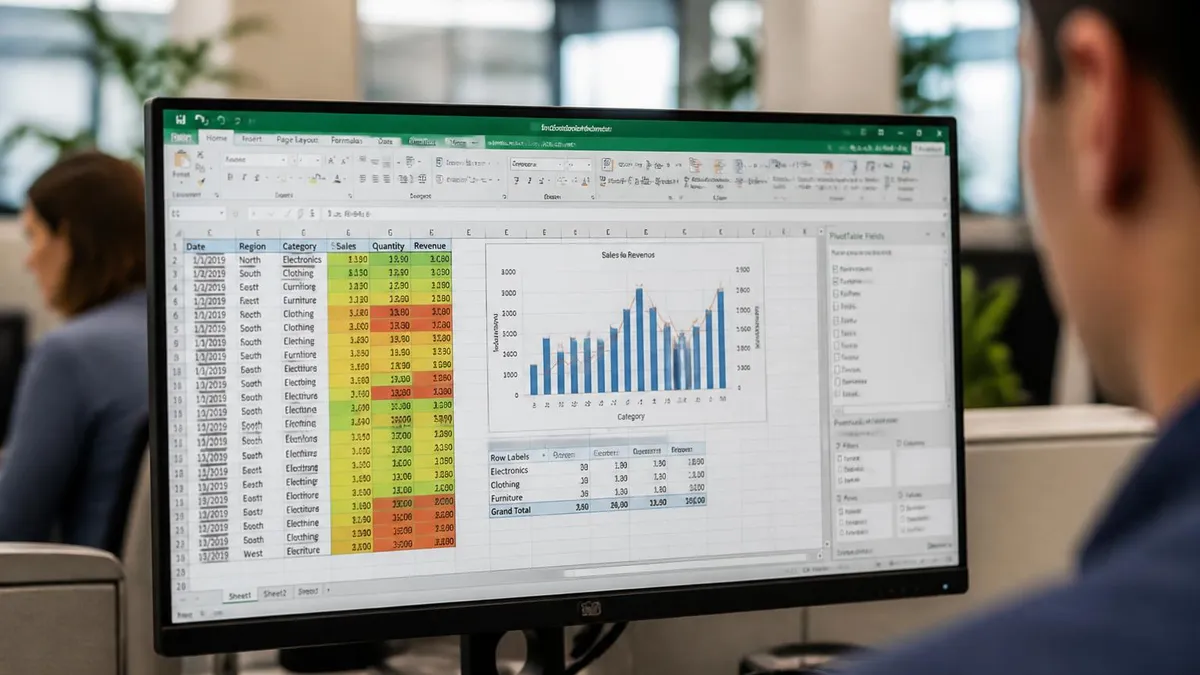
Checklist variants by use case
Formulas that make the template feel alive
A static checklist is fine, but formulas turn it into a dashboard. Drop =COUNTIF(C5:C50, TRUE) into a summary cell to show how many boxes are ticked. Pair it with =COUNTA(B5:B50) to get the total task count, then divide for a completion percentage.
The Excel formulas guide covers IF, TEXT, and TODAY functions you can stack together. For example, =IF(C5=TRUE, TEXT(TODAY(), "yyyy-mm-dd"), "") writes the completion date the moment a box is ticked, giving you a free audit trail.
Want a progress bar? Use the REPT function with a block character: =REPT("|", percentage*20). It renders a primitive bar inside a cell, no charts needed. Cheap and surprisingly readable in printouts.
Excel ships with checklist templates under File > New > search Checklist. Microsoft offers a To-Do List, Wedding Planner, and Project Tracker for free. They are decent starting points you can strip down and rebrand.
Strip the parts you do not need and rebuild headers to match your branding. The template structure (frozen panes, print layout, header row) is already done, which saves about 20 minutes of fiddling on every new build.
Tailoring for warehouse HSE daily checks
Warehouse environments demand specific items. Group them into sections: PPE & Personnel, Equipment, Aisles & Storage, Emergency Systems, Documentation. Section headers in a merged row keep long lists scannable.
Use data validation to lock the Status column to a dropdown of Pass, Fail, N/A. Conditional formatting can then highlight any Fail in red and any N/A in grey, so a manager scanning the printed sheet spots issues in two seconds.
Add a signature line at the bottom with two cells: inspector name and supervisor sign-off. If you need digital signatures, the add a signature in excel walkthrough covers the Sign Line tool under Insert.
Without sheet protection, a single accidental delete can wipe your formulas. Go to Review > Protect Sheet, unlock only the data-entry cells, and set a recovery password you store safely. This stops well-meaning staff from breaking the workbook.
Also store a backup .xltx in a separate folder. If a macro misfires or a user disables protection, you can drop in the clean template in seconds and keep operations moving without rebuilding anything from scratch.
Printing and exporting cleanly
Set the print area to your header row plus the task list. Under Page Layout > Print Titles, repeat row 4 (your column headers) at the top of every printed page. That single tweak makes multi-page audits readable.
For PDF exports, choose File > Export > Create PDF/XPS. Pick the Standard option for sharper text. Inspectors and clients often prefer PDF copies because they cannot be edited after the fact, which is exactly what you want for compliance.
If your checklist drives a dashboard in another sheet, use the Excel spreadsheet guide for tips on cross-sheet references so updates flow through automatically.
Excel checklist trade-offs
- +Free to build and customize, no subscriptions.
- +Formulas like COUNTIF give instant completion stats.
- +Conditional formatting flags issues visually.
- +Exports to PDF for tamper-evident audit copies.
- +Works offline and syncs through OneDrive.
- −Real-time multi-user editing is clunky outside Excel Online.
- −Form-control checkboxes do not survive mobile Excel reliably.
- −Macros require .xlsm format and can trigger security warnings.
- −Manual checkbox insertion is slow on lists over 100 items.
Pros and Cons at a Glance
| Pros | Cons |
|---|---|
| Free to build and customize, no subscriptions. | Real-time multi-user editing is clunky outside Excel Online. |
| Formulas like COUNTIF give instant completion stats. | Form-control checkboxes do not survive mobile Excel reliably. |
| Conditional formatting flags issues visually. | Macros require .xlsm format and can trigger security warnings. |

Going mobile and collaborative
Field teams want to tick items on a phone. Form-control checkboxes do not render in mobile Excel, so swap them for the new Checkbox feature (Insert > Checkbox) introduced in 2024. It works on web, mobile, and desktop, returning TRUE or FALSE just like form controls.
If multiple inspectors need to share a single sheet, store it on Excel Online via OneDrive or SharePoint. Co-authoring lets two people tick items at once without overwrite conflicts, and the autosave kicks in every few seconds.
For sites with poor signal, install the Excel mobile app and download the file offline. Edits sync the moment connectivity returns. This pattern is common for warehouse aisles and remote project sites.
Common problems and quick fixes
Checkboxes drift when you resize rows? Right-click each checkbox, choose Format Control > Properties, and pick Move and size with cells. That pins them so they scale with row height.
COUNTIF returns zero even though boxes are ticked? Your checkboxes are probably not linked to the cells you think. Click each one, look at the Formula Bar, and confirm the linked cell. A single missed link breaks the count.
Conditional formatting not lighting up the right row? Anchor your formula reference. Use =$C5=TRUE rather than =C5=TRUE so the rule applies across the entire row when column C ticks. Small dollar signs, big difference.
Sample Excel Practice Questions
Try these questions from our free Excel practice tests. The correct answer and an explanation follow each question.
How many sheets does a new Excel workbook contain by default in Excel 2016 and later?
- A. 3
- B. 1
- C. 2
- D. 5
Answer: B. 1
Starting with Excel 2013, a new workbook defaults to a single worksheet named 'Sheet1', changed from the previous default of three sheets.
An analyst needs to create a dynamic, spillable list of all sales records from a table named 'SalesData' where the '[Region]' is "East" AND the '[Revenue]' is greater than 10000. Which of the following formulas is the most appropriate for this task?
- A. =FILTER(SalesData, (SalesData[Region]="East") * (SalesData[Revenue]>10000))
- B. =SUMIFS(SalesData[Revenue], SalesData[Region], "East", SalesData[Revenue], ">10000")
- C. =IF(AND(SalesData[Region]="East", SalesData[Revenue]>10000), SalesData, "No Results")
- D. =VLOOKUP("East", SalesData, 3, FALSE)
Answer: A. =FILTER(SalesData, (SalesData[Region]="East") * (SalesData[Revenue]>10000))
The FILTER function is specifically designed to return a range of data that meets a set of criteria. To apply multiple 'AND' conditions, the logical tests for each condition are multiplied together.
What does an Excel workbook mean?
- A. a sheet of paper with printed data on it
- B. a collection of files in a folder
- C. a file that stores one or more worksheets
- D. a type of chart
Answer: C. a file that stores one or more worksheets
An Excel workbook is the primary file type in Microsoft Excel, serving as a container for your data. It is a single file that can store one or more individual worksheets (also known as spreadsheets). Worksheets are where you input, organize, and analyze your data using cells, rows, and columns.
Which keyboard shortcut selects an entire row in Excel?
- A. Ctrl + Space
- B. Shift + Space
- C. Ctrl + R
- D. Alt + Space
Answer: B. Shift + Space
Shift + Space selects the entire row of the currently active cell.
Take the full Excel practice test
Excel Questions and Answers
Advanced template patterns that scale
Once you have a working checklist, the next leap is making it scale across teams, sites, and time. A pattern many warehouse HSE teams adopt is the master-and-instance split. The master file is locked, versioned, and stored on SharePoint. Each shift opens a fresh copy via a button macro that timestamps the filename automatically.
That single move solves three issues at once: no one ever overwrites the template, every completed checklist has a unique audit-friendly filename, and historical files can be searched by date in seconds. The macro is short, around 12 lines, and lives in your personal macro workbook so it travels between sites.
Another pattern is the rolling history sheet. Add a second tab that pulls completed tasks via INDEX and MATCH from the daily sheets. Over a year you build a searchable archive of every signed-off check without lifting a finger. Pivot tables on top of that history reveal which items get flagged most often, which is gold for safety meetings.
Conditional formatting recipes worth knowing
Conditional formatting is where checklists stop feeling like spreadsheets and start feeling like apps. Rule one: highlight overdue tasks. Use =AND($E5="",$F5<TODAY()) where E is the Done column and F is the Due Date column. Anything past due and unfinished glows red.
Rule two: progress shading. Apply a colour scale to the percentage cell so it shifts from red to amber to green as completion climbs. Managers reading the printed sheet need zero training to spot a struggling site.
Rule three: failed-check banding. Use =$D5="Fail" to paint the entire row pale pink. Combined with a Pass dropdown in column D, this gives you a fast scan over a 200-item warehouse audit. Pair this with the COUNTIF tutorial to count Fails by section.
Data validation keeps inputs clean
Free-text columns invite spelling chaos. Pass becomes pas, Fail becomes faild, and your reporting falls apart. Data validation fixes that. Select your Status column, head to Data > Data Validation, pick List, and type Pass,Fail,N/A. Now only those three values are accepted, and a dropdown arrow appears in every cell.
You can take it further by referencing a named range. Define a range called StatusOptions on a hidden sheet, then point your validation rule to =StatusOptions. Adding a new option later means editing one cell rather than every validation rule.
Validation also stops invalid dates, out-of-range numbers, and oversized notes. A 200-character cap on the Notes column keeps the printed sheet tidy. Combine validation with a custom error message that nudges users toward the correct input.
Numbers that justify the build
Three patterns that scale checklist templates
Locked master file plus a macro that timestamps each shift copy.
INDEX MATCH pulls completed tasks into one searchable archive.
Monthly pivot tables surface the worst-failing inspection points.
Bring in pivot tables for monthly reviews
Once you have a rolling history sheet, drop a pivot table on top of it. Rows: task name. Columns: month. Values: count of Fails. In under a minute you see which inspection points fail most often. Plant managers love this because it points the next training session at the real weak spot.
Pivot tables refresh with one click when new daily checklists feed the history. Schedule a monthly review where the team scans the pivot, picks the worst three items, and adds a 60-second briefing to morning standups. That feedback loop turns a checklist from compliance theatre into a real safety tool.
If pivot tables feel intimidating, our Excel spreadsheet basics page walks through them with screenshots. The investment pays back the first time a regulator asks for trends across six months and you produce them in thirty seconds.
Version control without the headache
Templates evolve. You will add a new inspection point, drop one that no longer applies, or restructure sections after a near-miss review. Track those changes in a Changelog tab inside the workbook itself. Three columns: date, change, author. Future you will be grateful when an auditor asks why row 17 disappeared in March.
For teams using OneDrive or SharePoint, version history is automatic. Right-click the file in the browser, choose Version History, and you can restore any prior copy in seconds. Combine this with the in-workbook changelog and you have a transparent, defensible record of how your safety checklist matured.
Never email checklists around as attachments. That route guarantees version drift and lost data. Share a link to the SharePoint file instead. Every edit lands in one canonical copy, and the version history captures who changed what and when.
When to retire Excel and move to dedicated tools
Excel checklists work brilliantly until you outgrow them. Signs you are reaching the ceiling include: more than a hundred concurrent users, the need for offline mobile capture with photo evidence, or regulatory rules that demand cryptographic signatures. At that point a dedicated inspection app earns its keep.
Even then, Excel still has a role. Most inspection platforms export to CSV, which opens in Excel. You can run the same COUNTIF and pivot analyses on exported data, blending the strengths of the dedicated app with the analytical power you already know. Build the muscle in Excel now, and it pays off no matter which tool comes next.
For most warehouses, project teams, and small businesses though, a well-built Excel checklist template is more than enough. It is free, flexible, and durable. Start with the steps in this guide, copy the patterns that fit, and your team will have a tool that actually gets used.
Final polish before you roll out the template
- ✓Run a 10-minute walkthrough with the team and capture friction points.
- ✓Confirm every checkbox links to the correct row cell.
- ✓Print one copy on the chosen paper size to spot layout issues.
- ✓Verify conditional formatting fires on a sample completed sheet.
- ✓Test PDF export and open the result on a phone for legibility.
- ✓Lock the template, set a recovery password, and store it safely.
- ✓Save a backup .xltx in a separate folder or cloud location.
- ✓Document the change log inside the workbook with date and author.
Bring it all together
A great checklist template in Excel is more than a list with ticks. It is a small, focused tool that captures evidence, drives accountability, and prints cleanly for the auditor. Start simple, add formulas only when they earn their keep, and lock the structure once it works.
If you build it once and clone it for daily shifts, you will save hours every month. Stick to one task per row, keep wording specific, and let conditional formatting do the visual heavy lifting. Practice these moves with our how to use Excel walkthroughs and the broader Excel formulas guide to sharpen each piece.
Next time someone asks for a checklist, send them a working .xltx file rather than a screenshot. They will thank you, and your audits will run smoother every quarter.
One final tip: keep a written one-page guide for new hires beside the template. Spell out where to save completed copies, who signs off, and which dropdown values matter. Even the cleanest workbook fails if onboarding skips these details.
Templates also benefit from a quarterly review. Pull the team together, scan the past three months of completed checklists, and ask which items are dead weight and which inspections are missing. Trim ruthlessly. A shorter checklist that gets completed beats a comprehensive one that gets skipped at 5pm on a Friday.
Finally, share what works. If your warehouse team builds a great template, send it across to sister sites. Standardising the base structure across locations makes regional reporting trivial and keeps compliance consistent. The investment compounds with every shift, every site, and every audit cycle. Make those small steps part of every onboarding so the template lasts beyond the person who built it, and your audits stay clean for years.
Written and edited by Nathan Beja, founder of Practice Test Geeks, with AI assistance. Exam facts are checked against the official sources linked below. Editorial policy
Sources & references
Exam facts on this page (fees, format, dates, passing scores) are checked against these official sources; the date is our last check. Editorial policy
- store.certiport.com — Fees, retake fee · verified Nov 2026
- certiport.pearsonvue.com — Renewal, score validity, score release, exam format · verified Nov 2026
- learn.microsoft.com — Test delivery, time limit, eligibility · verified Nov 2026