
How to Calculate Difference in Excel: Formulas, Functions, and Real-World Examples
Learn how to calculate difference in Excel using subtraction, ABS, DATEDIF & more. Step-by-step guide with real examples. 💡

Knowing how to calculate difference in excel is one of the most practical skills you can build in any spreadsheet environment. Whether you're tracking monthly budget changes, comparing sales figures quarter over quarter, measuring the gap between actual and target performance, or simply figuring out how many days remain until a project deadline, subtraction and difference formulas sit at the heart of almost every real-world Excel workbook.
Excel offers more than one path to computing a difference. The simplest approach—typing a minus sign between two cell references—works perfectly for numeric values and returns the arithmetic difference instantly. But as your data grows more complex, you'll find yourself reaching for functions like ABS to handle negative results gracefully, DATEDIF or simple date subtraction to calculate elapsed days, and even VLOOKUP combined with subtraction to compare values pulled from different tables. Understanding which tool fits which situation saves enormous time and prevents hard-to-spot errors.
This guide covers every major scenario where you need to find a difference in Excel: numbers, percentages, dates, times, and conditional differences that depend on matching criteria. Each section includes formula syntax, a worked example with realistic numbers, and common mistakes to avoid. By the time you finish reading, you'll be equipped to handle difference calculations in payroll spreadsheets, sales dashboards, academic grade trackers, project schedules, and financial models alike.
One detail beginners often overlook is the distinction between an absolute difference and a signed difference. When you subtract B2 from A2 and get –45, that negative sign carries important information—A2 is smaller than B2. But in some contexts, like measuring the magnitude of a variance regardless of direction, you want the absolute value: 45. Excel's ABS function handles this with a single wrapper around your subtraction formula, and knowing when to use it versus when to preserve the sign is a judgment call that separates competent spreadsheet users from truly fluent ones.
Excel's date system adds another layer of nuance. Dates in Excel are stored as serial numbers—January 1, 1900 is day 1, and every subsequent day increments by one. That means subtracting one date from another gives you the number of days between them automatically, with no special function required. However, if you need the difference expressed in months or years rather than days, the DATEDIF function (or a combination of YEAR, MONTH, and DAY functions) becomes essential, and each option has subtle edge cases worth knowing.
Throughout this article you'll also see how Excel's conditional functions—SUMIF, SUMIFS, and IF combined with subtraction—let you calculate differences only for rows that meet specific criteria. This pattern is indispensable in business reporting, where you might need the revenue difference for one product line, one region, or one time period, filtered out of a much larger dataset. Mastering these combinations brings your difference calculations from the level of basic arithmetic into the area of genuine data analysis.
Finally, formatting matters as much as the formula itself. A difference that should read as a percentage variance looks confusing if it's displayed as a decimal like 0.12 rather than 12%. Dates displayed as serial numbers instead of recognizable formats confuse every reader. This guide addresses formatting alongside formula construction so your finished spreadsheets communicate clearly as well as calculate correctly.
Excel Difference Calculations by the Numbers
How to Calculate Difference in Excel Step by Step
Enter Your Two Values
Write a Basic Subtraction Formula
Wrap with ABS for Absolute Difference
Use DATEDIF for Date Gaps
Calculate Percentage Difference
Copy the Formula Down the Column
Calculating a percentage difference in Excel is one of the most frequently requested formula types in business settings, and the logic behind it is straightforward once you understand the underlying math. The formula =(NewValue-OldValue)/OldValue divides the absolute change by the original reference point, producing a decimal that Excel can display as a percentage. For example, if last month's revenue was $42,000 and this month's is $48,300, the formula =(48300-42000)/42000 returns 0.15, which formats as 15%—a clean, readable figure for any management report.
One subtle but important issue arises when your base value (the denominator) is zero or negative. Dividing by zero produces Excel's #DIV/0! error, which breaks any downstream calculations that reference that cell. The fix is to wrap your formula in IFERROR: =IFERROR((B2-A2)/A2, "N/A"). This replaces the error with a readable label. When your base can be negative—for example, when comparing losses rather than profits—the percentage change formula can produce counterintuitive results, because a move from –$10,000 to –$5,000 is actually an improvement, yet the raw formula returns –50%. In these cases, using ABS(A2) in the denominator—=(B2-A2)/ABS(A2)—gives a more interpretable result.
The absolute difference, produced by =ABS(A2-B2), answers a different question: not which direction did the value move, but how large is the gap between the two values? This is useful in quality control contexts where you're measuring deviation from a specification regardless of whether a reading is above or below the target. A part that is 0.003 mm too thick and a part that is 0.003 mm too thin represent the same magnitude of error, and ABS captures that symmetry perfectly.
When working with large datasets, combining difference calculations with conditional logic unlocks powerful reporting possibilities. The formula =SUMIF(A:A,"West",C:C)-SUMIF(A:A,"West",D:D) calculates the total difference between two columns only for rows where column A contains the value "West." This single formula can replace a pivot table filter in many reporting scenarios, executing in milliseconds and updating automatically whenever the source data changes.
Excel's VLOOKUP function—one of the most searched Excel topics—becomes especially valuable when you need to calculate differences between values stored in separate tables. Suppose Table 1 holds this year's product prices and Table 2 holds last year's prices, both keyed by product code. The formula =B2-VLOOKUP(A2,Table2,2,0) looks up the old price from Table 2 and subtracts it from the current price in B2, producing the price change for each product. Because VLOOKUP finds the matching row automatically, this pattern scales to thousands of products without requiring manual sorting or alignment.
Formatting your difference results correctly is as important as getting the formula right. A raw number like 0.1537 is meaningless without context, but format it as a percentage and it becomes 15.37%—immediately informative. Similarly, a date difference like 45 displayed without formatting looks like a count of something, but add the label "days" through a custom number format or a helper column, and the meaning becomes clear. Excel's Format Cells dialog (Ctrl+1) gives you precise control over how numbers, percentages, dates, and times appear, and building good formatting habits from the start prevents confusion when you share workbooks with colleagues.
Another scenario worth mastering is calculating running differences—the change between each row and the previous row in a sequential list. The formula =A3-A2 placed in B3 and copied downward creates a column of period-over-period changes, which is the foundation of trend analysis. Combining this with a conditional format that highlights cells where the difference is negative (red) or positive (green) gives you an at-a-glance view of performance trends across weeks, months, or any time series. This technique is widely used in financial modeling, sales tracking, and operational dashboards.
How to Freeze a Row in Excel — and Other Essential Difference Shortcuts
Calculating the number of days between two dates in Excel requires nothing more than a simple subtraction: =B2-A2, where B2 holds the later date and A2 holds the earlier one. Make sure the result cell is formatted as a Number (not as a Date), or Excel will display another date serial value instead of a plain integer like 47. For month or year differences, DATEDIF(A2,B2,"m") returns complete elapsed months, while DATEDIF(A2,B2,"y") returns complete years—both ignoring any partial periods.
The NETWORKDAYS function extends date-difference logic to business contexts by returning only working days between two dates, excluding weekends automatically. Add a third argument—a range listing holiday dates—and those are excluded too. For project managers calculating task durations or HR teams tracking leave balances, =NETWORKDAYS(A2,B2,Holidays) is far more useful than a raw day count. DATEDIF's "yd" unit (days excluding full years) and "md" unit (days excluding full months) let you build age or tenure expressions like "3 years, 2 months, and 14 days" by combining three DATEDIF calls in a single text formula.

Simple Subtraction vs. Dedicated Difference Functions: Pros and Cons
- +Simple subtraction (=A2-B2) requires no function knowledge and works instantly for numeric data
- +ABS() eliminates negative results cleanly, making variance reports easier to read at a glance
- +DATEDIF handles month and year differences correctly, accounting for varying month lengths automatically
- +VLOOKUP combined with subtraction scales to thousands of rows without manual data alignment
- +IFERROR wrapping prevents #DIV/0! and #N/A errors from breaking downstream calculations
- +Conditional difference formulas (SUMIFS, IF) let you filter differences to specific categories without pivot tables
- −Simple subtraction produces negative results that can confuse readers unfamiliar with signed differences
- −DATEDIF is undocumented in Excel's function wizard, so new users often don't know it exists
- −Date subtraction returns a serial number if the result cell is pre-formatted as a date
- −Percentage differences break down when the base value is zero or negative, requiring extra error handling
- −VLOOKUP lookup differences fail silently if the lookup column has inconsistent formatting or extra spaces
- −Time differences that cross midnight require an extra correction formula to avoid negative time errors
Pros and Cons at a Glance
| Pros | Cons |
|---|---|
| ABS() eliminates negative results cleanly, making variance reports easier to read at a glance | Simple subtraction produces negative results that can confuse readers unfamiliar with signed differences |
| DATEDIF handles month and year differences correctly, accounting for varying month lengths automatically | DATEDIF is undocumented in Excel's function wizard, so new users often don't know it exists |
| VLOOKUP combined with subtraction scales to thousands of rows without manual data alignment | Date subtraction returns a serial number if the result cell is pre-formatted as a date |
| Conditional difference formulas (SUMIFS, IF) let you filter differences to specific categories without pivot tables | Percentage differences break down when the base value is zero or negative, requiring extra error handling |
Excel Difference Calculation Checklist — How to Merge Cells in Excel and Beyond
- ✓Use =A2-B2 for a basic signed numeric difference between two cells.
- ✓Wrap with =ABS(A2-B2) when the direction of the difference doesn't matter.
- ✓Format percentage difference cells as Percentage (Ctrl+Shift+%) after entering =(B2-A2)/A2.
- ✓Add IFERROR around any formula that divides to catch #DIV/0! errors before they break dashboards.
- ✓Use =DATEDIF(start,end,"d") for day counts, "m" for complete months, and "y" for full years.
- ✓Multiply time differences by 24 when you need decimal hours instead of the h:mm display.
- ✓Add IF(B2<A2,1,0) correction to overnight time differences that cross midnight.
- ✓Combine VLOOKUP with subtraction to compare values across two separate tables keyed by a common ID.
- ✓Use SUMIFS subtraction to get category-level differences without creating a pivot table.
- ✓Apply conditional formatting to difference columns: red for negative values, green for positive.
The #DIV/0! Error Is the Most Common Difference Formula Mistake
Whenever your percentage difference formula uses a cell as the denominator, verify that cell can never be zero before you deploy the workbook. Wrap every division with IFERROR and use ABS() in the denominator when base values can be negative. These two habits eliminate 90% of the runtime errors that plague difference calculations in shared Excel files.
Advanced difference techniques in Excel move beyond single-cell formulas into array operations, named ranges, and dynamic functions that adapt automatically as your dataset grows. Excel 365 and Excel 2021 introduced dynamic array functions that make many multi-step difference calculations simpler. For instance, the BYROW function combined with LAMBDA lets you apply a custom difference logic to every row of a two-column array simultaneously, without dragging a formula down a column manually. While this level of sophistication isn't needed for everyday use, it's worth knowing that the toolbox extends this far.
One widely applicable advanced technique is the running total difference, sometimes called period-over-period variance. Starting in cell B3, the formula =A3-A2 computes the change from the previous row. When copied down an entire column, it produces a complete history of incremental changes—rising and falling deltas that tell a richer story than the raw numbers alone. In financial analysis, this pattern underpins waterfall charts, which visually stack positive and negative differences to show how a starting balance evolved into an ending balance through a series of additions and subtractions.
Excel's MATCH and INDEX functions enable a more flexible version of the VLOOKUP difference pattern. Instead of requiring your lookup key to be in the leftmost column of a range, INDEX/MATCH can look up in any column and return a value from any other column. The difference formula =B2-INDEX(PriceTable,MATCH(A2,ProductCodes,0),3) subtracts a price found in column 3 of PriceTable for the product code in A2. This approach is more strong than VLOOKUP when table structures change, and it's especially useful when you need to compare values across tables that weren't designed to align neatly.
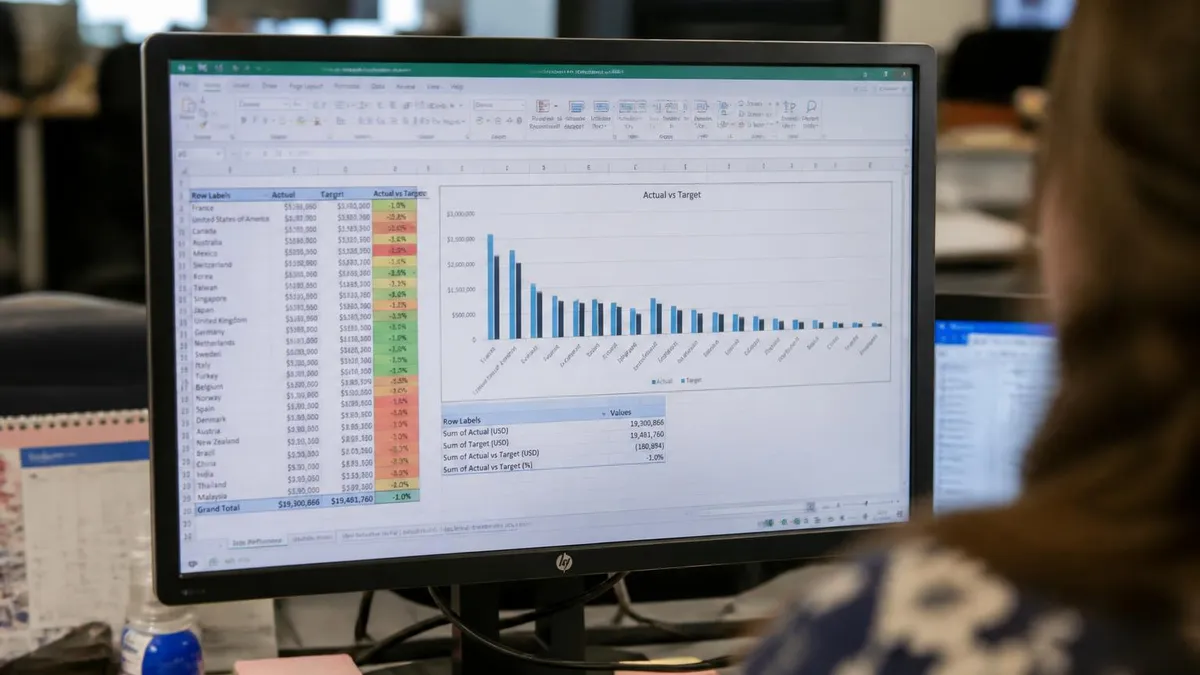
Pivot tables offer yet another angle on difference calculations. Once you've built a pivot table summarizing two measures—say, budget and actual—you can add a calculated field using the formula =Actual-Budget. The pivot table computes this difference for every row and column combination in your layout, including subtotals and grand totals, with no additional formulas needed in the worksheet. Right-clicking a value field and choosing "Show Values As > Difference From" applies the same logic to sequential periods, displaying month-over-month or year-over-year changes automatically as you refresh the pivot table's data source.
For users preparing for the Microsoft Excel certification exam or any structured Excel assessment, understanding how to create a drop down list in Excel is closely related to difference calculations—dropdown lists let users select parameters (like a region or time period) that feed directly into difference formulas, making workbooks interactive and dynamic. A well-built dashboard might have a dropdown in cell E1 where a user selects a region, and all the difference formulas elsewhere on the sheet recalculate automatically using INDIRECT or MATCH to reference only the rows matching that region.
Conditional formatting supercharges difference columns visually. The built-in "Data Bars" format option draws proportional horizontal bars inside each cell, making large differences immediately visible without reading numbers. The "Color Scale" option applies a gradient from red through yellow to green based on the relative magnitude of each difference value. For dashboards shared with non-technical stakeholders, these visual cues communicate variance faster than any table of numbers, and they update automatically whenever the underlying data changes.
Named ranges and structured table references make difference formulas more readable and maintainable in large workbooks. Instead of writing =C2-D2, a formula like =[@Actual]-[@Budget] using Excel Table syntax (insert a table with Ctrl+T first) automatically expands as you add rows, uses column names that document themselves, and can be read and audited by anyone familiar with the data structure. Combining named ranges, structured references, and well-chosen function choices produces workbooks that are not only accurate but professionally organized and easy to hand off to colleagues.

When you subtract two date cells and the result cell inherits date formatting, Excel displays a date (like 1/17/1900) instead of the number of days (like 17). Always format difference result cells as Number or General immediately after entering the formula. Similarly, cells containing text that looks like numbers—imported from CSV files—won't subtract correctly and will return a VALUE error; use VALUE() or the Text to Columns tool to convert them first.
Real-world difference calculations in Excel span an enormous range of industries and use cases, and walking through concrete examples is the most reliable way to build genuine fluency. Consider a retail business tracking weekly sales per store location. Column A holds store names, column B holds last week's revenue, and column C holds this week's revenue.
The formula =C2-B2 in column D gives the raw dollar difference, while =(C2-B2)/B2 in column E gives the percentage change. A conditional format rule on column D—red fill for negative values—lets a regional manager scan the entire store list in seconds and identify which locations need attention.
In a human resources context, calculating tenure differences is a daily task. An employee's start date sits in column B, and today's date is referenced with the TODAY() function. The formula =DATEDIF(B2,TODAY(),"y") returns complete years of service—essential for benefits calculations that tier by anniversary year. Adding "&" years, "&DATEDIF(B2,TODAY(),"ym")&" months" produces a human-readable string like "5 years, 3 months," which is far more meaningful in an employee report than a raw day count of 1,916.
Project management spreadsheets frequently need the difference between a planned completion date and the actual or projected completion date. A positive result means the project finished early; a negative result means it ran over schedule. Formatting this column with the custom number format 0 "days";–0 "days" automatically appends the word "days" and preserves the negative sign for overruns, making the schedule variance column self-documenting without adding a separate label column.
Academic grade tracking offers a simple but instructive example of conditional difference logic. A teacher's workbook has student names in column A, exam scores in column B, and the class average in a named cell called ClassAvg. The formula =B2-ClassAvg shows each student's difference from the mean—positive for above-average students, negative for below-average ones. Combining this with VLOOKUP to reference a grading rubric in a separate sheet, then computing the difference between a student's current grade and the minimum score needed for the next letter grade, builds a genuinely useful early-warning dashboard with entirely standard Excel tools.
Financial modeling relies heavily on difference calculations for variance analysis—comparing budgeted figures to actuals, prior-period results to current-period results, and forecasted values to realized outcomes. A well-structured variance model uses a dedicated "Variance" section with formulas like =Actuals!C5-Budget!C5, where each sheet is named for its data source. When the model is set up this way, auditing it is straightforward: every difference formula is explicit, traceable, and consistent. This structure is also what examiners and interviewers look for when assessing Excel competency in finance roles.
Supply chain and inventory management teams use difference calculations to track stock levels, reorder points, and fulfillment gaps. The formula =OrderedQuantity-ShippedQuantity flags items with unfulfilled portions, while =CurrentStock-ReorderPoint identifies items below their reorder threshold. These simple differences, applied across thousands of SKUs and refreshed daily from an ERP export, form the operational backbone of many warehouse management systems—built entirely in Excel without custom software. Learning to calculate difference in excel precisely and reliably is therefore not merely an academic exercise but a genuinely marketable professional skill.
Even creative and educational contexts use difference formulas. Teachers building quiz score trackers, musicians analyzing tempo differences between recordings, athletes logging personal-record gaps, and nonprofit analysts comparing fundraising periods all benefit from the same core techniques. The universality of the subtraction operation—and Excel's rich ecosystem of formatting, conditional logic, and visualization tools built around it—means that whatever field you work in, the investment in mastering difference calculations pays dividends immediately and compounds over a career.
Practical tips for difference calculations begin with one golden rule: always build your formulas to fail visibly rather than silently. A formula that returns 0 when an error occurs (because of an IFERROR with a zero fallback) can be far more dangerous than one that returns #N/A, because a zero looks like a valid answer and may flow through dozens of downstream calculations before anyone notices. When you use IFERROR, choose a fallback like "Check data" or leave the cell blank with "" so the problem is immediately apparent in the output.
A second essential habit is anchoring your reference cells correctly. When you calculate the percentage difference relative to a baseline—say, a budget figure in row 2 that applies to the whole year—use an absolute reference: =(B5-$B$2)/$B$2. The dollar signs lock row 2 so that when you copy the formula down to rows 6, 7, and 8, the denominator always points back to the same budget cell rather than shifting with the formula. Forgetting to anchor a reference is one of the most common formula errors in shared workbooks, and it's invisible until someone spot-checks the math.
Testing your formulas with known values before deploying them to live data is a practice that pays off every time. If you know that the difference between 100 and 75 is 25, and the percentage change is 33.33%, enter those values temporarily in a scratch area and verify your formulas return exactly those results before copying them to your real dataset. This step catches sign errors, formatting mismatches, and reference mistakes before they contaminate production data or get sent to a manager in a report.
Documentation within the workbook—brief column headers, a legend cell explaining what each formula computes, or a note in the cell comment field—transforms a workbook full of raw formulas into a professional deliverable. Headers like "Week-over-Week Difference ($)" and "% Change vs. Prior Period" give readers the context they need to interpret results correctly. For workbooks that other people will use or maintain, this discipline is not optional; it's the difference between a spreadsheet that gets used correctly and one that gets misread or ignored.
When working with large datasets, performance matters. Volatile functions like NOW(), TODAY(), and INDIRECT() recalculate every time any cell in the workbook changes, which can slow a workbook noticeably if they appear in thousands of cells. For difference calculations that reference today's date, consider placing a single TODAY() formula in one cell (like a named cell called TodayDate) and referencing that cell in all your difference formulas. This reduces recalculation overhead while preserving the automatic date update you need.
Excel's Name Manager (Formulas > Name Manager) is underused by most spreadsheet practitioners, yet it dramatically simplifies complex difference formulas. Naming a range like BudgetRevenue or ActualRevenue lets you write =ActualRevenue-BudgetRevenue instead of =Sheet3!$C$2:$C$200-Sheet2!$D$2:$D$200. The named-range version is readable, self-documenting, and immune to breaking when someone inserts a column between C and D. Building this habit early in your Excel career means your workbooks remain maintainable as they grow in complexity.
For anyone preparing for an Excel certification or a job assessment that tests spreadsheet skills, practicing difference calculations in realistic scenarios—not just isolated formula exercises—is the most effective preparation strategy. Build a sample budget vs. actuals model, a date-difference tenure tracker, and a VLOOKUP-based price comparison sheet. Work through errors deliberately by introducing bad data and seeing how your IFERROR wrappers respond. This kind of hands-on, scenario-based practice builds the intuition that separates candidates who can describe Excel functions from those who can deploy them fluidly under time pressure.
Sample Excel Practice Questions
Try these questions from our free Excel practice tests. The correct answer and an explanation follow each question.
What does =TRIM(" Hello World ") return?
- A. " Hello World "
- B. HelloWorld
- C. Hello World
- D. Hello World
Answer: C. Hello World
TRIM removes leading and trailing spaces and collapses multiple internal spaces to a single space.
What is the main difference between a PivotChart and a standard Excel chart?
- A. A PivotChart cannot display a legend
- B. A PivotChart is linked to a PivotTable and updates as fields change
- C. A PivotChart only supports pie charts
- D. A PivotChart cannot be formatted
Answer: B. A PivotChart is linked to a PivotTable and updates as fields change
PivotCharts are bound to PivotTable data and include interactive field buttons.
What is a calculated field in a PivotTable?
- A. A field that shows automatically calculated subtotals
- B. A field pulled from a formula-based column in the source data
- C. A new field created using a formula within the PivotTable itself, not present in the source data
- D. A field that automatically rounds values to two decimal places
Answer: C. A new field created using a formula within the PivotTable itself, not present in the source data
A calculated field is a custom field defined by a formula inside the PivotTable using existing fields as inputs, without modifying the source data.
What does the $ symbol do when placed before a column letter in a cell reference, such as $A1?
- A. Locks the column so it doesn't change when the formula is copied
- B. Locks both the row and column
- C. Locks the row so it doesn't change
- D. Converts the value to currency format
Answer: A. Locks the column so it doesn't change when the formula is copied
A $ before the column letter creates an absolute column reference, keeping the column fixed when the formula is copied horizontally.
Excel Questions and Answers

Excel to PDF: 5 Ways to Convert Your Spreadsheet

Excel COUNTA Function — Complete Guide (2026)

How to Create Hyperlinks in Excel: The Complete 2026 Guide to Linking Cells, Sheets, Files, and URLs

How to Use SUMIFS in Excel: The Complete Guide to Multi-Criteria Summing

How to Delete a Sheet in Excel (Plus Recovery Tricks)
About the Author

Business Consultant & Professional Certification Advisor
Wharton School, University of PennsylvaniaKatherine Lee earned her MBA from the Wharton School at the University of Pennsylvania and holds CPA, PHR, and PMP certifications. With a background spanning corporate finance, human resources, and project management, she has coached professionals preparing for CPA, CMA, PHR/SPHR, PMP, and financial services licensing exams.