
Analysis ToolPak in Excel — Complete Guide (2026 September)
🏆 Analysis ToolPak Excel: enable the add-in in 30 seconds, then run regression, ANOVA, histograms, and 16 more stats tools. Mac and Windows steps inside.

Analysis ToolPak in Excel — Complete Guide (2026)
Your Excel has a hidden statistics lab. It's called the Analysis ToolPak, and Microsoft ships it disabled by default. Two minutes of clicking turns Excel into a tool that runs regression, ANOVA, t-tests, histograms, and 15 other procedures that statisticians charge real money for.
Most people never enable it. They open Excel, see SUM and AVERAGE, and assume that's all the math the program does. Wrong. The data analysis excel add-in sits behind a checkbox in File → Options → Add-ins. Flip the switch and a new Data Analysis button appears on your Data ribbon. Click it, pick a procedure, point at your data, get results.
Here's what makes the ToolPak useful. You don't memorize formulas. The wizard walks you through input ranges, output destinations, and options. Run a regression in 30 seconds. Build a frequency distribution without writing a single FREQUENCY function. Compare two sample means with a t-Test that handles equal or unequal variances automatically.
This guide covers the full enable process for Windows and Mac, every one of the 19 tools the ToolPak ships with, the differences between platforms, what to do when the checkbox is missing, and what Excel 365 added that partially replaces the ToolPak for basic work. You'll also get the VBA reference for ATPVBAEN.XLAM — the developer's version of the same engine.
Short answer for the impatient: File → Options → Add-ins → Manage Excel Add-ins → Go → tick Analysis ToolPak → OK. Done. Now skim the rest to learn what each tool actually does.
Windows: File → Options → Add-ins → at bottom "Manage: Excel Add-ins" → Go → check Analysis ToolPak → OK. The Data Analysis button appears on the right side of the Data tab.
Mac: Tools menu → Excel Add-ins → check Analysis ToolPak → OK. Same Data tab button appears.
If the checkbox is missing, your Excel build doesn't include the ToolPak — see the troubleshooting section below.
What the ToolPak Actually Is
- Type: Excel add-in (XLAM file)
- Tools included: 19 procedures
- Categories: Stats, ANOVA, regression, sampling
- Cost: Free, built into Excel
- Windows file: ANALYS32.XLL
- VBA version: ATPVBAEN.XLAM
- Default state: Disabled
- Ribbon location: Data tab → Analysis group
- Excel 2007: Yes
- Excel 2010-2024: Yes
- Excel 365 Windows: Yes
- Excel 365 Mac: Yes (since 2016)
- Web Excel: Not available
- Mobile apps: Not available
- Excel Starter: Not available
- Data rows: Up to 1,048,576

Enabling the Analysis ToolPak on Windows
Open Excel. Any workbook will do — even a blank one. Click File in the top-left, then Options down the left rail. The Excel Options dialog opens. Click Add-ins in the left list.
At the very bottom of that pane is a dropdown labeled Manage. The default is "Excel Add-ins" — leave it alone and click Go. A smaller dialog opens with a checklist. Tick Analysis ToolPak. While you're there, tick Analysis ToolPak - VBA too if you write macros. Click OK.
Switch to the Data tab on the ribbon. Look at the far right. You'll see an Analysis group with a single button: Data Analysis. That's the ToolPak. Click it and the procedure picker opens — 19 named tools in alphabetical order from Anova to z-Test.
What If the Checkbox Is Missing
Sometimes the Add-ins dialog opens and Analysis ToolPak isn't listed. Three possible reasons. First, your Excel install skipped the optional components. Open Control Panel → Programs → Office → Change → Add or Remove Features → Excel → Add-ins → set Analysis ToolPak to "Run from My Computer" → Continue. Second, your organization's IT department disabled it via Group Policy — talk to them. Third, you're on Excel Online or the mobile app, which don't support the ToolPak at all.
Enabling the Analysis ToolPak on Mac
Mac Excel hides the same checkbox in a different menu. Open Excel, click Tools in the menu bar (not on the ribbon — the menu bar at the top of the screen). Pick Excel Add-ins. The same checklist appears. Tick Analysis ToolPak, click OK. Done.
If you're on Mac Excel 2011 — stop. The ToolPak was removed from that version because Microsoft hadn't ported the underlying engine. Upgrade to Excel 2016 or later. From 2016 onward the Mac ToolPak ships with the same 19 tools as Windows, give or take a few interface quirks.
One Mac-specific gotcha: the Data Analysis button sometimes lands under a slide-out menu rather than directly on the Data tab. Look for a small chevron at the right of the Data ribbon and click it if the button isn't immediately visible.
Windows vs Mac: Key Differences
The Windows ToolPak is the original. All 19 tools work identically. The VBA-paired version (ATPVBAEN.XLAM) integrates fully with the macro recorder. Output formatting matches whatever theme you've applied to the workbook. Random Number Generation honors all five distributions: Uniform, Normal, Bernoulli, Binomial, Poisson, Patterned, and Discrete.
Performance scales well. A regression on 100,000 rows finishes in under a second on modern hardware. Histogram with 50 bins on a million-row dataset takes about three seconds.
The 19 Tools Inside the ToolPak
Click the Data Analysis button and a dialog lists every procedure alphabetically. Each has its own input form. Here's what each one does and when to reach for it.
Descriptive Statistics
Point at a column of numbers, get back mean, median, mode, standard deviation, variance, kurtosis, skewness, range, minimum, maximum, sum, count, and confidence interval — all in one click. This is the most-used tool in the ToolPak. Tick the "Summary statistics" box on the input form or you get nothing useful. For a confidence interval at 95%, leave the default alpha at 0.05.
ANOVA: Single Factor, Two-Factor With Replication, Two-Factor Without Replication
Three flavors of analysis of variance. Single Factor compares means across one grouping variable — like test scores from three classrooms. Two-Factor With Replication handles two grouping variables with multiple observations per cell. Two-Factor Without Replication is the matched-pairs version. Output gives you F-statistic, p-value, and critical F — you reject the null hypothesis when the p-value drops below your alpha threshold.
Correlation and Covariance
Both produce square matrices showing pairwise relationships between every column in your selected range. Correlation gives Pearson r — values from -1 to +1. Covariance gives the unstandardized version, useful when you care about magnitude. For a quick check that two variables move together, Correlation is the right pick.
Regression
The headliner. Pick a Y range (one column of dependent values) and X range (one or more columns of predictors). Output dumps: regression statistics (R-squared, adjusted R-squared, standard error), ANOVA table, coefficient table with t-stats and p-values, and optional residual output and line-fit plots. Multiple regression handles up to 16 X variables. Read the coefficient p-values to see which predictors actually matter.
t-Test: Paired, Two-Sample Equal Variances, Two-Sample Unequal Variances
Three t-Test variants. Paired tests before-and-after measurements on the same subjects. Equal Variances assumes both samples come from populations with the same variance — use it when an F-Test (below) says variances are similar. Unequal Variances (Welch's t-Test) makes no such assumption — safer when you're unsure. Output gives t-stat, df, p-value one-tail, p-value two-tail, and critical t.
F-Test Two-Sample for Variances
Runs before a t-Test to check whether your two samples have similar variances. If the F-Test p-value exceeds your alpha (say, 0.05), variances are statistically similar — use the equal-variances t-Test. Otherwise switch to unequal.
z-Test: Two-Sample for Means
Like a t-Test but assumes you know the population variances in advance. Rare in practice — you almost never know population variance without already having all the data. Useful for textbook exercises and quality-control situations with stable historical variance.
Which Statistical Test Do You Need?
- ✓Comparing means of two independent groups → Two-Sample t-Test (Unequal Variances by default)
- ✓Comparing before/after measurements on same subjects → Paired t-Test
- ✓Comparing means across 3+ groups → ANOVA Single Factor
- ✓Checking if two groups have equal variance → F-Test Two-Sample
- ✓Predicting one variable from one or more others → Regression
- ✓Measuring strength of relationship between variables → Correlation
- ✓Summarizing one column of numbers → Descriptive Statistics
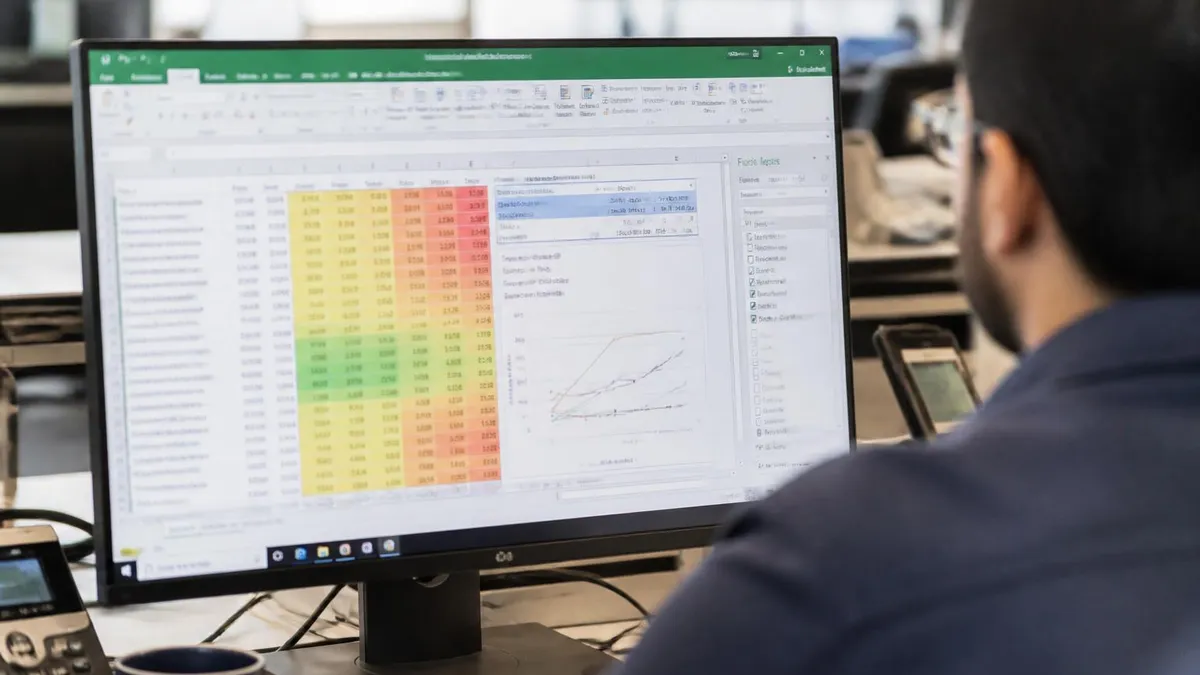
Histogram
Specify an input range and a bin range (the cutoff values for each bucket). Excel returns a frequency table plus an optional chart. Check the "Pareto (sorted)" box for descending order. Check "Cumulative Percentage" for a running total. Without bin ranges, Excel auto-bins — usually fine but check the bin widths.
Moving Average
Computes a simple moving average across an input range. Specify the interval (the window size). Useful for smoothing time series before plotting. Output is a column of averages — one value per window position.
Exponential Smoothing
The weighted cousin of moving average. Specify the damping factor (1 - alpha). Closer to 0 means recent values dominate; closer to 1 means smoother output. Standard starting point: damping factor 0.3.
Sampling
Pulls a random or periodic subset from a larger dataset. Periodic sampling grabs every Nth row. Random picks a specified count uniformly at random. Output lands wherever you point the Output Range field.
Random Number Generation
Generates random numbers from seven distributions: Uniform, Normal, Bernoulli, Binomial, Poisson, Patterned, Discrete. Specify number of variables (columns), number of random numbers (rows), and the distribution parameters. Set a Random Seed to reproduce results.
Rank and Percentile
Returns a table showing the rank and percentile of each value in your input range. Useful for converting test scores to percentile equivalents or ranking sales by performance.
Fourier Analysis
Performs a Fast Fourier Transform. Input row count must be a power of 2 (2, 4, 8, 16, 32, ..., 4096). Output is complex numbers in text form. Mostly useful in engineering and signal-processing contexts — not common in business analysis.
ToolPak by the Numbers
Should You Use the ToolPak or Modern Excel Functions?
- +Point-and-click wizard — no formula memorization
- +All 19 tools available offline
- +Output is formatted tables, not raw values
- +Free and ships with every desktop Excel
- +Regression includes residuals and line-fit charts in one click
- +ANOVA handles single and two-factor designs
- +Built-in confidence intervals on Descriptive Statistics
- −Output is static — doesn't update when source data changes
- −Not available in Excel Online or mobile
- −Limited to 16 predictors in regression
- −Charts look dated compared to modern Excel chart styles
- −Can't be automated without the VBA add-in
- −No support for non-parametric tests (Mann-Whitney, etc.)
- −Output formatting is rigid — no custom column orders
Worked Example: Regression in 60 Seconds
Open the Tool
Specify Inputs
Optional Outputs
Read Regression Statistics
Check ANOVA Table
Read Coefficients

Pre-Flight Checklist Before Running ToolPak Procedures
- ✓Data is in clean columns — no blank rows in the middle
- ✓Headers in row 1, data starts in row 2
- ✓Numeric columns are formatted as Number (not Text)
- ✓No merged cells anywhere in the input range
- ✓Missing values are blank cells, not zeros or text
- ✓Output Range cell is empty — ToolPak won't overwrite warnings
- ✓Workbook saved before running long procedures
The VBA Version: ATPVBAEN.XLAM
The standard Analysis ToolPak is point-and-click. If you write macros, you want the second checkbox too — Analysis ToolPak - VBA. It loads a separate add-in file called ATPVBAEN.XLAM that exposes the same procedures as callable VBA functions.
Once both are enabled, you can run regression from code: Application.Run "ATPVBAEN.XLAM!Regress", ActiveSheet.Range("B2:B100"), ActiveSheet.Range("A2:A100"), False, True, , ActiveSheet.Range("E1"), False, False, False, False, , False. Eleven parameters control everything the dialog box exposes. Microsoft documents each one in the Office VBA reference under "Statistical Analysis Tools."
This matters because the static ToolPak output doesn't refresh when source data changes. If you run a regression at 9 AM and the data updates at 10 AM, your output table still shows the 9 AM numbers. With the VBA version, you wrap the call in a Worksheet_Change event and the regression re-runs every time data changes. That's how analysts build live dashboards on top of ToolPak math.
Common Errors and How to Fix Them
"Input range contains non-numeric data"
One cell in your input range is text. Could be a hidden space, a number stored as text, or a header you forgot to exclude. Use =ISNUMBER(A2) across the column to find the offender. Convert text-numbers with VALUE() or the multiply-by-one trick.
"Output range will overwrite existing data"
The ToolPak refuses to overwrite cells with content. Either pick an empty Output Range cell or pick "New Worksheet Ply" / "New Workbook" instead. Don't click through this warning — it'll write over your data.
"Analysis ToolPak is not loaded"
Happens after a Windows update or repair install. Re-enable: File → Options → Add-ins → Manage → Go → ensure box is checked → OK. If still missing, run Office Repair from Control Panel.
Regression "R-Square cannot be calculated"
Your X variables are perfectly collinear — two predictors measure the same thing. Drop one. Common case: including both "hours studied" and "minutes studied" as predictors.
Histogram bins land in wrong place
You probably skipped the Bin Range field. Without it, Excel auto-bins using its own logic. Specify your own bin cutoffs in a separate column and point Bin Range at it.
Modern Excel 365 Alternatives to ToolPak
- Mean: =AVERAGE()
- Median: =MEDIAN()
- Std Dev: =STDEV.S()
- Variance: =VAR.S()
- Correlation: =CORREL()
- Slope: =SLOPE()
- Intercept: =INTERCEPT()
- Multi-regression: =LINEST()
- t-Test: =T.TEST()
- F-Test: =F.TEST()
- z-Test: =Z.TEST()
- Confidence: =CONFIDENCE.T()
- Histograms: Charts + table
- ANOVA tables: Full output
- Sampling: Random + periodic
- Regression report: One-click full
Worksheet functions calculate live — they recalculate when inputs change. That's a real advantage over static ToolPak output, which freezes the moment you run it. But the catch matters. There's no built-in equivalent for histograms, sampling, random number generation from arbitrary distributions, or full ANOVA tables. For those, the ToolPak still wins outright.
Nothing in modern Excel beats the ToolPak's one-click regression with residuals and line-fit plots. Building that manually with LINEST and chart wizards takes 20 minutes of setup before you see your first coefficient.
ToolPak Workflow: Start to Finish
Prep Your Data
Enable the Add-in
Pick a Procedure
Fill the Dialog
Read the Output
Document Your Work
Should You Learn the ToolPak in 2026?
Short answer: yes, if you work with data in Excel and don't want to learn a programming language. The ToolPak is the fastest route to legitimate statistical analysis in a tool you already have. Five clicks to a regression beats two weeks of Python tutorials.
Longer answer: it depends on your endgame. If you're moving toward data science, learn Python or R — they're free, more powerful, and reproducible by code. If you're staying in Excel for the next five years doing finance, marketing analytics, or operations reporting, the ToolPak pays for itself in the first ANOVA you would otherwise have outsourced.
Who Uses the ToolPak Daily
Six-sigma analysts. Quality engineers. Marketing managers running A/B test reports. Finance teams checking variance significance. Academic researchers in fields where Excel is the lingua franca — psychology, biology, education. HR analysts running pay-equity regressions. The list is long. The common thread: people who need statistics but don't want code in the workflow.
Who Should Skip It
Anyone with regular access to R, Python, SPSS, or Stata. Those tools all dominate the ToolPak on flexibility, reproducibility, and output quality. The ToolPak is a bridge, not a destination. Use it for prototyping or one-off analyses, but don't build production reporting on top of static ToolPak output.
Combining ToolPak With Other Excel Features
The ToolPak gets more powerful when combined with the rest of Excel. Pivot tables can pre-aggregate your raw data into the structure ANOVA or regression expects. Excel Gantt Chart Templates aren't directly related, but the principle is the same — Excel templates speed up the prep step before any analysis runs.
Conditional formatting lets you flag p-values below 0.05 automatically — paint significant results green and insignificant red. Named ranges make your Input Y Range and Input X Range stable across re-runs. Data validation on the source data prevents the "non-numeric data" errors that kill long analyses.
Power Query is the ToolPak's natural prep partner. Use Power Query to pull data from CSV, Web, or SQL, transform it into clean columns, and load it to a worksheet. Then run the ToolPak against the loaded data. When the source updates, hit Refresh All — Power Query reloads, and you re-run the ToolPak against fresh inputs. Data Table in Excel what-if analysis pairs well with regression output for sensitivity testing.
Final Notes
The Analysis ToolPak has been in Excel for over 30 years. It hasn't changed much — and that's a feature, not a bug. The procedures are stable. The interface is stable. The output format is stable. You can learn it once and use it for the rest of your career.
It's not the fanciest stats tool. It is the most accessible. Half the analysts in Fortune 500 finance departments use it weekly, even when they have SAS and Python available, because pulling up Excel and clicking Data Analysis takes five seconds. That's the real ToolPak superpower.
One last point. Microsoft's roadmap shows no plans to retire the ToolPak. It survived the move to ribbon UI, the shift to 64-bit, the cloud transition, and the Excel 365 redesign. Your investment in learning these 19 procedures will pay dividends for the rest of your Excel career — and probably your kids' careers too.
Excel Questions and Answers
Related Excel Guides

Where Is Data Analysis in Excel? Complete Guide to Finding and Enabling the Analysis ToolPak in 2026

Data Table in Excel: What-If Analysis and Excel Tables Explained

How to Create a Random Number Generator in Excel: Complete Guide with RAND, RANDBETWEEN, and RANDARRAY

R and Excel Integration: The Complete Guide to Using R with Microsoft Excel for Data Analysis in 2026
About the Author

Business Consultant & Professional Certification Advisor
Wharton School, University of PennsylvaniaKatherine Lee earned her MBA from the Wharton School at the University of Pennsylvania and holds CPA, PHR, and PMP certifications. With a background spanning corporate finance, human resources, and project management, she has coached professionals preparing for CPA, CMA, PHR/SPHR, PMP, and financial services licensing exams.