
Absolute Value Formula in Excel: The Complete 2026 October Guide to ABS, SUMIF, and Negative Number Conversion
🏆 Master the absolute value formula excel users need. Learn ABS, SUMPRODUCT, conditional formatting, and how to convert negatives in seconds.

The absolute value formula excel professionals reach for most often is the ABS function, a deceptively simple tool that strips the negative sign from any number and returns its positive magnitude. Whether you are reconciling bank statements, measuring variance between forecasted and actual revenue, or cleaning data exported from accounting software, ABS becomes the workhorse that turns chaotic mixed-sign columns into usable analytical inputs. This guide walks through every syntax variation, edge case, and real-world scenario you will encounter when working with absolute values inside spreadsheets.
Excel treats absolute value as a mathematical operation rather than a formatting choice, which means the underlying cell value actually changes when you apply ABS. That distinction matters enormously when downstream formulas depend on directional information like profit versus loss, gain versus shrinkage, or surplus versus deficit. Misapplying ABS can erase critical business signals, so understanding when to use it and when to preserve sign data is the difference between an analyst who delivers insight and one who delivers confusion to the executive team.
The ABS function was introduced in the earliest versions of Excel and has remained syntactically identical across every release from Excel 97 through Microsoft 365, Excel 2024, and the web version. That stability makes it one of the safest functions to teach beginners, embed in templates, or use across mixed-version corporate environments. The function accepts exactly one argument, returns one value, and handles text-to-number coercion gracefully, which makes it ideal for nested formulas and array operations alike.
Beyond the basic ABS call, this guide covers nested approaches like SUMPRODUCT with ABS, conditional summation with SUMIF criteria built around magnitude rather than direction, and the IF-based workarounds that legacy spreadsheets sometimes still require. We will also examine how absolute value interacts with date arithmetic, percentage calculations, and statistical functions like AVERAGEIF and STDEV, where mixing signed and unsigned values can produce wildly misleading results if you are not paying attention.
Readers coming from finance backgrounds will recognize ABS from variance reporting and budget-versus-actual dashboards. Engineers will find it indispensable for tolerance checks, where deviation from a target spec matters regardless of direction. Scientists use it for error calculations, supply chain teams use it for inventory discrepancy tracking, and HR analysts apply it when comparing scheduled versus actual hours worked. The function transcends industry boundaries because the underlying need to measure magnitude without polarity is genuinely universal.
By the end of this article you will know how to apply ABS to single cells, entire columns, named ranges, and dynamic arrays. You will understand how it behaves with errors, text, blanks, and Boolean values. You will also have copy-ready formulas for the ten most common business scenarios, plus troubleshooting steps for the handful of situations where ABS misbehaves or produces unexpected output. Bookmark this page because the reference tables alone will save you hours of trial and error over the coming months.
Absolute Value in Excel by the Numbers

How the ABS Function Works in Excel
The function takes the form =ABS(number) where number is any numeric value, cell reference, named range, or formula result. It returns the non-negative magnitude with the sign stripped away entirely.
Most real-world use cases pass a cell reference like =ABS(B2) rather than a hard-coded number. This lets you copy the formula down a column and process hundreds or thousands of rows simultaneously without manual editing.
You can wrap any arithmetic expression inside ABS, such as =ABS(B2-C2) to measure variance between two columns. This single-cell pattern is the foundation of variance analysis across finance and operations teams everywhere.
Modern Excel with dynamic arrays lets you write =ABS(A2:A100) once and spill results across an entire range. Older versions require Ctrl+Shift+Enter as an array formula to achieve the same effect.
The ABS syntax is the simplest in the entire Excel function library: =ABS(number). The single argument can be a literal value like =ABS(-47), a cell reference like =ABS(B2), or a complete expression like =ABS(SUM(A1:A10)-100). Excel evaluates whatever sits inside the parentheses first, then applies the absolute value operation. This evaluation order matters because subtle parenthesis mistakes can change which portion of a formula actually gets converted to its positive magnitude, producing answers that look reasonable but are subtly wrong.
Variance analysis represents the most common business use case. If column B holds budgeted spending and column C holds actual spending, the formula =ABS(B2-C2) returns the dollar magnitude of the variance regardless of whether actual exceeded budget or came in under. Pair that with conditional formatting that highlights any cell where the variance exceeds five percent of the budgeted amount, and you have a self-flagging exception report that surfaces problems automatically without any manual sorting or filtering.
Bank reconciliation workflows lean heavily on ABS when matching transactions exported from disparate systems. Credits and debits arrive with opposite signs depending on whether the source treats outflows as negative or positive, and ABS normalizes everything so matching algorithms can pair them by magnitude. This pattern shows up across accounting platforms like QuickBooks, Xero, NetSuite, and SAP, and it is one of the first formulas every accounting analyst learns when stepping into a new role at a new company.
Statistical applications use ABS for mean absolute deviation, a strong alternative to standard deviation that resists distortion from extreme outliers. The formula =AVERAGE(ABS(A2:A100-AVERAGE(A2:A100))) entered as an array gives you MAD in a single cell. Many forecasting teams prefer MAD because it expresses error in the same units as the original data, making it easier to communicate to non-statistical stakeholders during planning meetings and quarterly business reviews where the audience may not have a formal analytics background.
Engineering tolerance checks compare measured dimensions against specification targets using ABS. A formula like =IF(ABS(B2-Target)<=Tolerance,"PASS","FAIL") flags any part outside acceptable bounds regardless of whether it ran oversize or undersize. This same logic transfers cleanly to quality control in manufacturing, six sigma analysis, laboratory measurements, scientific instrumentation calibration, and any process where deviation from a target matters more than the direction of that deviation in the final analysis.
Date arithmetic occasionally requires ABS when you do not know which of two dates is earlier. The formula =ABS(B2-C2) returns the number of days between two dates regardless of order, which simplifies aging reports, project duration calculations, and tenure tracking. Without ABS, subtracting a later date from an earlier one produces a negative number that breaks downstream conditional formatting, RAG status indicators, and dashboard summary cards that expect positive integer values for proper visualization in business intelligence environments.
Percentage variance reporting combines ABS with division to produce magnitude-of-change metrics. The formula =ABS(B2-C2)/C2 gives you the absolute percent change between two values, useful when executives care about volatility rather than direction. Multiply by 100 and format as a number, or skip the multiplication and apply percentage formatting directly. Either approach produces the same visible result, and the choice usually comes down to team convention rather than any technical superiority of one method over the other in practice.
Microsoft Excel Practice Test Questions
Prepare for the Microsoft Excel exam with our free practice test modules. Each quiz covers key topics to help you pass on your first try.
Microsoft Excel Excel Basic and Advance
Microsoft Excel Exam Questions covering Excel Basic and Advance. Master Microsoft Excel Test concepts for certification prep.
Microsoft Excel Excel Formulas
Free Microsoft Excel Practice Test featuring Excel Formulas. Improve your Microsoft Excel Exam score with mock test prep.
Microsoft Excel Excel Functions
Microsoft Excel Mock Exam on Excel Functions. Microsoft Excel Study Guide questions to pass on your first try.
Microsoft Excel Excel MCQ
Microsoft Excel Test Prep for Excel MCQ. Practice Microsoft Excel Quiz questions and boost your score.
Microsoft Excel Excel
Microsoft Excel Questions and Answers on Excel. Free Microsoft Excel practice for exam readiness.
Microsoft Excel Excel Trivia
Microsoft Excel Mock Test covering Excel Trivia. Online Microsoft Excel Test practice with instant feedback.
Microsoft Excel Advanced Data Analysis Tools
Free Microsoft Excel Quiz on Advanced Data Analysis Tools. Microsoft Excel Exam prep questions with detailed explanations.
Microsoft Excel Advanced Formula and Macro...
Microsoft Excel Practice Questions for Advanced Formula and Macro Creation. Build confidence for your Microsoft Excel certification exam.
Microsoft Excel Advanced Formulas and Macros
Microsoft Excel Test Online for Advanced Formulas and Macros. Free practice with instant results and feedback.
Microsoft Excel Basic and Advance Question...
Microsoft Excel Study Material on Basic and Advance Questions and Answers. Prepare effectively with real exam-style questions.
Microsoft Excel Creating and Managing Charts
Free Microsoft Excel Test covering Creating and Managing Charts. Practice and track your Microsoft Excel exam readiness.
Microsoft Excel Data Visualization with Ch...
Microsoft Excel Exam Questions covering Data Visualization with Charts. Master Microsoft Excel Test concepts for certification prep.
Microsoft Excel Formulas and Functions
Free Microsoft Excel Practice Test featuring Formulas and Functions. Improve your Microsoft Excel Exam score with mock test prep.
Microsoft Excel Formulas and Functions App...
Microsoft Excel Mock Exam on Formulas and Functions Application. Microsoft Excel Study Guide questions to pass on your first try.
Microsoft Excel Formulas Questions and Ans...
Microsoft Excel Test Prep for Formulas Questions and Answers. Practice Microsoft Excel Quiz questions and boost your score.
Microsoft Excel Functions Questions and An...
Microsoft Excel Questions and Answers on Functions Questions and Answers. Free Microsoft Excel practice for exam readiness.
Microsoft Excel Managing Data Cells and Ra...
Microsoft Excel Mock Test covering Managing Data Cells and Ranges. Online Microsoft Excel Test practice with instant feedback.
Microsoft Excel Managing Tables and Data
Free Microsoft Excel Quiz on Managing Tables and Data. Microsoft Excel Exam prep questions with detailed explanations.
Microsoft Excel Managing Tables and Table ...
Microsoft Excel Practice Questions for Managing Tables and Table Data. Build confidence for your Microsoft Excel certification exam.
Microsoft Excel Managing Worksheets and Wo...
Microsoft Excel Test Online for Managing Worksheets and Workbooks. Free practice with instant results and feedback.
Microsoft Excel MCQ Questions and Answers
Microsoft Excel Study Material on MCQ Questions and Answers. Prepare effectively with real exam-style questions.
Microsoft Excel Questions and Answers
Free Microsoft Excel Test covering Questions and Answers. Practice and track your Microsoft Excel exam readiness.
Absolute Value Formula Excel Patterns Beyond Basic ABS
SUMIF does not accept ABS directly in its criteria argument, which surprises many users the first time they try. Instead, you create a helper column with =ABS(B2) and reference that helper in the SUMIF range. Alternatively, use SUMPRODUCT for inline magnitude summation: =SUMPRODUCT((ABS(B2:B100)>1000)*B2:B100) sums only values whose absolute magnitude exceeds one thousand regardless of sign.
This pattern is invaluable for outlier analysis where you want to total large movements in either direction. Finance teams use it to flag transactions exceeding materiality thresholds, supply chain analysts apply it to inventory adjustments above a certain dollar volume, and HR uses it to track schedule deviations beyond acceptable bounds during weekly operations reviews.

Should You Use ABS or Preserve Sign Data?
- +Strips negative signs cleanly in a single function call with no manual editing required
- +Works identically across every Excel version from 1997 through Microsoft 365 and web
- +Pairs naturally with SUM, AVERAGE, MAX, MIN, and statistical functions for magnitude analysis
- +Handles text-to-number coercion gracefully when input cells contain numeric strings
- +Enables clean variance reporting without complex IF logic or helper columns
- +Supports dynamic arrays so one formula can process entire ranges with spill behavior
- +Lightweight calculation overhead even on workbooks with millions of cells
- −Permanently destroys directional information needed for profit-versus-loss analysis
- −Cannot be embedded directly in SUMIF or COUNTIF criteria arguments
- −Returns #VALUE! error if the input cannot be coerced to a number
- −Easy to apply accidentally and mask important negative signals in financial data
- −Older Excel requires Ctrl+Shift+Enter for array use which trips up new users
- −Does not preserve formatting like currency symbols or accounting parentheses on negatives
Absolute Value Formula Excel Application Checklist
- ✓Identify whether your analysis truly needs magnitude or if signed values carry meaning
- ✓Write =ABS(cell_reference) in the first empty cell adjacent to your data column
- ✓Copy the formula down the entire range using the fill handle or Ctrl+D shortcut
- ✓Verify a sample of converted values by spot-checking five rows against original data
- ✓For variance work, wrap your subtraction in ABS like =ABS(B2-C2) for clean output
- ✓Convert helper formulas to values with Paste Special if you no longer need live updates
- ✓Apply conditional formatting to highlight magnitudes exceeding business thresholds
- ✓Document any ABS use in workbook notes so auditors understand sign data was removed
- ✓Test edge cases including blank cells, text entries, and error values before sharing
- ✓Combine with SUMPRODUCT for criteria-based magnitude summation across ranges
Use ABS Inside SUMPRODUCT for Criteria-Based Magnitude Math
SUMIF cannot accept ABS in its criteria, but SUMPRODUCT can. Write =SUMPRODUCT((ABS(B2:B100)>500)*1) to count values whose magnitude exceeds 500 regardless of sign. This single-formula approach replaces what used to require a helper column plus COUNTIF, saving both screen real estate and calculation overhead on large workbooks.
The most common ABS error is #VALUE!, which appears whenever the input cannot be interpreted as a number. Text strings, error values from upstream formulas, and certain date formats imported from external systems all trigger this response. The fix is usually wrapping ABS inside IFERROR or using ISNUMBER as a gate: =IF(ISNUMBER(B2),ABS(B2),"") returns an empty string for non-numeric inputs while still applying absolute value to legitimate numbers. This defensive pattern is essential for any workbook that ingests data from unreliable external sources.
A subtler problem occurs when ABS is applied to cells formatted as text. Excel sometimes stores numbers as text after CSV imports, and ABS will return #VALUE! on text-stored numbers even though they look numeric to the human eye. The cure is multiplying by 1 first, like =ABS(B2*1), which forces Excel to coerce the text to a real number before computing the absolute value. Alternatively, run a one-time Data > Text to Columns conversion on the entire column to permanently fix the storage type.
Boolean values present an interesting edge case: ABS(TRUE) returns 1 and ABS(FALSE) returns 0, because Excel treats Booleans as their underlying numeric representations. This behavior is rarely a problem, but it can produce unexpected results when ABS is applied to a column mixing logical tests and numeric measurements. Audit your data types before applying ABS broadly, especially when working with output from logical functions like ISBLANK, ISERROR, or ISNUMBER that return Boolean values rather than the numbers you might expect.
Blank cells return zero when fed to ABS, which is mathematically consistent but can mislead analysts who expect blanks to remain blank. If preserving blanks matters, use =IF(B2="","",ABS(B2)) instead of a bare ABS call. This pattern appears throughout well-built financial templates because zero versus blank often carries semantic meaning in accounting contexts, where a true zero indicates a confirmed nil balance while blank indicates missing or unreported data that requires follow-up before period close.
Date arithmetic with ABS occasionally produces unexpectedly large numbers when one of the cells contains a date-time value with embedded hours and minutes. Excel stores dates as serial numbers with the fractional portion representing time of day, so =ABS(date1-date2) returns a decimal number of days rather than a whole number when times are present. Wrap the result in INT or ROUND to get clean whole-day counts: =INT(ABS(B2-C2)) returns the integer day difference suitable for aging buckets and tenure calculations alike.
Performance generally is not a concern with ABS because it is one of the lightest functions in Excel, but applying it to entire million-row columns can still slow recalculation noticeably on older hardware. If you find your workbook lagging, consider replacing live ABS formulas with their computed values using Paste Special > Values once the source data stabilizes. This converts dynamic formulas to static numbers, eliminating recalculation overhead entirely while preserving the visible output that downstream pivot tables and charts depend on for their data.
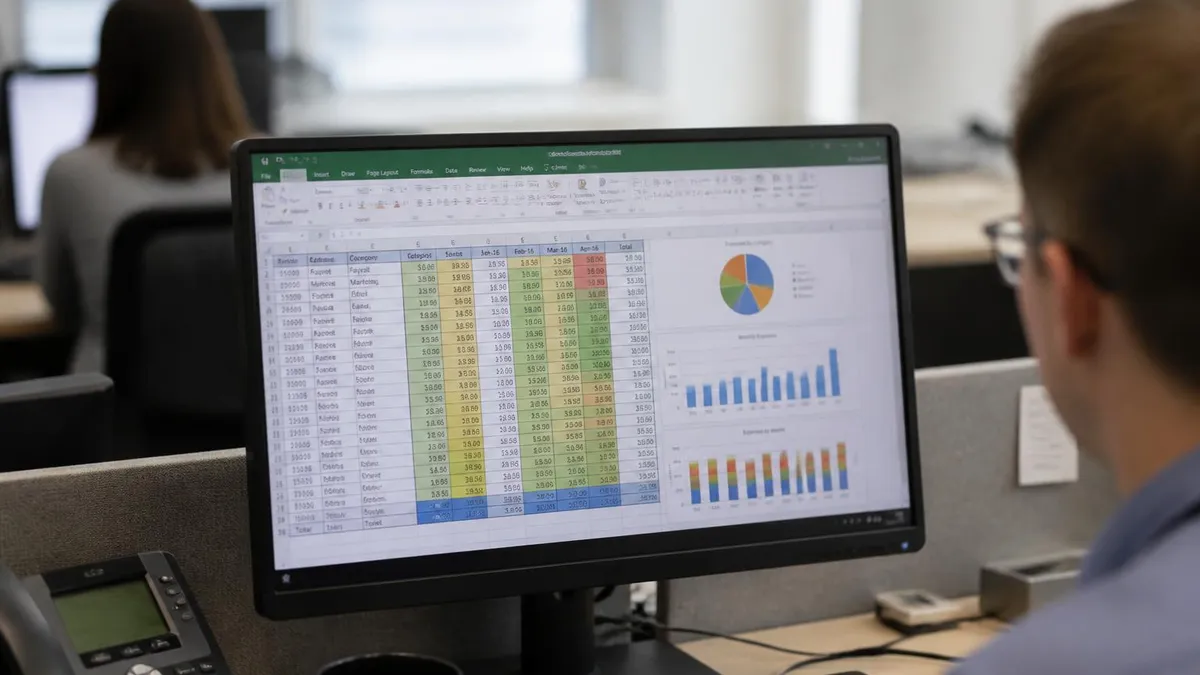
Applying ABS to a column that mixes profits and losses destroys the directional information that makes the data meaningful. A $50,000 loss and a $50,000 gain both become $50,000 after ABS, which can mask a failing business unit inside a high-magnitude average. Always preserve sign data on P&L, cash flow, and any column where positive and negative carry distinct business meaning.
Combining ABS with array formulas unlocks the most powerful patterns in modern Excel. The mean absolute deviation calculation =AVERAGE(ABS(A2:A100-AVERAGE(A2:A100))) is one example, but the technique generalizes to any situation where you need to apply ABS element-wise across a range before aggregating. Dynamic array versions of Excel handle this natively, while older versions require Ctrl+Shift+Enter to register the formula as an array, denoted by curly braces that Excel adds automatically around the formula in the formula bar.
SUMPRODUCT remains the universal workaround for criteria-based magnitude analysis. The formula =SUMPRODUCT((ABS(B2:B100)>=500)*(ABS(B2:B100)<1000)*B2:B100) sums values whose absolute magnitude falls between 500 and 999, preserving original signs in the sum. This is useful for tiered analysis where you want totals for each magnitude band but care about the net directional impact within each tier rather than just counting occurrences in a histogram-style breakdown for executive reporting.
FILTER combined with ABS lets you extract subsets of data based on magnitude thresholds. The formula =FILTER(A2:B100,ABS(B2:B100)>1000) returns only rows where column B has absolute value exceeding one thousand. This dynamic array approach replaces what used to require manual autofilter operations, and it updates automatically whenever the source data changes. Pair with SORT and UNIQUE for fully automated exception reports that maintain themselves without any manual intervention.
For users still working in environments without dynamic arrays, the legacy approach uses helper columns and traditional functions. Add a column with =ABS(B2) filled down, then use COUNTIF, SUMIF, AVERAGEIF, and conditional formatting against the helper rather than the original data. This pattern works in every Excel version ever shipped and remains the most teachable approach for users transitioning from basic spreadsheet skills to intermediate analytics work in finance, operations, or any data-driven business function.
Power Query offers an alternative to formula-based ABS when working with large datasets or repeatable transformations. The Number.Abs function in M language applies absolute value during the extract-transform-load process, baking the conversion into the data pipeline rather than the worksheet. This approach is preferable for production reporting where the workbook simply consumes pre-cleaned data, reducing formula complexity in the final user-facing sheets and improving overall calculation performance across the entire workbook ecosystem.
Conditional formatting with ABS-based formulas highlights magnitude-driven exceptions visually. Create a new rule using =ABS($B2)>1000 as the formula, and any row where column B has absolute magnitude exceeding one thousand gets your chosen highlight color. This is more flexible than the built-in cell value rules because it can incorporate any logic ABS supports, including comparisons across multiple cells and the integration of variable thresholds stored in separate reference cells for easy adjustment.
Finally, consider documenting your ABS use within the workbook itself. A simple notes cell or comment explaining "Column D = absolute value of variance from column C, used to identify largest deviations regardless of direction" saves future analysts hours of reverse-engineering when they inherit the file. This documentation discipline separates professional spreadsheet builders from casual users, and it pays dividends throughout the lifecycle of any analytical asset that lives longer than its original author's tenure on the project team.
Putting absolute value to work in your daily Excel workflow starts with building a few reusable templates. Create a variance analysis template with columns for budget, actual, raw variance, absolute variance, and percent variance, then save it as your team's standard format. Every future budget-versus-actual exercise becomes a five-minute copy-paste operation rather than a thirty-minute formula assembly job, and consistency across reports makes month-over-month comparison far easier for both the analyst and the audience reviewing the output.
Pair ABS with named ranges for cleaner, more readable formulas. Instead of =ABS(B2-C2), define names like Budget and Actual then write =ABS(Budget-Actual). The formula now reads almost like English, which dramatically reduces the cognitive load on anyone auditing your work. Named ranges also survive column insertions and deletions that would otherwise break cell-reference-based formulas, making your workbooks more strong to the inevitable structural changes that happen as analytical projects evolve over their lifetimes.
Keyboard shortcuts speed up ABS deployment considerably. Type the formula in the first cell, press Enter, click the cell again, then double-click the fill handle to populate the entire column down to the last contiguous row. Alternatively, select the destination range first, type the formula, and press Ctrl+Enter to fill all selected cells simultaneously. Both approaches beat manual dragging on long columns and reduce repetitive strain on your wrist when processing large datasets routinely throughout the workweek.
For shared workbooks, consider building an ABS macro that processes selected ranges with one click. A simple VBA routine that loops through Selection.Cells and replaces each numeric value with its absolute version saves substantial time when you regularly receive data exports with inconsistent sign conventions. Assign the macro to a Quick Access Toolbar button or custom ribbon group for one-click access, and document the macro's behavior clearly so other users understand what it modifies before invoking it on their own data.
When teaching ABS to colleagues, start with a relatable example like measuring how far someone drove from home rather than abstract mathematical concepts. The distance is always positive regardless of direction, which mirrors exactly what ABS does to numbers. This intuitive framing usually clicks faster than formal explanations, and it sets up natural progression to variance analysis, tolerance checking, and other business applications without requiring deep mathematical background or extensive prior Excel experience from the learners.
Audit-friendly documentation matters when ABS appears in regulated or high-stakes financial models. SOX-compliant environments, SEC filings, and external audit reviews all benefit from a one-page formula glossary that explains each ABS use and why magnitude rather than signed value is appropriate in that context. This proactive transparency prevents auditor questions from escalating into formal findings, and it demonstrates analytical discipline that builds credibility with finance leadership and external reviewers alike during scrutiny.
Finally, remember that ABS is just one tool in a broader toolkit. Combine it with SIGN to extract direction separately, with ROUND for clean presentation, with TEXT for formatted output, and with conditional formatting for visual emphasis. The most effective Excel work happens when individual functions combine into coherent patterns that solve real business problems, and ABS earns its keep precisely because it slots cleanly into dozens of these patterns across every analytical domain you are likely to encounter in your professional career.
Excel Questions and Answers

Excel Functions List: The Complete Reference Guide to Every Formula You Need in 2026

Excel Finance Functions Guide With PMT, NPV, IRR and Loan Models

How to Convert Text to Excel: The Complete 2026 Guide to Importing TXT and CSV Files Into Spreadsheets

Excel Merge Tables: The Complete 2026 Guide to Combining Data Across Worksheets

Standard Deviation Formula in Excel: STDEV.P vs STDEV.S Guide
About the Author

Business Consultant & Professional Certification Advisor
Wharton School, University of PennsylvaniaKatherine Lee earned her MBA from the Wharton School at the University of Pennsylvania and holds CPA, PHR, and PMP certifications. With a background spanning corporate finance, human resources, and project management, she has coached professionals preparing for CPA, CMA, PHR/SPHR, PMP, and financial services licensing exams.