
How to Add a Formula in Excel: Complete Beginner-to-Intermediate Guide
How to add a formula in Excel: ❓ step-by-step instructions for entering formulas, common functions, copying formulas, and fixing errors for beginners.

Adding a formula in Excel is the single skill that transforms a spreadsheet from a static grid into a powerful calculation tool. Whether you're balancing a budget, analyzing sales data, or computing grades, formulas turn raw numbers into useful information automatically. The good news: adding formulas is genuinely simple once you understand the basic pattern. Type an equals sign, write your math or function, press Enter. That's the core mechanic.
This guide walks through everything from your first basic formula to intermediate techniques that will make you significantly faster with Excel. We'll cover entering formulas, using built-in functions, copying formulas across cells, fixing common errors, and understanding the difference between relative and absolute references. By the end, you'll have the foundation to tackle most spreadsheet tasks confidently and the vocabulary to learn more advanced techniques as your needs grow.

Three Steps That Never Change
Every Excel formula follows the same pattern: (1) select the cell where you want the answer to appear, (2) type an equals sign (=) which tells Excel you're entering a formula rather than text, (3) write your math or function and press Enter. The equals sign is the magic — without it, Excel treats your input as plain text instead of calculating it.
Three Ways to Add a Formula
Type the entire formula starting with =. Works for simple math and quick calculations. The most universal method that works everywhere.
Use the fx button in the formula bar to browse and insert functions. Useful when you don't remember exact function syntax.
Type the function name, then click cells to add them as references. Reduces typing errors and is faster once you're comfortable.
Let's start with the simplest possible formula: basic math. Click in any empty cell, type =5+3, and press Enter. Excel shows 8. Congratulations — you've added a formula. The equals sign tells Excel to calculate; without it, the cell would just show the text 5+3. This basic pattern extends to all math operations: + for addition, - for subtraction, * for multiplication, / for division, and ^ for exponents. Type =10*7 to get 70. Type =100/4 to get 25. Type =2^3 to get 8 (two cubed).
Formulas become useful when they reference other cells. Instead of typing numbers directly, you can reference cells by their address (the letter for column and number for row). If cell A1 contains 10 and B1 contains 5, then the formula =A1+B1 in cell C1 will show 15. Change A1 to 20, and C1 automatically updates to 25. This is the core power of spreadsheets — formulas recalculate automatically when input data changes.
To reference a cell while writing a formula, you have two options. You can type the cell address (like A1 or B5) directly. Or you can click the cell while writing the formula, and Excel will insert the reference for you. Clicking is faster and more accurate than typing, especially as your formulas get more complex. For a formula like =A1+B1+C1, type the equals sign, click A1, type +, click B1, type +, click C1, press Enter. The whole operation takes a few seconds and avoids typos.
Excel Formula Basics
Most-Used Excel Formulas
Adds up a range of cells. Syntax: =SUM(A1:A10) adds all values from A1 through A10. The most common function in Excel. Works with multiple ranges: =SUM(A1:A10, C1:C10) adds two ranges together.
SUM is probably the most-used function in Excel, so it deserves a deeper look. The basic syntax is =SUM(range) where range can be cells, ranges, or a mix. =SUM(A1:A10) sums everything from A1 through A10. =SUM(A1, A5, A10) sums just those three cells. =SUM(A1:A10, B1:B10) sums two separate ranges. You can mix and match: =SUM(A1:A10, B5, C1:C3) is valid. Excel handles whatever you throw at it.
The colon (:) in SUM creates a range — A1:A10 means A1 through A10 inclusive. The comma (,) separates arguments — A1, A2, A3 means three separate references. Mastering this notation early will help with every function. Most Excel functions use the same range and argument syntax, so what you learn with SUM transfers directly to AVERAGE, COUNT, MAX, MIN, and dozens of others.
AutoSum is a shortcut worth knowing. Click in a cell directly below a column of numbers, then press Alt+= (Mac: Cmd+Shift+T) and Excel guesses you want to sum the column above and types the formula for you. Press Enter to confirm. This shortcut works for AVERAGE, COUNT, MAX, MIN, and several other functions when accessed through the AutoSum button dropdown on the Home tab. It's the fastest way to add common aggregate functions to a worksheet.
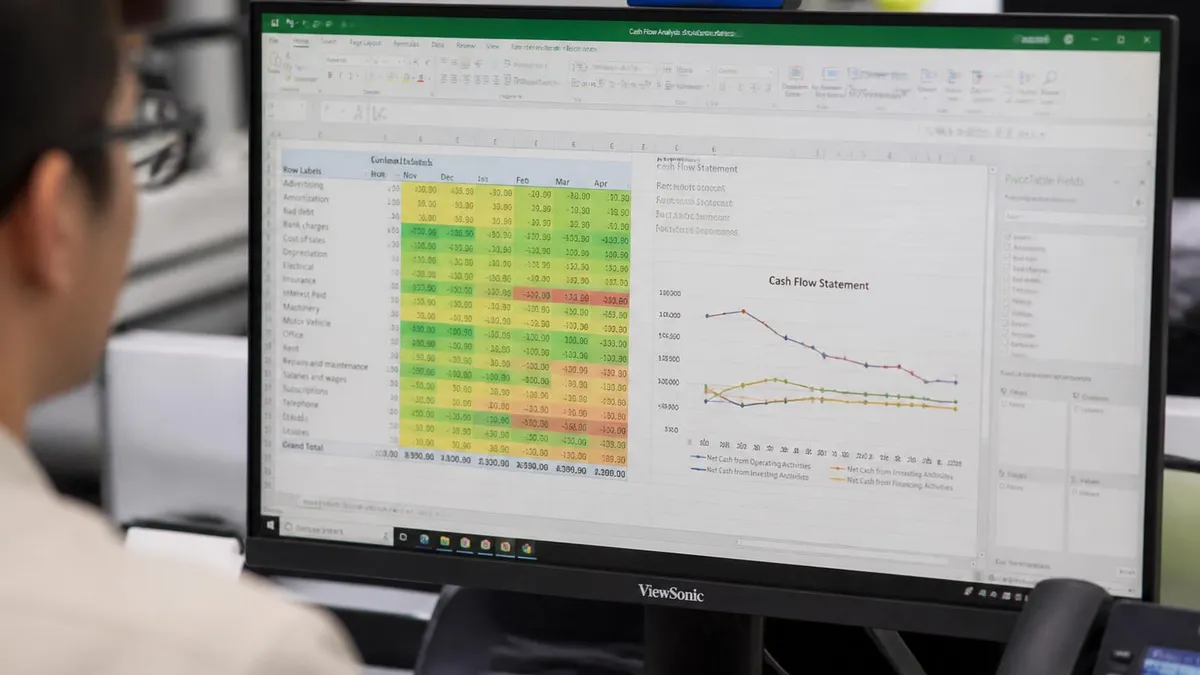
What you see in a cell is the formula's result. To see the actual formula, click the cell and look at the formula bar above the worksheet. The formula bar always shows what's actually stored in the cell. To edit a formula, double-click the cell (or press F2) and you can modify it in place. Press Enter to save changes, or Esc to cancel.
Relative vs Absolute References
Default behavior. When you copy a formula, references shift relative to the new location. =A1+B1 copied down becomes =A2+B2.
Use dollar signs to lock a reference. =A1+$B$1 copied down becomes =A2+$B$1 — the second reference stays fixed.
Lock just the column or just the row. $A1 locks the column. A$1 locks the row. Useful for two-dimensional reference tables.
While editing a formula, select a reference and press F4 to cycle through relative, absolute, and mixed reference types. Saves typing dollar signs manually.
The difference between relative and absolute references is one of the most important concepts in Excel. By default, references are relative — they shift when you copy a formula. If you put =A1+B1 in C1 and then copy it down to C2, C2 automatically becomes =A2+B2. This is usually what you want. It lets you write one formula and copy it down a column, with each row referencing its own data.
Sometimes you don't want that shift. If one part of your formula needs to always reference the same cell (like a tax rate stored in one place), use absolute references with dollar signs. =A1*$B$1 keeps $B$1 locked when copied. Copy this formula down a column and the A1 reference shifts (A2, A3, etc.) but $B$1 stays the same. This pattern is essential for any formula that multiplies a series of values by a constant.
The F4 key is the secret to working with absolute references efficiently. While editing a formula, click on or next to a cell reference, then press F4. Excel cycles through the four possible reference types: A1 (relative), $A$1 (absolute), A$1 (row locked), $A1 (column locked). Press F4 multiple times to find what you need. This shortcut alone will save hours over a career of spreadsheet work.
Common Formula Errors and Fixes
Division by zero. Happens when a formula divides by 0 or an empty cell. Fix with IFERROR: =IFERROR(A1/B1, 0) returns 0 instead of error. Or check for zero first: =IF(B1=0, 0, A1/B1).
Copying formulas efficiently is what makes Excel powerful. Once you've written a formula, you rarely want to retype it. Excel has several ways to copy formulas. The basic way: select the cell with the formula, press Ctrl+C (Mac: Cmd+C) to copy, click where you want to paste, press Ctrl+V (Mac: Cmd+V) to paste. The formula adjusts based on relative references and any absolute references you've used.
For copying down a column, there's a faster method. Click the cell with the formula. You'll see a small square in the bottom-right corner of the cell selection — this is called the fill handle. Double-click the fill handle and Excel fills the formula down as far as the adjacent column has data. This is much faster than copy/paste for filling formulas down long columns. Or you can drag the fill handle down manually to fill exactly as many rows as you need.
The fill handle also works for horizontal filling — drag right to fill across columns. And it handles smart patterns: type 'Monday' in a cell, drag the fill handle, and Excel fills Tuesday, Wednesday, etc. Type 1 in one cell and 2 in another, select both, and drag the fill handle — Excel continues the sequence (3, 4, 5...). This works with dates, months, years, custom lists, and many number patterns.
Excel Formula Best Practices
- ✓Always start formulas with the equals sign (=)
- ✓Use cell references instead of typing numbers when possible
- ✓Use SUM and other functions instead of long chains of additions
- ✓Lock references with $ when a formula needs a fixed reference point
- ✓Use the F4 key to toggle absolute/relative references quickly
- ✓Test formulas with simple data before applying to large datasets
- ✓Use the formula bar (or F2) to see and edit the actual formula
- ✓Wrap risky formulas with IFERROR to handle errors gracefully
- ✓Name important cells or ranges to make formulas more readable
- ✓Use the AutoSum shortcut (Alt+=) for quick column or row totals

Beyond basic math, Excel's true power comes from its hundreds of built-in functions. Functions are pre-built formulas that perform specific calculations — anything from text manipulation to financial calculations to statistical analysis. The syntax is consistent: =FUNCTIONNAME(argument1, argument2, ...). The arguments depend on the function. Some need just one argument (=ABS(-5) returns 5). Others need many (=PMT(rate, nper, pv) calculates a loan payment). The Insert Function dialog (fx button) helps you find and use functions you don't remember.
Text functions are surprisingly useful. CONCATENATE (or simply &) joins text strings: =A1&' '&B1 joins the contents of A1 and B1 with a space between. LEFT, RIGHT, and MID extract portions of text. UPPER, LOWER, and PROPER change capitalization. LEN counts characters. TRIM removes extra spaces. These functions become essential when cleaning up data that came from another system in messy format.
Date functions handle calendar calculations. TODAY() returns today's date. NOW() returns today's date and time. DATE(year, month, day) creates a specific date. DATEDIF(start, end, unit) calculates the time between two dates in various units. YEARFRAC calculates fractional years between dates. WORKDAY counts business days. Date math in Excel is straightforward once you know that Excel stores dates as serial numbers — January 1, 1900 is 1, and each day after adds 1.
If a formula references its own cell directly or indirectly through another formula, you create a circular reference. Excel shows a warning and the formula returns 0. Common when copy/pasting formulas to wrong locations. Open the formula audit tools (Formulas tab, Error Checking, Circular References) to find and fix them. They produce subtle, hard-to-debug results.
Named ranges make formulas more readable and easier to maintain. Instead of =A1*B1, you can name A1 'TaxRate' and B1 'Subtotal', making the formula =TaxRate*Subtotal. To name a cell: select it, click the Name Box (the box to the left of the formula bar that shows the current cell address), type a name, and press Enter. Names can include letters, numbers, and underscores but not spaces or most special characters. Once named, the range can be used in any formula by typing its name.
The Excel function library is organized into categories that you can browse through the Formulas tab. Financial functions (PMT, FV, NPV, IRR), logical (IF, AND, OR, NOT, IFS), text (LEFT, RIGHT, MID, CONCAT, TEXTJOIN), date and time, lookup and reference (VLOOKUP, XLOOKUP, INDEX, MATCH), math and trig, statistical, engineering, and many more. Each category has dozens of functions. You don't need to know them all — just know what's possible so you can search when you have a specific need.
One important habit: when a formula gets complex, break it into smaller steps in separate cells. Instead of one monster formula that's hard to debug, calculate intermediate values in separate cells, then combine them in a final formula. This makes troubleshooting much easier. You can hide intermediate calculation rows or columns once the worksheet is working. Readable formulas with reasonable steps are better than clever one-liners that nobody (including you, six months later) can understand.
Finally, learning to use the Formula Auditing tools on the Formulas tab will save hours. Trace Precedents shows which cells feed into the selected formula. Trace Dependents shows which cells use the selected cell. Evaluate Formula steps through a complex formula one calculation at a time, showing intermediate results. Watch Window lets you monitor specific cells while scrolling around. These tools are essential for working with inherited spreadsheets or complex models that someone else built.
Formula Shortcuts Worth Memorizing
AutoSum. Type Alt+= (or Cmd+Shift+T on Mac) below a column of numbers to automatically insert =SUM() with the range pre-filled. The single most useful Excel keyboard shortcut for formulas.
Building from beginner to intermediate Excel takes practice with formulas more than reading about them. Start with simple SUM and AVERAGE calculations on real data. Add IF statements when you need conditional logic. Try VLOOKUP or XLOOKUP when you need to match data across tables. Each function you learn opens up new things you can do. The progression is natural: solve a problem, learn a function for it, then notice opportunities to use that function elsewhere.
Online resources are abundant. Microsoft's official documentation covers every function in detail with examples. YouTube tutorials cover most common tasks. Sites like ExcelJet provide concise reference cards. Forums like Reddit's r/excel and StackOverflow answer specific questions. The key is to actively practice rather than passively watch — open Excel and try things while learning. Skills only stick when you apply them.
The bottom line: adding a formula in Excel is as simple as typing equals and writing your calculation. The depth comes from the hundreds of functions and the techniques for organizing and copying formulas efficiently. Master the basics — SUM, AVERAGE, IF, COUNT, basic math — and you can solve 80% of real-world spreadsheet problems. Build from there as your needs require. Excel rewards consistent practice and curiosity. The students who become spreadsheet experts didn't memorize every function; they kept building on simple skills and learning new techniques as challenges came up.
Learning Excel Formulas
- +Used in virtually every office job — universal workplace skill
- +Hundreds of free learning resources available online
- +Skills transfer between Excel, Google Sheets, and other spreadsheets
- +Even basic formulas dramatically reduce manual calculation work
- +Advanced features support sophisticated data analysis without programming
- +Pays off immediately — first formulas you learn save real time
- −Hundreds of functions means there's always more to learn
- −Complex formulas can become hard to read and debug
- −Different Excel versions have slightly different function availability
- −Error messages can be cryptic until you learn what they mean
- −Easy to introduce subtle bugs that propagate across a worksheet
Pros and Cons at a Glance
| Pros | Cons |
|---|---|
| Used in virtually every office job — universal workplace skill | Hundreds of functions means there's always more to learn |
| Hundreds of free learning resources available online | Complex formulas can become hard to read and debug |
| Skills transfer between Excel, Google Sheets, and other spreadsheets | Different Excel versions have slightly different function availability |
| Even basic formulas dramatically reduce manual calculation work | Error messages can be cryptic until you learn what they mean |
| Advanced features support sophisticated data analysis without programming | Easy to introduce subtle bugs that propagate across a worksheet |
Microsoft 365 and Excel 2021+ have dynamic array functions like FILTER, SORT, UNIQUE, SEQUENCE, and XLOOKUP that didn't exist in older versions. These eliminate the need for older array-formula tricks (Ctrl+Shift+Enter) and make many tasks dramatically simpler. If you're on an older version of Excel, these functions won't be available — check your version through File > Account before using them.
Excel formulas also benefit from understanding operator precedence — the order in which Excel evaluates operations within a formula. Multiplication and division happen before addition and subtraction. Exponentiation happens before multiplication. Parentheses override the default order. So =2+3*4 returns 14 (multiplication first: 3*4=12, then 2+12=14), but =(2+3)*4 returns 20 (parentheses first: 2+3=5, then 5*4=20). When you're unsure, add parentheses to make your intent explicit. Excessive parentheses don't hurt performance and make formulas easier to read.
Working with multiple worksheets adds another dimension to formulas. To reference a cell on another sheet, use the sheet name followed by an exclamation point: =Sheet2!A1 references cell A1 on Sheet2. If your sheet name contains spaces, wrap it in single quotes: ='Q1 Sales'!A1. To sum a single cell across many sheets (called a 3D reference), use the sheet range syntax: =SUM(Sheet1:Sheet12!A1) sums A1 from every sheet between Sheet1 and Sheet12. This is incredibly useful for monthly or departmental rollup reports.
Conditional formatting interacts with formulas in powerful ways. You can build rules that highlight cells based on formula results — turning cells red when sales drop below target, or green when projects are on schedule. Access conditional formatting from the Home tab. The 'Use a formula to determine which cells to format' option lets you write any formula that returns TRUE or FALSE, and Excel applies your chosen formatting to cells where the formula returns TRUE. This dramatically improves the visual usefulness of complex worksheets.
Pivot tables and formulas complement each other rather than competing. Pivot tables excel at summarizing large datasets through drag-and-drop without formulas. But you can write formulas that reference pivot table data using GETPIVOTDATA, or you can disable the automatic GETPIVOTDATA insertion and use regular cell references if you prefer. Many advanced spreadsheets combine pivot tables for summarization with formulas that perform additional calculations on pivot table outputs. This combination handles most real-world business analysis needs.
Macros and VBA represent the next frontier beyond formulas. When formulas alone aren't enough — when you need to automate complex multi-step processes, build custom dialog boxes, or create entirely new functions — VBA (Visual Basic for Applications) opens those possibilities. You don't need VBA for most spreadsheet work, but it's worth knowing it exists.
Recording macros (Tools > Macros > Record Macro) is the easiest way to start — Excel writes VBA code as you perform actions, which you can then modify or replay. This is how most VBA developers begin learning — they record a macro, study the generated code, and gradually start writing their own custom routines from scratch.
Excel Formula Questions and Answers
About the Author

Business Consultant & Professional Certification Advisor
Wharton School, University of PennsylvaniaKatherine Lee earned her MBA from the Wharton School at the University of Pennsylvania and holds CPA, PHR, and PMP certifications. With a background spanning corporate finance, human resources, and project management, she has coached professionals preparing for CPA, CMA, PHR/SPHR, PMP, and financial services licensing exams.