
Transpose in Excel: Three Methods to Switch Rows and Columns, Paste Special, TRANSPOSE Function, and Dynamic Arrays
📝 Transpose in Excel: Paste Special, TRANSPOSE function, and dynamic arrays methods. Step-by-step with examples. Convert rows to columns or vice versa.

Transposing in Excel means switching rows and columns — converting a horizontal range to vertical, or vice versa. This is one of the most common Excel data manipulation tasks, useful when you receive data in one orientation but need it in another for analysis, charts, or formatting. Excel provides three main methods for transposing: Paste Special with Transpose option, the TRANSPOSE function, and dynamic arrays in Excel 365.
Method 1: Paste Special with Transpose. The simplest method. Copy the source range, navigate to the destination, Paste Special, check the Transpose box. The pasted data appears with rows and columns swapped. Produces static values (no link to source).
Method 2: TRANSPOSE function. =TRANSPOSE(range). Entered as an array formula in older Excel (Ctrl+Shift+Enter) or as a regular formula in Excel 365 with dynamic arrays. Creates a dynamic transpose — when source data changes, the transposed data updates automatically.
Method 3: Dynamic arrays (Excel 365). Excel 365 introduced dynamic arrays, making TRANSPOSE() simpler to use. Type =TRANSPOSE(range) and press Enter — Excel automatically spills the result into adjacent cells. No special key combination needed.
Each method has its appropriate use case. Paste Special for one-time transformations where you want static values. TRANSPOSE function for situations where you want the transposed data to update as the source changes. Dynamic arrays for modern Excel with the smoothest experience.
This guide covers all three methods step-by-step, common use cases, and how to choose the right method for your situation.

Three Ways to Switch Rows and Columns
- Method 1: Paste Special — Copy → Ctrl+Alt+V → check Transpose → OK
- Method 2: TRANSPOSE function — =TRANSPOSE(range), Ctrl+Shift+Enter
- Method 3: Dynamic arrays — =TRANSPOSE(range), Enter (Excel 365)
- Keyboard shortcut: Ctrl+Alt+V then E for Transpose
- Best for one-time: Paste Special (static values)
- Best for live updates: TRANSPOSE function
- Best for modern Excel: Dynamic arrays
- Limitations: Some Paste Special interactions don't work with merged cells
Method 1: Paste Special with Transpose. The most common method.
Step 1: Select the source range. Click and drag to select the cells you want to transpose. Or use Ctrl+A within a data region.
Step 2: Copy the range. Press Ctrl+C (Windows) or Cmd+C (Mac). The cells get a marching ants border indicating they're copied.
Step 3: Click the destination cell. The cell where you want the transposed data to start. Choose a cell with enough empty space — if source is 5 rows x 3 columns, destination needs 3 rows x 5 columns of space.
Step 4: Open Paste Special. Several ways: Right-click destination → Paste Special. Or Home tab → Paste dropdown → Paste Special. Or keyboard shortcut Ctrl+Alt+V (Windows) or Cmd+Ctrl+V (Mac).
Step 5: Check the Transpose box. In the Paste Special dialog, check the Transpose checkbox (usually at the bottom right). Don't change other settings unless needed.
Step 6: Click OK. The data is pasted with rows and columns swapped. The original source remains; the destination contains the transposed copy.
What's transposed: Cell values, formulas (formulas adjust references — see notes below), formatting (colors, fonts, borders), conditional formatting, data validation, comments.
What happens to formulas. When you transpose cells with formulas, Excel adjusts the cell references in the formulas. =A1+B1 transposed becomes =A1+A2 (the reference direction changes). This is usually what you want, but verify the formulas work correctly in the transposed range.
Common Paste Special with Transpose use case: receiving data in one orientation (often rows) and needing it in the other (columns) for analysis or charts. Quick fix in 4-5 clicks.
Paste Special Transpose Steps
Click and drag to select the cells you want to transpose.
Standard copy. Source cells show marching ants.
Where transposed data starts. Need enough empty space (rows×cols swapped).
Opens Paste Special dialog. Or right-click → Paste Special.
Check the Transpose checkbox in the Paste Special dialog.
Data pasted with rows and columns swapped. Original source unchanged.
Method 2: TRANSPOSE function. Use when you want the transposed data to update dynamically as the source changes.
In older Excel (2019 and earlier): TRANSPOSE is an array formula. Steps: Select the destination range — the exact dimensions needed (if source is 5 rows × 3 cols, select 3 rows × 5 cols). Type =TRANSPOSE(source_range). Don't press Enter yet. Press Ctrl+Shift+Enter to enter as an array formula. Excel adds curly braces around the formula: {=TRANSPOSE(A1:C5)}. The result fills the destination range, dynamically linked to the source.
In Excel 365 with dynamic arrays: TRANSPOSE works as a regular formula. Steps: Click the destination cell (single cell). Type =TRANSPOSE(source_range). Press Enter (no Ctrl+Shift). Excel automatically 'spills' the result into the necessary adjacent cells. The result is dynamically linked to the source.
Why use TRANSPOSE function. When source data changes, the transposed view updates automatically. No need to re-do the transpose every time. Useful for: dashboards where data is periodically updated, reports that need to show data in different orientations, situations where you want to view data both ways simultaneously.
Limitations of TRANSPOSE function. The transposed range cannot be edited directly — to change values, edit the source. The result range must remain intact — partial deletion produces #SPILL! error. The function can be slower for very large ranges than Paste Special.
Combining with other functions. TRANSPOSE can be nested with other functions. Example: =SUM(TRANSPOSE(A1:A5)) calculates sum but with transposed reference. Useful for cross-orientation operations.
For most users, Paste Special Transpose is faster for one-time operations. TRANSPOSE function is essential when you need dynamic transposition.
TRANSPOSE Methods
Array formula required.
1. Select destination range with correct dimensions (rows × cols swapped)
2. Type =TRANSPOSE(source_range)
3. Press Ctrl+Shift+Enter (not just Enter)
4. Result fills destination range as array formula with curly braces
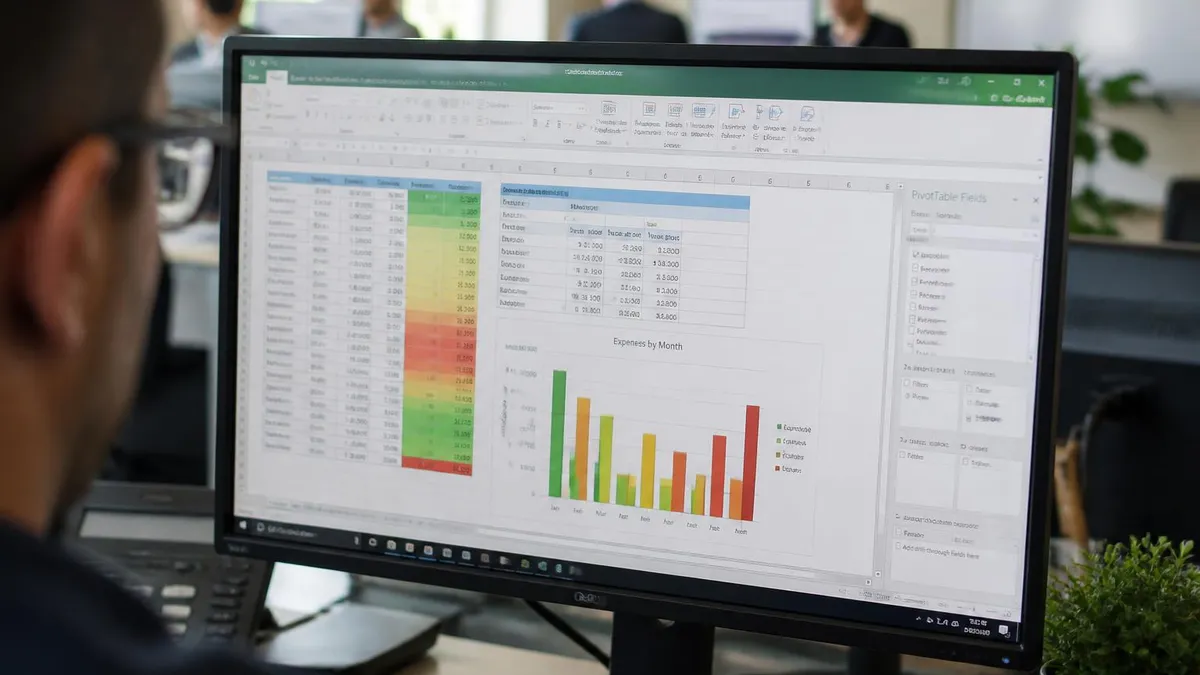
Common use cases for transposing in Excel. Real-world scenarios where you'd transpose data.
Use case 1: Switching from row-based to column-based format. Common when data is exported from databases in one orientation but reports need the other. Example: monthly data with months as columns, exported as months as rows. Transpose to fit your reporting format.
Use case 2: Chart preparation. Some chart types work better with data in specific orientations. If your data is in rows but the chart needs columns (or vice versa), transpose first.
Use case 3: Pivot table preparation. Sometimes the natural orientation of your raw data doesn't work with pivot tables. Transposing first can simplify pivot creation.
Use case 4: Comparison views. View the same data both ways. Original data in rows, transposed view in columns alongside. Useful for spotting patterns or trends.
Use case 5: Merging data from different sources. Different sources may use different orientations. Transpose one to match the other before combining.
Use case 6: Time series rearrangement. Time series data sometimes has dates as columns and metrics as rows. For analysis, you may want dates as rows and metrics as columns. Transpose accordingly.
Use case 7: Survey response analysis. Survey responses sometimes come with respondents in rows and questions in columns. For some analyses, transpose to have questions in rows and respondents in columns.
Use case 8: Cross-tabulation. Creating cross-tabulated views often requires transposing data first.
Use case 9: Formula compatibility. Some formulas work better in specific orientations. Transpose to match what your formulas expect.
Use case 10: Export to other systems. Other systems (databases, BI tools, web applications) may expect data in specific orientations. Transpose to match the destination's requirements.
For most use cases, Paste Special with Transpose is sufficient. TRANSPOSE function for dynamic situations.
Common Transpose Use Cases
Data comes in one orientation; reports need the other. Quick fix with Paste Special.
Some charts work better with rows vs columns. Transpose to fit chart requirements.
Sometimes natural orientation doesn't fit pivot. Transpose first for cleaner pivots.
View same data both ways. Original + transposed side by side.
Different sources have different orientations. Transpose to match before merging.
Cross-tabulated views often require transposing data first.
Troubleshooting common transpose issues.
Issue 1: Paste Special Transpose grayed out. Cause: Copying from a different application or a non-rectangular range. Solution: Copy a rectangular range from Excel itself. Or copy as values first, then transpose.
Issue 2: Transposed formulas don't work. Cause: Cell references are confused after transposition. Solution: Verify formulas reference correct cells in the new orientation. May need to update references manually.
Issue 3: TRANSPOSE function returns #VALUE! Cause: Wrong cell selection for array formula entry in older Excel, or destination range size doesn't match source dimensions. Solution: Select the correct destination range size (rows × cols swapped). Press Ctrl+Shift+Enter.
Issue 4: #SPILL! error with dynamic TRANSPOSE. Cause: Destination cells contain other content blocking the spill. Solution: Clear the destination cells. Or move the TRANSPOSE formula to a clear area.
Issue 5: Merged cells cause problems. Cause: Excel doesn't transpose merged cells well. Solution: Unmerge all cells before transposing. Re-merge if needed afterward.
Issue 6: Formatting lost during transpose. Cause: Some formatting may not transfer. Solution: Verify all formatting after transpose. Re-apply if needed. Cell fills, fonts, borders should transfer; conditional formatting may need adjustment.
Issue 7: Hidden cells included in transpose. Cause: Excel transposes all cells including hidden ones. Solution: Unhide cells before transposing if you want consistent visibility. Or filter and copy visible cells only.
Issue 8: Different column widths in destination. Cause: Source column widths may not transfer correctly. Solution: Manually adjust column widths in destination. Use Format Painter to copy widths if many columns.
Issue 9: TRANSPOSE function slows large workbooks. Cause: Each TRANSPOSE recalculation takes time. Solution: Use Paste Special for very large transformations. Or convert TRANSPOSE results to values once stable.
Issue 10: Transposed result doesn't match expected dimensions. Cause: Source range wrong size or includes extra rows/columns. Solution: Verify source range. Use F8 mode (Extend Selection) to verify exact dimensions before copying.
Transpose Methods Compared

Best practices for transposing in Excel.
Practice 1: Choose the right method. Paste Special for one-time. TRANSPOSE function for dynamic. Don't use TRANSPOSE for one-time operations — slower and less flexible than Paste Special.
Practice 2: Verify result. After transposing, verify the data appears correctly in the new orientation. Check edge cases (first row, last column, etc.). Spot-check formulas if any were transposed.
Practice 3: Save before significant transformations. Save the workbook before large transposes. Allows easy recovery if something goes wrong.
Practice 4: Use Paste Values when appropriate. If you don't need formula transposition, use Paste Special with both Transpose and Values options. Produces values-only output without formula complications.
Practice 5: Plan destination space. Source 10 rows × 3 columns transposes to 3 rows × 10 columns. Ensure destination has space. Otherwise data may overlap existing content.
Practice 6: Format consistently. Transpose may not transfer all formatting perfectly. Set up template formatting for transposed data before transposing.
Practice 7: Use named ranges for clarity. Instead of TRANSPOSE(A1:E10), use TRANSPOSE(SalesData). Easier to maintain.
Practice 8: Document complex transposes. If your transpose is part of a workflow, document what was transposed and why. Future-you (or others) will thank you.
Practice 9: Test with sample data. For complex transformations, test with a small sample first. Verify the result is what you expect. Then apply to full dataset.
Practice 10: Combine with other operations. Sometimes the best workflow is: transpose first, then format, then perform other operations. Sometimes the reverse. Think about the right order for your specific case.
Choosing Your Transpose Method
Need One-Time Result?
Need Dynamic Update?
Using Excel 365?
Using Older Excel?
Very Large Dataset?
Just Want Values?
Before transposing, ensure your destination has enough empty space. Source dimensions swap when transposed: 10 rows × 3 columns becomes 3 rows × 10 columns. If the destination is too small or contains other data, the transpose may overwrite content or fail. Quick check: count source rows and columns, ensure destination has the swapped dimensions in empty space. For dynamic TRANSPOSE function in Excel 365, the formula needs uninterrupted spill space.
TRANSPOSE Pros and Cons
- +TRANSPOSE has a publicly available content blueprint — you know exactly what to prepare for
- +Multiple preparation pathways accommodate different schedules and budgets
- +Clear score reporting shows specific strengths and weaknesses
- +Study communities share current insights from recent test-takers
- +Retake policies allow recovery from a difficult first attempt
- −Tested content scope requires substantial preparation time
- −No single resource covers everything optimally
- −Exam-day performance can differ from practice test performance
- −Registration, prep, and retake costs accumulate significantly
- −Content changes between versions can make older materials less reliable
Pros and Cons at a Glance
| Pros | Cons |
|---|---|
| TRANSPOSE has a publicly available content blueprint — you know exactly what to prepare for | Tested content scope requires substantial preparation time |
| Multiple preparation pathways accommodate different schedules and budgets | No single resource covers everything optimally |
| Clear score reporting shows specific strengths and weaknesses | Exam-day performance can differ from practice test performance |
| Study communities share current insights from recent test-takers | Registration, prep, and retake costs accumulate significantly |
| Retake policies allow recovery from a difficult first attempt | Content changes between versions can make older materials less reliable |
EXCEL Questions and Answers
Advanced transpose techniques. Beyond basic transposing, several variations and applications help with specific situations.
Transpose with formulas only. If you want to transpose just the formulas (not the resulting values), use Paste Special with the Formulas option plus Transpose. Excel transposes the formula text, adjusting references. Useful when you want to apply the same calculation logic in different orientation.
Transpose with formatting only. Paste Special offers Formats option. Combined with Transpose, this transposes only the formatting (colors, fonts, borders) without the data. Useful when you want to apply a different style pattern in transposed orientation.
Transpose specific cells from a larger range. You don't have to transpose the entire selected range. After copying a larger range, you can paste with Transpose into a destination, then use the data you need. Or copy only the specific cells you want transposed.
Transpose using Power Query. For complex transpose operations involving multiple data sources, transformations, or repeated processes, Power Query offers more flexibility. Get Data → Transform Data → Transpose. Useful for ongoing data pipelines rather than one-time manual operations.
Transpose with VBA. For programmatic transposing, VBA's Transpose property is available. Code example: Range("E1").Resize(3,5).Value = Application.WorksheetFunction.Transpose(Range("A1:C5").Value). Useful for automated workflows.
Practical transposition tips from real-world use. Save a copy before transposing important data — provides easy recovery if results are unexpected. Document why you transposed (in a notes cell or workbook comment) for future reference. Consider whether transposing is actually the right operation; sometimes reshaping with formulas or Power Query is more appropriate. Test with a small subset before transposing massive ranges.
For most users, the three core methods (Paste Special, TRANSPOSE function, dynamic arrays) handle 95%+ of transpose needs. Advanced techniques (Power Query, VBA) are for specialized situations or repeating workflows. Master the basics first; expand to advanced techniques as specific needs arise.
For large or important data, test the transpose on a small sample first. Verify the result matches your expectations. Confirm formulas adjust correctly. Then proceed with the full transformation. This 30-second precaution prevents the headache of dealing with thousands of incorrectly-transposed cells. Especially important when transposing data with mixed formulas, formatting, and conditional formatting — these can behave unexpectedly in transposed orientation.
Transposing in Excel is a fundamental data manipulation skill. The three methods (Paste Special, TRANSPOSE function, dynamic arrays) cover all common scenarios. For most users, Paste Special with Transpose is the everyday tool — fast, reliable, and works for one-time operations. TRANSPOSE function is the specialized tool when you need transposed data to dynamically update from source changes.
For prospective Excel users mastering transpose: start with Paste Special as your default method. Learn TRANSPOSE function when you encounter situations requiring dynamic transpose. In Excel 365, embrace dynamic arrays for the smoothest experience. With these three methods in your toolkit, you can handle virtually any row-column transformation Excel can throw at you.
The transpose skill is one of those Excel capabilities that seems trivial until you need it, at which point you're glad you know it. Spend 15 minutes practicing each method with sample data, and these techniques become second nature. The investment pays back every time you receive data in the wrong orientation and need to quickly reshape it for your reporting, analysis, or charting needs. In modern data work where Excel remains a universal tool, transpose proficiency is a small but high-value skill that distinguishes confident Excel users from struggling beginners.
Most experienced Excel users transpose data dozens of times per year — for reformatting reports, preparing data for analysis, restructuring imported data, or aligning data formats for charts and pivot tables. The cumulative time saved by efficient transposing techniques is substantial across years of Excel use, making this one of those small skills with high lifetime ROI for anyone who works with Excel regularly.
About the Author

Business Consultant & Professional Certification Advisor
Wharton School, University of PennsylvaniaKatherine Lee earned her MBA from the Wharton School at the University of Pennsylvania and holds CPA, PHR, and PMP certifications. With a background spanning corporate finance, human resources, and project management, she has coached professionals preparing for CPA, CMA, PHR/SPHR, PMP, and financial services licensing exams.