
Standard Deviation Excel: STDEV, STDEV.S, and STDEV.P Guide 2026 September
📝 Standard deviation in Excel — STDEV.S, STDEV.P, and all related functions with examples. Sample vs population, outlier detection, and Z-scores.

Standard Deviation in Excel: Which Function to Use
Standard deviation measures how spread out values are from the average. A small standard deviation means values cluster tightly around the mean; a large one means they are dispersed widely. In Excel, calculating it takes a single function — but choosing the right function matters, because Excel offers six standard deviation functions and picking the wrong one produces a subtly incorrect result.
The function you will use most often is STDEV.S, which calculates standard deviation for a sample — a subset of a larger population. If you have test scores from 30 students in one class and want to infer how spread out scores are across all students at the school, you use STDEV.S because your 30 scores are a sample of the population. If instead you have scores from every student at the school and want to measure the spread of that complete group, you use STDEV.P (population standard deviation).
The distinction matters statistically because sample standard deviation uses n-1 in its denominator (Bessel's correction) while population standard deviation uses n. For large datasets the difference is negligible, but for small samples it produces meaningfully different results. As a practical rule: almost every business and academic dataset is a sample, not a complete population, so STDEV.S is the default choice.
Excel also retains the legacy functions STDEV (identical to STDEV.S) and STDEVP (identical to STDEV.P) for backward compatibility, plus STDEVA and STDEVPA which treat text and logical values as numbers rather than ignoring them. Understanding these variants prevents errors when working with mixed-type data or with spreadsheets built by other users who may have used the older function names.
There is also an important distinction between standard deviation and standard error, which are sometimes confused. Standard deviation describes the spread of data within your dataset — how much individual values vary around the mean. Standard error of the mean (SEM) measures how precisely your sample mean estimates the true population mean, and it decreases as sample size increases.
Standard error is calculated as standard deviation divided by the square root of the sample size: =STDEV.S(range)/SQRT(COUNT(range)). In scientific and medical reporting, error bars on charts more often show standard error than standard deviation, so knowing which measure is being displayed matters for interpreting results correctly.
- STDEV.S — Sample standard deviation (ignores text and logical values)
- STDEV.P — Population standard deviation (ignores text and logical values)
- STDEVA — Sample SD including text as 0 and TRUE/FALSE as 1/0
- STDEVPA — Population SD including text and logical values
- STDEV — Legacy alias for STDEV.S (still works, not recommended for new formulas)
- STDEVP — Legacy alias for STDEV.P (still works, not recommended for new formulas)

STDEV.S Syntax, Examples, and Common Errors
The STDEV.S function syntax is: =STDEV.S(number1,[number2],...). You can pass up to 255 arguments, and each can be a single value, a cell reference, or a range. The most common form in practice is a single range: =STDEV.S(B2:B100).
STDEV.S ignores empty cells, text, and logical values (TRUE/FALSE) by default. If your range contains a mix of numbers and text labels, only the numeric values participate in the calculation. This is usually the right behavior — but if you have data coded as text (numbers stored as text strings) in the range, they will silently be excluded, which distorts the result without showing an error. A quick way to check: format the column as Number; if any cells remain left-aligned, they contain text values, not numbers.
A common error is confusing STDEV.S with STDEV (the legacy function). Both calculate sample standard deviation and produce identical results, but Microsoft has deprecated STDEV in favor of STDEV.S. If you are writing a new spreadsheet, use STDEV.S. If you encounter STDEV in someone else's work, it is safe to leave it — it will not produce an error — but it is worth updating if you are doing a full audit.
Example — Sales variability analysis: Suppose column B contains 52 weekly sales figures. =STDEV.S(B2:B53) tells you how much weekly sales deviate from the average. Combined with =AVERAGE(B2:B53), you can calculate the coefficient of variation: =STDEV.S(B2:B53)/AVERAGE(B2:B53). This ratio, typically expressed as a percentage, normalizes variability across datasets with different scales — useful when comparing the consistency of sales in different regions or product lines.
Example — Test score analysis: For a class assessment, =STDEV.S(C2:C31) gives the spread of 30 student scores. If the average is 72 and the standard deviation is 8, about 68% of students scored between 64 and 80 (within one standard deviation of the mean) under a normal distribution. About 95% scored between 56 and 88 (within two standard deviations). These ranges help identify students who are performing significantly above or below the class average. The full range of statistical and analytical functions used alongside standard deviation is in the Excel formulas guide.
For rank-based analysis, standard deviation complements percentile calculations. The PERCENTILE function returns the value at a given percentile position, while PERCENTRANK returns where a specific value falls percentile-wise. Together with standard deviation, these functions describe data distribution from multiple angles: how spread out it is (SD), where specific values fall (PERCENTRANK), and what value corresponds to a target percentile (PERCENTILE). For talent management, quality control, and performance benchmarking, combining all three gives a complete picture of distribution that a single metric cannot capture alone.
Running standard deviation calculations inside pivot tables also opens advanced options. When you add a field to the Values area of a pivot table, right-click it and select Value Field Settings.
The Show Values As tab lets you select Running Total, % of Grand Total, and other options, while the Summarize Values By tab includes StdDev (for STDEV.S equivalent) and StdDevp (for STDEV.P equivalent). This allows standard deviation to be calculated at each grouping level in the pivot without writing any formulas in the underlying data range — one of the more powerful analytical features that is frequently overlooked in Excel pivot table training.
Another nuance: when your data range contains errors (such as #DIV/0! or #VALUE! cells), STDEV.S propagates the error and returns an error itself. The solution is to clean errors first or use an array approach. =STDEV.S(IF(ISNUMBER(B2:B100),B2:B100)) confirmed with Ctrl+Shift+Enter skips error cells. To calculate standard deviation only for a subset — for example, rows where column A equals East — use: =STDEV.S(FILTER(B2:B100,A2:A100="East")) in Excel 365. These conditional patterns are particularly useful for comparing variability across customer segments, product categories, or geographic regions without writing multiple separate formulas.
When to Use Each SD Function
Use for samples — any subset of a larger group. The correct choice for almost all business and academic data. Ignores text and empty cells.
Use only when your data IS the complete population — every member, not a sample. Rare in practice. Returns a slightly lower value than STDEV.S for the same data.
Like STDEV.S but counts text values as 0 and TRUE as 1, FALSE as 0. Use when your data includes logical flags that should count as values.
Population version of STDEVA. Includes text and logical values in the calculation. Very uncommon — use only for specific mixed-data scenarios.
Identical to STDEV.S and STDEV.P respectively. Safe to use but Microsoft recommends the newer .S and .P naming in all new formulas.
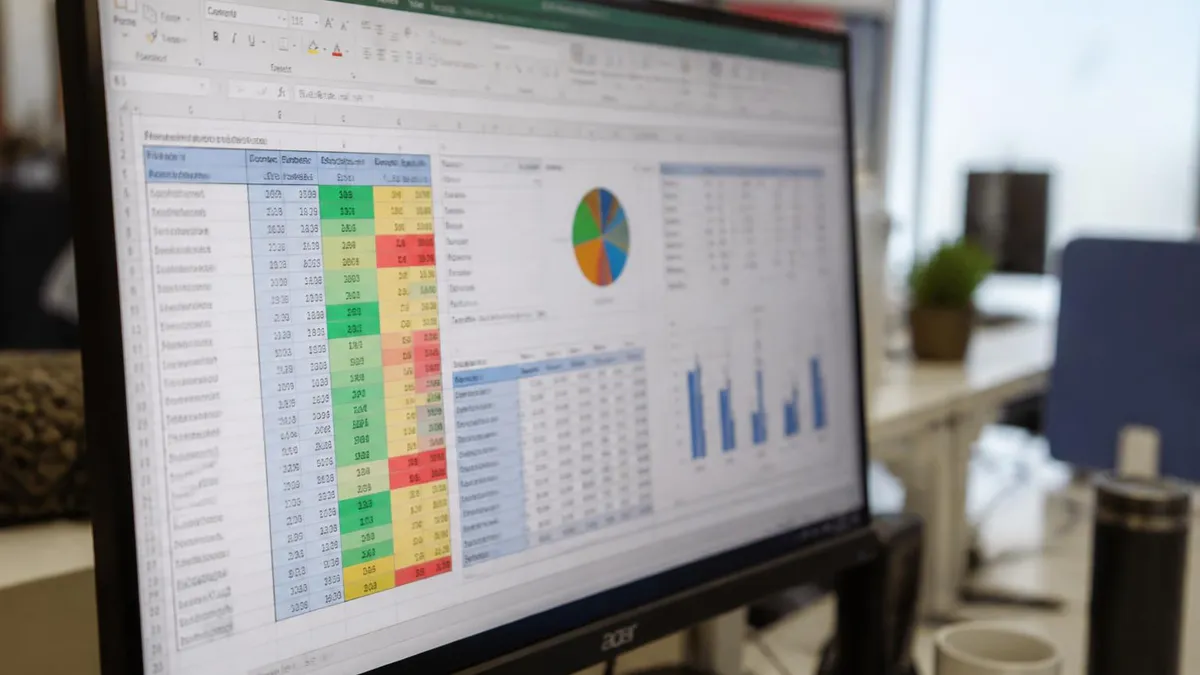
Visualizing and Using Standard Deviation in Charts
Calculating standard deviation is most useful when you visualize it alongside the data. Excel supports several approaches for making variability visible in charts and in the worksheet itself.
Error bars in charts — Excel bar and line charts support error bars that show the standard deviation range above and below each data point. Select a chart, go to Chart Design, then Add Chart Element, then Error Bars, then More Error Bar Options. Choose Standard Deviation and set the multiplier (1 for one SD, 2 for two SDs). Error bars make it immediately clear which data points have high variability versus consistent performance.
Conditional formatting for outlier detection — One of the most practical uses of standard deviation in Excel is highlighting outliers. Calculate the mean and standard deviation in separate cells, then apply a conditional formatting formula rule to the data range. The formula =$B2>$E$1+2*$F$1 highlights any value more than two standard deviations above the mean (where E1 holds the average and F1 holds the standard deviation). This flags statistical outliers — values unusual enough to investigate. A full explanation of formula-based conditional formatting is in the conditional formatting guide.
Dynamic range highlighting — You can use STDEV.S and AVERAGE together with conditional formatting to create a self-updating visual that always highlights outliers based on the current data range. Unlike static thresholds that break when data changes, dynamic formulas recalculate automatically as new data is added.
Bell curve visualization — Excel does not have a built-in bell curve chart, but you can construct one using the NORM.DIST function to calculate density values across a range of x-values, then plot them as a line chart. For presentations where you need to show data distribution visually, this approach communicates spread more intuitively than a standard deviation number alone.
In financial analysis, standard deviation serves as a proxy for volatility. An investment with high standard deviation of returns is more volatile — the returns swing widely from period to period. The Sharpe ratio, a standard risk-adjusted return metric, is calculated as (mean return minus risk-free rate) divided by standard deviation of returns: =(AVERAGE(returns)-riskFreeRate)/STDEV.S(returns). This formula is entirely buildable in Excel and is one of the most common formulas used in portfolio management and quantitative finance spreadsheets.
Standard Deviation by Use Case
Use STDEV.S for sales variability, quality control measurements, customer satisfaction scores, and financial performance metrics. Combine with AVERAGE to calculate coefficient of variation. Apply conditional formatting rules using AVERAGE+2*STDEV.S to flag performance outliers automatically in dashboards.

Using STDEV.P when you actually have a sample. This is the most common error and produces a standard deviation that is systematically too small, which can lead to underestimating variability and setting control limits or outlier thresholds too tight. When in doubt, use STDEV.S — for large datasets the difference is tiny; for small samples it matters.
Advanced Statistical Applications: Z-Scores and Coefficient of Variation
Standard deviation is the foundation for several statistical measures that are useful in data analysis. Two of the most practical are Z-scores and the coefficient of variation.
Z-scores — A Z-score expresses how many standard deviations a value is from the mean. The formula is: (value - mean) / standard deviation. In Excel: =(B2-AVERAGE($B$2:$B$100))/STDEV.S($B$2:$B$100). A Z-score of 0 means the value equals the mean. A Z-score of 2 means the value is two standard deviations above the mean — statistically unusual in a normal distribution. Z-scores enable direct comparison of values from datasets with different scales or units, which is essential in multi-variable analysis. Excel's STANDARDIZE function performs the same calculation with cleaner syntax: =STANDARDIZE(B2,AVERAGE($B$2:$B$100),STDEV.S($B$2:$B$100)).
Coefficient of Variation (CV) — The CV is standard deviation divided by the mean, expressed as a percentage. =(STDEV.S(B2:B100)/AVERAGE(B2:B100))*100. It measures relative variability and is most useful for comparing consistency across groups with different average values. A sales team averaging $50,000 per month with a CV of 8% is more consistent than one averaging $80,000 with a CV of 25%, even though the absolute standard deviation of the second team may be larger.
STDEV.S with multiple ranges — You can pass multiple separate ranges to STDEV.S: =STDEV.S(B2:B50,D2:D50). This calculates standard deviation across all values from both ranges as if they were one continuous dataset. This is useful when data for the same variable is split across non-adjacent columns — for example, sales data from two different sheets that you want to analyze together.
For more complex analyses involving pivot tables and aggregated data, standard deviation can also be used inside pivot table Value Field Settings. Right-click any value field in a pivot table and select Summarize Values By, then StdDev to show standard deviation by group directly in the pivot report. This is one of the most underused pivot table features for analysts who work with aggregated performance data. An overview of pivot table analysis options is in the Excel cheat sheet.
Running standard deviation calculations inside pivot tables opens additional options. When you add a field to the Values area of a pivot table, right-click it and select Value Field Settings. The Summarize Values By tab includes StdDev (STDEV.S equivalent) and StdDevp (STDEV.P equivalent). This calculates standard deviation at each grouping level in the pivot without writing any formulas in the underlying data range — one of the more powerful analytical features frequently overlooked in pivot table training. For rank-based analysis, combining PERCENTILE, PERCENTRANK, and STDEV.S gives a multi-dimensional view of data distribution that a single metric cannot provide.
Statistical Analysis in Excel: 5-Step Process
Step 1 — Clean the Data
Step 2 — Calculate Basic Statistics
Step 3 — Identify Outliers
Step 4 — Visualize the Distribution
Step 5 — Summarize and Report
Excel vs. Dedicated Statistics Software for SD Analysis
- +No additional software — everyone on the team has access to Excel
- +Easy to combine statistical results with data tables, charts, and reports in one file
- +STDEV functions update automatically when source data changes
- +Conditional formatting turns statistical thresholds into visual dashboards immediately
- +Pivot tables with StdDev aggregation handle grouped analysis without extra formulas
- −Excel is not designed for large-scale statistical analysis (R, Python, SPSS are more appropriate above ~100,000 rows)
- −No built-in distribution testing (normality tests, ANOVA) without add-ins
- −The Analysis ToolPak add-in is available but less powerful than dedicated stat software
- −Formula errors in large spreadsheets are hard to audit and can propagate silently
- −Version differences occasionally affect advanced statistical function behavior
Standard Deviation for Excel Exams and Certification
The Microsoft Office Specialist Excel exam does not test statistical theory, but it does test the ability to apply statistical functions correctly, use the right function variant for a given scenario, and identify which function to use based on a description. Understanding when to choose STDEV.S versus STDEV.P — and being able to write both from memory — covers what is typically tested.
Common exam-style tasks related to standard deviation include: writing a STDEV.S formula over a named range, applying conditional formatting to highlight cells that exceed the mean by a specified number of standard deviations, calculating a coefficient of variation using a cell reference to the standard deviation result, and combining STDEV.S with IF functions in array-style analysis. Practice with these specific task types builds the formula fluency that exam scoring rewards.
For candidates using this as part of broader Excel preparation, the Excel certification guide includes the full domain breakdown and a prioritized list of functions by exam weight. Standard deviation and other statistical functions fall within the Applying Formulas and Functions domain, which accounts for roughly 25% of the MOS Excel exam.
Beyond the MOS exam, standard deviation is tested in Excel interviews at analytical and financial roles. Interviewers typically ask candidates to: write a STDEV.S formula for a data range, explain the sample versus population distinction, describe how to highlight outliers using conditional formatting with a standard deviation threshold, and calculate a Z-score for a specific value. For one-time exploratory statistical analysis, the Excel Analysis ToolPak add-in (File, Options, Add-ins, Analysis ToolPak) includes a Descriptive Statistics tool that returns mean, SD, range, skewness, and kurtosis in one table — faster than writing each formula individually for quick data profiling tasks.
The practical test of standard deviation proficiency is being able to explain a result in plain language after calculating it. Knowing the formula is the easy part; knowing what the number means for the specific dataset — whether the variability is high or low for that context, and what decisions it informs — is what distinguishes analysts who use Excel for reporting from those who use it for genuine insight generation.
Excel Questions and Answers
About the Author

Business Consultant & Professional Certification Advisor
Wharton School, University of PennsylvaniaKatherine Lee earned her MBA from the Wharton School at the University of Pennsylvania and holds CPA, PHR, and PMP certifications. With a background spanning corporate finance, human resources, and project management, she has coached professionals preparing for CPA, CMA, PHR/SPHR, PMP, and financial services licensing exams.