
How to Print Gridlines in Excel: Complete Step-by-Step Guide 2026 September
Learn how to print gridlines in Excel in seconds. Step-by-step instructions, troubleshooting tips, and shortcuts for Windows, Mac, and Excel for the web. ❓

Why Excel Gridlines Disappear When You Print
Here is something that catches almost every Excel user off guard at least once. You build a clean spreadsheet, the columns line up, the data looks crisp on screen, and then you hit print. Out comes a sheet of floating numbers with no visible structure. The gridlines vanished. Where did they go?
By default, Excel does not print the gridlines you see on your worksheet. Those soft gray lines are a screen-only feature. They help you see cell boundaries while you work, but Microsoft treats them as a visual aid rather than printable content. To get them on paper, you have to flip a specific switch, and that switch lives somewhere most people never think to look.
This guide walks you through every method, every shortcut, and every fix for the most common gridline printing problems. Whether you use Excel 2016, Excel 2021, Microsoft 365, or Excel for the web, the steps below will get gridlines onto your printed page in under a minute. If you also handle spreadsheet skills for job assessments, our Excel practice test covers print setup questions that show up on many employer skills exams.
The Fastest Way: Page Layout Tab
Most users only need one method, and this is it. Open your workbook, click the Page Layout tab on the ribbon, find the Sheet Options group, and look for the Gridlines section. You will see two checkboxes: View and Print. Tick the Print checkbox. That is the entire procedure. Hit Ctrl+P and the gridlines will appear on your printed output, surrounding every cell that contains data or formatting.
The Page Layout tab is the modern, recommended approach because Microsoft built it specifically for print-related settings. It groups everything you need (margins, orientation, size, print area, gridlines, headings) into a single tab. Once you tick Print under Gridlines, the setting saves with the worksheet, so the next time you open the file, you do not have to redo it.
One quick clarification before you race off and print: the gridline checkbox on the Page Layout tab is split into two columns. The first column labeled View controls what appears on your screen. The second column labeled Print controls what shows up on paper. You want the Print column. People miss this all the time and wonder why their screen display changed when they really only wanted to affect the printout. Read the column headers, tick the right box, and you avoid a frustrating round trip.
The change takes effect immediately. There is no apply button, no save prompt, no confirmation dialog. As soon as you tick the box, the next print job picks it up. If you want to verify before committing paper, hit Ctrl+P and look at the preview pane. The gridlines should now be visible around every data-containing cell on the right side of the screen. If they are, you are ready to print. If they are not, the troubleshooting checklist later in this guide covers the four most common causes and exactly how to fix each one quickly.
Gridline Printing at a Glance
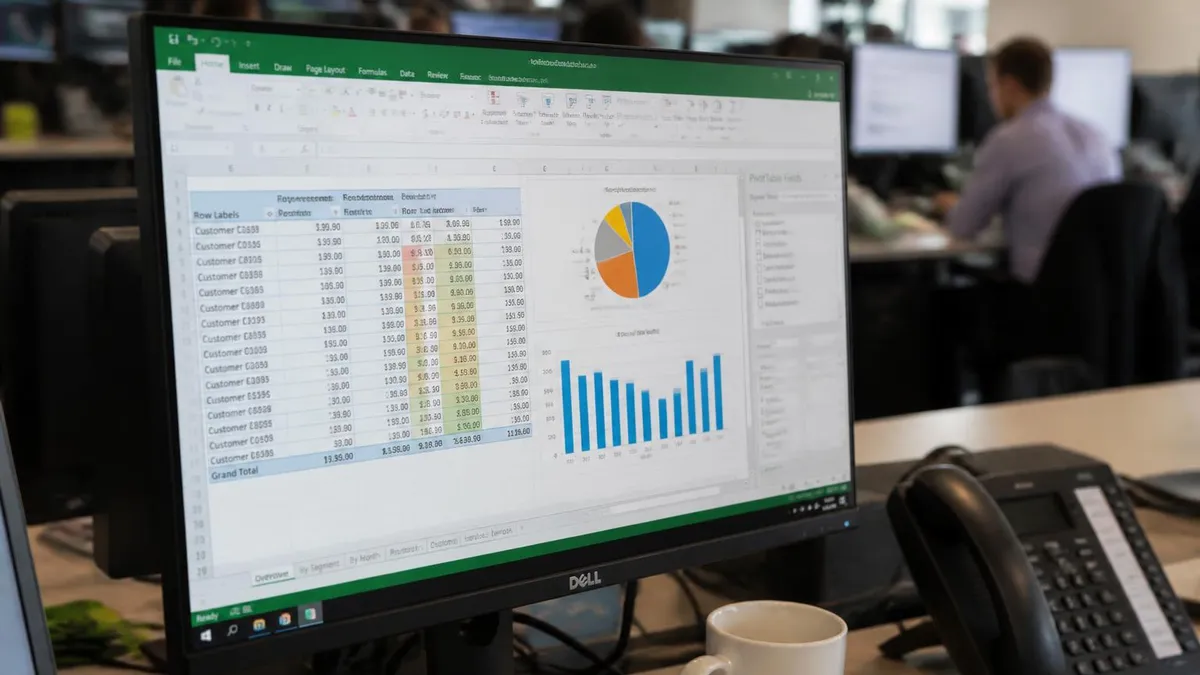
Click Page Layout, find the Sheet Options group, and tick Print under Gridlines. Done. Hit Ctrl+P. That is the entire procedure for 95% of users.
Method 2: Page Setup Dialog (the Classic Route)
If you grew up on older versions of Excel, you might remember the Page Setup dialog box. It still works, and some people prefer it because it shows every print option in one place. To open it, click the small arrow in the bottom-right corner of the Page Setup group on the Page Layout tab. A dialog window pops up with four tabs: Page, Margins, Header/Footer, and Sheet.
Click the Sheet tab. Look for the Print section in the middle of the dialog. You will see a Gridlines checkbox. Tick it. Click OK. Done. This method does exactly the same thing as the Page Layout shortcut, but it gives you a chance to set other print options at the same time, like row and column headings, draft quality, or printing in black and white.
Method 3: File Menu Print Preview
Sometimes you only realize gridlines are missing after you check the print preview. Good news. You do not have to back out and start over. From the File menu, click Print. The preview pane opens on the right side of the screen. Scroll to the bottom of the settings list on the left. You will find Page Setup as a small link. Click it. The same dialog from Method 2 appears. Tick Gridlines under Sheet. Click OK. The preview updates instantly, and you can print without leaving the screen.
How to Print Gridlines in Excel for Mac
Mac users follow a slightly different path because the ribbon layout has minor differences. Open your workbook in Excel for Mac. Click Page Layout in the menu bar at the top of the screen. From the dropdown, choose Show Print Gridlines or Print Gridlines (the exact wording varies by version). Alternatively, open File, then Page Setup, then click the Sheet tab and tick Gridlines.
The Mac version also supports the Page Layout ribbon tab, which works identically to Windows. If you do not see the ribbon, press Cmd+Option+R to toggle it on. Once visible, find Sheet Options and tick the Print box next to Gridlines.
Three Routes to the Same Result
<p>Fastest method. Tick the Print checkbox under Gridlines in the Sheet Options group. Saves with the workbook.</p>
<p>Classic dialog with every print option in one place. Tick Gridlines under the Sheet tab. Useful for adjusting multiple settings at once.</p>
<p>Catch missing gridlines before they reach paper. Open File, Print, then Page Setup to fix without leaving the preview.</p>
By Operating System
Page Layout tab, Sheet Options group, tick Print under Gridlines. Saves with the workbook. Works in Excel 2016, 2019, 2021, and Microsoft 365.
Printing Gridlines in Excel for the Web
Excel for the web (the free browser version) has fewer features than the desktop app, but printing gridlines still works. Open your spreadsheet at excel.cloud.microsoft. Click File, then Print, then Print Settings. In the dialog that appears, you will see options for orientation, scaling, and gridlines. Tick the Print Gridlines box and click Print.
The browser version cannot save the print setting back to the file in all cases, so you may need to tick the box each time you print. If gridlines are critical to your workflow, consider opening the file in the desktop app, setting it there once, and saving. The setting will then carry over when you reopen the file in the browser.
What If Gridlines Still Do Not Print?
You ticked the box. You hit print. Still no gridlines. This happens more often than you would think, and the cause is almost always one of four things.
Cause one: Background fill. If any cell has a white or colored fill, the gridlines disappear behind the fill. Even white-on-white covers them, because Excel treats the fill as a solid layer. To check, select all cells (Ctrl+A), click the Fill Color dropdown on the Home tab, and choose No Fill. Reprint. If the gridlines return, you found the problem.
Cause two: Draft mode. Some print setups default to draft quality to save ink. Draft mode strips out gridlines, images, and most formatting. Open Page Setup, click the Sheet tab, and untick the Draft quality checkbox. Reprint.
Cause three: Print area limitation. If you set a specific print area that excludes the cells with data, the gridlines will only appear around the defined area. Check Page Layout, Print Area, Clear Print Area, then reprint to test.
Cause four: Printer driver issue. Older printer drivers sometimes drop gridlines because they treat them as low-priority graphics. Update your driver or try a different printer to test. PDF printers like Microsoft Print to PDF almost always render gridlines correctly, so that is a good fallback for verification.

If any cell has a fill color (even white), it covers the gridline behind it. Select all cells with Ctrl+A and apply No Fill to confirm. This is the single most common cause of missing gridlines on a printout.
Pre-Print Gridline Checklist
- ✓Page Layout tab open and Print checkbox ticked under Gridlines
- ✓No white or colored fill across the print range
- ✓Draft quality unticked in Page Setup, Sheet tab
- ✓Print area covers all cells you want bordered
- ✓Test with Microsoft Print to PDF first to verify output
- ✓Group sheets with Ctrl+click if applying to multiple worksheets
Print Gridlines Without Data (Blank Forms and Templates)
Here is a useful trick. You want to print a blank grid for handwritten notes, a paper form, or a quick tally sheet. By default, Excel only prints gridlines around cells that contain data or formatting, so a blank sheet prints empty. Workaround: type a space (just hit the spacebar) into one cell in the top-left and one cell in the bottom-right of the area you want gridded. Excel now treats the entire range as printable, and gridlines appear across the full block.
An even cleaner approach is to apply borders. Select the range you want printed, click the Borders dropdown on the Home tab, and choose All Borders. Borders always print, regardless of the gridline setting, and they give you more visual control (thickness, color, style). For a structured exam or quiz sheet, this is the route most teachers use. If you teach Excel skills, you might also find our Excel Questions and Answers practice test useful for student warm-ups.
Gridline Color and Print Output
Excel lets you change the on-screen gridline color (File, Options, Advanced, Display options for this worksheet, Gridline color). The print output, however, always uses the default light gray. There is no way to print colored gridlines unless you replace them with borders. If you need black, bold, or colored grid lines on your printout, use borders. Select your range, click Borders, choose More Borders, and pick the style, color, and thickness you want. Then print.
Keyboard Shortcuts That Save Time
Excel does not have a dedicated keyboard shortcut to toggle print gridlines, but you can get close. Press Alt+P to jump to the Page Layout tab on Windows. From there, press P-G (Page Setup, then Gridlines). You will see a small checkbox appear next to the Print option. Tick it with the spacebar. Total time: about two seconds. Mac users can press Cmd+P, then click the Page Setup link in the print dialog and use the Sheet tab.
Gridlines vs. Borders for Printing
- +Gridlines are free, instant, and worksheet-wide
- +Gridlines do not clutter the cell formatting
- +Toggle on and off with one checkbox
- +Useful for quick internal printouts and drafts
- −Cannot change gridline color or thickness on print
- −Hidden by any cell fill, including white
- −Do not appear around blank cells without data
- −Less professional than properly styled borders
Pros and Cons at a Glance
| Pros | Cons |
|---|---|
| Gridlines are free, instant, and worksheet-wide | Cannot change gridline color or thickness on print |
| Gridlines do not clutter the cell formatting | Hidden by any cell fill, including white |
| Toggle on and off with one checkbox | Do not appear around blank cells without data |
| Useful for quick internal printouts and drafts | Less professional than properly styled borders |
Print Gridlines for One Sheet vs. the Whole Workbook
The Print Gridlines setting applies per worksheet, not per workbook. If you have a workbook with five sheets and you want all five to print with gridlines, you have to set it on each one individually. Shortcut: hold Ctrl and click each sheet tab at the bottom to group them. Then change the gridline print setting once. The change applies to every grouped sheet at the same time. Right-click any sheet tab and choose Ungroup Sheets when you are done.
This same trick works for any print setting (margins, orientation, headers). Group sheets, change once, ungroup. It saves a lot of clicking when you have a multi-sheet report to deliver.

Multi-Sheet Grouping Steps
- ✓Hold Ctrl and click each sheet tab at the bottom
- ✓All grouped tabs become highlighted
- ✓Go to Page Layout and tick Print under Gridlines
- ✓The setting applies to every grouped sheet at once
- ✓Right-click any tab and pick Ungroup Sheets when finished
When to Use Borders Instead of Gridlines
Borders and gridlines look similar on a printed page, but they behave differently. Gridlines are a worksheet-wide on or off toggle. They cannot be styled, colored, or selectively applied. Borders are per-cell. You can pick which cells get them, what color they are, how thick they are, and which sides of the cell they appear on. For polished reports, invoices, or anything you hand to a client, borders are the professional choice. For internal printouts, drafts, or quick reference sheets, gridlines are faster.
A simple rule: if the printout will be seen by someone other than you, take the extra minute to apply proper borders. If it is for personal use, gridlines do the job.
Common Mistakes to Avoid
The most common mistake is confusing View and Print. The View checkbox controls whether you see gridlines on screen. The Print checkbox controls whether they appear on paper. Turning off View does not affect printing, and turning off Print does not affect what you see on screen. They are independent settings that share a single visual location, which is why so many users mix them up.
Another common mistake is ticking gridlines but forgetting to check the print area. If your print area is set to a small range, gridlines only appear within that range on the printout. The rest of the sheet looks blank even if it has data outside that area. Always verify the print area in Page Layout before final printing, and clear it if you want the entire used range to print with gridlines.
Finally, do not assume gridlines will print just because they appear in print preview. Zoom into the preview to confirm. Some printers smooth out faint gray lines so they appear in preview but disappear on paper. A test print on draft paper saves ink and confirms the setup works correctly before you commit to a long print job.
Pro Tip: Save Gridline Settings as a Template
If you create the same kind of report every week, save your setup as an Excel template. Open a blank workbook, set the gridline print option, set your margins, header, and footer, then save as Excel Template (.xltx). Every new file based on that template inherits the print-ready settings. No more remembering to tick the box each time.
Printing Gridlines With VBA (For Power Users)
If you run reports across dozens of workbooks, manual checkbox-ticking adds up. A tiny VBA macro can flip the setting on every sheet in seconds. Press Alt+F11 to open the Visual Basic editor. Insert a new module from the Insert menu. Paste this in: Sub PrintGridlinesOn(): Dim ws As Worksheet: For Each ws In ActiveWorkbook.Worksheets: ws.PageSetup.PrintGridlines = True: Next ws: End Sub. Close the editor, press Alt+F8, run the macro. Every worksheet in the workbook now has print gridlines enabled.
To make it reusable, save the macro in your Personal Macro Workbook (file location: %APPDATA%\Microsoft\Excel\XLSTART\PERSONAL.XLSB). It will load every time Excel starts, and you can assign a keyboard shortcut from the Macros dialog. One keystroke, every sheet, every workbook. The same technique works for off, just change True to False.
Quick Reference Summary
For most users, the workflow is simple. Open the file, click Page Layout, tick Print under Gridlines, save. If gridlines do not show on the printout, check for cell fills first, draft mode second, print area third, printer driver fourth. For blank forms, use borders instead of gridlines. For consistency across sheets, group sheets with Ctrl+click. For batch automation, use a VBA macro stored in your Personal Macro Workbook.
For recurring reports, save your print-ready setup as an Excel Template (.xltx). Every new file based on the template inherits gridline printing, margins, and headers automatically.
Print Setup Time Savings
Troubleshooting at a Glance
<p>Even white fill blocks gridlines. Select all, apply No Fill, retry.</p>
<p>Draft quality strips gridlines. Untick it in Page Setup, Sheet tab.</p>
<p>Limited print area means limited gridline coverage. Clear or expand the print area.</p>
<p>Update printer driver or test with Print to PDF to isolate the issue.</p>
Setting Print Gridlines By Method
Click Page Layout, then under Sheet Options tick the Print checkbox next to Gridlines. This is the most common path and what most tutorials show.
Final Sanity Check Before Sending the Print Job
- ✓Page Layout > Sheet Options > Print under Gridlines is ticked
- ✓No accidental cell fills covering the data range
- ✓Draft quality is unticked in Page Setup
- ✓Print area covers everything you want gridded
- ✓Test print to PDF first to verify gridlines render correctly
- ✓Settings saved with the workbook so next print is one click
Excel Questions and Answers
About the Author

Business Consultant & Professional Certification Advisor
Wharton School, University of PennsylvaniaKatherine Lee earned her MBA from the Wharton School at the University of Pennsylvania and holds CPA, PHR, and PMP certifications. With a background spanning corporate finance, human resources, and project management, she has coached professionals preparing for CPA, CMA, PHR/SPHR, PMP, and financial services licensing exams.