
How to Enable Macros in Excel: Windows, Mac & Online 2026 October
How to enable macros in Excel: 🧠 step-by-step guide for Windows, Mac, and Online. Covers Trust Center settings, security levels, and VBA automation basics.

To enable macros in Excel, click Enable Content in the yellow Message Bar, or go to File > Options > Trust Center > Trust Center Settings > Macro Settings and choose a setting. Only enable macros in files you trust: Microsoft warns never to enable macros unless you know what they do, and you do not need macros enabled just to view or edit a file.
Excel macros are disabled by default every time you open a workbook that contains them. This isn't a bug or an oversight — it's a deliberate security decision Microsoft made after macro viruses became a major attack vector in the 1990s and early 2000s. When Excel shows you a yellow security bar at the top of a workbook saying "Macros have been disabled," that's the Trust Center doing its job.
Knowing how to enable macros safely, and understanding when you should and shouldn't, is a core Excel skill for anyone who uses automation in their workflow. The how to enable macros in excel shortcut for macro recording is Alt+F8 (Windows) or Option+F8 (Mac) to open the Macro dialog directly once macros are enabled.
Macros in Excel are recorded or written scripts that automate repetitive tasks. They use VBA (Visual Basic for Applications), Microsoft's built-in programming language for Office applications. A macro can do anything from formatting a range of cells the same way every time, to importing data from an external source, to generating a formatted report from raw data with a single button click. Once you've written or recorded a macro, you can run it with a keyboard shortcut, a button, or through the Macro dialog — which is why enabling macros is necessary before any of that automation can run.
The process for enabling macros differs slightly between Excel versions and operating systems. The core approach is always the same: access the Trust Center through File > Options > Trust Center, and adjust the macro settings. But the precise menu path, the available options, and the behavior of protected views vary enough between Windows Excel, Mac Excel, and Excel Online that knowing the specific steps for your version saves time and reduces confusion.
Excel distinguishes between two types of macros you'll encounter. Personal macros are stored in your Personal Macro Workbook (PERSONAL.XLSB), a hidden file that opens automatically with Excel and makes those macros available in every workbook you open. Workbook macros are stored inside a specific .xlsm file and only run when that file is open. For automation you want available everywhere — like a custom formatting shortcut or a frequently-used text substitution — store it in your personal macro workbook. For automation tied to a specific project or shared workbook, keep it in the workbook file itself.

- Single file (Windows): Click Enable Content in the yellow Message Bar
- All files: File > Options > Trust Center > Trust Center Settings > Macro Settings
- Trusted location: Trust Center > Trusted Locations > Add new location
- Mac: Excel menu > Preferences > Security (Mac offers three options, with no signed-macros-only choice)
- Excel Online: VBA macros not supported — use Office Scripts instead
- File from the internet (Windows): macros are blocked; right-click the file > Properties > Unblock, then reopen
- Developer tab: Right-click ribbon > Customize > check Developer
Microsoft disables macros by default because VBA macros can execute arbitrary code on your computer with the same permissions as any other application you're running. A macro in a workbook you received by email could, in principle, delete files, install software, send emails from your account, or connect to external servers — all without any user interaction beyond opening the file and enabling macros. This threat is real: macro-based malware was responsible for major business infections as recently as 2020 and 2021, distributed through phishing emails containing Excel attachments.
Excel's Trust Center implements a tiered approach to handling macro security. Files you download from the internet receive a "Mark of the Web" (MOTW) flag from Windows, telling Excel to open them in Protected View and disable macros by default. Files you create yourself or receive from trusted sources within your organization may behave differently depending on your Trust Center configuration. The Protected View security layer and the macro security setting are separate; a file can be unblocked from Protected View but still have macros disabled, requiring two separate permission decisions.
The practical implication is that files from colleagues, template downloads, and files from trusted internal systems all trigger the same disabled-macros warning. Most legitimate business Excel automation requires periodic macro enabling, and the correct habit is to verify that you recognize the file source and purpose before clicking Enable. The how to enable macros in excel guide to Excel formulas is a useful companion resource for understanding what automation can accomplish before you commit to VBA-based macro workflows.
For workbooks that your organization distributes internally and that need macros enabled automatically, the trusted locations feature in the Trust Center provides a better long-term solution than training employees to click Enable Content every time. Files stored in a designated trusted location open with macros already enabled, without showing the security warning. Setting up trusted locations for shared network folders used by your team is an IT-manageable solution that reduces the risk of users habitually enabling macros without thinking.
Understanding Protected View is important because it's separate from macro security. When Excel opens a file from the internet or an email attachment, it often opens in Protected View first, showing a red bar saying "This file originated from an internet location and might be unsafe." Clicking "Enable Editing" brings the file out of Protected View, but that's a different action from enabling macros.
After enabling editing, if the file contains macros, the yellow macro warning bar appears as a second step. You need to click both Enable Editing and then Enable Content to fully activate a macro-enabled file from an external source.
Four Ways to Enable Macros
Click Enable Content in the yellow Message Bar when the file opens. In the Security Warning dialog, choosing Yes makes the document trusted so macros run now and on later opens; Microsoft notes you can only revoke this by clearing all trusted documents. Files from the internet may show a red Security Risk banner instead (see the Unblock steps below).
File > Options > Trust Center > Trust Center Settings > Macro Settings. The default is "Disable VBA macros with notification" (recommended). Changes apply only to the Office app you are using, such as Excel, and not to Word or PowerPoint.
Trust Center > Trusted Locations > Add new location. Files in trusted locations open with macros enabled automatically. Best solution for frequently-used internal workbooks shared across a team.
Set Macro Settings to 'Disable all macros except digitally signed macros.' Macros from approved, signed publishers run automatically; all others remain blocked. Best for managed enterprise environments.
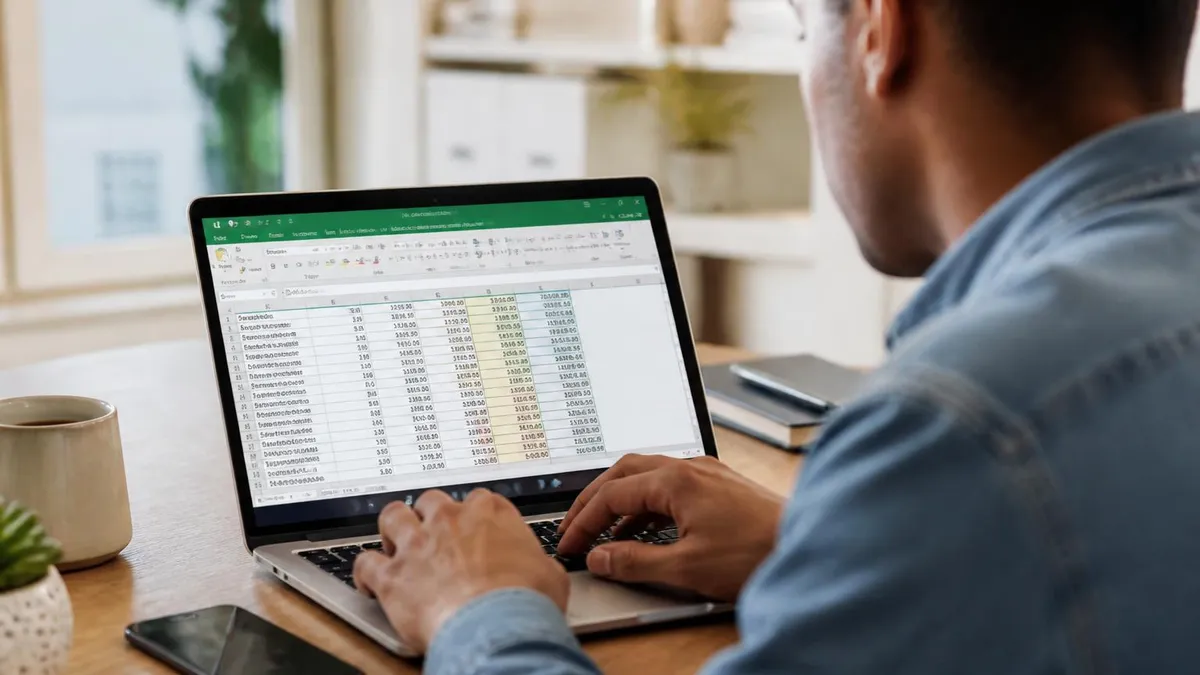
On Windows, there are three common ways to enable macros depending on how often you need them and whether you want to enable them for all files or just the current one. The most common approach for a single file is the Enable Content button: when you open a file with macros, the yellow Message Bar appears below the ribbon.
Clicking "Enable Content" opens a Security Warning dialog; selecting Yes makes the document trusted and enables its macros, and Excel will not ask again for that file. Trusted documents can only be revoked by clearing all of them in the Trust Center, so for files you only use occasionally, a trusted location or the Advanced Options choice in the Message Bar is a more controlled approach. If the bar is red and says macros are blocked because the file came from the internet, there is no Enable Content button; unblock the file in its Properties first.
For a more systematic approach, open the Trust Center: File > Options > Trust Center > Trust Center Settings > Macro Settings. There are four macro security levels (labelled "Disable VBA macros..." in Excel itself), described in the table below. "Enable all macros" removes every safeguard: Microsoft labels it "not recommended, potentially dangerous code can run", so use it only temporarily on a machine with no untrusted files, and switch back afterwards.
For most business users, the default "Disable with notification" setting is correct. The how to enable macros in excel comprehensive usage guide covers the broader Excel feature set that macros integrate with.
The trusted locations approach is the most appropriate solution for frequently used internal files. In the Trust Center, under Trusted Locations, you can add folder paths where Excel will automatically trust all files and enable macros without prompting. This is the right solution for IT departments deploying shared workbooks across a business. Note that network paths can be added as trusted locations but require explicitly checking the "Allow Trusted Locations on my network" checkbox, which is unchecked by default.
Developer ribbon access is also worth enabling if you work with macros regularly. Right-click the ribbon > Customize the Ribbon > check Developer in the right panel. The Developer tab gives you direct access to the VBA editor (Alt+F11), the Macro recorder, and Form Controls — all of the tools you need to create and manage macros without navigating through menus.
For users who need to enable macros often but want to maintain some protection, the "Disable all macros except digitally signed macros" setting offers a middle ground. With this setting active, macros from publishers you've already approved in the Trust Center run automatically without prompting. Macros from new or unrecognized publishers show a security dialog asking whether you want to trust that publisher.
This creates a managed approval workflow: the first time you run macros from a trusted internal author, you approve them once, and all future workbooks from that same author run without additional prompts. IT can pre-populate the list of trusted publishers for all users through group policy, eliminating the approval step entirely for internally distributed tools.
Excel Trust Center Macro Settings Compared
| Setting (Windows Excel wording) | What happens | Risk | Available on Mac? |
|---|---|---|---|
| Disable VBA macros without notification | All VBA macros are blocked and no alert appears | Lowest | Yes ("Disable all macros without notification") |
| Disable VBA macros with notification (default) | Macros are blocked but a security alert lets you enable them case by case | Low, if you check the source before enabling | Yes (default) |
| Disable VBA macros except digitally signed macros | Unsigned macros are blocked with an alert; macros signed by a trusted publisher run automatically | Low to moderate | No |
| Enable VBA macros (not recommended) | All macros run without confirmation | Highest: malicious code can run | Yes ("Enable all macros") |
Source: Microsoft Support, "Enable or disable macros in Microsoft 365 files" and "Enable or disable macros in Office for Mac". A separate checkbox, "Enable Excel 4.0 macros when VBA macros are enabled", controls older XLM macros, which are otherwise disabled without notification.
Excel Macros: Key Facts

On Mac, enabling macros follows a similar path but with different menu locations. In Excel for Mac, go to Excel menu (top menu bar) > Preferences > Security. Microsoft documents three options on Mac: Enable all macros, Disable all macros with notification (the default), and Disable all macros without notification. The signed-macros-only level is not offered. Alternatively, when a workbook with macros opens, a notification banner appears — clicking "Enable Macros" activates them for the session.
The Developer tab on Mac must also be enabled separately: Excel menu > Preferences > Ribbon & Toolbar > check Developer in the list of tabs. The how to enable macros in excel resource on Excel spreadsheets explains how macros interact with worksheet data structures when you're automating data entry or formatting tasks.
Excel Online (the browser-based version in Microsoft 365) does not support VBA macros at all. This is a fundamental platform limitation, not a setting that can be changed. If you open a .xlsm workbook in Excel Online, the file opens but macros are unavailable — you'll typically see a notification that macros are not supported in the browser version. To run macros, you need to open the file in the desktop Excel application. The "Edit in Desktop App" button in Excel Online opens the file in your installed Excel version where macros work normally.
Office Scripts is Microsoft's modern alternative to VBA macros in Excel Online. Written in TypeScript rather than VBA, Office Scripts can be created and run in Excel Online through the Automate tab (if enabled by your Microsoft 365 administrator). Office Scripts have different capabilities and limitations than VBA: they run on Microsoft's cloud infrastructure rather than locally, which enables sharing scripts across teams more easily but means they can't access local files or make arbitrary network calls. For power users who work primarily in Excel Online and need automation, Office Scripts is the supported path — VBA is not.
Excel for Mac users should be aware that the macro compatibility between Windows and Mac Excel isn't perfect. Most VBA macros written on Windows will run on Mac, but macros that interact with Windows-specific features — COM automation, Windows registry access, Windows file system dialog boxes using the Windows API directly — will fail on Mac. If you're creating macros intended for cross-platform use, testing on both platforms and avoiding platform-specific API calls produces more portable code. The core Excel object model (Range, Worksheet, Workbook operations) is consistent between platforms and forms the basis of most workbook automation tasks.
Enable Macros: Platform Guide
The yellow Message Bar appears under the ribbon when you open an .xlsm or .xlam file. Click Enable Content to enable macros for this session. Choosing Yes in the Security Warning dialog makes the document trusted. If the bar is red (file from the internet), unblock the file via right-click > Properties > Unblock first. For the Trust Center approach: File > Options > Trust Center > Trust Center Settings > Macro Settings, then choose your preferred security level. The Developer tab is enabled via right-click on the ribbon > Customize the Ribbon > check Developer in the right column.
Macro security best practices start with the source of the file. Macros from files you created yourself or received from known, trusted colleagues are generally safe to enable. Macros from unsolicited email attachments, files downloaded from unfamiliar websites, or files shared through file-sharing services where the uploader is unknown should be treated with extreme caution. The most common macro malware delivery vector is a phishing email with a .xlsm attachment and instructions to enable macros to "view the content" — a social engineering technique that has proven effective precisely because many users have been trained to enable macros without thinking.
If you need to inspect a macro before enabling it, you can open the VBA editor before clicking Enable Content: press Alt+F11 (Windows) or Option+F11 (Mac) to open the VBA editor and read the code without running it. In the editor, expand the file's project in the left panel and review the code in each module. If the code is heavily obfuscated, contains base64-encoded strings, or makes calls to external URLs or file system operations, treat it as suspicious. Legitimate business macros are typically readable and clearly connected to spreadsheet automation tasks.
Digitally signing macros is the professional approach for distributing macro-enabled workbooks within an organization. A digital signature attached to the VBA project allows recipients to trust macros from your signing certificate without enabling all macros globally.
IT departments can configure group policy to trust specific signing certificates across all desktops, enabling a managed trust model where macros from approved internal sources run automatically while external macros remain blocked. For Excel certification and exam prep that covers VBA and automation topics, the how to enable macros in excel worksheet protection guide is a complementary resource for the security features that pair with macro-enabled workbooks.
Recording your first macro is the fastest way to start working with Excel automation without writing VBA code from scratch. In the Developer tab, click Record Macro, give it a name, optionally assign a keyboard shortcut, and click OK. Perform the actions you want to automate — formatting cells, entering data, running commands — then click Stop Recording.
The macro recorder translates your actions into VBA code automatically. You can then view and edit this code in the VBA editor to refine it, add error handling, or generalize it to work with different input data. This recorded macro approach is accessible to users without programming backgrounds and is a practical entry point into Excel automation.
One common use of macros that benefits from the Enable Macros workflow is combining Excel with other Office applications through VBA. Macros can open Word documents, generate Outlook emails, and read from Access databases — all from within Excel. This cross-application automation capability is one of VBA's most powerful features and isn't available through any non-macro approach. Users who regularly transfer data from Excel to Word reports or who send formatted emails based on spreadsheet data are prime candidates for VBA macro automation, making the one-time effort of learning how to enable and create macros worth the investment.
Enabling Macros: Benefits and Risks
- +Unlocks powerful automation that can save hours of repetitive manual work
- +VBA enables custom functions, automated reports, and complex data transformations
- +Recorded macros require no programming knowledge to create and run
- +Macro-enabled workbooks can be distributed to share automation across a team
- +Trusted locations setting eliminates repetitive Enable Content clicks for known files
- −Macros from untrusted sources can execute malicious code on your system
- −Enabling macros site-wide ('Enable all macros') removes an important safety barrier
- −VBA code is not sandboxed — it can read/write files and make network connections
- −Macro-enabled .xlsm files cannot be emailed as attachments in some corporate environments
- −Office Scripts replaces VBA in Excel Online, requiring learning a new automation approach
Sample Excel Practice Questions
Try these questions from our free Excel practice tests. The correct answer and an explanation follow each question.
In what year was Microsoft Excel first released for Windows?
- A. 1987
- B. 1985
- C. 1990
- D. 1983
Answer: A. 1987
Excel 2.0 for Windows was released in 1987. The first version of Excel (1.0) was actually released for the Macintosh in 1985.
How many worksheets does a new Excel workbook contain by default in Excel 2016 and later?
- A. 1
- B. 3
- C. 5
- D. 10
Answer: A. 1
Starting with Excel 2013, new workbooks default to 1 worksheet. Earlier versions defaulted to 3 worksheets.
What is the default file extension for Excel workbooks saved in modern Excel versions?
- A. .xls
- B. .xlsx
- C. .xlsm
- D. .csv
Answer: B. .xlsx
.xlsx is the default Open XML format for Excel workbooks introduced in Excel 2007.
How many columns are in an Excel worksheet from Excel 2007 onward?
- A. 16,384
- B. 256
- C. 65,536
- D. 1,048,576
Answer: A. 16,384
Excel 2007 expanded the column count from 256 (IV) to 16,384 (XFD), which is 2^14 columns.
Enabling Macros: Questions and Answers
About the Author

Business Consultant & Professional Certification Advisor
Wharton School, University of PennsylvaniaKatherine Lee earned her MBA from the Wharton School at the University of Pennsylvania and holds CPA, PHR, and PMP certifications. With a background spanning corporate finance, human resources, and project management, she has coached professionals preparing for CPA, CMA, PHR/SPHR, PMP, and financial services licensing exams.