
How to Email an Excel Spreadsheet: The Complete 2026 September Guide to Sharing Workbooks by Email
Learn how to email an Excel spreadsheet step by step: 📚 attach, share via OneDrive, send as PDF, and protect sensitive data in Outlook, Gmail, and Excel.

Learning how to email an Excel spreadsheet is one of those everyday office tasks that sounds trivial until a 40-megabyte workbook bounces back, a recipient opens a broken file, or a colleague accidentally edits the master copy. Whether you are sending a monthly budget, a sales report, or a shared tracker, knowing the right method saves time and prevents version-control headaches. This guide walks through every reliable way to share a spreadsheet by email so your file arrives intact, readable, and secure on the first try.
People searching for terms as varied as excellence playa mujeres or a specific resort booking often stumble onto spreadsheet questions because so much planning happens inside Excel. From travel budgets to event guest lists, the workbook is the hub. The good news is that emailing one does not require advanced skills. You only need to understand a few options: attaching the file directly, sharing a cloud link, exporting to PDF, or using Excel's built-in Send feature that pushes the workbook straight into your mail client.
Each method has trade-offs. A direct attachment is simple but creates duplicate copies that quickly fall out of sync. A OneDrive or SharePoint link keeps everyone on a single living document, but the recipient needs permission and internet access. A PDF export guarantees the layout looks identical everywhere, yet the reader cannot edit formulas. Choosing the right approach depends on whether your audience needs to view, edit, or simply archive the numbers you are sending.
Before you click send, the format of your data matters as much as the delivery method. A spreadsheet that uses features like merged headers, frozen panes, or a clean drop-down list will look far more professional in someone else's inbox. Spending two minutes tidying column widths, removing stray test tabs, and confirming the active cell sits at A1 makes a surprisingly strong impression and reduces the back-and-forth emails asking what a particular figure means.
This article covers the full workflow for Windows, Mac, the web version of Excel, Outlook, and Gmail. You will learn the exact menu paths, keyboard-free clicks, and the file-size limits that cause most failures. We will also tackle security: how to password-protect a workbook, strip hidden personal data, and decide when a read-only PDF beats an editable file. By the end you will pick the right method instantly for any recipient.
If you regularly share data, it pays to build good habits now. Consistent naming, dated filenames, and a quick visual check of the print area prevent the most common mistakes. Throughout this guide we include practical examples, real size limits, and troubleshooting tips for the errors that stop messages from sending. Bookmark it, and the next time someone asks for that report, you will have it in their inbox cleanly within a minute.
Emailing Excel Files by the Numbers
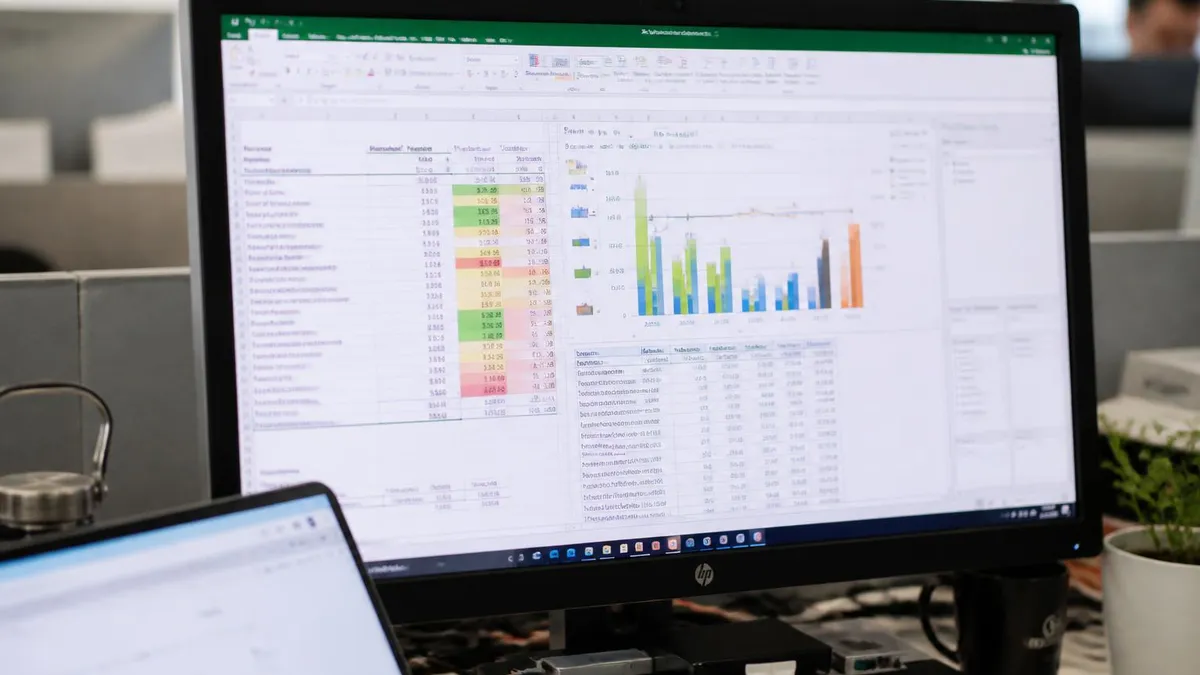
Four Ways to Email an Excel Spreadsheet
Save the workbook, then attach the .xlsx file to a new message in Outlook or Gmail. Best for small files and recipients who need an editable, offline copy they can keep.
Upload to OneDrive or SharePoint and send a link. Everyone edits one live file, avoiding duplicate versions. Ideal for teams collaborating on the same dataset over time.
Export the sheet to PDF so the layout stays fixed on any device. Perfect when the reader only needs to view numbers and you do not want formulas changed.
Use File then Share then Email to push the workbook into your default mail app automatically, attaching it without leaving Excel. A fast one-click route for quick sends.
The most common way to email an Excel spreadsheet is the direct attachment, and it works the same in essentials whether you use Outlook, Gmail, Apple Mail, or a phone. Start by saving your workbook with a clear name such as Q1-Sales-Report-2026.xlsx. A descriptive filename helps the recipient find it later and signals professionalism. Avoid generic names like Book1 or Final-final, which create confusion when several files land in the same inbox during a busy reporting cycle.
In Outlook, the fastest route lives inside Excel itself. Click File, then Share, then Email, and choose Send as Attachment. Excel opens a new Outlook message with the workbook already attached. You only add recipients, type a short note, and send. On a Mac the steps mirror this, and the web version of Excel offers a similar Share button in the top-right corner that lets you attach a copy or generate a link without leaving the browser.
If you prefer Gmail, save the file first, then open Gmail, click Compose, and drag the .xlsx file into the message window or use the paperclip icon. Gmail uploads the attachment and displays a small thumbnail. Watch the size indicator: anything over 25 megabytes triggers an automatic Google Drive link instead of a true attachment. This is usually fine, but tell your recipient so they are not surprised by a link rather than a downloadable file.
Sometimes you only need to send one worksheet, not the entire workbook. In that case, right-click the sheet tab, choose Move or Copy, tick Create a Copy, and select New Book. Save that single-sheet workbook and attach it. This keeps confidential tabs, like a salary breakdown or supplier pricing, out of the message entirely. It is a simple habit that prevents accidental data leaks far more often than people expect.
Formatting also travels with the file, so tidy it before attaching. If your report uses a polished header, consider how to merge cells in excel to center a title cleanly across several columns. A merged, bold heading row reads far better than a cramped label squeezed into one cell, and it survives the trip to another person's screen exactly as you designed it, reinforcing the credibility of your numbers.
Finally, always reopen the saved file before sending to confirm it is the version you intend. Open the attachment from your Sent folder once delivered, too. This two-second check catches the classic mistake of attaching an outdated copy or a template instead of the finished report. A quick verification routine eliminates the embarrassing follow-up email that begins with the words please ignore my last message and use this one instead.
Microsoft Excel Practice Test Questions
Prepare for the Microsoft Excel exam with our free practice test modules. Each quiz covers key topics to help you pass on your first try.
Microsoft Excel Excel Basic and Advance
Microsoft Excel Exam Questions covering Excel Basic and Advance. Master Microsoft Excel Test concepts for certification prep.
Microsoft Excel Excel Formulas
Free Microsoft Excel Practice Test featuring Excel Formulas. Improve your Microsoft Excel Exam score with mock test prep.
Microsoft Excel Excel Functions
Microsoft Excel Mock Exam on Excel Functions. Microsoft Excel Study Guide questions to pass on your first try.
Microsoft Excel Excel MCQ
Microsoft Excel Test Prep for Excel MCQ. Practice Microsoft Excel Quiz questions and boost your score.
Microsoft Excel Excel
Microsoft Excel Questions and Answers on Excel. Free Microsoft Excel practice for exam readiness.
Microsoft Excel Excel Trivia
Microsoft Excel Mock Test covering Excel Trivia. Online Microsoft Excel Test practice with instant feedback.
Microsoft Excel Advanced Data Analysis Tools
Free Microsoft Excel Quiz on Advanced Data Analysis Tools. Microsoft Excel Exam prep questions with detailed explanations.
Microsoft Excel Advanced Formula and Macro...
Microsoft Excel Practice Questions for Advanced Formula and Macro Creation. Build confidence for your Microsoft Excel certification exam.
Microsoft Excel Advanced Formulas and Macros
Microsoft Excel Test Online for Advanced Formulas and Macros. Free practice with instant results and feedback.
Microsoft Excel Basic and Advance Question...
Microsoft Excel Study Material on Basic and Advance Questions and Answers. Prepare effectively with real exam-style questions.
Microsoft Excel Creating and Managing Charts
Free Microsoft Excel Test covering Creating and Managing Charts. Practice and track your Microsoft Excel exam readiness.
Microsoft Excel Data Visualization with Ch...
Microsoft Excel Exam Questions covering Data Visualization with Charts. Master Microsoft Excel Test concepts for certification prep.
Microsoft Excel Formulas and Functions
Free Microsoft Excel Practice Test featuring Formulas and Functions. Improve your Microsoft Excel Exam score with mock test prep.
Microsoft Excel Formulas and Functions App...
Microsoft Excel Mock Exam on Formulas and Functions Application. Microsoft Excel Study Guide questions to pass on your first try.
Microsoft Excel Formulas Questions and Ans...
Microsoft Excel Test Prep for Formulas Questions and Answers. Practice Microsoft Excel Quiz questions and boost your score.
Microsoft Excel Functions Questions and An...
Microsoft Excel Questions and Answers on Functions Questions and Answers. Free Microsoft Excel practice for exam readiness.
Microsoft Excel Managing Data Cells and Ra...
Microsoft Excel Mock Test covering Managing Data Cells and Ranges. Online Microsoft Excel Test practice with instant feedback.
Microsoft Excel Managing Tables and Data
Free Microsoft Excel Quiz on Managing Tables and Data. Microsoft Excel Exam prep questions with detailed explanations.
Microsoft Excel Managing Tables and Table ...
Microsoft Excel Practice Questions for Managing Tables and Table Data. Build confidence for your Microsoft Excel certification exam.
Microsoft Excel Managing Worksheets and Wo...
Microsoft Excel Test Online for Managing Worksheets and Workbooks. Free practice with instant results and feedback.
Microsoft Excel MCQ Questions and Answers
Microsoft Excel Study Material on MCQ Questions and Answers. Prepare effectively with real exam-style questions.
Microsoft Excel Questions and Answers
Free Microsoft Excel Test covering Questions and Answers. Practice and track your Microsoft Excel exam readiness.
Cloud Link, PDF, or Attachment: Picking the Right Format
Sharing a OneDrive or SharePoint link keeps everyone working in one live workbook, so there is never a question about which copy is current. Upload the file, click Share, set permissions to Can Edit or Can View, and paste the link into your email. Recipients open it in the browser or desktop app and see real-time changes.
This method shines for recurring team reports. Instead of resending a fresh attachment every week, you update the same file and the link always points to the latest numbers. The trade-off is that recipients need internet access and, for editing, a Microsoft account with the right permission level granted in advance.
Should You Attach the File or Send a Cloud Link?
- +Cloud links keep everyone on one always-current version of the workbook
- +Links bypass mailbox size limits, so large files send instantly
- +You can revoke access or change permissions any time after sending
- +Real-time co-authoring lets several people edit together without conflicts
- +Version history in OneDrive lets you roll back accidental changes
- +No duplicate copies cluttering inboxes and hard drives
- −Recipients need internet access to open a cloud-linked file
- −Editing usually requires a Microsoft account and granted permission
- −Some corporate firewalls block external sharing links by default
- −Direct attachments create version chaos when many people edit copies
- −Large attachments can bounce or fill the recipient's mailbox quota
- −PDFs preserve layout but remove the ability to edit or recalculate
Pre-Send Checklist Before You Email an Excel Spreadsheet
- ✓Save the file with a clear, dated, descriptive filename
- ✓Delete test tabs, scratch sheets, and leftover sample data
- ✓Set the active cell to A1 on every sheet before saving
- ✓Confirm the print area and page breaks for any PDF export
- ✓Remove confidential worksheets the recipient should not see
- ✓Check the total file size against the mailbox limit
- ✓Run Inspect Document to strip hidden personal metadata
- ✓Add a password if the file contains sensitive information
- ✓Write a short message explaining what the file contains
- ✓Reopen the saved file once to verify it is the correct version
Always open your attachment from the Sent folder
After sending, open the workbook directly from your Sent items. This single habit catches the most common errors: attaching the wrong version, sending an empty template, or forgetting the file entirely. It takes under a minute and saves the awkward follow-up email correcting your mistake.
Security deserves attention whenever you email an Excel spreadsheet, because a workbook often carries more than the numbers you see on screen. Hidden personal information, author names, document paths, tracked comments, and data in collapsed columns can all travel with the file. Before sending anything outside your team, open File, click Info, choose Check for Issues, and run Inspect Document. This tool scans for hidden content and lets you remove it with one click, leaving a clean file in your recipient's inbox.
Password protection is the next layer. In Excel, go to File, Info, Protect Workbook, and select Encrypt with Password. Excel applies strong 256-bit AES encryption, meaning a lost or guessed password cannot be recovered, so store it somewhere safe. Send the password through a separate channel, such as a text message or phone call, never in the same email as the file. Putting the lock and the key in the same envelope defeats the entire purpose of encrypting the document.
There is an important difference between protecting a workbook and protecting individual cells. Encrypting the file controls who can open it at all. Sheet and cell protection, by contrast, controls what someone can change after they open it. If you want a recipient to enter data in certain cells but never touch your formulas, you can lock formulas in excel and protect the sheet, leaving only the input cells editable. This keeps your calculations intact even in collaborative files.
Consider whether the recipient truly needs an editable file at all. For status reports, invoices, and figures that should not be altered, a PDF is safer and smaller. The reader sees exactly what you intended, the formulas stay private, and there is no risk of someone accidentally overwriting a key total. When they genuinely need to manipulate the data, send the .xlsx, but pair it with clear instructions about which areas are safe to edit.
Be especially careful with personally identifiable information. Spreadsheets full of names, email addresses, salaries, or customer records may fall under privacy regulations depending on your industry and region. Limit what you include, send only the columns the recipient needs, and prefer a permission-controlled cloud link over a downloadable copy that can be forwarded endlessly. A link you can revoke is far easier to contain than an attachment that has already left your control.
Finally, think about the audit trail. Cloud sharing through OneDrive or SharePoint records who opened the file and when, and it keeps a version history you can restore. Direct attachments offer none of that visibility once they leave your outbox. For anything sensitive or regulated, the controlled link is not just more convenient, it is the more defensible choice if anyone later asks how the data was shared and who had access to it.

If you encrypt a workbook, do not paste the password into the message carrying the file. Anyone who intercepts that single email gets both the lock and the key. Always deliver the password through a separate channel like a phone call or text.
Even a well-prepared file can fail to send, and most errors trace back to a handful of predictable causes. The most frequent is file size. If your workbook exceeds the mailbox limit, around 25 megabytes in Gmail and 20 in Outlook.com, the message will bounce or stall. Compress the file by removing unused formatting, deleting blank rows that stretch to the bottom of the sheet, and clearing pasted images you no longer need. Saving as .xlsx rather than the older .xls format also shrinks the size considerably.
When a workbook is genuinely large, stop fighting the attachment route and switch to a cloud link. Upload the file to OneDrive, Google Drive, or Dropbox, then paste the share link into your email. This bypasses every size limit and gives you control over who can open it. It also avoids the frustrating experience where a recipient's mailbox rejects the message because their own quota is full, which you cannot fix from your side.
Broken layouts are another common complaint. If a recipient says the spreadsheet looks scrambled, the cause is usually a different Excel version, a missing font, or regional settings that interpret dates and decimals differently. Sending a PDF eliminates almost all of these display problems instantly. When the data must stay editable, ask the recipient which Excel version they run and avoid niche features that older releases do not support, such as dynamic array functions.
Formula errors that appear only on the recipient's screen often come from external links. If your workbook pulls data from another file on your computer, those references break the moment it lands elsewhere. Before sending, use the Edit Links dialog under the Data tab to find and break external connections, or convert the linked cells to static values with Paste Special and Values. The reader then sees real numbers instead of a wall of REF errors.
Sometimes the email simply never arrives. Corporate spam filters frequently quarantine messages with spreadsheet attachments, especially those containing macros. If a file holds macros, it saves as .xlsm, and many filters block that extension outright. When the content does not require automation, save a macro-free .xlsx copy instead. If macros are essential, warn the recipient to check their quarantine or junk folder and to enable content only from trusted senders.
Finally, mind the format conversions that happen silently. Saving an .xlsx file as .csv flattens every sheet into plain text, discarding formulas, formatting, and all but the first worksheet. People often do this by accident and then wonder why their charts vanished. If your recipient asked for a CSV, that behavior is expected, but if they need the full workbook, confirm you are sending the .xlsx and not a stripped-down export that lost most of its content along the way.
With the mechanics covered, a few practical habits will make every spreadsheet you email look polished and professional. Start with presentation. Before you save, select the cells the reader cares about and set a clean print area so PDF exports do not spill onto blank pages. Adjust column widths so no value shows as a row of hash marks, and use a single bold header row. These small touches communicate competence the moment your file opens on someone else's screen.
Navigation matters in large workbooks. If your sheet has many rows, learning how to freeze a row in excel keeps your header visible as the recipient scrolls, so they never lose track of which column holds which figure. Select the row below your headers, open the View tab, and click Freeze Panes. The frozen header travels with the file, giving the reader the same comfortable orientation you enjoy while building the report.
Make data entry foolproof for collaborators. When you send a workbook that others will fill in, restrict their inputs with validation. Knowing how to create a drop down list in excel lets you offer a fixed set of choices, so a teammate picks Yes or No rather than typing variations that break your formulas. Select the cells, open Data Validation, choose List, and enter your options. Clean inputs mean clean summaries when the file returns to you.
If your report relies on lookups, double-check them before sending. A vlookup excel formula that worked perfectly on your machine can return errors if the source range shifts or an external reference breaks during transit. Convert volatile lookups to static values when the recipient only needs the results, or include a brief note explaining where the data originates so they trust the numbers rather than questioning every cell they cannot trace.
Write a clear, short email body. State what the file is, what you need the recipient to do, and any deadline in the first two sentences. A message that reads, attached is the March budget, please confirm the marketing total by Friday, gets faster responses than a blank email with a mystery attachment. Busy readers skim, so front-load the purpose and keep instructions specific, numbered, and impossible to misread.
Build a repeatable routine and stick to it: clean the file, set A1 as the active cell, inspect for hidden data, check the size, choose attachment or link, write a clear note, send, then verify from your Sent folder. Run through it the same way every time and emailing a spreadsheet becomes a thirty-second task you never second-guess. Consistency, far more than any single trick, is what separates a confident sender from one who keeps sending corrections.
As a final tip, save a reusable template for reports you send often. A blank version with your headers, formatting, frozen panes, and validation already in place means you only drop in fresh numbers each cycle. This eliminates repetitive setup, guarantees a consistent look, and dramatically reduces the chance of leaving last month's data in this month's file, which is one of the most common and embarrassing emailing mistakes of all.
Excel Questions and Answers

Excel Functions List: The Complete Reference Guide to Every Formula You Need in 2026

Excel Finance Functions Guide With PMT, NPV, IRR and Loan Models

How to Convert Text to Excel: The Complete 2026 Guide to Importing TXT and CSV Files Into Spreadsheets

Excel Merge Tables: The Complete 2026 Guide to Combining Data Across Worksheets

Lock Formulas in Excel: The Complete 2026 Guide to Protecting Cells, Sheets, and Workbook Calculations
About the Author

Business Consultant & Professional Certification Advisor
Wharton School, University of PennsylvaniaKatherine Lee earned her MBA from the Wharton School at the University of Pennsylvania and holds CPA, PHR, and PMP certifications. With a background spanning corporate finance, human resources, and project management, she has coached professionals preparing for CPA, CMA, PHR/SPHR, PMP, and financial services licensing exams.