
How to Edit an Excel Spreadsheet: The Complete 2026 October Guide to Modifying Cells, Formulas, and Data
Learn how to edit an Excel spreadsheet with step-by-step techniques for modifying cells, formulas, formatting, and data in Microsoft Excel. 🧠

Learning how to edit an Excel spreadsheet is one of the most fundamental skills any professional, student, or data enthusiast can develop in today's digital workplace. Microsoft Excel remains the global standard for data management, financial analysis, and business reporting across virtually every industry sector. Whether you are updating a simple household budget tracker or modifying a complex corporate database containing thousands of rows, understanding core editing techniques ensures you work efficiently and avoid costly data entry mistakes. This comprehensive guide walks you through every essential editing method available in Excel's current interface.
Excel spreadsheets serve as the backbone of organizational data workflows in businesses of all sizes around the world. From small retail shops tracking daily inventory counts to multinational corporations managing quarterly financial portfolios, the ability to modify spreadsheet content accurately and quickly determines overall productivity outcomes. Many users only scratch the surface of Excel's editing capabilities, relying exclusively on basic cell entry without exploring the powerful built-in tools that can dramatically simplify their entire workflow and reduce time spent on repetitive tasks.
The editing landscape in Microsoft Excel has evolved significantly over the past decade with each software release. Microsoft has introduced features like dynamic arrays, real-time cloud-based collaboration, and intelligent data type recognition that fundamentally transform how users interact with spreadsheet data on a daily basis. Understanding these modern editing capabilities allows you to take full advantage of Excel's architecture rather than relying on outdated manual approaches that consume unnecessary time and introduce higher error rates into your finished spreadsheets.
Before diving into specific editing methods and techniques, it helps to understand the structural hierarchy of an Excel workbook. A workbook contains multiple worksheets arranged as tabs along the bottom of the screen, each worksheet contains a grid of cells organized by lettered columns and numbered rows, and each individual cell can hold text values, numeric data, formulas, or specialized formatting. When you edit a spreadsheet, you might modify individual cell content, adjust formatting across entire ranges, restructure data layouts, or update complex formula logic.
One common challenge users face regularly is editing shared spreadsheets without disrupting other contributors' ongoing work. Excel's collaboration features through Microsoft 365 have improved substantially in recent releases, but understanding track changes, cell protection settings, and version history tools remains critical for any team environment. This guide covers collaborative editing scenarios alongside individual techniques so you can confidently navigate both contexts while maintaining complete data integrity throughout the entire editing process.
Throughout this article, you will discover how to merge cells in Excel for cleaner visual layouts, how to freeze a row in Excel for easier data navigation across large datasets, how to create a drop down list in Excel for reliable data validation, and how to use vlookup Excel functions to cross-reference information during your editing sessions. These interconnected skills form a comprehensive editing toolkit that prepares you for virtually any spreadsheet challenge you encounter in professional, academic, or personal settings.
Whether you access Excel through the desktop application, the web-based version available through Microsoft 365 subscriptions, or the mobile application on tablets and smartphones, the core editing principles remain remarkably consistent across all platforms. Minor interface differences exist between versions, but the fundamental operations of entering data, modifying formulas, formatting cell ranges, and managing worksheet structures translate seamlessly across every version. By the end of this guide, you will possess a thorough understanding of Excel editing skills that apply regardless of your preferred platform or device.
Excel Spreadsheet Editing by the Numbers
How to Edit an Excel Spreadsheet Step by Step
Open and Navigate Your Workbook
Select and Modify Cell Content
Apply Formatting and Structure
Insert Formulas and Functions
Save and Review Your Changes
Mastering core cell editing techniques is the foundation of productive spreadsheet work in Microsoft Excel. The most basic editing action involves clicking a cell and typing new content, which automatically replaces whatever the cell previously contained. However, experienced users know that pressing F2 activates in-cell editing mode, positioning your cursor within the existing content so you can modify specific characters without retyping the entire entry. This distinction between replacement mode and edit mode saves significant time when you need to correct a single character in a lengthy text string or formula.
The formula bar located above the column headers provides an expanded editing area that proves especially useful when working with long text entries or complex nested formulas. Clicking the expansion arrow on the right side of the formula bar reveals multiple lines of content, making it far easier to review and modify formulas that contain several nested functions. You can also use the formula bar to verify exactly what a cell contains, since formatted cells sometimes display values differently than their actual underlying data, which prevents confusion during data auditing tasks.
Find and Replace functionality represents one of the most powerful batch editing tools available in Excel. Accessed through Ctrl+H, this feature allows you to locate specific text, values, or even formatting across an entire workbook and replace all matching instances simultaneously. Advanced options let you search within formulas rather than displayed values, match case sensitivity, match entire cell contents only, and even search across all worksheets in the workbook rather than limiting the operation to the currently active sheet.
Copying and pasting cells in Excel involves more nuance than most users initially realize when they begin working with spreadsheets. Standard Ctrl+C and Ctrl+V operations copy everything including values, formulas, formatting, and data validation rules attached to the source cells. However, Paste Special accessed through Ctrl+Alt+V gives you granular control, allowing you to paste only values, only formatting, only formulas, only column widths, or transpose rows into columns. Understanding Paste Special options eliminates many common editing frustrations that new users encounter regularly.
Drag and drop editing provides an intuitive method for moving and copying cell ranges within your spreadsheet without using clipboard commands. Selecting a range and dragging its border relocates the data to a new position on the worksheet. Holding the Ctrl key while dragging creates a copy instead of moving the original data. The fill handle, which is the small square at the bottom-right corner of a selected cell, enables auto-fill patterns for sequences like dates, numbers, days of the week, and custom lists that you define yourself.
Working with multiple cells simultaneously through range selection dramatically accelerates editing tasks across large datasets. Click and drag to select rectangular ranges, hold Ctrl to select non-adjacent cells scattered across the worksheet, or hold Shift to extend a selection from the current active cell. Once you have selected your target range, any formatting changes or delete operations apply to every cell within that selection at once, which eliminates the tedious process of modifying each cell individually one at a time.
Undoing and redoing changes provides an essential safety net during intensive editing sessions where mistakes can happen quickly. Excel maintains a history of your recent actions accessible through Ctrl+Z for undo and Ctrl+Y for redo, allowing you to step backward and forward through your editing history. The undo history typically retains approximately one hundred recent actions per session, though this limit can vary. For critical spreadsheets, enabling AutoSave through OneDrive or SharePoint creates automatic version history checkpoints that let you restore earlier versions of the entire file.

Microsoft Excel Practice Test Questions
Prepare for the Microsoft Excel exam with our free practice test modules. Each quiz covers key topics to help you pass on your first try.
Microsoft Excel Excel Basic and Advance
Microsoft Excel Exam Questions covering Excel Basic and Advance. Master Microsoft Excel Test concepts for certification prep.
Microsoft Excel Excel Formulas
Free Microsoft Excel Practice Test featuring Excel Formulas. Improve your Microsoft Excel Exam score with mock test prep.
Microsoft Excel Excel Functions
Microsoft Excel Mock Exam on Excel Functions. Microsoft Excel Study Guide questions to pass on your first try.
Microsoft Excel Excel MCQ
Microsoft Excel Test Prep for Excel MCQ. Practice Microsoft Excel Quiz questions and boost your score.
Microsoft Excel Excel
Microsoft Excel Questions and Answers on Excel. Free Microsoft Excel practice for exam readiness.
Microsoft Excel Excel Trivia
Microsoft Excel Mock Test covering Excel Trivia. Online Microsoft Excel Test practice with instant feedback.
Microsoft Excel Advanced Data Analysis Tools
Free Microsoft Excel Quiz on Advanced Data Analysis Tools. Microsoft Excel Exam prep questions with detailed explanations.
Microsoft Excel Advanced Formula and Macro...
Microsoft Excel Practice Questions for Advanced Formula and Macro Creation. Build confidence for your Microsoft Excel certification exam.
Microsoft Excel Advanced Formulas and Macros
Microsoft Excel Test Online for Advanced Formulas and Macros. Free practice with instant results and feedback.
Microsoft Excel Basic and Advance Question...
Microsoft Excel Study Material on Basic and Advance Questions and Answers. Prepare effectively with real exam-style questions.
Microsoft Excel Creating and Managing Charts
Free Microsoft Excel Test covering Creating and Managing Charts. Practice and track your Microsoft Excel exam readiness.
Microsoft Excel Data Visualization with Ch...
Microsoft Excel Exam Questions covering Data Visualization with Charts. Master Microsoft Excel Test concepts for certification prep.
Microsoft Excel Formulas and Functions
Free Microsoft Excel Practice Test featuring Formulas and Functions. Improve your Microsoft Excel Exam score with mock test prep.
Microsoft Excel Formulas and Functions App...
Microsoft Excel Mock Exam on Formulas and Functions Application. Microsoft Excel Study Guide questions to pass on your first try.
Microsoft Excel Formulas Questions and Ans...
Microsoft Excel Test Prep for Formulas Questions and Answers. Practice Microsoft Excel Quiz questions and boost your score.
Microsoft Excel Functions Questions and An...
Microsoft Excel Questions and Answers on Functions Questions and Answers. Free Microsoft Excel practice for exam readiness.
Microsoft Excel Managing Data Cells and Ra...
Microsoft Excel Mock Test covering Managing Data Cells and Ranges. Online Microsoft Excel Test practice with instant feedback.
Microsoft Excel Managing Tables and Data
Free Microsoft Excel Quiz on Managing Tables and Data. Microsoft Excel Exam prep questions with detailed explanations.
Microsoft Excel Managing Tables and Table ...
Microsoft Excel Practice Questions for Managing Tables and Table Data. Build confidence for your Microsoft Excel certification exam.
Microsoft Excel Managing Worksheets and Wo...
Microsoft Excel Test Online for Managing Worksheets and Workbooks. Free practice with instant results and feedback.
Microsoft Excel MCQ Questions and Answers
Microsoft Excel Study Material on MCQ Questions and Answers. Prepare effectively with real exam-style questions.
Microsoft Excel Questions and Answers
Free Microsoft Excel Test covering Questions and Answers. Practice and track your Microsoft Excel exam readiness.
How to Merge Cells in Excel and Other Formatting Edits
Understanding how to merge cells in Excel allows you to create clean headers and organized layouts across your spreadsheets. Select the cells you want to combine, navigate to the Home tab, and click the Merge and Center dropdown button. You can choose Merge and Center for centered text, Merge Across for row-by-row merging, or Merge Cells to combine without centering. Remember that merging keeps only the upper-left cell value and discards content from all other selected cells in the range.
Merged cells do create limitations you should consider before applying them throughout your spreadsheet. Sorting and filtering operations cannot process columns containing merged cells, which causes errors when you attempt to organize data ranges. Many experienced users prefer using Center Across Selection found in Format Cells under the Alignment tab as an alternative approach. This method visually centers text across multiple columns without actually merging the underlying cells, preserving full sorting and filtering functionality while achieving the same visual appearance in your finished spreadsheet.
Desktop Excel vs. Excel Online for Spreadsheet Editing
- +Desktop Excel provides complete access to all advanced features including macros, Power Query, and VBA editing tools
- +Faster performance when editing very large files containing hundreds of thousands of rows and complex formulas
- +Full offline editing capability without requiring any internet connection during work sessions
- +Advanced charting and PivotTable editing options with complete formatting control
- +Support for third-party add-ins and custom ribbon modifications that extend editing functionality
- +More reliable undo history and AutoRecover options for protecting your work during long editing sessions
- −Requires purchasing a Microsoft 365 subscription or standalone Excel license for full desktop access
- −File version conflicts can occur when multiple users edit the same locally stored workbook file simultaneously
- −Desktop application consumes significant system memory and processing power on older computers
- −Software updates and patches require periodic installation and occasional application restarts
- −Desktop files saved locally risk data loss from hardware failures without cloud backup configured
- −Platform-specific interface differences between Windows and Mac versions cause occasional workflow disruptions

Essential Excel Editing Best Practices Checklist
- ✓Save your workbook immediately after opening and enable AutoSave for continuous protection against data loss.
- ✓Use Ctrl+Z frequently to undo accidental changes before they compound into larger data integrity problems.
- ✓Lock cells containing critical formulas using sheet protection to prevent accidental overwrites during editing.
- ✓Apply data validation rules including drop down lists to enforce consistent data entry across shared workbooks.
- ✓Use named ranges instead of hardcoded cell references to make formulas more readable and easier to edit.
- ✓Enable Track Changes or use version history when editing shared spreadsheets to maintain a complete audit trail.
- ✓Test complex formulas with known sample data before applying them across entire columns of production data.
- ✓Use conditional formatting to visually highlight cells that contain errors, blanks, or values outside expected ranges.
- ✓Back up your workbook to a secondary location before performing major structural edits like deleting columns.
- ✓Document your editing changes using cell comments or notes to help future users understand modification history.
The F2 Key Is Your Most Valuable Excel Editing Shortcut
Pressing F2 toggles a selected cell into edit mode, placing your cursor directly inside the cell contents rather than replacing everything when you start typing. This single shortcut eliminates the most common editing mistake new users make: accidentally overwriting existing cell data. Combined with Ctrl+Z for undo, F2 ensures you can safely modify any cell without risking data loss, making it the first shortcut every Excel user should commit to memory.
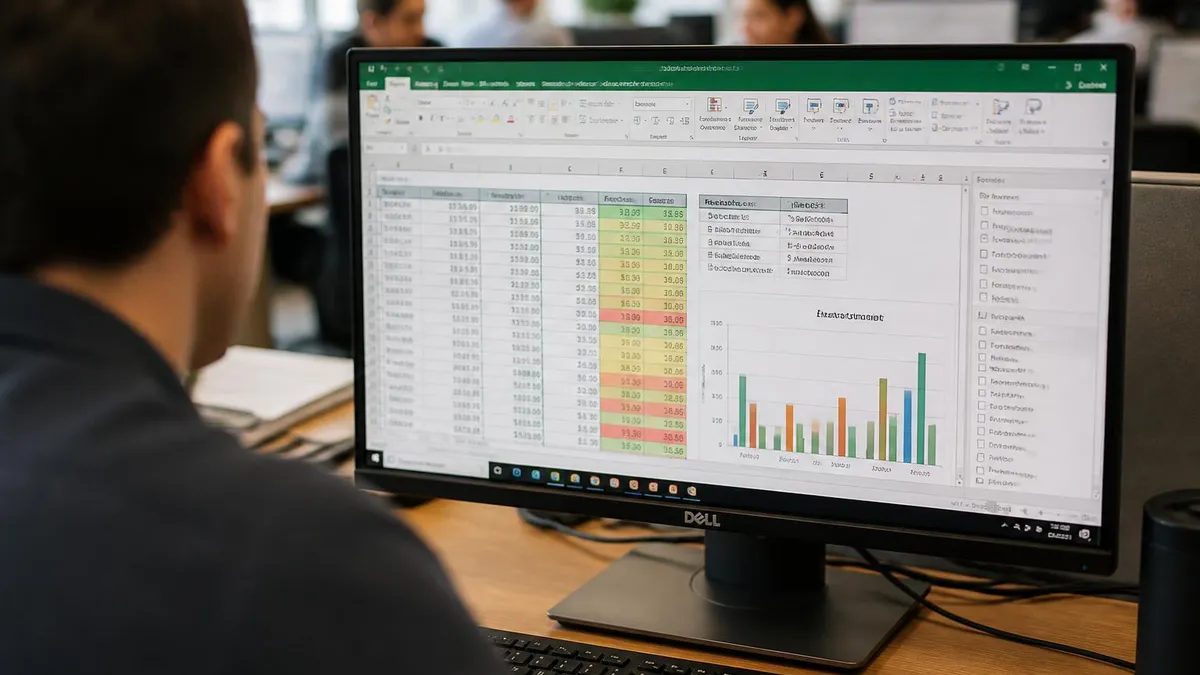
Advanced editing techniques in Excel extend far beyond basic cell modifications and open up powerful capabilities for transforming your data. Conditional formatting allows you to apply visual rules that automatically change cell colors, fonts, and icons based on the values they contain. For example, you can highlight all sales figures below a target threshold in red while marking values exceeding the goal in green. This dynamic formatting updates automatically whenever cell values change, creating a live visual dashboard directly within your spreadsheet without requiring any additional software tools.
Using vlookup Excel functions during editing sessions enables you to cross-reference data between different tables and worksheets efficiently. The VLOOKUP function searches the first column of a specified range for a matching value and returns data from a corresponding column in the same row. This proves invaluable when you need to populate a spreadsheet with information stored in a separate reference table, such as looking up product prices from a master catalog or retrieving employee details from an HR database stored on another worksheet within the same workbook.
The XLOOKUP function, introduced as a modern replacement for VLOOKUP, addresses several limitations of the older function and provides more flexible editing capabilities overall. XLOOKUP can search in any direction including left-to-right and bottom-to-top, handles exact and approximate matches more intuitively, and returns cleaner error messages when no match is found. If your version of Excel supports XLOOKUP, transitioning to this newer function simplifies your formulas and reduces the debugging time required when lookup formulas produce unexpected results during data editing work.
PivotTable editing represents another advanced skill that transforms how you analyze and reorganize large datasets within Excel. PivotTables allow you to summarize thousands of rows into meaningful aggregations by dragging fields into row, column, value, and filter areas within a dedicated interface. Editing a PivotTable involves refreshing its data source after making changes to the underlying raw data, modifying field arrangements to answer different analytical questions, and adjusting value calculations between sum, count, average, and other aggregation methods to reveal different insights from the same dataset.
Power Query, accessible through the Data tab under Get and Transform Data, provides a dedicated editing environment for cleaning and reshaping data before it enters your main worksheet. This tool handles tasks like removing duplicate rows, splitting combined columns, unpivoting cross-tabulated data into flat lists, and merging tables from multiple external sources. Power Query records every editing step as a reproducible transformation sequence, meaning you can refresh the query whenever source data changes and automatically reapply all your cleaning operations without performing them manually each time.
Array formulas and dynamic arrays enable powerful multi-cell editing operations that produce results spanning multiple rows and columns from a single formula entry. Functions like FILTER, SORT, UNIQUE, and SEQUENCE generate dynamic arrays that automatically resize when source data changes. These functions eliminate the need to manually sort or filter data through ribbon commands, instead embedding the transformation logic directly into formulas that update in real time as you edit the underlying data. Understanding dynamic arrays represents a significant leap in spreadsheet editing efficiency and data management capability.
Macros and VBA scripting automate repetitive editing tasks that would otherwise consume hours of manual effort in complex spreadsheet workflows. Recording a macro through the View tab captures your mouse clicks and keyboard inputs as executable code that replays your exact editing sequence on demand. For more sophisticated automation, writing VBA code directly in the Visual Basic Editor allows you to create custom functions, build interactive user forms for data entry, and develop automated reporting systems that edit and format spreadsheets according to precise business rules you define in the script.
Before performing structural edits such as deleting columns, removing worksheets, or running find-and-replace operations across an entire workbook, always save a backup copy of your file first. These operations cannot always be fully reversed using Ctrl+Z, especially after saving. Use File > Save As to create a timestamped backup copy, or rely on OneDrive version history to restore previous states if something goes wrong during extensive editing sessions.
Collaborative editing in Excel has become increasingly important as remote and hybrid work environments continue to expand across industries worldwide. Microsoft 365 enables real-time co-authoring where multiple users can edit the same spreadsheet simultaneously through OneDrive or SharePoint storage. Each collaborator's cursor appears as a colored indicator showing their current position in the workbook, and changes propagate to all connected users within seconds. This eliminates the traditional workflow of emailing spreadsheet files back and forth and manually reconciling different versions of the same document.
Cell protection and sheet protection features provide essential controls for managing who can edit specific portions of a shared workbook. To protect cells containing critical formulas, first unlock the cells you want to remain editable by selecting them, opening Format Cells, and unchecking the Locked checkbox on the Protection tab. Then activate sheet protection through the Review tab, which locks all remaining cells by default. You can set a password to prevent unauthorized users from disabling the protection, while still allowing designated editors to modify the unlocked cells freely.
Track Changes, while being gradually replaced by version history in newer Excel versions, still provides valuable editing audit capabilities for workbooks requiring formal change documentation. When enabled through the Review tab in older versions, Track Changes highlights every cell modification with a colored border and records who made each change along with the timestamp and original value. Reviewers can then accept or reject individual changes, providing a structured approval workflow for sensitive financial spreadsheets, regulatory compliance documents, or any workbook requiring formal editorial oversight.
Version history available through Microsoft 365 cloud storage creates automatic snapshots of your workbook at regular intervals during editing sessions. Accessing version history through File > Info reveals a timeline of saved states that you can preview and restore individually without affecting the current version until you explicitly choose to revert. This feature proves invaluable when an editing error propagates through formulas and is not discovered until after multiple subsequent saves have occurred, since you can retrieve the exact pre-error state of your workbook and recover all affected data.
Comments and notes serve dual purposes in collaborative spreadsheet editing by facilitating communication and documenting decision rationale directly within the workbook. Modern Excel distinguishes between threaded comments that support back-and-forth conversations between collaborators and simple notes that attach static text annotations to individual cells. Adding a comment through the Review tab or right-click context menu creates a discussion thread where team members can ask questions about specific data points, suggest alternative values, or explain the reasoning behind particular editing decisions they have made.
Data validation rules become especially critical in shared editing environments where multiple users contribute data to the same spreadsheet. By restricting cell inputs to specific data types, value ranges, or predefined list options, you prevent collaborators from accidentally entering invalid data that could break downstream formulas and analysis logic. Combining data validation with input messages that display instructions when users select restricted cells creates a self-documenting spreadsheet that guides editors toward correct entries without requiring separate instruction documents or training sessions.
Workbook protection adds a layer of structural security above individual sheet protection by preventing unauthorized users from adding, deleting, renaming, moving, or hiding worksheets within the workbook. This level of protection ensures that the overall architecture of a shared spreadsheet remains intact even when multiple editors have access to modify cell contents within individual sheets. Combining workbook protection with sheet protection and cell-level locking creates a comprehensive security framework that balances editing flexibility for authorized content changes with structural integrity for the workbook's organizational framework.
Keyboard shortcuts represent the single most effective way to accelerate your Excel editing speed and reduce the physical strain of constant mouse movements throughout long work sessions. Beyond the universally known Ctrl+C, Ctrl+V, and Ctrl+Z commands, Excel offers dozens of specialized shortcuts that target specific editing operations. Ctrl+D fills the selected cell with the content from the cell directly above it, Ctrl+R fills from the cell to the left, and Ctrl+Enter enters the same value into all currently selected cells simultaneously, saving tremendous time when populating multiple cells with identical data.
Navigation shortcuts help you move through large spreadsheets efficiently during editing sessions without losing your place in the data. Ctrl+Home jumps to cell A1 from anywhere in the workbook, while Ctrl+End moves to the last used cell in the active worksheet. Ctrl+Arrow keys jump to the edge of the current data region in any direction, and Ctrl+Shift+Arrow extends your selection to those boundaries. These navigation techniques become essential when editing spreadsheets containing thousands of rows, where scrolling with the mouse would consume excessive time and reduce accuracy.
The Go To Special dialog accessed through Ctrl+G followed by clicking the Special button provides powerful selection tools that target specific cell types for batch editing operations. You can select all cells containing formulas, all blank cells in a range, all cells with conditional formatting, all cells containing constants, or all cells with data validation rules applied. Once selected, you can apply formatting changes, delete contents, or enter replacement values across all matching cells simultaneously, which dramatically accelerates editing tasks that would otherwise require identifying and modifying each cell individually.
Flash Fill, introduced in Excel 2013 and refined in subsequent versions, uses pattern recognition to automate repetitive text editing tasks without requiring formulas. When you begin typing a pattern that corresponds to data in an adjacent column, Excel detects the transformation and offers to complete the remaining cells automatically. Flash Fill handles tasks like extracting first names from full name columns, reformatting phone numbers, combining separate address fields into single strings, and converting date formats. Pressing Ctrl+E activates Flash Fill on demand when the automatic suggestion does not appear immediately.
Custom number formatting provides another powerful editing technique that changes how cells display values without altering the underlying data stored within them. Accessing Format Cells through Ctrl+1 and navigating to the Number tab reveals predefined formats alongside a Custom category where you can build your own display patterns. Format codes like #,##0.00 display numbers with thousands separators and two decimal places, while codes incorporating text like #,##0" units" append labels to numeric values. Understanding custom formats prevents the common mistake of converting numbers to text strings during editing, which breaks formula calculations.
Conditional editing using IF statements and related logical functions enables your spreadsheet to make decisions automatically based on cell values during data entry and modification. The IF function evaluates a logical test and returns different values depending on whether the condition is true or false. Nesting multiple IF functions or using the newer IFS function handles multi-condition scenarios such as assigning letter grades based on numeric scores or categorizing sales data into performance tiers. These formulas transform static spreadsheets into dynamic tools that respond intelligently to every editing change you make.
Template creation simplifies future editing work by establishing standardized spreadsheet structures that you can reuse across projects and reporting periods. Saving a formatted workbook as an Excel template file through File > Save As with the template file type preserves all formatting, formulas, data validation rules, and structural elements while clearing the variable data fields.
When you open a template, Excel creates a new workbook based on that template, protecting the original from modification. Building well-designed templates with clear data entry zones, locked formula cells, and instructional comments reduces editing errors and ensures consistency across all spreadsheets generated from the same base design.
Excel Questions and Answers

Excel Functions List: The Complete Reference Guide to Every Formula You Need in 2026

Excel Finance Functions Guide With PMT, NPV, IRR and Loan Models

How to Convert Text to Excel: The Complete 2026 Guide to Importing TXT and CSV Files Into Spreadsheets

Excel Merge Tables: The Complete 2026 Guide to Combining Data Across Worksheets

Lock Formulas in Excel: The Complete 2026 Guide to Protecting Cells, Sheets, and Workbook Calculations
About the Author

Business Consultant & Professional Certification Advisor
Wharton School, University of PennsylvaniaKatherine Lee earned her MBA from the Wharton School at the University of Pennsylvania and holds CPA, PHR, and PMP certifications. With a background spanning corporate finance, human resources, and project management, she has coached professionals preparing for CPA, CMA, PHR/SPHR, PMP, and financial services licensing exams.