
How to Concatenate in Excel: Complete Guide to Text Combining 2026 September
📚 Complete guide to concatenating text in Excel covering CONCATENATE function, CONCAT, TEXTJOIN, ampersand operator, and practical applications for

Concatenating text in Excel combines multiple text strings or cell values into single output supporting various data manipulation needs. Multiple methods accomplish concatenation including the CONCATENATE function, newer CONCAT function, TEXTJOIN function, and ampersand operator. Understanding when to use each method supports flexible text combination across diverse Excel applications from creating customer names to building complex formatted strings for reports and data exports.
The original CONCATENATE function provides classic text combination approach available across all Excel versions. Syntax is CONCATENATE text1 text2 with support for up to 255 arguments. Each argument can be text strings, cell references, or formulas producing text output. The function combines all arguments into single output string without any separators between values. The straightforward syntax supports basic text combination though more recent functions provide additional features beyond CONCATENATE basic capabilities.
CONCAT function introduced in Excel 2019 and Microsoft 365 represents updated version of CONCATENATE with expanded capabilities. CONCAT supports ranges of cells unlike CONCATENATE requiring individual cell references. Syntax CONCAT text1 text2 accepts ranges, individual cells, and text strings combined flexibly. The range support substantially simplifies formulas combining many cells producing more efficient and readable approach for combining substantial cell ranges into single output.
Historical context for Excel concatenation traces back to early Excel versions in the 1980s. CONCATENATE function existed in early Excel releases supporting basic text combination. Ampersand operator similarly available across all Excel versions. CONCAT function added in 2016 represents relatively recent enhancement. TEXTJOIN function similar timeline. The continuing function additions reflect Excel evolution adding capabilities while maintaining backward compatibility supporting users across various Excel version contexts.
Real-world business spreadsheet concatenation examples illustrate practical applications. Customer relationship management spreadsheets combine customer name, company, and contact details into formatted output. Sales analysis spreadsheets combine product information into descriptive labels. Reporting spreadsheets combine static text with dynamic values producing professional output. Inventory management combines product attributes into searchable identifiers. The diverse applications demonstrate concatenation utility across virtually all business spreadsheet contexts requiring text manipulation beyond just basic data display.
Email automation through Excel combined with concatenation supports targeted communication. Mail merge functionality combines spreadsheet data with email templates producing personalized communications. Email subject line construction through concatenation supports targeted email campaigns. Customer service workflows leverage concatenation for personalized customer communications. The email automation applications produce substantial value beyond just basic data display supporting various business communication needs efficiently across customer bases.
Industry-specific concatenation patterns affect specific business sectors differently. Healthcare uses concatenation for patient identifier combinations. Financial services combine account numbers and customer information. Retail combines product attributes for SKU generation. Manufacturing combines part numbers and specifications. Each industry has specific concatenation patterns matching their data structures and business processes. Understanding industry-specific patterns supports relevant Excel skill development beyond generic concatenation knowledge.
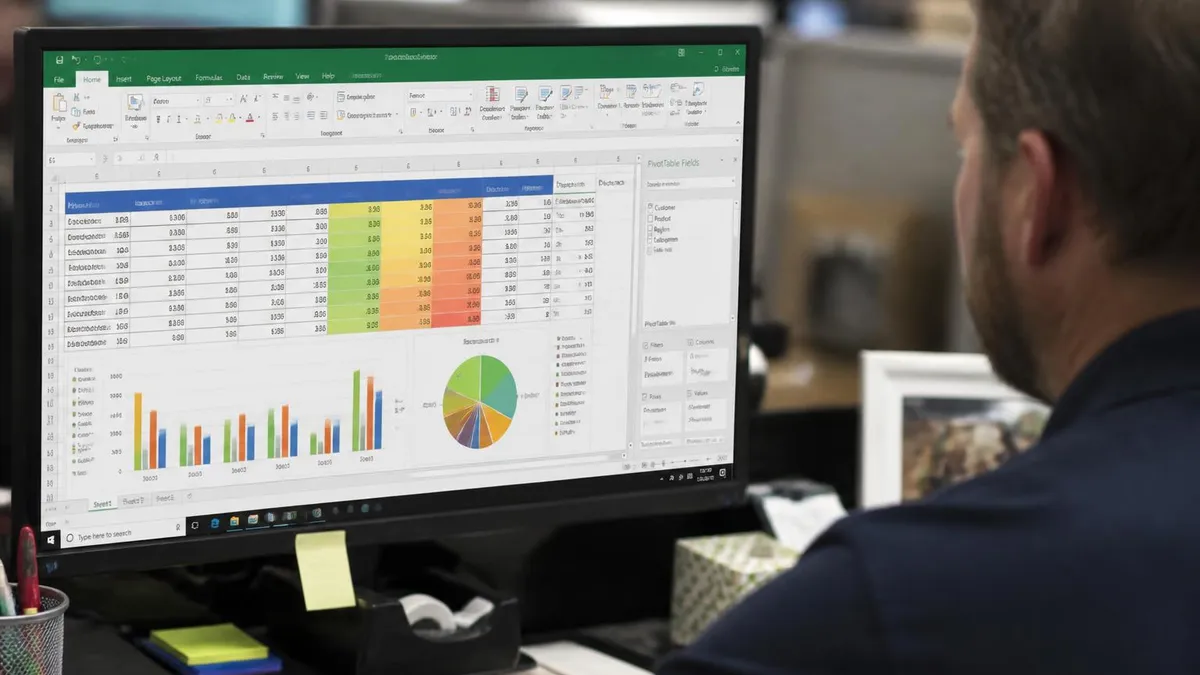
Excel offers four primary concatenation methods. CONCATENATE function works in all Excel versions combining text arguments. CONCAT function in newer Excel supports ranges. TEXTJOIN function adds delimiter support combining ranges with separator. Ampersand operator combines text inline within formulas. Each method has specific advantages for different concatenation scenarios.
Excel concatenation capabilities support virtually all text combination needs across business spreadsheets producing flexible output supporting various analytical and reporting purposes.
TEXTJOIN function provides most flexible concatenation including delimiter support. Syntax TEXTJOIN delimiter ignore_empty text1 text2 includes specific delimiter inserted between values plus option to skip empty cells. The delimiter parameter could be comma, space, hyphen, or any other character supporting clean output formatting. The ignore_empty parameter skips empty cells preventing unnecessary delimiters in output. Combined capabilities make TEXTJOIN particularly useful for creating comma-separated lists or other delimited output from cell ranges.
Ampersand operator provides inline concatenation within Excel formulas. Simple syntax uses & between values like A1&B1 to combine A1 and B1 cells. Multiple ampersands chain longer combinations like A1&B1&C1. Adding text strings uses quotes like A1&" "&B1 to combine cells with space separator. The ampersand operator works in any formula supporting flexible text combination without requiring specific function syntax for simple concatenation needs.
Industry adoption patterns affect concatenation function selection in business spreadsheets. Older organizations with Excel 2016 or earlier may default to CONCATENATE. Modern organizations on Microsoft 365 typically prefer newer CONCAT and TEXTJOIN. Mixed organizations supporting various Excel versions may favor CONCATENATE for compatibility despite reduced functionality. Specific organizational context affects which functions appear in shared spreadsheets across teams and departments.
Report generation through Excel concatenation supports automated reporting workflows. Concatenation creates dynamic report titles, section headers, and various other report elements responding to data changes. Combined with other Excel features including formulas, charts, and pivot tables, concatenation supports comprehensive report automation. Some organizations use Excel-based reporting extensively leveraging concatenation as essential element of report design. The reporting applications demonstrate substantial value of concatenation in professional Excel work across various business reporting contexts.
Error handling for concatenation involves consideration of various potential issues. Empty cells produce missing values in output potentially affecting readability. Number formatting requires TEXT function for proper preservation. Error values in source cells propagate through concatenation. IFERROR function wrapping provides graceful error handling. Various other error handling considerations support robust concatenation formulas working reliably across diverse data including occasional unexpected values affecting business spreadsheets.
Concatenation Methods
Classic function combining text arguments. Works in all Excel versions. Up to 255 arguments. No range support requires individual cell references. Specific method selection depends on Excel version and specific concatenation requirements affecting practical choice.
Newer function in Excel 2019 and 365 supporting cell ranges. Simpler than CONCATENATE for combining many cells. No delimiter support. Specific method selection depends on Excel version and specific concatenation requirements affecting practical choice.
Most flexible function with delimiter and empty cell handling. Newer Excel function. Supports ranges with clean output formatting. Specific method selection depends on Excel version and specific concatenation requirements affecting practical choice.
Inline operator combining text in any formula. Works in all Excel versions. Simple syntax for basic combination but verbose for many cells. Specific method selection depends on Excel version and specific concatenation requirements affecting practical choice.
Flash Fill in Excel can auto-detect concatenation patterns and complete column. Quick alternative for simple visible patterns without formulas. Specific method selection depends on Excel version and specific concatenation requirements affecting practical choice.
Power Query Merge Columns option provides alternative concatenation during data transformation. Useful for combining columns during data import. Specific method selection depends on Excel version and specific concatenation requirements affecting practical choice.
Common concatenation use cases include various business spreadsheet scenarios. Customer name building combines first name and last name fields into full name. Address formatting combines street, city, state, and zip into formatted address. Product code generation combines category, type, and sequential number into SKU codes. Report header creation combines static text with dynamic values from cells. Email subject lines combine fixed text with order numbers, customer names, or other variable data. The diverse applications make concatenation one of the most useful Excel capabilities across business contexts.
Adding separators between concatenated values produces cleaner output for various purposes. Space separators between first and last names produce readable full names. Comma separators in lists support tabular data display. Hyphens or dashes in product codes support readable identifier structures. Various other separators support specific formatting needs. Understanding separator options supports producing professional output rather than just running text together without distinguishing values within combined strings.
Programming language perspective on Excel concatenation shows differences from typical programming string operations. Most programming languages use + or specific concat methods. Excel uses & and CONCATENATE/CONCAT producing slightly different syntax than developers might expect. The differences matter for developers transitioning between Excel work and programming or VBA development. Understanding Excel-specific syntax supports effective work despite differences from general programming string operations.
Data export workflows often involve concatenation creating formatted output for other systems. CSV exports require specific delimiter formatting. XML or JSON-like output requires specific concatenation patterns. Database import formats may require specific text combinations. Various other system integrations require formatted text output. Excel concatenation supports creating these various output formats supporting data transfer between systems beyond just internal Excel use.
Future Excel developments may continue evolving concatenation capabilities. Newer functions or enhanced existing functions may offer additional capabilities. Integration with AI capabilities through Copilot or similar features may streamline some concatenation tasks. The continuing Excel evolution suggests concatenation capabilities will likely continue evolving though core functionality remains stable supporting reliable concatenation across upcoming Excel versions.
Concatenation Examples
Basic concatenation combines values without separators. CONCATENATE A1 B1 or A1&B1 produces direct combination. For example A1 contains John and B1 contains Smith producing JohnSmith. This direct combination works for some applications though typically separators improve readability for human consumption of resulting output strings.
Each concatenation pattern supports specific output formatting requirements with different patterns matching different business needs.

Number formatting considerations affect concatenation results. Numbers automatically convert to text when concatenated but may not retain original formatting like dates or currency. Date values often appear as serial numbers without formatting. Currency values lose dollar signs and decimal formatting. Using TEXT function preserves formatting like TEXT date_cell mm/dd/yyyy producing properly formatted date strings. The TEXT function combined with concatenation supports professional output preserving intended number formatting.
Common concatenation errors include forgetting separators producing unreadable run-together text, missing quotes around literal text strings, mismatched parentheses in nested function calls, and forgetting TEXT function for formatted numbers. Common mistakes can be avoided through careful formula construction. Testing formulas with known values verifies expected output before relying on formulas for important calculations. Building complex concatenation formulas incrementally with testing at each step prevents accumulated errors hard to debug in final completed formulas.
VBA programming alternatives to formula-based concatenation provide automation possibilities. VBA macros can concatenate text using & operator like formulas plus VBA-specific string functions. Custom VBA functions support specialized concatenation logic beyond standard Excel functions. Some organizations use VBA for complex concatenation requirements where formulas become unwieldy. The VBA option supports advanced concatenation scenarios though requires programming knowledge beyond just Excel formula skills.
Educational applications of Excel concatenation appear extensively in business and academic education. Business analytics courses teach concatenation as fundamental Excel skill. Academic research using Excel for data preparation leverages concatenation. Specific certification programs like Microsoft Office Specialist include concatenation in their curriculum. The widespread educational use produces broad familiarity with Excel concatenation across professionals encountering these functions during education and certification preparation.
The CONCATENATE function may eventually be replaced as Microsoft transitions to newer CONCAT and TEXTJOIN functions. CONCATENATE continues working for backward compatibility though newer functions offer enhanced capabilities. Spreadsheets using CONCATENATE will continue functioning while new development might benefit from using newer alternatives offering range support and other enhancements.
Test concatenation formulas with empty cells, special characters, and other edge cases identifying potential issues before applying formulas to complete datasets supporting reliable results.
Performance considerations affect concatenation in large spreadsheets. Simple concatenation operations calculate quickly even with many cells. Complex concatenation involving many TEXT function applications or nested operations may slow calculation slightly. Spreadsheets with thousands of complex concatenation formulas may experience cumulative performance impact. Optimizing complex concatenation sometimes involves using helper columns rather than complex single formulas supporting better performance and maintainability for substantial spreadsheets.
Power Query alternative to formula-based concatenation provides cleaner approach for some scenarios. Power Query Merge Columns option supports combining columns during data import or transformation. The approach works well for one-time concatenation during data preparation rather than ongoing formula-based concatenation. Combining Power Query preparation with subsequent formula-based work supports clean spreadsheet architecture rather than complex formulas embedded in analytical worksheets.
Office Scripts in modern Excel supports JavaScript-based automation including text manipulation. Scripts can perform concatenation operations similar to VBA macros using JavaScript syntax. The modern automation alternative supports cloud-based Excel scenarios where VBA is not available. Scripts work in Excel for the web and modern Excel applications supporting cross-platform automation including various text manipulation needs beyond just formula-based approaches.
Using Concatenation Effectively
- ✓Choose appropriate concatenation method based on Excel version and specific scenario
- ✓Use CONCATENATE for compatibility across all Excel versions
- ✓Use CONCAT or TEXTJOIN for newer Excel versions supporting range references
- ✓Add appropriate separators between values for readable output formatting
- ✓Apply TEXT function for proper number, date, or currency formatting in output
- ✓Test formulas with known values before applying to complete datasets
- ✓Document complex concatenation formulas in adjacent cells supporting future maintenance
- ✓Consider Flash Fill for simple patterns before building complex concatenation formulas
- ✓Validate output formatting matches expectations before applying formulas to complete datasets
Flash Fill as alternative to concatenation formulas supports quick column generation based on detected patterns. After entering 1 or 2 example outputs Excel may suggest filling remaining cells through Flash Fill. The intelligent pattern recognition handles many concatenation scenarios without requiring formulas. Press Ctrl-E to apply detected Flash Fill suggestions. The capability works particularly well for simple concatenation patterns visible from example outputs supporting quick column completion without formula construction.
Dynamic array context affects some concatenation behavior in newer Excel versions. Functions returning dynamic arrays interact with concatenation in specific ways. Modern functions may produce array output requiring specific handling for proper concatenation. Most users encountering issues simply use traditional concatenation approaches working consistently across Excel versions rather than navigating dynamic array complexities for simple concatenation needs.
Power Query M language provides another concatenation approach for data transformation. The M formula language used in Power Query supports text combination through Text.Combine function and concatenation operators. The functionality matches Excel formula-based concatenation but happens during data import rather than in spreadsheet formulas. Power Query concatenation supports one-time data preparation rather than ongoing formula calculation across spreadsheet operations.

Splitting concatenated values represents reverse operation sometimes needed alongside concatenation. Text to Columns feature splits combined values back into separate columns. Power Query Split Column option provides flexible splitting during data transformation. Various functions including LEFT, RIGHT, MID, and FIND support formula-based splitting. Understanding both concatenation and splitting capabilities supports complete text manipulation across Excel work involving combining and separating data values across various business contexts.
International considerations affect concatenation across different language and locale settings. Decimal separators differ between US and European conventions. Date formats vary across locales affecting TEXT function specifications. Currency symbols and formatting follow locale conventions. Spreadsheets used across different international locations may produce different concatenation results based on regional settings. The internationalization considerations matter for global business spreadsheets requiring consistent appearance across regional Excel installations.
Best practices for spreadsheet concatenation include several principles supporting maintainable work. Use named ranges instead of cell references for readable formulas. Add helper columns rather than building extremely complex single formulas. Document concatenation logic in comments or adjacent cells. Test thoroughly with edge cases including empty cells and unexpected values. Consider performance impact for very large datasets. Following best practices supports both immediate work quality and long-term maintainability for spreadsheets used over time.
Concatenation Function Reference
Common Concatenation Uses
Combining first name and last name fields into full name display through space-separated concatenation supporting customer or employee data. Specific method selection depends on Excel version and specific concatenation requirements affecting practical choice.
Combining street, city, state, and zip code into formatted address strings supporting reports, mailing labels, and various other output. Specific method selection depends on Excel version and specific concatenation requirements affecting practical choice.
Combining category, type, and identifier into SKU codes through hyphen or other separator concatenation supporting inventory management. Specific method selection depends on Excel version and specific concatenation requirements affecting practical choice.
Combining static text with order numbers, customer names, or other variables into personalized email subject lines for marketing or transactional emails. Specific method selection depends on Excel version and specific concatenation requirements affecting practical choice.
Combining static text with dynamic values from cells into report titles and section headers supporting professional report formatting. Specific method selection depends on Excel version and specific concatenation requirements affecting practical choice.
Combining multiple cell values into delimited strings for export to other systems or formats supporting integration with various external systems. Specific method selection depends on Excel version and specific concatenation requirements affecting practical choice.
Excel version availability varies for specific concatenation functions. CONCATENATE works in all Excel versions including very old releases. CONCAT requires Excel 2019 or Microsoft 365. TEXTJOIN requires Excel 2019 or Microsoft 365. Ampersand operator works in all Excel versions. The varied availability affects function selection particularly for spreadsheets used across multiple Excel versions. Using compatible functions supports cross-version functionality though newer functions offer enhanced capabilities when version compatibility supports their use.
Cross-platform consistency between Windows Excel, Mac Excel, Excel for the web, and mobile Excel produces reliable concatenation results. The same formulas work consistently across platforms supporting portable spreadsheets. Most users experience no platform-specific concatenation issues for typical applications. The cross-platform reliability supports business workflows where spreadsheets move across various devices and Excel platforms without concatenation behavior changes affecting results.
Continued mastery of Excel concatenation supports increasingly sophisticated spreadsheet work across business analysis needs. The investment in concatenation skill development produces returns through expanded analytical capabilities supporting various career situations requiring spreadsheet skills across professional contexts.
Combining concatenation with other Excel functions including LOOKUP functions, conditional logic, and various text functions extends utility substantially supporting complex spreadsheet work beyond just basic text combination needs producing comprehensive analytical capability through integrated function use.
Practical experience with diverse concatenation scenarios builds intuitive understanding supporting confident application across various business contexts requiring text manipulation in Excel.
Strong Excel skills including concatenation expertise support various career opportunities across professional roles requiring spreadsheet capability.
Modern professional workplaces increasingly value Excel proficiency including text manipulation capabilities.
Excel Concatenation Considerations
- + —
- + —
- + —
- + —
- + —
- + —
- − —
- − —
- − —
- − —
- − —
- − —
Excel Questions and Answers
About the Author

Business Consultant & Professional Certification Advisor
Wharton School, University of PennsylvaniaKatherine Lee earned her MBA from the Wharton School at the University of Pennsylvania and holds CPA, PHR, and PMP certifications. With a background spanning corporate finance, human resources, and project management, she has coached professionals preparing for CPA, CMA, PHR/SPHR, PMP, and financial services licensing exams.