
How to Add the Developer Tab in Excel: Step-by-Step for Windows, Mac, and Excel Online
Add the Developer tab in Excel: File → Options → Customize Ribbon → check Developer. Step-by-step for Windows, Mac, and Excel Online. Access VBA, macros... 📚

The Developer tab in Excel provides access to advanced features that aren't part of the default Excel interface — VBA (Visual Basic for Applications) for scripting, Macros for recording and running automated operations, ActiveX controls and Form controls for creating interactive elements, XML import/export, and Add-ins management. By default, the Developer tab is hidden in Excel because most users don't need these features. For developers, automation enthusiasts, and power users, enabling the Developer tab is the first step to unlocking Excel's full automation capabilities.
The process to add the Developer tab takes about 30 seconds. The exact steps differ slightly between Windows, Mac, and Excel Online versions, but the core concept is the same: open Excel's customize-ribbon settings and check the Developer tab box. Once enabled, the Developer tab persists across Excel sessions until you choose to remove it.
For Windows users (Excel 365, Excel 2019, Excel 2021, Excel 2024): File → Options → Customize Ribbon → check the Developer checkbox in the Main Tabs list → OK. The Developer tab appears in the ribbon between View and Help tabs.
For Mac users (Excel for Mac 2016, 2019, 365): Excel → Preferences → Ribbon & Toolbar → Customize Ribbon → check the Developer checkbox → Save. The Developer tab appears in the ribbon.
For Excel Online (browser-based): Limited Developer tab functionality. Some macros can be run; full VBA editing requires desktop Excel. The 'Insert' tab in Excel Online provides some developer-related features without a dedicated Developer tab.
Why most users don't need the Developer tab: The default Excel interface includes everything for typical spreadsheet work — formulas, formatting, charts, PivotTables, basic analysis. The Developer tab adds advanced features that are more complex than most users encounter daily.
Why some users need the Developer tab: Recording macros to automate repetitive operations, Writing VBA code for custom Excel functionality, Creating interactive forms with buttons and dropdowns, Working with XML data import/export, Managing add-ins (Excel extensions), Working with Form controls and ActiveX controls in spreadsheets.
This guide covers the step-by-step process to add the Developer tab in each Excel version, what features the Developer tab unlocks, common use cases, and troubleshooting if the steps don't work. It's intended for users who need to access VBA, macros, or other developer features in Excel.

Enable Developer Tab in 30 Seconds
- Windows: File → Options → Customize Ribbon → check Developer → OK
- Mac: Excel → Preferences → Ribbon & Toolbar → check Developer → Save
- Excel Online: Limited support; use desktop Excel for VBA
- Right-click ribbon shortcut: Right-click any tab → Customize Ribbon → check Developer
- Where it appears: Between View and Help tabs (or last position)
- Persists across sessions: Yes, until you remove it
- Works in all Excel versions: Excel 2010+, Excel 365, Excel 2019-2024
- Common uses: VBA, Macros, ActiveX controls, Form controls, XML
- Default state: Hidden by default in most installations
Adding the Developer tab on Windows. Detailed steps for Windows-based Excel versions.
Step 1: Open Microsoft Excel. The Developer tab option appears in any Excel workbook — you don't need to open a specific file.
Step 2: Click File in the top-left corner. The File menu opens. This is the backstage view.
Step 3: Click Options at the bottom of the left sidebar. The Excel Options dialog opens.
Step 4: In the Excel Options dialog, click Customize Ribbon in the left sidebar. The Customize Ribbon panel appears on the right.
Step 5: In the right pane, you'll see two columns. The right column shows 'Main Tabs' with checkboxes for each ribbon tab. Find 'Developer' in the list. By default, the Developer checkbox is unchecked.
Step 6: Check the Developer checkbox. The Developer tab is now selected to be added to the ribbon.
Step 7: Click OK at the bottom of the dialog. The dialog closes and Excel refreshes the ribbon.
Step 8: Verify the Developer tab is visible. Look in the ribbon — you should see Developer between View and Help (or at the end if those tabs aren't there). Click on Developer to confirm it's working.
Alternative path: You can also right-click any tab in the ribbon → choose 'Customize Ribbon' → check Developer → OK. This skips the File menu navigation.
Alternative path 2: File → Options → Quick Access Toolbar → also lets you add Developer tab features (specific commands rather than the whole tab) to the Quick Access Toolbar above the ribbon.
Once enabled, the Developer tab persists across all Excel sessions on that computer. If you switch computers or reinstall Excel, you'll need to re-enable it.
Step-by-Step (Windows)
Step 1: Open Excel
Step 2: File → Options
Step 3: Customize Ribbon
Step 4: Find Developer
Step 5: Check Box
Step 6: Click OK
Step 7: Verify
Adding the Developer tab on Mac. Steps for Excel for Mac.
Step 1: Open Microsoft Excel for Mac. Any modern Mac Excel version (2016, 2019, 365) supports the Developer tab.
Step 2: Click the Excel menu in the top-left corner of your screen (next to the Apple menu). The Excel menu opens.
Step 3: Click Preferences. The Excel Preferences dialog opens with several option icons.
Step 4: Click 'Ribbon & Toolbar' in the Preferences dialog. The Ribbon & Toolbar settings appear.
Step 5: In the right pane, you'll see a list of tabs with checkboxes. Find 'Developer' in the list.
Step 6: Check the Developer checkbox.
Step 7: Click Save (or the dialog automatically saves on close). The ribbon refreshes.
Step 8: Verify the Developer tab is visible in the ribbon.
Mac vs Windows differences: The path is slightly different (Excel menu vs File menu), but the core functionality is the same. The Developer tab itself has identical features on both platforms. VBA works on Mac (same code, same Editor). The Mac Excel ribbon shows the Developer tab between View and Help.
Some Mac Excel versions: Excel 2011 for Mac does not have a Developer tab (older version, before this feature). Upgrade to Excel 2016 or later.
VBA on Mac: Mac Excel includes a VBA editor (Alt + F11 same as Windows). The VBA editor on Mac has slightly different keyboard shortcuts but same functionality. Some advanced features (ActiveX controls, certain Win32 API calls) don't work on Mac VBA. Cross-platform compatibility for VBA code: mostly works, with some Windows-specific code patterns that don't translate.
Platform-Specific Steps
File → Options → Customize Ribbon → check Developer → OK. Right-click ribbon shortcut works too.
Excel menu → Preferences → Ribbon & Toolbar → check Developer → Save.
Developer tab not available. Upgrade to Excel 2016+ for Mac to access.
Limited Developer features. Some macros can run; full VBA needs desktop Excel.
No Developer tab on mobile versions. View VBA scripts only; cannot edit on mobile.
Some free Excel implementations don't include Developer features. Microsoft 365 subscription needed for full features.
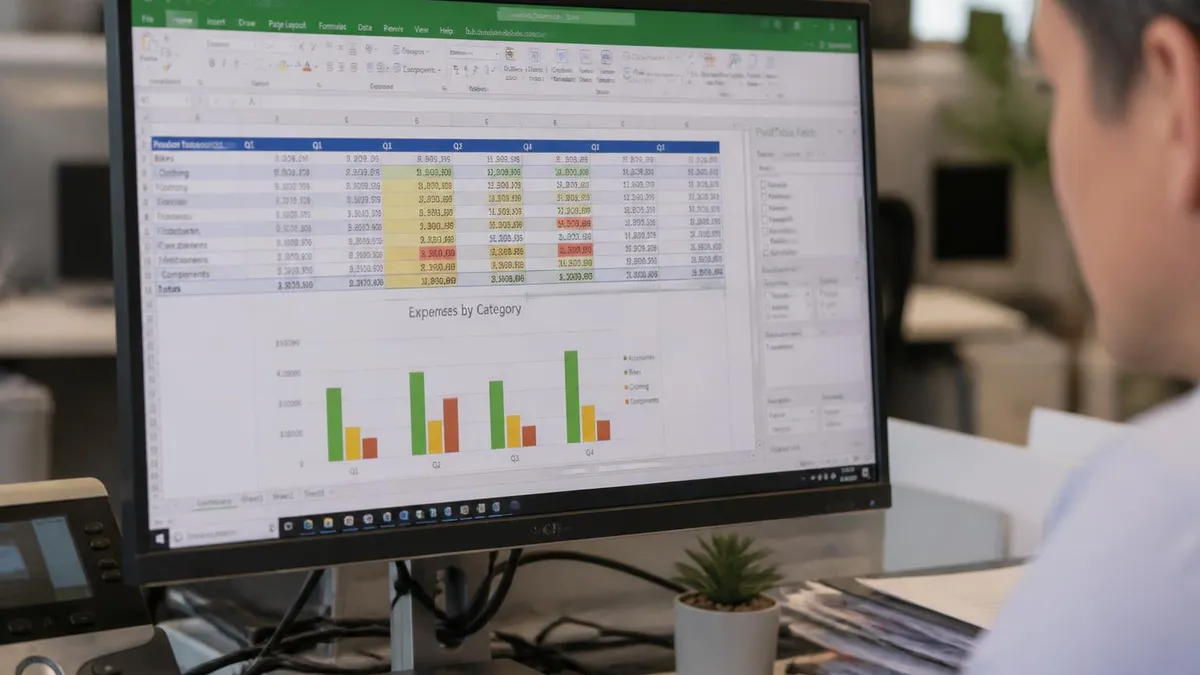
What's in the Developer tab. Understanding what each section unlocks helps you use the tab effectively.
Code group (left side of Developer tab): Visual Basic — Opens the VBA editor for writing macro code. Keyboard shortcut Alt + F11. Macros — Opens the Macros dialog to view, run, edit, or delete existing macros. Record Macro — Records a macro by capturing your keystrokes and clicks. Click Record, perform actions, click Stop to capture as a macro. Use Relative References — Toggles between absolute (specific cells) and relative (relative to current position) reference recording. Macro Security — Opens trust center settings for macro security. Important for working with files containing macros from external sources.
Add-ins group: Excel Add-ins — Opens the Add-ins dialog to manage Excel-specific add-ins. COM Add-ins — Opens COM Add-ins dialog for COM-based extensions.
Controls group: Insert — Inserts Form controls (button, checkbox, list box, etc.) or ActiveX controls (similar but more powerful, with VBA event handlers). Design Mode — Toggles between design mode (edit controls) and run mode (interact with controls). View Code — Opens the VBA editor for the active sheet's code module. Properties — Properties panel for selected control. Mode — Some versions have toggle between Form controls and ActiveX controls.
XML group (some versions): Source — Opens XML source pane for working with XML data. Map Properties — Manages XML data mappings. Refresh Data — Refreshes XML data from source. Import — Imports XML data into Excel. Export — Exports Excel data to XML.
Modify group (some versions): Document Panel — Shows document properties panel.
Visual Basic Editor (Alt + F11): The actual VBA development environment. Write VBA code, manage modules, view objects (workbooks, sheets), debug code with breakpoints and step-through, access object browser for VBA references.
Developer Tab Features
Visual Basic: Opens VBA editor (Alt + F11). Write custom macros.
Macros: View, edit, run existing macros.
Record Macro: Capture keystrokes as a new macro.
Macro Security: Trust center settings for VBA execution.
Common use cases for the Developer tab. The tab unlocks functionality that's essential for specific workflows.
Use case 1: Recording macros to automate repetitive tasks. Click Record Macro, perform a series of operations (formatting cells, applying filters, sorting data), click Stop. Excel saves the operations as a macro that can be replayed. Useful for: daily report formatting, weekly data refreshes, monthly summaries. The recorded macro is stored as VBA code and can be edited later.
Use case 2: Writing custom VBA functions and procedures. Open the VBA editor (Alt + F11). Insert a new module. Write Function or Sub procedures. Common custom code: complex calculations not available as standard Excel functions, automated data validation, custom reporting, integration with other Office applications, web scraping or API integration.
Use case 3: Creating interactive forms with controls. From Controls section, insert buttons that run macros, dropdowns that filter data, checkboxes that toggle visibility, list boxes for selection. Combined with VBA event handlers, these create complete user interfaces in Excel.
Use case 4: Working with external add-ins. Some Excel add-ins (Analysis ToolPak, Solver, COM-based plugins) need to be enabled before use. The Developer tab provides access to add-in management. Analysis ToolPak enables statistical analysis functions; Solver enables optimization; many third-party plugins extend Excel functionality.
Use case 5: XML data import and export. For workflows that involve XML-based data interchange (financial systems, scientific data, web APIs), the Developer tab provides import/export functionality. Map XML elements to cells; refresh data programmatically; export Excel data as XML for consumption by other systems.
Use case 6: Document automation. Generate reports automatically by running macros. Combine with PowerPoint and Word automation (via VBA) to create entire automated reporting pipelines. Trigger from buttons in Excel sheets or scheduled tasks.
Use case 7: Custom toolbar and form development. Build user-specific or department-specific Excel tools. Companies often build custom Excel solutions using VBA and developer features rather than purchasing specialized software.
Use case 8: Data validation beyond standard rules. Excel's built-in data validation has limits; VBA can implement complex validation rules (cross-sheet references, dependent rules, custom logic). This is one of the most common business uses of VBA.
Why Enable Developer Tab
Automate repetitive tasks. Record once, replay many times. Saves substantial time.
Custom functions, automation, complex calculations not in standard Excel.
Interactive sheets with buttons, dropdowns, checkboxes. Combined with VBA, complete UIs.
Enable Analysis ToolPak, Solver, third-party plugins. Extend Excel functionality.
Import/export XML data. For financial systems, scientific data, web APIs.
Generate reports automatically. Trigger from buttons or schedules.

Troubleshooting if the Developer tab doesn't appear after enabling. Several common issues have specific solutions.
Issue 1: Developer checkbox is checked but tab doesn't appear. Cause: Excel ribbon hasn't refreshed. Solution: Close Excel completely, restart Excel. Open File → Options → Customize Ribbon to verify the checkbox is still checked.
Issue 2: Customize Ribbon option not visible in File → Options. Cause: Using a very old Excel version (pre-2010) or a restricted Excel installation (managed by IT department). Solution: Verify your Excel version (File → Account → About Excel). If version 2010+, the option should be there. Some corporate installations restrict customization — contact IT.
Issue 3: Developer tab appears but features are grayed out. Cause: Some features (especially ActiveX controls, certain VBA functions) are restricted by macro security settings. Solution: Trust Center settings (File → Options → Trust Center → Trust Center Settings) → Macro Settings. Choose appropriate setting based on your security needs.
Issue 4: Tab appeared once but is now gone. Cause: Excel settings were reset, possibly through profile recreation or Office repair. Solution: Re-enable through Customize Ribbon path. Settings persist per Office installation.
Issue 5: Different positioning across computers. Cause: Some Excel installations show the tab in different positions. Solution: The Developer tab should appear with other main tabs (between View and Help typically). Position is consistent within each Office version but may vary across versions.
Issue 6: VBA editor not accessible from Developer tab. Cause: Office Repair needed or macros disabled. Solution: Try keyboard shortcut Alt + F11 directly. If still no VBA editor, run Office repair from Programs and Features.
Issue 7: Macros disabled even after enabling Developer tab. Cause: Trust Center settings prevent macros from running. Solution: File → Options → Trust Center → Trust Center Settings → Macro Settings. Choose 'Enable all macros' (with caution — security risk) or 'Enable VBA macros for current document only.'
Issue 8: Different ribbon on different computer. Cause: Excel customization is computer-specific, not account-specific. Solution: Each computer requires its own Developer tab enabling. The setting doesn't sync across machines.
Issue 9: Excel Online doesn't have Developer tab. Cause: Excel Online has limited Developer features. Solution: Use desktop Excel for full Developer tab access. Excel Online can run some macros but not edit VBA.
Even after enabling the Developer tab, macros may not run due to security settings. File → Options → Trust Center → Trust Center Settings → Macro Settings controls this. Most Excel installations default to 'Disable all macros with notification' — meaning macros are blocked but you get a prompt to enable per-file. For files you trust, choose 'Enable' when prompted. For untrusted files (downloaded from internet, received via email), choose 'Disable' — macros can contain malware. For organizations: IT often controls macro security through Group Policy. If you can't change settings, ask IT for the appropriate exception for your work files.
Working with macros — first steps after enabling the Developer tab.
Recording your first macro: Click Record Macro on the Developer tab. In the dialog: name the macro (no spaces, descriptive name like 'FormatMonthlyReport'), assign a shortcut key if desired (Ctrl + letter), choose where to store (This Workbook saves with the file; Personal Macro Workbook saves globally on your computer), add a description. Click OK to begin recording.
Perform your operations: Excel records every action — clicks, typing, formatting changes, navigation. The macro captures these as VBA code that can be played back.
Stop recording: Click Stop Recording on the Developer tab. The macro is now saved.
Running a macro: Click Macros on Developer tab → select your macro → click Run. Or use the shortcut key you assigned. Or click the button you might have created with the macro assigned.
Editing recorded macros: Macros → select macro → Edit. Opens the VBA editor showing the recorded code. You can: modify the code to refine behavior, add error handling, add conditional logic, replace specific cells with relative references for flexibility.
Common macro recording mistakes: Recording with specific cell selections instead of relative references (use Relative References toggle). Recording temporary error states (undo before recording). Including unnecessary navigation (move cursor first, then start recording). Including non-essential operations (clean up before stopping).
Writing a macro from scratch: Alt + F11 opens VBA editor. Insert → Module to create a new code module. Type a Sub procedure: Sub MyMacro() ' your code here End Sub. Run with F5 or from Excel's Macros dialog.
Common first VBA patterns: MsgBox "Hello" displays a message box. Range("A1").Value = 100 sets cell A1 to 100. ActiveSheet.Cells(1, 1).Font.Bold = True makes A1 bold. For i = 1 To 10: Cells(i, 1) = i: Next i fills A1:A10 with 1-10.
Resources for learning VBA: Microsoft's VBA documentation (microsoft.com/en-us/microsoft-365/excel). Office VBA Reference at Microsoft Learn. Stack Overflow for specific VBA questions. YouTube channels (ExcelisFun, Leila Gharani, Excel Campus). Books (Excel VBA for Dummies, Power Programming with VBA).
Working with Macros
Click Record Macro → Name it → Choose shortcut + storage → OK. Perform operations. Click Stop Recording. Macro is saved and can be replayed via Macros dialog or shortcut key.
Removing the Developer tab. If you no longer need the Developer tab, you can disable it.
Windows: File → Options → Customize Ribbon → uncheck Developer → OK. The tab is removed from the ribbon.
Mac: Excel → Preferences → Ribbon & Toolbar → uncheck Developer → Save.
Settings persist: Once removed, the tab stays gone until you re-enable it. Settings are computer-specific, not synced.
Difference between hiding and removing: Hiding might keep VBA code accessible while just removing the visual ribbon. Removing the tab from the ribbon doesn't delete any VBA code in workbooks — it just hides the access point. Existing macros continue to run; you just don't see the ribbon to manage them. To completely remove macros from a workbook, you'd need to delete the VBA modules through the VBA editor (Alt + F11 still works to access VBA even without Developer tab).
If macros stop working after removing Developer tab: Check Trust Center → Macro Settings — security may have changed. Verify VBA code is intact (Alt + F11). Verify file format is .xlsm (macro-enabled) not .xlsx.
Best practice for users who occasionally use Developer features: Keep Developer tab enabled even if you don't use it daily. Doesn't take ribbon space when not used. Available immediately when needed. Most users find this convenient.
Best practice for managed/shared computers: If your computer is shared with non-technical users, consider removing the Developer tab to prevent accidental macro creation or modification by other users. The tab itself is a small footprint, but the access point to macros could create confusion.
If you write VBA macros and save the workbook as .xlsx (standard format), the macros will be deleted on save. Excel requires the .xlsm format (Excel Macro-Enabled Workbook) to preserve VBA code. When saving a workbook with macros, the Save As dialog shows a warning. Choose .xlsm to keep your macros. If you save as .xlsx, you'll lose all VBA code in the file. Solution: always check file type before saving macro-containing workbooks. Some users prefer .xlsb (Excel Binary Workbook) which also supports macros and saves faster but is less compatible with external tools.
How Pros and Cons
- +How has a publicly available content blueprint — you know exactly what to prepare for
- +Multiple preparation pathways accommodate different schedules and budgets
- +Clear score reporting shows specific strengths and weaknesses
- +Study communities share current insights from recent test-takers
- +Retake policies allow recovery from a difficult first attempt
- −Tested content scope requires substantial preparation time
- −No single resource covers everything optimally
- −Exam-day performance can differ from practice test performance
- −Registration, prep, and retake costs accumulate significantly
- −Content changes between versions can make older materials less reliable
Pros and Cons at a Glance
| Pros | Cons |
|---|---|
| How has a publicly available content blueprint — you know exactly what to prepare for | Tested content scope requires substantial preparation time |
| Multiple preparation pathways accommodate different schedules and budgets | No single resource covers everything optimally |
| Clear score reporting shows specific strengths and weaknesses | Exam-day performance can differ from practice test performance |
| Study communities share current insights from recent test-takers | Registration, prep, and retake costs accumulate significantly |
| Retake policies allow recovery from a difficult first attempt | Content changes between versions can make older materials less reliable |
Sample Excel Practice Questions
Try these questions from our free Excel practice tests. The correct answer and an explanation follow each question.
What does 'PivotTable' allow you to do in Excel?
- A. Rotate charts to new orientations
- B. Summarize and analyze large data sets interactively
- C. Merge multiple worksheets
- D. Create drop-down menus
Answer: B. Summarize and analyze large data sets interactively
A PivotTable is an interactive tool that quickly summarizes, groups, and analyzes large datasets without changing the original data.
What are the parenthesis for in an Excel formula like =(A1+A2)*B1?
- A. They indicate the order in which operations should be performed.
- B. They make the formula easier to read.
- C. They tell Excel to ignore the values in cells A1 and A2.
- D. They are not necessary and can be omitted.
Answer: A. They indicate the order in which operations should be performed.
In Excel formulas, just like in standard mathematics, parentheses are used to define the order of operations. Operations within parentheses are calculated first. In the example '=(A1+A2)*B1', the sum of A1 and A2 is calculated before the result is multiplied by B1, ensuring the correct mathematical sequence and precedence.
Which tab in Excel's ribbon is used to insert a PivotTable?
- A. Home
- B. Data
- C. Formulas
- D. Insert
Answer: D. Insert
PivotTables are inserted from the Insert tab by clicking the PivotTable button in the Tables group.
What excel financial modeling technique is recommended?
- A. Use blue font for all hard-coded numbers and formulas and black font for only the totals
- B. Use black font for all hard-coded numbers and formulas and blue font for only the totals
- C. Use blue font for hard-coded numbers and black font for formulas
- D. Use blue font for hard-coded numbers and black font for formulas
Answer: D. Use blue font for hard-coded numbers and black font for formulas
A recommended best practice in financial modeling is to use blue font for hard-coded numbers (inputs) and black font for formulas (calculations). This visual distinction helps users quickly identify which cells contain assumptions that can be changed and which cells are derived values, improving model transparency and auditability.
EXCEL Questions and Answers
Adding the Developer tab in Excel takes about 30 seconds and unlocks access to Excel's most powerful features — VBA scripting, macro recording, interactive forms, add-in management, and XML integration. For users who need automation, custom functionality, or advanced spreadsheet operations, enabling the Developer tab is essential. The simple steps (File → Options → Customize Ribbon → check Developer) provide access to functionality that fundamentally changes what Excel can do.
For most casual Excel users, the default interface is sufficient. For power users, developers, and business automation enthusiasts, the Developer tab provides the foundation for everything from simple macros to complete business applications built within Excel. Once enabled, the tab persists across Excel sessions until you choose to remove it — making it a one-time setup that enables ongoing access to Excel's automation capabilities.
About the Author

Business Consultant & Professional Certification Advisor
Wharton School, University of PennsylvaniaKatherine Lee earned her MBA from the Wharton School at the University of Pennsylvania and holds CPA, PHR, and PMP certifications. With a background spanning corporate finance, human resources, and project management, she has coached professionals preparing for CPA, CMA, PHR/SPHR, PMP, and financial services licensing exams.