
New Employee Onboarding Checklist Template Excel: The Complete Guide for 2026
Build a new employee onboarding checklist template in Excel. Step-by-step guide with VLOOKUP, drop-downs & freeze rows. ✅ Free templates included.

A well-structured new employee onboarding checklist template Excel file is one of the most powerful tools an HR team or manager can build. When a new hire walks through the door on day one, a disorganized welcome experience can erode confidence and delay productivity for weeks. By designing a comprehensive onboarding checklist directly in Microsoft Excel, you gain full control over formatting, automation, and data tracking — all without paying for specialized software. This guide walks you through every step of creating, customizing, and maintaining that template from scratch.
Excel remains the go-to platform for onboarding checklists because virtually every organization already has it installed. Unlike dedicated HR platforms that can cost thousands of dollars per year, an Excel-based checklist is free to build and infinitely adaptable. You can color-code tasks by department, assign due dates, use dropdown lists to mark completion status, and even pull employee data automatically using VLOOKUP formulas. The flexibility is unmatched, especially for small and mid-sized businesses that need professional results without enterprise budgets.
One of the most common mistakes new HR coordinators make is treating an onboarding checklist as a static PDF. A live Excel workbook lets you update tasks in real time, share it over SharePoint or OneDrive, and track completion percentages automatically. When a manager checks off that IT equipment has been provisioned, the spreadsheet can instantly update a dashboard cell showing overall onboarding progress. That kind of dynamic feedback loop is impossible with a printed form and changes the entire experience for both the new hire and the onboarding team.
The keywords people search when building these tools reveal what functionality matters most. Users want to know how to create a drop down list in Excel so they can standardize status fields like Not Started, In Progress, and Complete. They ask how to freeze a row in Excel so the header row stays visible as they scroll through dozens of tasks. They look up how to merge cells in Excel to create clean section headers that span multiple columns. Each of these features plays a direct role in making your onboarding template both functional and visually professional.
Beyond basic formatting, a sophisticated onboarding workbook can use Excel functions to automate reminders and track deadlines. Conditional formatting rules can turn a cell red when a task is overdue and green when it is marked complete. A VLOOKUP formula can pull a new employee's department, start date, and manager name from a separate employee database sheet, populating the checklist automatically when you enter just the employee ID. These time-saving automations distinguish a truly powerful template from a simple task list.
This article covers every aspect of building your onboarding checklist template, including the essential sections every checklist should contain, the Excel features that make it dynamic and automated, practical tips for rolling it out across your organization, and answers to the most common questions HR professionals ask. Whether you are onboarding one new hire per month or running a high-volume recruiting operation, the techniques here will help you build a system that scales without breaking down.
Throughout this guide, you will also find references to Excel skills that extend well beyond onboarding — things like data validation rules, formula-driven dashboards, and structured table formatting. Mastering these features pays dividends across every spreadsheet you will ever build, making the time you invest in learning them for your onboarding template a genuinely valuable professional development activity.
- Microsoft Office Specialist (MOS) Excel exams, both Associate MO-210 and Expert MO-211, give candidates 50 minutes to complete the exam, with 60 minutes of total seat time. (Microsoft (Microsoft Office Specialist program), delivered by Certiport, a Pearson VUE business)
- The passing score for a Microsoft Office Specialist (MOS) Excel exam is always set at 700 on Certiport's scale of 1 to 1000. (certiport.pearsonvue.com)
- A Microsoft Office Specialist (MOS) Excel exam voucher costs $104 on the US Certiport Store. Microsoft says the price depends on the country or region where the exam is proctored. (store.certiport.com)
- A Microsoft Office Specialist (MOS) Excel exam voucher that includes a retake costs $120 on the US Certiport Store. (store.certiport.com)
- After failing a Microsoft Office Specialist (MOS) Excel exam, a candidate must wait 24 hours before the first retake and 48 hours before each later retake, and there is no annual limit on attempts. (Microsoft (Microsoft Office Specialist program), delivered by Certiport, a Pearson VUE business)
- Microsoft Office Specialist (MOS) Excel certifications earned on or after September 23, 2025 are valid for five years. Certifications earned before that date do not expire. (certiport.pearsonvue.com)
- Microsoft lists a 60-month renewal frequency for the Microsoft Office Specialist (MOS) Excel certification. Certiport says eligible MOS holders can renew before expiry starting in March 2030, through a short, online, unproctored, open-book assessment that extends the certification by three years. (certiport.pearsonvue.com)
- The Microsoft Office Specialist (MOS) Excel exam is a proctored, live-in-the-application exam that is scheduled through Certiport and taken at Certiport Authorized Testing Centers. (Microsoft (Microsoft Office Specialist program), delivered by Certiport, a Pearson VUE business)
- Microsoft recommends that candidates for the Microsoft Office Specialist Excel Associate (MO-210) certification have about 150 hours of instruction and hands-on experience with Excel. (Microsoft (Microsoft Office Specialist program), delivered by Certiport, a Pearson VUE business)
Facts verified Oct 15, 2026 against Microsoft (Microsoft Office Specialist program), delivered by Certiport, a Pearson VUE business. Dates that have passed are removed automatically.
Microsoft Excel Exam at a Glance
| Item | Detail | Official source |
|---|---|---|
| Time limit | 50 minutes (60 minutes seat time) | Microsoft (Microsoft Office Specialist program), delivered by Certiport, a Pearson VUE business |
| Passing score | 700 on a 1–1000 scale | certiport.pearsonvue.com |
| Exam fee | $104 per exam voucher (US Certiport Store) | store.certiport.com |
| Retake fee | $120 for exam voucher with one retake | store.certiport.com |
| Retake policy | Wait 24h after 1st fail, 48h before each later retake; no annual limit | Microsoft (Microsoft Office Specialist program), delivered by Certiport, a Pearson VUE business |
| Validity | Valid 5 years (earned on/after Sept 23, 2025) | certiport.pearsonvue.com |
| Renewal | Every 60 months; renewal assessments open March 2030 | certiport.pearsonvue.com |
| Delivery | Proctored live-in-the-application exam via Certiport Authorized Testing Centers | Microsoft (Microsoft Office Specialist program), delivered by Certiport, a Pearson VUE business |
| Eligibility | No formal prerequisites; ~150 hours of instruction and hands-on experience recommended (Associate) | Microsoft (Microsoft Office Specialist program), delivered by Certiport, a Pearson VUE business |
| Score release | Score report at end of exam; also in Certiport profile | certiport.pearsonvue.com |
Facts verified Oct 15, 2026 against Microsoft (Microsoft Office Specialist program), delivered by Certiport, a Pearson VUE business. Dates that have passed are removed automatically.
Employee Onboarding by the Numbers

Essential Sections Every Onboarding Checklist Must Include
Tasks completed before the employee's first day, including IT account creation, equipment provisioning, workspace preparation, welcome email dispatch, and access badge requests. Completing these in advance prevents frustrating delays on day one and signals organizational readiness.
The structured welcome experience covering office tours, introductions to key team members, HR paperwork review, benefits enrollment initiation, and a review of company policies. A smooth first day sets the tone for the entire employment relationship and dramatically impacts early retention.
Role-specific training sessions, system access verification, tool walkthroughs, and introductory meetings with cross-functional teams. This phase bridges the gap between orientation and actual productivity, giving new hires the context they need to contribute meaningfully.
Structured checkpoints at 30, 60, and 90 days that include performance conversations, goal alignment reviews, feedback collection, and confirmation of role clarity. Milestone tracking is where Excel's formula capabilities truly shine, enabling automatic progress calculations.
All legally required documentation including I-9 verification, tax withholding forms, confidentiality agreements, safety training acknowledgments, and department-specific certifications. Excel's date tracking features ensure nothing falls through the cracks during this critical compliance window.
The most impactful Excel features for building a professional onboarding checklist are data validation, conditional formatting, the VLOOKUP function, frozen panes, and structured tables. Understanding how each one contributes to your template's functionality will help you make intentional design decisions rather than just copying a template you found online. Let's walk through each feature with practical onboarding context so you can build exactly what your organization needs.
Data validation is the feature behind dropdown lists, and it is arguably the most important tool in your onboarding template arsenal. When you know how to create a drop down list in Excel, you can standardize every status field across your checklist so that managers cannot accidentally type freeform text that breaks your formulas.
Navigate to the Data tab, select Data Validation, choose List as the validation type, and enter your allowed values separated by commas — for example, Not Started, In Progress, Complete, N/A. Every cell in your Status column will now show a clickable dropdown arrow, enforcing consistency across the entire workbook.
Knowing how to freeze a row in Excel is essential for any checklist that extends beyond a single screen. When your onboarding template has 50 or 80 tasks across multiple phases, scrolling down causes the header row to disappear, and managers lose track of which column is which.
To freeze your header row, click on row 2 (the first row below your header), then go to View and select Freeze Panes, then Freeze Panes again from the dropdown. Now your column headers — Task Name, Assigned To, Due Date, Status, Notes — stay visible no matter how far down you scroll.
Merging cells is the formatting technique that gives your onboarding template a clean, professional look. When you understand how to merge cells in Excel, you can create section header rows that span all columns, visually grouping related tasks under labels like Pre-Arrival, Day One, Week One, and 30-Day Milestone.
Select the cells you want to merge, go to Home, click the Merge and Center dropdown, and choose Merge and Center or Merge Across depending on your layout. Apply a distinct background color to these merged header rows — a deep blue or slate gray works well — to create clear visual separation between onboarding phases.
The VLOOKUP function transforms a static checklist into a dynamic, data-connected tool. If your organization maintains a separate employee roster spreadsheet, you can use VLOOKUP to automatically populate the new hire's name, department, manager, and start date simply by entering their employee ID into a single cell. The formula syntax is =VLOOKUP(lookup_value, table_array, col_index_num, FALSE), where FALSE ensures an exact match. For example, =VLOOKUP(B2, EmployeeRoster!A:E, 3, FALSE) would pull the value from the third column of your roster table wherever the ID in B2 matches — instantly eliminating manual data entry and the typos that come with it.
Conditional formatting rules turn your checklist into a visual dashboard that communicates status at a glance. You can set up a rule that makes any Status cell containing the word Overdue display with a red background and white text, while Complete cells show green. To create this, select your Status column, go to Home, click Conditional Formatting, select New Rule, choose Format cells that contain, enter your criteria, and pick your formatting. Create multiple rules for each status value and arrange them in priority order using the Manage Rules dialog.
Structured Excel tables — created by pressing Ctrl+T on your data range — add automatic filtering, sorting, and formula auto-fill that are invaluable for managing a growing onboarding checklist. When your data is in a table, adding a new task row at the bottom automatically extends all formatting and formulas. Column filter dropdowns appear instantly, letting a manager sort tasks by assignee or filter to show only incomplete items. Table references in formulas are also more readable: instead of =COUNTIF(D2:D80, "Complete"), you write =COUNTIF(Table1[Status], "Complete"), which is self-documenting and auto-adjusts when rows are added or removed.
A progress tracker is the finishing touch that makes your onboarding template genuinely useful for leadership reporting. Add a small summary section at the top of your worksheet, above the frozen header row, with cells that calculate total tasks, completed tasks, and percentage complete using COUNTA and COUNTIF formulas. Format the percentage cell with a green fill once it reaches 100% using conditional formatting. This gives any stakeholder who opens the file an instant status update without needing to scroll through the entire task list — a small design choice that dramatically increases the template's adoption across your organization.
Automating Your Onboarding Workflow with Excel
Using VLOOKUP in Excel is the single most effective way to eliminate manual data entry in your onboarding checklist. Set up a separate Employee Data sheet with columns for employee ID, full name, department, manager name, and start date. On your checklist sheet, create a single input cell where HR enters the new hire's ID. Then use VLOOKUP formulas to pull all remaining details automatically, populating the entire header section of your checklist without a single additional keystroke. This eliminates data entry errors and ensures your checklist always reflects accurate employee information.
The real power of VLOOKUP in onboarding templates comes when you combine it with data validation dropdown lists. For example, you can build a master task library on a separate sheet organized by department, and use VLOOKUP to pull only the tasks relevant to the new hire's specific role once their department is identified. An engineer's onboarding checklist might include items like GitHub repository access and code review training, while a sales representative's checklist pulls in CRM setup and product demo preparation. This dynamic, role-specific generation saves hours of manual customization per new hire.

Excel Onboarding Checklist vs. Dedicated HR Software
- +Zero additional software cost — every organization with Microsoft 365 already has access to Excel
- +Fully customizable to match your exact onboarding process, department structure, and company culture
- +Powerful automation available through VLOOKUP, COUNTIF, and conditional formatting without any coding
- +Easy to share and collaborate on via OneDrive or SharePoint with real-time co-authoring capabilities
- +No vendor dependency — you own the template and can modify it anytime without waiting for software updates
- +Familiar interface means most managers and HR staff can use it immediately without dedicated training
- −No built-in email notifications or automated reminders when tasks are approaching their due dates
- −Version control becomes complicated when multiple people download and edit local copies outside SharePoint
- −Limited mobile experience — Excel on smartphones is functional but far less usable than dedicated apps
- −No native integration with HRIS platforms, applicant tracking systems, or payroll software out of the box
- −Complex automation requires intermediate Excel knowledge that not all HR staff possess
- −Audit trails and change history are limited compared to dedicated HR platforms built for compliance tracking
Pros and Cons at a Glance
| Pros | Cons |
|---|---|
| Fully customizable to match your exact onboarding process, department structure, and company culture | No built-in email notifications or automated reminders when tasks are approaching their due dates |
| Powerful automation available through VLOOKUP, COUNTIF, and conditional formatting without any coding | Version control becomes complicated when multiple people download and edit local copies outside SharePoint |
| Easy to share and collaborate on via OneDrive or SharePoint with real-time co-authoring capabilities | Limited mobile experience — Excel on smartphones is functional but far less usable than dedicated apps |
| No vendor dependency — you own the template and can modify it anytime without waiting for software updates | No native integration with HRIS platforms, applicant tracking systems, or payroll software out of the box |
| Familiar interface means most managers and HR staff can use it immediately without dedicated training | Complex automation requires intermediate Excel knowledge that not all HR staff possess |
Complete New Employee Onboarding Checklist for Excel
- ✓Create a new workbook with separate sheets for the checklist, employee data, and task library.
- ✓Set up your header row with columns: Task ID, Task Name, Phase, Assigned To, Due Date, Status, and Notes.
- ✓Freeze row 1 using View > Freeze Panes so column headers stay visible while scrolling.
- ✓Convert your data range to a structured Excel Table using Ctrl+T for automatic formula expansion.
- ✓Create a data validation dropdown list for the Status column with values: Not Started, In Progress, Complete, Blocked, N/A.
- ✓Add conditional formatting rules to highlight overdue tasks red, upcoming tasks yellow, and completed tasks green.
- ✓Build a VLOOKUP formula that pulls employee name, department, and manager from the Employee Data sheet.
- ✓Add a progress summary section at the top using COUNTIF formulas to display percent complete automatically.
- ✓Use Merge and Center to create bold section header rows for each onboarding phase (Pre-Arrival, Day 1, Week 1, etc.).
- ✓Protect the worksheet using Review > Protect Sheet to prevent accidental formula deletion by non-Excel users.
Use Named Ranges to Make Your Formulas Self-Documenting
Instead of writing =COUNTIF(D2:D80, "Complete"), name your Status column range by selecting it, clicking the Name Box (top-left of Excel), and typing StatusColumn. Your formula becomes =COUNTIF(StatusColumn, "Complete") — instantly readable by anyone on your team. Named ranges also make your VLOOKUP formulas far easier to audit and update when your employee data sheet changes structure.
Advanced Excel techniques improve your onboarding checklist from a simple task list to a genuine HR management system. Once you have mastered the foundational features covered earlier, the next level involves building multi-sheet workbooks with cross-referenced data, creating dynamic charts that visualize onboarding progress, and using Excel's built-in collaboration tools to manage checklist completion across distributed teams. These techniques require more upfront investment but pay back that time many times over as your organization scales.
A multi-department onboarding workbook typically uses one master sheet that aggregates completion data from department-specific sheets. Each department — IT, Finance, Operations, Marketing — maintains its own onboarding task sheet with role-specific items. The master sheet uses 3D references or INDIRECT formulas to pull completion percentages from each department sheet and display them in a single executive dashboard. This architecture lets department heads manage their own onboarding tasks independently while giving HR leadership a consolidated view of onboarding health across the entire organization without manual reporting.
Dynamic charts transform raw completion data into visual communication tools that resonate with leadership. A simple donut chart showing percentage complete versus remaining tasks updates automatically as managers check off items in the Status column. A bar chart comparing on-time completion rates across departments reveals which teams are struggling with their onboarding responsibilities. To insert a chart, select your summary data range, go to Insert, choose your chart type, and Excel builds the visualization instantly. Right-click the chart and choose Select Data to adjust which ranges feed the chart as your template evolves.
Excel's collaboration features make it practical to use your onboarding template in team environments. When your workbook is saved to OneDrive or SharePoint, multiple people can edit it simultaneously in real-time co-authoring mode, similar to Google Sheets.
Comments can be added to specific cells using the Review tab's New Comment button, allowing HR coordinators to leave notes for managers about specific tasks without cluttering the main data. The Show Changes feature in newer Excel versions also provides a basic audit trail showing who changed which cell and when, addressing one of the common criticisms of Excel-based tracking compared to dedicated platforms.
Power Query is an advanced Excel feature that becomes valuable when your onboarding checklist needs to pull data from external sources automatically. Rather than manually updating employee information or copying data from your HRIS export every time a new hire is added, Power Query can be configured to refresh your Employee Data sheet from a CSV export, a SharePoint list, or even a live database connection.
The Get Data menu under the Data tab is your entry point. Once a query is set up, clicking Refresh All updates all connected data in seconds — a massive time saver for high-volume onboarding environments processing dozens of new hires each month.
Template versioning is an underappreciated discipline for Excel-based onboarding systems. As your organization grows and refines its onboarding process, your checklist template will evolve. Establish a naming convention like OnboardingChecklist_v2.3_2026.xlsx and maintain a version log sheet within the workbook documenting what changed in each version and why. This prevents the confusion that arises when multiple template versions are floating around an organization simultaneously, with different managers using outdated checklists that are missing recently added compliance tasks or newly required training steps.
Accessibility considerations matter when deploying your Excel onboarding template to a diverse workforce. Use high-contrast color combinations in your conditional formatting rather than relying solely on color to communicate status — add text labels or symbols as well so that users with color vision deficiencies can interpret the checklist without difficulty.
Excel's built-in Accessibility Checker (found under Review) will flag common issues like merged cells that screen readers handle poorly and cells without descriptive alt text. Taking 15 minutes to address accessibility issues before rolling out your template ensures every new employee and HR team member can use it effectively from day one.
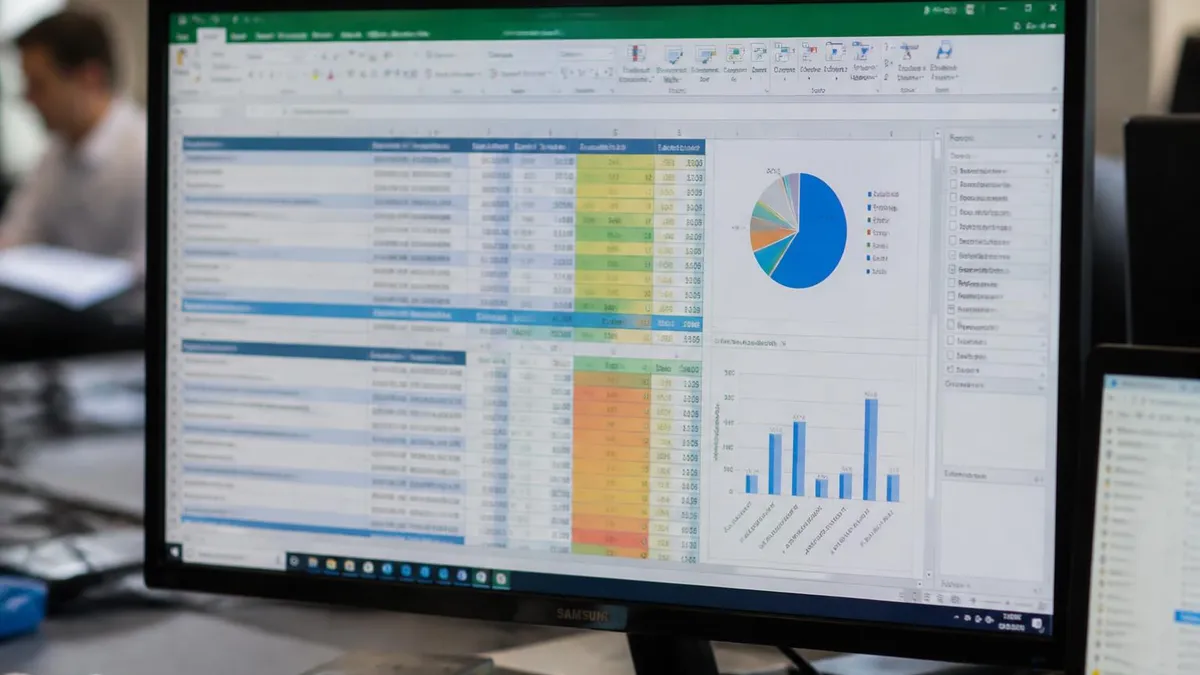
Before distributing your onboarding checklist to managers across your organization, use Excel's Protect Sheet feature to lock all formula cells while leaving data-entry cells editable. Go to Review > Protect Sheet, uncheck the option that allows selecting locked cells, and set a password. Without this step, a well-meaning manager can accidentally delete a VLOOKUP or COUNTIF formula that the entire dashboard depends on — and tracing the breakage can take hours. A protected template with clear unlock instructions for administrators prevents this common and frustrating problem entirely.
Rolling out your Excel onboarding checklist template company-wide requires more than just emailing the file to every manager. Successful adoption depends on a combination of clear documentation, brief training sessions, a designated template owner who manages updates, and a distribution method that ensures everyone is always working from the current version. Getting this rollout right determines whether your carefully built template actually gets used or quietly gets ignored in favor of whatever informal system managers were using before.
Start by creating a one-page Quick Start Guide that documents the three to five actions managers need to take to prepare a checklist for a new hire. Keep it visual — include screenshots showing where to enter the employee ID, how to use the status dropdown, and how to find the progress summary.
Many managers who are comfortable with basic Excel features have never used data validation dropdowns or frozen panes, so what feels obvious to the person who built the template is not obvious to someone opening it for the first time. A well-designed guide eliminates support requests and increases consistent usage.
Centralized storage is non-negotiable for a template that multiple people will use. Save the master template in a shared OneDrive or SharePoint folder with a clear naming convention. Establish a rule that managers always download a fresh copy of the template for each new hire rather than copying from a previous hire's completed checklist — this prevents outdated task lists from propagating through the organization.
A SharePoint library with a version history is ideal, as it lets you push template updates and clearly communicate what changed in each new version without worrying that some managers are still using a six-month-old file.
Designate a template owner — typically someone in HR Operations or People & Culture — who is responsible for keeping the checklist current. Onboarding requirements change constantly: new compliance training gets added, software tools change, or entire onboarding phases get redesigned as the company grows. Without a designated owner, templates drift out of sync with reality and managers start adding ad-hoc tasks locally, defeating the entire purpose of standardization. The template owner should review the checklist quarterly, collect feedback from managers and new hires, and publish updates with clear changelogs.
Training new managers to use the template is most effective when it is embedded into your manager onboarding process rather than offered as a standalone training event. When a new manager joins the company or when an existing employee is promoted into a people-management role, include a 20-minute Excel onboarding template walkthrough as part of their manager orientation.
Pair this with a hands-on exercise where they set up a checklist for a hypothetical new hire, stepping through every feature — the employee ID lookup, the status dropdowns, the milestone dates — so they leave the session genuinely confident in the tool.
Measuring template adoption and effectiveness closes the feedback loop and helps you justify continued investment in the system. Track metrics like average time-to-completion for onboarding checklists, percentage of tasks completed on time, and new hire satisfaction scores at the 30 and 90-day marks. You can build a simple reporting dashboard in Excel by having each completed checklist feed into a master tracking workbook. Over time, this data will reveal which onboarding phases consistently run late, which tasks are frequently skipped, and which departments need additional support — intelligence that is genuinely valuable for improving the new hire experience organization-wide.
Integration with your broader HR technology ecosystem is the logical next step after your Excel template is running smoothly. Many HRIS platforms like BambooHR, Workday, and ADP allow CSV imports and exports that can interface with your Excel data, creating a bridge between your lightweight checklist and your more powerful people management systems.
For organizations with strong technical resources, Power Automate can send automatic email reminders when Excel cells in SharePoint are updated, or trigger Slack notifications when a new hire's onboarding checklist is created. These integrations extend Excel's native capabilities without requiring you to abandon the template you have built and refined.
Practical tips for getting the most out of your Excel onboarding checklist template begin with keeping the initial design simple and adding complexity only when you have proven the basic version is being used consistently. The biggest mistake organizations make is building an elaborate, formula-heavy template that intimidates the very managers who are supposed to fill it out.
Start with a clean task list, a status dropdown, and a due date column. Add VLOOKUP automation in version two, conditional formatting in version three, and a progress dashboard in version four — iterating based on actual user feedback rather than imagined requirements.
Color coding your onboarding phases is one of the fastest ways to make the template more intuitive for first-time users. Assign a distinct background color to each phase header row — blue for Pre-Arrival, green for Day One, orange for Week One, purple for 30-Day Milestones — and apply a lighter tint of the same color to all task rows within that phase.
This color architecture gives the checklist a visual hierarchy that communicates structure instantly, even to someone who has never seen the document before. Excel's cell fill color tool on the Home ribbon makes this simple to implement and easy to update as phases are added or reorganized.
Building a task library on a separate sheet gives you a reusable pool of standardized tasks that you can copy into role-specific checklists without rebuilding from scratch each time. Organize the library by department and employment type — full-time, part-time, contractor — and tag each task with the phase it belongs to.
When setting up a new hire's checklist, filter the task library by their department and copy the relevant rows. This approach ensures consistency across all checklists while still allowing the customization that different roles require. Over time, your task library becomes a living document of your organization's onboarding best practices.
Using Excel's built-in table slicers to filter your onboarding checklist is a technique borrowed from business intelligence that works equally well on HR tracking workbooks. Slicers are visual filter buttons that appear alongside your data table, letting managers click to show only tasks assigned to them, only tasks in a specific phase, or only incomplete tasks.
To add a slicer, click anywhere in your Excel table, go to the Table Design tab, and click Insert Slicer. Select the columns you want to filter by — Assigned To and Status are the most useful — and Excel creates clean, clickable filter buttons that any manager can use without knowing anything about Excel's built-in filter dropdowns.
Keyboard shortcuts dramatically speed up the daily use of your onboarding template, especially for managers who are updating status fields for multiple new hires simultaneously. Alt+Down Arrow opens a dropdown list without needing the mouse. Ctrl+D fills the selected cell with the content of the cell above it, useful for copying due dates or assignee names down a column.
Ctrl+Shift+L toggles table filters on and off. F4 repeats the last action, which is handy when applying the same formatting to multiple section headers. Sharing a laminated shortcut reference card with your template increases adoption speed and reduces the time managers spend clicking through menus.
Error prevention is far more valuable than error correction in a shared onboarding template. Beyond dropdown validation on Status cells, consider adding input validation with helpful error messages to your Due Date column — set it to reject any date before the employee's start date using a custom validation formula. Add a comment to your employee ID cell explaining the format required for VLOOKUP to work correctly.
Use Excel's IFERROR function to wrap your VLOOKUP formulas so that cells display "Not Found" instead of the confusing #N/A error when an employee ID does not yet exist in the roster. Each of these small preventive measures reduces support requests and keeps your template functioning correctly even when used by people with minimal Excel experience.
Documenting your template architecture in a hidden sheet within the workbook itself is a best practice that future HR staff will genuinely appreciate. Create a sheet named Template Notes and use it to document the purpose of each sheet, explain how the VLOOKUP formulas work and which sheet they reference, list the named ranges you created and what they cover, and describe any conditional formatting rules that are not self-evident.
Right-click this sheet tab and choose Hide to keep it out of the way during normal use, but make sure your template documentation mentions its existence. When you hand off ownership of the template or when someone needs to modify a formula six months from now, this documentation sheet transforms a troubleshooting task from hours to minutes.
Sample Excel Practice Questions
Try these questions from our free Excel practice tests. The correct answer and an explanation follow each question.
Which of the following functions would you use to look up an employee's salary from a table, where employee IDs are in the first column and their corresponding salaries are in the third column?
- A. HLOOKUP
- B. INDEX
- C. MATCH
- D. VLOOKUP
Answer: D. VLOOKUP
VLOOKUP stands for 'Vertical Lookup' and is used to search for a value in the first column of a table array and return a value in the same row from a specified column. This perfectly matches the scenario of finding a salary based on an employee ID.
What does =INDEX(A1:C5, 3, 2) return?
- A. The value in row 2, column 3
- B. The value in row 3, column 2
- C. The third row of the range
- D. An error because INDEX needs MATCH
Answer: B. The value in row 3, column 2
INDEX returns the value at the intersection of the specified row and column within the range; row 3, column 2 here.
What do the gray buttons displayed on a PivotChart allow you to do?
- A. Change the chart's color theme
- B. Filter, sort, and expand fields directly on the chart
- C. Print the chart
- D. Convert the chart to an image
Answer: B. Filter, sort, and expand fields directly on the chart
Field buttons provide interactive filtering and sorting without touching the PivotTable.
What is the meaning of ######?
- A. The cell is not wide enough.
- B. The cell has the wrong data.
- C. You've entered a number wrong.
- D. You've misspelled something.
Answer: A. The cell is not wide enough.
The meaning of "######" in Microsoft Excel is a display that indicates the cell contents are too wide to fit within the column width. When you see "######" in a cell, it means the content is not fully visible due to insufficient column width.
Excel Questions and Answers

Excel to PDF: 5 Ways to Convert Your Spreadsheet

Excel COUNTA Function — Complete Guide (2026)

How to Create Hyperlinks in Excel: The Complete 2026 Guide to Linking Cells, Sheets, Files, and URLs

How to Use SUMIFS in Excel: The Complete Guide to Multi-Criteria Summing

Excel Data Validation: How to Restrict Input, Create Drop-Downs, and Prevent Errors
About the Author

Business Consultant & Professional Certification Advisor
Wharton School, University of PennsylvaniaKatherine Lee earned her MBA from the Wharton School at the University of Pennsylvania and holds CPA, PHR, and PMP certifications. With a background spanning corporate finance, human resources, and project management, she has coached professionals preparing for CPA, CMA, PHR/SPHR, PMP, and financial services licensing exams.